How to fix
USB Serial CH340 chipset not working after a Windows update
on Windows
Resolve USB Serial CH340 issues after a Windows 10 or 11 update quickly and effectively. Expert-tested solutions with screenshots for your ease!

What causes How to fix USB Serial CH340 chipset not working after a Windows update?
- Compatibility changes introduced in the updates
- Modification of drivers by the updates
- Altered communication between Windows and the CH340 chipset
- Driver conflicts
- Outdated firmware
Repairs Windows system files, removes malware, and restores a clean OS state — without reinstalling.
Hey, I updated my Windows (Windows version 22h2) with KB5046613 and KB5046542 recently, and now my device with a USB Serial CH340 chipset won’t work. It used to work perfectly before. Does anyone know why this might be happening or how to fix it?
Updates in Windows are necessary for security, performance improvement, and addition of features, but sometimes these update processes can cause unexpected, annoying problems. Most bugs are minor, but updates sometimes introduce more significant difficulties, including hardware compatibility errors. This is frustrating, when the important peripherals stop working as expected after installing an update.
Recent reports suggest that installing specific updates, such as KB5046613 and KB5046542, has caused the USB Serial CH340 adapter to stop working. This adapter is commonly used for various devices, including Arduino boards, and its failure can interrupt tasks that rely on it.
When this issue occurs, your device might not recognize the CH340 component, or attempts to connect it may result in error messages. This can disrupt workflows, particularly for those who depend on serial communication for their projects or hardware interfaces.
The cause of this problem may be linked to compatibility changes introduced in the updates. Updates sometimes modify drivers or adjust the way the system interacts with hardware, potentially rendering certain components unsupported until updated drivers are released.
In the case of the CH340 adapter, the updates might have altered its functionality by changing how Windows communicates with older or less common chipsets. Additionally, driver conflicts or outdated firmware might contribute to the problem, as updates can expose underlying compatibility issues.
To address this, steps can be taken to ensure the CH340 adapter works again. This may involve checking for driver updates, uninstalling the affected updates, rolling to the previous driver version, using System Restore or performing system adjustments.
Detailed instructions on how to resolve the issue are provided below the article to help you. For an automated solution, consider using [d1] PC repair tool, which can detect and fix underlying Windows issues seamlessly.
Fix 1. Update the driver
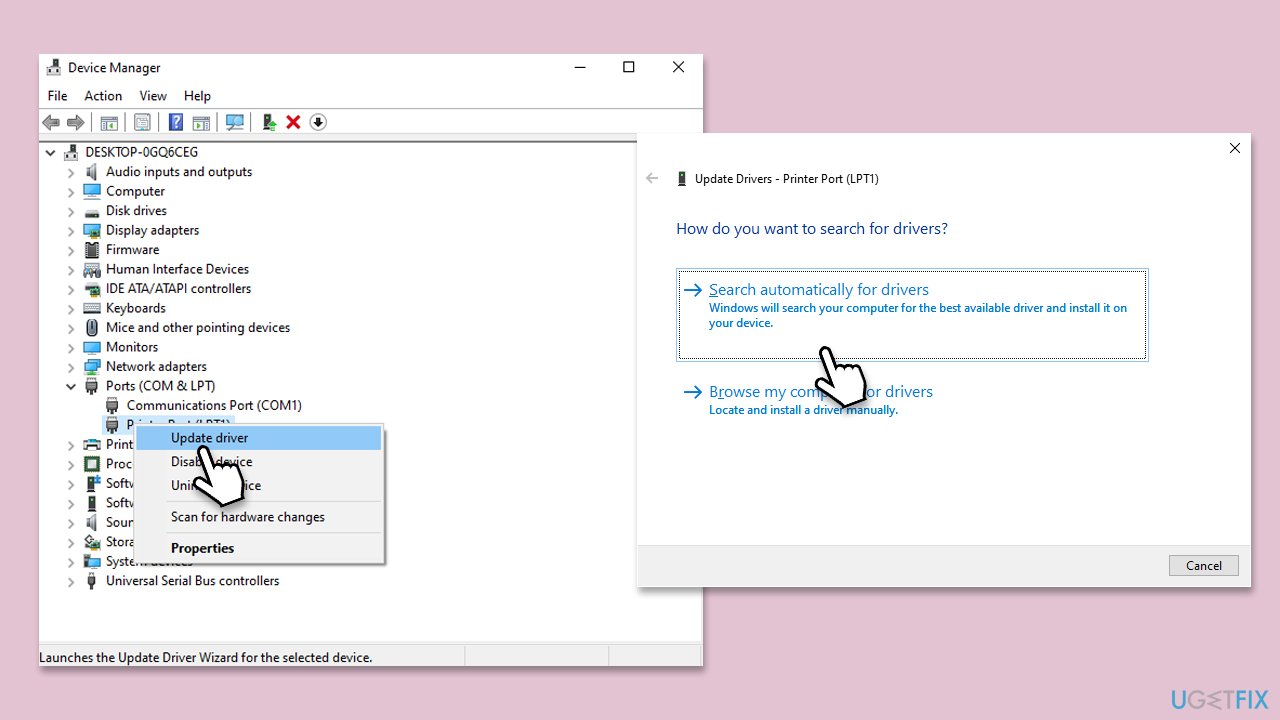
Driver compatibility issues can often cause the CH340 adapter to stop functioning, and updating through Device Manager ensures the latest compatible version is installed.
- Connect the USB Serial Adapter to your computer.
- Right-click on Start and select Device Manager.
- Locate and expand the Ports (COM & LPT) section.
- Right-click the CH340 device and select Update driver.
- When prompted, select Search automatically for drivers.
- Wait for the software to be installed and restart your computer.
Fix 2. Uninstall the driver
If updating the driver to the latest version does not work, you can instead uninstall the driver and use previous version.
- Open Device Manager.
- Right-click the CH340 device and select Properties.
- Go to the Driver tab and select Roll Back driver, then proceed with the on-screen instructions to uninstall it.
- Restart your computer.
- If the Roll Back driver option is not available, you can instead try uninstalling Windows update(s) that caused the issue, or using System Restore. We provide instructions below.
Fix 3. Manually install 2019 WCH Driver
Another option is to completely uninstall the new driver and install the 2019 version manually.
- Open Device Manager.
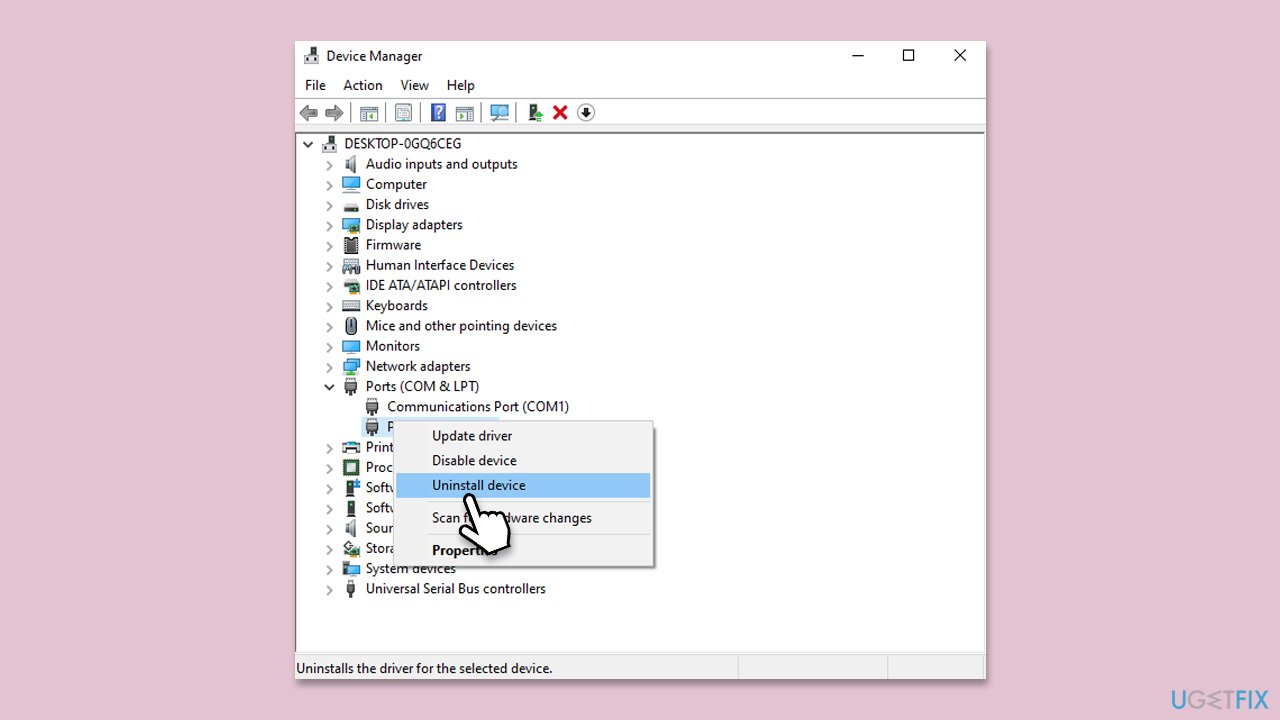
- Right-click the CH340 device and select Uninstall device.
- Pick Delete the driver software for this device when prompted.
- Restart your system.
- Open your browser and navigate to the wch.cn website.
- Find the appropriate driver and download it.
- Install it and reboot your system.
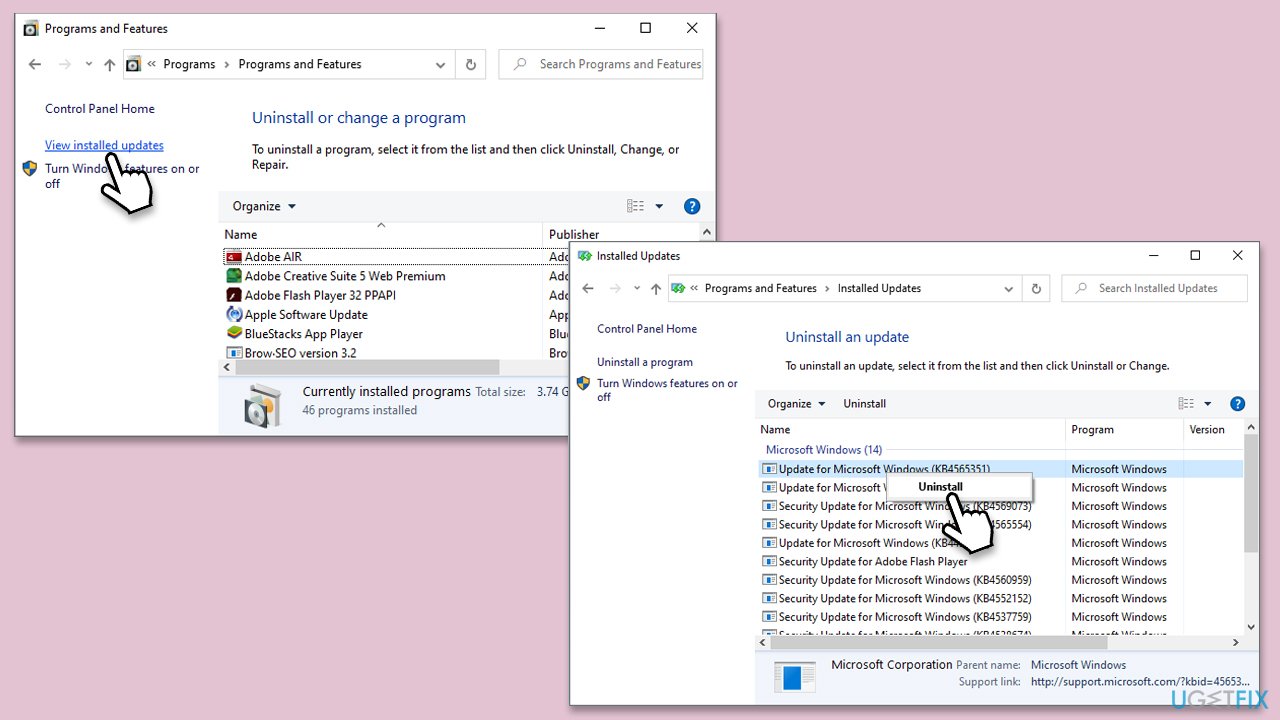
Fix 4. Uninstall the offending Windows update
As an alternative, you can uninstall KB5046613 and KB5046542 (or another update) and go back to the previous Windows version. To do so, follow these steps:
- Type Control Panel in Windows search and press Enter.
- Select Programs > Uninstall a program.
- Click on View installed updates on the left side of the window.
- Sort all the updates by date.
- Right-click on the most recent update and select Uninstall.
- Proceed with on-screen instructions.
- Then, type Updates in Windows search and press Enter.
- Click Pause the updates for 7 days (in Windows 11, you can pick a different time period).
Fix 5. Employ System Restore
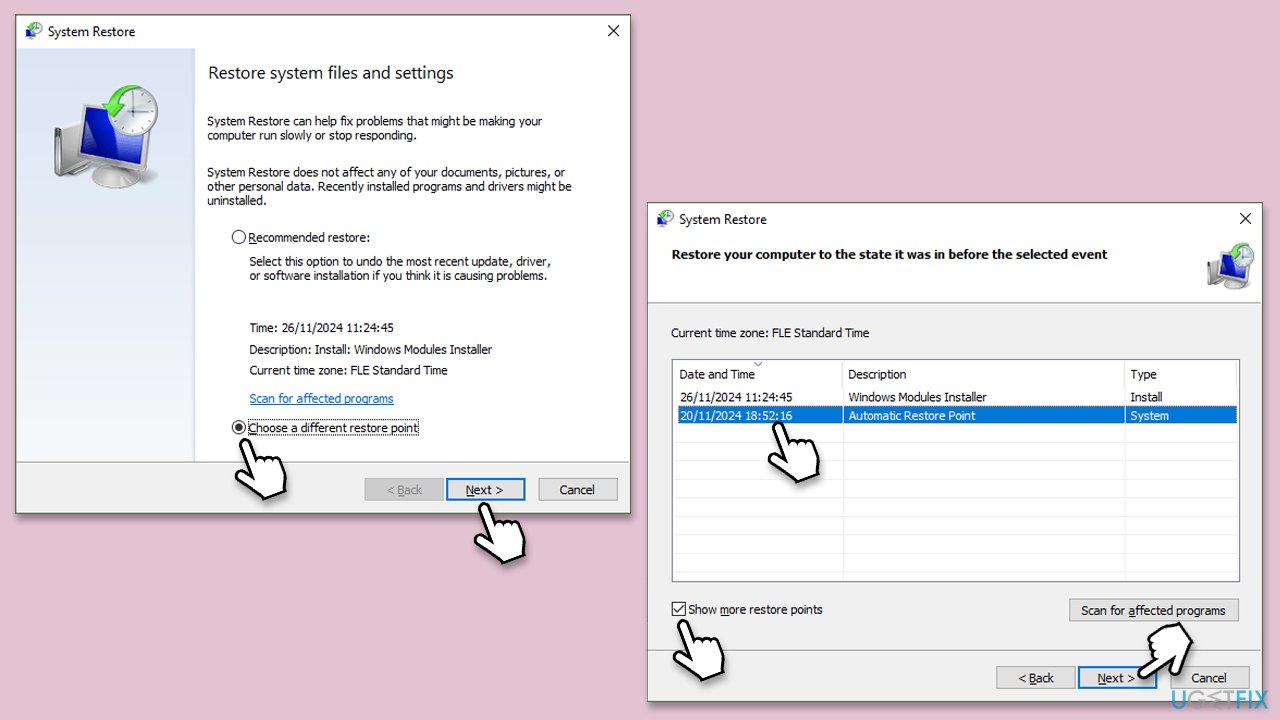
System Restore can bring your system into the time when everything worked well. To run it, please follow these steps:
- Type in Create a restore point in Windows search and hit Enter.
- In the System Protection tab, pick System restore.
- Click Next.
- Click Show more restore points (if available).
- Pick the time before the problem occurred and click Next.
- Your computer will restart as required.
Bottom line
To resolve the issue with the USB Serial CH340 chipset, you can check for driver updates, uninstall the recent updates, roll back to a previous driver version, or use System Restore. If these steps do not work, consider using a PC repair tool to detect and fix underlying Windows issues.
Frequently asked questions
Try uninstalling the USB driver from Device Manager and then reinstalling it. You can download the latest driver from the manufacturer's website to ensure compatibility with Windows 10.
Open Device Manager and look for the 'Ports (COM & LPT)' section; if the CH340 is listed, it is recognized. If not, you may need to reinstall the drivers or troubleshoot the USB connection.
Yes, rolling back to a previous Windows version can resolve compatibility issues caused by the update. However, be sure to check for updated drivers that may work with the latest Windows 11 version.




Report an issue
What's wrong with this guide? We review every report and update or remove content.
Report received — thank you. We'll review and fix it.
You need a free account to submit a report.
Be the first to comment