How to fix
USB WiFi not working (Access violation 100417CF error)
on Windows
Resolve the USB WiFi access violation 100417CF error on Windows 10 and 11 quickly and efficiently. Expert-tested solutions with screenshots!

What causes How to fix USB WiFi not working (Access violation 100417CF error) in Windows?
- Problem with the device driver
- Conflict with other software on the system
- Conflict with other hardware on the system
- Hardware issue with the device
- Driver not installed correctly
Repairs Windows system files, removes malware, and restores a clean OS state — without reinstalling.
Hello. I tried to connect USB WiFi to my Windows laptop but I received the Access violation 100417CF error. What should I do to fix this?
USB WiFi is a type of wireless networking technology that allows a device to connect to a wireless network using a USB port. It is commonly used to add wireless connectivity to devices that do not have built-in WiFi, such as desktop computers, laptops, or older devices that do not have WiFi support.
To use a USB WiFi device, you will need to install the device driver[ref en-1] on your computer, which allows the device to communicate with the operating system. Once the driver is installed, you can use the device to connect to a wireless network by selecting it from the list of available networks and entering the required authentication information.
If you are experiencing an "Access violation" error with a USB WiFi device on your Windows system, it is likely that there is a problem with the device driver or the device itself. The specific error code "100417CF" does not match any known Windows error codes and may be specific to a particular device or system.
There are several possible causes for this error, including a problem with the device driver, a conflict with other software or hardware on the system, or a hardware issue with the device itself. In this guide, you will find 7 steps that should help you fix USB WiFi not working (Access violation 100417CF error) in Windows.
Keep in mind that the manual troubleshooting process may be lengthy. You can use a maintenance tool like [d1] that can fix most system errors, BSODs,[ref en-2] corrupted files, and registry[ref en-3] issues. Otherwise, follow the step-by-step instructions below.
Method 1. Run the Network Adapter Troubleshooter
- Open the Start menu and go to Settings
- Click System and press Troubleshoot on the right
- Click Other troubleshooters and find the Network Adapter option
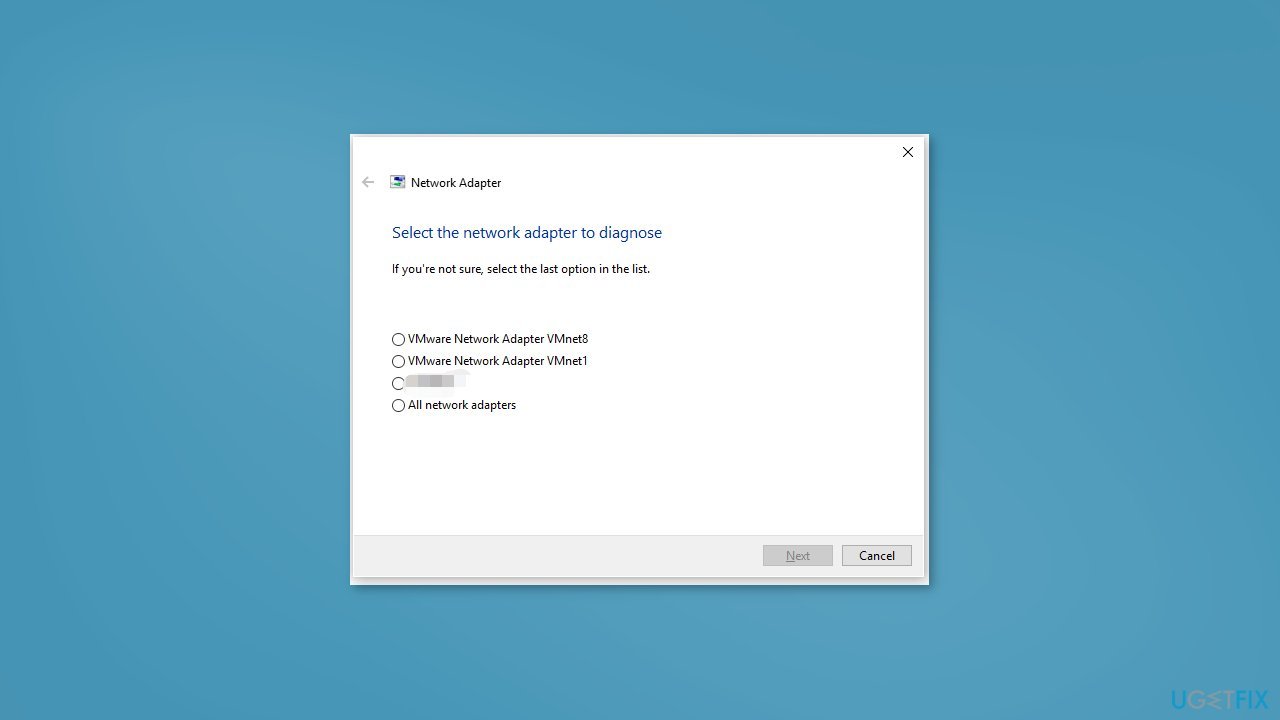
- Click on the Run button next to it
Method 2. Check Disk
- Press the Windows key + R to launch the Run dialog
- Type cmd, and press the Ctrl + Shift + Enter keys together to open the elevated Command Prompt
- Run the below command and hit Enter:
chkdsk C: /f /r
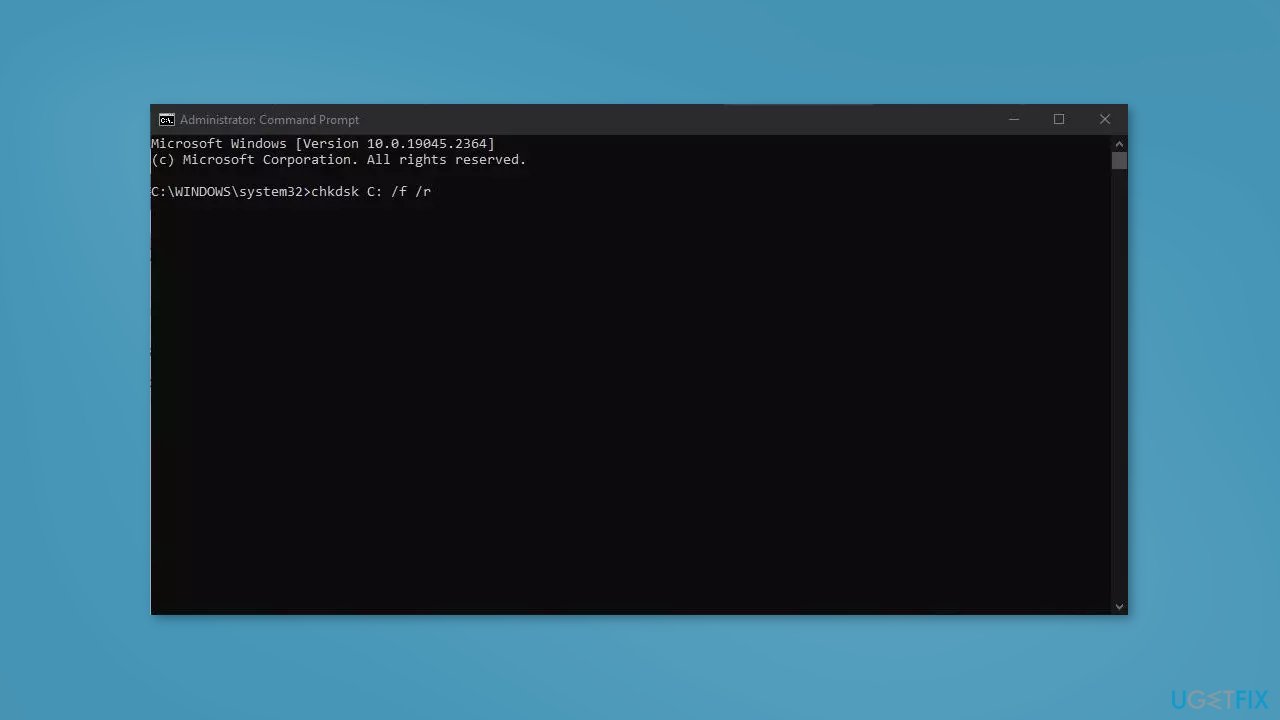
- Wait for the process to finish
Method 3. Restart the WLAN Autoconfig Service
- Press the Windows key + R to open the Run dialog box
- Type services.msc and hit Enter
- Scroll down and search for WLAN AutoConfig service
- Right-click on the service and select Restart
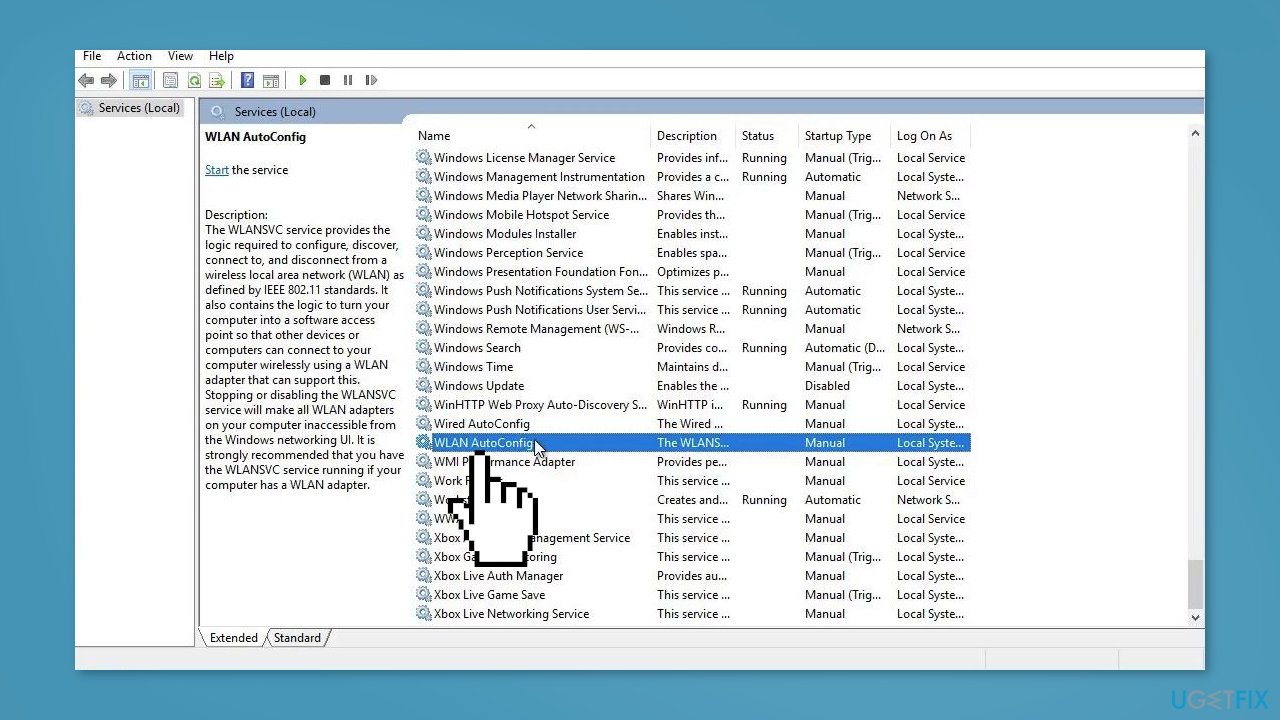
- Once done, restart your PC and check if the issue is fixed
Method 4. Update the Network Drivers
Outdated drivers could be the cause of this issue. In this case, you can fix it automatically by using [rev id="DriverFix"], which will scan your PC for missing and out-of-date device drivers. Or you can update them manually:
- Open Settings
- Click on Update & Security
- Click on Windows Update
- Click the Check for updates button
- Click the View optional updates option
- Click the Driver updates tab
- Select the driver you want to update
- Click the Download and install button
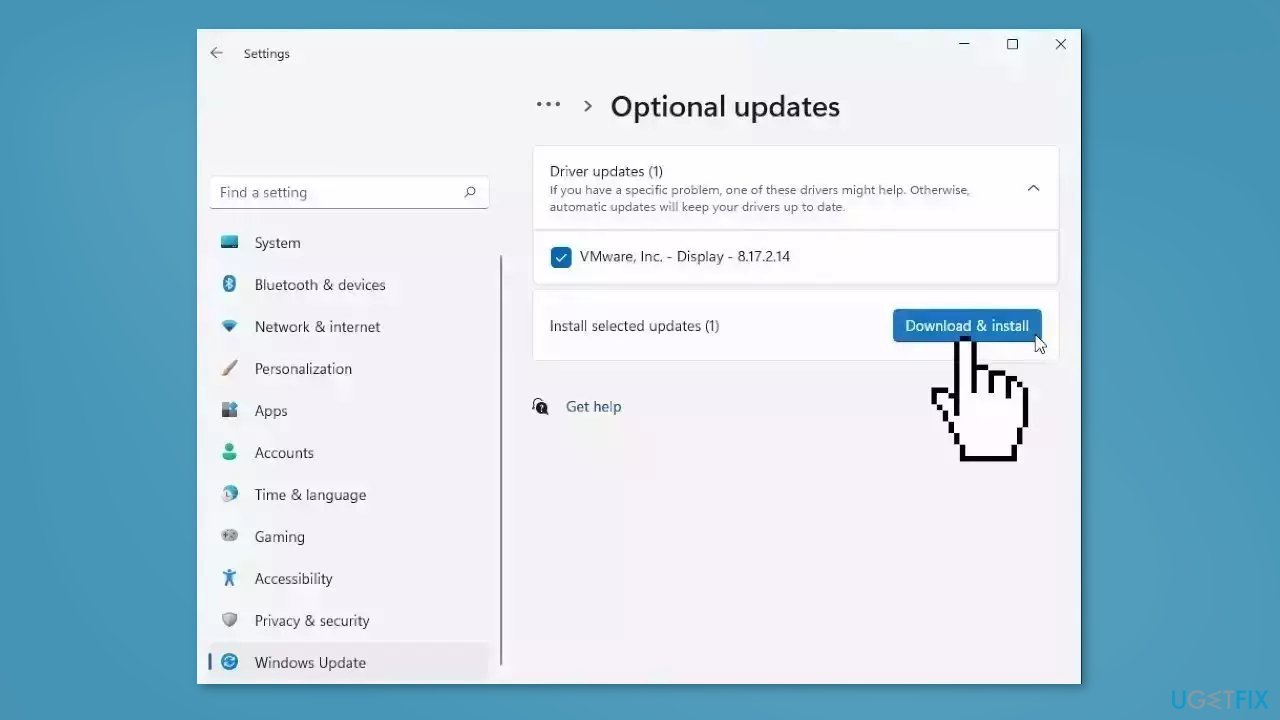
If the View optional updates link is not available after checking for updates, then Windows Update does not have any new drivers or any updates for other products at that particular time.
Method 5. Modify Power Saving Options
- Open the Start menu and search for Device Manager
- Expand the option Universal Serial Bus Controllers
- Right-click on your USB WiFi Adapter and select Properties
- Navigate to the Power Management tab
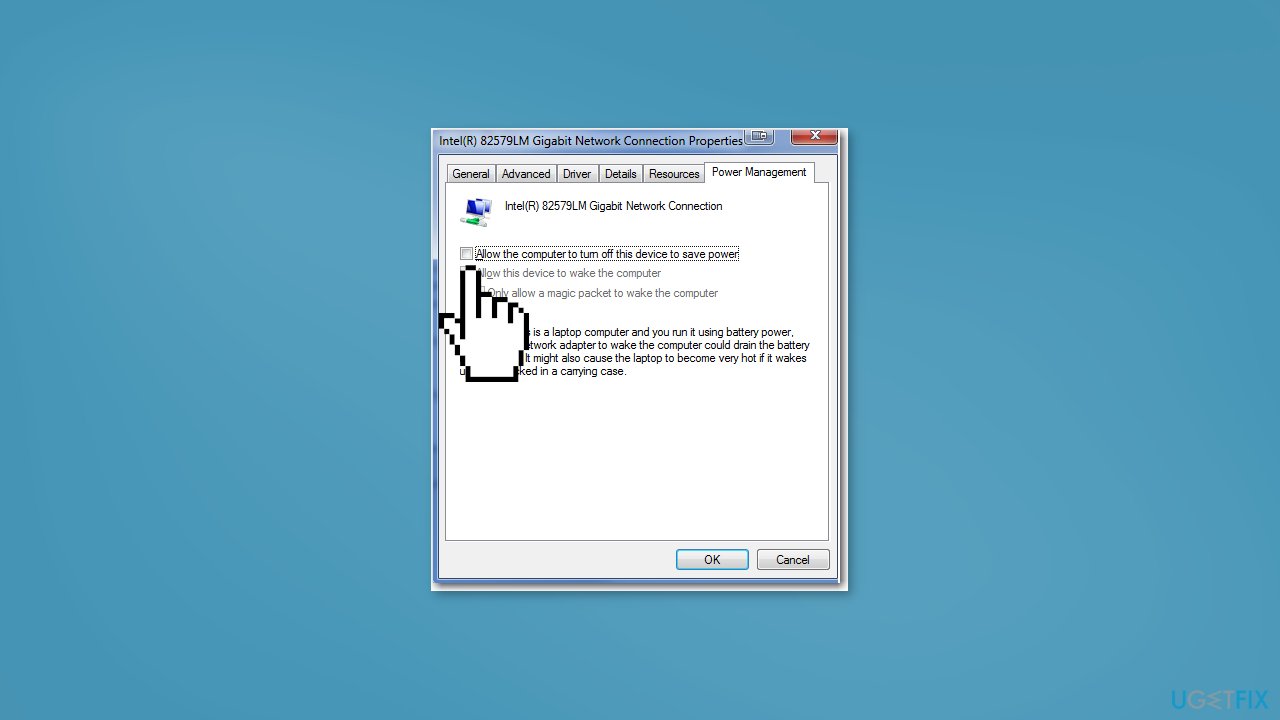
- Uncheck the option Allow the computer to turn off this device to save power
- Click on Ok to save the changes
Method 6. Run Command Prompt Commands
- Press the Windows key, search for Command Prompt, and select Run as Administrator
- Type the following commands one by one and hit Enter:
netsh winsock reset
netsh int IP reset
ipconfig /release
ipconfig /renew
ipconfig /flushdns
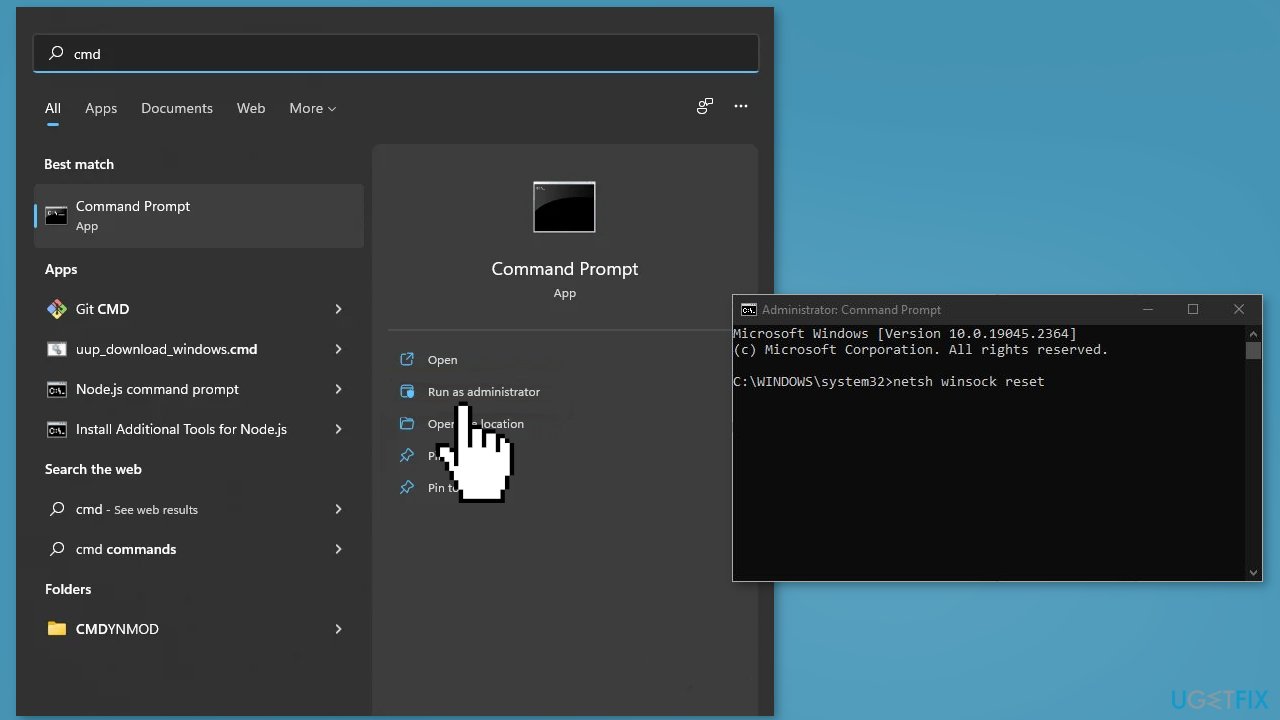
- Restart your device
Method 7. Reset Network Settings
- Press the Windows key + I and click on Network & Internet
- Go to the right pane and click on Advanced network settings
- On the next Settings page, go to the right pane and scroll down to the bottom
- Click on Network reset and then Reset now
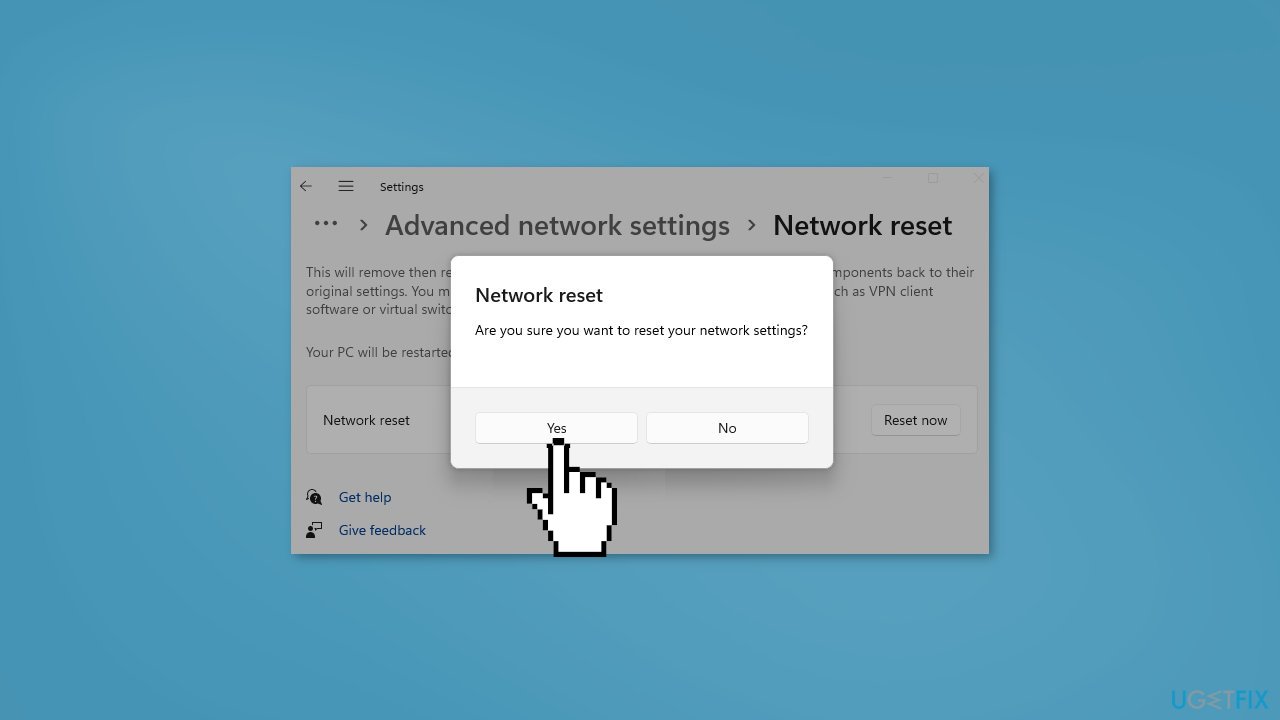
- Wait for the PC to restart and check if the issue is solved
Bottom line
To fix the USB WiFi not working error, you can run the Network Adapter Troubleshooter, check for driver updates, and ensure the device is properly connected. If these steps do not resolve the issue, consider using a maintenance tool to address potential system errors.
Frequently asked questions
The Access violation 100417CF error typically indicates a conflict or malfunction within the USB WiFi driver or related software. It can prevent your device from connecting to WiFi networks properly.
You can update the USB WiFi driver by going to Device Manager, locating your WiFi adapter under 'Network adapters', right-clicking it, and choosing 'Update driver'. This process can resolve compatibility issues in Windows 10 or Windows 11.
If reinstalling the driver doesn't resolve the issue, consider running the Windows Network Troubleshooter, which can help identify and fix network-related problems in Windows 10 or Windows 11.




Report an issue
What's wrong with this guide? We review every report and update or remove content.
Report received — thank you. We'll review and fix it.
You need a free account to submit a report.
Be the first to comment