How to fix
Usb80236.sys Blue Screen Error
on Windows
Resolve the usb80236.sys Blue Screen Error on Windows 10 and 11 effortlessly. Follow our expert-tested solutions for a quick fix and smooth performance.

What causes How to fix usb80236.sys Blue Screen Error in Windows?
- Corrupted system files
- Outdated USB driver
- Conflicting software
- Hardware issues
Repairs Windows system files, removes malware, and restores a clean OS state — without reinstalling.
Hello. A couple of days ago I randomly got a usb80236.sys Blue Screen Error in Windows. What could the issue be?
Windows is an operating system developed by Microsoft. Many different people enjoy it - gamers, graphic designers, office workers, and so on. It has a user-friendly interface and a lot of customization abilities. However, sometimes users can be startled by a blue screen that appears seemingly out of nowhere.
A blue screen of death (BSoD), otherwise known as a stop error or a blue screen error, is an error that the Windows operating system displays in the event of a fatal system error. It indicates a system crash,[ref en-1] in which the operating system has reached a critical condition.
There are thousands of BSoDs that can occur. Some of them can be fixed quite easily, and others can even require new hardware. Recently, users encountered a usb80236.sys Blue Screen Error in Windows. As the name of the error suggests, it is related to the USB driver.[ref en-2]
It can be fixed by repairing corrupted system files or reinstalling the USB driver. In this guide, you will find 3 steps that will show you how to get rid of usb80236.sys Blue Screen Error. However, troubleshooting can be a lengthy process so you can also try using a repair tool like [d1]. It can fix most system errors, BSODs, corrupted files, and registry[ref en-3] issues. Otherwise, follow the step-by-step instructions below.
Solution 1. Fix Corrupted System Files
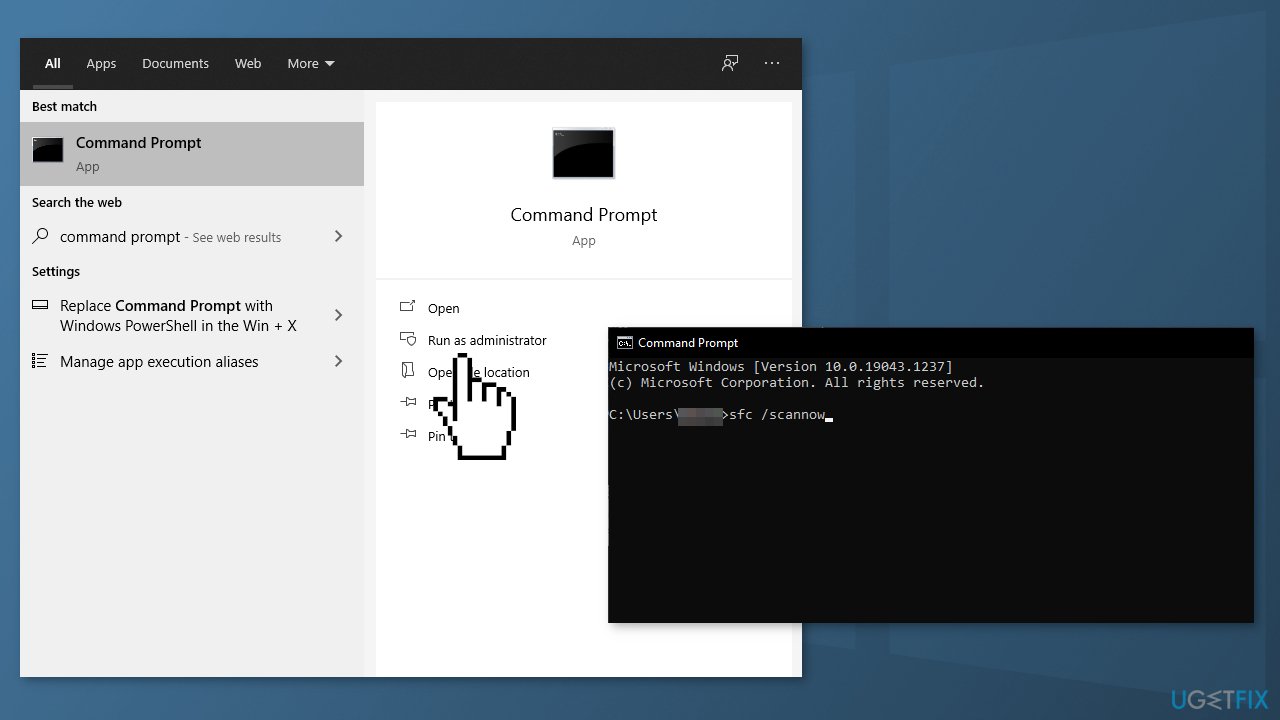
Use Command Prompt commands to repair system file corruption:
- Open Command Prompt as administrator
- Use the following command and press Enter:
sfc /scannow
- Reboot your system
- If SFC returned an error, then use the following command lines, pressing Enter after each:
DISM /Online /Cleanup-Image /CheckHealth
DISM /Online /Cleanup-Image /ScanHealth
DISM /Online /Cleanup-Image /RestoreHealth
Solution 2. Reinstall the USB Driver
- Press Windows key + R to open the Run box
- Type devmgmt.msc and hit Enter
- Expand Universal Serial Bus controllers
- Right-click on the USB Root Hub and click on Uninstall
- Now check the box Delete the driver software for this device
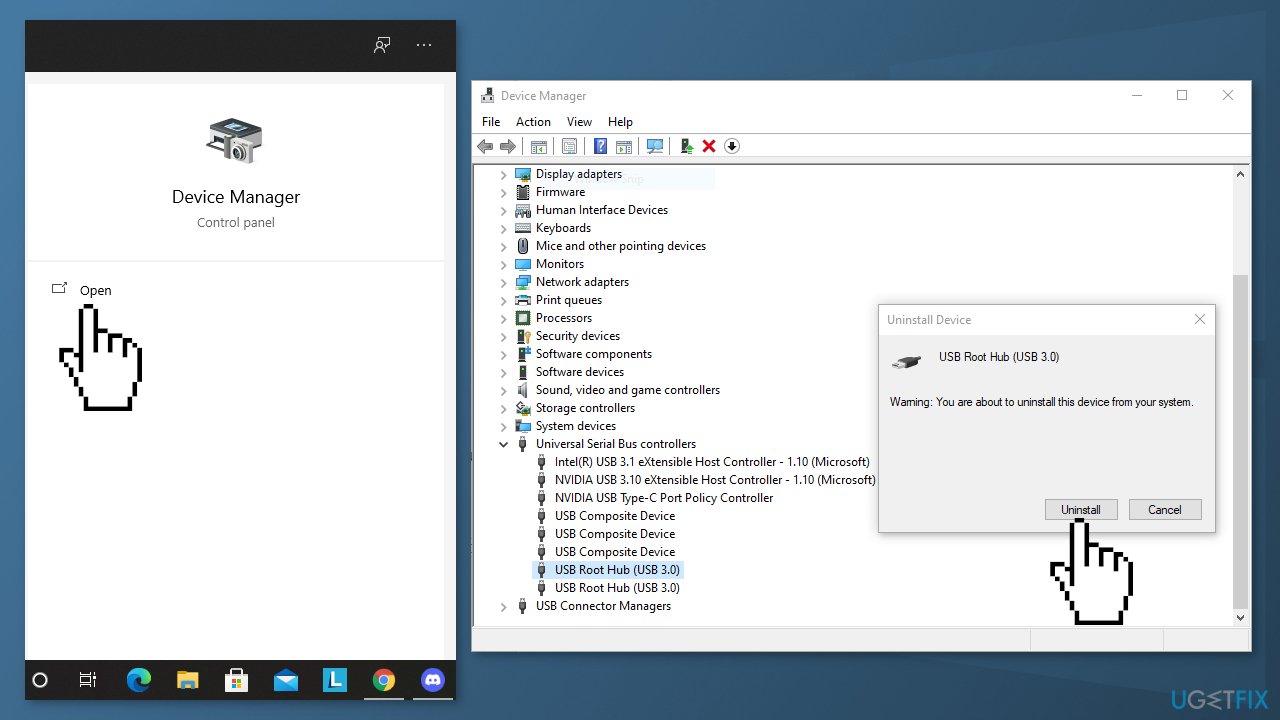
- Click on Uninstall
- Restart the PC
- If that did not help, you can try using a dedicated utility like [rev id="DriverFix"] that can find the best drivers for your device automatically
Solution 3. Use System Restore
- Open the Start menu
- Search for Create a restore point, and click the top result to open the System Properties page
- Click the System Restore button
- Click the Next button
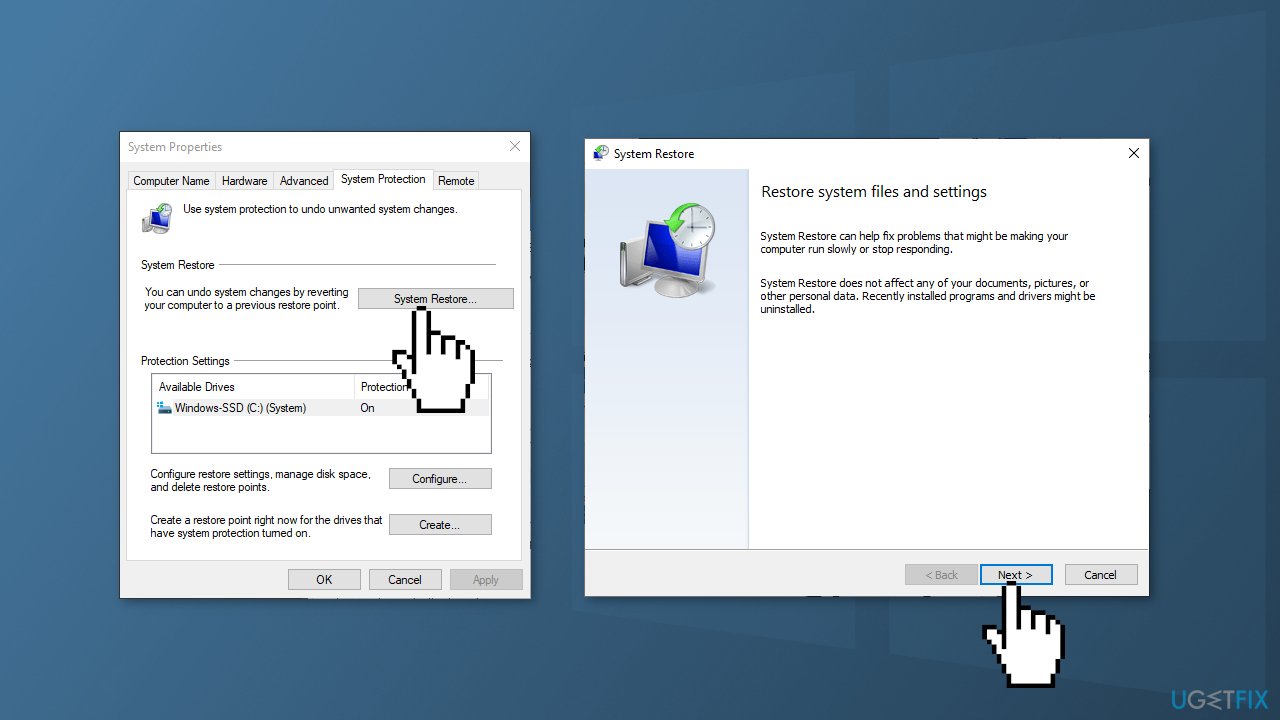
- Select the restore point before the BSOD occurred
- Click the Scan for affected programs button to confirm the apps that will be removed because they were added after creating the restore point
- Press Close, Next and Finish
Bottom line
To fix the usb80236.sys Blue Screen Error, you can repair corrupted system files using Command Prompt or reinstall the USB driver. If these solutions do not resolve the issue, consider using a repair tool or further troubleshooting.
Frequently asked questions
The usb80236.sys Blue Screen Error is related to the USB driver, often indicating a conflict or corruption in the driver files on Windows 10 or Windows 11.
To troubleshoot the usb80236.sys error on Windows 11, you can try updating the USB drivers through Device Manager or perform a system restore to revert to a previous state.
Disabling the USB driver may temporarily resolve the usb80236.sys error in Windows 10, but it can also lead to loss of USB functionality, so it's advisable to update or reinstall the driver instead.




Report an issue
What's wrong with this guide? We review every report and update or remove content.
Report received — thank you. We'll review and fix it.
You need a free account to submit a report.
Be the first to comment