
How to fix User Account Control (UAC) "Yes" button missing in Windows?

Prefer to fix it yourself? The manual steps follow.
- 7methods
- 5 minutes with another administrator, 20 to 40 minutes without one
- Intermediate
Applies to The User Account Control prompt on Windows 11 and Windows 10, Home and Pro, local and Microsoft accounts
7 methods in this guide
Hi. So recently, I messed up my privileges on Windows. Long story short, I managed to lose my admin permissions, and now the "Yes" button on the User Account Control window is missing. I also can't do many other things. Please help.
When the User Account Control prompt shows only No, your account is not an administrator and Windows found no administrator who can approve the change. It is not a broken button. Check which accounts are administrators first, then let an administrator make your account one again.
The Yes button appears only for administrators. Open Command Prompt and run net localgroup administrators (Fix 1). If another account is listed, sign in with it or type its password into the prompt, and make your own account an administrator (Fixes 2 and 3). If no usable administrator is left and you own the PC, use Fix 5 or Fix 6. On a work or school PC, ask IT.
| Error | The User Account Control prompt asks "Do you want to allow this app to make changes to your device?" and shows only No, with "To continue, enter an admin user name and password." |
|---|---|
| Where it appears | Every time you start something that needs administrator rights: an installer, Command Prompt as administrator, Registry Editor, a setting with a shield icon. |
| Main cause | Your account is a standard user, and no other administrator account is active that could sign the request. Microsoft: a standard user gets the credential prompt, which needs administrator credentials. |
| Fastest fix | Sign in with another administrator account and change your account type to Administrator (Fixes 2 and 3). |
| Also written as | UAC yes button missing, user account control not showing yes option, user account control does not have yes option, no yes button, UAC only shows No, yes button greyed out. |
| Affects | Windows 11 25H2 and 26H2 and Windows 10 22H2, Home and Pro. Windows 10 left support on 14 October 2025. |
| Microsoft's status | Not a bug. It is how UAC works: administrators get the consent prompt with Yes, standard users get the credential prompt. |
| Time to fix | 5 minutes when another administrator exists. 20 to 40 minutes through Safe Mode or Reset this PC. |
Facts checked on 15 October 2026. Steps written for Windows 11 (25H2 and 26H2) and Windows 10 22H2.
What it means when User Account Control shows No but no Yes
User Account Control (UAC) has two kinds of prompts. Microsoft calls them the consent prompt and the credential prompt. The consent prompt goes to administrators and has Yes and No. The credential prompt goes to standard users and asks for an administrator's user name and password instead of a Yes.
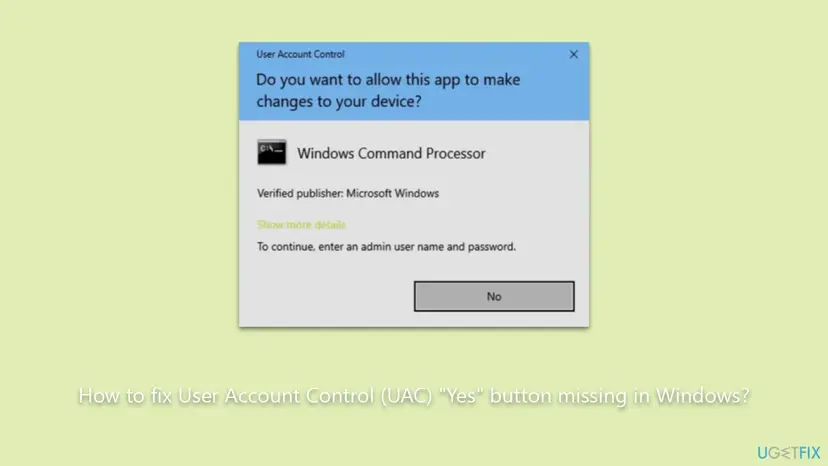
The picture above is what this page is about. The prompt reads "Do you want to allow this app to make changes to your device?" and then "To continue, enter an admin user name and password." Normally the credential prompt lists an administrator account with a password box under it. When there is no active administrator to list, the box is missing too, and only No remains.
| What the prompt shows | What it means |
|---|---|
| Yes and No | Your account is an administrator. Everything is normal. |
| An administrator's name with a password or PIN box | You are a standard user. Type that administrator's password, then use Fix 3. |
| Your own name with a password box | You are an administrator, but a policy asks admins for a password. Fix 4. |
| Only No, no name and no box | You are a standard user and Windows has no active administrator to offer. Fixes 1, 5 and 6. |
Why the UAC Yes button is missing, from most to least common
- Most often: your only administrator account was turned into a standard user. This is the case in the Microsoft Q&A thread: a user made a second account an administrator, then took the role away from the first one. Removing the last administrator role leaves nobody who can approve. Fixes 1 to 3.
- Often: another administrator exists, but you do not have its password, or it is disabled. A family member's account or an old setup account may be the only administrator. Fix 2.
- Sometimes: you are an administrator, but a policy asks for credentials. The setting User Account Control: Behavior of the elevation prompt for administrators in Admin Approval Mode set to Prompt for credentials shows a password box instead of Yes. Fix 4.
- Rarely on home PCs: the device is managed by work or school. IT may keep every user a standard user on purpose. Fix 7.
- Unconfirmed: malware. Malware that changes group membership is possible, but we found no documented case. Run a scan once rights are back.
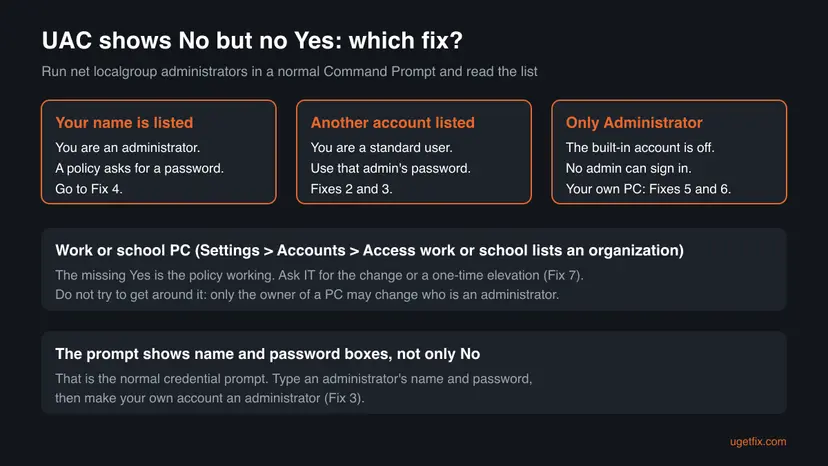
How to fix the missing Yes button in User Account Control
Fix 1 takes one minute and tells you which of the other fixes applies. Fixes 2 and 3 solve it for most readers who still have a second administrator account. Fix 4 is for administrators who get a password box. Fixes 5 and 6 are only for the owner of a PC with no administrator left. Fix 7 is for work and school PCs.
| What you see or have | Start with |
|---|---|
| You do not know which accounts are administrators | Fix 1 |
| Another administrator account exists and you know or can get its password | Fix 2, then Fix 3 |
| You signed in as an administrator and want your own account back as administrator | Fix 3 |
| UAC shows your own name with a password box | Fix 4 |
| Your own PC, no administrator left, Windows starts normally | Fix 5 |
| Your own PC, Fix 5 did not work | Fix 6 |
| A work or school PC, or Access work or school lists an organization | Fix 7 |
Fix 1. Check your account type and which accounts are administrators
1 minuteNo riskEveryone, first. It needs no administrator rights and takes one minute.
The Yes button depends only on whether your account is in the Administrators group. These two commands read that group without elevation, so you know at once whether you need another administrator, a policy change or a recovery route.
- Type
cmdin the Start search box and open Command Prompt the normal way. Do not choose Run as administrator. - Run
net user %username%and read Local Group Memberships. Only*Usersmeans you are a standard user.*Administratorsmeans you are an administrator. - Run
net localgroup administratorsand read the names under Members. - For every name other than Administrator, run
net userfollowed by that name and read the line Account active. It must say Yes. - Note the result and pick the fix from the chooser above.
Command Prompt, no elevation needed
net user %username%
net localgroup administrators
net user "Other Name"
A Microsoft account appears under its short local name, often the first five letters of the email address. Administrator in the list is the built-in account. It is disabled by default, so it cannot sign the prompt.
It worked if: You know whether you are a standard user and whether an active administrator account other than the built-in one exists.
If not: If another active administrator is listed, go to Fix 2. If you are in Administrators yourself, go to Fix 4. If only Administrator is listed, go to Fix 5 on your own PC or Fix 7 on a managed one.
Fix 2. Approve with another administrator account, or reset its password
5 minutesNo riskFix 1 lists an active administrator account that belongs to you or to someone in your household.
Microsoft explains that a standard user can do an administrative task by entering valid credentials for a local administrator account. The prompt fails only because nobody has signed that request yet.
- Open Start, select your account picture and choose Sign out.
- On the sign-in screen, select the administrator account in the lower left corner and sign in with its password or PIN.
- If you do not know its password and it is a Microsoft account, reset it at
account.live.com/password/resetfrom any device. - If it is a local account, type a wrong password once and select Reset password. This works only when security questions were set for it.
- Once signed in as the administrator, go straight to Fix 3.
If net user showed Account active No, that account cannot sign the prompt until it is enabled. A volunteer moderator on Microsoft Q&A also advises making sure the administrator account has a password. We could not confirm whether a blank password blocks the credential prompt on every build.
It worked if: You are signed in to an account whose Start menu tools open with Yes in the UAC prompt.
If not: If you cannot get into any administrator account and the PC is yours, go to Fix 5.
Fix 3. Make your own account an administrator again
3 minutesLow riskYou are signed in as an administrator (Fix 2), or the UAC prompt offers an administrator's name and password box.
The missing Yes button comes from your account being left out of the Administrators group. Putting it back changes the prompt from the credential prompt to the consent prompt at your next sign-in.
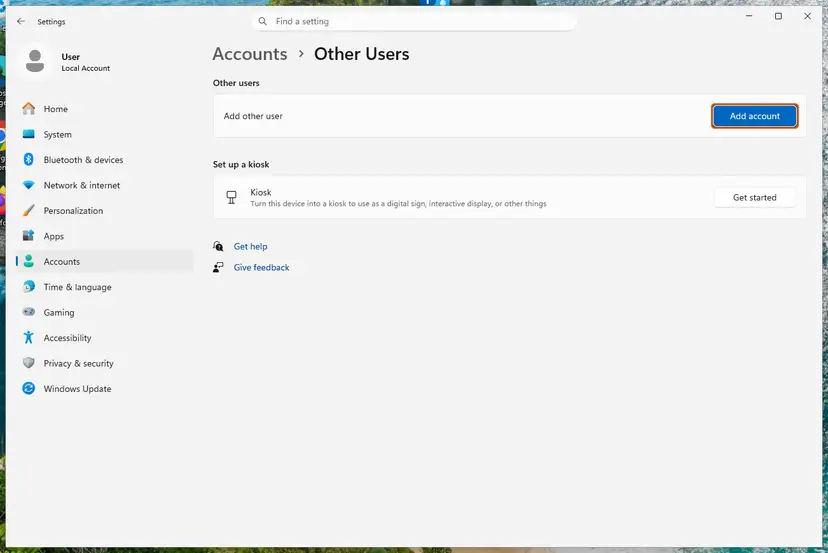
- Windows 11: open Settings > Accounts > Other users. Windows 10: open Settings > Accounts > Family & other users.
- Select your own account, then Change account type.
- Under Account type, select Administrator and select OK.
- Sign out of the administrator account and sign in to your own one. The new rights apply only from the next sign-in.
- Open Command Prompt with Run as administrator to test. The prompt now shows Yes.
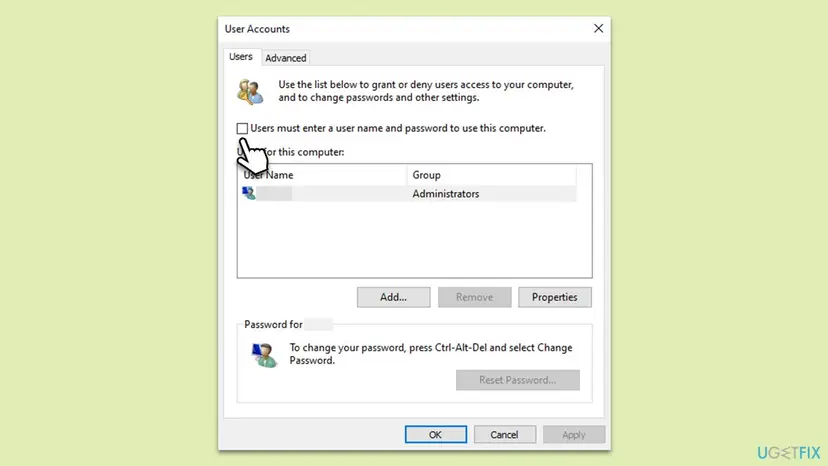
Without leaving your own account: press Win + R, type netplwiz and press Enter. Type the administrator's password when the prompt asks. Select your name, then Properties > Group Membership > Administrator and OK. Or run net localgroup Administrators "Your Name" /add in an elevated Command Prompt.
It worked if: Your account shows Administrator under its name in Settings, net user %username% lists *Administrators, and UAC shows Yes.
If not: If Settings will not change the type, use the netplwiz route or the command. If UAC still asks for your own password, go to Fix 4.
Fix 4. Set the elevation prompt for administrators back to the default
5 minutesRead the warningYou are an administrator (Fix 1 lists your name), but UAC shows your own name with a password box instead of Yes.
Microsoft documents that administrators can be made to give credentials by setting Behavior of the elevation prompt for administrators in Admin Approval Mode to Prompt for credentials. Setting it back brings the Yes button back.
A wrong value can change how Windows asks for rights. Back up the registry first with Back up the registry before editing it. Never choose Elevate without prompting: it lets every program take administrator rights silently.
- Windows Pro: press Win + R, type
gpedit.mscand press Enter. Type your password when UAC asks. - Go to Computer Configuration > Windows Settings > Security Settings > Local Policies > Security Options.
- Double-click User Account Control: Behavior of the elevation prompt for administrators in Admin Approval Mode.
- Select Prompt for consent for non-Windows binaries, which is the default, and select OK.
- Windows Home has no Group Policy Editor. Open
regedit, go to the key below and set ConsentPromptBehaviorAdmin to5. - Restart the PC and test with Command Prompt Run as administrator.
Registry key (Windows Home)
HKEY_LOCAL_MACHINE\SOFTWARE\Microsoft\Windows\CurrentVersion\Policies\System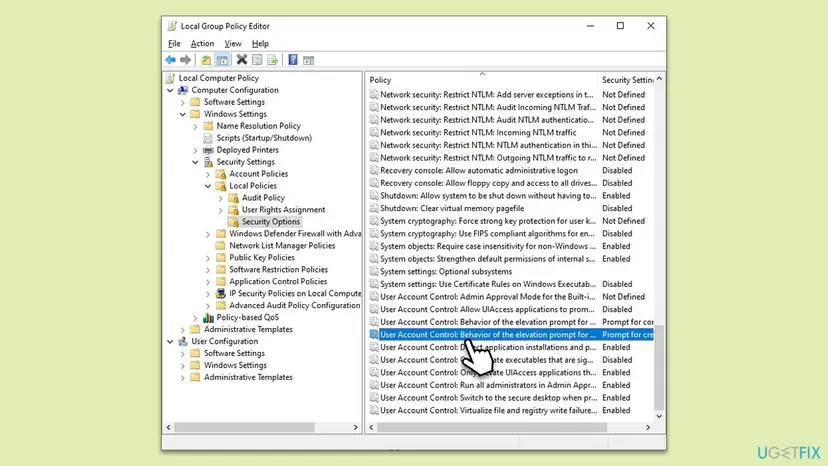
Step by step for the editor: Open the Local Group Policy Editor. On a work or school PC this policy is usually set by IT, and your change is undone at the next policy refresh.
It worked if: After the restart, UAC shows Yes and No for your administrator account.
If not: If the value returns after a restart, an organization sets it. Go to Fix 7.
Fix 5. On your own PC with no administrator left, add your account in Safe Mode
20 minutesLow riskOnly the owner of the PC, when Fix 1 shows no active administrator other than the built-in one and nobody has an administrator password.
Winaero and a Microsoft Q&A volunteer describe that the built-in Administrator account, disabled in normal mode, can be used in Safe Mode when no other administrator exists. From it you put your own account back into Administrators.
This changes who controls the PC. Do it only on your own device. On a PC that belongs to an employer, a school, a family member or anyone else, ask its owner instead. Keep your BitLocker recovery key at hand: find it at aka.ms/myrecoverykey.
- On the sign-in screen or in Start, select Power, hold Shift and select Restart.
- Select Troubleshoot > Advanced options > Startup Settings > Restart.
- Press 6 or F6 for Enable Safe Mode with Command Prompt.
- If the Administrator account appears at sign-in, select it. Microsoft Q&A says it opens an elevated Command Prompt.
- Run the first command below, with your account name from Fix 1.
- Run the second command to make sure your account is active, then type
shutdown /rto restart normally.
Elevated Command Prompt in Safe Mode
net localgroup Administrators "Your Name" /add
net user "Your Name" /active:yes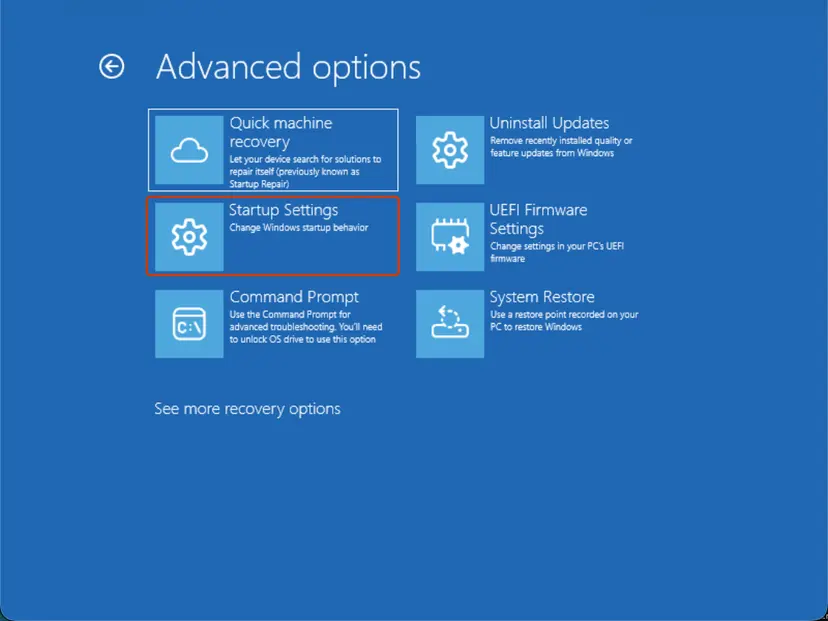
It worked if: After the normal restart, net user %username% lists *Administrators and the UAC prompt shows Yes.
If not: Readers of Winaero report that in Safe Mode the prompt also lacked Yes, so this route does not work on every build. We could not confirm which builds still allow it. Go to Fix 6.
Fix 6. Reset this PC as the last resort on your own PC
1 to 2 hoursRead the warningOnly the owner of the PC, when no administrator account can be reached and Fix 5 failed.
A reset reinstalls Windows and runs setup again, where the first account you create is an administrator. It is the supported way back when no account on the PC can approve changes.
Your apps are removed in every case, and Remove everything also erases your files. Copy your documents, photos and browser data to OneDrive or a USB drive first. We could not confirm whether Keep my files asks for an administrator password on every build.
- Copy your personal files to OneDrive or an external drive. See Back up your files (Windows Backup, File History, Time Machine).
- On the sign-in screen, select Power, hold Shift and select Restart.
- Select Troubleshoot > Reset this PC.
- Choose Keep my files if it is offered and works, otherwise Remove everything.
- Follow the setup screens and create your account. It becomes an administrator.
Full steps with screenshots: Reinstall Windows without losing files.
It worked if: Windows starts with a new setup, your account is an administrator and UAC shows Yes.
If not: If the reset asks for a password you do not have, take the PC with proof of ownership to the maker's or a local service.
Fix 7. On a work or school PC, ask IT for the rights
10 minutes to prepareNo riskSettings > Accounts > Access work or school lists an organization, or the PC was given to you by an employer or school.
Microsoft recommends standard user accounts as the more secure way to run Windows, and organizations often follow that. The missing Yes is then the policy working, not a fault.
- Note what you were trying to install or change.
- Copy the output of
net user %username%from Fix 1. - Send both to your IT help desk and ask them to install it or give you time-limited rights.
- Do not try Fixes 5 or 6 on this PC. They break policy and can lock the device.
It worked if: IT installs the program for you or grants an approved elevation.
If not: Nothing more can be done from a standard account on a managed PC.
If the Yes button is still missing: what to check and what to send
There is no log for the missing button. The answer is in the account data. Collect these from a normal Command Prompt before you ask for help on Microsoft Q&A or from the PC's maker:
net user %username%: the Local Group Memberships line.net localgroup administrators: every member.winver(a window opens): your Windows version and build.- Settings > Accounts > Access work or school: whether an organization is listed.
| Result | What it means | Next step |
|---|---|---|
| You are in Administrators, prompt still asks your password | Admin prompt policy | Fix 4 |
| You are only in Users, another admin is active | Standard account | Fixes 2 and 3 |
| Only Administrator is listed | No usable administrator | Fix 5, then Fix 6 |
| An organization is listed | Managed PC | Fix 7 |
Once your rights are back, scan the PC with How to scan for malware with Microsoft Defender if you did not change the accounts yourself. The missing Yes button is never a hardware problem.
How to keep the Yes button from disappearing again
- Keep two administrator accounts you know the passwords of before you change any account type.
- Check
net localgroup administratorsafter every account change. - Save your BitLocker recovery key and your Microsoft account recovery details.
- Use a standard account for daily work and an administrator for changes, if you like that setup.
- Remove the administrator role from the last administrator account.
- Switch User Account Control off to get rid of prompts.
- Set the admin prompt to Elevate without prompting.
- Leave the built-in Administrator enabled after you used it.
Frequently asked questions
Why is there no Yes button on the User Account Control prompt?
Because your account is not an administrator. Microsoft explains that UAC shows administrators the consent prompt with Yes and No, and standard users the credential prompt, which needs an administrator's user name and password. When no active administrator account exists, the credential prompt has nothing to offer, so only No is left. Make your account an administrator again from another administrator account (Fixes 2 and 3) or, on your own PC with no administrator left, through Safe Mode (Fix 5).
What does "To continue, enter an admin user name and password" with no Yes button mean?
It is the credential prompt for standard users. Windows wants an administrator to approve the change. Normally an administrator's name and a password box appear under that line. If you see only No, no active administrator account is available to approve. Run net localgroup administrators in a normal Command Prompt to see who is an administrator, then follow the chooser on this page. On a PC that is not yours, ask its owner or IT.
Can a missing Yes button be caused by a virus?
It is unlikely. In the cases we found, a person changed the account type, often by removing the administrator role from the last administrator account. Malware that changes group membership is possible, but we found no documented case for this symptom. If you did not change any account, restore your rights with this guide and then run a full scan with Microsoft Defender. Change the passwords of your Microsoft account and email afterwards if the scan finds anything.
What does "To complete the setup process, please select Yes when the User Account Control notification appears" mean?
It is a message from an installer, not from Windows. The installer needs administrator rights and waits for you to select Yes in the UAC prompt. If that prompt shows only No, the installer cannot continue, because your account is a standard user. Make your account an administrator first (Fixes 1 to 3) and run the installer again. On a work or school PC, ask IT to install the program for you.
Why does Windows say "You must restart your computer to turn on User Account Control"?
It means UAC was switched off completely and someone has just turned it back on. Windows applies that change only at startup, so restart when it asks. The message itself is not an error. After the restart, administrators see Yes and No again, and standard users see the credential prompt. If you see "User Account Control has been disabled", someone switched it off; turn it back on in Control Panel and restart.
Is switching User Account Control off a way around the missing Yes button?
No. Turning UAC off does not give a standard account administrator rights, and changing that setting needs an administrator in the first place. It also lets programs change Windows without asking you. Microsoft notes that because processes requiring an administrator token cannot install silently when UAC is on, the user must explicitly approve them. Fix the account type instead, and leave UAC on its default level.
Can I get the Yes button back without any administrator password?
Only on a PC you own, and not always. Fix 5 uses Safe Mode, where the built-in Administrator account can sometimes be used when no other administrator exists. Readers of Winaero report that this fails on some builds. Fix 6, Reset this PC, is the fallback, but it removes your apps and may erase your files. On a PC that belongs to someone else, there is no legitimate way around it: ask the owner or IT.
Is the fix the same on Windows 11 and Windows 10?
Yes. The prompt, the cause and the commands are the same on Windows 11 25H2 and 26H2 and on Windows 10 22H2. Only the Settings path differs: Windows 11 uses Settings, Accounts, Other users, while Windows 10 uses Settings, Accounts, Family and other users. Windows 10 left support on 14 October 2025, so a Windows 10 PC no longer gets security updates. Keep at least one known administrator account on either version.
Where can I see a picture of the UAC prompt with no Yes button?
The first picture on this page shows it: the User Account Control prompt for Windows Command Processor with the line "To continue, enter an admin user name and password" and only a No button. The chart under the causes shows which fix fits your case. People also find this page with short searches such as yes option, windows yes, pokaz or je to stejné. They all lead to the same answer: the account needs administrator rights.
Sources
- Microsoft Learn: How User Account Control works (learn.microsoft.com)
- Microsoft Q&A: UAC Prompt YES Button gone/missing (learn.microsoft.com)
- Winaero: Fix the Yes button is missing in User Account Control on Windows 11 (winaero.com)
Did this fix work?
One click, no account. It tells the next reader which guides are worth their time.
Questions and experiences: fix User Account Control (UAC) "Yes" button missing in Windows
Still broken, or found a fix we did not cover? Ask here: members and our editors answer. Reading is open; writing needs a free account.
…