How to fix
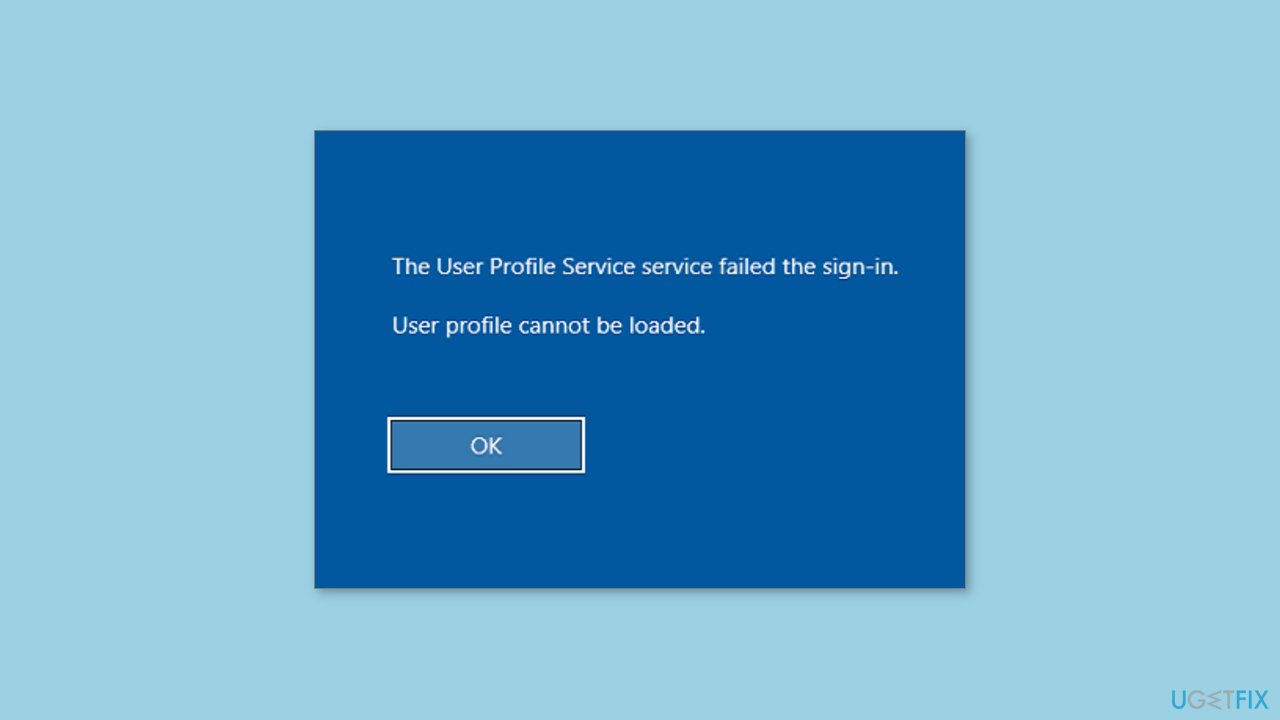
“User profile cannot be loaded”
on Windows
Resolve the "User profile cannot be loaded" error in Windows 10 and 11 with easy fixes. Get back to work quickly, expert-tested solutions await!


What causes How to fix “User profile cannot be loaded” in Windows?
- Corrupted user profile data
- Problems with user account settings
- Issues with system files
- Data loss risk
- Access restriction to critical files
Repairs Windows system files, removes malware, and restores a clean OS state — without reinstalling.
Hello. I tried to log into my Windows PC and suddenly I received the "User profile cannot be loaded" error. Why is this happening and is there a way to fix this?
"User profile cannot be loaded" is a common error message that Windows users may encounter when attempting to log in. This error prevents the user from accessing their user profile, which in turn prevents them from accessing their files and settings. The error message could appear for a number of reasons, such as corrupted user profile data, problems with user account settings, or issues with system files.
This problem can have a significant impact on users because it can cause data loss and restrict access to critical files and applications. It can also cause frustration and inconvenience, particularly for users who rely heavily on their computers for work or pleasure.
Restarting the computer, creating a new user profile, checking for system file errors, using System Restore, or modifying user account settings are all options for resolving the "User profile cannot be loaded" error. The best solution may be determined by the cause of the error and the user's technical knowledge. To avoid data loss, it's always a good idea to back up any important data before attempting to fix the problem.
In this guide, you will find 6 steps that should help you fix "User profile cannot be loaded" in Windows. Keep in mind that the manual troubleshooting process can be lengthy. You can try using a maintenance tool like [d1] that can fix most system errors, BSODs,[ref en-1] corrupted files, registry[ref en-2] issues, or clear cookies and cache.[ref en-3] Otherwise, follow the step-by-step instructions below.
Method 1. Try Safe Mode
- Go to the Windows login screen.
- Locate the power menu at the bottom-right corner of the screen.
- Hold the Shift key and click the Restart option from the power menu.
- Wait for the computer to restart and bring up the Choose an option page.
- Click on Troubleshoot on the Choose an option page.
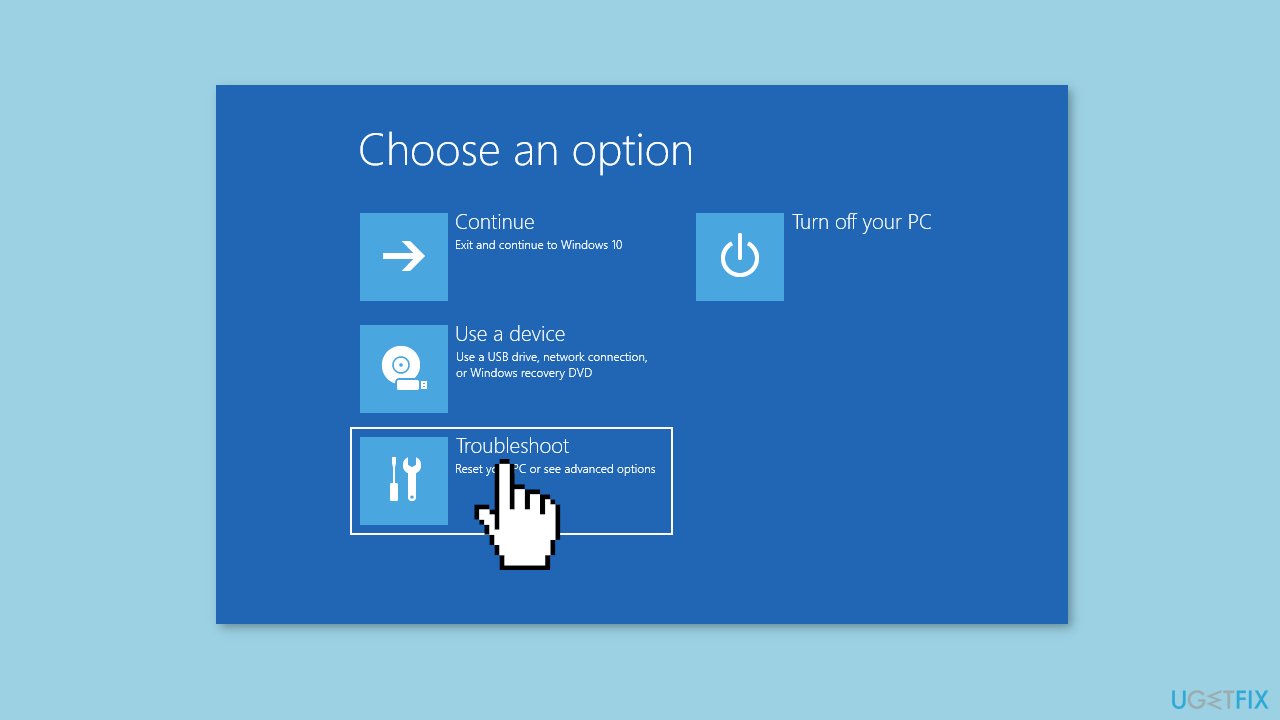
- Select Advanced Options from the Troubleshoot menu.
- Tap on Startup Settings from the Advanced Options menu.
- Click on Restart on the Startup Settings menu.
- When the computer restarts again, you will see a list of startup settings options. Tap on 5 or F5 to boot your computer into Safe Mode.
Method 2. Create new local user account
- Boot your Windows computer into Safe Mode.
- Search for Command Prompt in the Windows Search box and open it.
- Type the command net user /add username password in the Command Prompt window, and hit Enter.
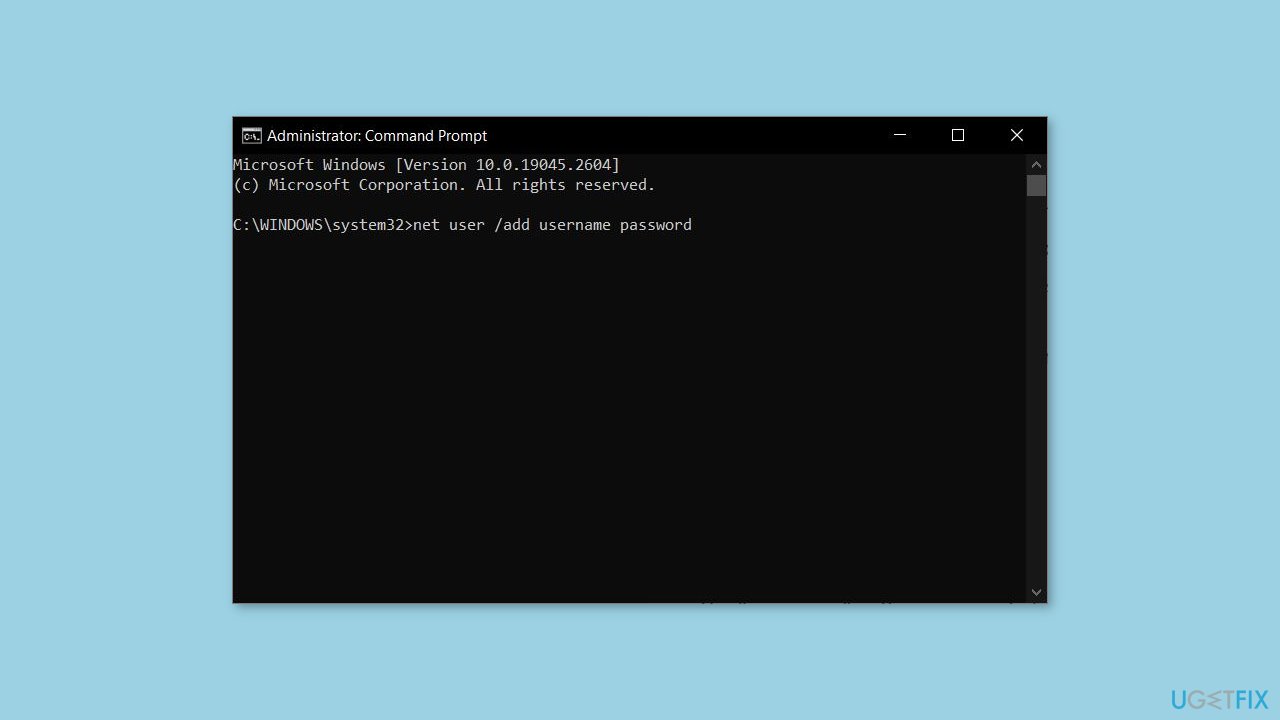
- Replace username with the name you want to use for the new user profile. If you want to set a password for the profile, add it after password. If not, leave it blank.
- Type the command localgroup administrators username /add in the Command Prompt window, and hit Enter.
- Replace username with the name you used for the new user profile created in the previous step.
- Close the Command Prompt window.
- Log out of Safe Mode and log in to the new user profile you just created.
- Go to the folder containing the data you want to copy from the inaccessible profile.
- Copy the data to a safe location.
- Log out of the new user profile and log back into your regular user profile.
- Copy the data from the safe location to your regular user profile.
Method 3. Restart the User Profile Service
- Press the Windows key + R on your keyboard.
- Type services.msc in the Run dialog box that appears.
- Hit Enter or click OK to open the Windows Services window.
- Scroll down and locate User Profile Service in the list of services.
- Right-click on User Profile Service.
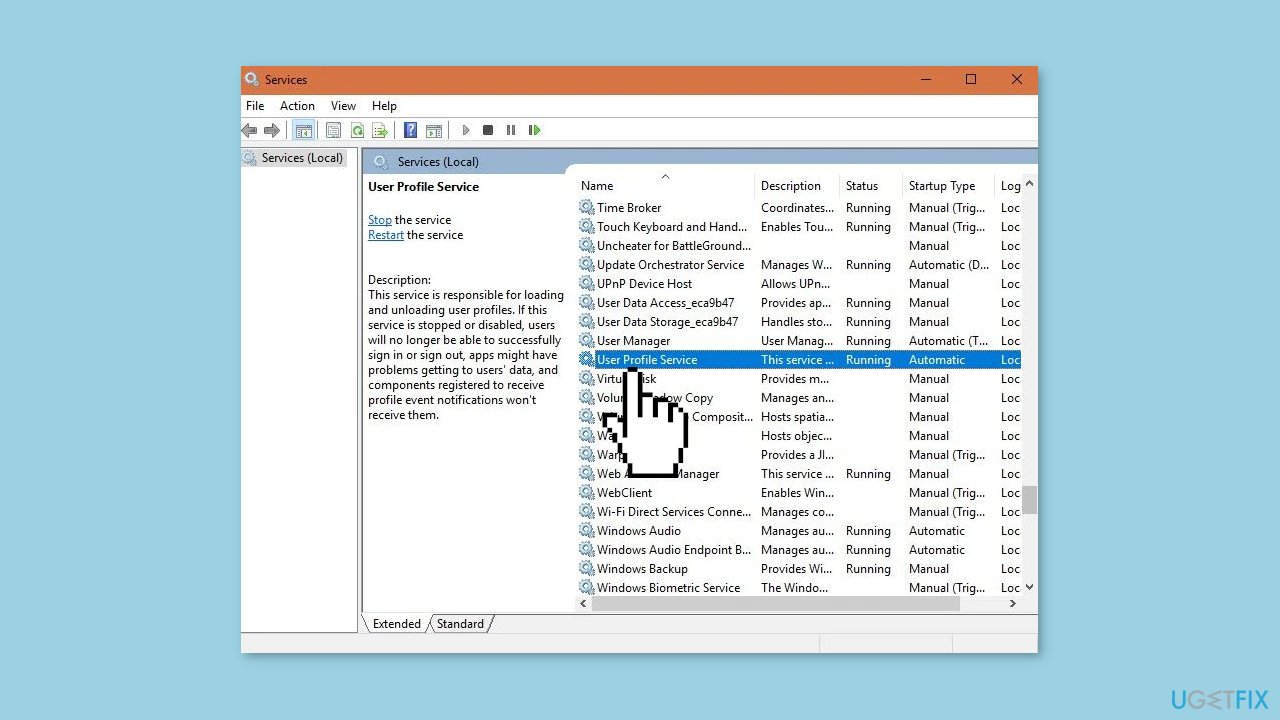
- Select Restart from the drop-down menu that appears.
- Wait for the service to restart. You should see a message indicating that the service has been restarted.
- Right-click on User Profile Service again.
- Click on Properties from the drop-down menu.
- In the Properties window, locate the Startup type option.
- Make sure the Startup type is set to Automatic.
- Click OK to save your changes.
Method 4. Select Normal Startup
- Boot your Windows computer into Safe Mode using the steps described in Method 1.
- Press the Windows key + R on your keyboard to open the Run command box.
- Type msconfig and hit Enter to open the System Configuration window.
- In the System Configuration window, click on the General tab.
- Click on Normal startup under Startup selection.
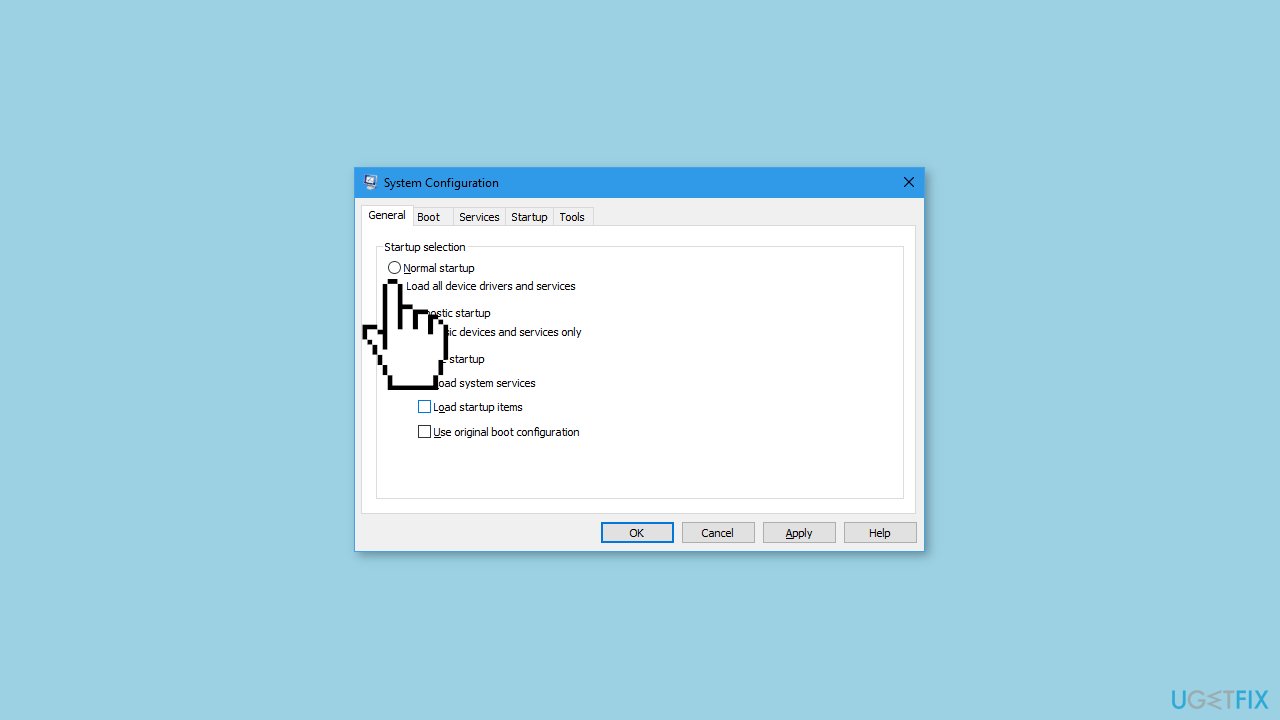
- Click on Apply and OK.
- Switch to the Services tab.
- Select Enable all at the bottom of the window.
- Click on Apply and OK.
- Restart your PC
Method 5. Use System Restore
- Click on the Power icon in the bottom-right corner of your Windows login screen.
- Hold down the Shift key and click on Restart.
- On the Choose an option page, click on Troubleshoot.
- Click on Advanced options.
- On the next page, click on System Restore.
- Click on Next.
- Select the Restore Point that you want to use.
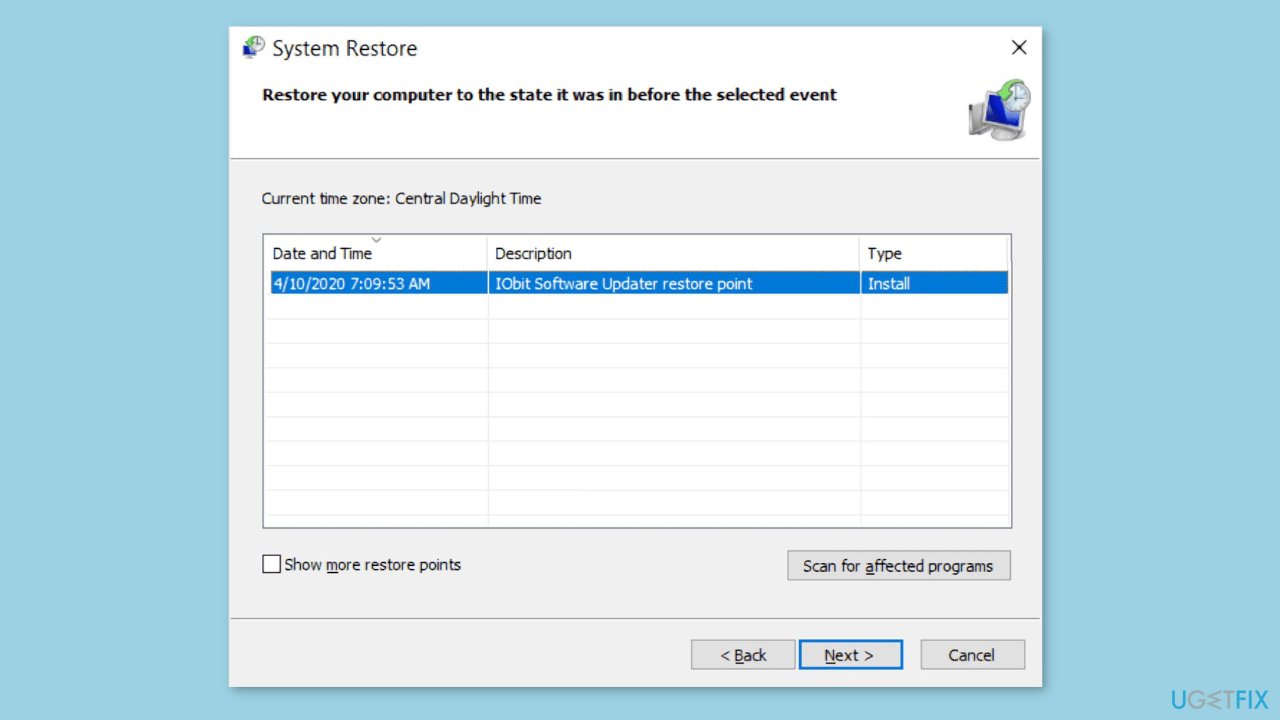
- Click on Next.
- Click on Finish to start the restore process.
- Wait for the restore process to complete.
- Once the restore process is done, the user profile issue should be fixed.
Method 6. Replace NTUSER.dat file
- Boot your Windows computer into Safe Mode using the steps described in Method 1.
- Press the Windows key + E on your keyboard to open File Explorer.
- Navigate to the drive where Windows is installed and open it (usually C:).
- Click on the Users folder.
- Click on View at the top of the File Explorer window.
- Check the Hidden items checkbox to show hidden items in the folder.
- Click on the Default folder.
- Right-click on the NTUSER.DAT file and select Rename.
- Rename the file to NTUSER.DAT.OLD.
- Go back to the Users folder.
- Open another user profile.
- Copy the NTUSER.DAT file from that user profile.
- Paste the NTUSER.DAT file into the Default folder where you just renamed the file to NTUSER.DAT.OLD.
- Restart your computer.
- Check if the issue with your user profile has been resolved.
Bottom line
To fix the 'User profile cannot be loaded' error, you can try restarting the computer, creating a new user profile, checking for system file errors, using System Restore, or modifying user account settings. If none of these solutions work, consider using a maintenance tool to address system errors.
Frequently asked questions
This error typically occurs due to corrupted user profiles, issues with the registry, or problems with system files in Windows 10.
Yes, you can resolve this issue by creating a new user profile or by editing the registry settings without needing to reinstall Windows 11.
To access Safe Mode in Windows 10 or 11, restart your computer and continuously press F8 or hold the Shift key while clicking on Restart, then select Troubleshoot > Advanced options > Startup Settings and choose Safe Mode.




Report an issue
What's wrong with this guide? We review every report and update or remove content.
Report received — thank you. We'll review and fix it.
You need a free account to submit a report.
Be the first to comment