How to fix
“Users must enter a user name and password to use this computer” option missing
on Windows
Resolve the missing "Users must enter a user name and password" option in Windows 10/11 easily. Get expert-tested solutions in minutes!

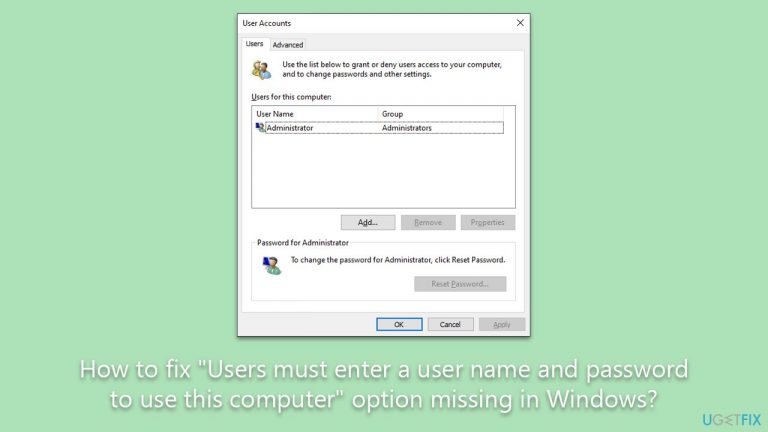
What causes How to fix “Users must enter a user name and password to use this computer” option missing in Windows?
- Option removed in newer Windows versions
- Increased security measures by Microsoft
- User Account permissions changed
- Settings modified in Control Panel or Windows Settings
Repairs Windows system files, removes malware, and restores a clean OS state — without reinstalling.
Hi. I tried changing User Account permissions on Windows, and I noticed that the "Users must enter a user name and password to use this computer" option is missing. I am very much sure that it was available some time ago. Please advise.
User Accounts in Windows operating systems are designed to ensure a secure and individualized experience for every user. Within these accounts, user-specific preferences, files, settings, and especially security credentials are stored. By accessing the Control Panel or the Windows Settings app, users can modify these account settings. Among these features is the "Users must enter a user name and password to use this computer" option, which, once deselected, permitted a direct boot to the desktop without requiring login credentials.
Historically, in earlier versions of Windows 10 and 11, the "Users must enter a username and password to use this computer" option was readily available. It provided users, especially those not sharing their PCs, the convenience of rapid access post-boot-up. However, as versions evolved, users began noticing the absence of the "Users must enter a user name and password to use this computer" option in the settings. This shift was part of Microsoft's broader strategy to enhance security, subsequently mandating the input of PIN or password upon every startup.
Though the direct visibility of the "Users must enter a user name and password to use this computer" option has been reduced, all hope isn't lost for those who value its functionality. While not glaringly obvious, there are still methods that can be followed, as outlined below in this article, to reinstate this feature and thus bypass the mandatory login screen.
On a closing note, the [d1] PC repair tool might be a valuable asset for users. Although it doesn't directly address the "Users must enter a user name and password to use this computer" issue, it's equipped to rectify corrupted system files, resolve registry challenges, and declutter junk files, ensuring your PC runs smoothly and efficiently.
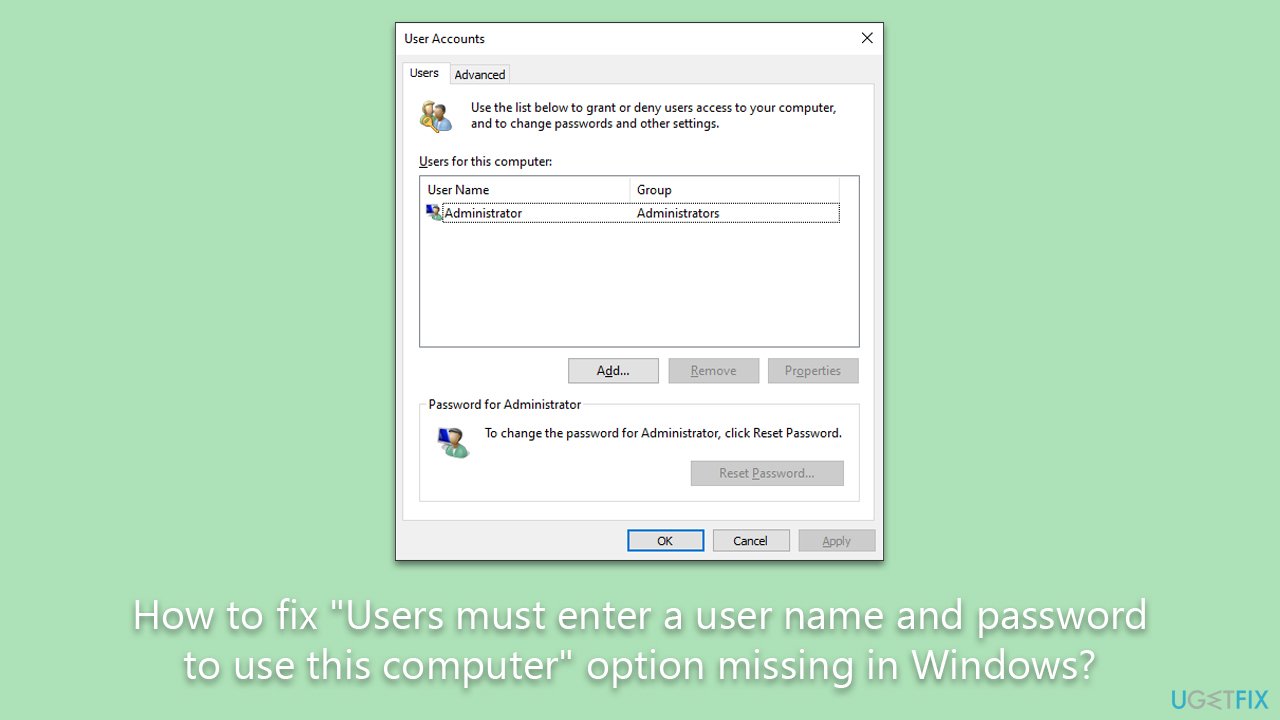
Fix 1. Use the Registry
The only way to return the "Users must enter a user name and password to use this computer" option is by modifying the Windows Registry. It is worth noting that incorrect changes might result in Windows usability and more serious issues, so make sure you back up the registry before proceeding.
- Type regedit in Windows search and press Enter. In the older Windows versions, you can press Win + R instead.
- User Account Control (UAC) will ask whether you want to make changes - click Yes.
- When Registry Editor opens, click File > Export.
- Under Export range, pick All.
- Name it, save it to the location of your preference, and close down the Registry Editor.

Next, follow these steps:
- Open Registry Editor.
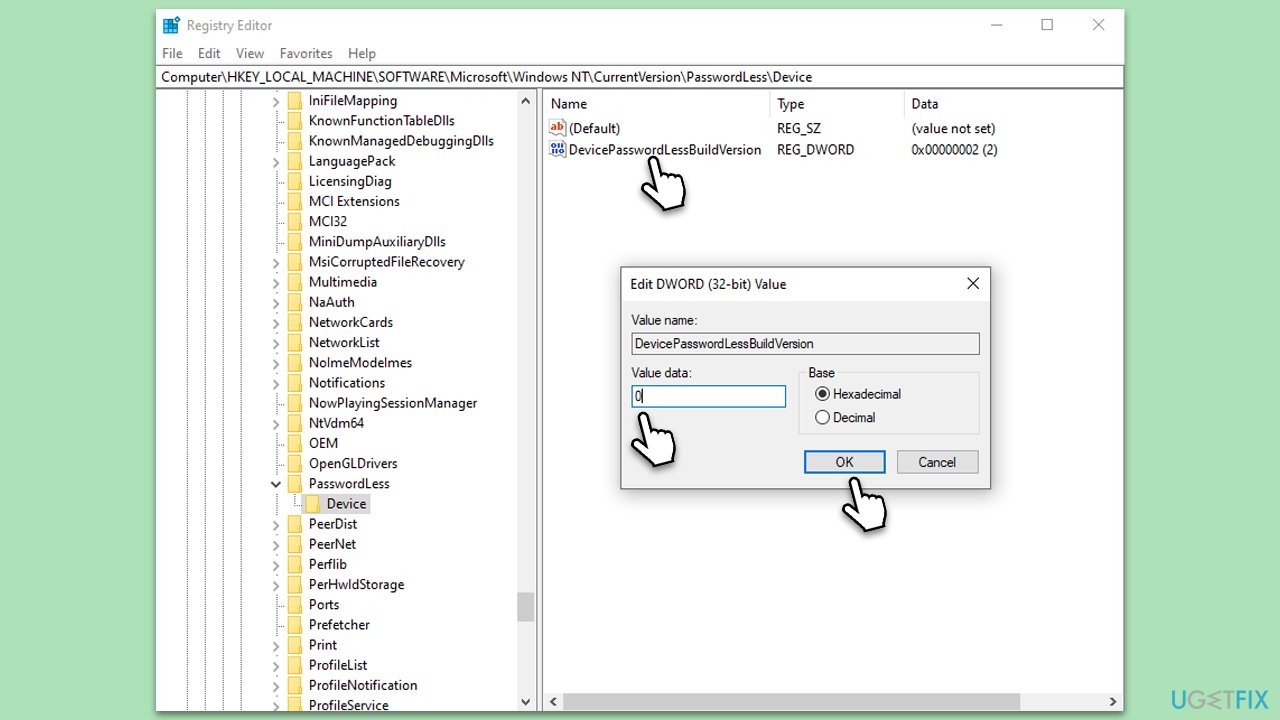
- Go to the following location:
HKEY_LOCAL_MACHINE\SOFTWARE\Microsoft\Windows NT\CurrentVersion\PasswordLess\Device - On the right, double-click the DevicePasswordLessBuildVersion value.
- Set the value to 0 and click OK.
Fix 2. Use Windows settings
Windows allows users to adjust sign-in settings, which can simplify the boot-up process. By modifying these settings, you can choose whether to enter a password, PIN, or bypass the sign-in step entirely.
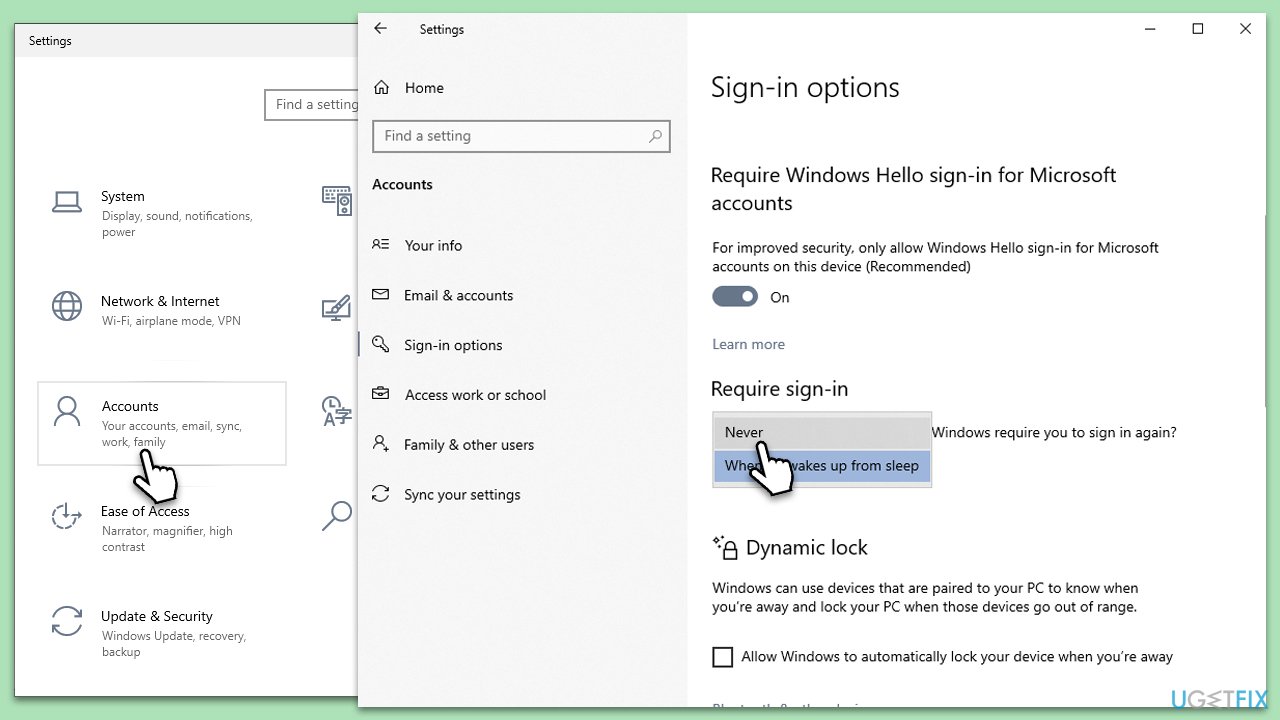
- Press the Win + I keys simultaneously to open Settings.
- Click on the Accounts section.
- Go to the Sign-in options on the left pane.
- Scroll down to find the Require sign-in section.
- From the drop-down menu, select Never.
- Restart your computer to implement the change.
Fix 3. Use Local Group Policy
For users with Windows Pro or Enterprise, the Local Group Policy Editor is a potent tool. This method helps in defining policies for how the system behaves.
- Press the Win + R keys together.
- Type in gpedit.msc and press Enter.
- Navigate to the following location:
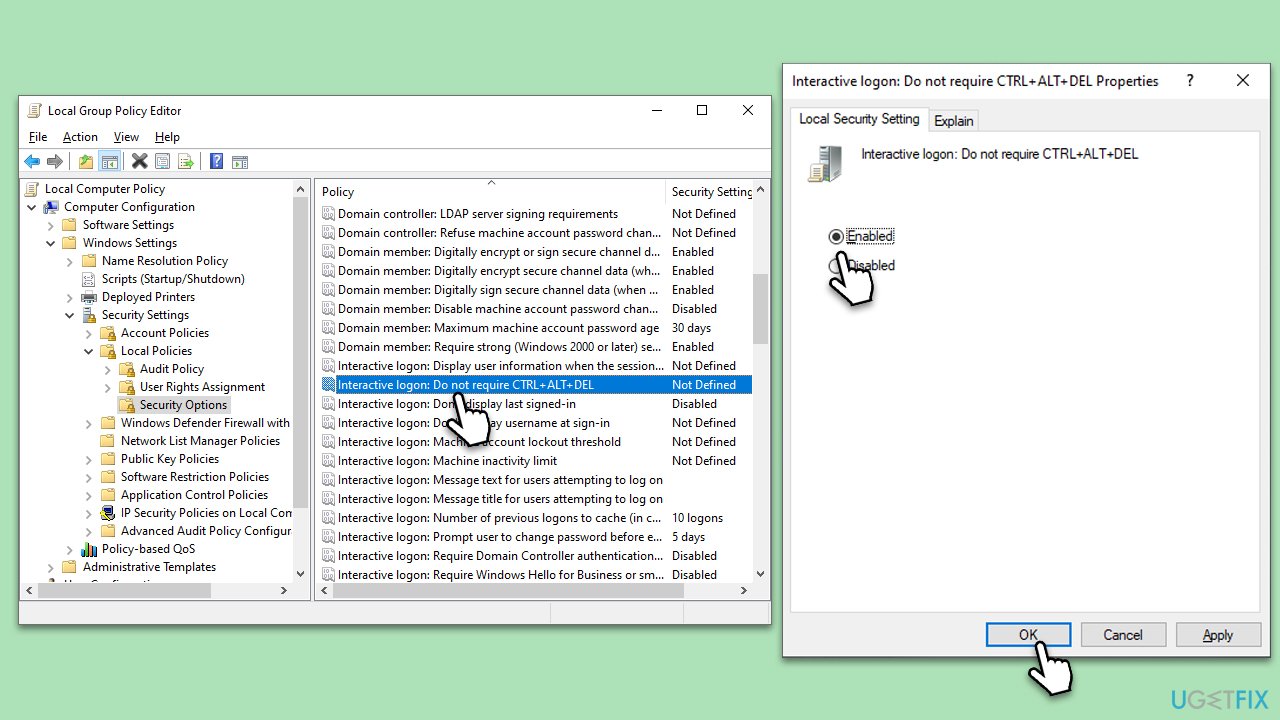
Computer Configuration > Windows Settings > Security Settings > Local Policies > Security Options. - Find Interactive logon: Do not require CTRL + ALT + DEL and set it to Enabled.
- Close the editor and restart the PC.
Bottom line
To fix the missing option, users can follow methods outlined in the article to reinstate the feature and bypass the mandatory login screen. If these methods do not work, consider using a PC repair tool to address underlying system issues.
Frequently asked questions
You can restore this option by accessing the User Accounts settings; press Win + R, type 'netplwiz', and make sure the checkbox for requiring user name and password is checked.
In Windows 11, you can try running the System File Checker tool by opening Command Prompt as an administrator and typing 'sfc /scannow' to repair any corrupted files that may be causing the issue.
Yes, you can open the Registry Editor, navigate to 'HKEY_LOCAL_MACHINE\SOFTWARE\Microsoft\Windows\CurrentVersion\Policies\System', and ensure that the 'InactivityTimeoutSecs' value is set correctly or delete it if it exists.




Report an issue
What's wrong with this guide? We review every report and update or remove content.
Report received — thank you. We'll review and fix it.
You need a free account to submit a report.
Be the first to comment