How to fix
Utility.exe error
on Windows
Resolve the utility.exe error on Windows 10 and 11 swiftly. Follow our expert-tested solutions for a hassle-free experience, fixed in minutes!

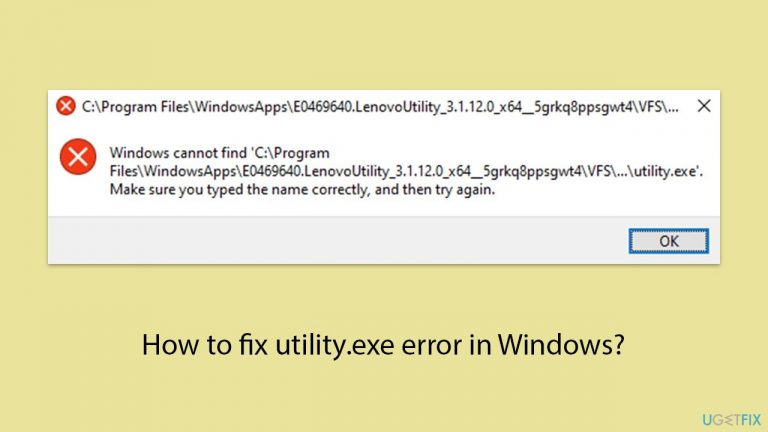
What causes How to fix utility.exe error in Windows?
- Corrupted software installations
- Outdated files
- Conflicts with other system processes
- Malicious interference
- Corrupted files in the system
Repairs Windows system files, removes malware, and restores a clean OS state — without reinstalling.
Hi, I get the error every time my computer starts and it always references utility.exe along with LenovoUtility. How can I fix this because it's quite annoying?
The utility.exe error is a common issue for users with Lenovo devices, typically manifesting during the computer's startup phase. This error is directly linked to the Lenovo Utility, a software component designed to enhance device functionality through various features, such as system adjustment hotkeys and monitoring tools. When users encounter an error with utility.exe, it can lead to pop-up messages that disrupt the startup process and potentially affect the system's overall performance.
Utility.exe plays a crucial role within the Lenovo Utility software, interfacing with the system's hardware and firmware to deliver an optimized user experience. The occurrence of errors with this executable can be attributed to a range of factors including, but not limited to, corrupted software installations, outdated files, or conflicts with other system processes.
Users experiencing the utility.exe error may notice several symptoms that can impact the usability and efficiency of their Lenovo device. These include, among others, recurrent error messages pertaining to utility.exe during the system's boot-up, a potential delay in the startup time, and disruptions in the normal functionality of Lenovo Utility features. In certain instances, this error could also lead to broader system instability issues.
Fixing the utility.exe error involves ensuring the Lenovo Utility software is up to date, conducting thorough malware scans to rule out malicious interference, and employing Windows' built-in system file checkers to identify and repair corrupted files. Alternatively, one can simply disable the utility from running at startup.
Moreover, keeping system drivers and the Windows operating system itself updated can alleviate potential conflicts that might precipitate the utility.exe error. In situations where these measures do not rectify the problem, uninstalling and then reinstalling the Lenovo Utility software can serve as a means to eliminate corrupted files and restore the application to its default settings. Additionally, running a potent PC repair utility such as [d1] could resolve Windows issues automatically.
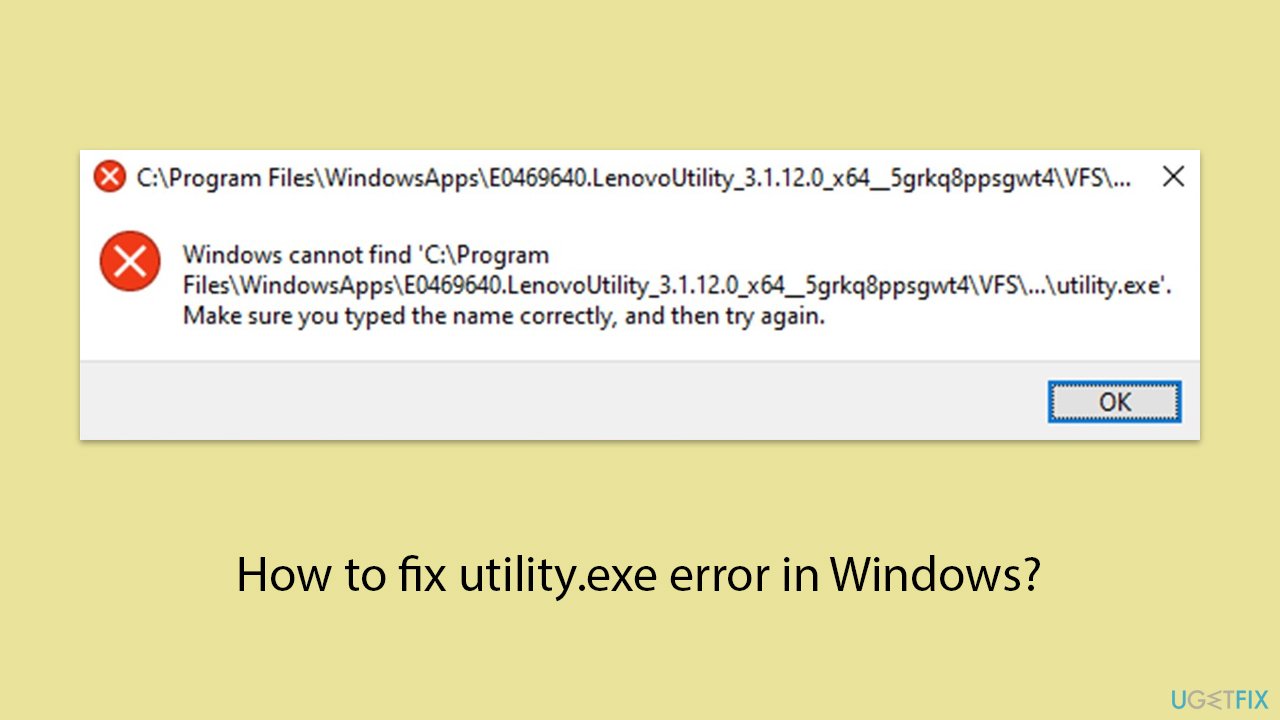
Fix 1. Disable Lenovo Utility in Task Manager
Disabling Lenovo Utility from starting up with Windows can help determine if it is the source of the utility.exe error. This process stops the program from launching automatically, which may eliminate startup errors if they are directly tied to Lenovo Utility.
- Press Ctrl + Shift + Esc to open Task Manager.
- Click on the Startup tab.
- Look for Lenovo Utility in the list of startup programs.
- Right-click on Lenovo Utility and select Disable.
- Restart your computer.
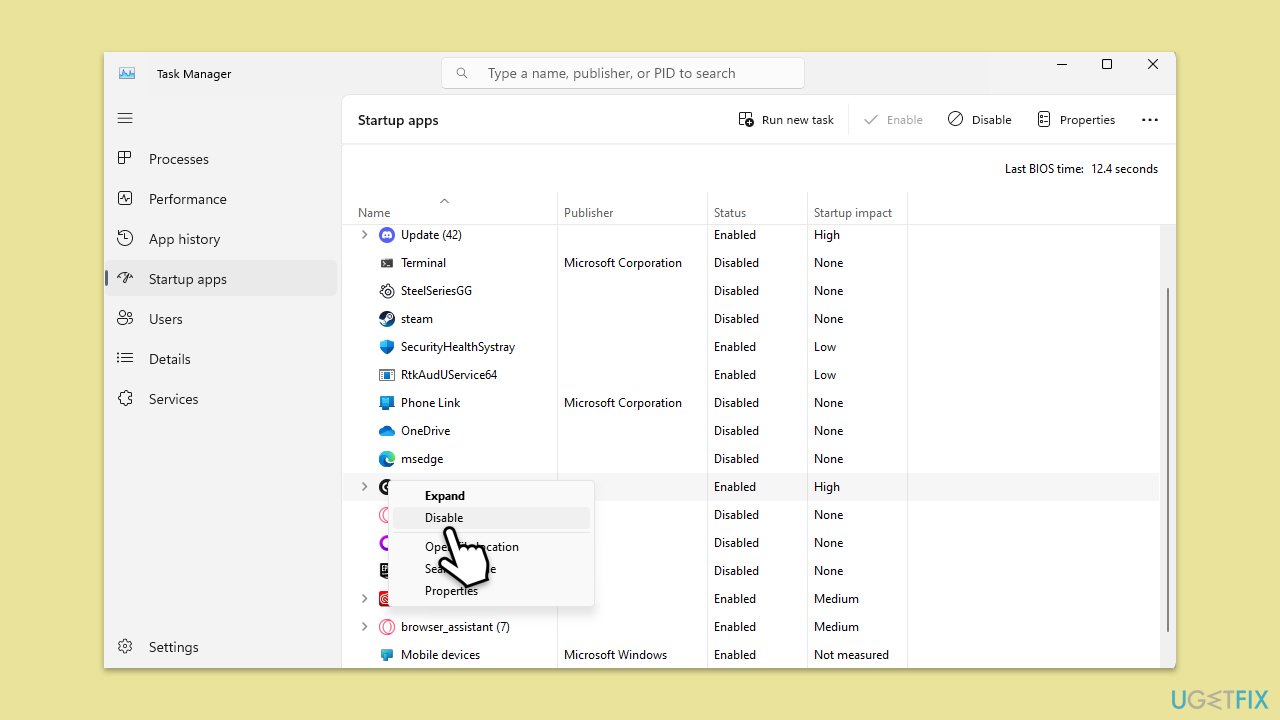
Fix 2. Update Lenovo Utility
Outdated software can lead to compatibility issues and errors. Updating Lenovo Utility ensures you have the latest fixes and enhancements, potentially resolving the utility.exe error.
- Visit the Lenovo Support website.
- Go to Support > PC.
- Enter your device model to find specific updates and click Search.
- Look for the latest Lenovo Utility update and download it.
- Install the update by following the on-screen instructions.
- Restart your device after the installation is complete.
Fix 3. Perform a virus scan
Malware or viruses can mimic legitimate files like utility.exe, causing errors. A thorough virus scan can detect and remove these malicious files, potentially fixing the error. You can use any reliable third-party security software, employ Microsoft Security Scanner or simply Windows Defender:
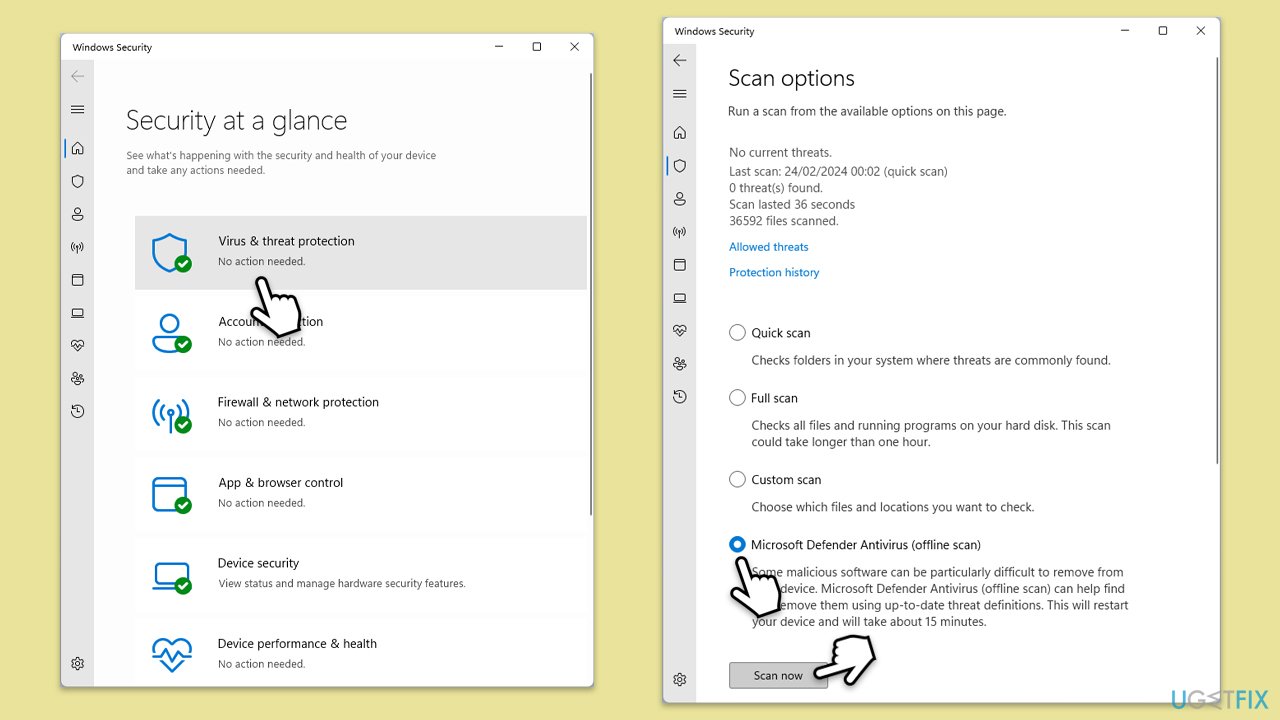
- Type Windows Security in the Windows search bar and hit Enter.
- Select Virus & threat protection.
- Pick Scan options.
- Choose Microsoft Defender Offline scan and click Scan now.
- Your computer will immediately reboot and begin a deep scan.
Fix 4. Use System File Checker
The System File Checker scans for and repairs corrupted system files, which might be causing the utility.exe error.
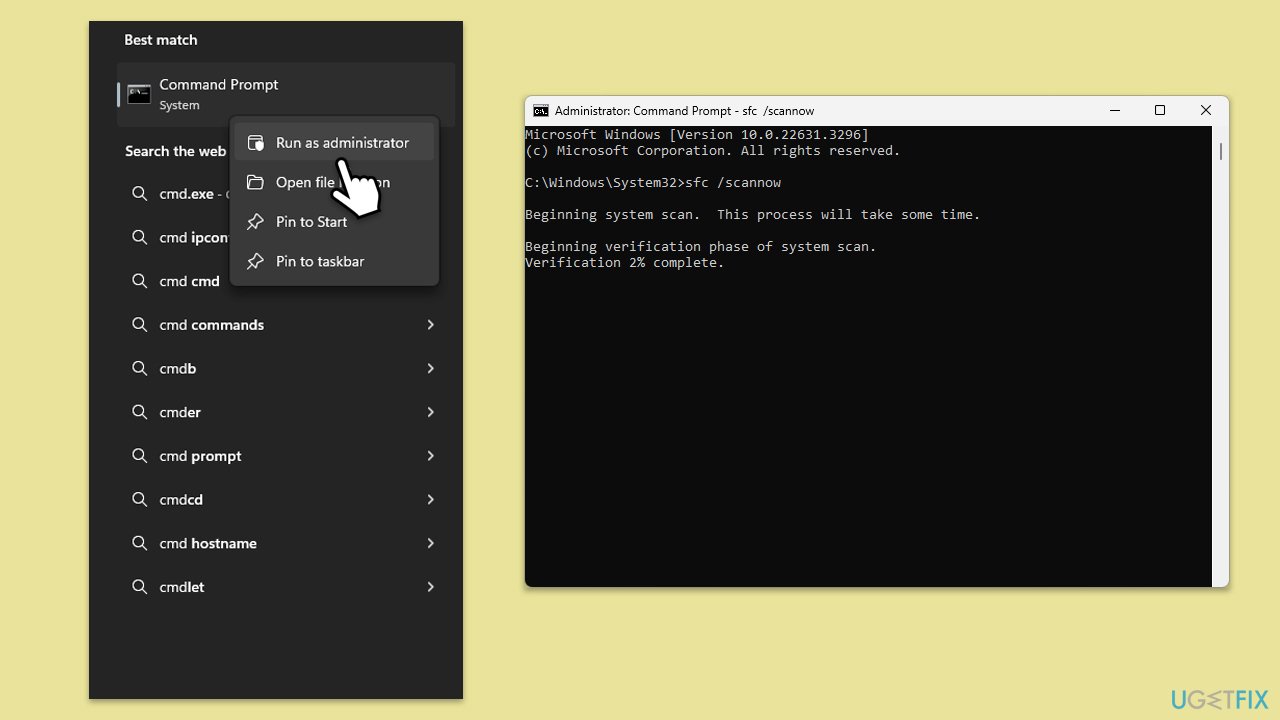
- Type cmd in Windows search.
- Right-click on Command Prompt, and select Run as administrator.
- When UAC shows up, click Yes.
- Copy and paste the following command, pressing Enter after:
sfc /scannow - Wait till the scan is finished. If Windows finds system file integrity violations, it will attempt to fix them.
- Restart your device.
Fix 5. Update Windows
Keeping Windows up-to-date ensures compatibility with installed applications and can resolve underlying system issues causing the utility.exe error.
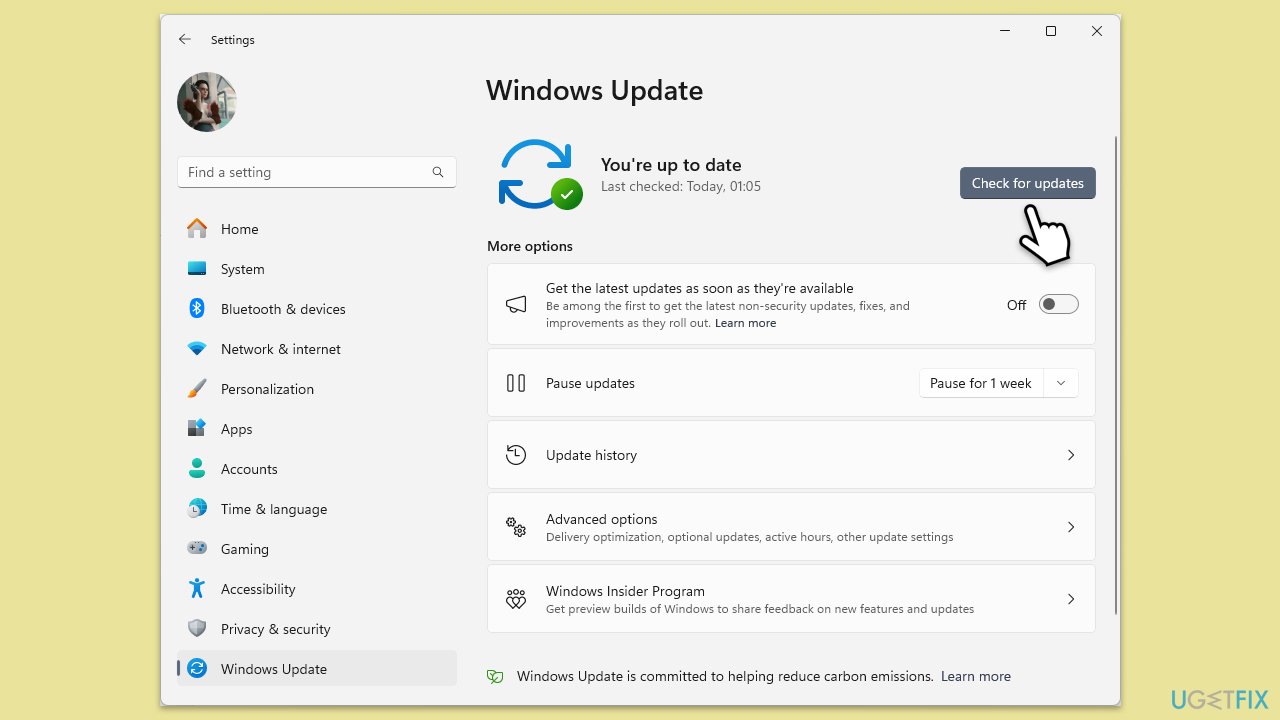
- In Windows search, type Updates and press Enter.
- Click Check for updates and wait till Windows installs update.
- Make sure you also install all optional updates if such are available.
- To implement the changes, reboot your system.
Fix 6. Uninstall and reinstall Lenovo Utility
If the utility.exe error persists, reinstalling Lenovo Utility can fix corrupted files or configurations within the application.
- Type Control Panel in Windows search and press Enter.
- Navigate to Programs > Uninstall a program.
- Locate Lenovo Utility in the list.
- Right-click on it and select Uninstall.
- Follow the on-screen instructions to finish the process.
- Re-install the utility after the restart.
Fix 7. Perform a Clean Boot
A clean boot helps determine whether background processes are the source of the error by starting Windows with the minimum drivers and startup apps.
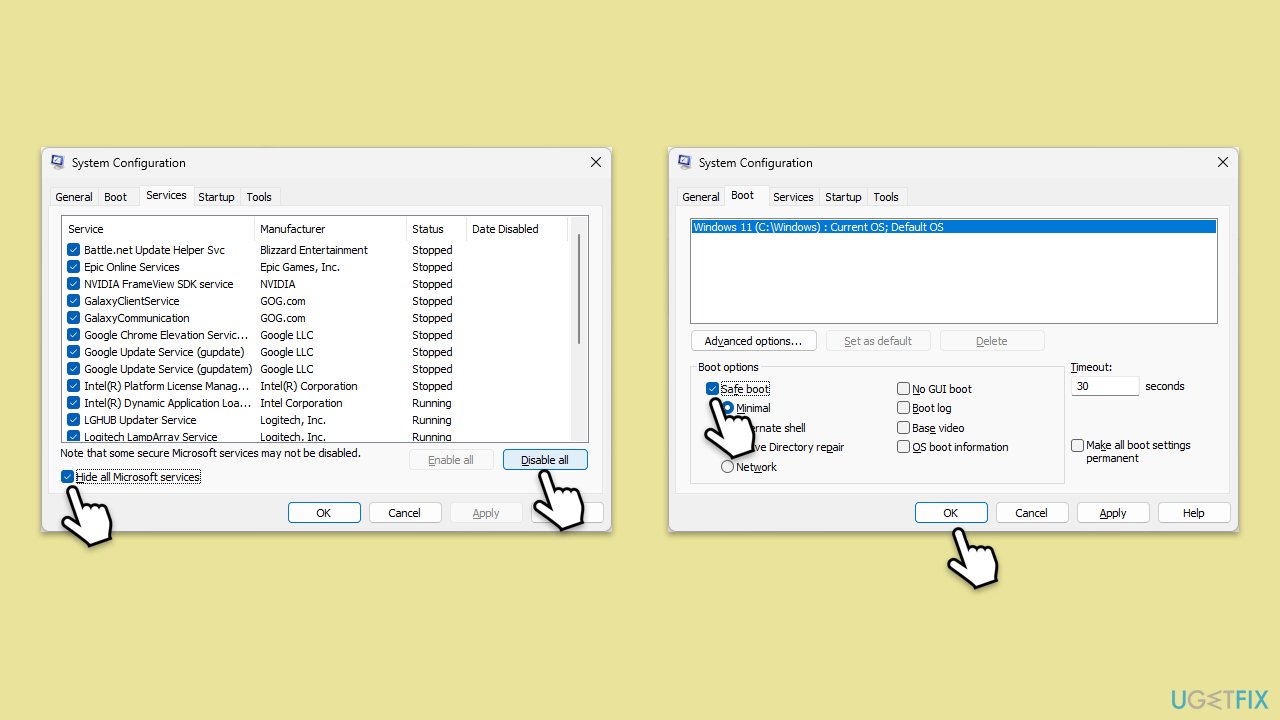
- Type msconfig inWindows Search and press Enter to open the System Configuration window.
- Click on the Services tab and check the Hide all Microsoft Services box.
- Click Disable all to disable non-Microsoft services, then click the Startup tab.
- Open the Task Manager, disable all startup items, and close the Task Manager.
- Go to the Boot tab and mark the Safe boot option.
- Click OK on the System Configuration window and restart your computer.
- If the problem does not exist, third-party software is at fault. To determine which app is causing it try enabling half of the available programs, restarting, and checking if the the problem is still absent. Continue till you find the offending software and either update or uninstall it.
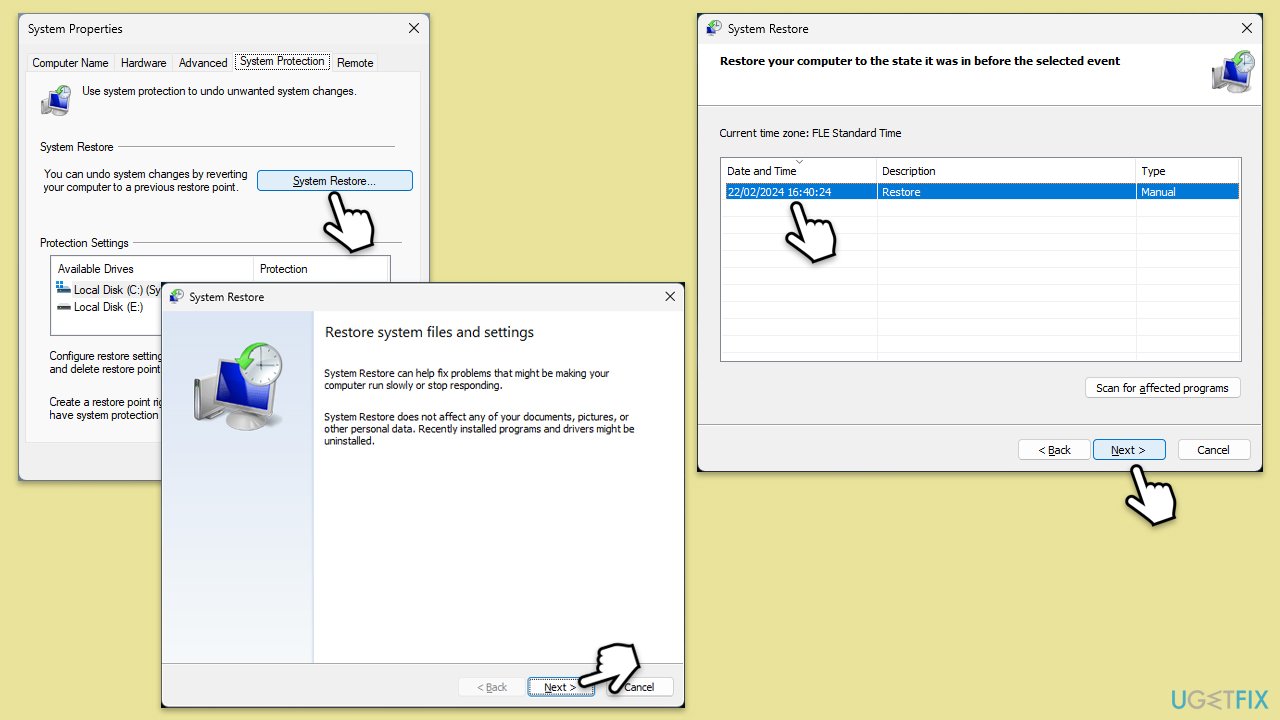
Fix 8. Restore your system
System Restore can revert your computer's state to a previous point in time when the utility.exe error was not present. This can fix the issue without affecting personal files.
- Type Create a restore point in the Windows search bar and press Enter.
- In the System Properties window, click System Restore.
- Choose a restore point from before the utility.exe error started occurring.
- Click Next and follow the on-screen instructions to complete the system restore.
- Restart your computer after the process is finished.
Bottom line
To fix the utility.exe error, ensure that the Lenovo Utility software is up to date, conduct thorough malware scans, and use Windows' built-in system file checkers. Alternatively, you can disable the utility from running at startup or uninstall and reinstall the Lenovo Utility software. If these measures do not resolve the issue, consider running a potent PC repair utility.
Frequently asked questions
The utility.exe error can be caused by corrupted system files, malware infections, or issues with installed applications that conflict with system processes.
You can repair the utility.exe error by running the System File Checker tool or performing a clean boot to identify conflicting applications in Windows 10 or Windows 11.
Deleting utility.exe is not recommended unless you are sure it is a malicious file, as it may be necessary for certain applications to function properly on Windows 10 or Windows 11.




Report an issue
What's wrong with this guide? We review every report and update or remove content.
Report received — thank you. We'll review and fix it.
You need a free account to submit a report.
Be the first to comment