How to fix
V Rising Steamworks Initialisation Failed error
on Windows
Resolve the V Rising Steamworks Initialisation Failed error on Windows 10 or 11 with our expert-tested solutions. Fixed in minutes!

What causes How to fix V Rising Steamworks Initialisation Failed error in Windows?
- Internet connection issues
- Outdated machine or Steam client updates
- Altered or missing system files
- Malware or PUP-related issues
- Game or system crashes
Repairs Windows system files, removes malware, and restores a clean OS state — without reinstalling.
I need help. The V Rising Steamworks Initialisation failed for me. I see the error Steamworks Initialisation Failed when it happens. I don't know why or what occurred. Can you help?
V Rising Steamworks Initialisation Failed error on Steam is related to the vampire survival game that was released recently.[ref en-1] It was launched and has had no major issues since the release, but players have some complaints online.[ref en-2] These issues are common, like game or system crashes, black screen or no sound in the game, and initial booting issues.
However, these problems can be quickly resolved with a reboot, starting over. This is the more common issue solution, but V Rising Steamworks Initialisation Failed error in Windows is a problem that can create more frustration. There are potential workarounds and fixes for this.
The issue can be related to an internet connection, so checking those issues can help avoid further damage related to connection or system problems. It is also possible that the updates of the machine or the Steam client do not happen, so the problem is triggered.
Sometimes these issues occur on computers because of the altered or missing files on the system that are required for the applications or the OS update process. You might want to run [d1] for a quick check and possible fix for malware[ref en-3] or PUP-related issues. This can be a quick solution for the V Rising Steamworks Initialisation Failed error in Windows too.
Some of the users online report that it is possible to fix V Rising Steamworks Initialisation Failed error in Windows by restarting the Steam or your game. Many issues like this can be solved y updating the Steam client or restarting, so try to follow these steps below and check which of the methods works for you.
1. Restart Steam
- Click on Steam at the top left corner.
- Then select Exit.
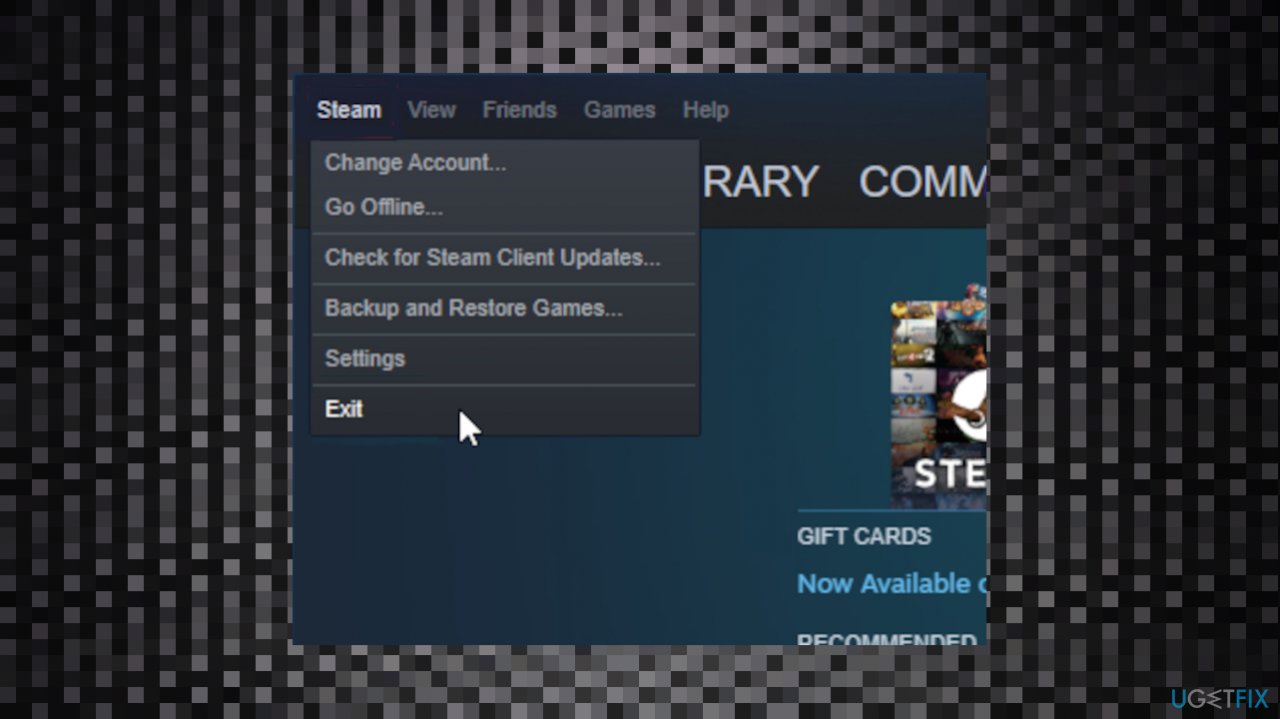
V rising steamworks initialisation failed local steam exit - The Steam will be closed and now you will need to sign in again.
- Sign in.
- Launch the game once again and check if the issue is solved or not
2. Verify game files
- Open Steam, and navigate to your library.
- Right-click on V Rising in your library.
- Then click Properties.
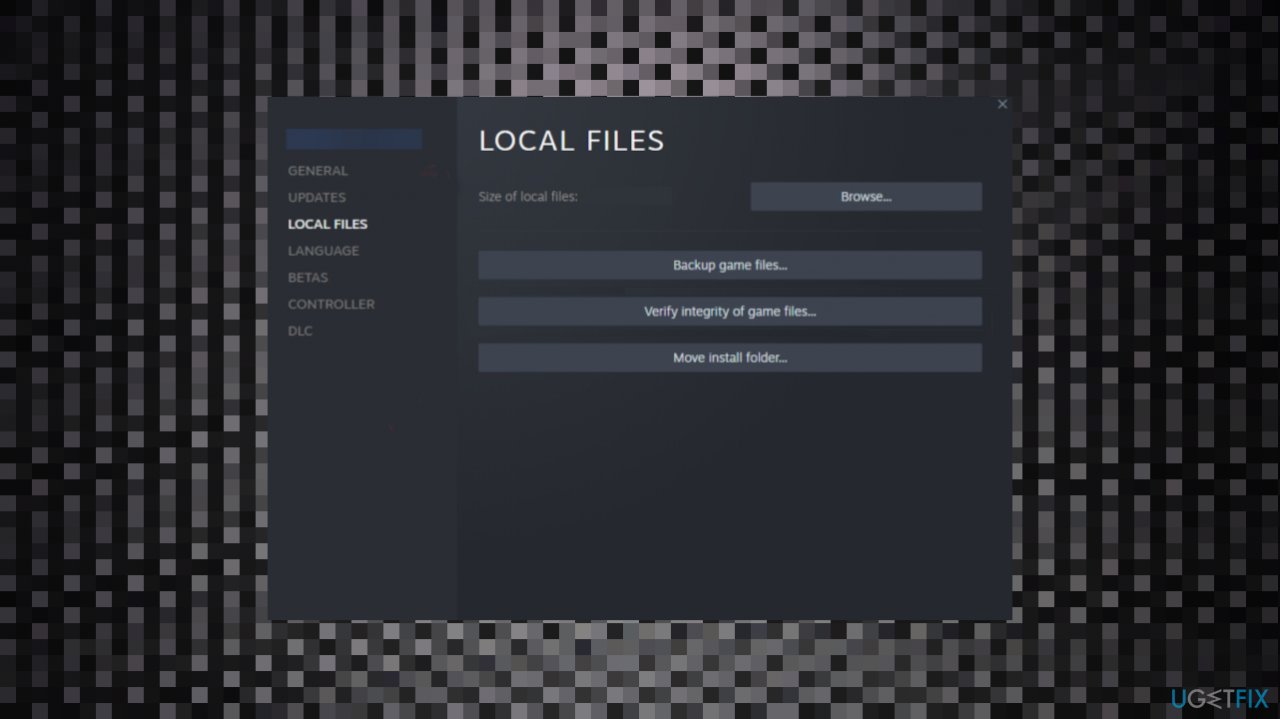
V rising steamworks initialisation failed local file - Now, in the LOCAL FILES tab, select Verify Integrity of local files… button.
- Once the scan is completed, corrupted or missing files will be fixed and you won’t get the issue anymore.
3. Clear Download cache
- You will have to open your Steam app for this.
- In the top left corner, click on the Steam menu.
- Select settings or preferences.
- A new sub-menu will appear; from it, click on the Downloads option.
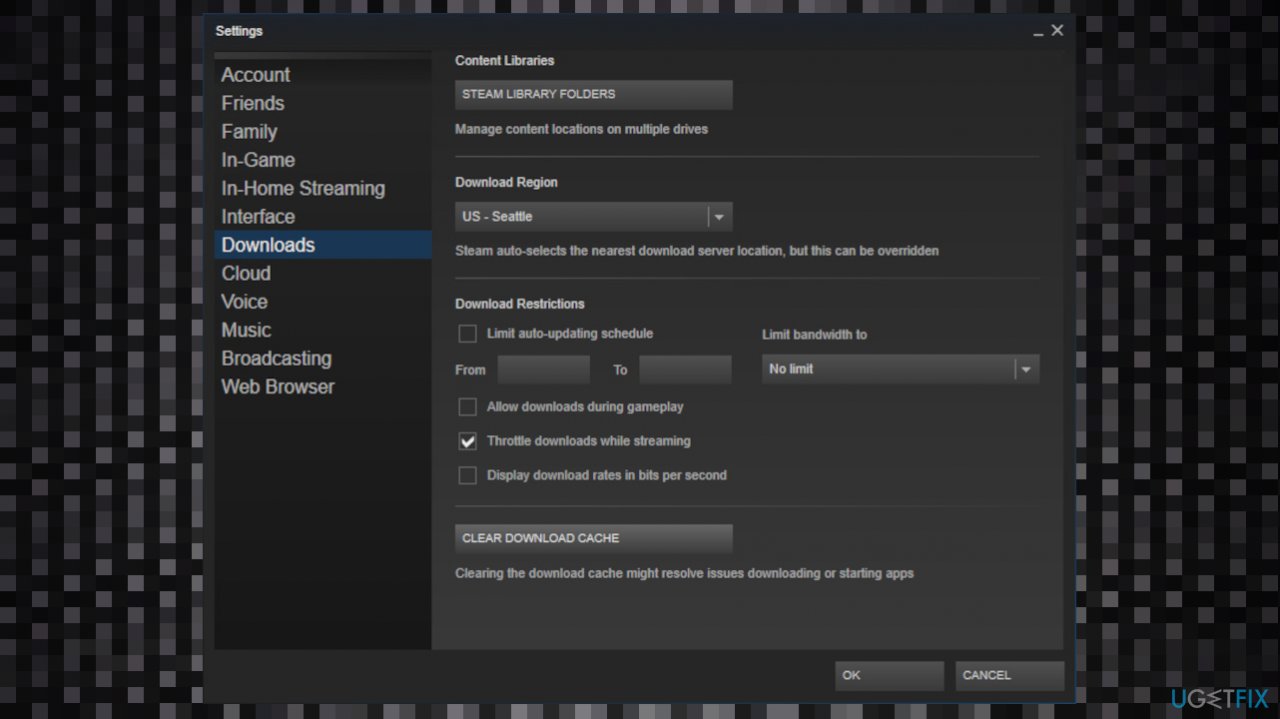
V rising steamworks initialisation failed local steam cache - Click on the Clear Download Cache button.
4. Run The Game as an administrator
- Right-click on the game’s .exe file.
- Then, make sure to select the Properties option.
- Select the Compatibility tab.
- Now, simply check the Run This Program as Administrator.
- Then, hit Apply and Ok buttons.
Bottom line
To fix the V Rising Steamworks Initialisation Failed error, try restarting Steam, verifying game files, or checking your internet connection. If these solutions do not resolve the issue, consider running a malware check or reinstalling the game.
Frequently asked questions
This error can occur due to outdated game files, missing dependencies, or issues with Steam's configuration on Windows 10.
You can verify the integrity of game files by right-clicking on V Rising in your Steam library, selecting 'Properties', navigating to the 'Local Files' tab, and clicking on 'Verify Integrity of Game Files'.
If reinstalling Steam doesn't fix the issue, try updating your graphics drivers and ensuring that all Windows 10 or Windows 11 updates are installed.




Report an issue
What's wrong with this guide? We review every report and update or remove content.
Report received — thank you. We'll review and fix it.
You need a free account to submit a report.
Be the first to comment