How to fix
Valorant error VAN9001
on Windows
Resolve the Valorant error VAN9001 on Windows 10 or 11 quickly and easily. Follow our expert-tested solutions for a seamless gaming experience!

What causes How to fix Valorant error VAN9001 in Windows?
- TPM version 2.0 is not enabled
- Secure boot is not enabled
- Vanguard Anti-Cheat system issues
- Windows 11 version 21H2 build 22000.176 compatibility problems
Repairs Windows system files, removes malware, and restores a clean OS state — without reinstalling.
Hello. I have upgraded to Windows 11 and now I cannot play Valorant. I receive a VAN9001 error. I do not want to return to the older version, as I had just upgraded it. Any tips would be appreciated.
Valorant is a free-to-play first-person shooter game developed and published by Riot Games, for Microsoft Windows. Officially released in 2020 it was inspired by a classic tactical shooter game Counter-Strike.[ref en-1] However, since the release the game has been causing various issues for its users with errors like Vanguard Anti-Cheat, and icons turn black.
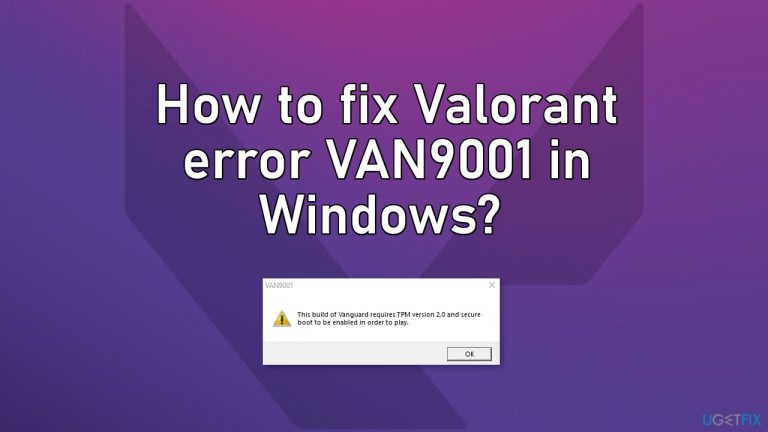
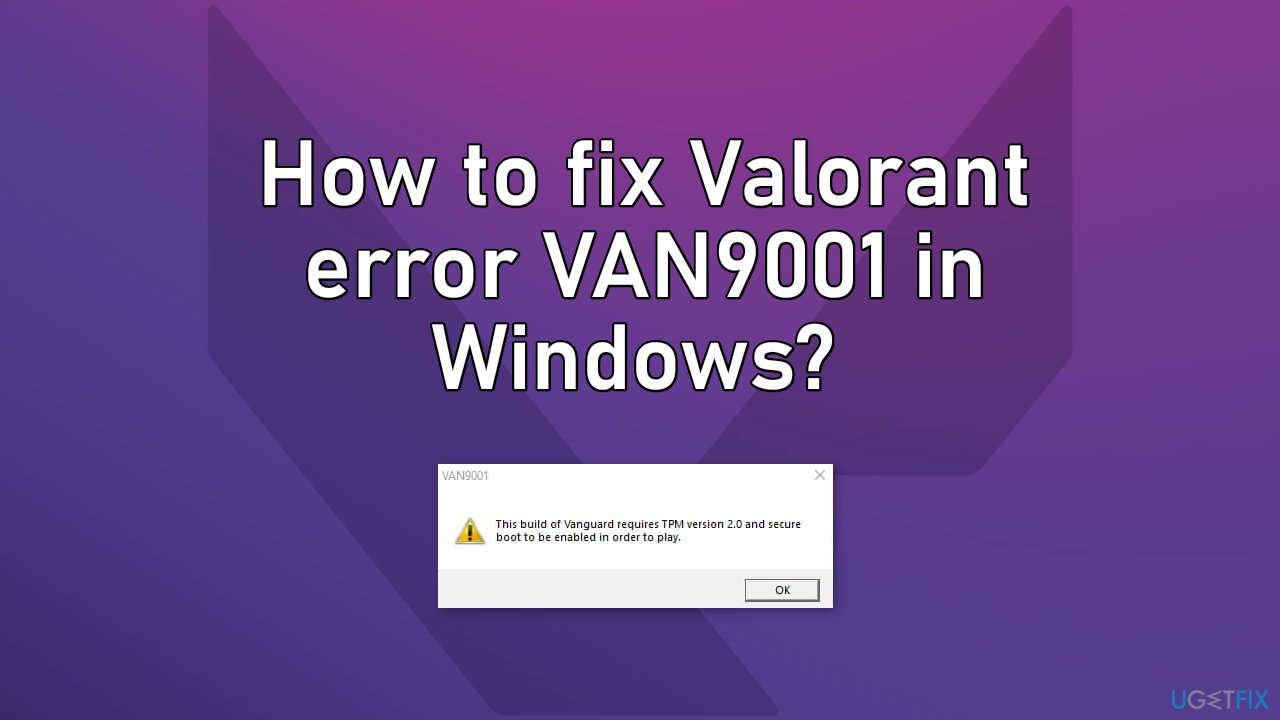
Most recently, a handful of users have encountered a VAN9001 error which says:
This build of Vanguard requires TPM version 2.0 and secure boot to be enabled in order to play.
Vanguard is Valorant's anti-cheat system which has already received some negative attention. By some sources, it has been accused of being a crypto miner and spyware for China.[ref en-2] Although there are no ongoing investigations, it has already made some players refuse to play Valorant.
Most often, the error occurs to people who have upgraded to Windows 11 and are running the version 21H2 build 22000.176. Unlike many other error messages, this one clearly states the problem - TPM and secure boot have to be enabled. However, some players say that they went to their settings and everything seemed to be in order. We have taken the user reports into account and prepared a guide for those whose TPM and secure boot are off or on but still receive the VAN9001 error.
As there are a couple of potential causes for this problem we suggest using a repair tool [d1] that can scan your system automatically to avoid going through all of the solutions. This software can identify the damaged system components, fix BSODs,[ref en-3] and registry issues, free up the space, and boost the machine's performance, so you will be able to potentially get more out of your device while gaming.
If you want to start with manual solutions to the Valorant error VAN9001 you can start here. Make sure to go through all the steps carefully:
Method 1. Enable TPM 2.0 and Secure Boot
- Restart your Windows 11 PC and rapidly press a key like DEL or F2 to boot the PC to the BIOS menu
- In BIOS, make sure the PC is in advanced mode
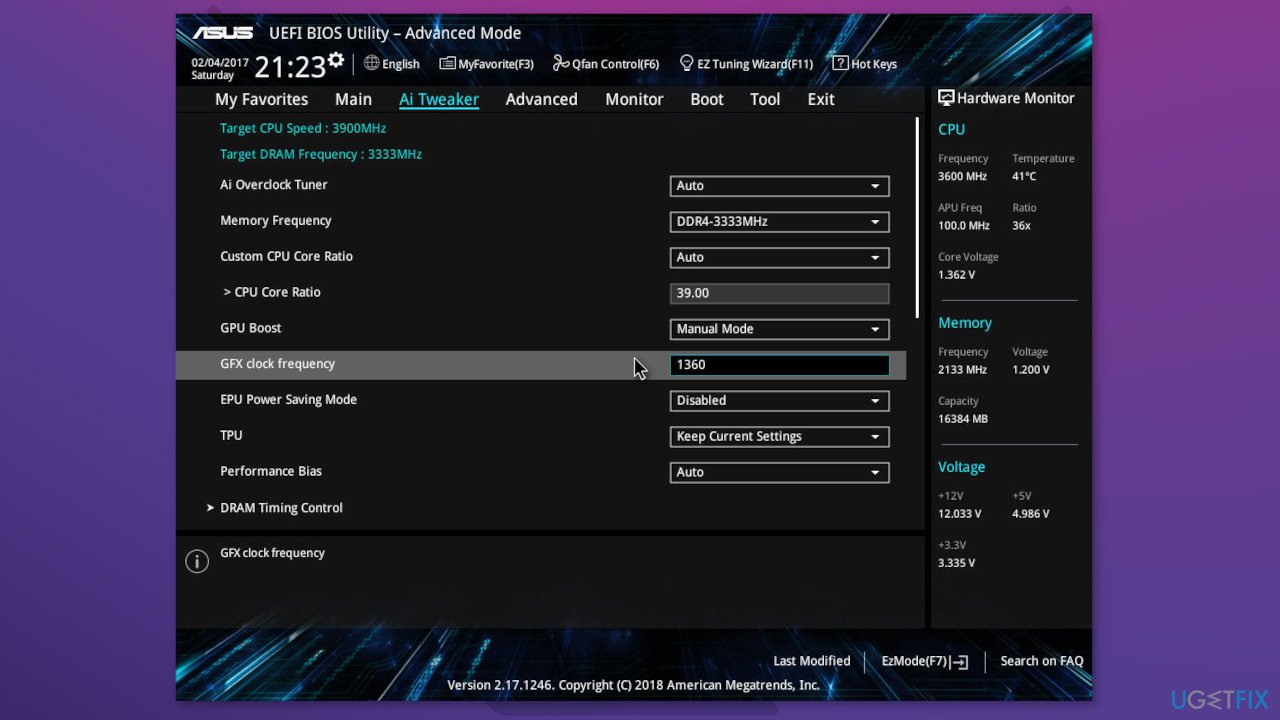
- Look for TPM. On the Intel processor, the TPM is known as PTT. For AMD processors, the TPM is called fTPM in BIOS
- Enable it
- Look for Secure Boot and enable it (you should change the setting of Secure Boot from Custom to Standard)
Method 2. Edit Group Policy
- Go to the Windows search bar, type Edit Group Policy and click the result
- Go to Computer Configuration > Administrative Templates
- Click Windows Components and expand BitLocker Drive Encryption
- Click Operating System Drives and find Require additional authentication at startup from the right side
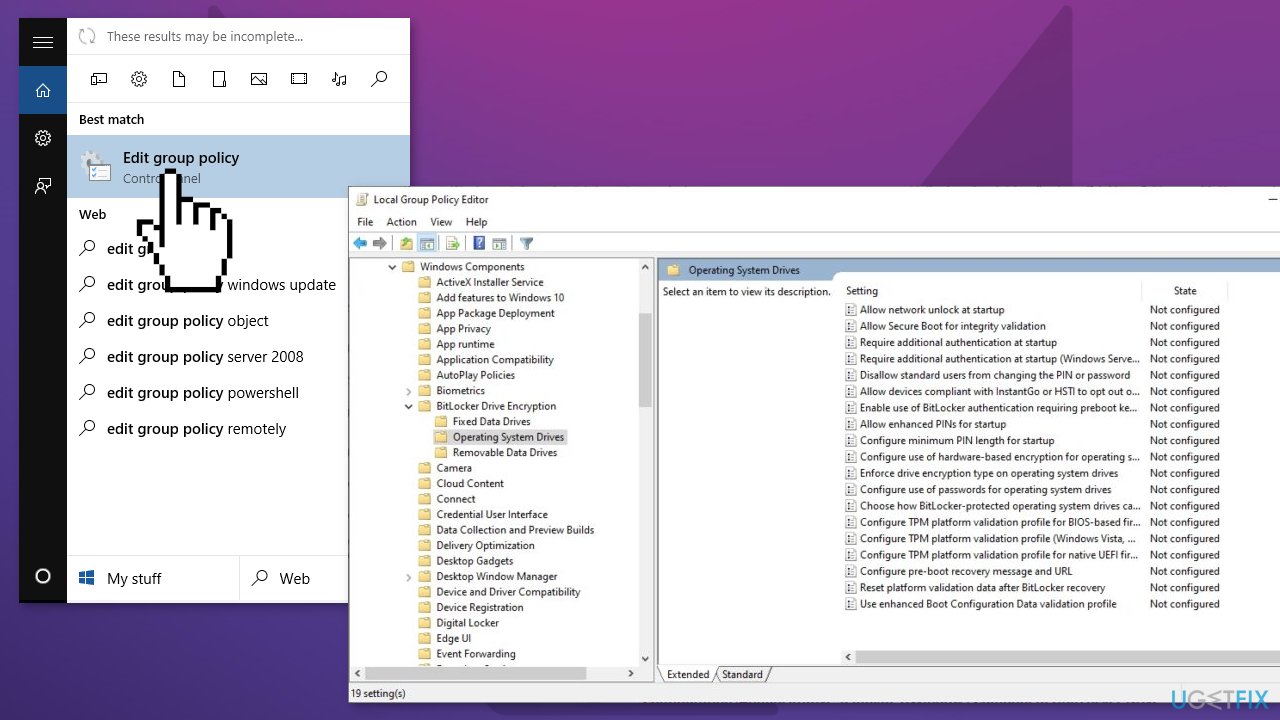
- Double-click this setting and choose Enabled in the pop-up window (make sure the checkbox for Allow BitLocker without a compatible TPM (requires a password or a startup key on a USB flash drive is ticked)
- Click Apply and OK to save the changes
Method 3. Reset Secure Boot Keys
If none of the above methods have worked, you can just reset Secure Boot keys to factory settings:
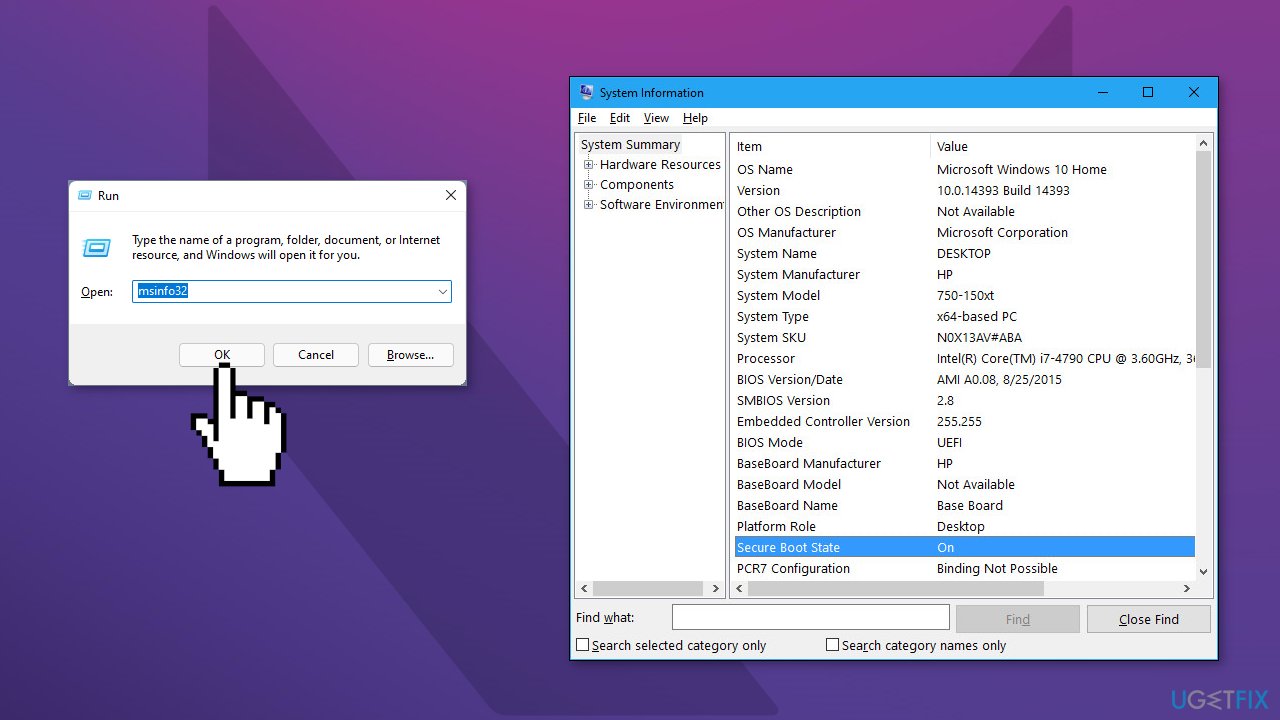
- Press Windows + R to open the Run box
- Type in msinfo32 and press OK
- Click on system summary on the left
- Check the line that says Secure Boot State if it is off
- Reboot your PC, go in BIOS (you need to press a key like DEL or F2 depending on your OS)
- Reset secure boot keys to factory, save and exit BIOS
- Once Windows is booted, type msinfo32 in the Run box again and secure boot should be ON
- Check if you can play Valorant
Bottom line
To fix the Valorant error VAN9001, ensure that TPM version 2.0 and secure boot are enabled in your system settings. If the error persists, consider using a repair tool to scan for and fix any underlying system issues. If none of these solutions work, further troubleshooting may be necessary.
Frequently asked questions
The VAN9001 error is typically triggered by network connectivity issues, server problems, or corrupted game files in Valorant on Windows systems.
To fix the VAN9001 error, you can try resetting your network settings, ensuring that Riot's servers are operational, and verifying the integrity of game files through the Riot client.
Yes, keeping your Windows 10 or Windows 11 updated can resolve compatibility issues and improve overall performance, potentially fixing the VAN9001 error.




Report an issue
What's wrong with this guide? We review every report and update or remove content.
Report received — thank you. We'll review and fix it.
You need a free account to submit a report.
Be the first to comment