How to fix
Valorant error Version Mismatch
on Windows
Resolve the Valorant error Version Mismatch on Windows 10 and 11 effortlessly. Get expert-tested solutions that fix the issue in minutes.

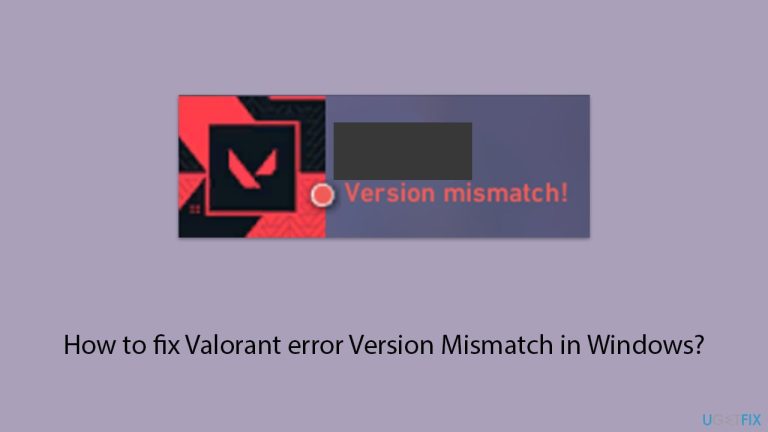
What causes How to fix Valorant error Version Mismatch in Windows?
- Differences in patch release times across regions
- Incorrect region setting on Riot account
- Network interruptions during updates
- Corrupted or missing game files
- Interference from firewalls or antivirus software
Repairs Windows system files, removes malware, and restores a clean OS state — without reinstalling.
So yesterday I decided to play a match of Valorant with my friend and unfortunately, I couldn't invite him, and the message said "Version Mismatch." We live in the same country and city even, so I don't understand what is going on.
"Version Mismatch" error in Valorant is a recurring issue that players encounter, especially after a new patch or hotfix is released. This error occurs when the version of the game running on your system does not align with the version deployed on the Riot servers, which can prevent you from accessing matches or playing with friends.
"Version Mismatch" error is often linked to differences in patch release times across regions, meaning that some areas receive updates before others. As a result, if you or your teammates are in different regions, one party might have access to the update while others do not, leading to this mismatch error.
Another contributing factor is the incorrect region setting on your Riot account. If your account is registered under a different region from where you are currently playing, it may cause discrepancies in game versions, preventing the game from syncing correctly with the server version. This issue can be addressed by verifying that your Riot account’s region matches your actual location. Riot provides assistance for changing your region of residence if it has been set incorrectly, which could resolve errors linked to region mismatches.
Aside from regional issues, network interruptions or incomplete downloads during updates can also trigger the "Version Mismatch" error. Corrupted or missing game files, often caused by interrupted installations, are common culprits that require verification or reinstallation of game components to resolve. Additionally, interference from firewalls or antivirus software that block Valorant’s access to its servers might contribute to the persistence of this error.
To address underlying Windows issues that may be affecting Valorant’s update process, using [d1] PC repair tool can be a helpful solution, automatically fixing problems that disrupt the game’s functionality and connectivity.
Fix 1. Repair game files
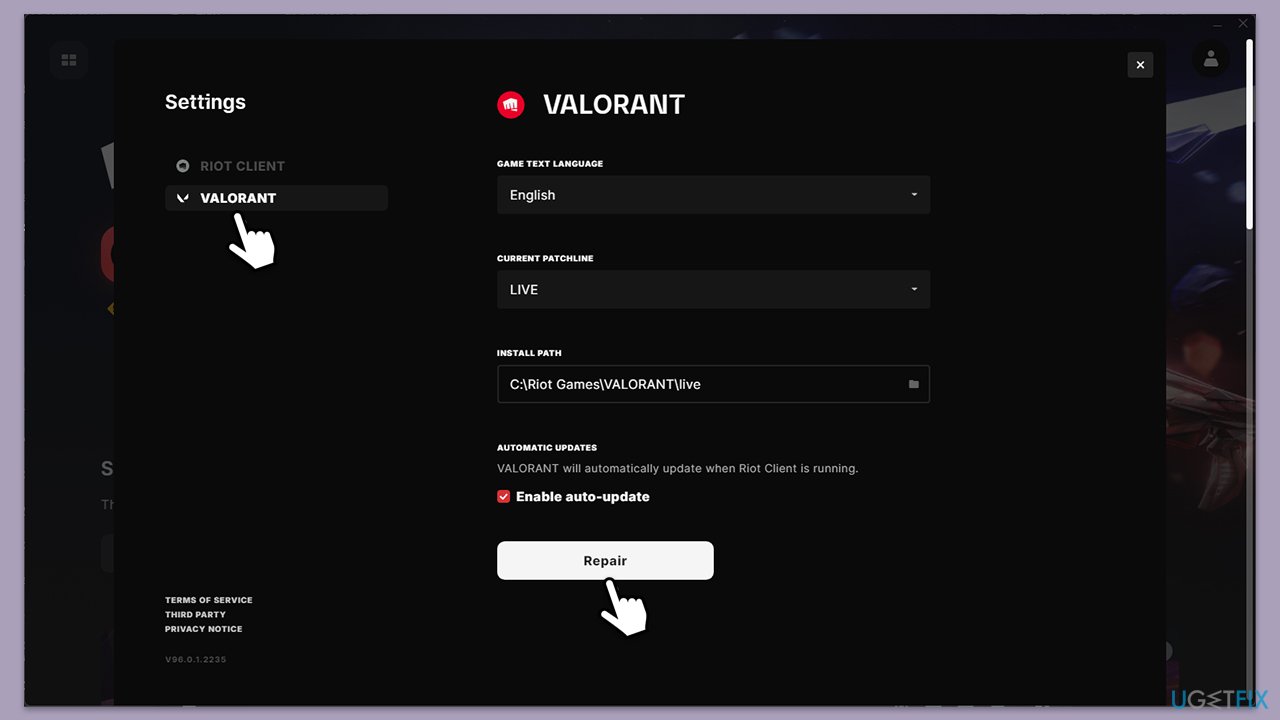
Verifying the game files through the Riot client helps identify and repair any corrupted or missing files that may be causing the version mismatch error. This process ensures all game files are consistent with the server version.
- Open the Riot Client.
- Click on your account icon and select Settings.
- Select Valorant and choose Repair.
- Wait for the client to verify and repair the files.
- Restart the client and launch Valorant again.
Fix 2. Change region settings
If your account's region does not match your current location, it could lead to patch version discrepancies. Correcting your region settings can ensure that your game matches the server version in your area.
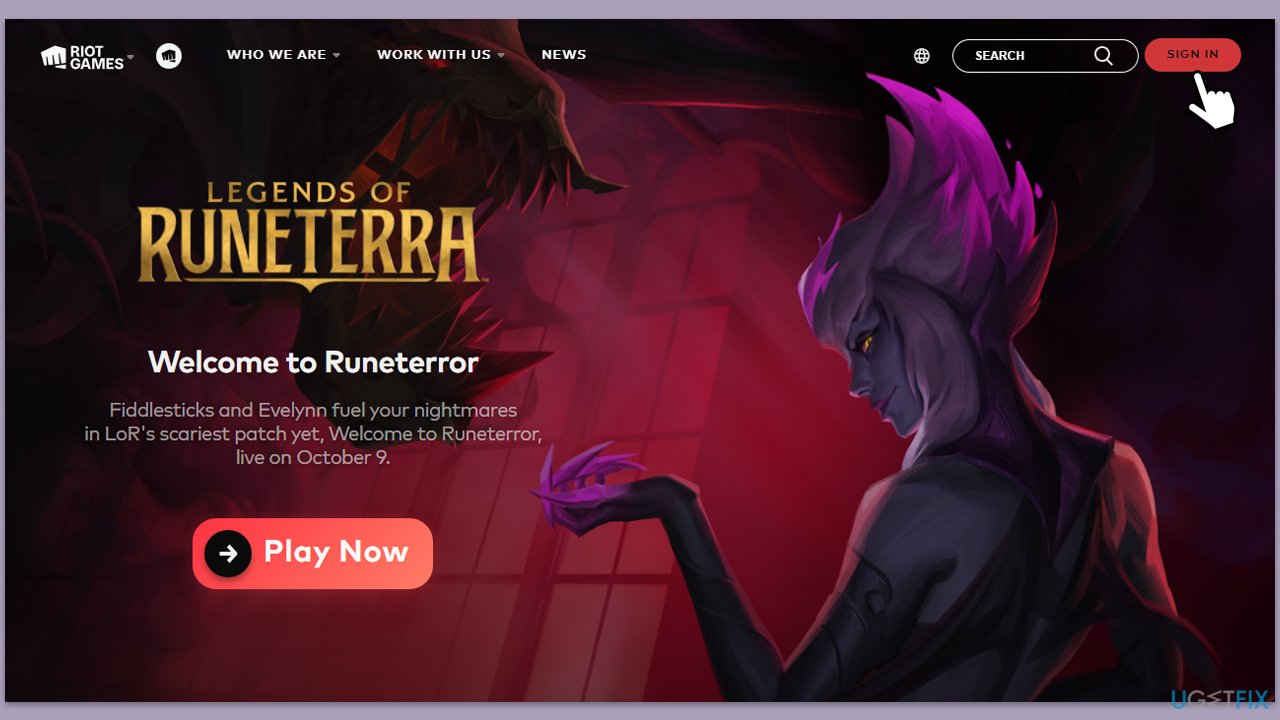
- Sign into your Riot account on the Riot Games website.
- Check if the Region of Residence matches your current location.
- If incorrect, submit a support request to Riot Games to change your region.
- Restart Valorant after the change is applied.
Fix 3. Restart the Riot Client and game
Sometimes, the client may not apply updates correctly, or it might run an outdated version of the game. Restarting both the client and game can trigger the update process and align your game version with the server.
- Exit Valorant completely.
- Close the Riot Client from the system tray.
- Reopen the Riot Client and wait for updates to be applied automatically.
- Launch Valorant again and check if the issue persists.
Fix 4. Check server status and update delay
Valorant patches often roll out at different times across regions. If the server status indicates an ongoing update rollout, you might need to wait for the update to become available in your region.
- Visit Riot Games' server status page.
- Check for announcements about patch updates or server maintenance.
- If updates are delayed in your region, wait until the rollout is completed.
- Restart Riot Client once the update is available.

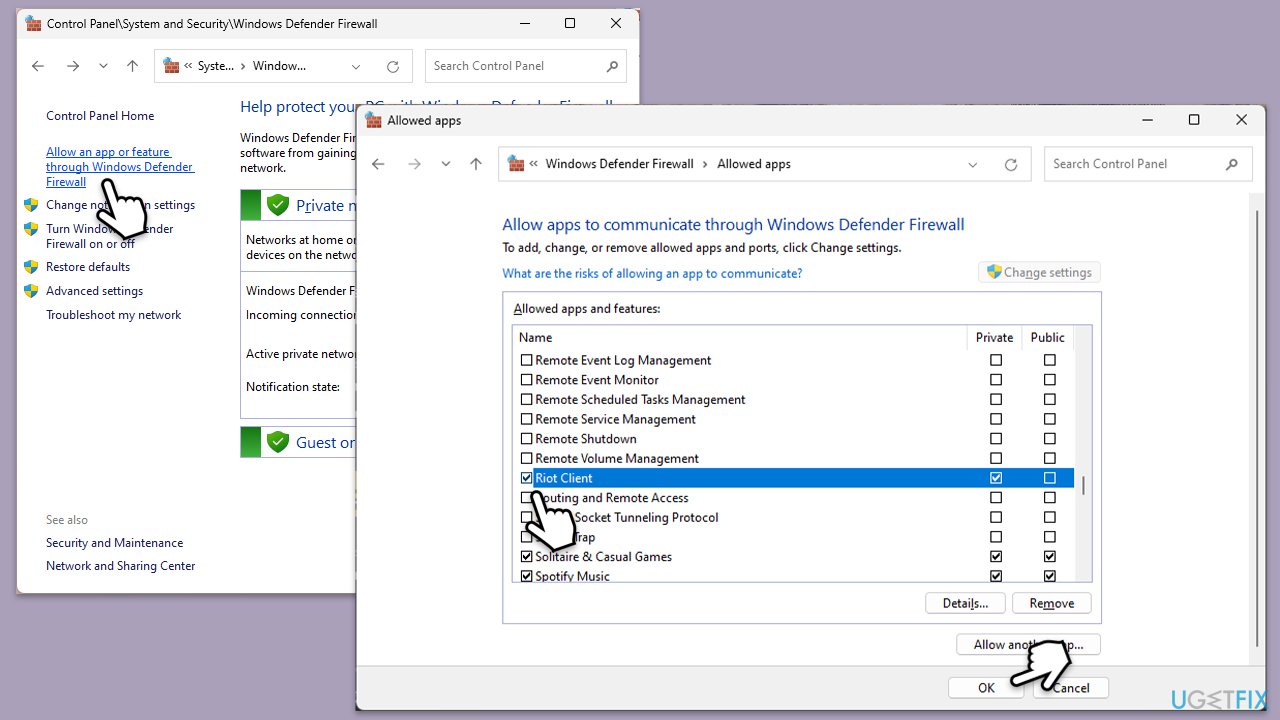
Fix 5. Adjust firewall and antivirus settings
Firewalls or antivirus programs may block Valorant from accessing its servers correctly, causing version mismatches. Adjusting these settings ensures that the game has the necessary permissions to update.
- Open the Control Panel and navigate to System and Security > Windows Defender Firewall.
- Select Allow an app or feature through Windows Defender Firewall.
- Click Change settings and enter your administrator password if prompted.
- Find Riot Client in the list of applications and check both the Private and Public boxes.
- Click OK to save your changes.
Fix 6. Clear cache and temporary files
Temporary files and cache data can cause conflicts during updates. Clearing them may resolve version mismatch errors by ensuring no old data interferes with the update process.
- Press Win + R to open the Run dialog box.
- Type %localappdata% and press Enter.
- Navigate to the Valorant folder and delete the Logs and Cache folders.
- Restart your PC and try launching Valorant.
Fix 7. Reinstall Valorant
If the error persists despite verifying files and restarting the client, a fresh installation may resolve any underlying corruption or incomplete installations.
- Uninstall Valorant through the Control Panel.
- Remove all remaining Valorant and Riot folders from %localappdata% and Program Files.
- Reinstall Valorant using the Riot Client.
- Launch the game and check if the version mismatch error is resolved.
Bottom line
To fix the 'Version Mismatch' error in Valorant, you can verify your game files through the Riot client, ensure your Riot account's region matches your location, and check for any network issues or software interference. If these solutions do not resolve the issue, consider using a PC repair tool to address underlying Windows problems.
Frequently asked questions
Ensure that both the Riot Client and Valorant are updated to the latest versions available. You can do this by running the Riot Client and checking for updates in the settings.
You can verify the integrity of your game files through the Riot Client by navigating to the settings and selecting the option to repair the game files.
Yes, uninstalling and then reinstalling Valorant can resolve the Version Mismatch error, especially if there are corrupted files or outdated versions.




Report an issue
What's wrong with this guide? We review every report and update or remove content.
Report received — thank you. We'll review and fix it.
You need a free account to submit a report.
Be the first to comment