How to fix
Vb6ko.dll missing or not found error
on Windows
Resolve the Vb6ko.dll missing error on Windows 10 and 11 effortlessly. Get expert-tested solutions with screenshots for a quick fix!

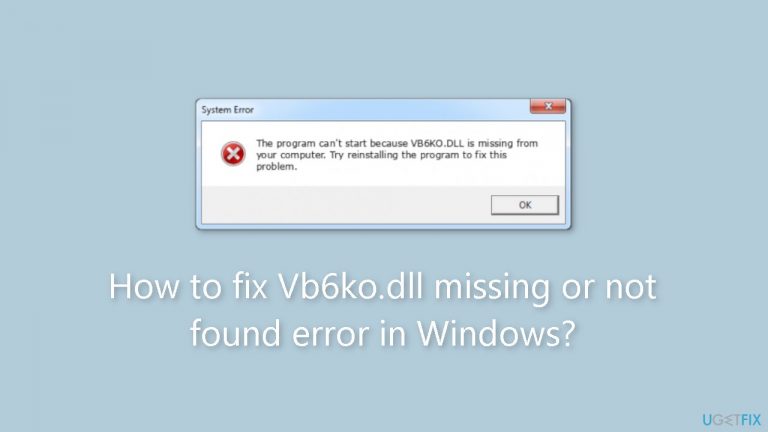
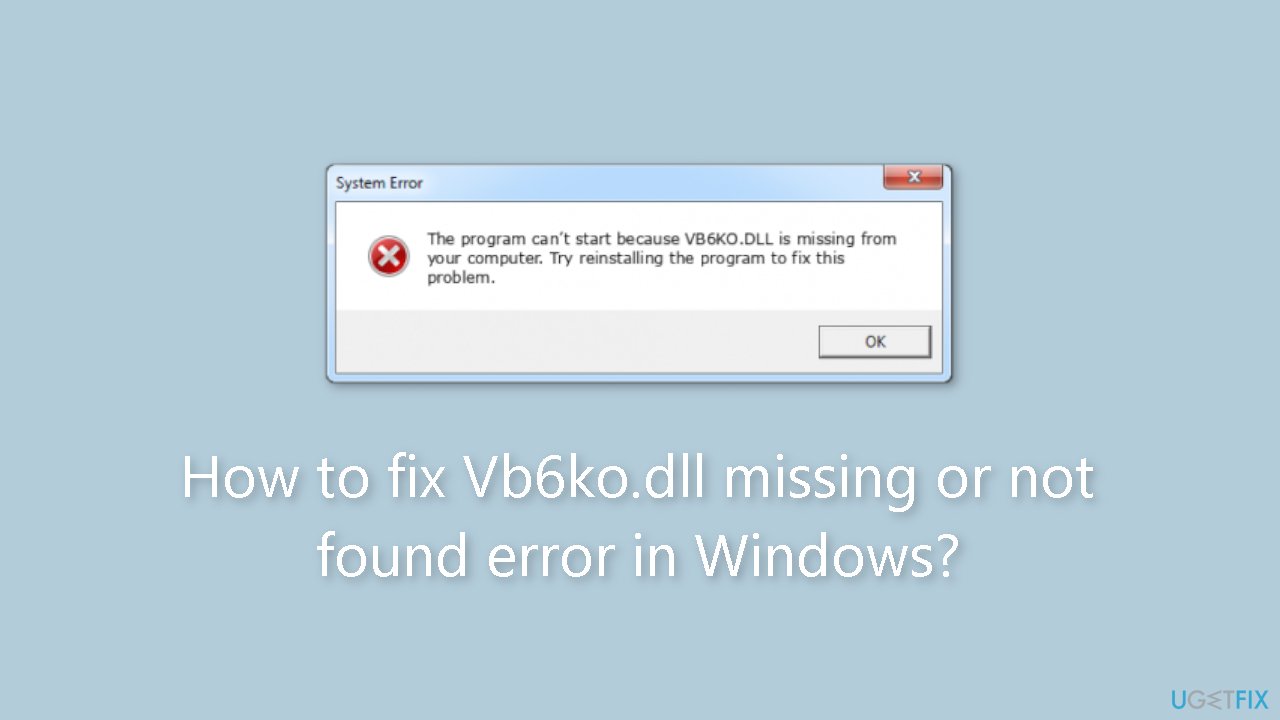
What causes How to fix Vb6ko.dll missing or not found error in Windows?
- Missing vb6ko.dll file
- Corrupted vb6ko.dll file
- Improper installation of Visual Basic applications
- Registry issues related to vb6ko.dll
- System crashes or data corruption
Repairs Windows system files, removes malware, and restores a clean OS state — without reinstalling.
Hello. Recently I started seeing various errors that say Vb6ko.dll is missing or not found on my Windows PC. Is there a way to fix this?
Dynamic Link Libraries (DLL)[ref en-1] are essential building blocks of the Windows operating system, allowing code and resources to be shared across multiple applications. DLL files allow programs to run more efficiently because they don't have to include the same code or resources multiple times. This contributes to a smaller memory footprint and improved system performance.
Vb6ko.dll is a DLL file associated with Microsoft's Visual Basic, a programming language and environment. The vb6ko.dll file contains essential functions that support Visual Basic applications, which are widely used for creating Windows applications. When the vb6ko.dll file is missing or not found, Visual Basic applications may fail to function properly.
The inability to run or install Visual Basic applications is one of the most common problems caused by the vb6ko.dll error. This can be aggravating for users who rely on these applications for work or pleasure. Furthermore, the error can cause unexpected application crashes or errors, resulting in data loss and further system instability.
Reduced system performance is another issue caused by the vb6ko.dll error. When the system is unable to access this file, it may use more resources to perform the same tasks, causing the computer to slow down and become difficult to use. This is particularly troublesome for users who need to complete tasks quickly or work with resource-intensive applications.
The vb6ko.dll error can also cause system instability in some cases. This can result in more serious problems, such as system crashes or data corruption, which can be difficult to repair. As a result, it is critical to address this error as soon as possible in order to prevent further damage to the system.
In this guide, you will find 6 steps that should help you fix Vb6ko.dll missing or not found error in Windows. You can also use a maintenance tool like [d1] that can fix most system errors, BSODs,[ref en-2] corrupted files, and registry[ref en-3] issues. Otherwise, follow the step-by-step instructions below.
Solution 1. Install Windows Updates
- Click Start on the taskbar.
- Select the Setting app pinned to the Start menu.
- Click Windows Update on the left side of Settings.
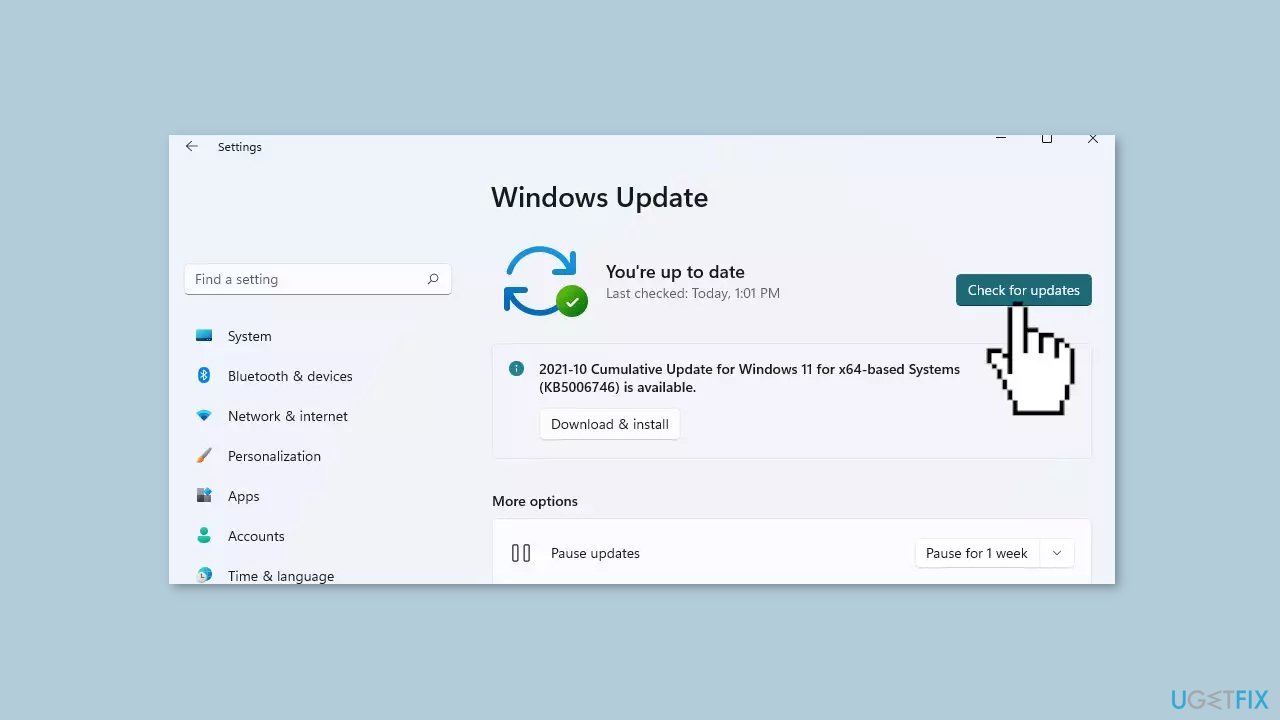
- Press the Check for updates button to download and install new patch updates.
Solution 2. Fix Corrupted System Files
Use Command Prompt commands to repair system file corruption:
- Open Command Prompt as administrator
- Use the following command and press Enter:
sfc /scannow
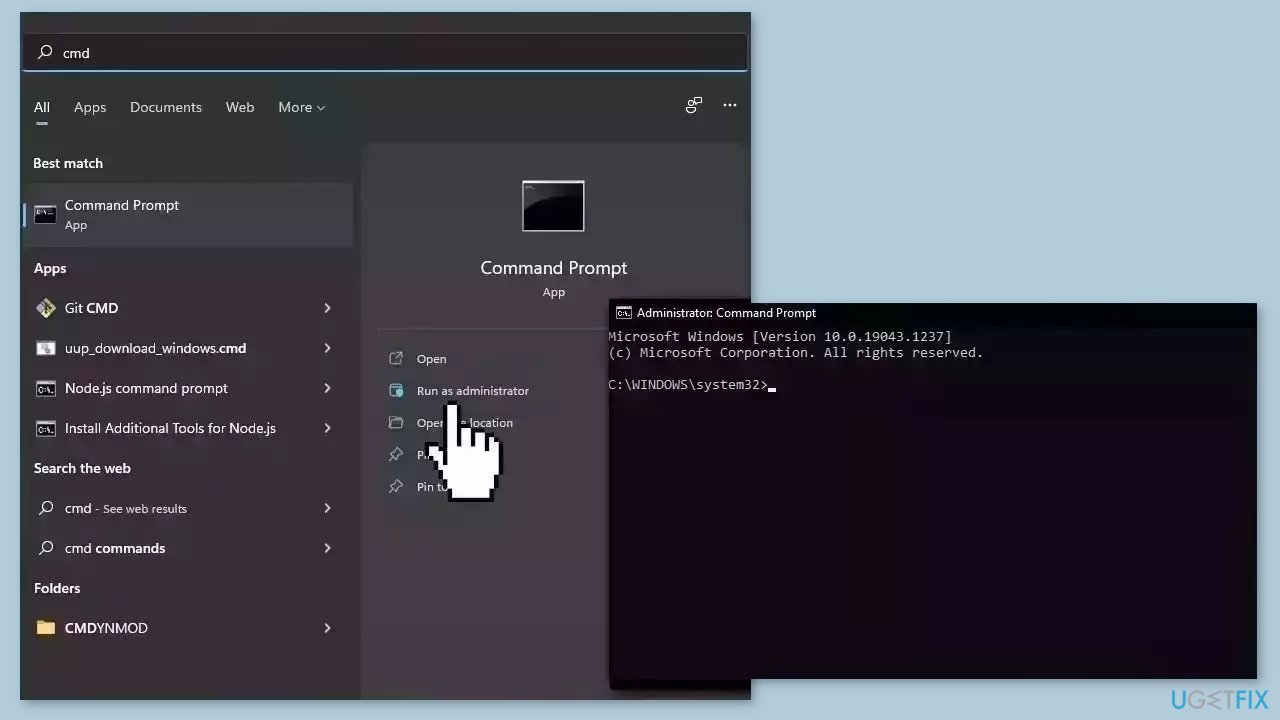
- Reboot your system
- If SFC returned an error, then use the following command lines, pressing Enter after each:
DISM /Online /Cleanup-Image /CheckHealth
DISM /Online /Cleanup-Image /ScanHealth
DISM /Online /Cleanup-Image /RestoreHealth
Solution 3. Register the DLL
- Press the Windows key on your keyboard to open the Start menu.
- Type Command Prompt in the search box.
- Right-click on Command Prompt and select Run as administrator.
- In the Command Prompt window that appears, type:
regsvr32 VB6KO.DLL
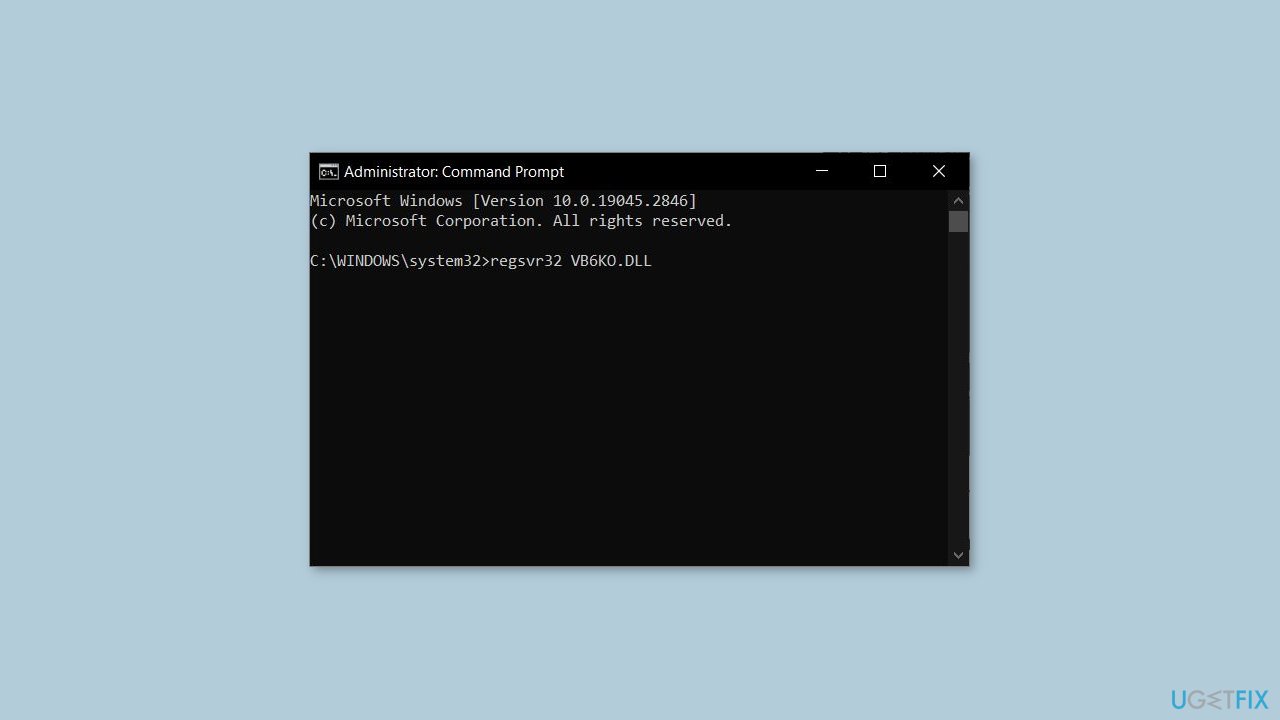
- Press the Enter key on your keyboard to execute the command.
- Wait for the confirmation message that says DllRegisterServer in VB6KO.DLL succeeded.
- Close the Command Prompt window.
- Restart your computer to complete the process.
Solution 4. Run a Malware Scan
It is possible that a malware infection may be the cause of the SDL2.dll missing or not found error in Windows. It is important to run a comprehensive security scan to rule out this possibility and ensure that the computer is not infected. This can help to prevent further issues with the Windows operating system and ensure that it is functioning properly.
If you have access to a security scanner, or if your organization pays for one, you can use it to scan your entire system to check for a virus infection. Otherwise, you can use Windows Defender to scan your system:
- Click on the Windows Start menu or press the Windows key on your keyboard
- Type Microsoft Defender in the search bar and click on Microsoft Defender Antivirus to open the application
- Click on the Virus & threat protection option in the left-hand menu
- Click on the Quick scan or Full scan option, depending on your preference
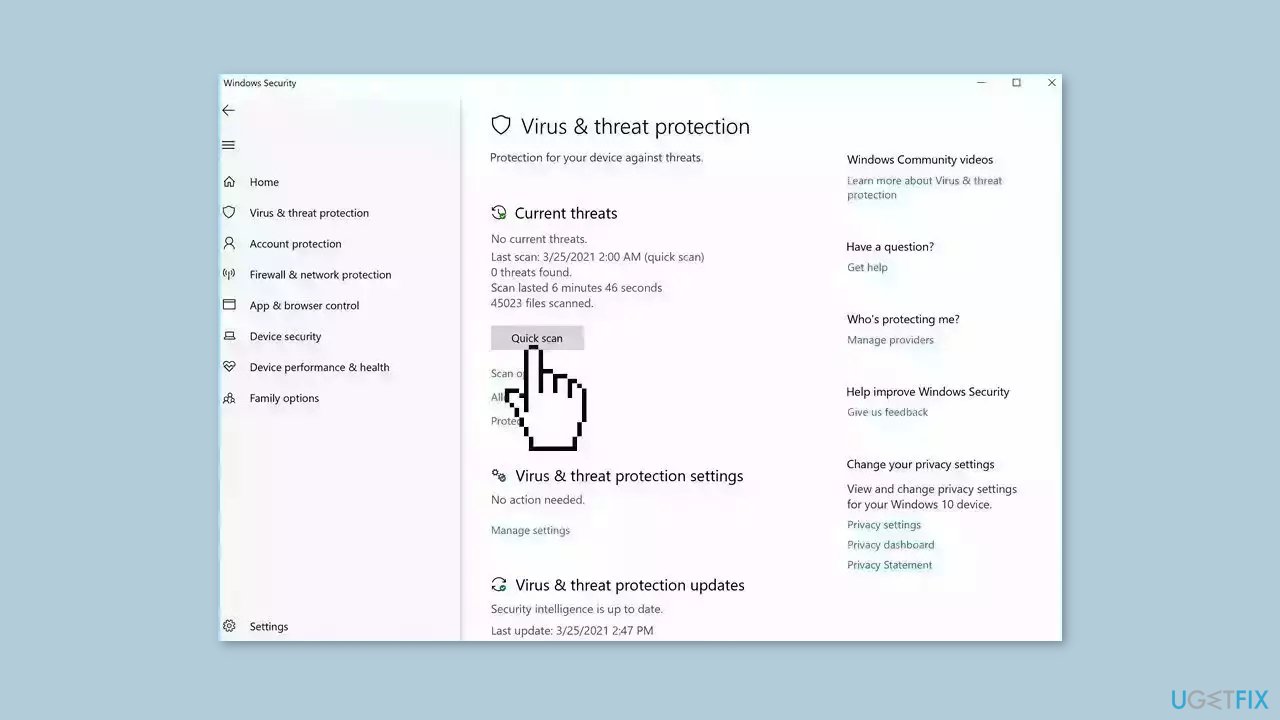
- If you choose Quick scan, Microsoft Defender Antivirus will scan the most vulnerable and commonly infected areas of your computer
- If you choose Full scan, Microsoft Defender Antivirus will scan your entire computer, including all files, folders, and programs
- Click on the Scan now button to start the selected scan type and wait for the scan to complete
- The time it takes will depend on the size of your hard drive and the number of files being scanned
- Once the scan is complete, you will be informed of any detected threats, and you can choose to quarantine or remove them
- If no threats are found, Microsoft Defender Antivirus will inform you that your device is secure
Solution 5. Run System Restore
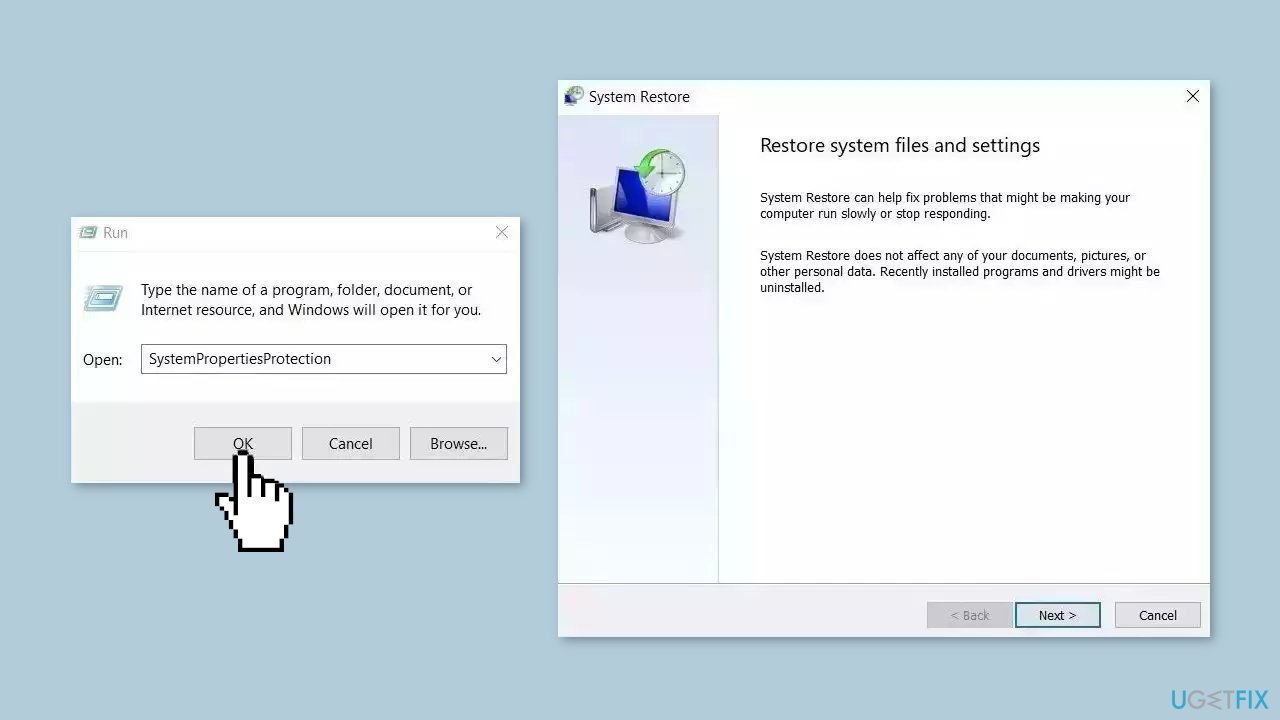
System Restore is a feature in Microsoft Windows that allows users to revert their computer's state to a previous point in time. This can be helpful if you have made changes to your system that are causing problems.
- Go to the Start menu, type restore, and click on Create a restore point.
- Click System Restore, then follow the prompts until you can select a restore point.
- Select the one you want (ideally before the issue started occurring) and go ahead with the process.
Solution 6. Repair Install Windows
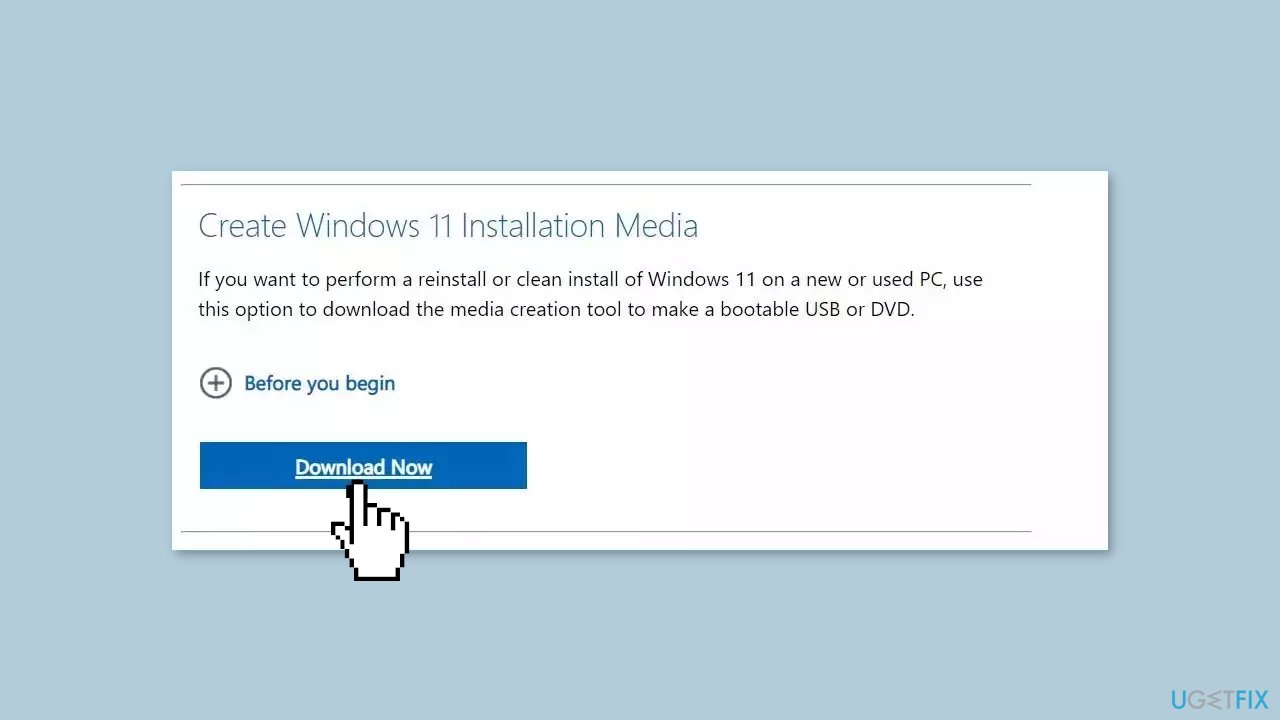
- Visit the official Microsoft website to download Windows 11 or Windows 10 Installation Media
- Run the Media Creation Tool and select Create Installation Media for another PC.
- Select your USB drive.
- Let the Process complete of writing the Installation files to the USB drive.
- Click Finish.
- On the PC you wish to upgrade, Press Windows + E to open the File Explorer.
- Open the Removable drive and click Setup.exe.
- Accept the license terms on the next screen.
- Confirm the Upgrade options – Files, apps and Settings are kept.
- Click Install, and the upgrade should start.
Bottom line
To fix the Vb6ko.dll missing or not found error, you can follow the step-by-step instructions provided in this guide, which include checking for the file, reinstalling Visual Basic applications, and using maintenance tools. If these solutions do not resolve the issue, consider seeking professional assistance or using a dedicated DLL repair tool.
Frequently asked questions
Try reinstalling the application that is causing the error, as it may replace the missing Vb6ko.dll file. If that doesn't work, you can also download the DLL file from a reputable source and place it in the application's directory or the Windows System32 folder.
You can resolve this issue by running the System File Checker tool to repair any corrupted system files. Open Command Prompt as an administrator and type 'sfc /scannow' to initiate the scan.
Downloading DLL files from unverified sources can be risky and may expose your system to malware; it's safer to obtain the file through official software installations or trusted vendors.




Report an issue
What's wrong with this guide? We review every report and update or remove content.
Report received — thank you. We'll review and fix it.
You need a free account to submit a report.
Be the first to comment