How to fix
“VCRUNTIME140_CLR0400.dll is either not designed to run
on Windows
Resolve the "VCRUNTIME140_CLR0400.dll" error on Windows 10 or 11 effortlessly. Get expert-tested solutions and fix it in minutes!

What causes How to fix “VCRUNTIME140_CLR0400.dll is either not designed to run on Windows or it contains an error” in Windows?
- Corrupted files due to incomplete installations
- Malware attacks
- Missing Visual C++ Redistributables
- Outdated Visual C++ Redistributables
- Conflicts with third-party software
- Problematic Windows updates
Repairs Windows system files, removes malware, and restores a clean OS state — without reinstalling.
Hey, I keep getting this error message on my Windows 10 PC that says "VCRUNTIME140_CLR0400.dll is either not designed to run on Windows or it contains an error" whenever I try to open my game. What’s going on here?
The "VCRUNTIME140_CLR0400.dll is either not designed to run on Windows or it contains an error" message creates a substantial problem for Windows users who try to start games and applications. This error affects a critical DLL file which frequently occurs in Windows systems yet knowing its source enables users to fix the problem to regain system functionality.
Windows systems function through DLL files, which stand for Dynamic Link Libraries. These shared libraries store program functions that applications can access through external calls rather than including features directly. Each application function requires a specific DLL, which then gets loaded into memory to optimize system space and improve performance. The absence of a DLL file or its corruption or incompatibility causes dependent applications to fail, which leads to errors that interrupt normal system operations.
The Microsoft Visual C++ Redistributable package contains this particular DLL file VCRUNTIME140_CLR0400.dll which serves as a crucial set of libraries needed by numerous applications including games and software built with Visual Studio for proper operation. The Common Language Runtime (CLR) environment receives support from this DLL which allows programs written in C# or Visual Basic to communicate effortlessly with Windows. When this file is missing the affected applications become non-functional which results in the displayed error notification.
The problem develops from multiple different origins. The most common causes of this error stem from corrupted files that occur due to incomplete installations or malware attacks or from missing or outdated Visual C++ Redistributables that result in version compatibility issues. The error message can occur because of conflicts with third-party software and problematic Windows updates and external application interference.
For example, if the error stems from a corrupted file, reinstalling the Visual C++ Redistributable may resolve the issue. If it is due to an outdated system, installing the latest Windows updates could address the problem. Should malware be the cause, conducting a comprehensive security scan is advisable.
or more persistent issues, a comprehensive PC repair tool like [d1] can step in to resolve underlying Windows problems - offering automated scans and fixes for corrupted files, registry errors, and malware damage, so it’s best suited for users seeking a robust, all-in-one solution over basic troubleshooting.
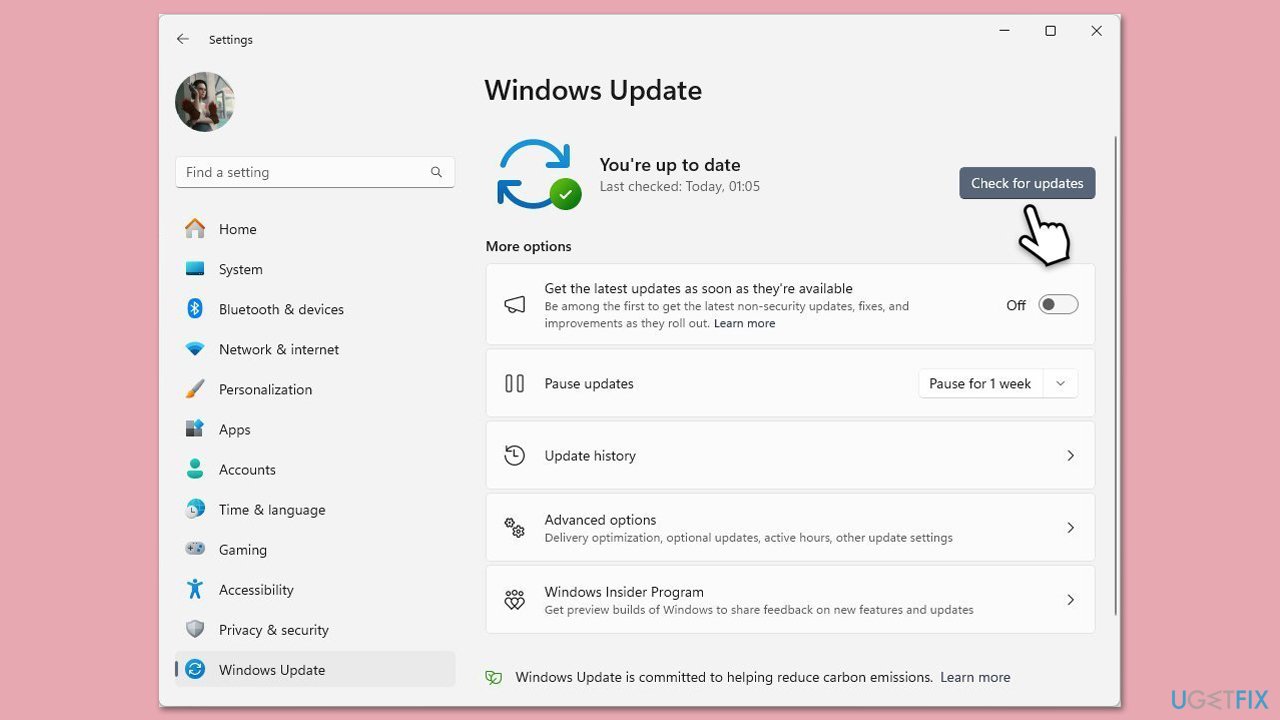
Fix 1. Check for Windows updates
Ensuring your system is up to date can fix compatibility problems with essential DLLs, as updates often include patches for system stability.
- Type Updates in Windows search and press Enter.
- Here, click Check for updates.
- Wait till Windows downloads and installs all the files.
- If optional updates are available, install them as well.
- Reboot your computer.
Fix 2. Repair Visual C++ Redistributable
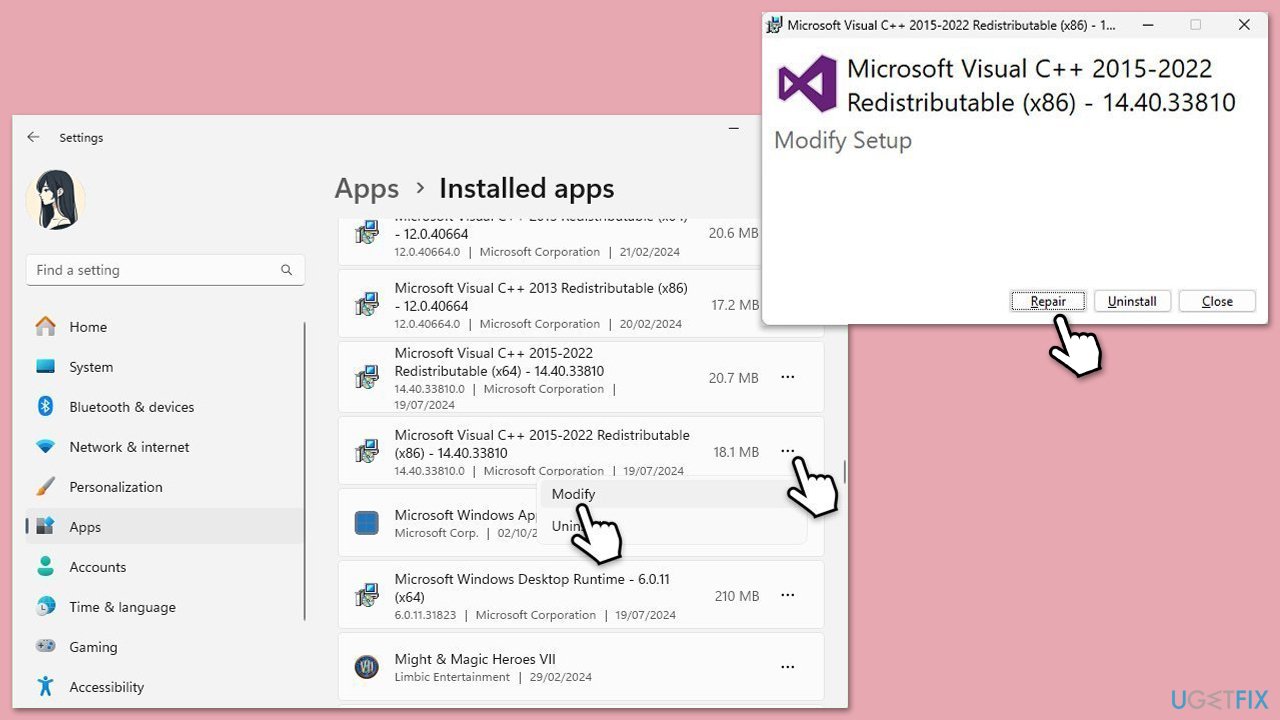
Issues with the library files can often be fixed by repairing existing installations, ensuring apps have the necessary components without needing a full reinstall.
- Go to Control Panel and click on Programs and Features.
- Find Microsoft Visual C++ Redistributable in the list.
- Right-click on it and select Change.
- Click on the Repair option and follow the on-screen instructions.
- Repeat this for each Visual C++ Redistributable listed.
- Restart your computer after repairing it.
Fix 3. Reinstall Visual C++ Redistributable
If repairing doesn’t work, the library files might be missing or too corrupted, so reinstalling ensures your system has a fresh, correct set of components.
- Type Control Panel in Windows search and press Enter.
- Select Programs > Uninstall a program.
- Scroll down to find the installed Microsoft Visual C++ Redistributable packages.
- Right-click on each of these and select Uninstall, following the instructions to finish the process.
- When done, restart your computer.
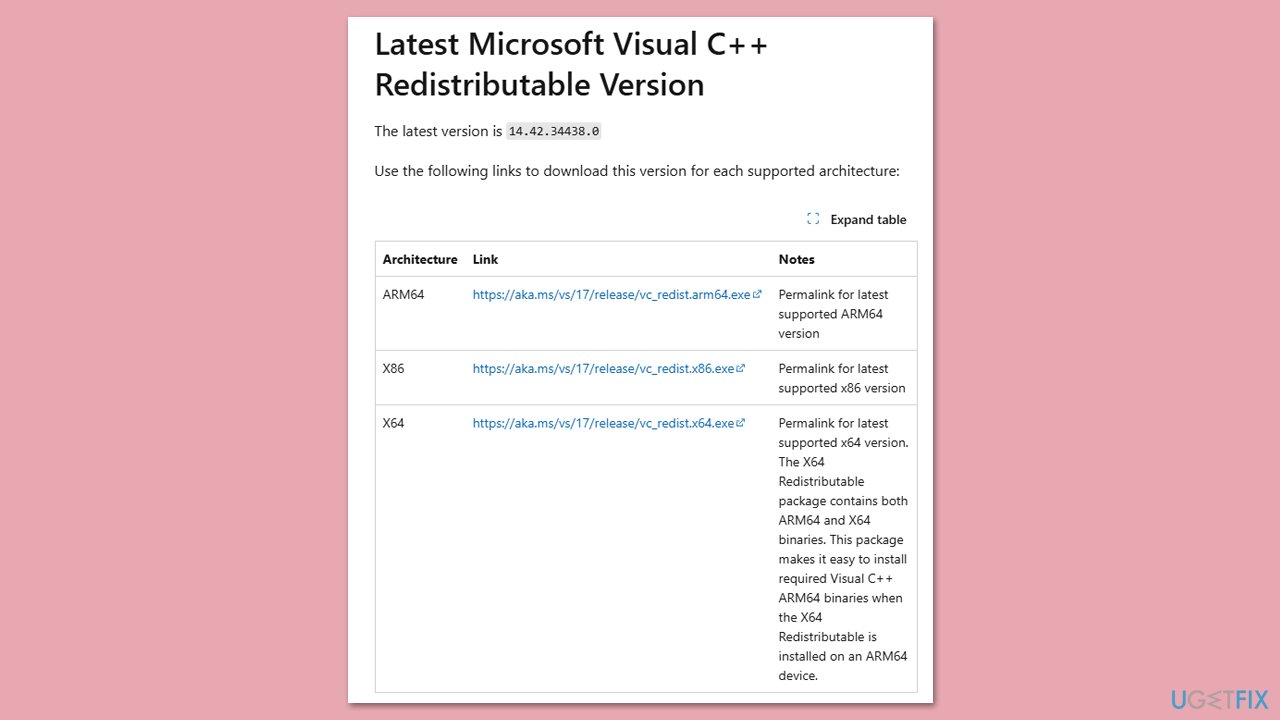
- Now open your browser and navigate to the official Microsoft website for Visual C++.
- Here, you will find all the versions available - install both x86 and x64 versions of the offered files.
- When done, restart your PC and see if the issue persists.
Fix 4. Perform a malware scan
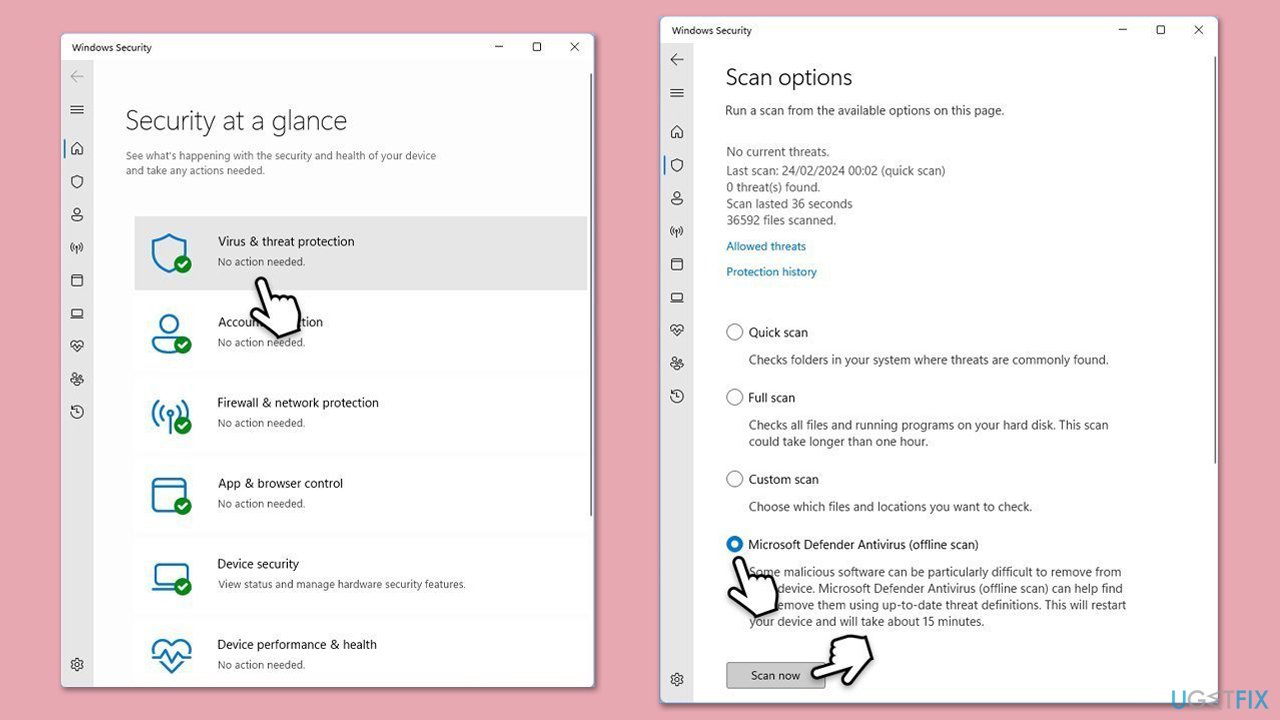
Malicious software can corrupt or replace DLL files, and running a thorough scan can eliminate threats affecting system files. You can use a trusted third-party app, Microsoft Safety Scanner or the built-in Microsoft Defender:
- Type Windows Security in the Windows search bar and hit Enter.
- Select Virus & threat protection.
- Pick Scan options.
- Choose Microsoft Defender Offline scan and click Scan now.
- Your computer will immediately reboot and begin a deep scan.
Fix 5. Reinstall the app
A faulty app installation might not have properly integrated the DLL, and reinstalling it can fix registration issues.
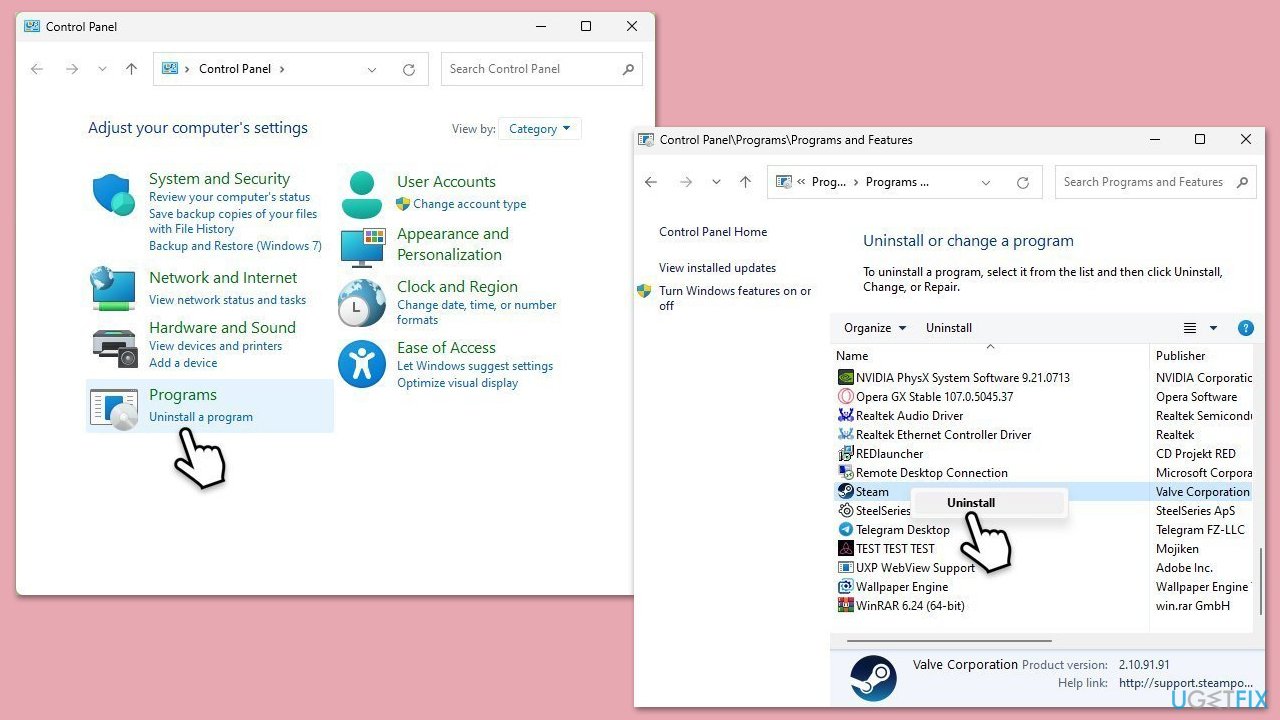
- Type Control Panel in Windows search and press Enter.
- Select Uninstall a program under Programs section.
- Scroll down and find the app you are having the problem with.
- Right-click on it and select Uninstall.
- Follow on-screen instructions to remove the app, then reboot your device.
- Re-download the app and install it again.
Fix 6. Re-register the DLL file
If the DLL exists but isn’t properly linked to Windows, manually re-registering it can ensure the system recognizes it correctly.
- Type cmd in Windows search.
- Right-click on Command Prompt and pick Run as administrator.
- User Account Control window will show up - click Yes when prompted.
- Type the following command and press Enter to unregister the DLL:
regsvr32 /u VCRUNTIME140_CLR0400.dll - Type this command and press Enter to re-register the DLL:
regsvr32 VCRUNTIME140_CLR0400.dll - Restart your computer.
Fix 7. Run System File Checker and DISM
Corrupted system files or a damaged Windows image can prevent the DLL from working, and using both SFC and DISM tools can repair these issues comprehensively.
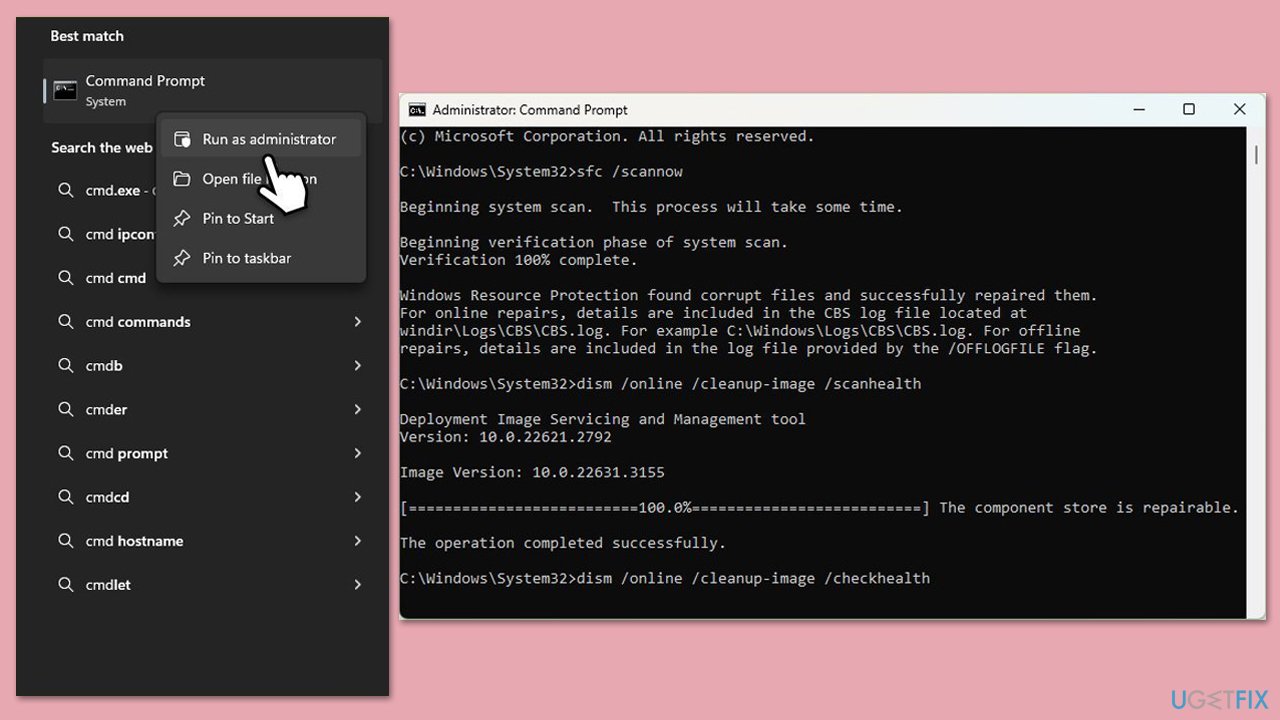
- Open Command Prompt as administrator.
- In the Command Prompt window, paste the following command and press Enter:
sfc /scannow - Wait for the scan to complete.
- Once the SFC scan is finished, run the following set of DISM commands, pressing Enter after each one:
DISM /Online /Cleanup-Image /CheckHealth
DISM /Online /Cleanup-Image /ScanHealth
DISM /Online /Cleanup-Image /RestoreHealth
(Note: if you get an error executing this last command, add /Source:C:\RepairSource\Windows /LimitAccess to it and try again). - After completing the DISM commands, restart your system.
Bottom line
To fix the error, consider reinstalling the Visual C++ Redistributable, installing the latest Windows updates, or checking for malware. If these solutions do not resolve the issue, further troubleshooting may be necessary.
Frequently asked questions
This error typically occurs due to a corrupted or missing VCRUNTIME140_CLR0400.dll file, often due to an incomplete installation or update of a program that relies on this DLL.
You can resolve this error by reinstalling the Microsoft Visual C++ Redistributable package that matches your system architecture or by repairing the installed package through the Control Panel.
While you can manually replace the DLL file, it is not recommended as it may lead to further issues; instead, it's better to reinstall the application that caused the error or the Visual C++ Redistributable.




Report an issue
What's wrong with this guide? We review every report and update or remove content.
Report received — thank you. We'll review and fix it.
You need a free account to submit a report.
Be the first to comment