How to fix
Version.dll missing or not found error
on Windows
Resolve the Version.dll missing error in Windows 10 and 11 effortlessly. Get expert-tested solutions and restore your system's functionality in minutes.


What causes How to fix Version.dll missing or not found error in Windows?
- Accidental deletion of version.dll
- Corruption of the version.dll file
- Incompatible version of version.dll installed
- Malware infections
- Problems with the Windows registry
Repairs Windows system files, removes malware, and restores a clean OS state — without reinstalling.
Hello. When I try to launch certain applications in Windows, I get the "The program can't start because version.dll is missing from your computer. Try reinstalling the program to fix this problem" error message. Is there a way to fix this issue? Any tips would be appreciated.
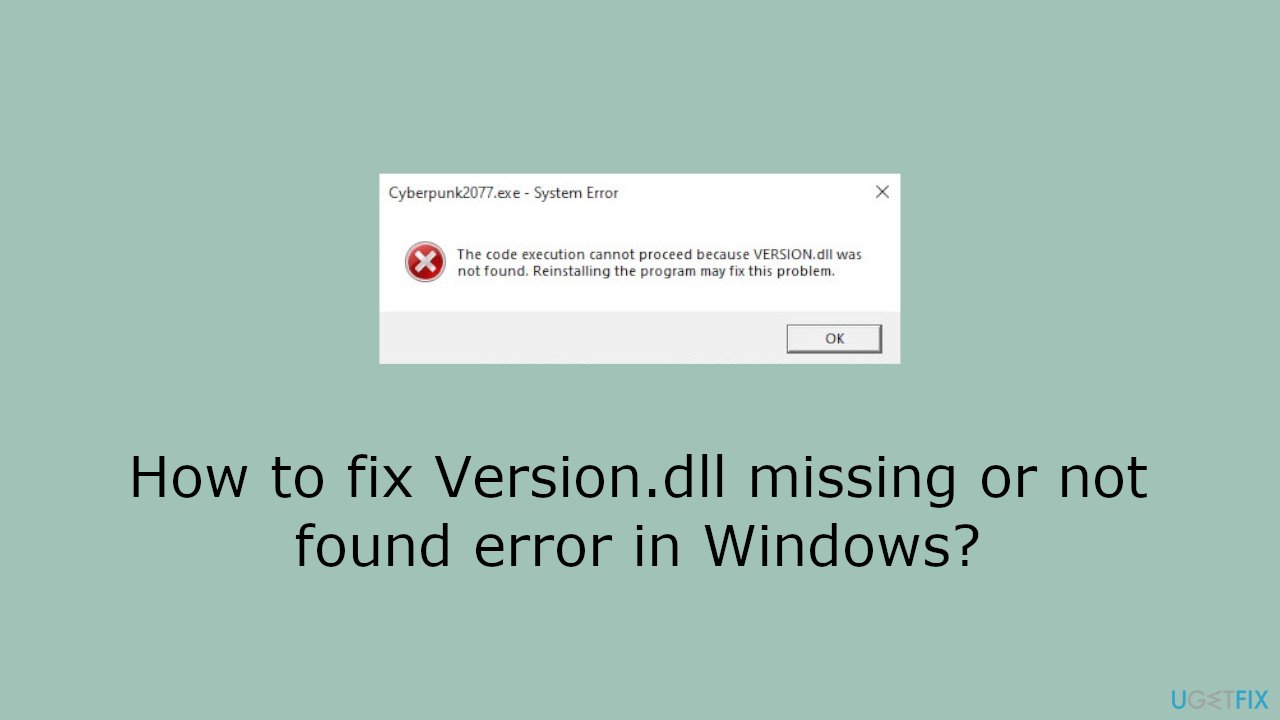
Dynamic Link Library,[ref en-1] or DLL files are essential to Windows-based program functionality. They facilitate code reuse and effective use of system resources because they include data and code that numerous applications may utilize at once. One such DLL file, version.dll, is responsible for managing version information for applications running on the Windows operating system. Users may encounter a "version.dll missing or not found" error, manifesting through various error messages such as:
The program can't start because version.dll is missing from your computer.
or
Error loading version.dll. The specified module could not be found.
These errors usually point to a problem with the application's ability to load or access the necessary version.dll file. Users may be greatly impacted by this problem since it stops the impacted programs from starting or operating properly. The version.dll file may have been accidentally deleted, corrupted, or the system may have an incompatible version installed. Furthermore, this error may also be caused by malware infections or problems with the Windows registry.[ref en-2]
Users may think about reinstalling the impacted software to fix the version.dll missing or not found errors, making sure that the right version of version.dll is present and undamaged. Other approaches include using system restoration options or, if available, recovering the version.dll file from backup. It might also be helpful to contact a system administrator or program provider, particularly if troubleshooting doesn't resolve the issue.
In this guide, you will find 5 steps that should help you fix Version.dll missing or not found error in Windows. You can also try running a maintenance tool like [d1] that can fix most system errors, BSODs,[ref en-3] corrupted files, and registry issues. Otherwise, follow the step-by-step instructions below.
Solution 1. Re-register the Missing File
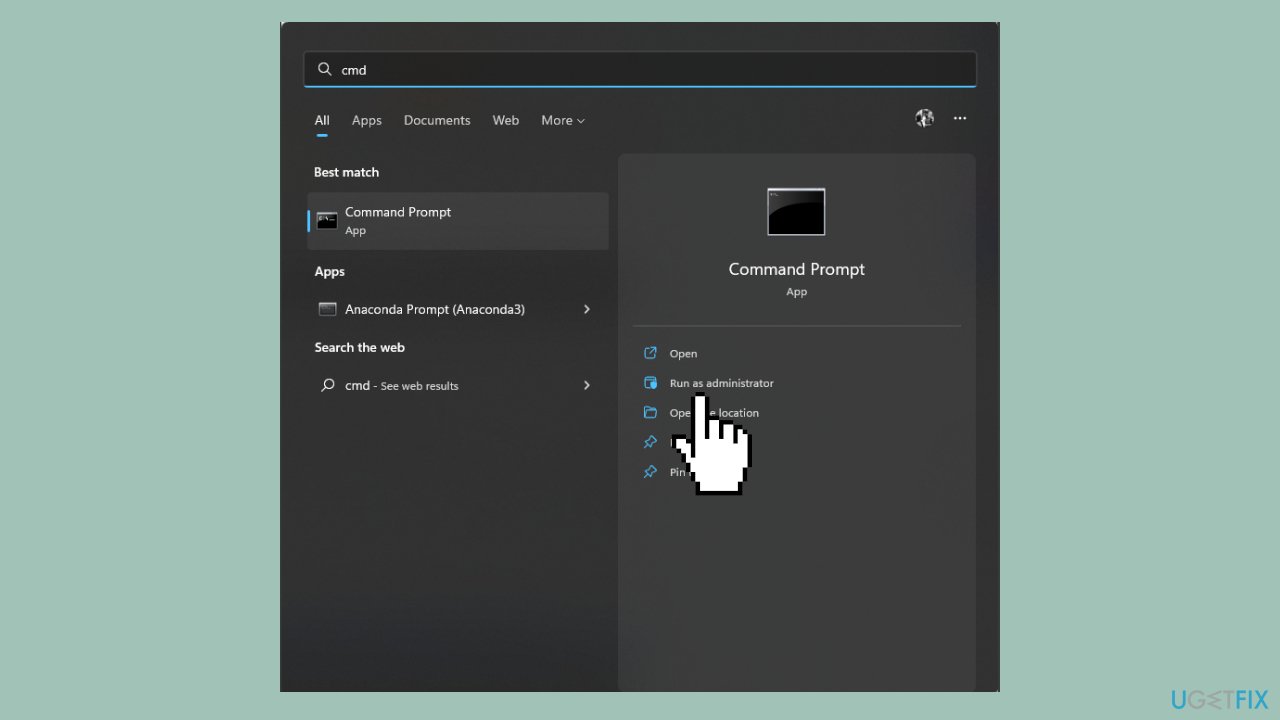
- Press the Windows key to open the Start menu.
- In the search bar, type CMD.
- Right-click on Command Prompt and select Run as administrator.
- In the Command Prompt window, type the following command:
regsvr32 VERSION.DLL
- Press Enter to execute the command.
- Restart your computer.
- Launch the affected application to confirm that the issue has been resolved.
Solution 2. Fix Corrupted System Files
Use Command Prompt commands to repair system file corruption:
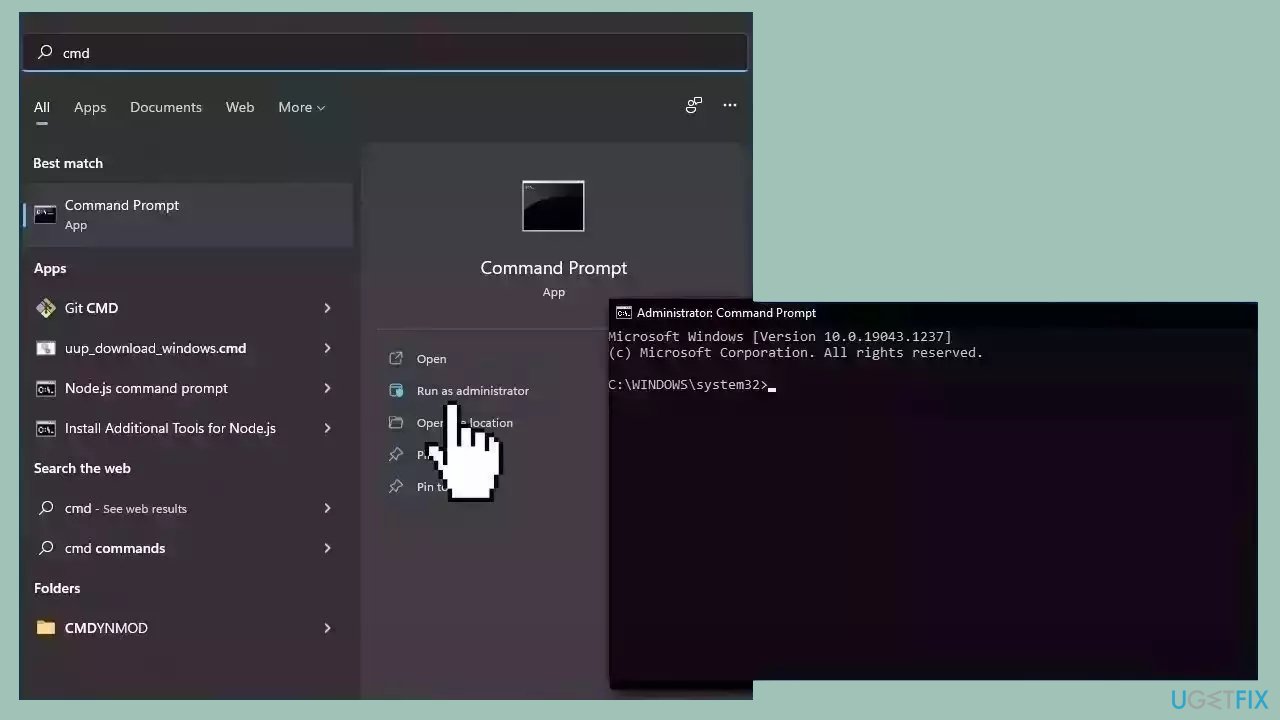
- Open Command Prompt as administrator
- Use the following command and press Enter:
sfc /scannow
- Reboot your system
- If SFC returned an error, then use the following command lines, pressing Enter after each:
DISM /Online /Cleanup-Image /CheckHealth
DISM /Online /Cleanup-Image /ScanHealth
DISM /Online /Cleanup-Image /RestoreHealth
Solution 3. Scan for Malware
A malware infection may be the cause of Version.dll missing or not found error in Windows. It is important to run a comprehensive security scan to rule out this possibility and ensure that the computer is not infected. This can help to prevent further issues with the Windows operating system and ensure that it is functioning properly.
If you have access to a security scanner, or if your organization pays for one, you can use it to scan your entire system to check for a virus infection. Otherwise, you can use Windows Defender to scan your system:
- Click on the Windows Start menu or press the Windows key on your keyboard.
- Type Microsoft Defender in the search bar and click on Microsoft Defender Antivirus to open the application.
- Click on the Virus & threat protection option in the left-hand menu.
- Click on the Quick scan or Full scan option, depending on your preference.
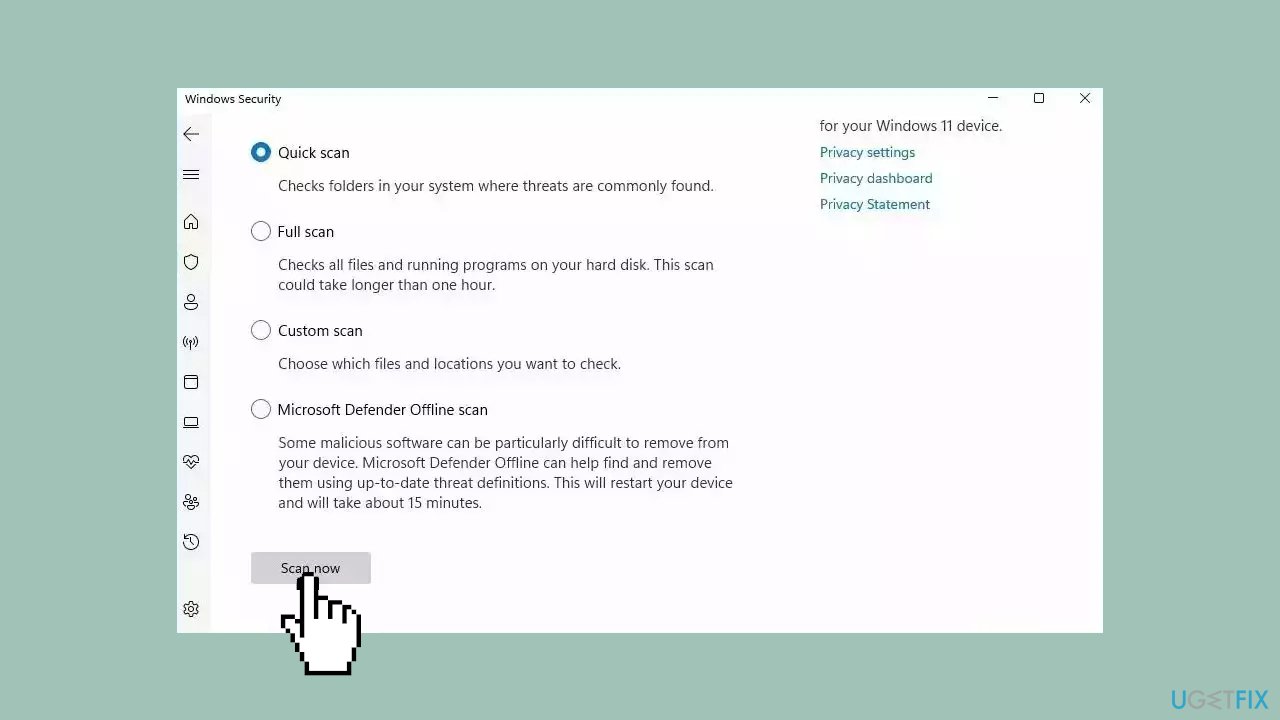
- If you choose Quick scan, Microsoft Defender Antivirus will scan the most vulnerable and commonly infected areas of your computer.
- If you choose Full scan, Microsoft Defender Antivirus will scan your entire computer, including all files, folders, and programs.
- Click on the Scan now button to start the selected scan type and wait for the scan to complete.
- The time it takes will depend on the size of your hard drive and the number of files being scanned.
- Once the scan is complete, you will be informed of any detected threats, and you can choose to quarantine or remove them.
- If no threats are found, Microsoft Defender Antivirus will inform you that your device is secure.
Solution 4. Use System Restore
System Restore is a feature in Microsoft Windows that allows users to revert their computer's state to a previous point in time. This can be helpful if you have made changes to your system that are causing problems.
- Press the Windows key + R on your keyboard to open the Run box.
- Type SystemPropertiesProtection and press Enter.
- Go to the System Protection tab.
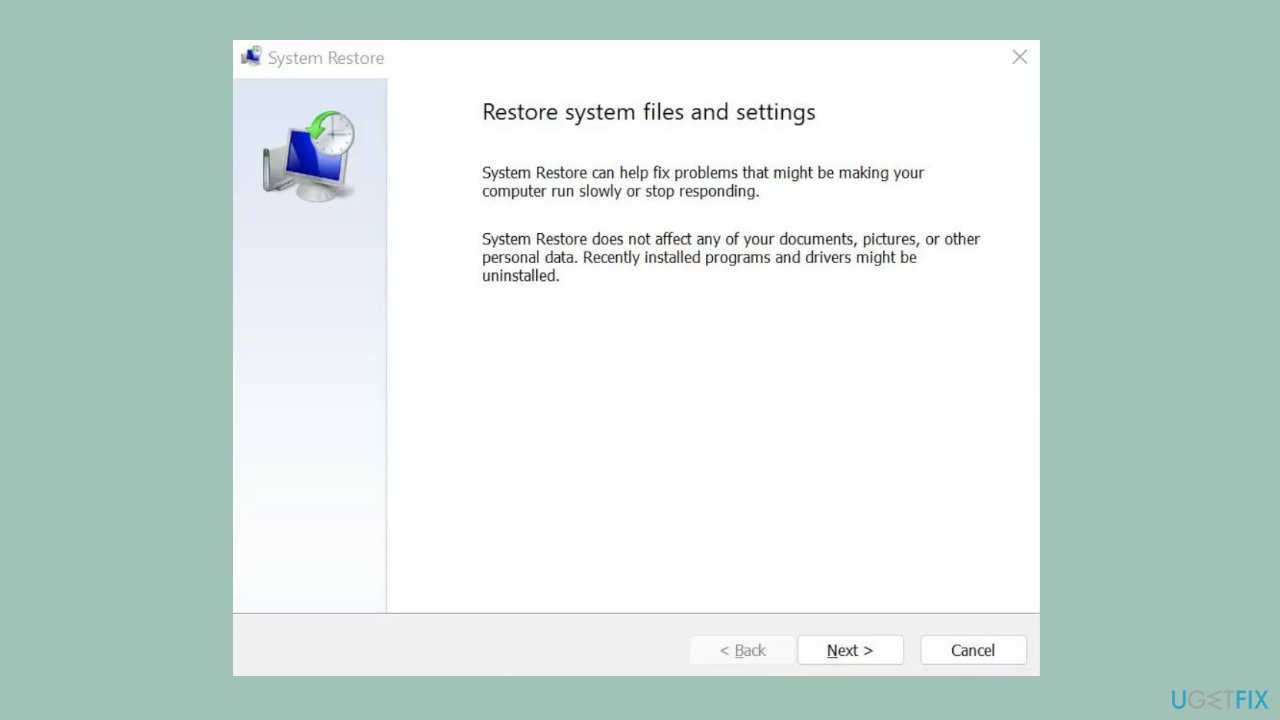
- You will see the System Restore… button. Click it to run System Restore.
- Follow the prompts until you can select a restore point.
- Select the one you want (ideally before the issue started occurring) and go ahead with the process.
Solution 5. Reinstall the Version.dll File
- Visit the DLL website.
- Choose the version of the DLL file compatible with your Windows computer and download the corresponding zip file.
- Extract the downloaded file and save it to the Desktop or another accessible location.
- Navigate to the following path on your computer:
C:\Windows\System32
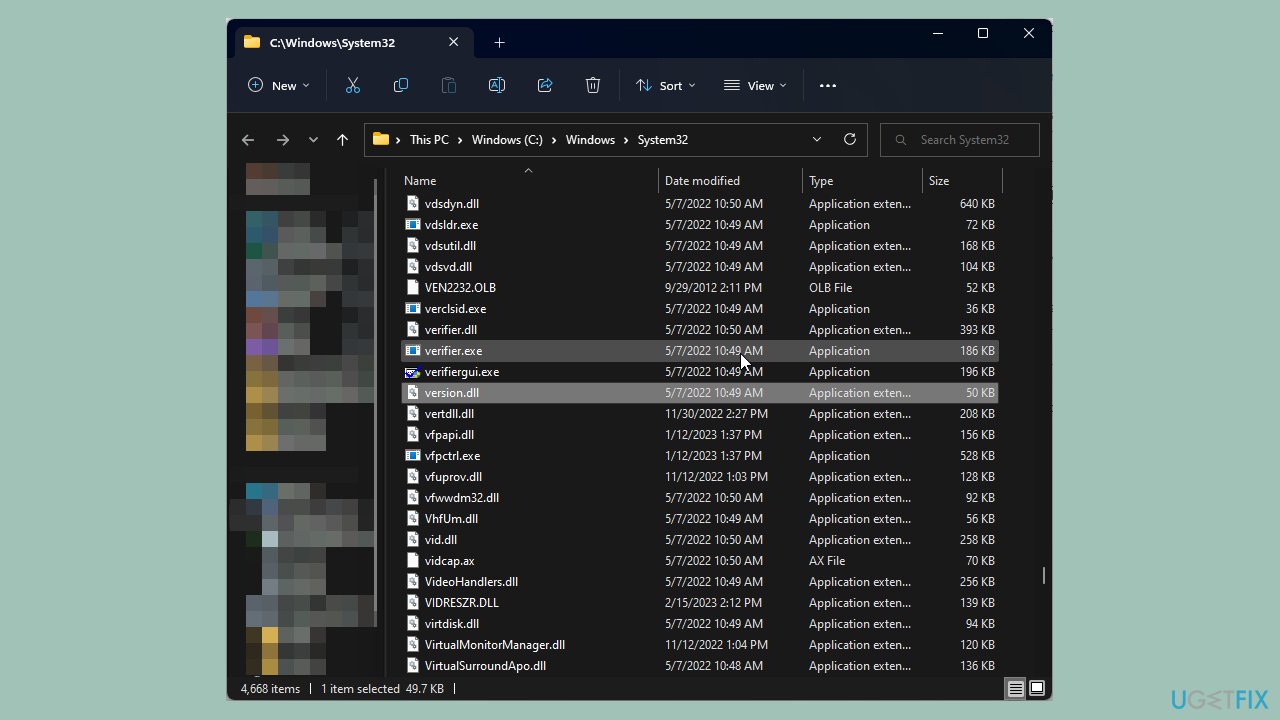
- Locate the file named Version.dll; if it exists, rename it to Versionold.dll.
- Copy the recently downloaded DLL file and paste it into the System32 folder.
- Open the Command Prompt with administrative rights.
- Copy and paste the following command into the Command Prompt window, then press Enter:
regsvr32 VERSION.DLL
- Restart your computer to complete the process.
Bottom line
To fix the version.dll missing or not found error, users can try reinstalling the affected software, using system restoration options, or recovering the version.dll file from backup. If these steps do not resolve the issue, it may be helpful to contact a system administrator or the program provider for further assistance.
Frequently asked questions
The Version.dll error in Windows 10 can be caused by corrupted system files, improper software installations, or malware infections. It often occurs when an application fails to locate the necessary DLL file to run properly.
To manually restore the Version.dll file in Windows 11, you can download the DLL from a reputable source and place it in the C:\Windows\System32 directory. Ensure to back up any existing files before replacing them.
Yes, running the System File Checker tool (sfc /scannow) in Windows can help fix the Version.dll error by repairing corrupted system files. This is a quick and effective solution for resolving such issues.




Report an issue
What's wrong with this guide? We review every report and update or remove content.
Report received — thank you. We'll review and fix it.
You need a free account to submit a report.
Be the first to comment