How to fix
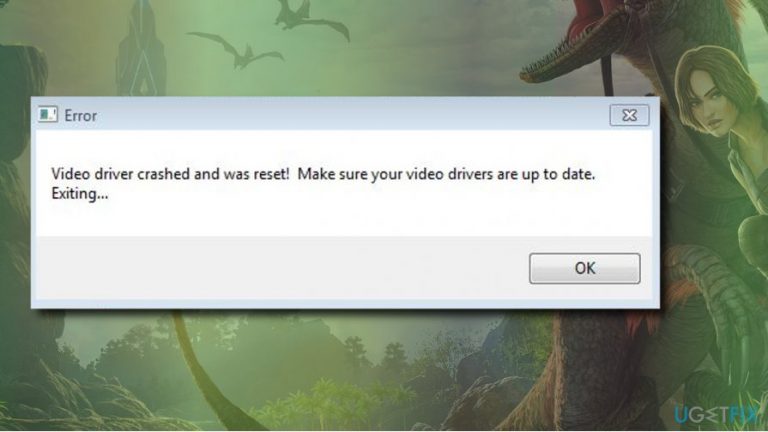
“Video driver crashed and was reset” error on ARK: Survival Evolved
on Windows
Resolve the “Video driver crashed and was reset” error in ARK: Survival Evolved on Windows 10 or 11 effortlessly with expert-tested solutions. Fixed in …

What causes How to fix “Video driver crashed and was reset” error on ARK: Survival Evolved?
- Video driver is corrupt
- Video driver is out-of-date
- High system demands of the game
- Incompatibility with Windows 10 OS
Repairs Windows system files, removes malware, and restores a clean OS state — without reinstalling.
Hello, all. I’m a devoted gamer of ARK: Survival Evolved. However, for the last few weeks I have an irritating problem, which I don’t know how to solve. When I try to play a game, I get the following error message: “Video driver crashed and was reset! Make sure your video drivers are up to date.” It seems that I’m not the only gamer having this problem.
“Video driver crashed and was reset” is an error message encountered by many gamers of the ARK: Survival Evolved[ref en-1] game. It’s an action-adventure survival video game, which has been developed in August 2017 by Studio Wildcard in collaboration with Instinct Games, Efecto Studios, and Virtual Basement. The game is compatible with PlayStation 4, Xbox One, Microsoft Windows, OS X and Linux.
Although hundreds of thousands of people are interested in this game and opt for trying it, it costs a considerable amount of money. Moreover, the game is extremely demanding and requiring High settings.[ref en-2] Therefore, before buying it, make sure that the specificities of your device are good enough to run ARK epic games.
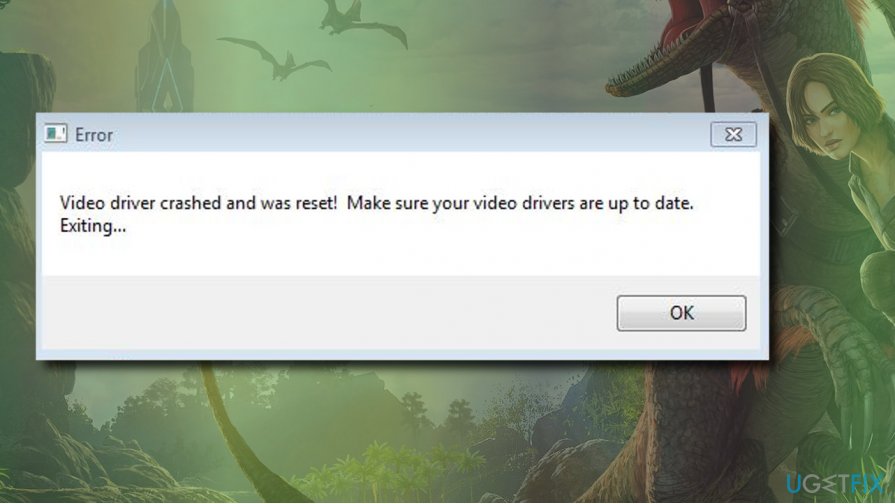
If you have been playing the game for some time and received the “Video driver crashed and was reset” error during the game play, it might be that the video driver[ref en-3] got corrupt or out-of-date, so you should update it in the first place.
However, many people (using Windows 10 OS mainly) reported that the driver update did not resolve the issue. In this post, we will provide several methods that can help you to fix “Video driver crashed and was reset” error before Studio Wildcard releases the patch. Here’s what you can try:
Method 1. Update display drivers
Since the error message itself indicates the culprit of the error - video driver - it goes without saying that updating display drivers could be the right solution.
- Right-click on Windows key and select Device Manager.
- Expand Display Adapters section and click Intel HD Graphics driver.
- Select Update Driver. Do the same with the NVIDIA GeForce driver.
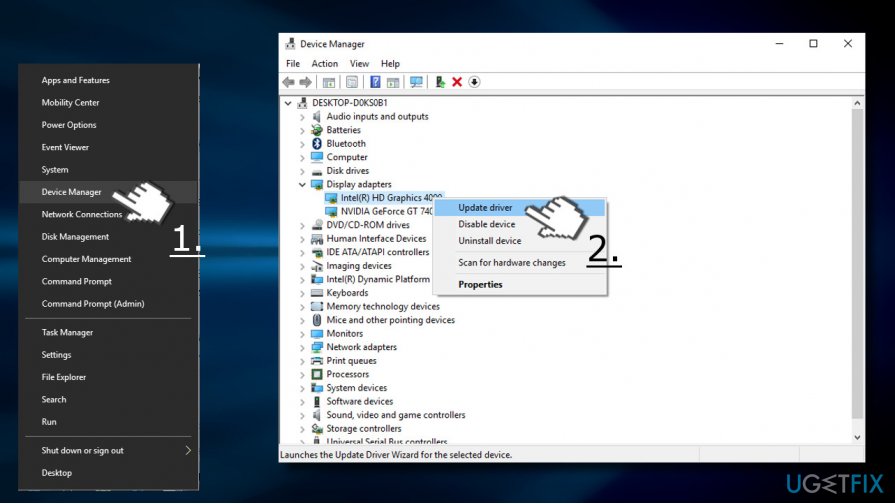
- After that, reboot the system.
Method 2. Re-install display drivers
The problem is that updating display drivers did not help for most of the ARK gamers. The next step in resolving this problem would be to re-install graphics driver.
- Right-click on Windows key and select Device Manager.
- Expand Display Adapters section and click on the display driver.
- Select Uninstall and follow the uninstall wizard. Reboot is needed after uninstalling.
- When the system fully boots up, open Device Manager as explained above.
- Click on Actions button and select Scan for hardware changes button.
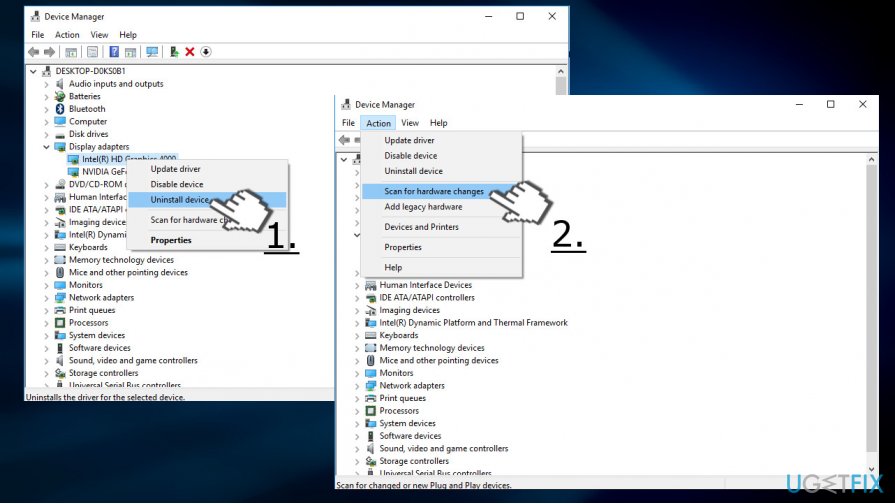
- Now the system should automatically detect the missing driver. If the scan failed, you can install the missing driver manually from the manufacturer's website.
Method 3. Change the launch options of your game
The culprit of the “Video driver crashed and was reset” error may be the game itself as it burdens the PC, which cannot run it smoothly. Thus, you should try to change the launch options of your game:
- Launch Steam and open Library.
- Right-click on the Ark: Survival Evolved and select Properties.
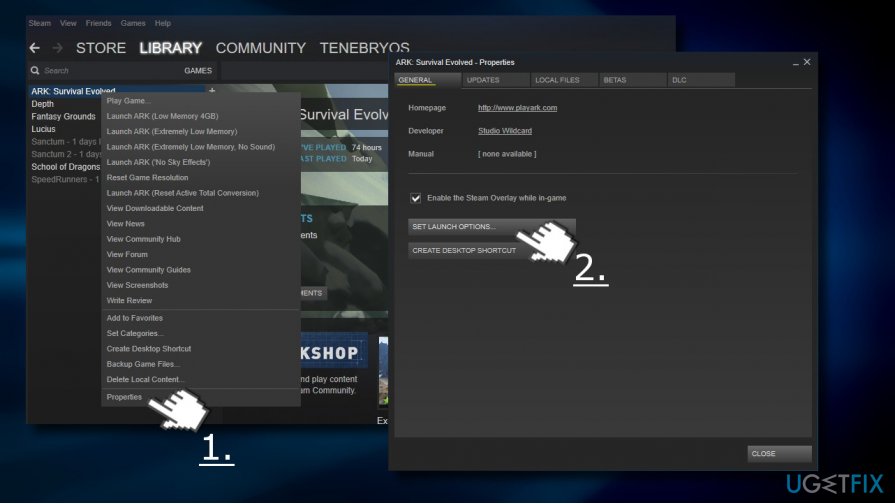
- Click on Set launch options and enter the -USEALLAVAILABLECORES -sm4 -d3d10 -nomansky -lowmemory –novsync command in the text box.
- Click OK and close the Properties window.
- Now try to play the game and check if that helped.
Method 4. Increase GPU processing time
- Press Windows key + R, type regedit, and press Enter.
- Navigate to the HKEY_LOCAL_MACHINE\\SYSTEM\\CurrentControlSet\\Control\\GraphicsDrivers directory on the left.
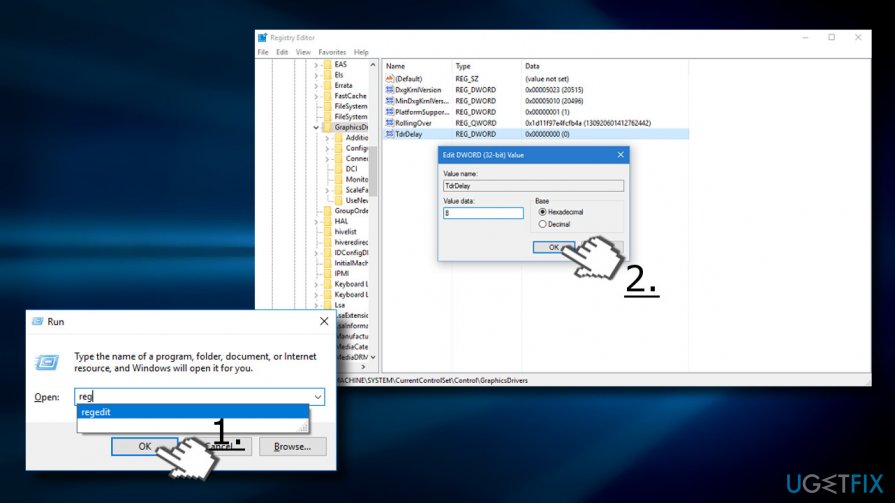
- Find the TdrDelay DWORD. If it’s not available, right-click on an empty space and select New -> DWORD.
- Name it TdrDelay.
- Double-click on TdrDelay DWORD and change its value from 2 to 8.
- Finally, reboot your PC.
Bottom line
To fix the 'Video driver crashed and was reset' error, you can try updating your display drivers or reinstalling them. If these methods do not resolve the issue, consider checking for additional updates or waiting for a patch from Studio Wildcard.
Frequently asked questions
First, ensure your graphics drivers are updated to the latest version from the manufacturer's website. If the issue persists, try reducing the in-game graphics settings to lessen the load on your GPU.
Yes, switching to a High-Performance power plan in Windows 11 can enhance GPU performance, potentially reducing the chances of encountering the error.
While there's no specific update guaranteed to resolve this error, keeping your Windows 10 or Windows 11 system fully updated can help ensure compatibility with the latest drivers and game patches.




Report an issue
What's wrong with this guide? We review every report and update or remove content.
Report received — thank you. We'll review and fix it.
You need a free account to submit a report.
Be the first to comment