How to fix
Video Memory Management Internal BSOD
on Windows
Resolve Video Memory Management Internal BSOD issues on Windows 10 and 11 with our expert-tested solutions. Get back to gaming in minutes!

What causes How to fix Video Memory Management Internal BSOD in Windows?
- Outdated graphics drivers
- Corrupted graphics drivers
- Conflicts with newly installed hardware or software
- Issues within the graphics card
- Problems with the system’s RAM
- Overheating of the GPU
Repairs Windows system files, removes malware, and restores a clean OS state — without reinstalling.
My computer keeps crashing with the Video Memory Management Internal BSOD, and it happens 5-10 times a day. It's been going on for several weeks now, so it's definitely not going away on its own. Any tips you can provide?
Understanding BSODs and their impact on your system
Windows operating systems can suddenly crash due to serious system failures known as Blue Screen of Death (BSOD) issues. A blue screen and an error message indicate that the system has experienced a major issue from which it is unable to recover - this is known as a blue screen of death crash. It affects your daily user experience and the general health of your computer in addition to interfering with your current job and perhaps resulting in data loss and system instability.
What is Video Memory Management Internal BSOD?
The Video Memory Management Internal BSOD specifically points to problems within the video memory management system. This error often surfaces due to outdated or corrupted graphics drivers, conflicts with newly installed hardware or software, or issues within the graphics card itself.
Additionally, problems with the system’s RAM, improper configuration settings, or overheating of the GPU can trigger this error. The complexity of video memory management means that even minor issues can cause significant disruptions, leading to the BSOD.
Possible resolutions for the Video Memory Management Internal error
When encountering the Video Memory Management Internal BSOD, it is crucial to investigate several potential causes to identify the underlying issue:
- Start by ensuring that your graphics drivers are current, as outdated drivers are a common culprit.
- Check the compatibility and functionality of any newly installed hardware or software that might be conflicting with your system.
- Running diagnostic tools to evaluate the health of your graphics card and system RAM can also provide valuable insights.
- Monitor your system's temperature to prevent overheating, which can exacerbate memory management problems. Reviewing and reversing recent system changes can help isolate and resolve the issue effectively.
Use the [d1] PC repair tool for a more efficient approach. It can identify and fix underlying Windows problems instantly, guaranteeing optimal system performance. It is extremely helpful when dealing with BSODs in particular.

Fix 1. Update graphics, chipset, and network drivers
Outdated or corrupted graphics drivers are a common cause of the Video Memory Management Internal BSOD. Updating your drivers might resolve the issue. For a more efficient way of updating drivers, you could try using [rev id="DriverFix"].
- Right-click on Start and pick Device Manager.
- Expand the Display adapters section.
- Right-click your graphics card and select Update driver.
- Select pick Search automatically for drivers.
- If updates are found, allow them to install.
- Repeat the process with other components, such as the network card and motherboard (chipset drivers).
- Restart your computer after updating all necessary drivers.

Fix 2. Check for hardware compatibility
Newly installed hardware may conflict with existing components, so you should check if that is the case for you.
- Disconnect any recently added hardware.
- Restart your computer to see if the BSOD persists.
- If the issue is resolved, check the manufacturer's website for compatibility information.
Fix 3. Run memory diagnostics
Faulty RAM can cause various issues, including the Video Memory Management Internal BSOD. Running a memory diagnostic tool helps identify and fix memory-related problems.
- Type Memory in Windows search and select Windows Memory Diagnostic result.
- Choose Restart now and check for problems.
- Let the tool run and complete the memory check.
- Review the results for any errors.

Fix 4. Monitor system temperature
Overheating can cause the GPU to malfunction, leading to BSOD errors. Keeping your system cool is the priority for a well-functioning machine.
- Download and install a temperature monitoring tool of your choice.
- Run the tool and monitor your GPU and CPU temperatures.
- Ensure your computer is in a well-ventilated area.
- Clean any dust from your computer's fans and vents.
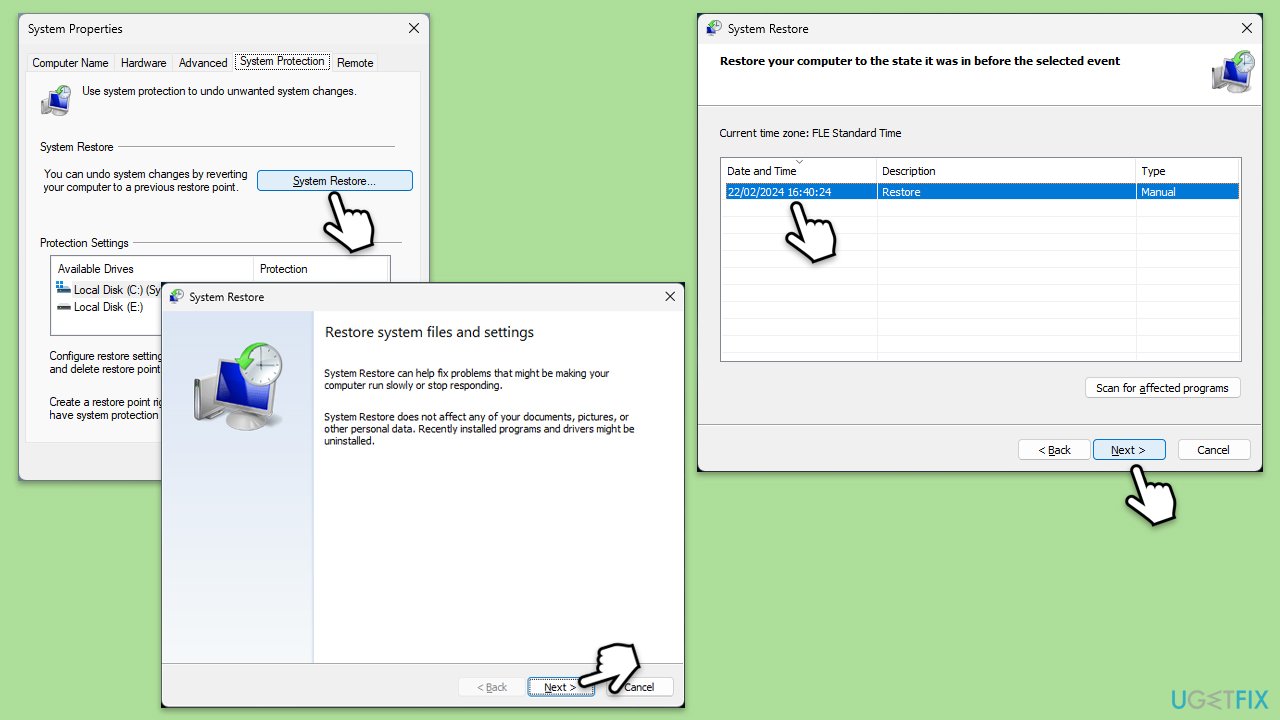
Fix 5. Perform System Restore
Recent changes to system settings or software installations may trigger a BSOD. Reverting these changes can help identify the problem.
- Type in Create a restore point in Windows search and hit Enter.
- Go to System Restore and click Next.
- Mark the Show more restore points option (if available).
- Pick the time when the problem did not exist and click Next.
- Finalize the process - your device will restart.
Fix 6. Update BIOS/UEFI
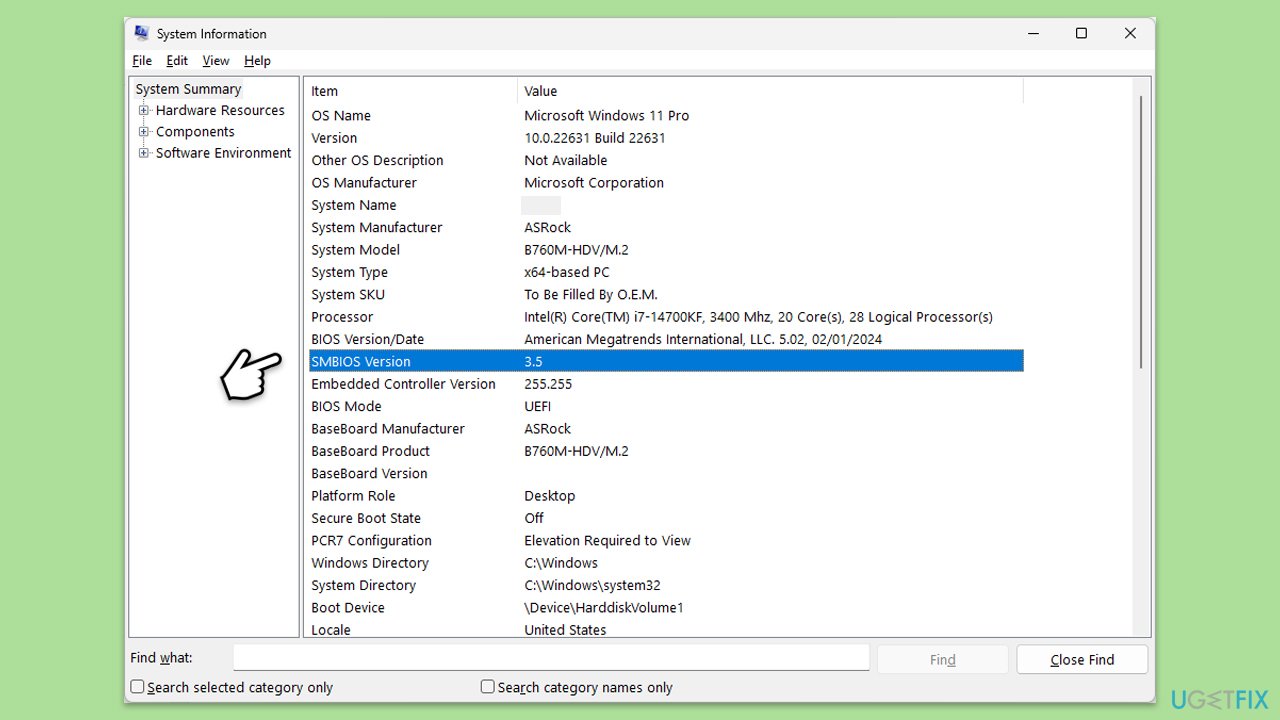
An outdated BIOS/UEFI can cause hardware compatibility issues. Updating it can resolve these conflicts and improve system stability.
- Visit the manufacturer's website and download your specific model's latest BIOS update file (you can check which BIOS you are using by typing System information in Windows search and checking the BIOS Version/Date and BaseBoard Product entries there).
- Extract the BIOS update files and read any provided instructions or documentation.
- Create a bootable US drive with the BIOS update files, if required.
- Update the BIOS using the manufacturer's recommended method, which may be through a built-in utility or booting from a USB drive.
- Restart your computer to complete the process.
Fix 7. Run a system file checks
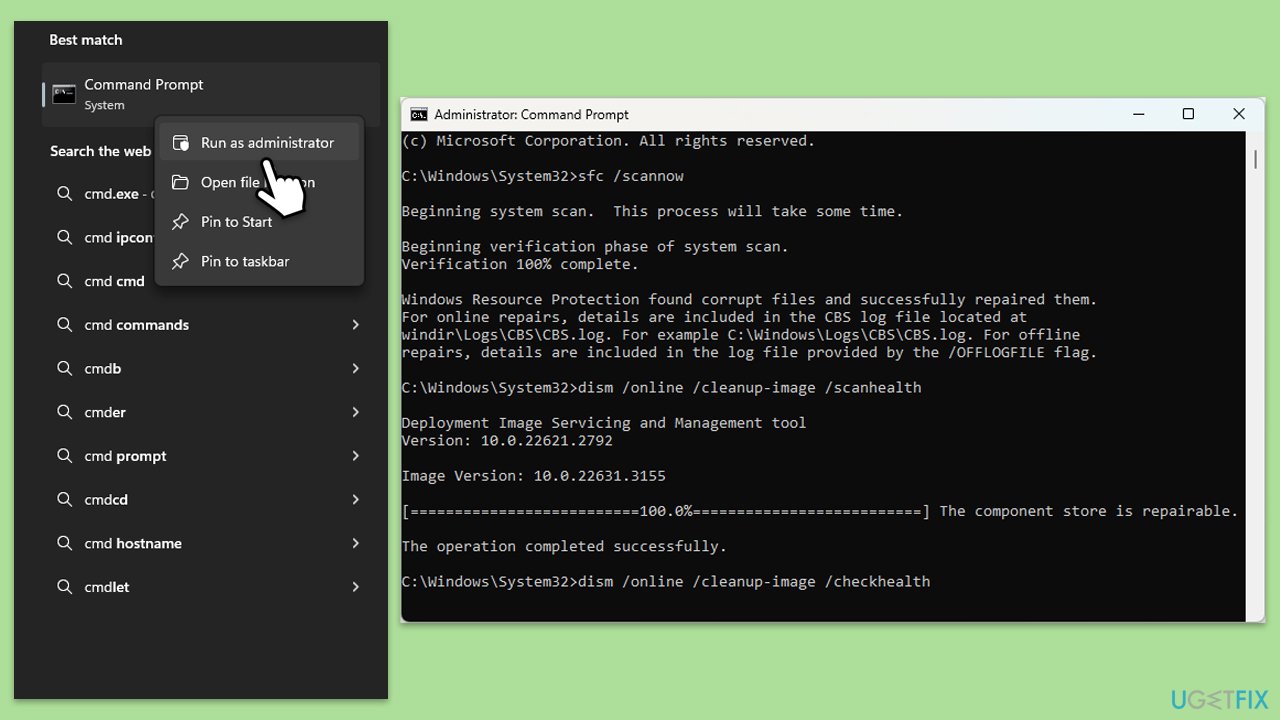
Corrupted system files can lead to various errors, including the BSOD. Running system file checks can repair these files.
- Type cmd in Windows search.
- Right-click on Command Prompt and select Run as administrator.
- When the User Account Control window shows up, click Yes.
- Copy and paste the following command, pressing Enter after:
sfc /scannow - Wait till the scan is finished. If Windows finds system file integrity violations, it will attempt to fix them. After this, use the set of the following commands, pressing Enter each time:
DISM /Online /Cleanup-Image /CheckHealth
DISM /Online /Cleanup-Image /ScanHealth
DISM /Online /Cleanup-Image /RestoreHealth - (Note: if you get an error executing this last command, add /Source:C:\RepairSource\Windows /LimitAccess to it and try again).
- Close down the Command Prompt and reboot your computer.
Fix 8. Scan for malware
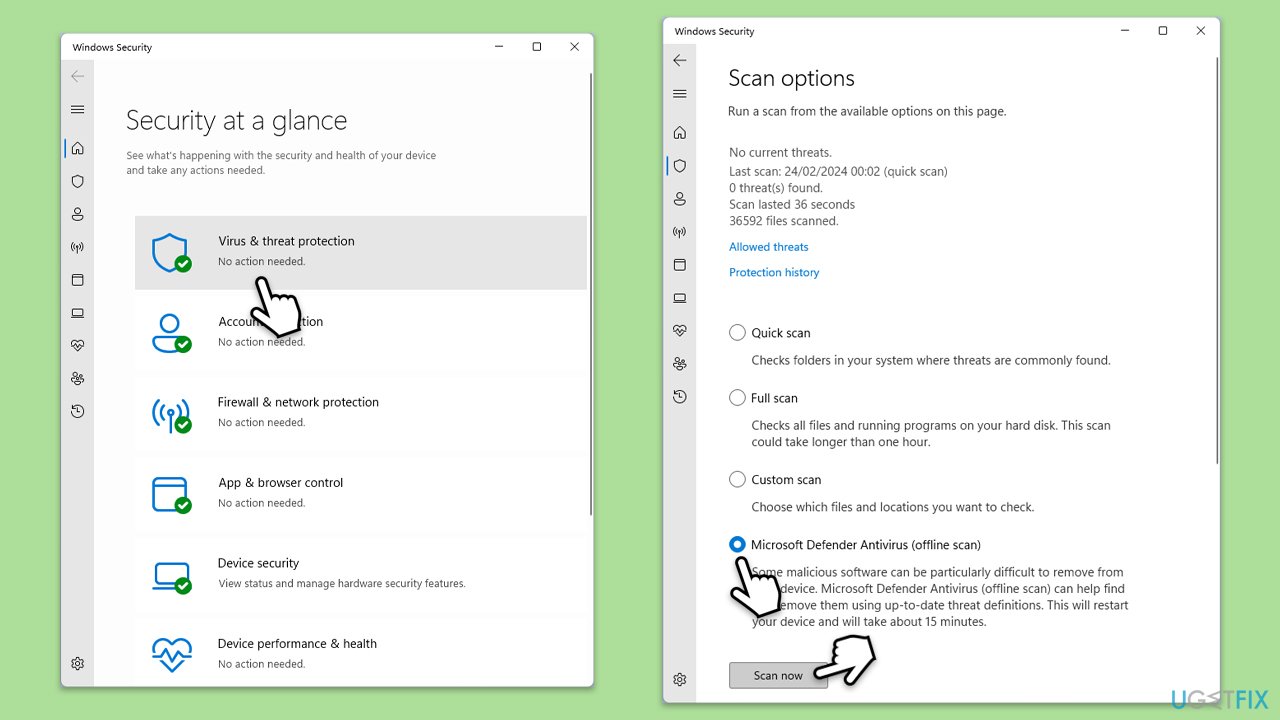
Malware infections can cause system instability and BSOD errors. Scanning for and removing malware can restore system health. You can use any reliable third-party security software, employ Microsoft Security Scanner, or simply Windows Defender:
- Type Windows Security in the Windows search bar and hit Enter.
- Select Virus & threat protection.
- Pick Scan options.
- Choose Microsoft Defender Offline scan and click Scan now.
- Your computer will immediately restart to begin a deep scan.
Bottom line
To fix the Video Memory Management Internal BSOD, ensure your graphics drivers are current, check for compatibility issues with new hardware or software, and run diagnostic tools on your graphics card and RAM. Additionally, monitor your system's temperature and review recent system changes. If none of these solutions work, consider using a PC repair tool for further assistance.
Frequently asked questions
This BSOD error is typically caused by issues with graphics drivers, faulty hardware, or corrupted system files. Ensuring that your graphics drivers are up to date can often resolve the problem.
You can troubleshoot this error by performing a clean boot, updating your graphics drivers, or running the Windows Memory Diagnostic tool to check for hardware issues. Additionally, checking for Windows updates may help.
Yes, running the System File Checker (sfc /scannow) is a safe and effective way to repair corrupted system files that may be causing the BSOD in Windows 10 or Windows 11.




Report an issue
What's wrong with this guide? We review every report and update or remove content.
Report received — thank you. We'll review and fix it.
You need a free account to submit a report.
Be the first to comment