How to fix
VIDEO_MEMORY_MANAGEMENT_INTERNAL error
on Windows
Resolve the VIDEO_MEMORY_MANAGEMENT_INTERNAL error on Windows 10 and 11 quickly with our expert-tested solutions and clear screenshots. Fixed in minutes!

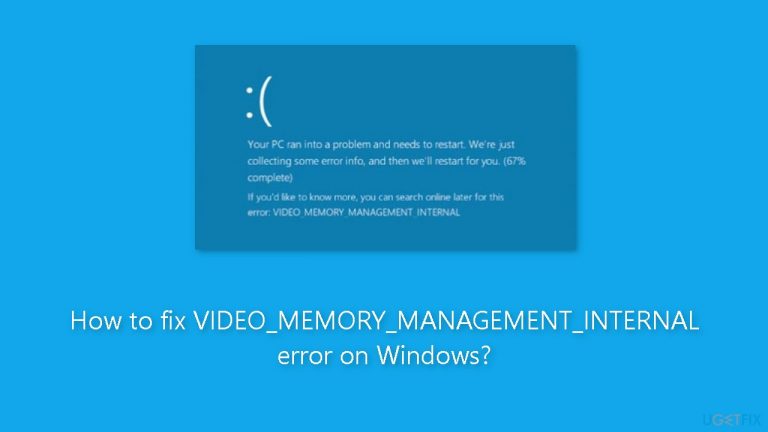
What causes How to fix VIDEO_MEMORY_MANAGEMENT_INTERNAL error on Windows?
- Faulty graphics drivers
- Out-of-date graphics drivers
- Incompatible drivers with the operating system
- Defects affecting memory management
- Outdated operating system
- Viruses or malware affecting memory
Repairs Windows system files, removes malware, and restores a clean OS state — without reinstalling.
Hello. I get the video memory error. I have no idea how to fix it. My computer crashes and displays the blue screen of death. In some cases, this VIDEO_MEMORY_MANAGEMENT_INTERNAL error code is displayed or 0x0000010e code. Can you help?
For Windows users, the "VIDEO_MEMORY_MANAGEMENT_INTERNAL" error is a serious problem that frequently results in system crashes and the infamous Blue Screen of Death (BSOD).[ref en-1] This error especially refers to memory management issues with the system's audiovisual components, and it can have an annoying and disruptive effect on users.
This error has been known to have a variety of detrimental repercussions on users' PCs. The sudden system crash, which may cause data loss if there is unsaved work, is the most serious and immediate repercussion. A sudden shutdown of the computer may also result in possible file system damage, necessitating system repairs or file recovery procedures. Additionally, the instability of the system might make users feel anxious and frustrated as a result of the error's frequent occurrence.
There are many potential causes for the "VIDEO_MEMORY_MANAGEMENT_INTERNAL" error to appear. Faulty or out-of-date graphics drivers[ref en-2] are one of the main culprits. System crashes can be caused by drivers that are incompatible with the operating system or have defects that affect memory management. As newer updates and patches frequently address memory management and compatibility issues, having an outdated operating system can potentially worsen this issue.
Users are urged to think about a number of potential fixes in order to lessen the effects of this problem and restore system stability. A crucial step is updating or reinstalling the graphics drivers because they can resolve any compatibility problems and enhance the graphics card's overall performance. Making sure the operating system is up to date with the most recent patches and upgrades is equally crucial because these frequently fix memory management problems. A full system scan for viruses or malware is also advised because these harmful programs might occasionally result in memory-related issues.
In this guide, you will find 6 steps that should help you fix VIDEO_MEMORY_MANAGEMENT_INTERNAL error. You may also run a maintenance tool like [d1] that can fix most system errors, BSODs, corrupted files, and registry[ref en-3] issues. Otherwise, follow the step-by-step instructions below.
Method 1. Fix Corrupted System Files
Use Command Prompt commands to repair system file corruption:
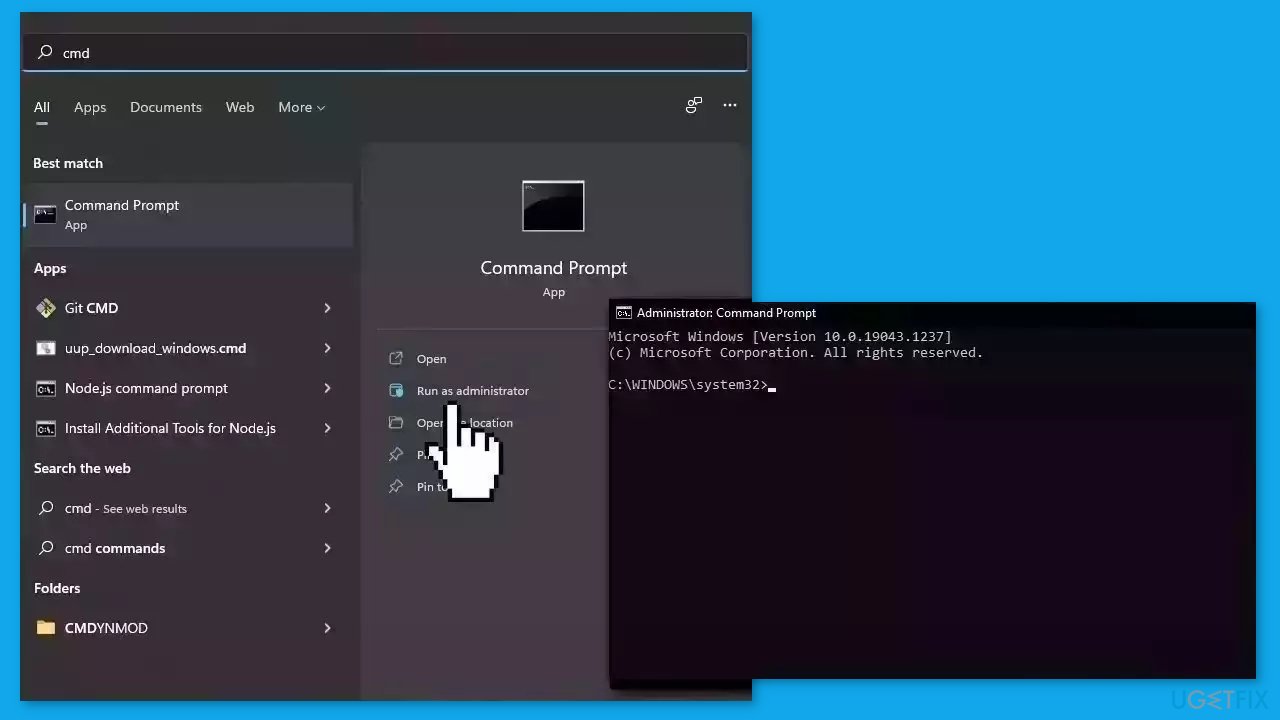
- Open Command Prompt as administrator
- Use the following command and press Enter:
sfc /scannow
- Reboot your system
- If SFC returned an error, then use the following command lines, pressing Enter after each:
DISM /Online /Cleanup-Image /CheckHealth
DISM /Online /Cleanup-Image /ScanHealth
DISM /Online /Cleanup-Image /RestoreHealth
Method 2. Rollback or Update Display Driver
- Press the Windows key + X.
- Select Device Manager from the menu.
- Click the arrow next to Display adapters.
- Double-click on the driver listed there.
- Click on the Driver tab at the top.
- If the Roll Back Driver button is clickable, click on it.
- If not clickable, proceed to the next step.
- Click on the Update Driver button.
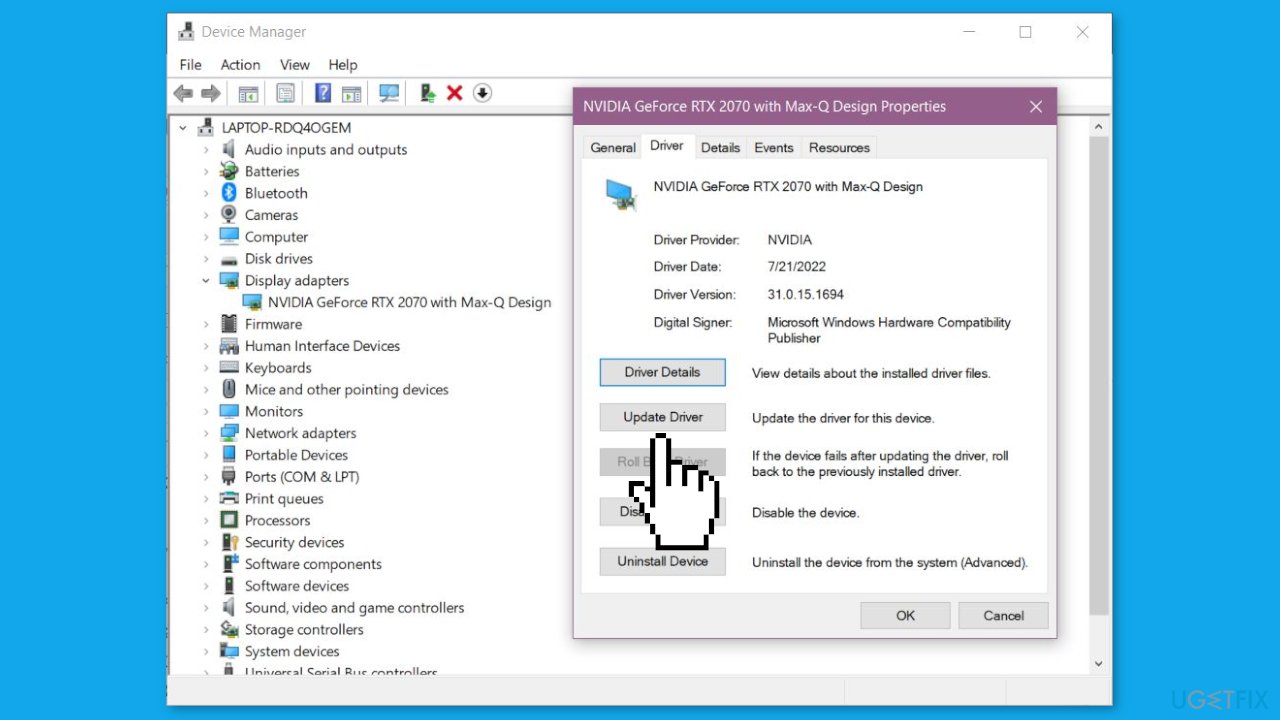
- Select the Search automatically for drivers option.
- Install any available updates that are found.
Method 3. Install Windows Updates
- Press the Windows key + R to open the Run box.
- Type ms-settings:windowsupdate in the text box and press Enter.
- Click the Check for updates button.
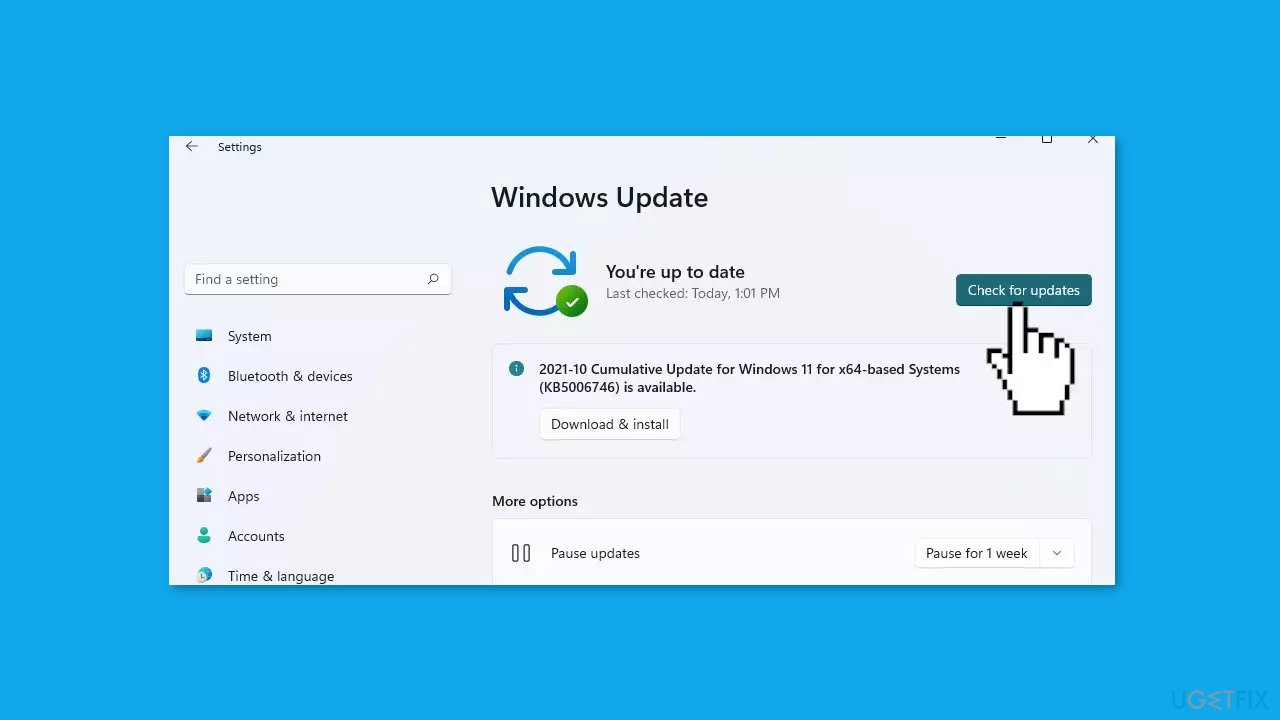
- If a new update is available, click the Download & Install all button.
- Restart your computer after the process is finished and check to see if the problem is fixed.
Method 4. Run Apps in Compatibility Mode
- Right-click on the problematic application.
- Select Properties from the context menu.
- Go to the Compatibility tab.
- Check the box labeled Run this program in compatibility mode for.
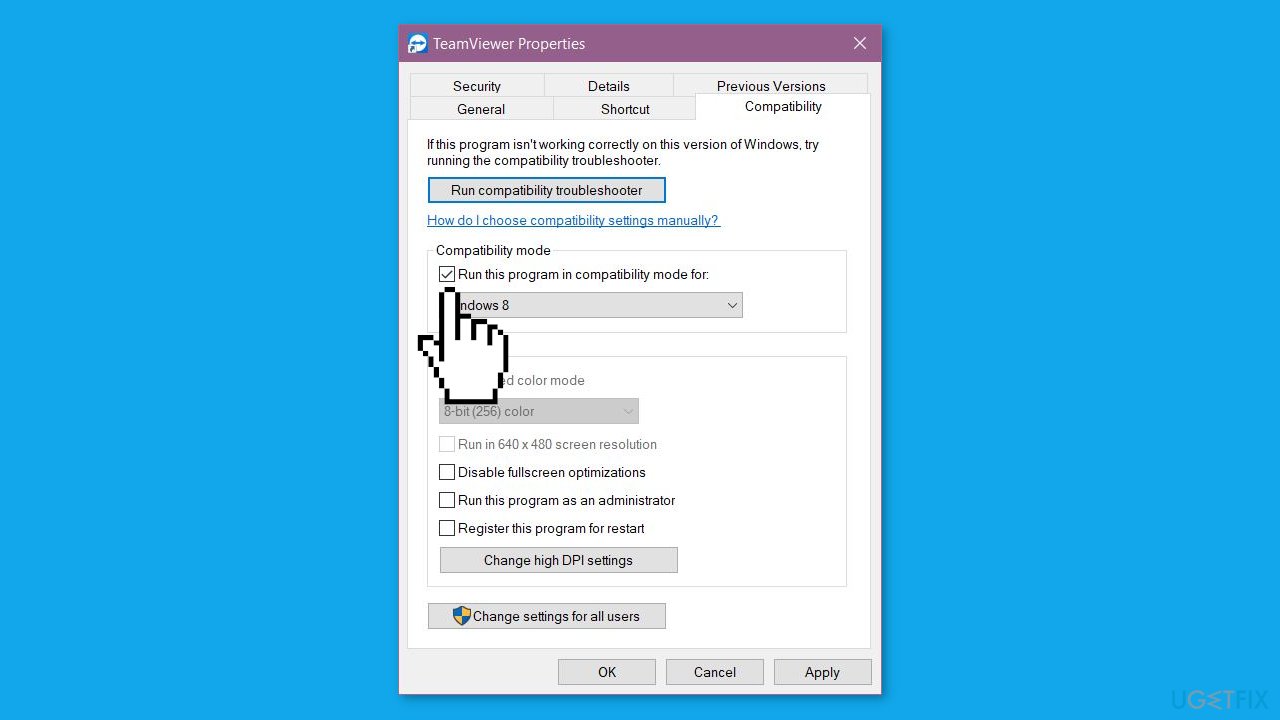
- Choose Windows 10 from the options.
- Click the Apply button.
- Click the OK button to save your settings.
Method 5. Reinstall Display Driver
- Press the Windows key + X.
- Select Device Manager from the menu.
- Click the arrow next to Display adapters.
- Right-click on the driver and select Uninstall device.
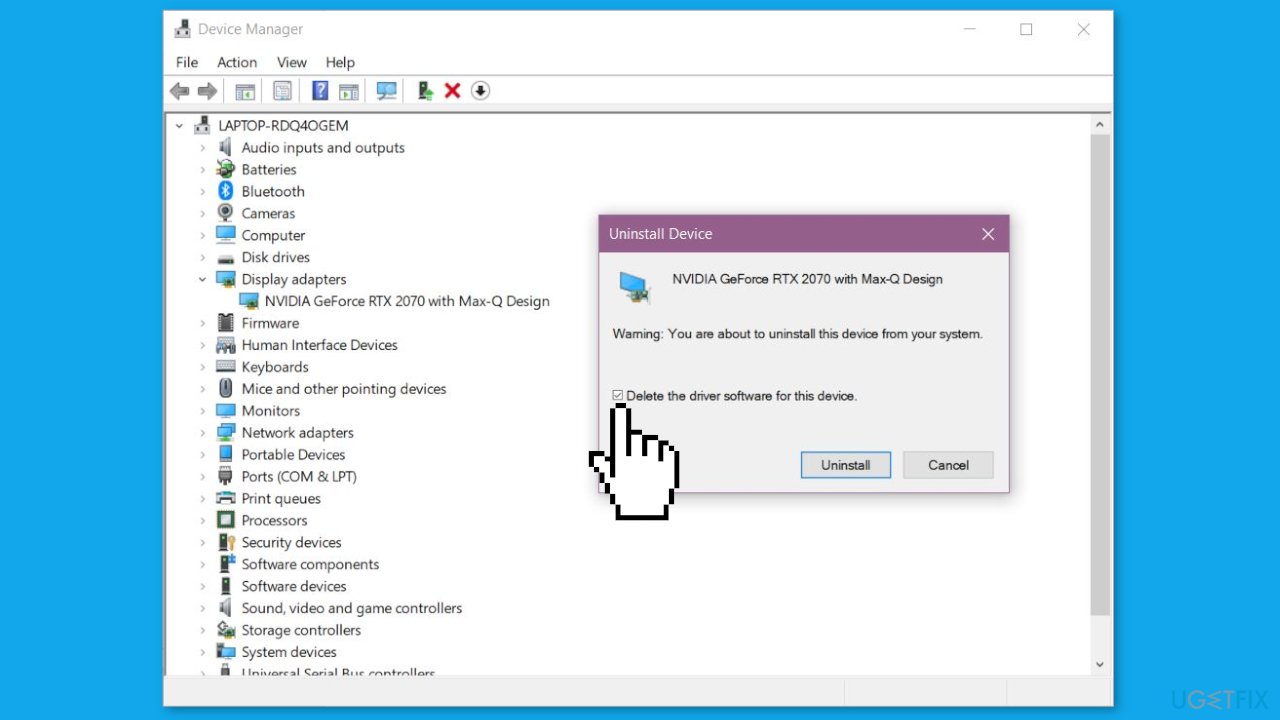
- Visit the manufacturer's website and navigate to the support page for your laptop.
- Download the recommended version of the graphics card device driver.
- Install the downloaded graphics card driver as per the manufacturer's instructions.
Method 6. Reset Windows
- Press the Windows key + I on your keyboard to open the Windows settings.
- Click on Recovery located on the right-hand side.
- Next, click on Reset PC.
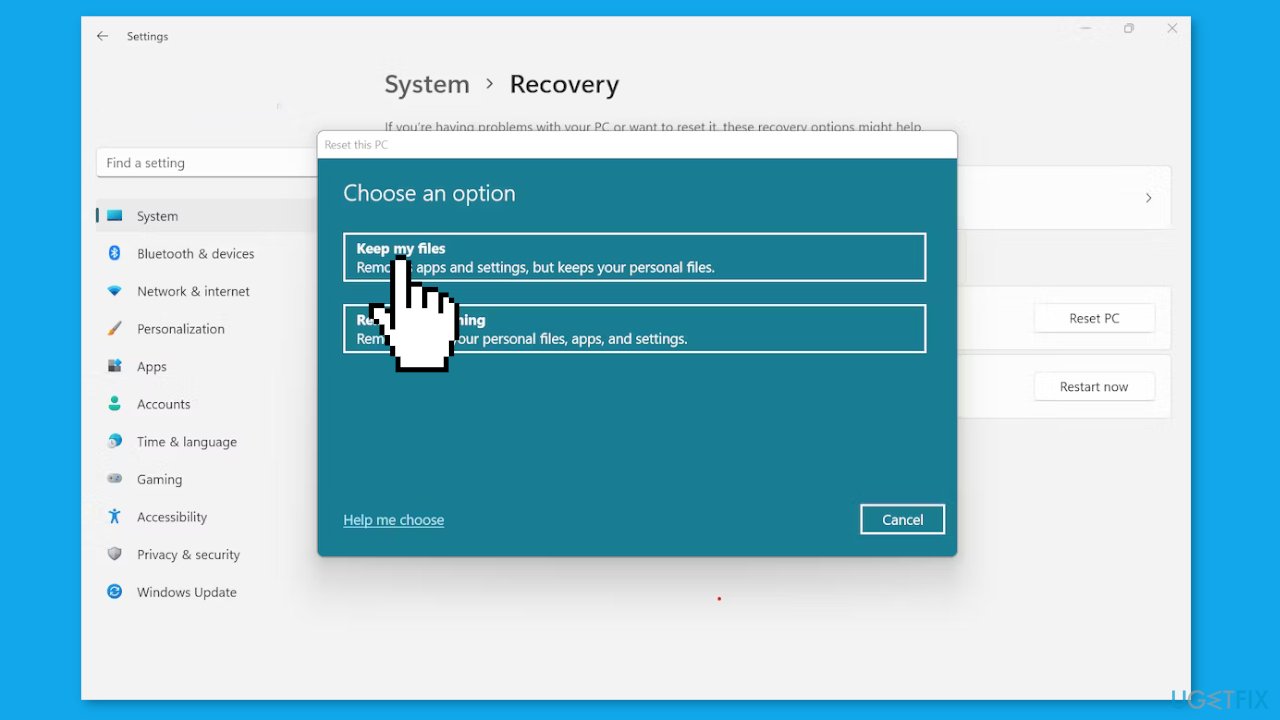
- Choose the option Keep my files.
- Click on Local reinstall and then select Next.
- In the subsequent window, click on Reset and confirm your decision.
- Allow the process to complete.
- Once the process finishes, check to see if the issue on your PC has been resolved.
Bottom line
To fix the VIDEO_MEMORY_MANAGEMENT_INTERNAL error, users should update or reinstall their graphics drivers, ensure their operating system is up to date, and perform a full system scan for viruses or malware. If these steps do not resolve the issue, consider running a maintenance tool or seeking further technical assistance.
Frequently asked questions
This error typically occurs due to issues with the graphics driver, corrupted system files, or hardware incompatibilities. It's commonly triggered by faulty RAM or problems with the graphics card.
To update your graphics driver on Windows 10 or Windows 11, go to Device Manager, expand the Display adapters section, right-click your graphics card, and select 'Update driver' to search for the latest version.
Yes, you can run the System File Checker by opening Command Prompt as an administrator and typing 'sfc /scannow' to repair corrupted system files that may contribute to the error.




Report an issue
What's wrong with this guide? We review every report and update or remove content.
Report received — thank you. We'll review and fix it.
You need a free account to submit a report.
Be the first to comment