How to fix
VIDEO_SHADOW_DRIVER_FATAL_ERROR Blue Screen
on Windows
Resolve the VIDEO_SHADOW_DRIVER_FATAL_ERROR blue screen on Windows 10 or 11 quickly and easily. Expert-tested solutions for a smooth experience.

What causes How to fix VIDEO_SHADOW_DRIVER_FATAL_ERROR Blue Screen in Windows?
- Wrongly configured system settings
- Irregularities with registry files and entries
- Recent installations or upgrades of the operating system
- Improper uninstallation of applications
- Driver conflict
- Damaged system files
Repairs Windows system files, removes malware, and restores a clean OS state — without reinstalling.
Hey. My laptop runs on Windows 10 and delivers a blue screen of death screen errors for me. It is coming often and the code VIDEO_SHADOW_DRIVER_FATAL_ERROR appears and bothers me. I manage to launch the computer, but I am afraid it is going to crash the PC once more and permanently. What can I do with this?
VIDEO_SHADOW_DRIVER_FATAL_ERROR is one of the may critical Blue Screen errors[ref en-1] that appear in various machines based on the Windows operating system. The issue is mainly related to wrongly configured system settings and irregularities with the registry files and entries. The error can occur due to recent installations or upgrades of the operating system due to improper processes and file downloads.[ref en-2]
The error crashes the machine and shows various messages indicating the reason behind the problem. The system crashes to avoid complete corruption of the computer, but once the OS is rebooted, the computer runs slower than usual, responds slowly, some processes may fail. This is the time when the issue needs to be solved as soon as possible.
The error message appears as the result of a cluttered registry or when some of the entries are faulty. Programs might not be on the machine, but those related registries cause issues like this VIDEO_SHADOW_DRIVER_FATAL_ERROR Blue Screen in Windows. Improper uninstallation of applications can lead to such issues.
Additional reasons behind the blue screen of death can include driver conflict and damaged system files, so it is commonly offered to run tools like [d1] for the proper system data repair and damaged file recovery. RAM corruption can also lead to issues with these stop codes.[ref en-3] To avoid damage to the machine, you need to react as soon as possible.
There are some of the solutions for this, so you can fix VIDEO_SHADOW_DRIVER_FATAL_ERROR Blue Screen in Windows by troubleshooting the hardware issues, checking for driver compatibility problems, and fixing all the issues coming from the poor performance and program installs or uninstallation. Follow the guide closely.
1. Run anti-malware scan
- Type in Windows Security in Windows search and press Enter.
- Select Virus & threat protection.
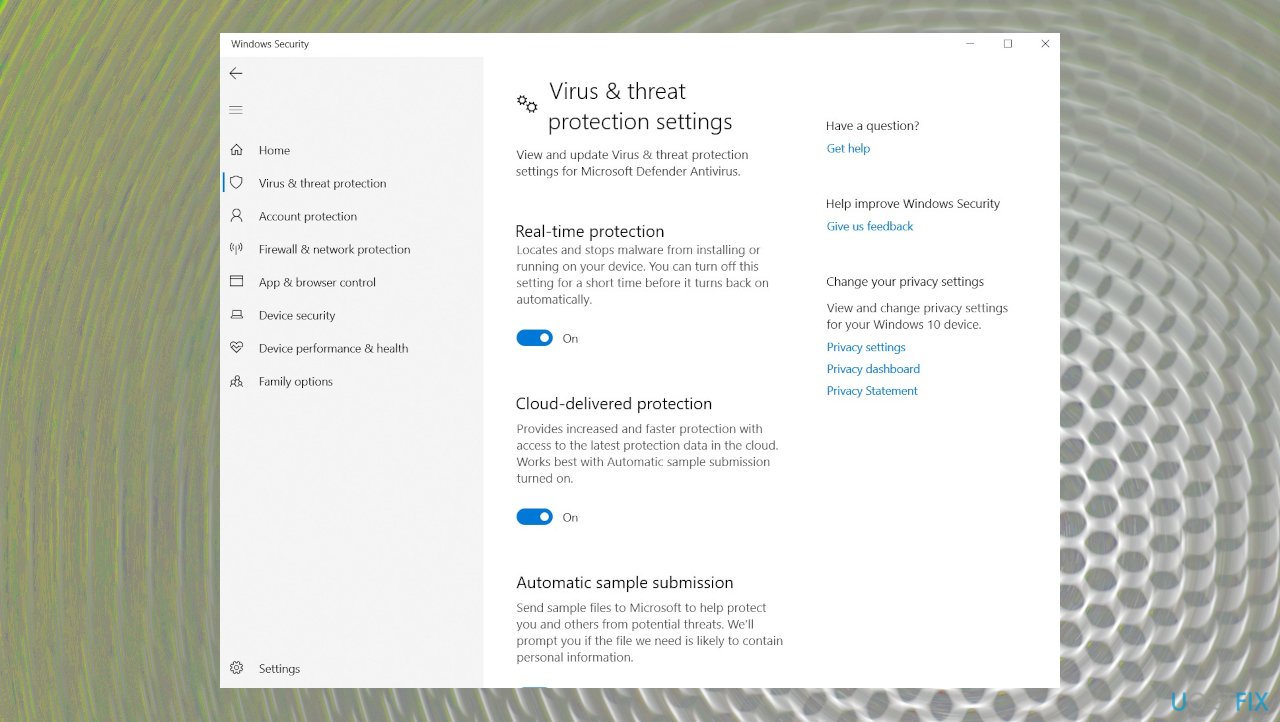
Video shadow driver fatal error blue screen security - Find and choose the Scan options.
- That can be found under Start actions button.
- Select Microsoft Defender Offline scan and click Scan now.
- Your computer will restart after the scan.
2. Update drivers of the device
- Press Windows Key + X and select Device Manager from the menu.
- Expand the Display adapters menu in Device Manager.
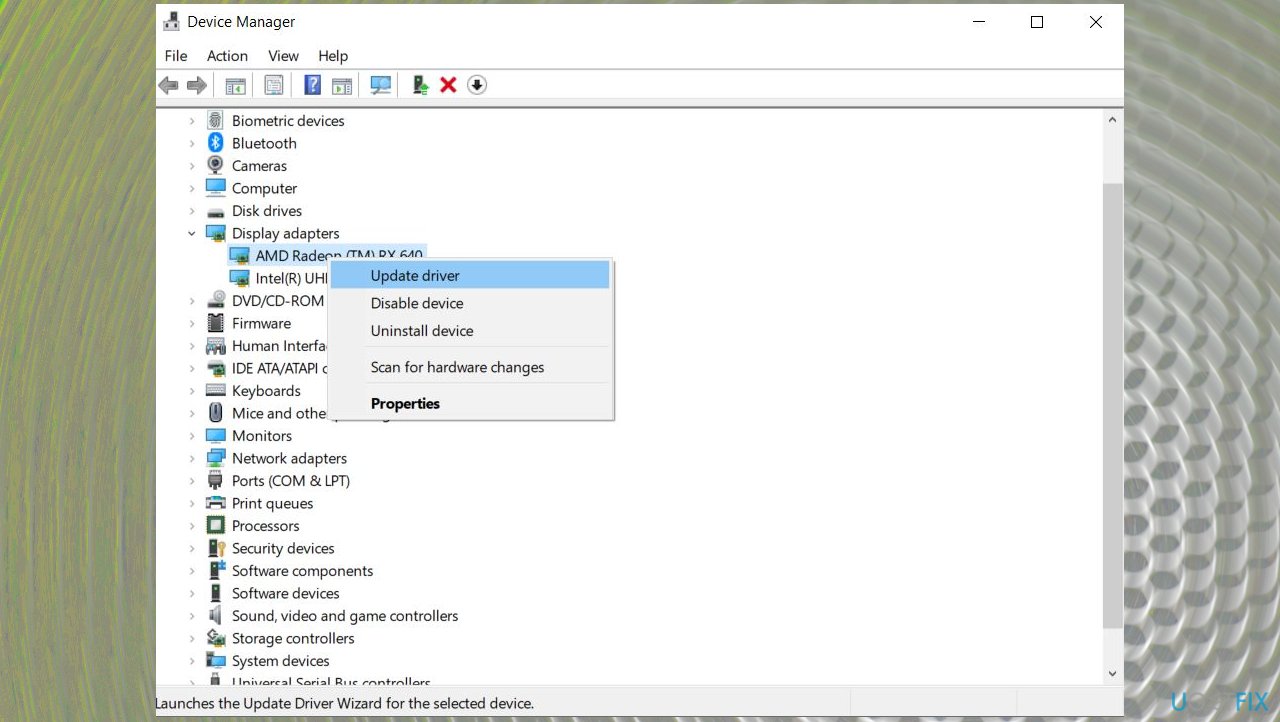
Video shadow driver fatal error driver updates - Right-click your graphics card in the list and select Update device.
- Select Search for driver updates.
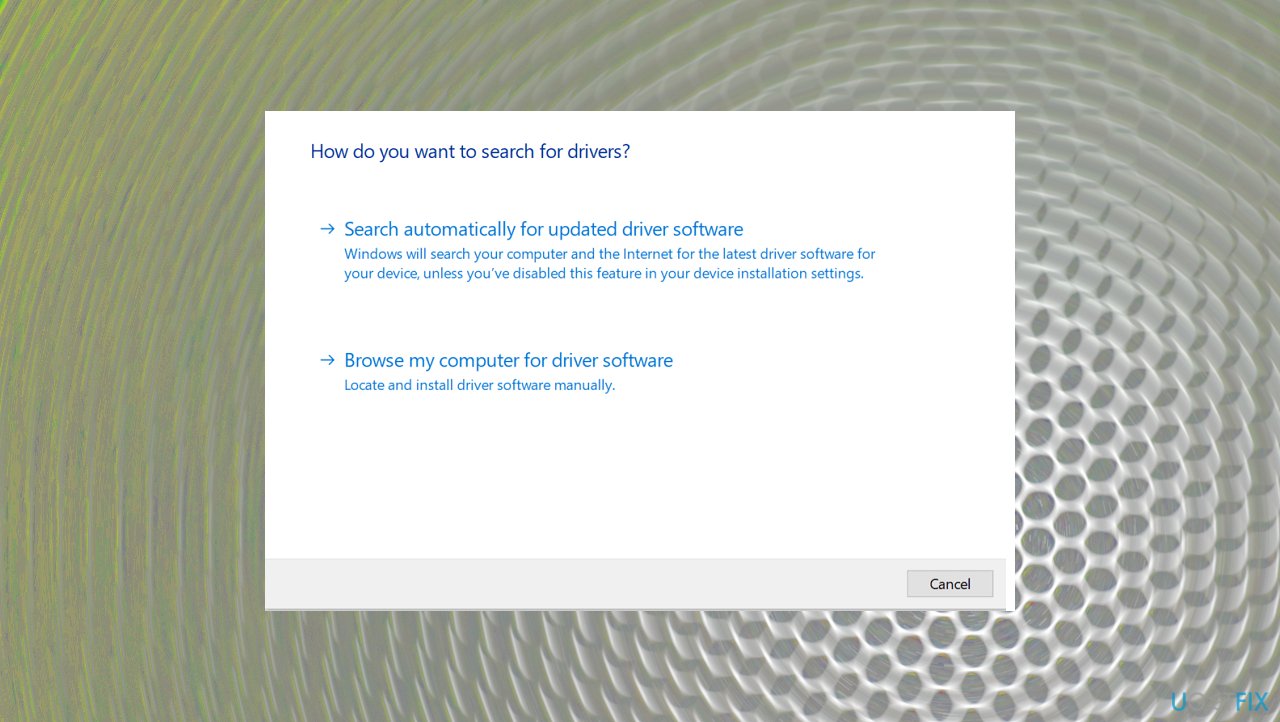
Video shadow driver fatal error search drivers - This should find and install the required drivers for you.
3. Troubleshoot hardware issues
- Open the Run dialog by pressing Windows Key + R at the same time.
- Type the following in Run and press Enter:
msdt.exe -id DeviceDiagnostic - Or you can find the troubleshooting settings too.
- On the Hardware and Devices troubleshooter screen, click the Next button.
- Wait for the troubleshooter to find and fix issues with your hardware devices.
4. Fix corrupted files with SFC
- Open the Start menu, search for Command Prompt.
- Select Run as administrator.
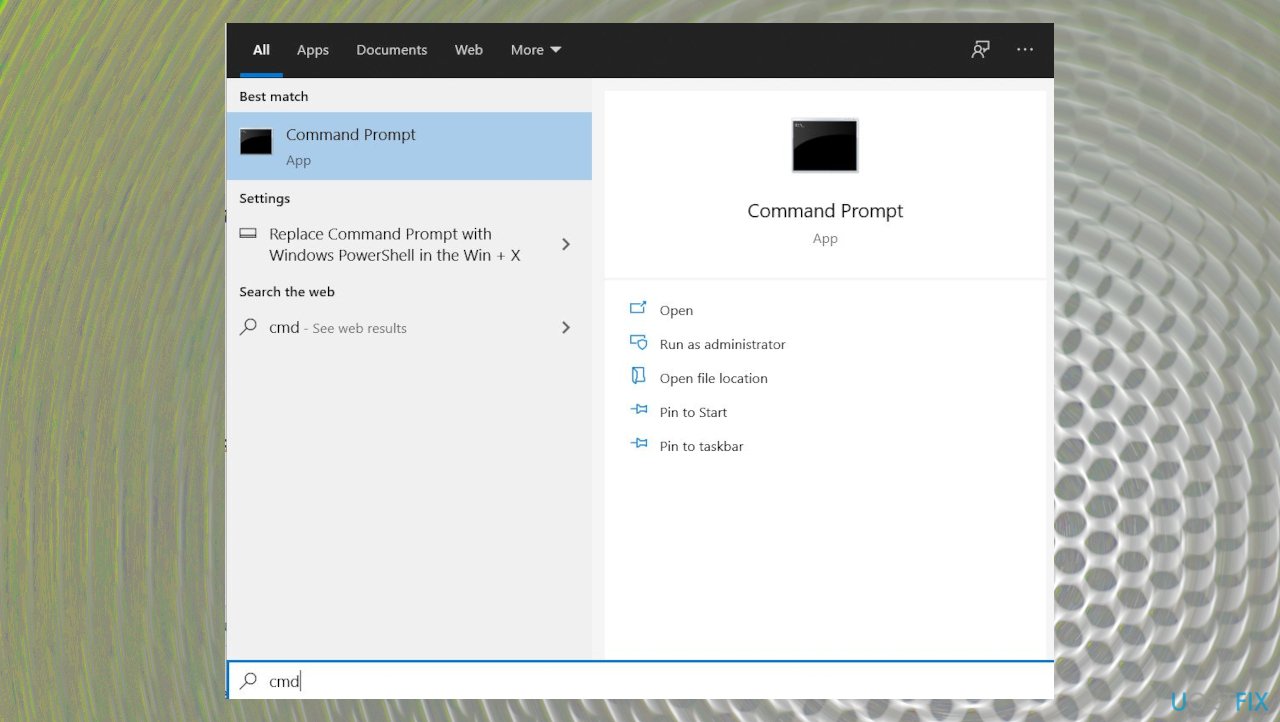
Video shadow driver fatal error command prompt - Type the following command in Command Prompt and press Enter:
sfc /scannow - Wait for the command to find and fix corrupt files on your PC. This can take a while.
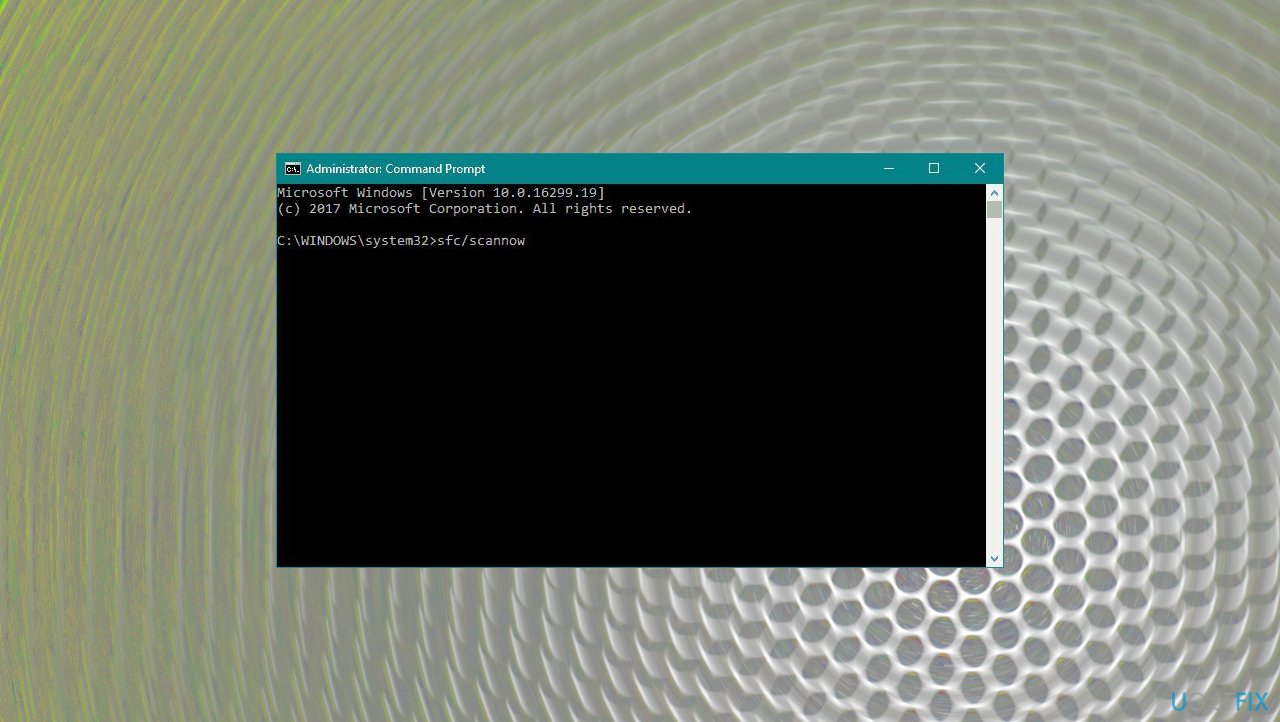
Video shadow driver fatal error sfc
5. Use System restore
- Open the Start menu, search for Create a restore point, and select the Best match.
- Click the System Restore button on the following screen.
- Select Next on the first screen of the System Restore wizard.
- On the following screen, select a restore point to roll back to. Then, click Next at the bottom.
- Click Finish to start restoring your PC.
6. Tur on fast startup
- You can type Power Options on the search box, then press enter key.
- Click Choose what the power buttons do on the left side.
- Locate and change the status of Turn on fast startup under Shutdown settings.
- That is, turn it off if it is on, or turn it on if it is off.
- Then click Save changes.
7. Check for the OS updates
- Right-click Start button and pick Settings.
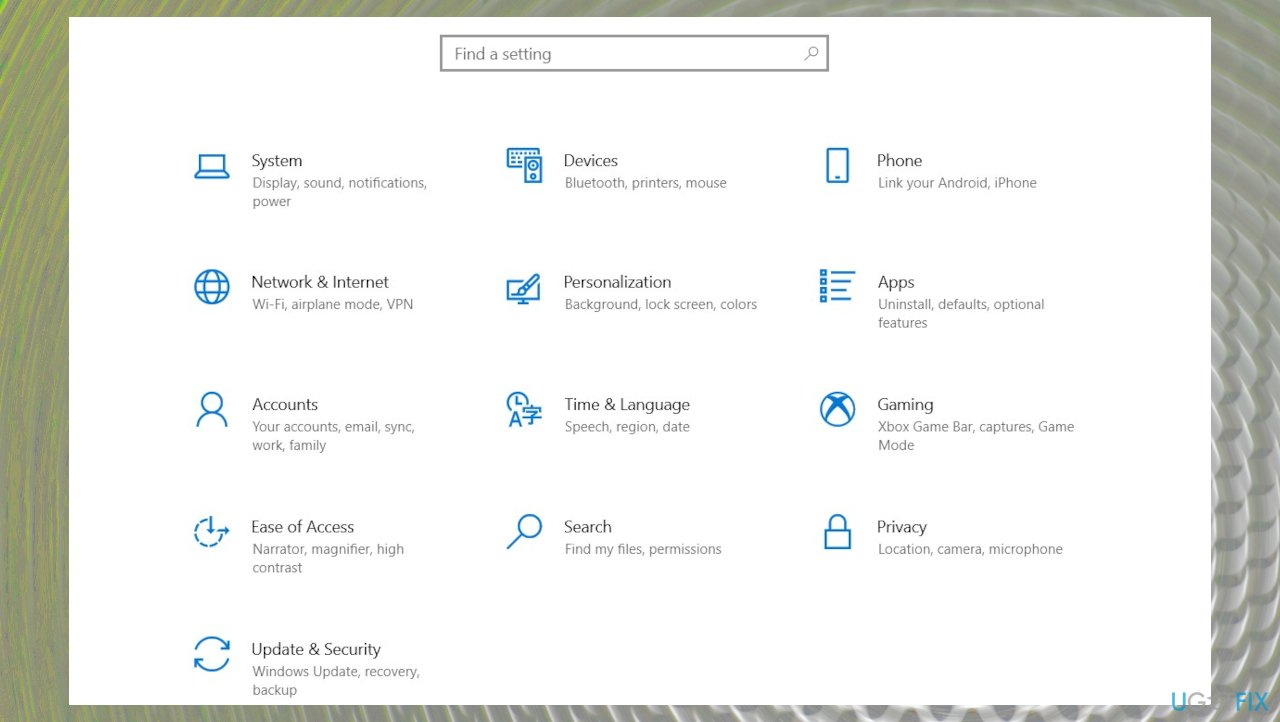
Video shadow driver fatal error settings - You can also hit Windows and I button to go straight to the Settings window.
- Go to Update & Security.
- Locate and click View update history.
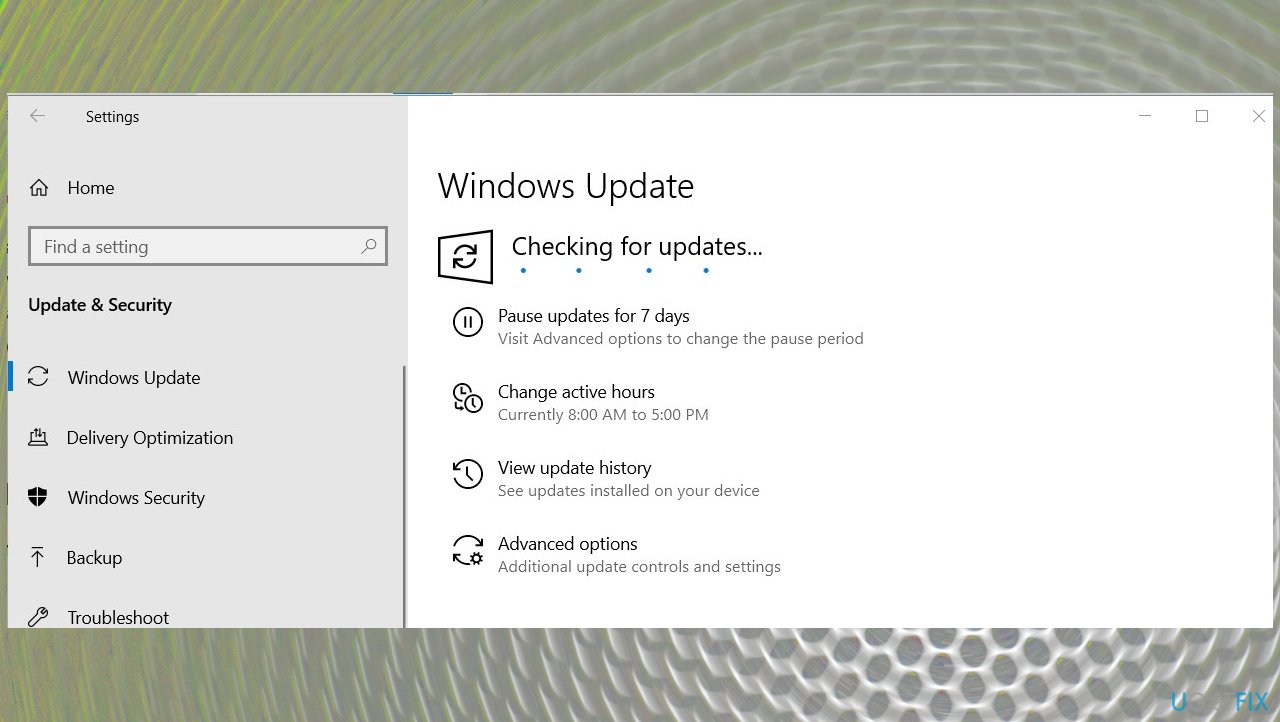
Video shadow driver fatal error windows update - You can also Check for the latest updates.
- Install any pending OS update.
Bottom line
To fix the VIDEO_SHADOW_DRIVER_FATAL_ERROR Blue Screen in Windows, you can troubleshoot hardware issues, check for driver compatibility problems, and address poor performance related to program installations or uninstallation. If these solutions do not resolve the issue, consider running tools for system data repair and damaged file recovery.
Frequently asked questions
This error is typically caused by outdated or incompatible graphics drivers, or issues with third-party software that interacts with the display drivers in Windows 10.
You can update your graphics drivers by going to Device Manager, expanding the Display adapters section, right-clicking your graphics card, and selecting 'Update driver' to search automatically for updated driver software.
Yes, uninstalling your graphics drivers can help resolve the error; Windows will reinstall a basic driver upon reboot, but make sure to download the latest drivers from the manufacturer’s website afterward.




Report an issue
What's wrong with this guide? We review every report and update or remove content.
Report received — thank you. We'll review and fix it.
You need a free account to submit a report.
Be the first to comment