How to fix
VIDEO_TDR_TIMEOUT_DETECTED
on Windows
Resolve the VIDEO_TDR_TIMEOUT_DETECTED error on Windows 10 and 11 effortlessly. Get expert-tested solutions for a smooth experience in minutes!

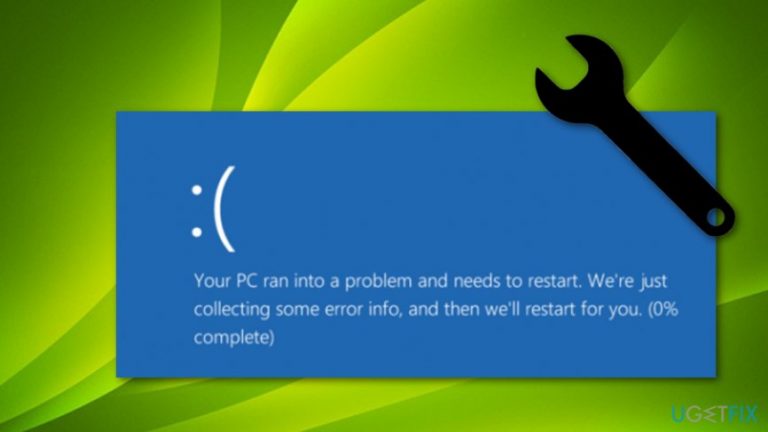
What causes How to fix VIDEO_TDR_TIMEOUT_DETECTED?
- Incorrectly installed software/hardware
- Damage of registry keys in Windows Registry
- Corruption of particular system files
- Hard disk errors or corruptions
- Outdated drivers or software
- Secret malware installation
Repairs Windows system files, removes malware, and restores a clean OS state — without reinstalling.
Hi, I'm here with a question. I was playing Rainbow Six Siege and suddenly I encountered the VIDEO_TDR_TIMEOUT_DETECTED BSOD error on my computer screen and wasn't capable of reverting back to my game. What can I do about it? It still is bothering me.
VIDEO_TDR_TIMEOUT_DETECTED, also known as Error Code 0x117, is a common BSOD error[ref en-2] that causes problems for numerous users worldwide. There are a lot of versions of the Blue Screen of Death error code and all of them interrupt computing work and users are not able to continue their activities that they were performing before the problem appeared.
There might be more than one reason why you have been seeing VIDEO_TDR_TIMEOUT_DETECTED error on your computer screen. Reports from users claim that they have run into a message saying "video driver has failed and recovered" and it has been hard to fix and get rid of since then. Nevertheless, people claim that even installing a fresh version of Windows did not help to solve the problem.[ref en-1]
VIDEO_TDR_TIMEOUT_DETECTED Error Code 0x117 can approach the Windows computer system due to these reasons:
- Incorrectly installed software/hardware.
- Damage of registry keys in Windows Registry.[ref en-3]
- Corruption of particular system files.
- Hard disk errors or corruptions.
- Outdated drivers or software.
- Secret malware installation.
How to fix VIDEO_TDR_TIMEOUT_DETECTED?
We have provided some fixing methods for solving the VIDEO_TDR_TIMEOUT_DETECTED Error Code 0x117 problem on your Windows computer system. Try out the following steps and if they appear to be not successful (which is really rare), you should perform a full machine scan with anti-malware such as [d1] and search for possible infection signs.
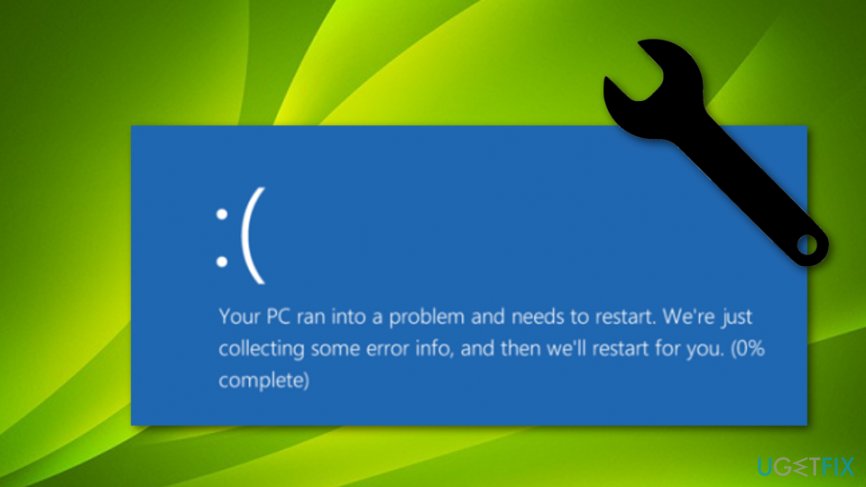
Fix 1. Fix possibly damaged registry keys
- Press Win key and R button at the same time.
- Once a white dialogue box appears, type in "regedit".
- When the Registry Editor opens, choose the entry that relates to Error 0x117.
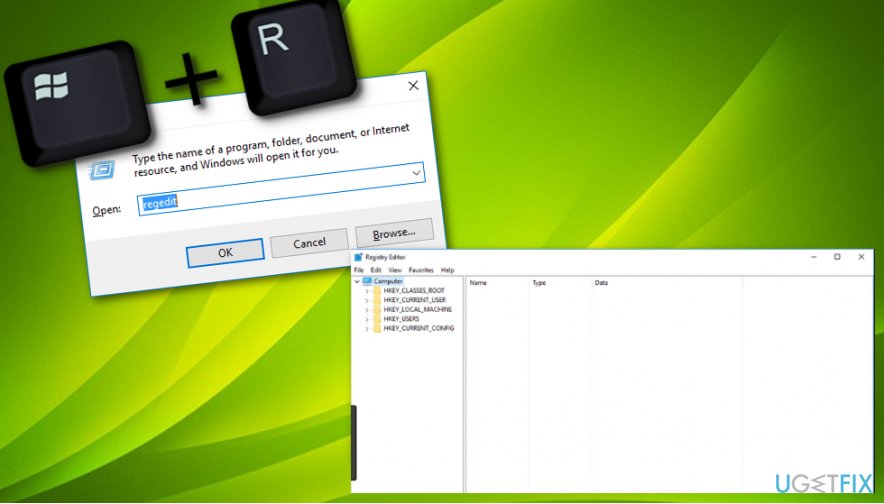
Open regedit - Locate the File menu and opt for Export.
- Go to Save In and select the directory where you want to save the folder.
- In the File Name section, name your backup file.
- Afterward, ensure that Select branch is chosen in Export Range.
- Hit Save and your file will be saved with the .reg appendix.
Fix 2. Undo recent computer modifications
- Go to Start and type in "system restore".
- Select on Choose a restore point.
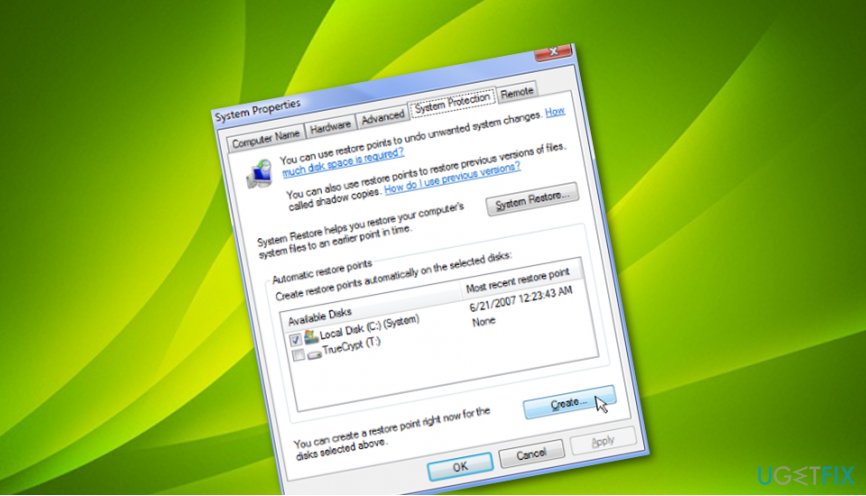
Create restore point - Follow the instructions.
- Reboot.
If this method did not help you to fix VIDEO_TDR_TIMEOUT_DETECTED Error Code 0x117, the problem might be somewhere else. Our suggestion would be to continue with the following steps and try out other methods.
Fix 3. Check for hard drive damage
As we have already mentioned, the VIDEO_TDR_TIMEOUT_DETECTED Error Code 0x117 problem might appear on your Windows screen due to hard drive corruption. In order to find if everything is good with your disk, follow these guidelines:
- Hold Win key + R until the run box appears.
- Type "cmd".
- Once the Command Prompt window launches, make sure that it has Administrative powers.
- Write the "chkdsk /f" command in the black window.
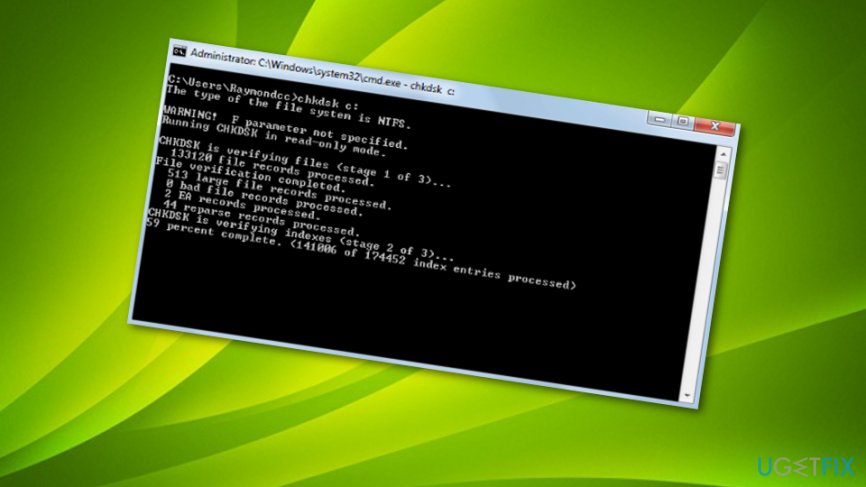
Use cmd to check disk - Press the Enter key and follow commands.
Fix 4. Scan files for possible corruption
- Launch Command Prompt again.
- You can do that by typing "cmd" in run or just searching for it through Windows Search.
- Once the black window appears, type "sfc /scannow" and press Enter.
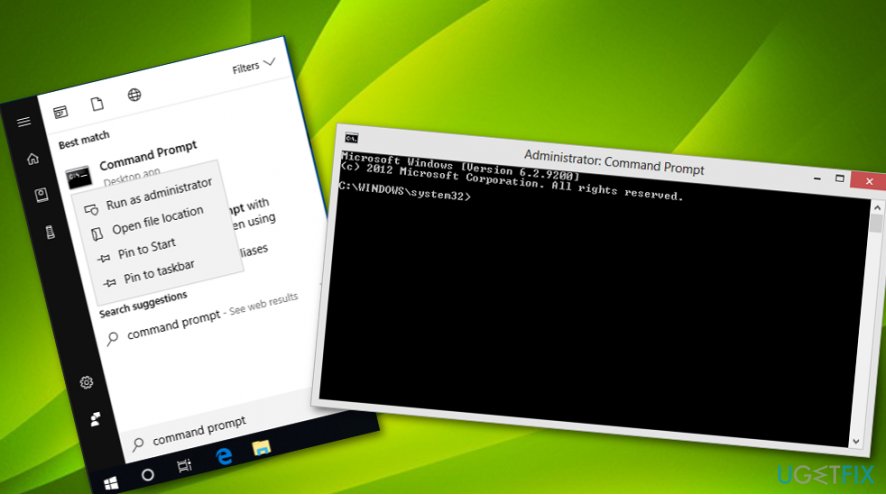
Fix scannow - Follow all commands that you are provided with.
Fix 5. Update your Windows operating system
If your Windows computer failed to install updates automatically, there might be some updates waiting to be installed manually. Check your Windows Update section and perform all recommended updates as this might help you to solve the VIDEO_TDR_TIMEOUT_DETECTED Error Code 0x117 problem.
- Go to Windows Search and type "update".
- Once Windows Update launches select View update history.
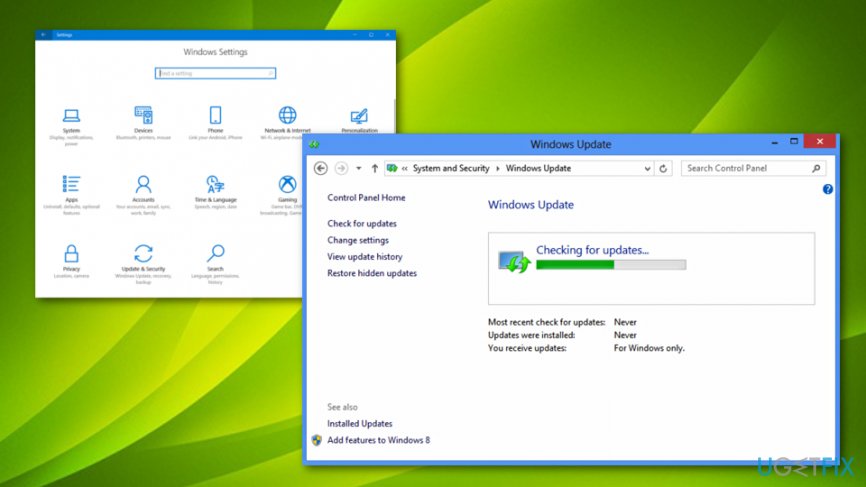
Fix with windows updates - If some updates are available, choose to Install Updates.
Bottom line
To fix the VIDEO_TDR_TIMEOUT_DETECTED error, you can try fixing possibly damaged registry keys, updating drivers, or performing a full machine scan with anti-malware. If these methods do not resolve the issue, consider seeking further technical assistance.
Frequently asked questions
This error typically occurs due to graphics card driver issues, hardware malfunctions, or overheating, causing the system to timeout while waiting for the graphics processing unit (GPU) to respond.
You can update your graphics drivers by visiting the manufacturer's website, downloading the latest version compatible with your GPU, and installing it on your Windows 10 or Windows 11 system.
Yes, you can modify the TDR settings in the Windows Registry by increasing the Timeout Detection and Recovery values, but this should be done cautiously as it may mask underlying hardware issues.




Report an issue
What's wrong with this guide? We review every report and update or remove content.
Report received — thank you. We'll review and fix it.
You need a free account to submit a report.
Be the first to comment