How to fix
Visual C++ installation error 0x80070666
on Windows
Resolve the Visual C++ installation error 0x80070666 on Windows 10 or 11 quickly and efficiently. Expert-tested solutions with screenshots included.

What causes How to fix Visual C++ installation error 0x80070666 in Windows?
- Different versions of the package installed on the system clash
- Installation process is interrupted or incomplete
- Another version of the package is already installed
- Conflicting versions of the package need to be uninstalled
- System compatibility issues
Repairs Windows system files, removes malware, and restores a clean OS state — without reinstalling.
Hello. When I try to install the Visual C++ Redistributable Package on my Windows PC I receive the 0x80070666 error. How do I fix this?
The Visual C++ Redistributable Package is a collection of runtime components required by programs written in Microsoft Visual C++. These redistributable packages contain libraries and components that are required for applications to run properly on Windows systems. They ensure that the required runtime files are present, allowing software to run efficiently and smoothly.
Users may, however, encounter problems while installing the Visual C++ Redistributable Package, specifically error code 0x80070666. This error usually occurs when different versions of the package installed on the system clash, or when the installation process is interrupted or incomplete. The error message may vary, but it generally indicates that another version of the package is already installed and must be uninstalled before the installation can proceed.
This problem may have a variety of consequences for users. For starters, it prevents the successful installation and operation of software that depends on the specific version of the Visual C++ Redistributable Package. As a result, users may be unable to run specific applications or may experience errors and crashes while doing so.
Furthermore, users who are unfamiliar with the underlying causes of this error may become confused and frustrated. It may result in wasted time and effort spent troubleshooting or attempting failed installation workarounds. Users may also encounter delays or interruptions in their workflow if they rely on software that requires the Visual C++ Redistributable Package to function properly.
Depending on the specific circumstances, there are several potential solutions for resolving the error code 0x80070666. Uninstalling conflicting versions of the package, repairing or reinstalling the affected package, ensuring system compatibility, and updating Windows components are some examples.
In this guide, you will find 4 steps that should help you fix Visual C++ installation error 0x80070666. You can also try a maintenance tool like [d1] that can fix most system errors, BSODs,[ref en-1] corrupted files, and registry[ref en-2] issues. Otherwise, follow the step-by-step instructions below.
Method 1. Install Windows Updates
- Press the Windows key + R to open the Run box.
- Type ms-settings:windowsupdate in the text box and press Enter.
- Click the Check for updates button.
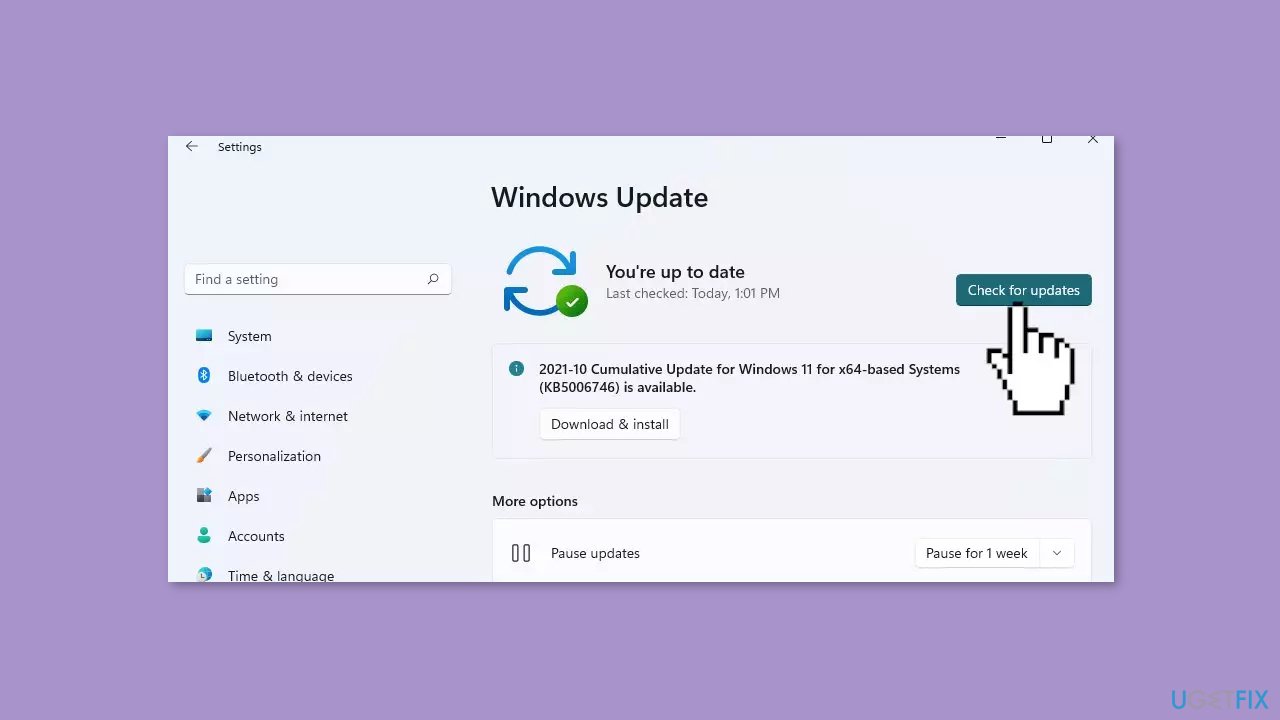
- If a new update is available, click the Download & Install all button.
- Restart your computer after the process is finished and check to see if the problem is fixed.
Method 2. Uninstall all Visual C++ Redistributable Packages
- Press the Windows key + R to open the Run dialog box.
- Type appwiz.cpl and press Enter to open the Programs and Features screen.
- Scroll down through the list of installed programs in the Programs and Features screen.
- Locate all your Microsoft Visual C++ installations.
- Right-click on every Microsoft Visual C++ installation.
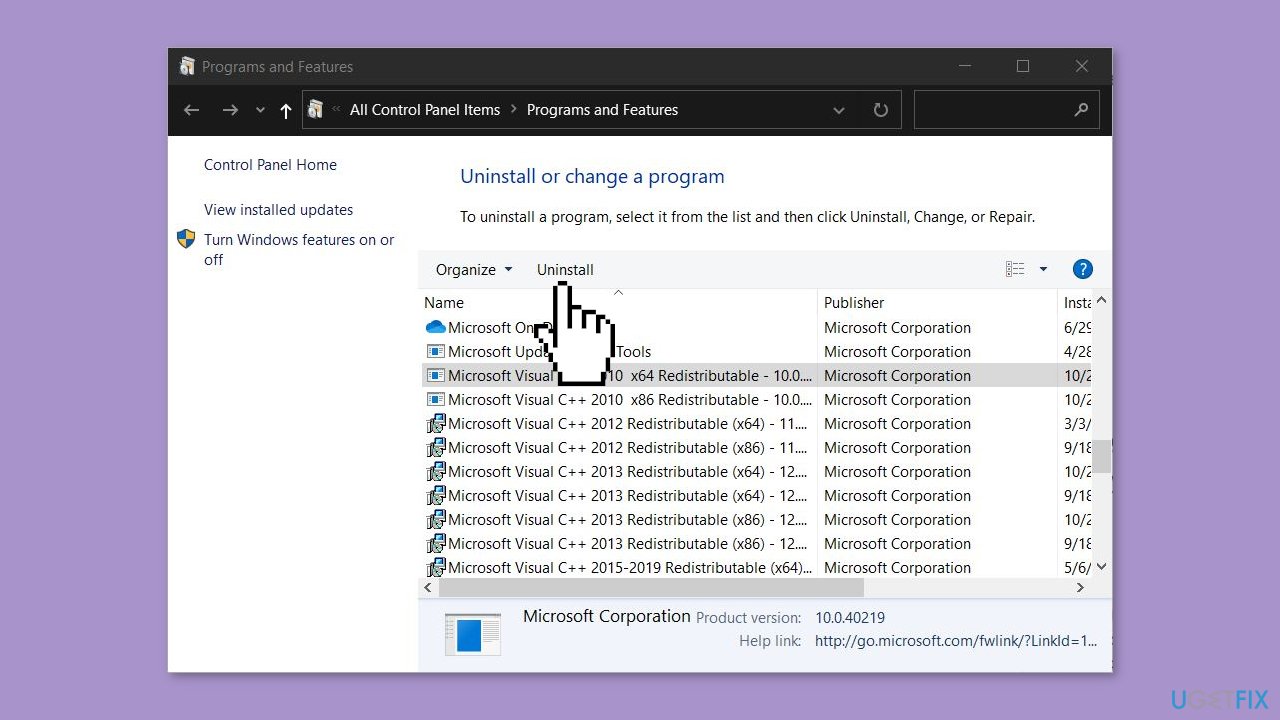
- Choose Uninstall from the right-click menu.
- Follow the on-screen prompts to complete the uninstallation for every redist package.
- Once every Visual C++ package has been uninstalled, restart your computer.
- Wait for the next startup to complete.
- Attempt to install the same Redistributable package that was previously failing with the 0x80070666 error.
Method 3. Run the Fix-It Tool
- Visit the Microsoft website and click the Download button to download the Fix It tool.
- Once the tool is downloaded, locate the downloaded file (typically a .diagcab file) on your computer.
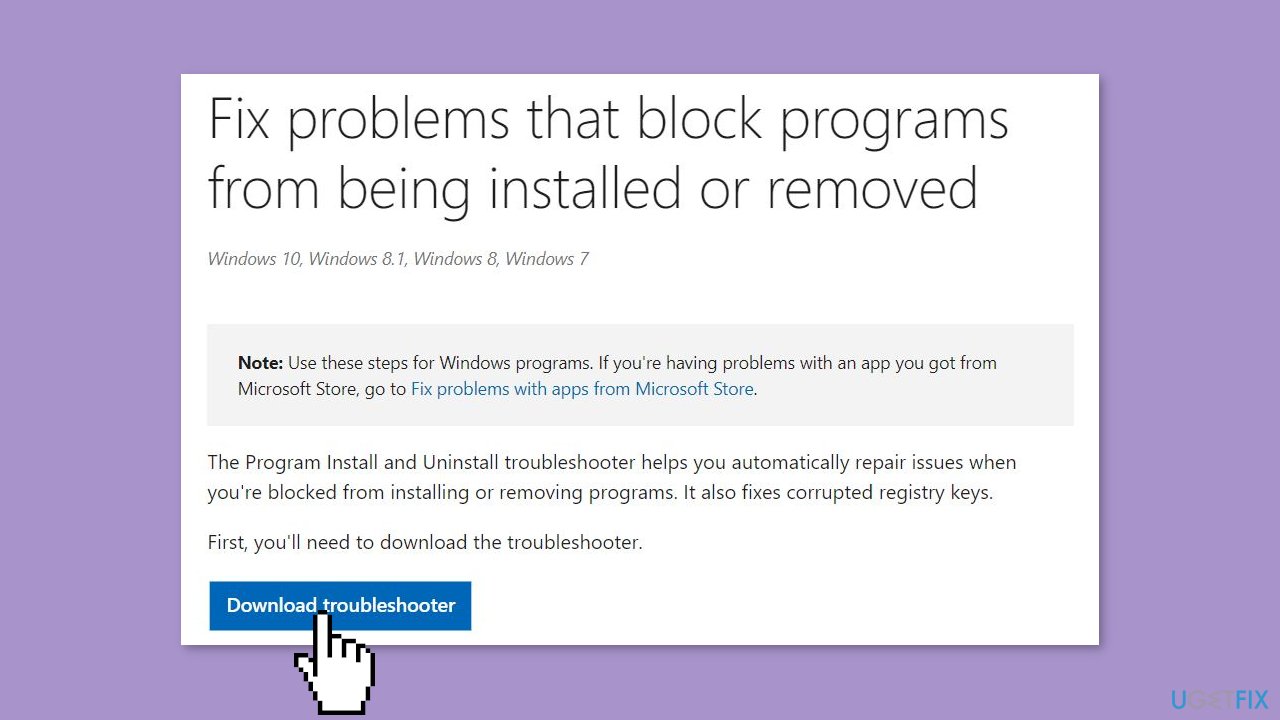
- Double-click on the .diagcab file to open the Fix It tool.
- On the initial screen of the Fix It tool, click on Advanced.
- Make sure the box associated with Apply repairs automatically is checked.
- Click Next to advance to the next menu.
- On the next screen, click on Installing.
- Wait until the inspection phase is complete.
- Select the specific redist package you are encountering issues with.
- Click Next to proceed.
- Follow the recommended repair strategies provided by the Fix It tool.
- Continue following the repair steps until you reach the end of the program.
- Once the Fix It tool has finished running, restart your computer.
- After the restart, check if you are able to install the redist package without any issues at the next startup.
Method 4. Repair the Visual C++ Installation
- Verify that the installer of the redistributable package you are trying to install is present on your computer and note its exact location. If the installer is not present, download it again.
- Press the Windows key + R to open the Run dialog box.
- Type cmd and press Enter to open Command Prompt.
- Inside the Command Prompt window, use the following command to change the directory to the location of the installer file. For example, if the redist installer (e.g., vc_redist.x64.exe) is located in the Download folder, use the command: CD C:\Users*YourUser*\Downloads
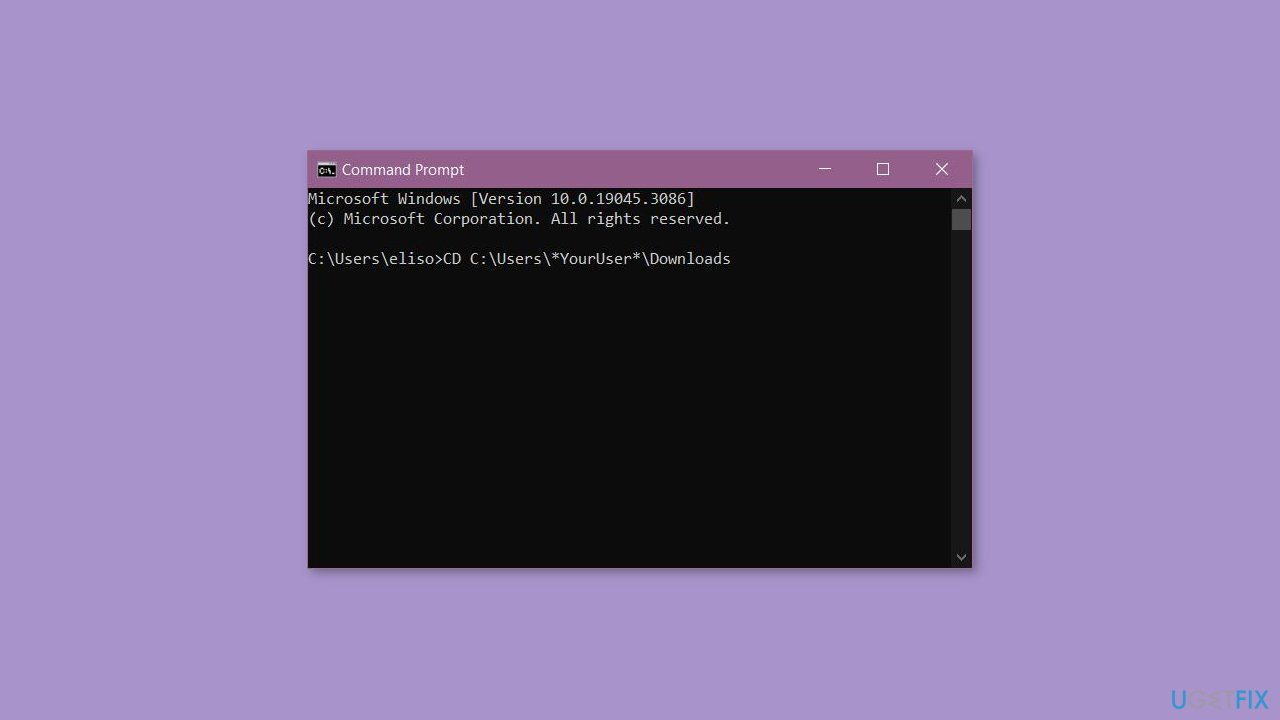
- Ensure that the terminal is working in the correct directory.
- Type the name of the installation executable, followed by /uninstall, in the Command Prompt window. For example: vc_redist.x64.exe /uninstall
- Click Repair when the installation window appears.
- Follow the on-screen prompts to repair your Visual C++ redistributable installation.
Bottom line
To fix the Visual C++ installation error 0x80070666, you can uninstall conflicting versions of the package, repair or reinstall the affected package, ensure system compatibility, and update Windows components. If these solutions do not resolve the issue, consider using a maintenance tool that can fix system errors.
Frequently asked questions
The error code 0x80070666 typically indicates that the installation of Visual C++ cannot proceed because a previous version is already installed or has not been completely removed.
To resolve this error, you can try uninstalling the existing Visual C++ Redistributable from the Control Panel and then reattempt the installation.
If the error persists, consider using the Microsoft Program Install and Uninstall Troubleshooter to fix any issues with installation and uninstallation processes on Windows 11.




Report an issue
What's wrong with this guide? We review every report and update or remove content.
Report received — thank you. We'll review and fix it.
You need a free account to submit a report.
Be the first to comment