How to fix
Vmconnect.exe crash error
on Windows
Resolve the vmconnect.exe crash error effortlessly on Windows 10 or 11. Get expert-tested solutions to fix this issue in minutes.


What causes How to fix vmconnect.exe crash error in Windows?
- Corrupted system files
- Issues with the .NET Framework
- Damaged system files
- Frequent application crashes
- Incompatibility with Windows updates
Repairs Windows system files, removes malware, and restores a clean OS state — without reinstalling.
Hello. After updating Windows 11 22H2, the vmconnect.exe crashes when clicking the connection information button. How do I fix this?
Vmconnect.exe, an exe file associated with Windows VMWare, can be problematic when users click on the "connection information" or "connection status" button- as many have reported. The application crashing and immediately exiting is incredibly frustrating and disruptive to any work being done at the time. So we understand how vital it is to quickly find a fix for this issue.
Some said that Windows crashed with vmconnect.exe error every minute, while others said it only happened once a day or even less frequently. However, the root cause of this error is still unknown. Some suggest that it might be related to the .NET Framework[ref en-1] which is a software development framework for building and running applications on Windows.
The .NET Framework includes a large class library called the Framework Class Library (FCL), and it allows different languages to work together. The crash could also be caused by damaged system files. Regardless of the culprit, in this guide, you will find 5 steps that we hope will help you fix vmconnect.exe crash error in Windows.
Keep in mind that the manual troubleshooting process can be lengthy. You can use a maintenance tool like [d1] that can automatically fix most system errors, BSODs,[ref en-2] corrupted files, and registry[ref en-3] issues. Otherwise, follow the step-by-step instructions below.

Method 1. Fix Corrupted System Files
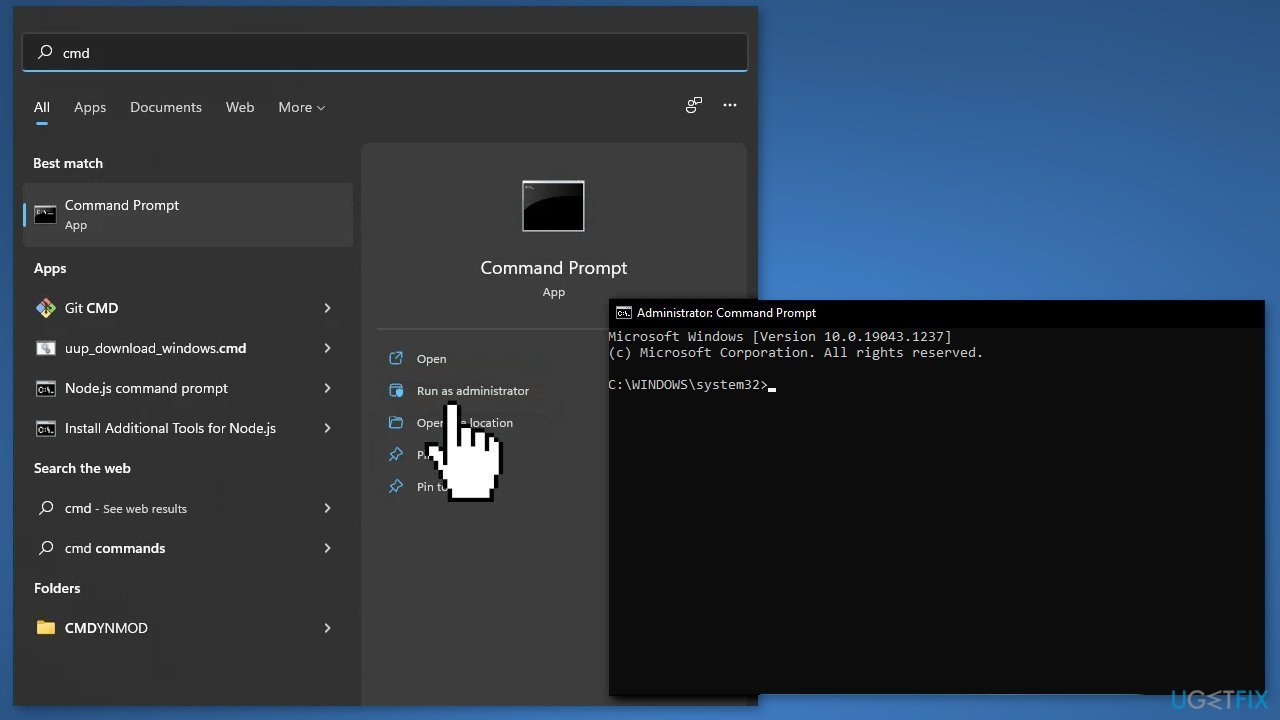
Use Command Prompt commands to repair system file corruption:
- Open Command Prompt as administrator
- Use the following command and press Enter:
sfc /scannow
- Reboot your system
- If SFC returned an error, then use the following command lines, pressing Enter after each:
DISM /Online /Cleanup-Image /CheckHealth
DISM /Online /Cleanup-Image /ScanHealth
DISM /Online /Cleanup-Image /RestoreHealth
Method 2. Run the Framework Repair Tool
- Download Microsoft .NET Framework Repair Tool from Official Microsoft Download Center
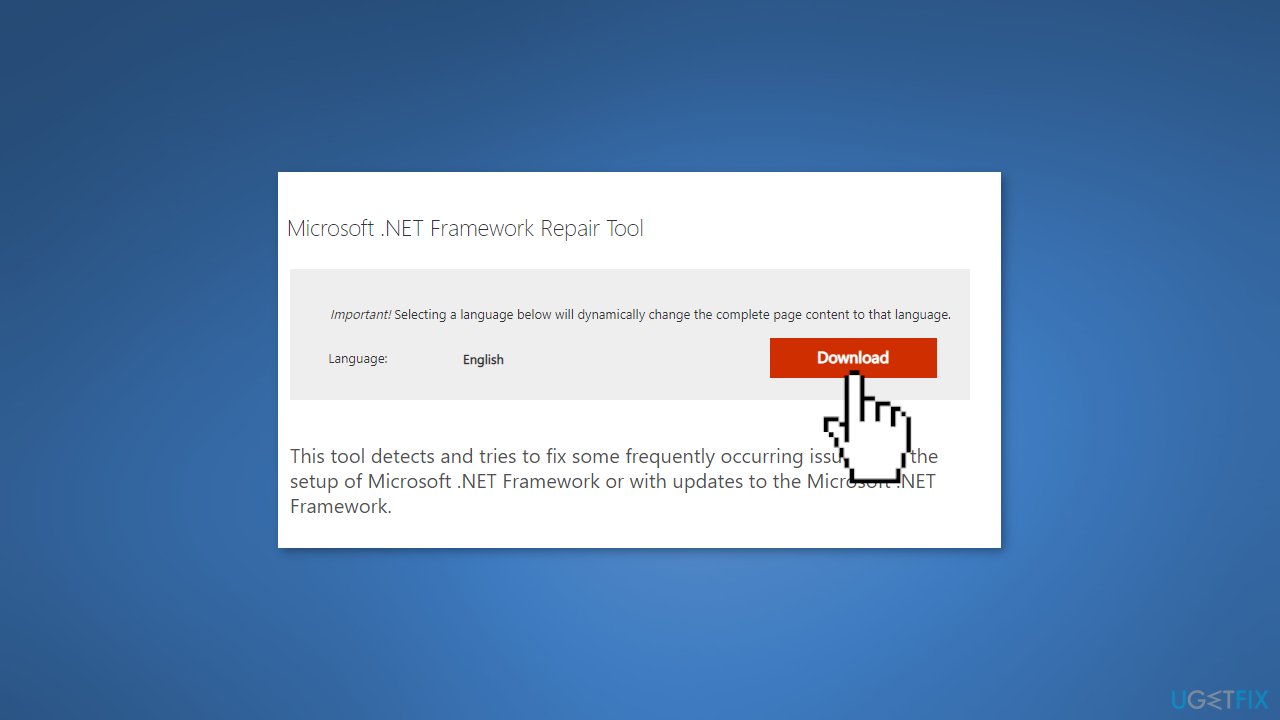
- Launch the repair tool and follow the on-screen prompts
- Then restart the system
Method 3. Reinstall .Net Framework
- Press the Windows key + R to open the Run box
- Type optionalfeatures, and press Enter
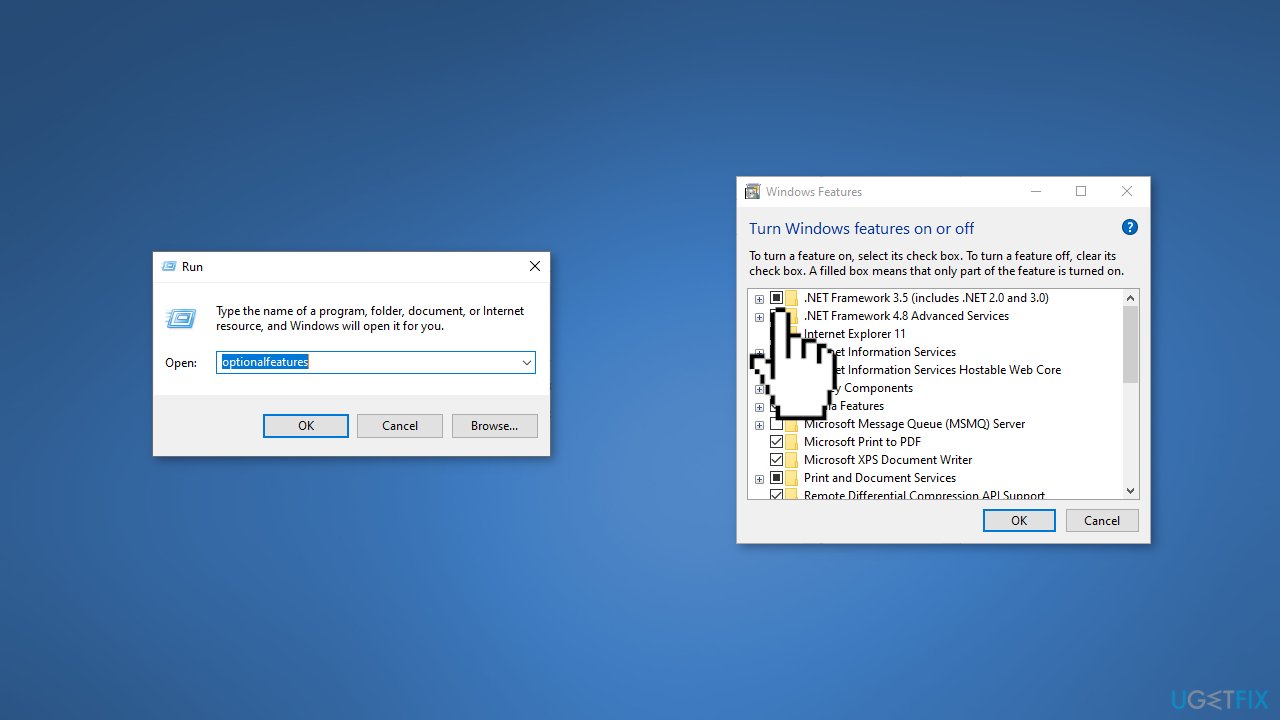
- Select the .NET Framework 3.5 (includes .NET 2.0 and 3.0) check box, select OK
- Reboot your computer if prompted
Method 4. Use System Restore
- Go to the Start menu, type
restore, and click on Create a restore point - Click System Restore, then follow the prompts until you can select a restore point
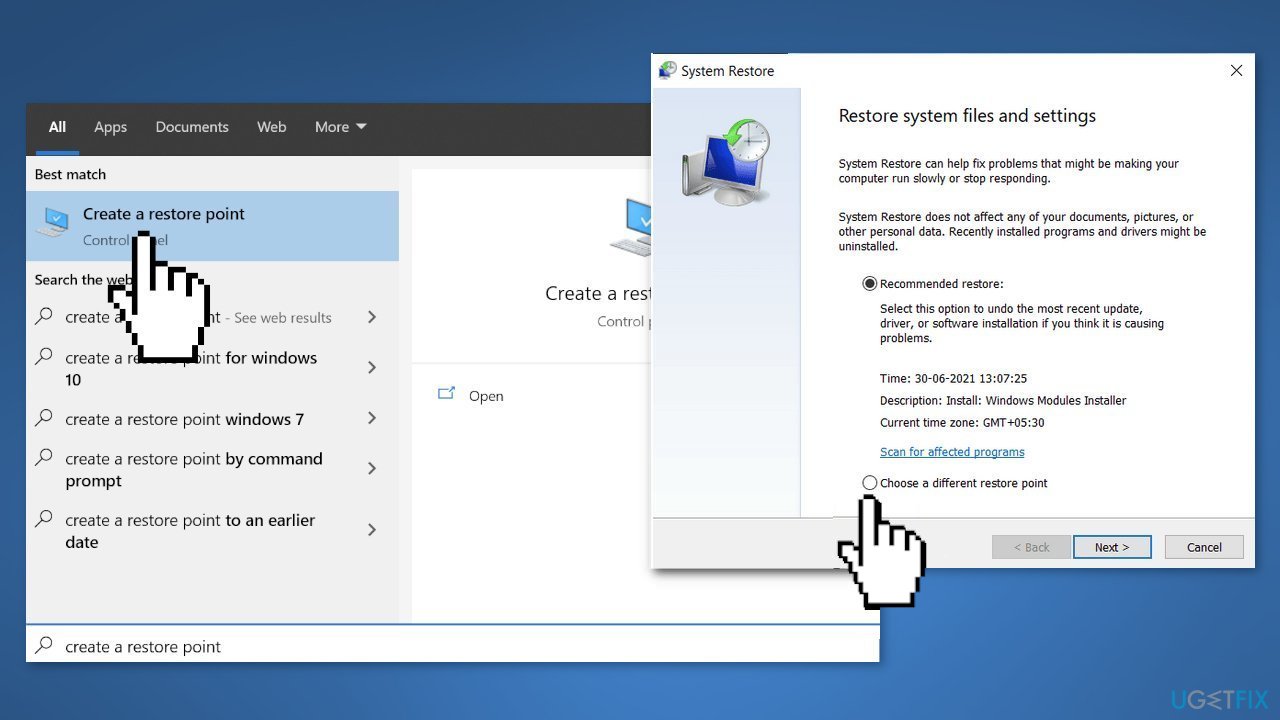
- Select the one you want (ideally before the vmconnect.exe crash started) and go ahead with the process
Method 5. Reinstall Windows
- Download the ISO file for Windows 11 from the official Microsoft website by clicking Download Now under Create Windows 11 Installation Media
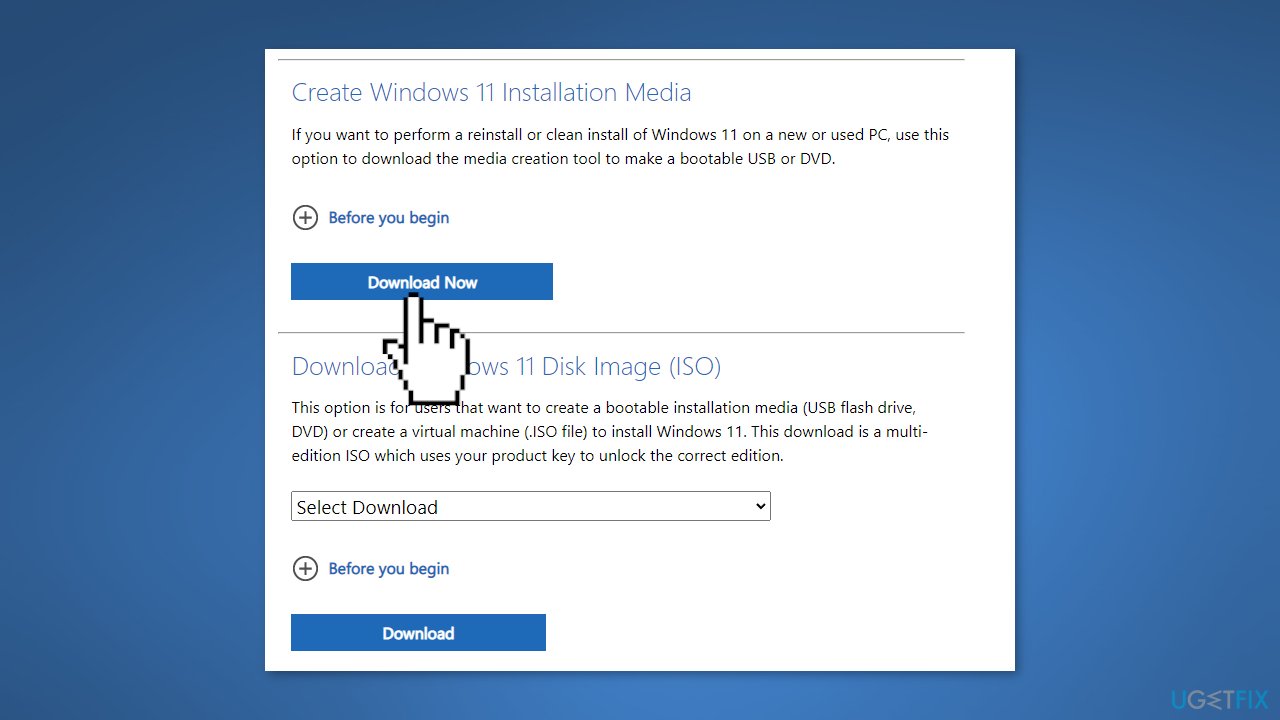
- Launch the program, select Create installation media (USB flash drive, DVD, or ISO file) for another PC
- Choose Language, Version, Architecture(if you are not sure about these, choose Use the recommended options for this PC
- Select ISO file in the Select Media to Use interface, and then a windows ISO file will be downloaded to your disk (about 4-5GB in size, it is recommended that you choose a non-system disk)
- Choose to override the system
- After the download is completed, double-click the ISO file, and launch setup.exe in the file explorer
- Select Change how Windows Installer downloads updates
- Press Download updates, drivers and optional features
- Select Keep personal files and apps after accepting the terms of the agreement, then click Next and Install
Bottom line
To fix the vmconnect.exe crash error, you can repair corrupted system files using Command Prompt, run the .NET Framework Repair Tool, or reinstall the .NET Framework. If these methods do not resolve the issue, consider using a maintenance tool to automatically fix system errors.
Frequently asked questions
Common causes include corrupted application files, outdated drivers, or issues with Hyper-V settings. Ensuring that your Windows 10 is up-to-date can help resolve these problems.
To troubleshoot vmconnect.exe issues on Windows 11, you can try resetting the Hyper-V feature or reinstalling the Virtual Machine Connection tool. Additionally, checking for system updates and driver compatibility may also help.
To prevent vmconnect.exe from crashing in Windows, regularly update your system and drivers, and monitor system resources to avoid overloading the Hyper-V environment. Configuring virtual machines with optimal settings can also enhance stability.




Report an issue
What's wrong with this guide? We review every report and update or remove content.
Report received — thank you. We'll review and fix it.
You need a free account to submit a report.
Be the first to comment