
How to fix VMware "Failed to start the virtual machine" error in Windows?

Prefer to fix it yourself? The manual steps follow.
- 8methods
- 5 to 30 minutes
- Medium
Applies to Windows 11, Windows 10; VMware Workstation Pro and Workstation Player
8 methods in this guide
Hello. I was trying to run a virtual machine in VMware, but I received a "Failed to start the virtual machine" error. Is there any way to fix this?
"Failed to start the virtual machine" is the last line of a VMware Workstation power-on error, not the cause itself. The line above it names what failed: most often hardware virtualization that is off in the UEFI, or Windows Hyper-V and virtualization-based security that an old Workstation cannot use. Read that line first, then pick the fix that matches it.
Read the line just above Failed to start the virtual machine. If it says Intel VT-x is disabled or names the module MonitorMode, turn on virtualization in the UEFI and power the PC off completely (Fix 1). If it names Hyper-V, Device Guard or Credential Guard, update Workstation to a version that runs on top of Hyper-V and reinstall it (Fix 2).
| Error | Error while powering on: Failed to start the virtual machine. Often with a line such as "Module 'MonitorMode' power on failed." above it. |
|---|---|
| Where it appears | In a VMware Workstation or Workstation Player dialog, a second after you select Power on this virtual machine, before the guest system starts. |
| Main cause | Intel VT-x or AMD-V is turned off in the UEFI or BIOS, or Windows runs Hyper-V or virtualization-based security and the Workstation version cannot use it. |
| Fastest fix | Read the line above the message. VT-x disabled: turn it on in the UEFI and power off fully (Fix 1). Hyper-V or VBS: update and reinstall Workstation (Fix 2). |
| Also written as | "Failed to start the virtual machine.", "VMware failed to power on virtual machine", "Module 'MonitorMode' power on failed", "Module 'HV' power on failed". |
| Affects | VMware Workstation Pro and Workstation Player on Windows 11 and Windows 10. Broadcom's current documentation is for Workstation Pro 26H1. |
| Vendor status | Not one bug. Broadcom documents the VT-x cause and the Hyper-V mode. Workstation 15.5.5 and later run on a Hyper-V host through the Windows Hypervisor Platform. |
| Hyper-V mode needs | Intel Sandy Bridge or AMD Bulldozer or newer CPU, Windows 10 20H1 build 19041.264 or newer. |
| Time to fix | 5 minutes for a setting, 15 to 30 minutes when a UEFI change or a reinstall is needed. |
| Where the cause is logged | vmware.log in the folder of the virtual machine that fails. The last lines name the module that failed. |
Facts checked on 15 October 2026. Steps written for Windows 11 (25H2 and 26H2) and Windows 10 22H2.
What "Error while powering on: Failed to start the virtual machine" means
VMware Workstation shows this dialog when it cannot start the part that runs the virtual machine. The full text is Error while powering on: Failed to start the virtual machine. The last sentence is always the same. The sentences above it change and tell you why.
Broadcom's knowledge base gives one full example. It reads: "This host supports Intel VT-x, but Intel VT-x is disabled." It then lists four checks and ends with "Failed to start the virtual machine. Module MonitorMode power on failed." A module is one part of the start process, and its name is your best clue.
| Line above the message | What it means | Start with |
|---|---|---|
| "Intel VT-x is disabled", "AMD-V is disabled" or Module 'MonitorMode' power on failed | The CPU can virtualize, but the feature is off in the UEFI or BIOS. | Fix 1 |
| Hyper-V, Device/Credential Guard or virtualization-based security is named | Windows runs its own hypervisor, and this Workstation version cannot use it. | Fix 2 |
| Module 'HV' power on failed, or a line about nested virtualization | The VM asks for virtualization inside the guest, which this host cannot give. | Fix 3 |
| No extra line, and it began after a Workstation upgrade | A setting in the .vmx file that the new version does not accept (user reports). | Fix 4 |
| No extra line at all | A stuck process, a stopped service or a damaged install. | Fix 5 to Fix 8 |
"The virtual machine has terminated unexpectedly during startup with exit code 1 (0x1)" comes from VirtualBox, and "An error occurred while attempting to start the selected virtual machine" comes from Hyper-V Manager. This page is about VMware Workstation. The Hyper-V checks in Fix 1 and Fix 2 still apply to both.
Why VMware fails to start the virtual machine
Most often hardware virtualization is off. Less often Windows has turned on Hyper-V, memory integrity or another virtualization-based security feature, and an older Workstation cannot run next to it. Rarely the cause sits in one virtual machine, in a stuck VMware process or in a damaged install.
- Virtualization off in the UEFI (most often). Broadcom says VT must be on in the firmware. The setting is read only at power on, so a plain restart after the change is not enough.
- Hyper-V or VBS on Windows (often after a Windows 11 upgrade). Broadcom's documentation says traditional Workstation cannot run on a host with Hyper-V or VBS. Version 15.5.5 and later switch to the Windows Hypervisor Platform instead.
- Nested virtualization asked for (sometimes). The VM has the option to virtualize VT-x/EPT or AMD-V/RVI ticked, and the host cannot give it while Windows runs its own hypervisor.
- A .vmx line after an upgrade (sometimes). Users on Broadcom's forum report that every VM failed after an upgrade from 17.5.2 to 17.6 until they removed
vmx.scoreboard.enabledfrom the .vmx file. - Stuck processes, services or install files (rarely). A half-closed VMware process or a stopped VMware service can block the next start.
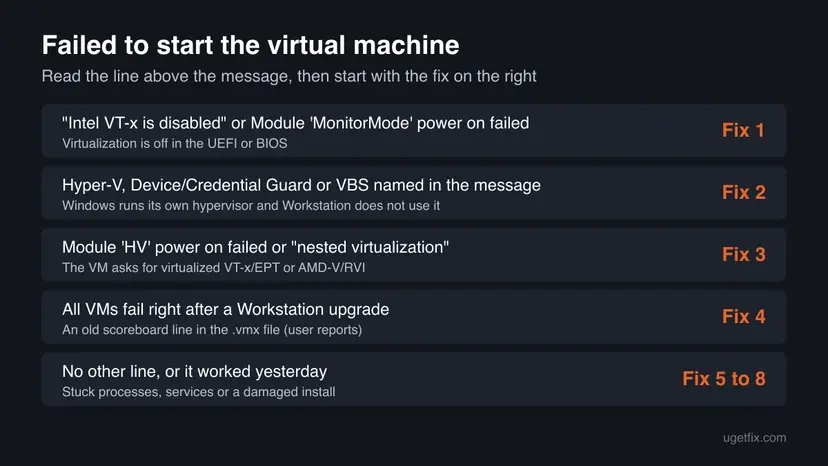
How to fix VMware "Failed to start the virtual machine"
Fixes 1 to 4 match the line above the message and solve most cases. Fixes 5 to 7 reset VMware itself. Fix 8 is a general Windows rollback for the few cases that remain.
| What you see or have | Start with |
|---|---|
| "Intel VT-x is disabled", "AMD-V is disabled" or Module 'MonitorMode' power on failed. | Fix 1 |
| Hyper-V, Device Guard, Credential Guard or VBS in the message, or the error began after an upgrade to Windows 11. | Fix 2 |
| Module 'HV' power on failed, or only one VM fails while others start. | Fix 3 |
| Every VM fails right after you upgraded Workstation. | Fix 4 |
| No extra line, and it worked a day ago. | Fix 5, then Fix 6 |
| Fixes 1 to 6 did not help, or VMware services are missing. | Fix 7, then Fix 8 |
Fix 1. Turn on Intel VT-x or AMD-V in the UEFI and power the PC off
10 minutesLow riskThe message says Intel VT-x or AMD-V is disabled, or names the module MonitorMode.
Broadcom's article on this exact message says the CPU supports virtualization but the firmware has it off. The setting is locked at power on, so it takes effect only after a full power off, not a restart.
- Press Win + R, type
taskmgrand press Enter. Open the Performance page and select CPU. If Virtualization says Enabled, skip to Fix 2. - Open Settings > System > Recovery and select Restart now next to Advanced startup. On Windows 10 it is Settings > Update & Security > Recovery.
- Choose Troubleshoot > Advanced options > UEFI Firmware Settings > Restart.
- Find the setting. Broadcom lists the names VT, Vanderpool Technology, Virtualization Technology, VMX and Virtual Machine Extensions. On AMD PCs it is often SVM or AMD-V.
- Set it to Enabled. Broadcom notes it often sits on a Security screen.
- Save the change and let the PC start, then shut it down completely with Start > Power > Shut down.
- Turn the PC on again and power on the virtual machine.
Broadcom says some laptops need a full power drain: unplug the charger, remove the battery if you can, and hold the power button. Some PCs ship with no VT option at all. Then ask the PC maker for a newer firmware.
It worked if: Task Manager shows Virtualization: Enabled and the virtual machine boots past the VMware logo.
If not: If virtualization is on and the error stays, Windows may hold it for Hyper-V. Go to Fix 2.
Fix 2. Update VMware Workstation so it runs on top of Hyper-V, then reinstall it
20 minutesLow riskThe message names Hyper-V, Device or Credential Guard, or the error began after Windows 11, WSL 2 or memory integrity was turned on.
Broadcom's documentation says Workstation 15.5.5 and later start VMs through the Windows Hypervisor Platform when Hyper-V is active. It also says the installer checks Hyper-V and WHP during setup, so a reinstall after a Windows change makes it look again.
- Open Workstation and select Help > About VMware Workstation. Write down the version.
- Check the host: Broadcom asks for an Intel Sandy Bridge or AMD Bulldozer or newer CPU, and Windows 10 20H1 build 19041.264 or newer. Press Win + R, type
winverand press Enter to read your build. - Press Win + R, type
optionalfeaturesand press Enter. - If Hyper-V or Virtual Machine Platform is ticked, tick Windows Hypervisor Platform too, select OK and restart.
- Download the newest Workstation installer from Broadcom's support portal and run it. Choose Repair if it offers that, or install over the old version.
- Restart the PC and power on the virtual machine.
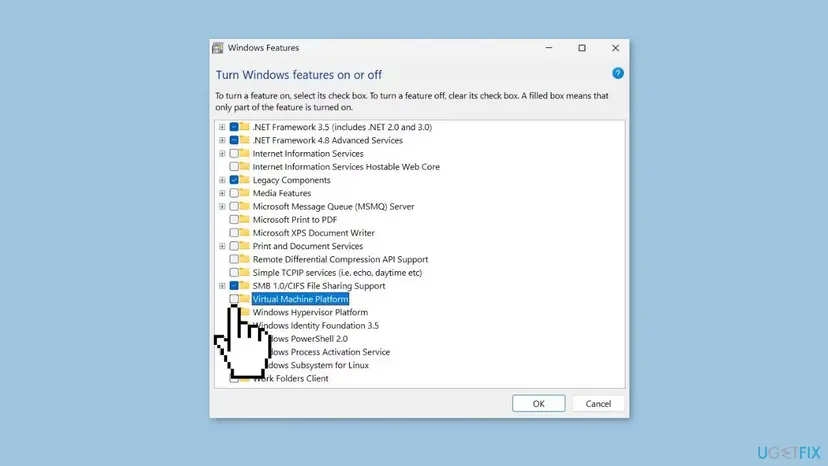
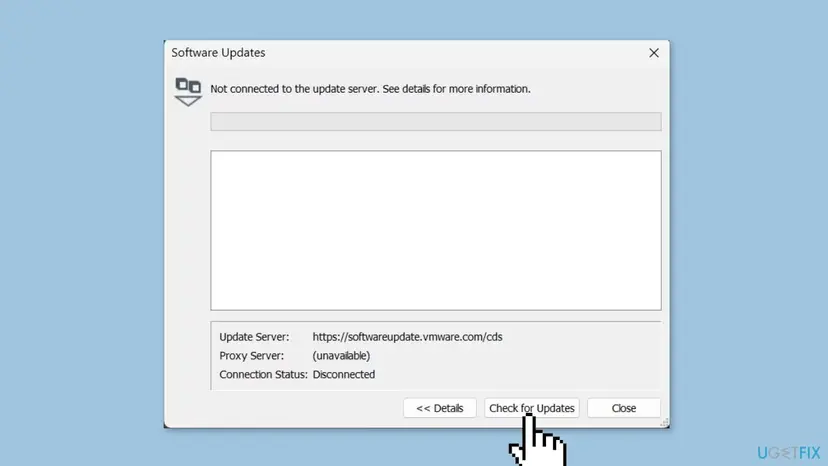
Older guides tell you to turn off memory integrity or Hyper-V for good. With Workstation 15.5.5 or later that is not needed, and memory integrity protects Windows from driver attacks. Broadcom lists some limits of this Hyper-V mode, such as slower VMs, but they do not stop a VM from starting.
It worked if: The VM starts. On a Hyper-V host Workstation now uses the Windows Hypervisor Platform without asking you.
If not: If the dialog now says Module 'HV' power on failed, go to Fix 3. If your CPU or Windows build is older than the list, Hyper-V mode is not possible on this PC.
Fix 3. Turn off nested virtualization in the settings of the virtual machine
3 minutesLow riskThe dialog names the module HV or nested virtualization, or only one virtual machine fails while others start.
A VM with virtualized VT-x/EPT or AMD-V/RVI wants to run its own hypervisor inside. Broadcom has a knowledge base article on the message "Virtualized Intel VT-x/EPT is not supported on this platform", which ties it to Windows virtualization-based security on the host.
- Shut the virtual machine down if it is suspended. A suspended VM keeps its old processor settings.
- Select the VM in the Library and choose VM > Settings.
- On the Hardware tab select Processors.
- Under Virtualization engine, clear Virtualize Intel VT-x/EPT or AMD-V/RVI.
- Select OK and power on the virtual machine.
You lose only the ability to run Hyper-V, WSL 2, Docker or another hypervisor inside this guest. Windows and Linux guests themselves start normally without it.
It worked if: The VM boots, and the HV line no longer appears.
If not: If the guest really needs nested virtualization, it cannot run on this host while Hyper-V or VBS is on. Otherwise go to Fix 4.
Fix 4. Remove the scoreboard line from the .vmx file after a Workstation upgrade
5 minutesRead the warningEvery virtual machine fails right after you upgraded Workstation, and the dialog shows no other line.
Users on Broadcom's forum report that after an upgrade from 17.5.2 to 17.6 all VMs failed with this message until they deleted the vmx.scoreboard.enabled line. Another user fixed a cloned VM by renaming its scoreboard file entry to the new VM name.
The .vmx file holds every setting of the virtual machine. A typo can make the VM unreadable. Close Workstation, then copy the .vmx file to your desktop so you can put it back.
- Close VMware Workstation completely.
- Open the folder of the virtual machine. If you do not know where it is, search File Explorer for
*.vmx. - Copy the file
<name>.vmxto the desktop as a backup. - Right-click the original, select Open with > Notepad.
- Press Ctrl + F and search for
scoreboard. - Delete the line
vmx.scoreboard.enabled = "TRUE"if it is there. On a cloned VM, make the file name in a scoreboard line match the new VM name instead. - Save the file and power on the VM.
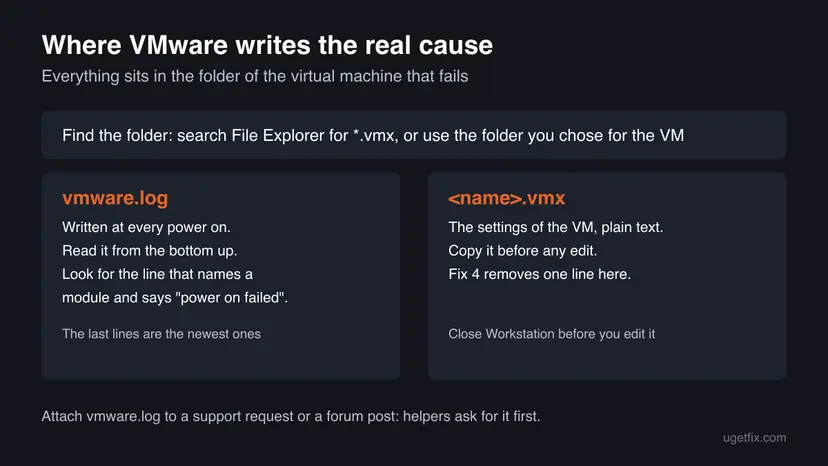
It worked if: All virtual machines start again after the line is gone.
If not: If there is no scoreboard line, put nothing back and go on to Fix 5. If the VM no longer opens, copy your backup over the edited file.
Fix 5. Close every VMware process and start Workstation as administrator
5 minutesLow riskThe error came after a crash, a sleep or a suspended VM, and no extra line is shown.
A VMware process left from the last session can still hold the virtual machine. Ending them all and starting once with full rights lets Workstation open the VM files again.
- Close Workstation.
- Press Ctrl + Shift + Esc to open Task Manager.
- Type
vmwarein the search box at the top. - Right-click each VMware Workstation or VMware Player entry and select End task. Leave the NAT, DHCP, USB Arbitration and Authorization services running.
- Press Win, type
vmware, and select Run as administrator, then Yes. - Power on the virtual machine.
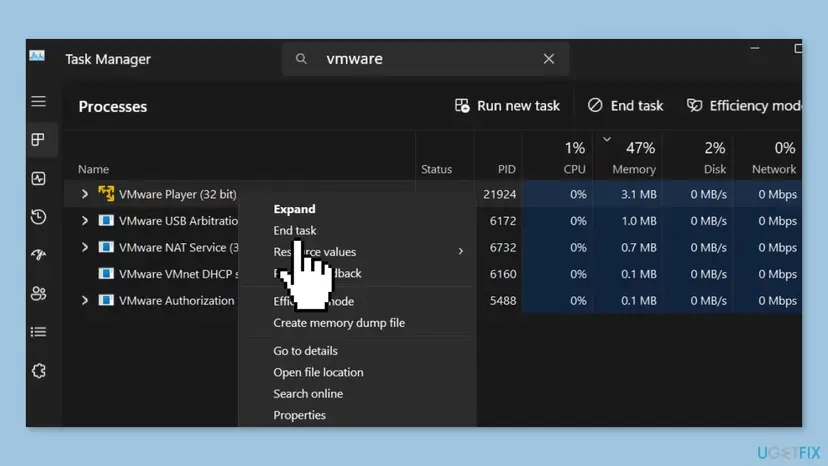
More about both tools: Close a frozen app (Task Manager, Force Quit) and How to run a program as administrator or in compatibility mode
It worked if: Workstation opens and the VM starts without the dialog.
If not: If it works only as administrator, check the services in Fix 6. Otherwise go on to Fix 6.
Fix 6. Start the VMware Authorization Service and the other VMware services
5 minutesNo riskWorkstation says the VMware Authorization Service failed to start, or VMs start only as administrator.
Workstation needs its own Windows services to power on a VM for a normal user. When the authorization service is stopped or set to Disabled, the start fails before the guest runs.
- Press Win + R, type
services.mscand press Enter. - Find VMware Authorization Service in the list.
- Double-click it and set Startup type to Automatic.
- Select Start, then OK.
- Do the same for the other services whose names start with VMware if they are stopped.
- Power on the virtual machine.

Step by step with pictures: Check and restart Windows services
It worked if: The services show Running and the VM starts.
If not: If a VMware service will not start or is missing, the install is damaged. Go to Fix 7.
Fix 7. Repair or reinstall VMware Workstation
20 minutesLow riskVMware services are missing or will not start, or every VM fails and Fixes 1 to 6 did not help.
The installer puts back the VMware drivers and services and runs its Hyper-V check again. Your virtual machines are separate folders and stay on the disk when Workstation is removed.
- Download the newest Workstation installer from Broadcom's support portal.
- Run it and choose Repair if it offers that. Restart and test.
- If the error stays, open Settings > Apps > Installed apps, select the three dots next to VMware Workstation and select Uninstall.
- Restart the PC.
- Run the new installer and restart again when it asks.
- Open your VM with File > Open and select its .vmx file.

On Windows 10 the list sits in a different place in Settings: Uninstall a program or app in Windows
It worked if: The repaired Workstation lists your VM and powers it on.
If not: If a fresh install shows the same dialog, the cause is on the Windows side. Read the log as described below, then try Fix 8.
Fix 8. Roll Windows back with System Restore
30 minutesLow riskThe VM worked until a Windows update, a driver or a security tool changed something, and you have a restore point from before.
If a Windows change turned on a feature that blocks Workstation and you cannot find which one, a restore point from before brings back the old drivers and settings. Your own files are not changed.
- Press Win + R, type
rstruiand press Enter. - Choose a restore point from before the error began and follow the wizard.
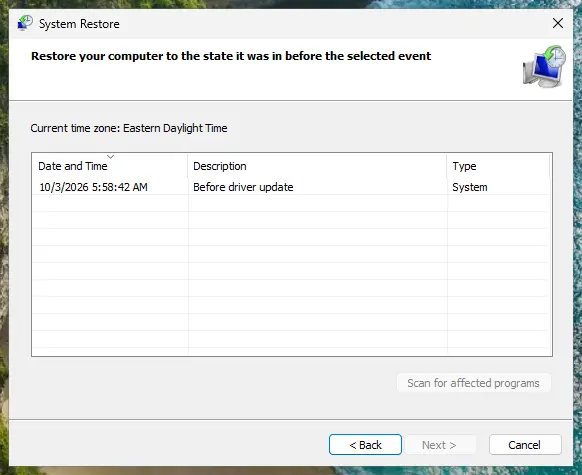
Full steps and what to do if no restore point exists: Undo recent changes with System Restore
It worked if: Windows restarts, says the restore finished, and the VM powers on.
If not: Collect vmware.log as described below and ask on Broadcom's Workstation forum.
If VMware still says Error while powering on: read vmware.log
The dialog shows only the end of the story. Every power-on attempt writes vmware.log in the folder of the virtual machine, and its last lines name the module that failed. That is the line people on Broadcom's forum ask for first.
- Try to power on the VM once more and close the dialog.
- Open the VM's folder. Search File Explorer for
*.vmxif you do not know where it is. - Open
vmware.login Notepad and press Ctrl + End. - Read upward until you find a line with power on failed, and note the module name and the lines just before it.
- Compare it with the table under "What the error means" and go to that fix.
- What to send for help:
vmware.log, the Workstation version from Help > About, your Windows build fromwinver, and whether Hyper-V or memory integrity is on. - Error 18 or another number: we could not find a Broadcom page that explains it. The log line next to it is what tells you the cause.
- When it is hardware: Task Manager shows no Virtualization line, or the UEFI has no VT option. Broadcom says some PCs ship VT-capable but without a firmware switch. Then only a firmware update from the PC maker can help.
- A work or school PC: an administrator may force Device Guard or Credential Guard on by policy. Fix 2 still works, but you cannot turn those off yourself.
How to keep VMware from failing to start the virtual machine again
- Keep Workstation on a current release, so it can use the Windows Hypervisor Platform when Windows turns on Hyper-V or VBS.
- Repair Workstation after a big Windows upgrade, so its installer checks Hyper-V again.
- Shut VMs down before a Workstation upgrade instead of suspending them.
- Copy a VM's .vmx file before you edit it by hand.
- Do not turn off memory integrity or Hyper-V for good to run a VM. A current Workstation does not need that.
- Do not tick nested virtualization for a VM that does not run its own hypervisor.
- Do not download Workstation from sites other than Broadcom.
Windows 10 left Microsoft's support on 14 October 2025. Broadcom's Hyper-V mode still lists Windows 10 build 19041.264 or newer, but Windows 11 is the safer host now.
Frequently asked questions
What does "Failed to start the virtual machine" mean in VMware?
It means VMware Workstation could not start the part that runs your virtual machine, so the guest system never began to boot. The sentence is the same for many causes. The line above it in the dialog, or the end of vmware.log, names the module that failed. Broadcom's example says Intel VT-x is disabled and names the module MonitorMode. Other common lines mention Hyper-V, Device or Credential Guard, or the module HV. Match that line with the table near the top of this page.
Why does every VMware virtual machine fail after an upgrade to Windows 11?
Windows 11 often turns on virtualization-based security and memory integrity, which run on Hyper-V. Broadcom says traditional Workstation cannot run on such a host. Workstation 15.5.5 and later use the Windows Hypervisor Platform instead, and the installer checks this during setup. So install the newest Workstation or repair the one you have after the upgrade (Fix 2). Your CPU must be Intel Sandy Bridge or AMD Bulldozer or newer for this mode.
Can VMware Workstation run with Hyper-V, WSL 2 or memory integrity turned on?
Yes, from Workstation 15.5.5 on. Broadcom's documentation says that when Hyper-V or the Windows Hypervisor Platform is active, Workstation launches VMs through that platform. When they are off, it uses VMware's own hypervisor. The host needs Windows 10 20H1 build 19041.264 or newer. Broadcom lists some limits of this mode, so a VM may run slower than before. Nested virtualization inside the guest is the usual thing that stops working.
Should I turn off memory integrity to fix VMware?
No, not as a lasting fix. Memory integrity blocks malicious drivers from the Windows kernel, and a current Workstation runs with it on. Many older guides advise turning it off because they were written for Workstation versions before 15.5.5. Update and repair Workstation instead (Fix 2). If you must test whether it is the cause, turn it back on right after the test.
What is VMware "failed to start the virtual machine" error 18?
We could not find a Broadcom page that defines an error 18 for this message, so we will not guess. A number in the dialog is less useful than the module name. Open vmware.log in the folder of the VM, go to the end and read upward to the line that says power on failed. The module named there tells you which fix on this page to use. Send that part of the log if you ask for help.
Why does VMware say the Authorization Service failed to start?
The VMware Authorization Service lets normal users power on virtual machines. If it is stopped, set to Disabled or damaged, Workstation cannot start a VM unless it runs as administrator. Open services.msc, set the service to Automatic and select Start (Fix 6). If it refuses to start or is missing from the list, repair or reinstall Workstation (Fix 7). Your VM folders are not touched by a reinstall.
My virtual machine powers on but fails to boot. Is that the same error?
No. Failed to start the virtual machine appears before the guest runs at all, in a VMware dialog. If you see the VMware logo, a boot menu, or a message from Windows or Linux inside the VM window, the VM did start. Then the problem is in the guest: a missing installation disc or ISO, a wrong boot order or a damaged guest system. Those need different fixes than the ones on this page.
Is "terminated unexpectedly during startup with exit code 1 (0x1)" the same problem?
That message comes from VirtualBox, not VMware, and "An error occurred while attempting to start the selected virtual machine" comes from Hyper-V Manager. The root causes overlap, though. Virtualization turned off in the UEFI (Fix 1) stops every hypervisor. Hyper-V and virtualization-based security also affect VirtualBox. For VirtualBox specific steps, use its own log and documentation.
Will I lose my virtual machines when I fix this error?
No, none of the fixes here deletes a VM. The error happens before the guest starts, and the virtual disks stay in the VM folder. A reinstall of Workstation leaves those folders in place, and File > Open brings them back. The one edit with some risk is the .vmx change in Fix 4, so copy that file first. Also shut down suspended VMs before a Workstation upgrade.
Sources
- Broadcom Knowledge Base: Ensuring Virtualization Technology is enabled on your VMware host (article 318916) (knowledge.broadcom.com)
- Broadcom TechDocs: Running Workstation on a Hyper-V Enabled Host (Workstation Pro 26H1) (techdocs.broadcom.com)
- Broadcom Community: "Failed to start the virtual machine" appears after upgrading from Workstation Pro 17.5.2 to 17.6 (user reports) (community.broadcom.com)
Did this fix work?
One click, no account. It tells the next reader which guides are worth their time.
Questions and experiences: fix VMware "Failed to start the virtual machine" error in Windows
Still broken, or found a fix we did not cover? Ask here: members and our editors answer. Reading is open; writing needs a free account.
…