How to fix
Volume Shadow Copy service not working
on Windows
Resolve Volume Shadow Copy service issues in Windows 10 and 11 quickly. Follow our expert-tested solutions for a seamless experience, fixed in minutes.

What causes How to fix Volume Shadow Copy service not working in Windows?
- Volume Shadow Copy service is disabled
- Disk errors on the hard drive
- Corrupted sectors on the drive
- Third-party software conflicts
- Antivirus or disk utility programs interfering
Repairs Windows system files, removes malware, and restores a clean OS state — without reinstalling.
I was attempting to create a backup on Windows 10 but I wasn't able to - it says that Shadow Copy service is not running. Any idea how to bypass this?
Backups are integral to maintaining data integrity and system resilience in the digital age. They act as a safeguard, allowing for the restoration of data in case of unexpected losses or system failures. An essential component of this backup mechanism in Windows is the Volume Shadow Copy service.
This service enables Windows to create point-in-time copies or snapshots of computer files or volumes, even when they are in use. It's a fundamental aspect of features such as System Restore, File History, and certain backup applications that work within the Windows environment.
However, a recurring challenge that some individuals encounter is the inability to create a backup or initiate a System Restore. They are often met with an error indicating that the Volume Shadow Copy service is not working. This problem can be quite disruptive, especially when trying to revert the system to a previous state or recover specific files.
Several reasons could underlie this issue. First and foremost, the Volume Shadow Copy service itself might be disabled. Services in Windows can be turned on or off, and sometimes, due to various reasons, crucial services like this one can be inadvertently disabled.

Additionally, disk errors can also impede the functionality of the Volume Shadow Copy service. If the hard drive where the snapshots are being saved has corrupted sectors or other issues, the service might not function as expected. Furthermore, third-party software conflicts, especially from certain antivirus or disk utility programs, can interfere with its operation.
While the exact resolution might vary depending on the root cause, there are several possible solutions one might consider. It's advisable to first ensure that the Volume Shadow Copy service is enabled and running. Checking the integrity of your disk might also be prudent, as resolving any potential errors could restore functionality.
Additionally, considering potential software conflicts and ensuring that any software interacting with disk operations is compatible with Windows can be another avenue to explore. Lastly, if you're facing persistent challenges, using [d1] PC repair software might offer valuable diagnostic insights and potentially lead to solutions.
Fix 1. Set Volume Shadow Copy Service to Automatic startup
The Volume Shadow Copy service needs to be running for various backup processes to work correctly. If it's disabled or not set to start automatically, you might encounter errors. Setting it to automatic ensures it starts every time you boot up your PC.
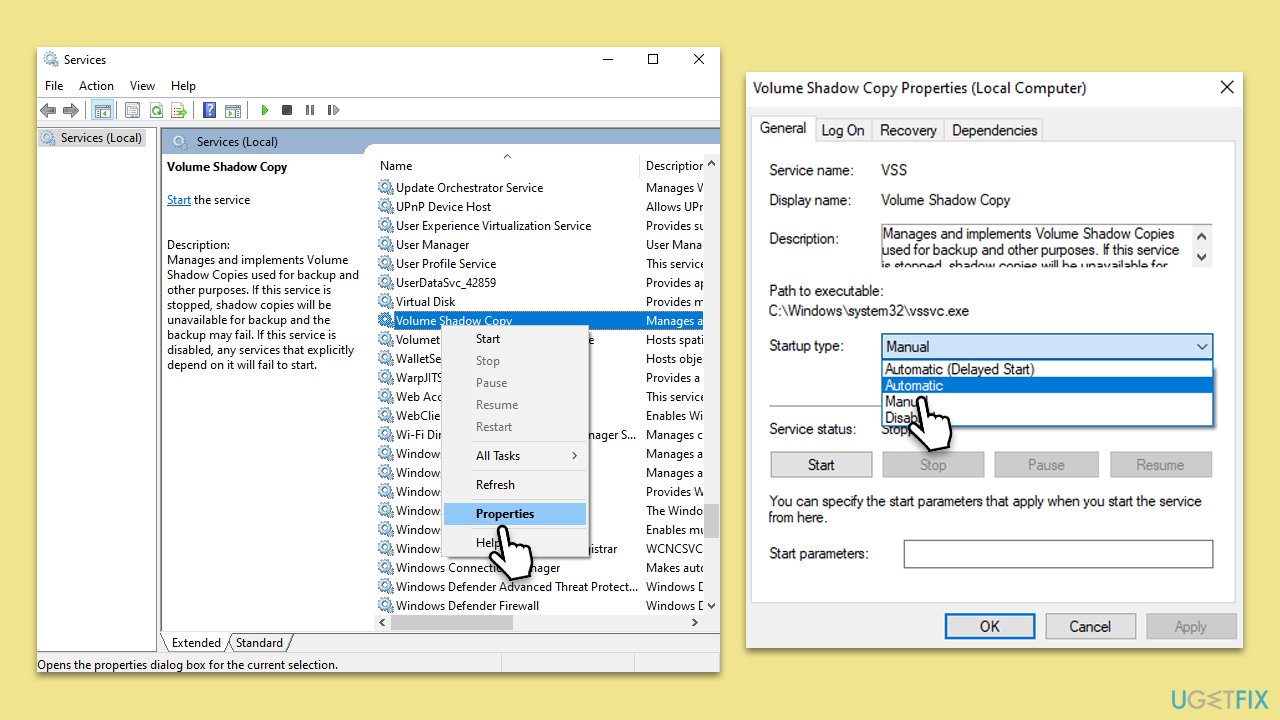
- Type Services in Windows search and hit Enter.
- Scroll down and locate the Volume Shadow Copy service.
- Right-click on it and choose Properties.
- In the Startup type dropdown menu, select Automatic.
- Click OK to save the changes and close the window.
- Restart your computer to ensure the changes take effect.
Note: Also make sure that Remote Procedure Call (RPC), DCOM Server Process Launcher, and Plug and Play services are also running for System Restore to be successful.
Fix 2. Perform Check Disk
Disk errors can interfere with the Volume Shadow Copy service's operations. Running a disk check can detect and automatically correct file system errors and bad sectors, ensuring that the service functions smoothly.
- Type cmd in Windows search.
- Right-click on Command Prompt and pick Run as administrator.
- When UAC shows up, click Yes.
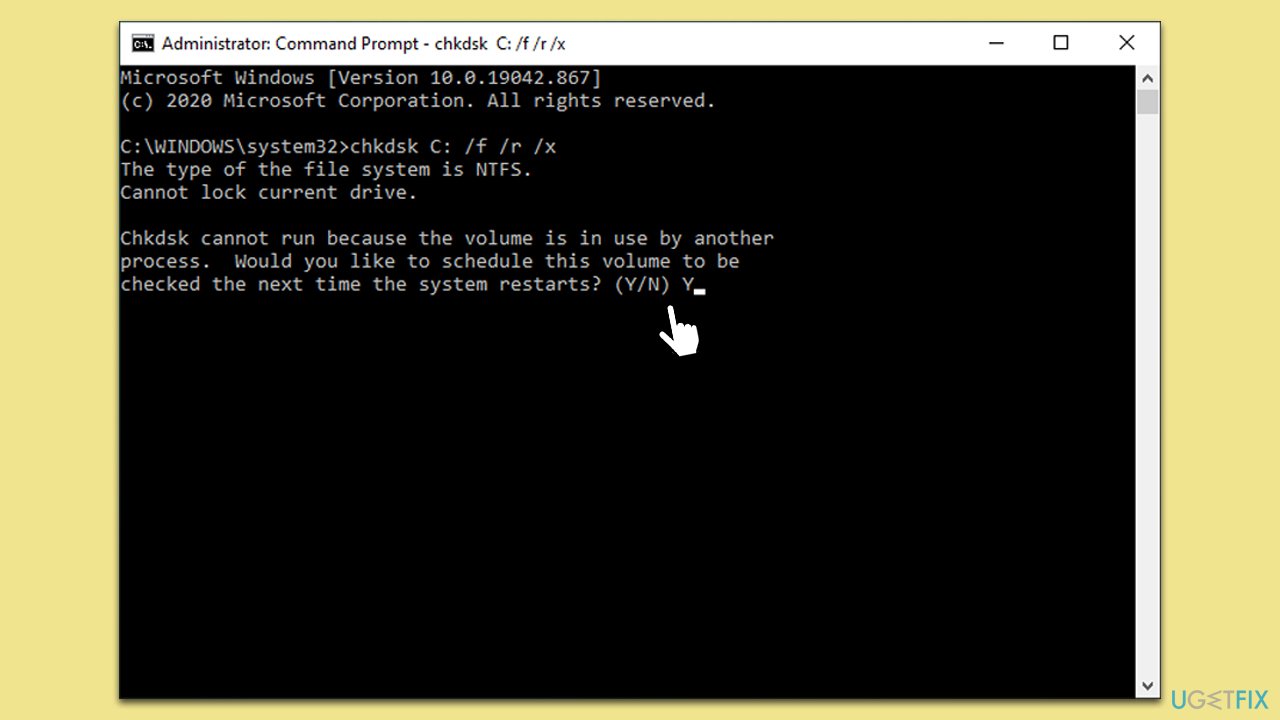
- In the new window, type in the following command and press Enter after:
chkdsk c: /f
(Note: use chkdsk c: /f /r /x command if you are using SSD as your primary partition) - If you receive an error, type in Y, close down Command Prompt and restart your system.
- Wait until the scan is finished - you can find the results in the Event Viewer.
Fix 3. Run SFC and DISM
System File Checker (SFC) and Deployment Image Servicing and Management (DISM) are two tools provided by Windows to repair corrupted system files. Corrupted or missing system files might prevent the Volume Shadow Copy service from functioning correctly.
- Open Command Prompt as administrator.
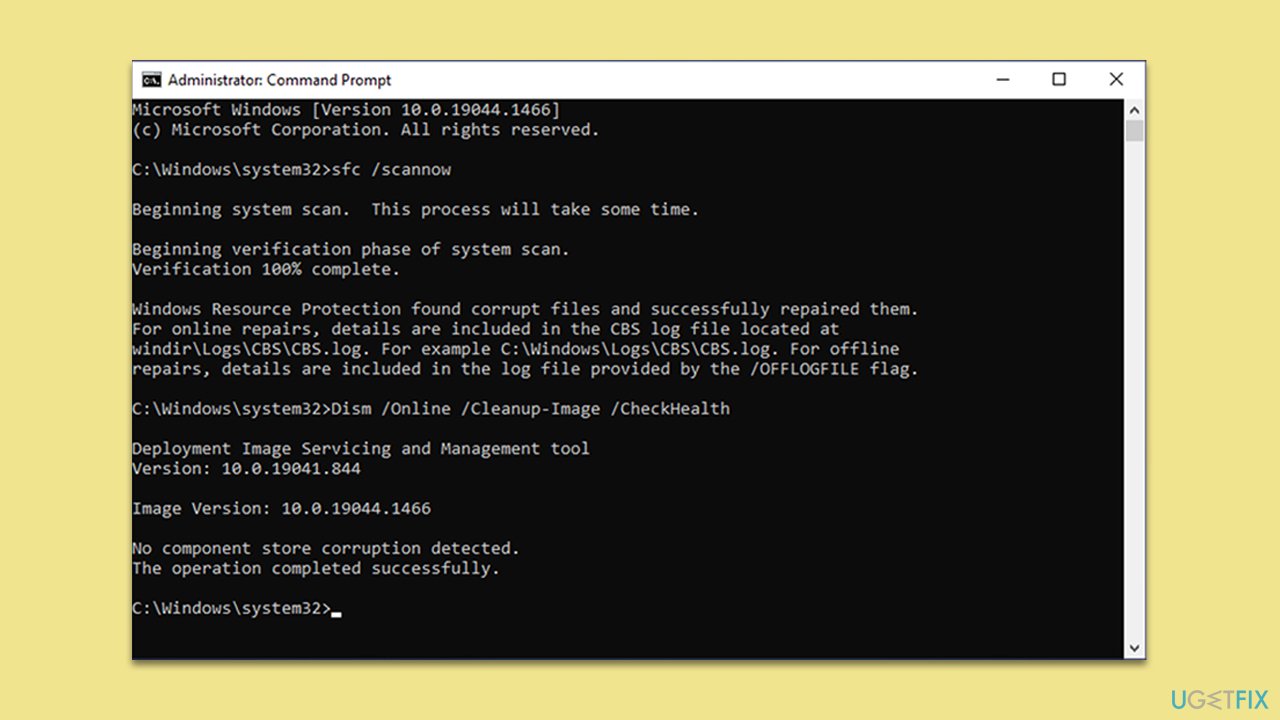
- Use the following command and press Enter:
sfc /scannow - After the SFC scan is complete, use the following commands, pressing Enter after each:
DISM /Online /Cleanup-Image /CheckHealth
DISM /Online /Cleanup-Image /ScanHealth
DISM /Online /Cleanup-Image /RestoreHealth
(Note: if you get an error executing this last command, add /Source:C:\RepairSource\Windows /LimitAccess to it and try again). - Restart your computer.
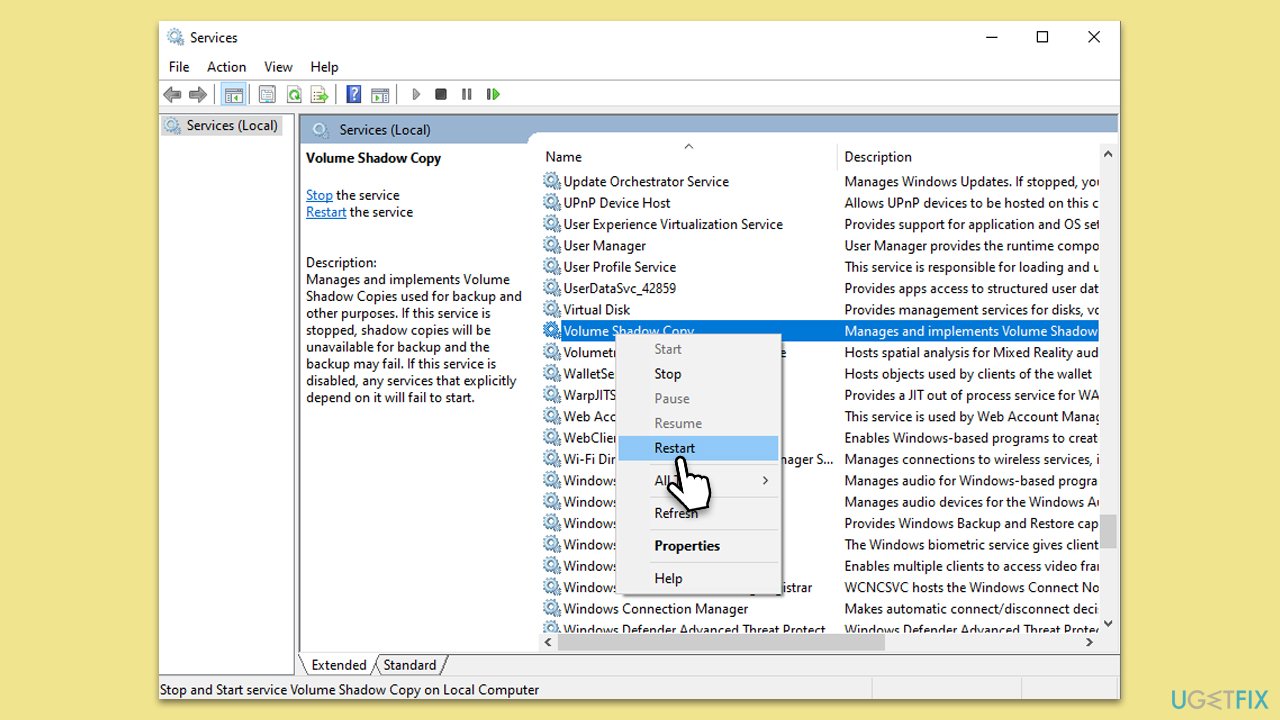
Fix 4. Restart the Volume Shadow Copy Service
Sometimes, simply restarting the service can resolve any issues it might be facing.
- Open Services once again.
- Scroll down and locate the Volume Shadow Copy service.
- Right-click on it and choose Restart.
Fix 5. Perform Disk Cleanup
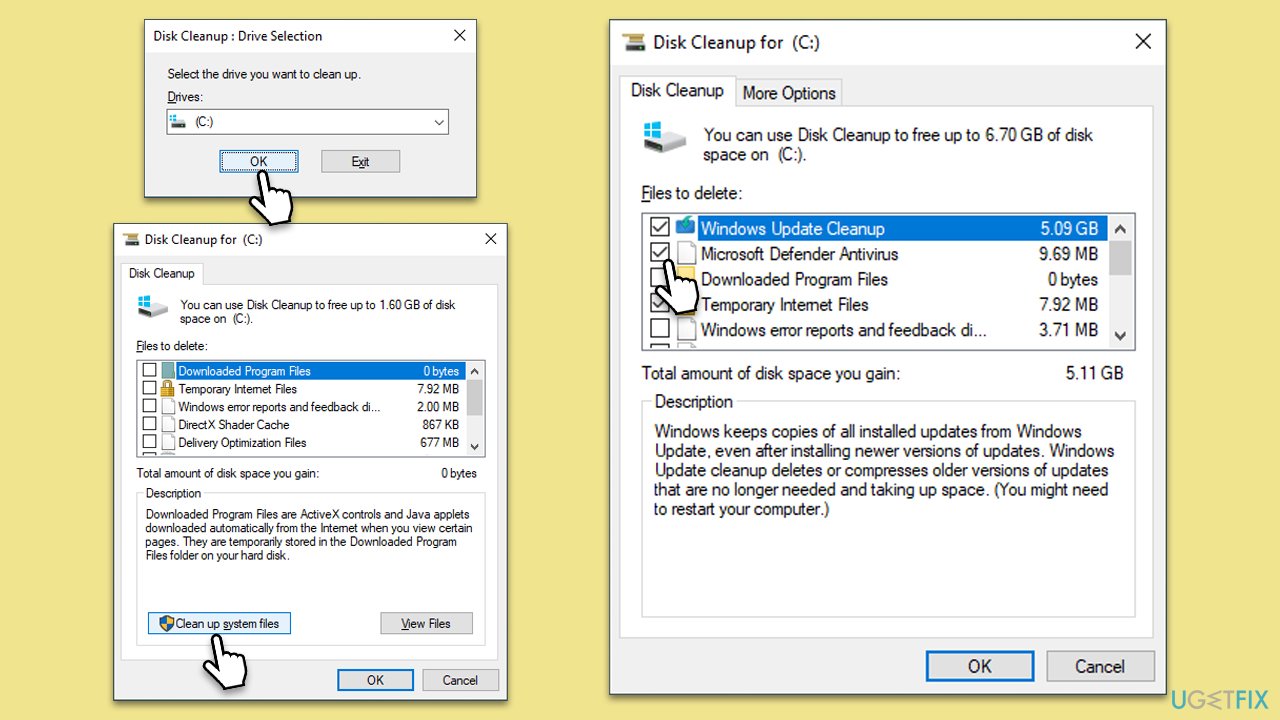
Over time, your computer accumulates temporary files, system cache, and other unnecessary data. This can not only occupy significant disk space but also potentially interfere with certain system operations, including the Volume Shadow Copy service. Running Disk Cleanup can help you reclaim space and ensure smoother system functions.
- Type Disk Cleanup in Windows search and press Enter.
- If your Windows is installed on drive C, pick it from the list (it should be by default) and press OK.
- Click Clean up System Files.
- Here, mark the areas you want to be deleted, such as Windows update files, Setup log files, Recycle bin, Temporary files, etc.
- Click OK - the removal process of various leftover files will begin.
Fix 6. Perform Clean Boot
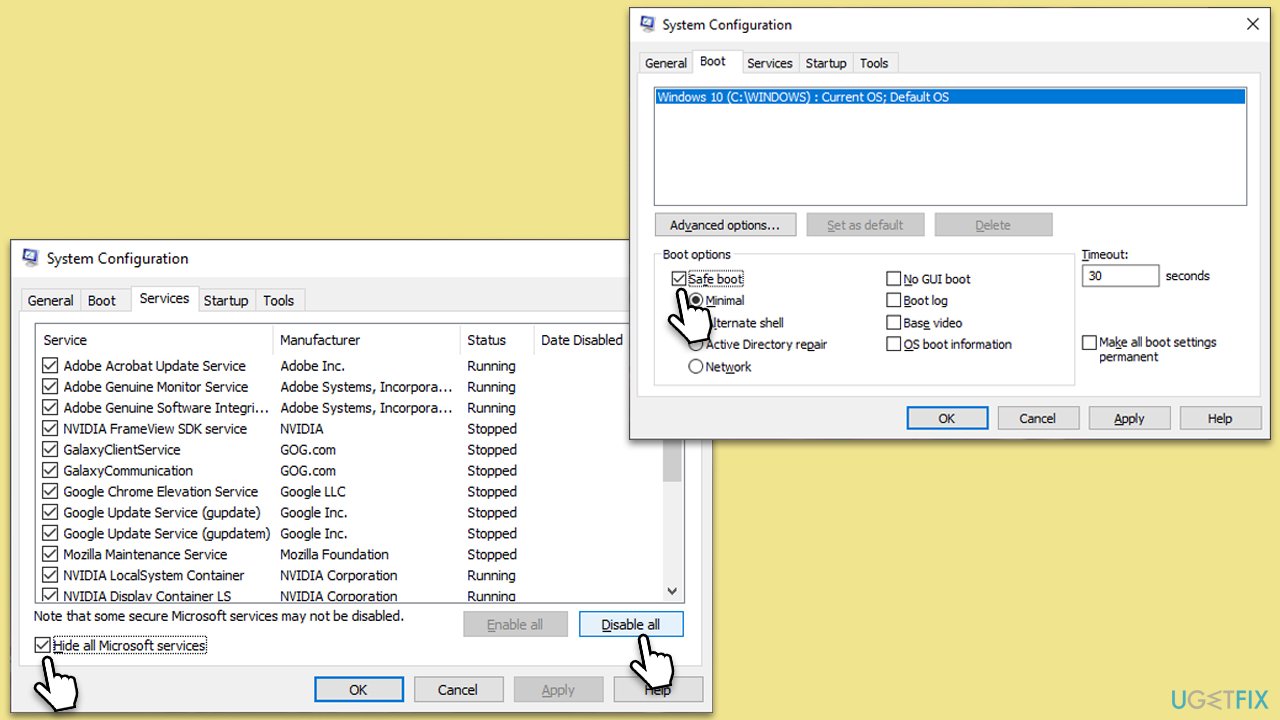
A clean boot starts the system with only the essential drivers and services, effectively eliminating any interference from third-party software. This can help you pinpoint if a specific application or service is causing issues with the Volume Shadow Copy service.
- Type msconfig in Windows search and hit Enter.
- Go to the Services tab and tick the Hide all Microsoft services checkbox.
- Select Disable all.
- Go to the Startup tab and click Open Task Manager.
- Here, right-click on each of the non-Windows entries and select Disable.
- Close down the Task Manager.
- Go to the Boot tab and tick the Safe boot option.
- Restart your PC.
- Return to the System Configuration utility.
- In the Services tab, start enabling services one by one (or in small groups) and restarting your computer after each change.
- When the problem reappears after enabling a particular service or group of services, you've likely found the cause.
- Once identified, you can either update, configure, or uninstall the problematic software.
Fix 7. Ensure System Restore is enabled
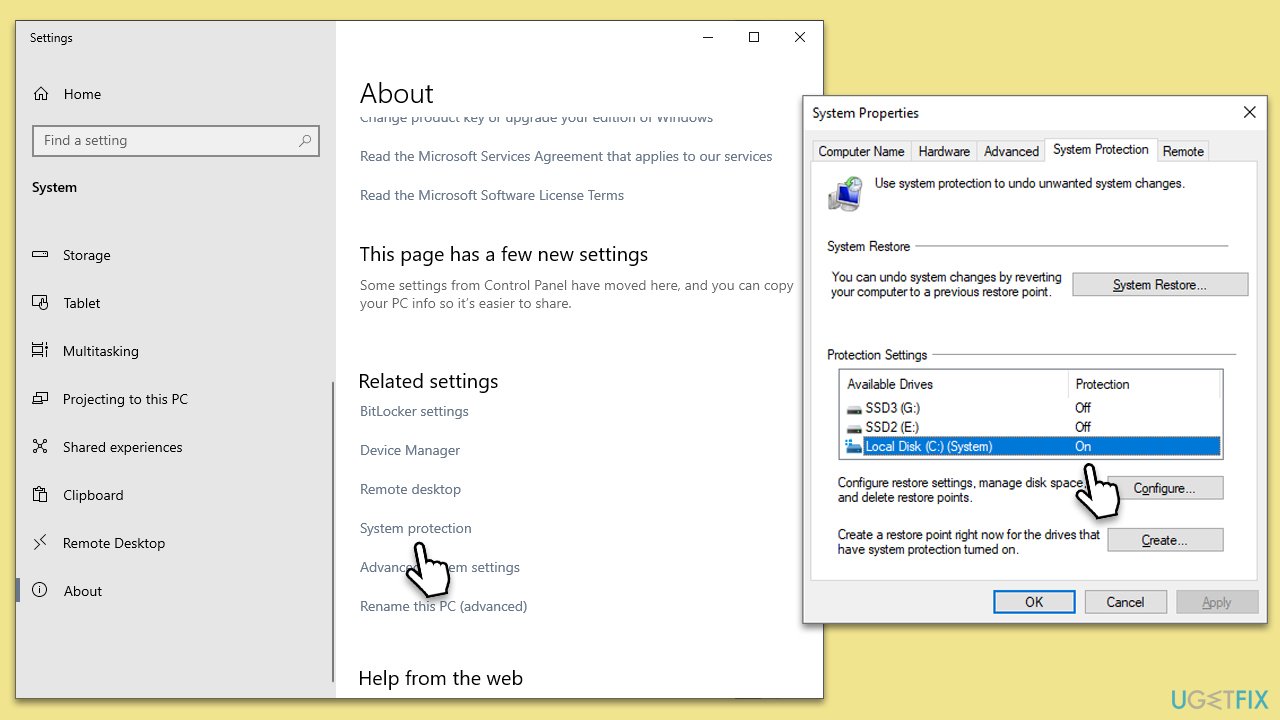
The Volume Shadow Copy service requires System Restore to be active for creating restore points.
- Right-click on the Start button and choose System.
- Click on System protection in the right pane.
- Ensure that protection is set to On for your main drive (usually C:). If not, click on Configure and turn it on.
Bottom line
To resolve the Volume Shadow Copy service issue, ensure that the service is enabled and running, check the integrity of your disk, and consider potential software conflicts. If these solutions do not work, further investigation into specific software or hardware issues may be necessary.
Frequently asked questions
You can restore the Volume Shadow Copy service by running the Command Prompt as an administrator and executing the command 'sc config vss start= auto' followed by 'net start vss'.
To check the status, press Windows + R, type 'services.msc', and look for 'Volume Shadow Copy' to see if its status is 'Running'.
Common errors include 'The Volume Shadow Copy service is not running' or 'Unexpected error in the Volume Shadow Copy service', which can usually be fixed by restarting the service or checking for system updates.




Report an issue
What's wrong with this guide? We review every report and update or remove content.
Report received — thank you. We'll review and fix it.
You need a free account to submit a report.
Be the first to comment