How to fix
Volume slider not working
on Windows
Fix the volume slider issue in Windows 10 or 11 effortlessly. Troubleshoot and restore sound with expert-tested solutions for seamless audio control.

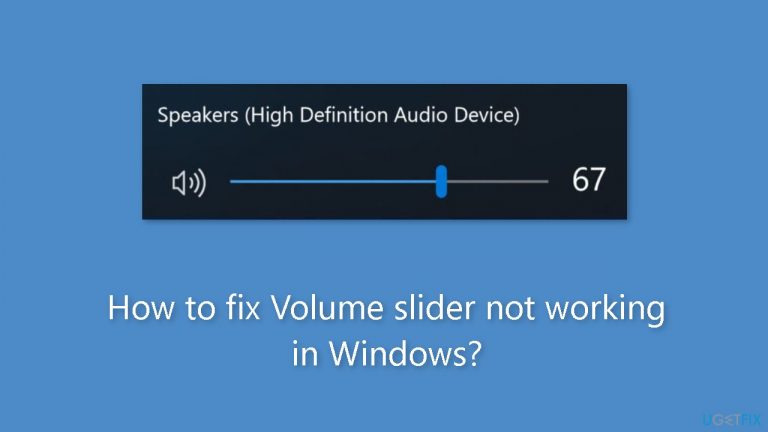
What causes How to fix Volume slider not working in Windows?
- Audio settings misconfiguration
- Outdated or corrupted audio drivers
- Audio services not running
- Hardware components malfunctioning
Repairs Windows system files, removes malware, and restores a clean OS state — without reinstalling.
Hello. I can't adjust the volume on my Windows PC using the slider. Is there a way to fix this?
Any operating system must have a volume slider because it gives users an easy way to control and adjust their audio output. Users may fine-tune the volume level of their speakers or headphones with this straightforward but crucial tool, allowing them to customize their audio experience to their tastes. The volume slider is a crucial tool that makes sure the audio output is at the right volume whether you're listening to music, viewing movies, taking part in online meetings, or playing games.
However, there are times when the Windows operating system's volume slider may experience problems and fail to work as intended. Users may find this problem to be highly annoying because it directly interferes with their ability to control audio levels. Users may encounter a number of difficulties when the volume slider is malfunctioning.
First off, users can discover that they are unable to change the volume to a level that is comfortable. This can cause audio that is either excessively loud or too soft, which could be uncomfortable or prevent you from hearing crucial auditory cues during certain activities. Second, users might not be able to quickly mute or unmute their audio, which can be particularly annoying while taking calls or participating in online meetings.
For smooth audio level control to return, the volume slider problem must be fixed. Checking audio settings, reinstalling or uninstalling audio drivers,[ref en-1] restarting relevant audio services, and making sure that the hardware components are in good working order are all possible fixes. This guide includes 5 steps that should assist you in repairing the volume slider.
You can also try a system repair tool like [d1] that can fix most system errors, BSODs,[ref en-2] corrupted files, and registry[ref en-3] issues. Otherwise, follow the step-by-step instructions below.
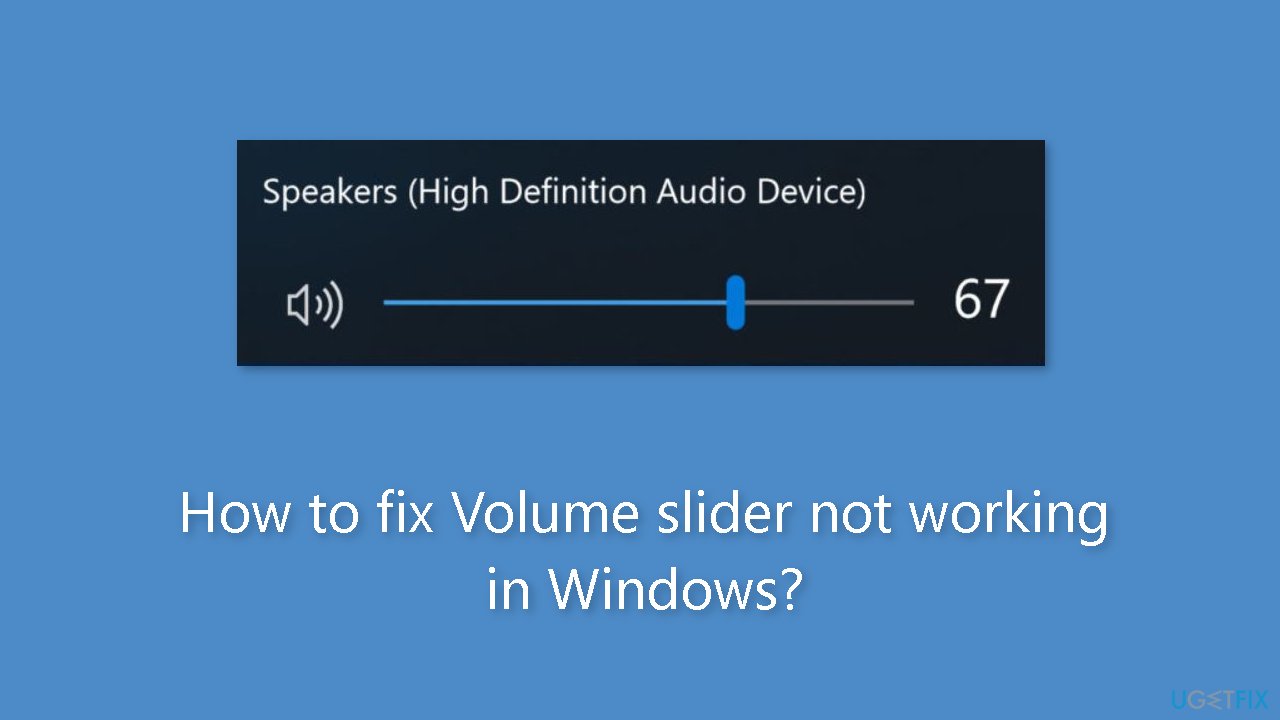
Method 1. Check Audio Settings
- Right-click on the volume icon located in the taskbar.
- From the context menu, choose Sound settings.
- Within the Sound settings window, navigate to the Output section.
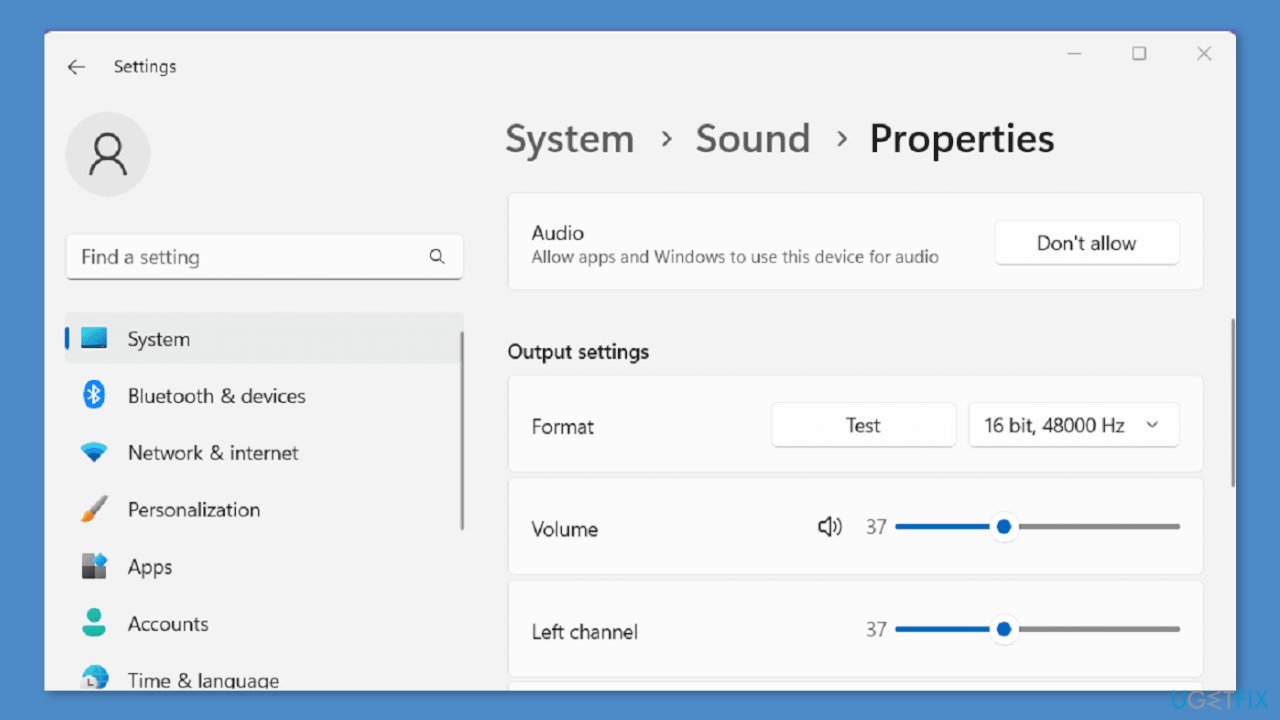
- Locate and click on the option labeled Speakers.
- Once in the Speakers settings, verify the configuration of the device to ensure it's properly set up.
Method 2. Install Windows Updates
- Press the Windows key + R to open the Run box.
- Type ms-settings:windowsupdate in the text box and press Enter.
- Click the Check for updates button.
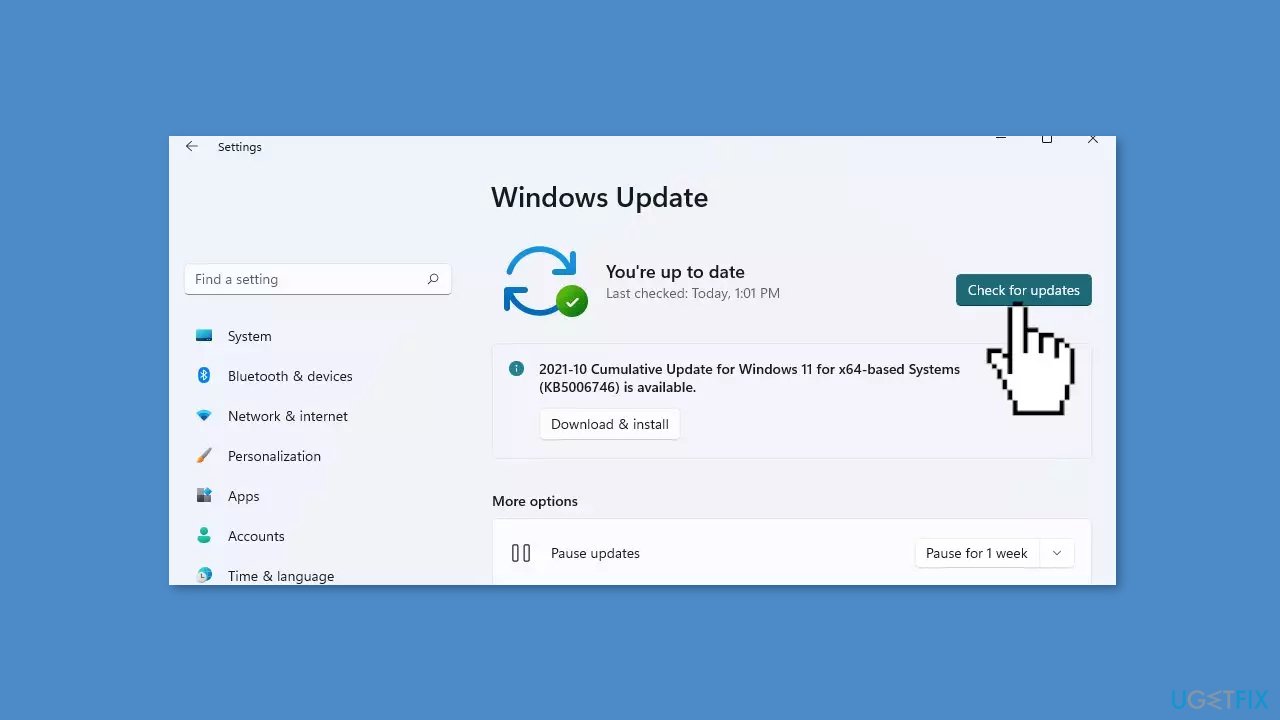
- If a new update is available, click the Download & Install all button.
- Restart your computer after the process is finished and check to see if the problem is fixed.
Method 3. Restart Windows Audio Service
- Press the Windows key + R to launch the Run dialog.
- In the Run dialog, type services.msc and then press the Enter key, which will open the Services window.
- Scroll through the list of services until you locate Windows Audio.
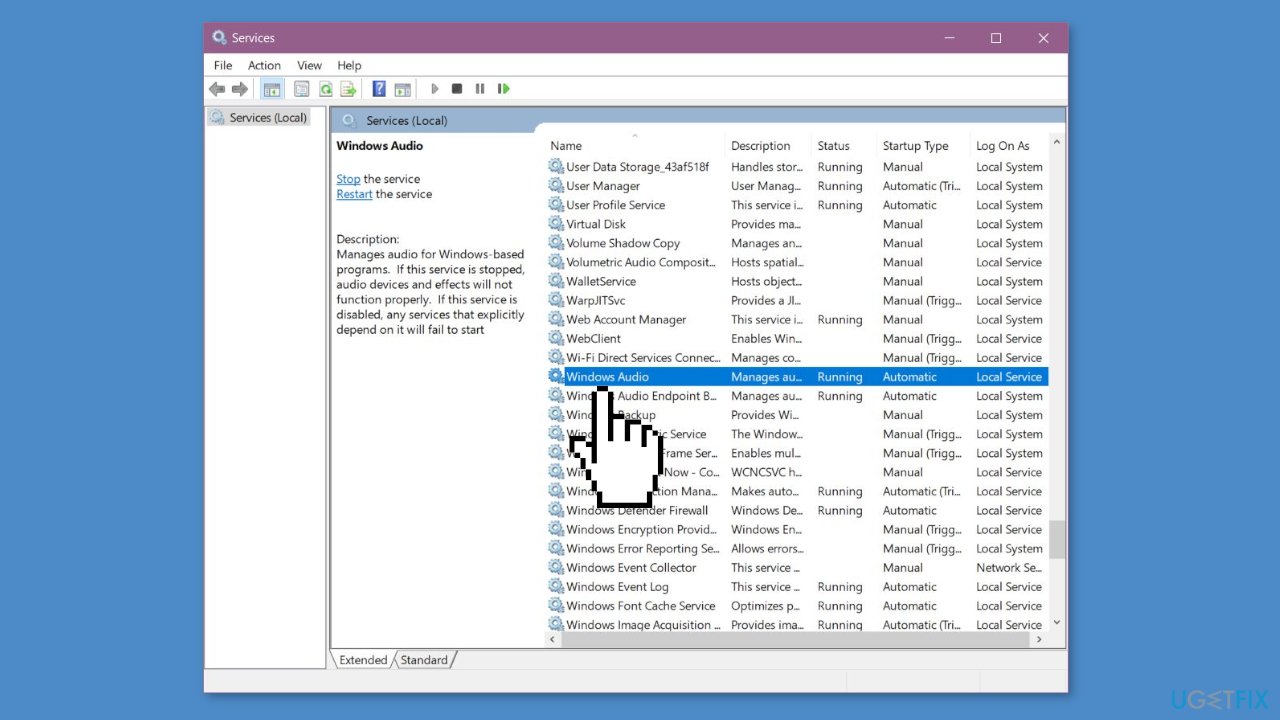
- Right-click on the Windows Audio service.
- From the context menu, choose the Restart option.
Method 4. Update, Rollback, or Reinstall Audio Drivers
You can also use a dedicated utility like [rev id="DriverFix"] that can find the best drivers for your machine and install them automatically.
- Right-click on the Start button and choose Device Manager.
- Expand the section labeled Sound, video, and game controllers.
- Right-click on the specific audio device listed and select Update driver.
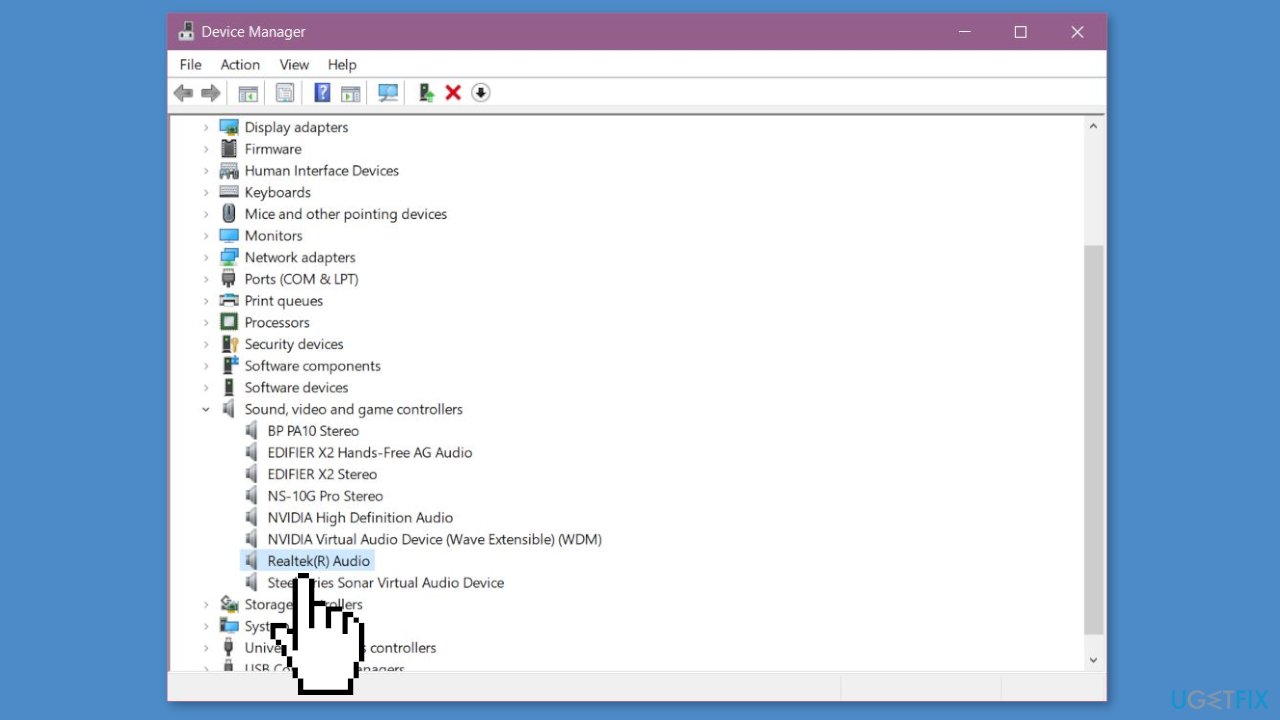
- Opt for the option Search automatically for drivers and adhere to the on-screen instructions.
- If the above step doesn't resolve the issue, perform the following:
- Right-click on the audio device again and choose Update driver.
- Click on Browse my computer for drivers.
- Select Let me pick from a list of available drivers on my computer.
- Pick an older driver from the list and click Next.
- Follow the provided instructions and restart the system.
- If this did not work, you can update the driver:
- Right-click on the audio device and choose Properties.
- Navigate to the Driver tab and click on Roll Back Driver if the option is available.
- If the previous steps haven't solved the problem:
- You can consider reinstalling the driver.
- In the Device Manager, right-click on your audio device and select Uninstall device.
- Proceed to restart your computer.
- Windows will automatically reinstall the necessary audio drivers.
Method 5. Use System Restore
System Restore is a feature in Microsoft Windows that allows users to revert their computer's state to a previous point in time. This can be helpful if you have made changes to your system that are causing problems.
- Press the Windows key + R on your keyboard to open the Run box.
- Type SystemPropertiesProtection and press Enter.
- Go to the System Protection tab.
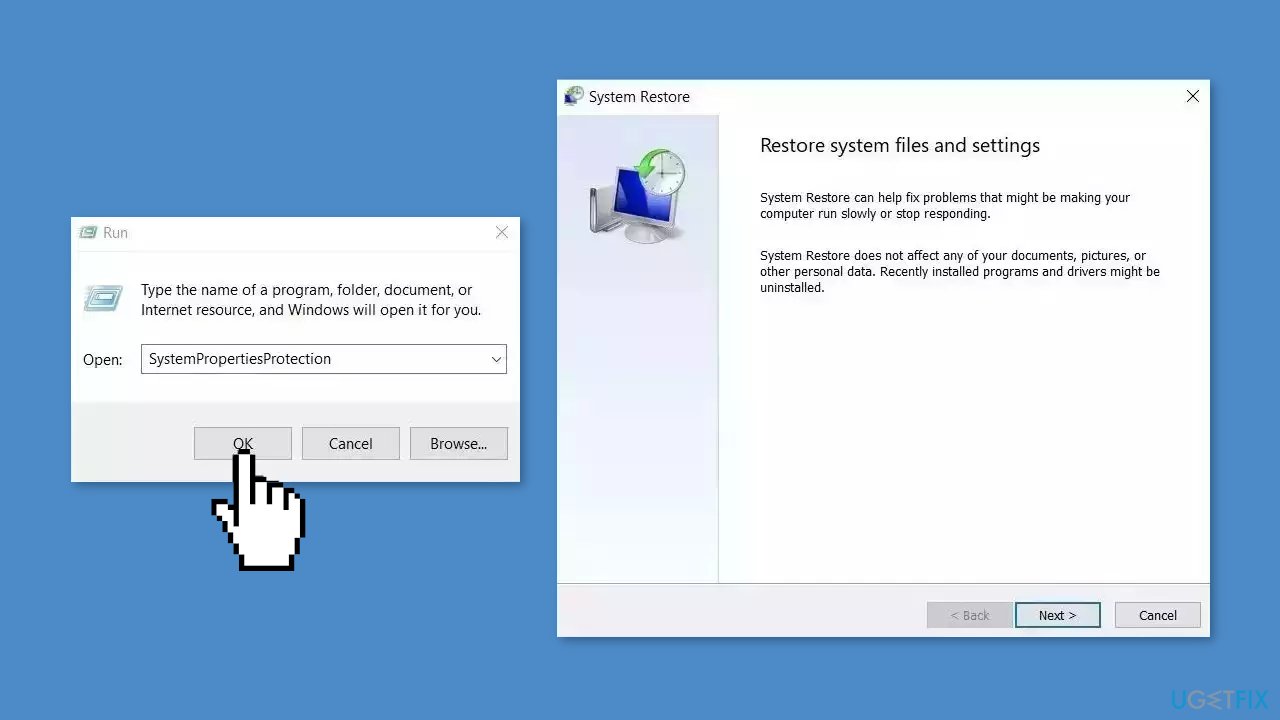
- You will see the System Restore… button. Click it to run System Restore.
- Follow the prompts until you can select a restore point.
- Select the one you want (ideally before the issue started occurring) and go ahead with the process.
Bottom line
To fix the volume slider issue, check your audio settings, reinstall or uninstall audio drivers, restart relevant audio services, and ensure your hardware is functioning properly. If these steps do not resolve the problem, consider using a system repair tool to address potential system errors.
Frequently asked questions
You can try restarting the Windows Audio service by pressing Win + R, typing 'services.msc', and finding 'Windows Audio' to restart it. If that doesn't work, updating your audio drivers through Device Manager may help.
Yes, you can run the Audio Troubleshooter by going to Settings > System > Sound, and then selecting 'Troubleshoot' under the Output section. This will help identify and fix common issues with the volume slider.
A grayed-out volume slider can be caused by a disabled audio device or a problem with the audio driver; check if your audio device is enabled in Sound settings. Additionally, ensure that your audio drivers are up to date.




Report an issue
What's wrong with this guide? We review every report and update or remove content.
Report received — thank you. We'll review and fix it.
You need a free account to submit a report.
Be the first to comment