How to fix
VPN fail to auto-connect after upgrade to Windows 10
on Windows
Resolve VPN auto-connect issues after your Windows 10 upgrade with practical solutions and tips. Get back online quickly, expert-tested!

What causes How to fix VPN fail to auto-connect after upgrade to Windows 10?
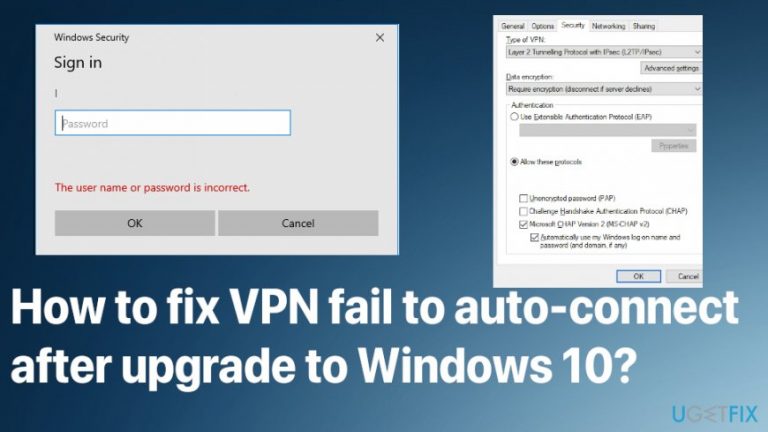
- User or password is incorrect despite being correct
- Automatically use my Windows log-on name and password option not functioning
- DNS errors and settings related to connections
- Filter driver not upgraded correctly during system update
- VPN software not connecting properly after upgrade
Repairs Windows system files, removes malware, and restores a clean OS state — without reinstalling.
Hello, after the upgrade to Windows 10, I experience issues with the VPN connection. It says that the user or password is wrong and shows the dialog window for entering the password. Login information is correct and the connection is turned on. However, this should happen automatically because I check the Automatically use my Windows log-on name and password (and domain, if any) option. What can be possibly wrong here?
Automatically use my Windows log-on name and password (and domain, if any) should ensure that the computer is connecting to the VPN automatically. People use this option on purpose for a quick and easy connection, secure time online. based on various users' reports online[ref en-1] this VPN fail to auto-connect issue is universal, and applies to all VPN types.[ref en-2]
The particular VPN fail to auto-connect after upgrade to Windows 10 is also not new nor uncommon since OS updates can trigger issues with various computer settings. Sometimes the problem can be related to DNS errors and settings regarding these connections.
It is possible that when you have a device based on older versions of Windows than Win 10, when you upgrade to the recent version the virtual private network software is not connecting properly because the computer no longer is able to detect the wireless connection, for example. It can be caused by the filter driver that is not upgraded correctly during the full system update, so the VPN or any other software is stopped from running properly.
To fix VPN fail to auto-connect after upgrade to Windows 10 or the typical VPN stuck on "connecting" issue, you need to properly differentiate what is the reason for the failed connection. The bug that is particular in the Windows operating system may trigger the connection or other preferences and functions. 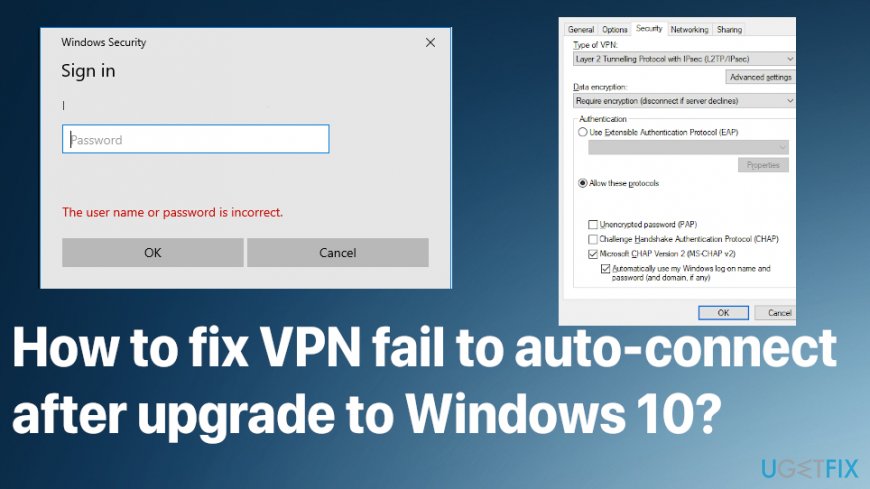
These VPN block or fail issues are not pleasant because:
- you cannot modify your IP address;
- can't access the content that is typically restricted;
- no longer can stay anonymous online;
- cannot avoid being snooped by the government agencies.[ref en-3]
It is possible that to fix VPN fail to auto-connect after upgrade to Windows 10 particularly, you need to work around some settings and system preferences. This blockage can be triggered by some update settings or internet connections, or the VPN software itself. So you can fix the VPN problem by solving other issues with the said machine.
How to fix VPN fail to auto-connect after upgrade to Windows 10
The VPN fail to auto-connect after upgrade to Windows 10 issue can occur when some system files are not working properly on functions are not fully controlled. Disconnect from a previous VPN session or a pattern of such occurance can also possibly cause the issue with your VPN software, so complex troubleshooting may show possible solutions or steps that are quick and easy. When it comes to methods that may help to fix VPN fail to auto-connect after upgrade to Windows 10 problem, [d1] can also be useful since the optimizer software is the one that stores various Windows system files on the database and can repair them when the damage is detected. Other quick options would be factory reset, disabling your AV, or clearing cache. If this is not the method for you, try listed solutions.
Update your Windows 10 operating system
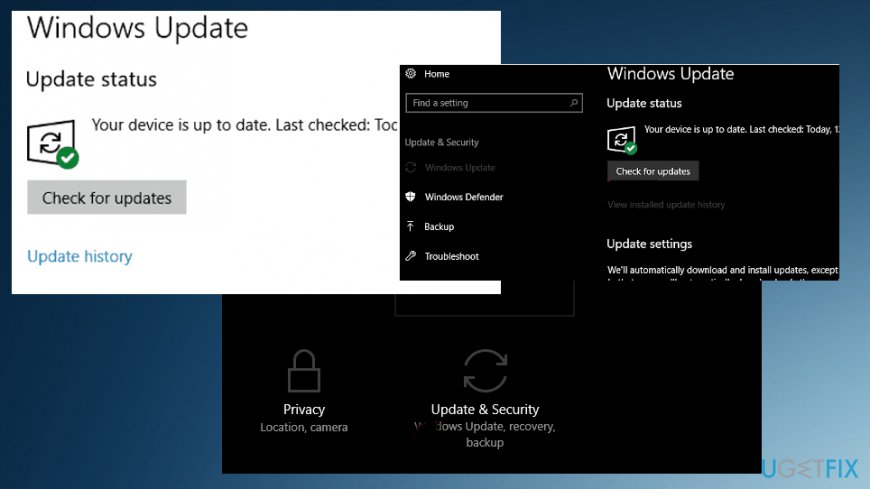
Your recent upgrade may be a buggy version of the operating system, so issues regarding these errors or the material that is not running or displaying properly get forgotten if you download the most recent one. Windows 10 updates get patches more commonly, so you may only need to upgrade again, to fix the issue with your VPN fail to the auto-connect issue.
- You can access the Update& security section and check for updates there.
Reinstall drivers to fix VPN fail to auto-connect after Windows 10 update
- Go to Device Manager.
- Expand the section where Network adapters are.
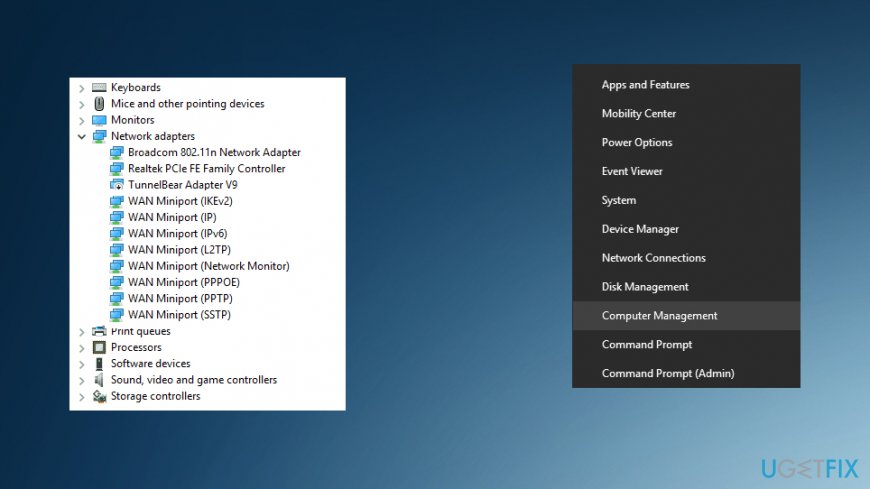
How to fix vpn fail to auto connect after upgrade drivers - Right-click on every WAN Miniport driver individually and uninstall them.
- Restart and open Device Manager again.
- Install al the network adapters again.
Edit the Windows registry and fix VPN fail to auto-connect after the Windows update
- Type regedit in the Windows Search bar and locate to the registry editor.
- First, backup your registry and then go to ComputerHKEY_LOCAL_MACHINESYSTEMCurrentControlSetServicesPolicyAgent.
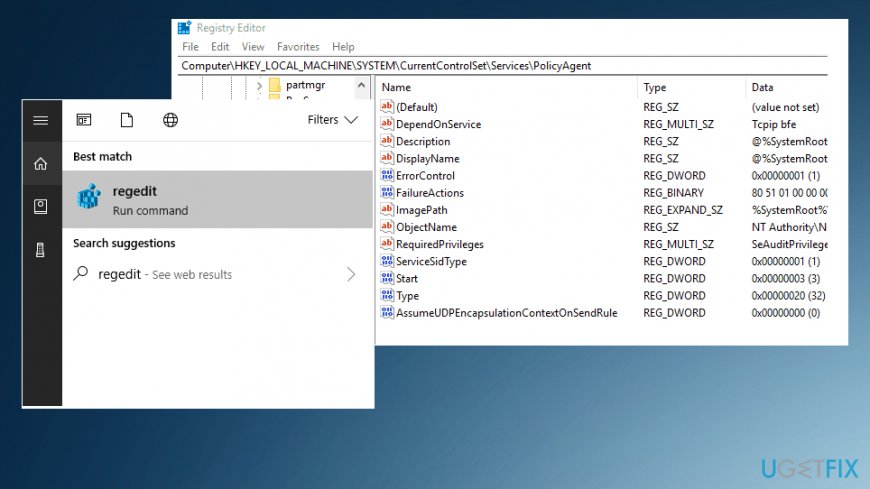
How to fix vpn fail to auto connect after upgrade regedit - Right-click on the blank area and then select New>DWORD.
- Name the DWORD input to AssumeUDPEncapsulationContextOnSendRule.
- Change the value to 2 and save.
- Restart the PC.
Reinstall the VPN software
You can go to Control Panel and find the program in the Programs category. Uninstall it and reinstall it again.
Disable IPv6 to fix VPN fail to auto-connect after upgrade to Windows 10
- Open Control Panel.
- Go to Network and Internet and then choose Network and Sharing Center.
- Click on Change adapter settings from the left on the screen.
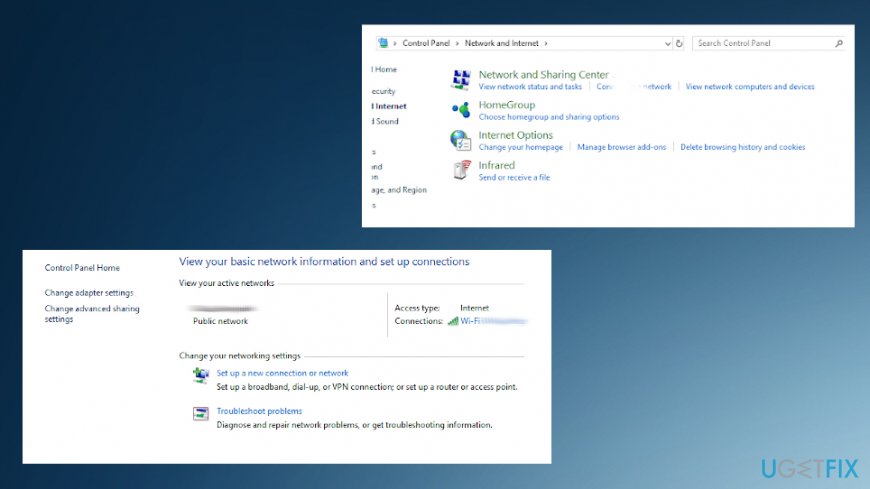
How to fix vpn fail to auto connect after upgrade adapters - Then right-click on VPN network adapter and open Properties.
- Uncheck box besides the IPv6 and confirm.
Use a different VPN client
You may experience VPN fail to auto-connect after Windows upgrade issue or general problems with the VPN connection because the software you are using is not professional or has compatibility issues. You can turn these issues around and use the [rev id="Private Internet Access"] for better results. You can choose any other alternate software that fits your security and privacy needs. PIA is designed to run on Windows 10, so it can easily offer you all those options and features regarding anonymity and online reputation, restriction bypassing, and so on.
Bottom line
To fix the VPN fail to auto-connect issue after upgrading to Windows 10, ensure that your login information is correct and that the appropriate options are selected. Additionally, check for DNS errors and ensure that the filter driver is properly updated. If none of these solutions work, further investigation into the VPN software or system settings may be necessary.
Frequently asked questions
This issue may arise due to changes in network settings or VPN configurations during the upgrade process to Windows 10. Ensure that your VPN settings are correct and that the VPN client is compatible with the latest Windows version.
To reset your VPN settings, go to Settings > Network & Internet > VPN, select your VPN connection, and click on 'Remove.' Then, re-add your VPN connection and configure it to auto-connect.
Yes, certain Windows 10 updates may modify network protocols or firewall settings, which can impact VPN auto-connect features. Keeping your system updated and checking for VPN compatibility with recent updates is recommended.




Report an issue
What's wrong with this guide? We review every report and update or remove content.
Report received — thank you. We'll review and fix it.
You need a free account to submit a report.
Be the first to comment