How to fix
VSS error code 0x8004231f
on Windows
Resolve VSS error code 0x8004231f in Windows 10 or 11 quickly and easily. Our expert-tested solutions ensure smooth operation, fixed in minutes.

What causes How to fix VSS error code 0x8004231f in Windows?
- Disabled VSS ID
- Volume Shadow Copy Service not running
- Low storage space for VSS
- Backup job failure due to snapshot creation error
Repairs Windows system files, removes malware, and restores a clean OS state — without reinstalling.
Hello. I wanted to use Macrium Reflect to backup my files but I received a VSS error code 0x8004231f together with a message "Creating VSS snapshot Error: Failed to create snapshot: Backup job failed." How can I fix this?
Macrium Reflect is a backup utility for Microsoft Windows. It can be used to create disk images and file backup archives using Microsoft Volume Shadow Copy Service[ref en-1] to ensure "point in time" data accuracy. However, some people say that they have run into trouble when trying to use the utility. Shadow Copy is the technology behind the curtain that lets users create backup copies or snapshots of computer files or volumes, even when they are in use.
Users report seeing VSS error 0x8004231f when they attempt to create a full and differential backup with Macrium Reflect. The error could be caused by a disabled VSS ID. If the service is not running, people would be prevented from creating snapshots or using any functions. Another thing that could cause the error to appear is low storage space. If VSS has low storage space, it cannot create snapshots above a certain limit.
In this guide, you will find 3 solutions that could fix the VSS error code 0x8004231f in Windows. However, manual troubleshooting can be a lengthy process, so we always recommend having a repair tool like [d1]. It can fix most system errors, BSODs,[ref en-2] corrupted files, and registry[ref en-3] issues. It can also clear up cookies and cache which could be the culprits of many malfunctions too. Otherwise, if you are ready to begin the process, carefully follow the steps provided below.
Solution 1. Start Volume Shadow Copy Service
- Type services in the search area of your taskbar and click Open
- In the Services window, locate and double-click on Volume Shadow Copy
- Now check the Service status. If the service is stopped, click on the Start button. If it is already running, then hit the Stop button and then click on Start to restart it
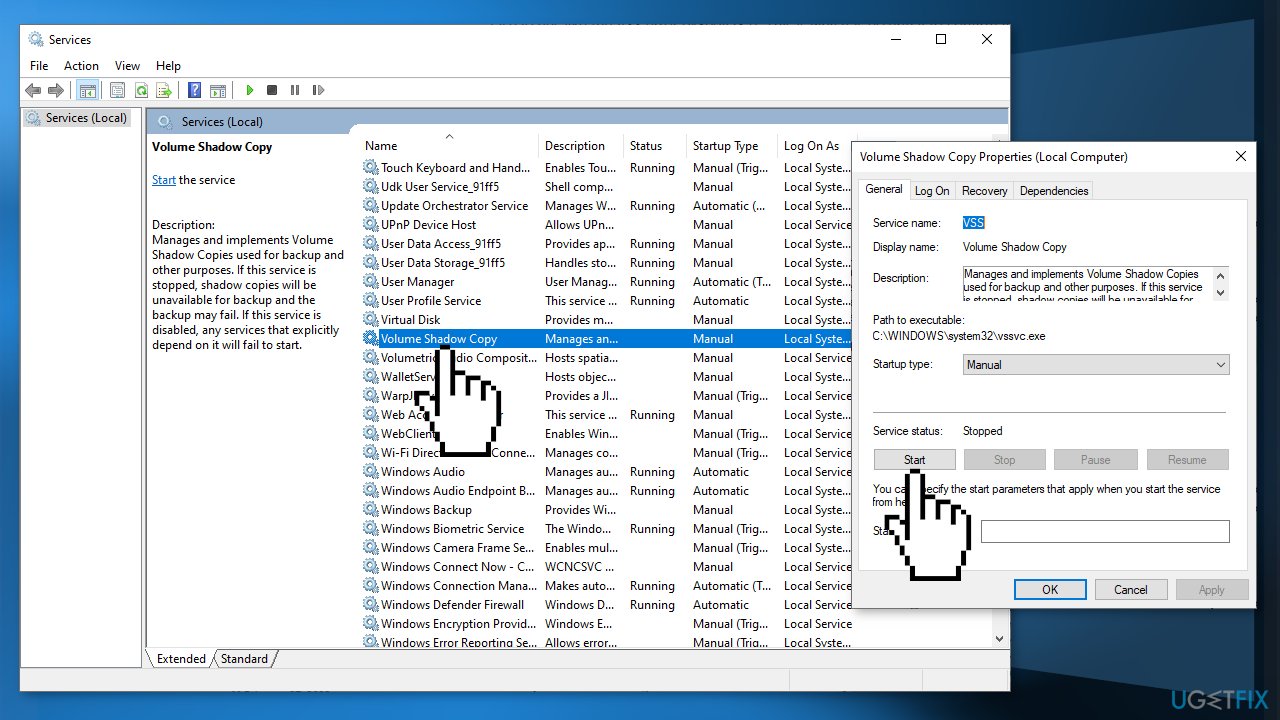
- Click on Apply and then hit OK to save the changes
Solution 2. Increase Shadow Storage Space
- Press Windows + R keys on your keyboard simultaneously to open a Run dialogue box
- In the text field of the dialogue box, type cmd and press Ctrl + Shift + Enter keys to launch elevated Command Prompt
- Type the command mentioned below and hit Enter to execute it. It will display your Shadow storage space:
vssadmin list shadowstorage
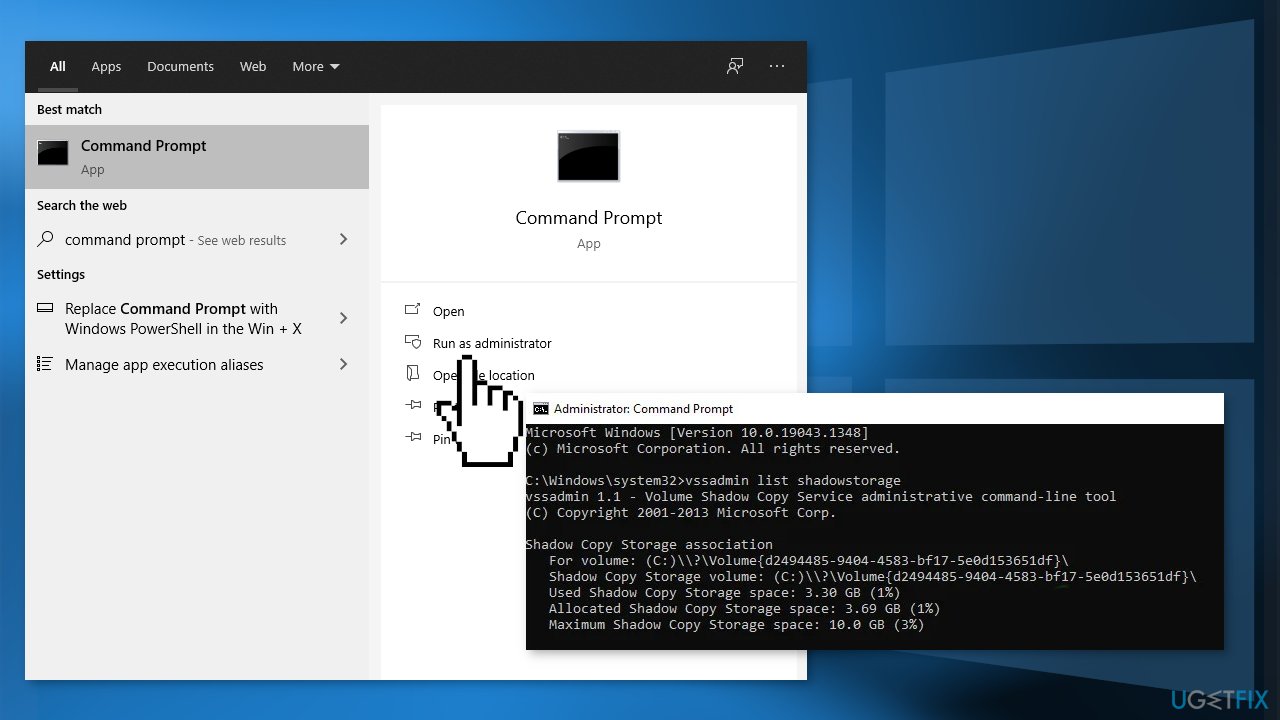
- Type the following command to increase the storage space. You can replace the 10GB with the amount of space you want to increase:
vssadmin resize shadowstorage /For=C: /On=C: /MaxSize=10GB
- Once done, try repeating the action that caused the issue in the first place
Solution 3. Remove Old VSS Snapshots
- Press Windows + R keys on your keyboard simultaneously to open a Run dialogue box
- Type cmd and press Ctrl + Shift + Enter keys
- Type the command mentioned below and hit Enter to execute it in the Command Prompt window. It will display your Shadow storage space:
vssadmin delete shadows /all
- If you want to see a list of snapshots, then run the following command:
vssadmin list shadows
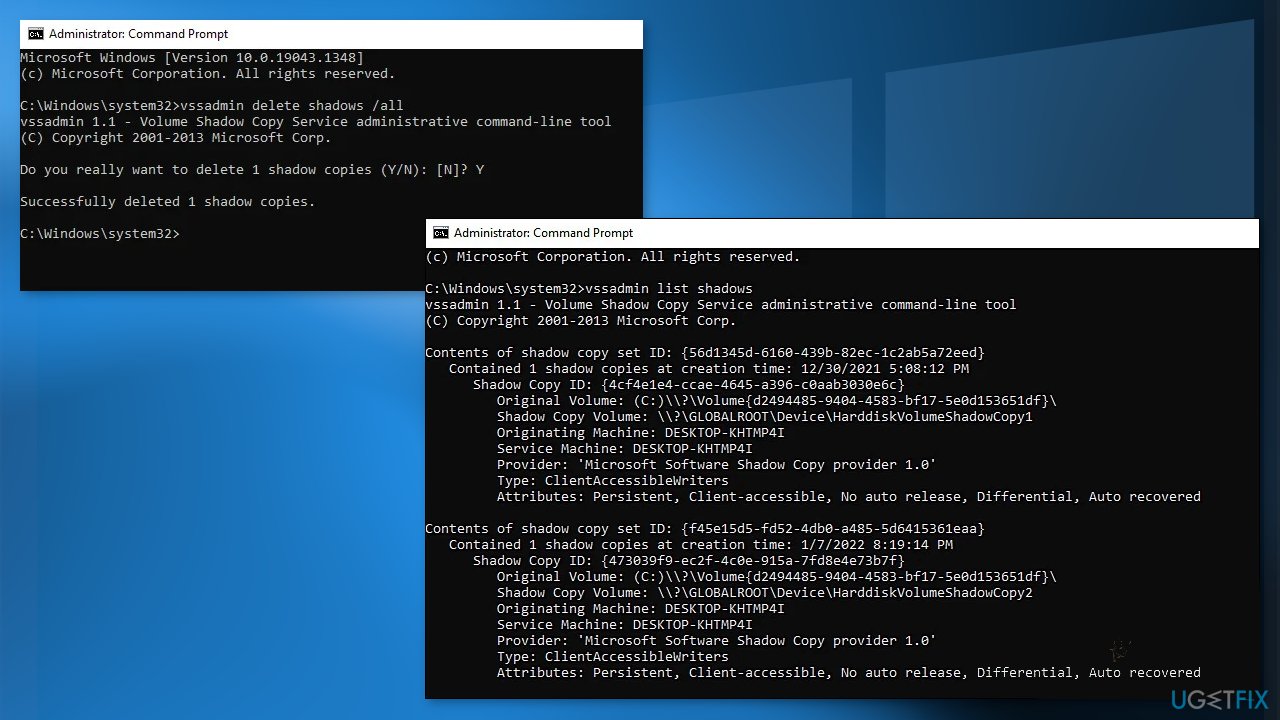
- To delete by snapshot ID, follow the following command. You can replace the ID with the ID of the snapshot that you want to delete:
vssadmin delete shadows/ shadow={56d1345d-6160-439b-82ec-1c2ab5a72eed
Bottom line
To fix the VSS error code 0x8004231f in Windows, you can start the Volume Shadow Copy Service and increase the shadow storage space. If these solutions do not resolve the issue, consider using a repair tool to address system errors.
Frequently asked questions
The VSS error code 0x8004231f typically occurs due to issues with the Volume Shadow Copy Service, often related to corrupted system files or improper service configurations.
To fix this error, you can try running the 'vssadmin list writers' command in Command Prompt to check for any writers that are in a failed state, and then restart the VSS service using 'net stop vss' followed by 'net start vss'.
To prevent this error, ensure that your Windows 11 system is up to date and regularly check for disk errors using the built-in 'Check Disk' tool to maintain the health of your drives.




Report an issue
What's wrong with this guide? We review every report and update or remove content.
Report received — thank you. We'll review and fix it.
You need a free account to submit a report.
Be the first to comment