How to fix
Wacom Tablet driver not found
on Windows
Resolve Wacom Tablet driver issues on Windows 10 and 11 effortlessly. Get back to smooth performance with our expert-tested solutions!

What causes How to fix Wacom Tablet driver not found?
- Driver not installed
- Machine woke from sleep
- Error while opening the app
- Issues with device driver
- Driver not receiving necessary information
Repairs Windows system files, removes malware, and restores a clean OS state — without reinstalling.
Hello, I need some help here with my Wacom Tablet! Yesterday I was trying to launch this application several times and have restarted the computer but nothing helped as I kept receiving "The Wacom Tablet driver not found" error each time I tried to access it. How could I solve this problem?
Wacom Tablet[ref en-3] is a very useful and handy device for many Windows users. It allows people to manage pictures by using specific graphics features that are provided by the "stylus pen". There are many different versions of these tablets (e.g. Hanvon, Monoprice, Kanvus) that are used widely by artists who draw by using computer-based graphics.
Even though Wacom Tablet is a beloved application among users, people often run into the Wacom Tablet driver not found an error which is related to this device. However, if you are the one who also has met this type of problem, do not rush to panic as it is completely normal and common and can be easily taken care of.
There might be more than one reason why the Wacom Tablet driver not found error has approached you. Some people have commented that this type of problem occurred when they woke up their machines from sleep and were expecting to continue using this device.[ref en-1] Others claim that the error appeared while trying to open the app and managing some options.[ref en-2]
The problem might be anywhere, however, usually, the Wacom Tablet driver not found an error message that appears when there are problems with the device driver. Problems with Wacom Tablet occur when the required driver was not installed and the machine cannot receive information that is necessary for running this driver.
Our recommendation would be to stay calm and you will easily deal with the Wacom Tablet driver not found an error on your Windows machine. Read the following fixing methods and complete all steps as shown in the instructions. Note that, sometimes updating or reinstalling the driver might be enough to fix the problem!
How to fix Wacom Tablet driver not found
Wacom Tablet driver not found error can be fixed by using the below-provided methods. Here you will find some instructions for reinstalling, updating, and rebooting Wacom services on Windows. However, if you have tried all these methods and nothing helped (what is rare), maybe some potentially suspicious content has been interrupting your work with the tablet. You can find out if this theory is true by performing a full system checkup with [d1]. This program can also ensure that privacy issues are not triggering any security problems. The optimization tool can clear cookies and other parts of the machine.
As for the issues with drivers, you should update them and make sure to keep the system with the newest versions of software and programs. [rev id="DriverFix"] can find, update and reinstall any needed drivers for you. This is how you can fix the Wacom Tablet driver not found error and solve your problems. If that is not working as a quick fix, go to these methods.
Reboot your Wacom device
- Click on the Windows key and R button at the same time.
- Once a run box appears, type in services.msc.
- Hit the Enter key.
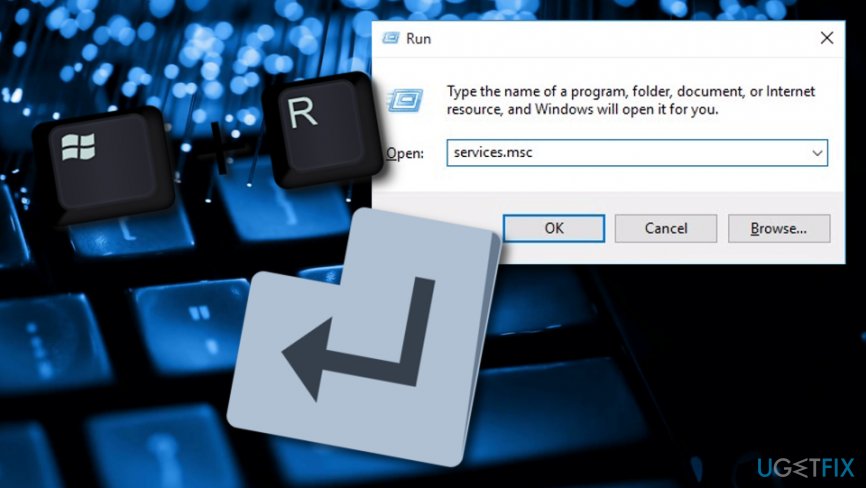
Run services msc - Right-click on the TabletServiceWacom service and opt for Restart.
Reinstall the driver to solve Wacom Tablet driver not found
- Go to your Windows search zone and find Device Manager.
- Open this app and locate Human Interface Devices.
- Expand this option and find the Wacom Tablet.
- Once you discover this device, choose Uninstall device.
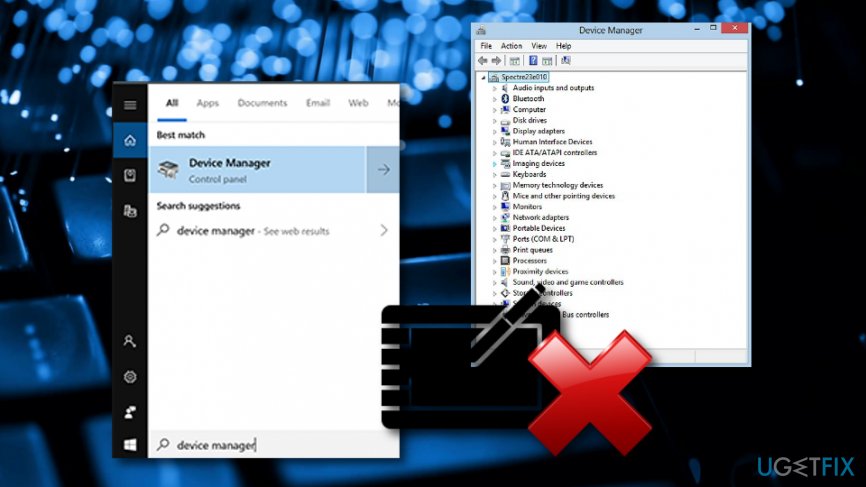
Uninstall wacom tablet - Put a checkmark into the box which has the "Delete the driver software for this device" option near it.
- Select Uninstall.
Afterward, reboot Windows and check if the driver was installed again automatically. If the Wacom Tablet is not on your machine, continue with the following to install it manually:
- Locate your Device Manager again and right-click on your machine name.
- Choose Scan for hardware changes.
Update Wacom Tablet to fix driver issue
- Go to Windows search and type in "device manager".
- Open this app, find Human Interface Devices.
- Right-click on Wacom Tablet and choose to Update driver from the menu.
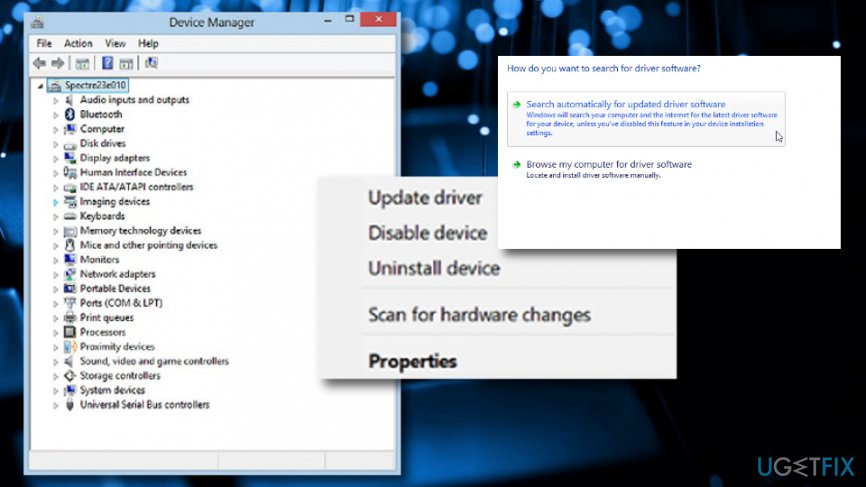
Update driver via task manager - Choose from one of the two driver updating options.
Opt for the "Roll Back Driver" option
- Locate your Device Manager once again.
- Discover Human Interface Devices and right-click on the Wacom Tablet device.
- Go for Properties.
- Then, select the Driver section and choose the function that says "Roll Back Driver".
NOTE: If the "Roll Back Driver" key is in grey color, you will not be able to click on it. If so, a previous variant of the driver has not been injected and this device cannot be rolled back.
Bottom line
To fix the Wacom Tablet driver not found error, you can try updating or reinstalling the driver. If these methods do not resolve the issue, consider checking for additional troubleshooting steps or seeking further assistance.
Frequently asked questions
First, ensure that your Wacom Tablet is properly connected to your computer. Then, visit the Wacom support website to download and install the latest driver compatible with Windows 10.
Try uninstalling the current driver from Device Manager and then reinstalling it after downloading the latest version from the Wacom website. Additionally, check for any Windows updates that might affect driver compatibility.
Make sure your Tablet is enabled in the settings and that no other applications are interfering with its functionality. You might also want to check for hardware issues or try the tablet on another computer.




Report an issue
What's wrong with this guide? We review every report and update or remove content.
Report received — thank you. We'll review and fix it.
You need a free account to submit a report.
Be the first to comment