How to fix
WbemCons.exe error
on Windows
Resolve WbemCons.exe errors in Windows 10 and 11 quickly with our expert-tested solutions. Get your system running smoothly in minutes!

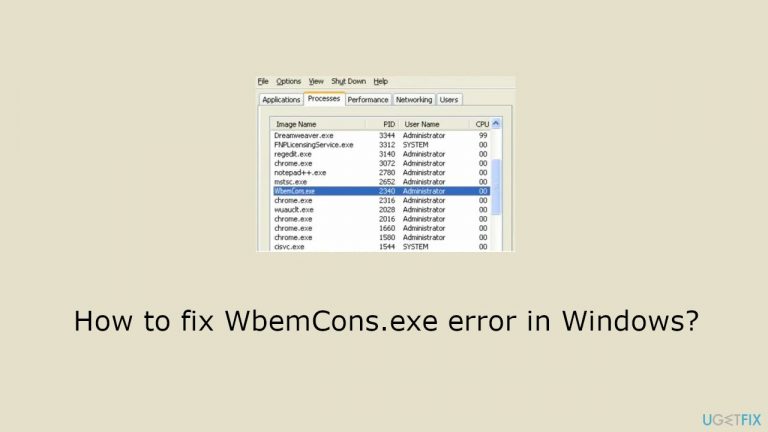
What causes How to fix WbemCons.exe error in Windows?
- HPE System Insight Manager causing WbemCons.exe issues
- Corrupted system files affecting WbemCons.exe
- Installation problems with HPE System Insight Manager
- Compatibility issues with WbemCons.exe
- Missing required dependencies for WbemCons.exe
Repairs Windows system files, removes malware, and restores a clean OS state — without reinstalling.
Hello. The WbemCons.exe - Application Error keeps popping up on my Windows PC. Is there a way to fix this issue?
The HPE System Insight Manager is the main cause of the WbemCons.exe issue on Windows. WbemCons.exe serves as a crucial process associated with this application, automatically initiating when the HPE System Insight Manager is launched and persisting in the background throughout its usage. This process is essential for facilitating remote access to configure and manage the computer and its applications.
Users' experience with HPE System Insight Manager may be greatly impacted by WbemCons.exe issues. Users' ability to remotely access and manage configurations may be hampered by the error's potential to cause disruptions in the performance of the program. WbemCons.exe is an essential process for the HPE System Insight Manager to work properly, therefore any problems with it might jeopardize the application's functioning and accessibility.
In workplaces where remote access and configuration are critical, users who encounter this problem may find it difficult to manage their computers and related software. The error can lead to frustration, delays in system management tasks, and potential lapses in monitoring and maintaining the computer's health and performance.
To keep the HPE System Insight Manager running smoothly, it is necessary to pay attention to fixing the WbemCons.exe error. Possible fixes might be taking care of problems with the application's installation or compatibility, checking the WbemCons.exe file's integrity, and making sure all required dependencies are met.
In this guide, you will find 6 steps that should help you fix WbemCons.exe error in Windows. You can also run a maintenance tool like [d1] that can fix most system errors, BSODs,[ref en-1] corrupted files, and registry[ref en-2] issues. Otherwise, follow the step-by-step instructions below.
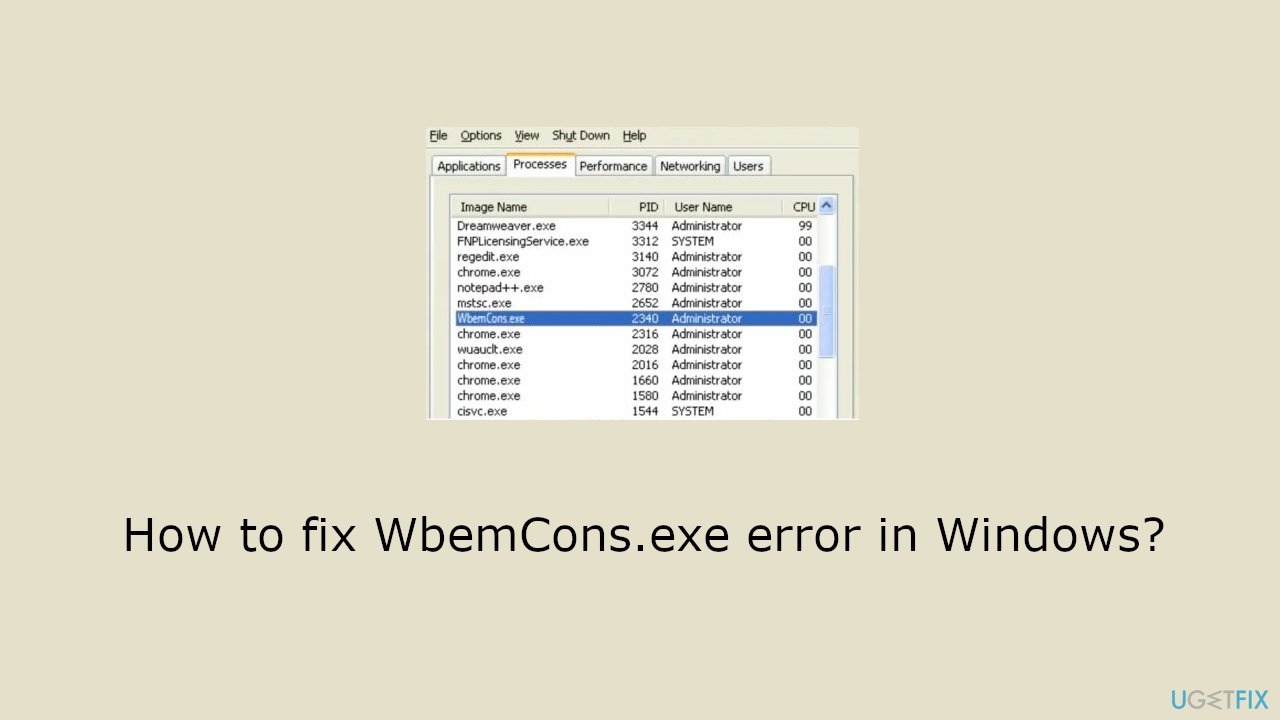
Method 1. Fix Corrupted System Files
Use Command Prompt commands to repair system file corruption:
- Open Command Prompt as administrator
- Use the following command and press Enter:
sfc /scannow

- Reboot your system
- If SFC returned an error, then use the following command lines, pressing Enter after each:
DISM /Online /Cleanup-Image /CheckHealth
DISM /Online /Cleanup-Image /ScanHealth
DISM /Online /Cleanup-Image /RestoreHealth
Method 2. End the Process
- Press the Windows key on your keyboard.
- In the search bar, type Task Manager and press Enter.
- Click on the Open option to launch Task Manager.
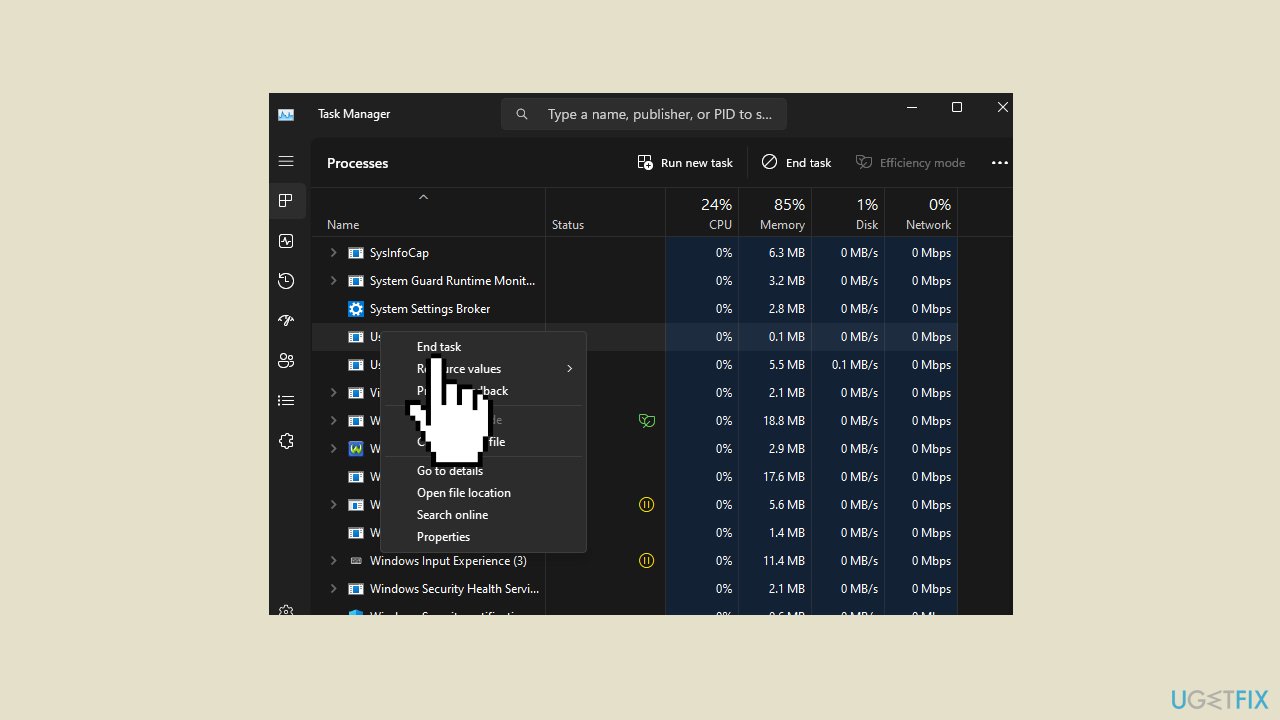
- Navigate to the Processes tab within Task Manager.
- Locate the WbemCons.exe process in the list of processes.
- Right-click on the WbemCons.exe process.
- From the context menu, select End task to terminate the process.
Method 3. Run the Program in Compatibility Mode
- Find the WbemCons.exe file on your system.
- Right-click on the WbemCons.exe file.
- From the context menu, choose Properties.
- In the Properties window, go to the Compatibility tab.
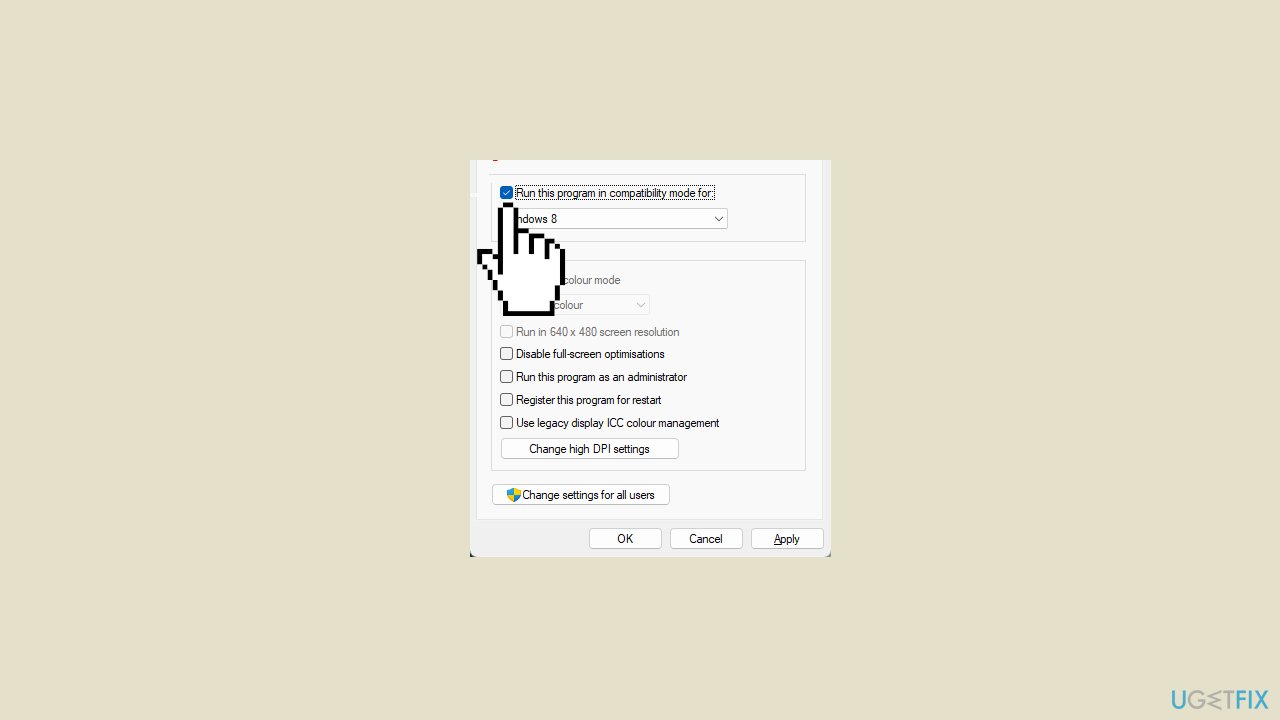
- Check the Run this program in Compatibility mode option.
- From the drop-down menu, select Windows 8.
- Proceed with the installation of the program.
- Once the installation is complete, check if the error persists.
Method 4. Uninstall the Program
- Open the Start Menu by clicking on its icon.
- Type Control Panel in the search bar and press Enter to open it.
- Under the Programs section, click on Uninstall a Program.
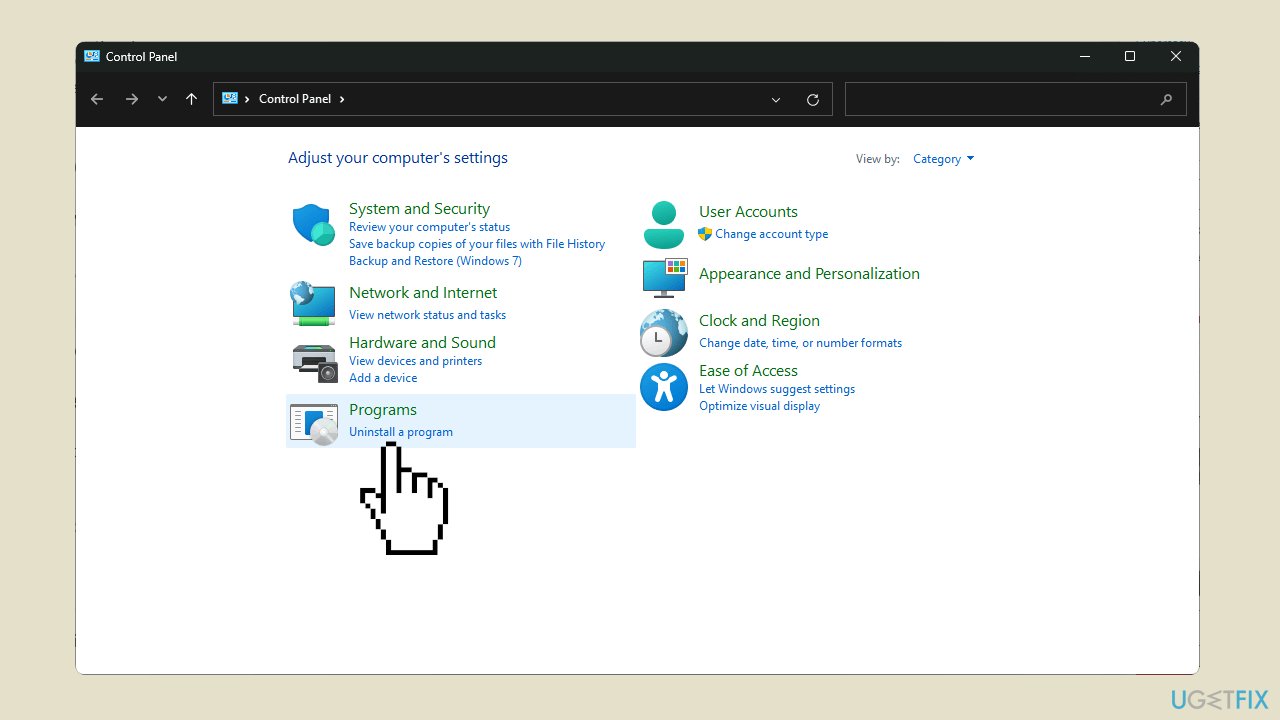
- Locate the HPE System Insight Manager app in the list of installed programs.
- Click on the app, and then select the Uninstall option.
- Confirm the uninstallation in the pop-up that appears.
- Return to the installation path of the app.
- Delete the executable (exe) file associated with HPE System Insight Manager.
Method 5. Disable the HPE System Insight Manager
- Press the Windows key to open the Start Menu.
- In the search bar, type cmd and press Enter.
- Right-click on the Command Prompt result and select Run as administrator.
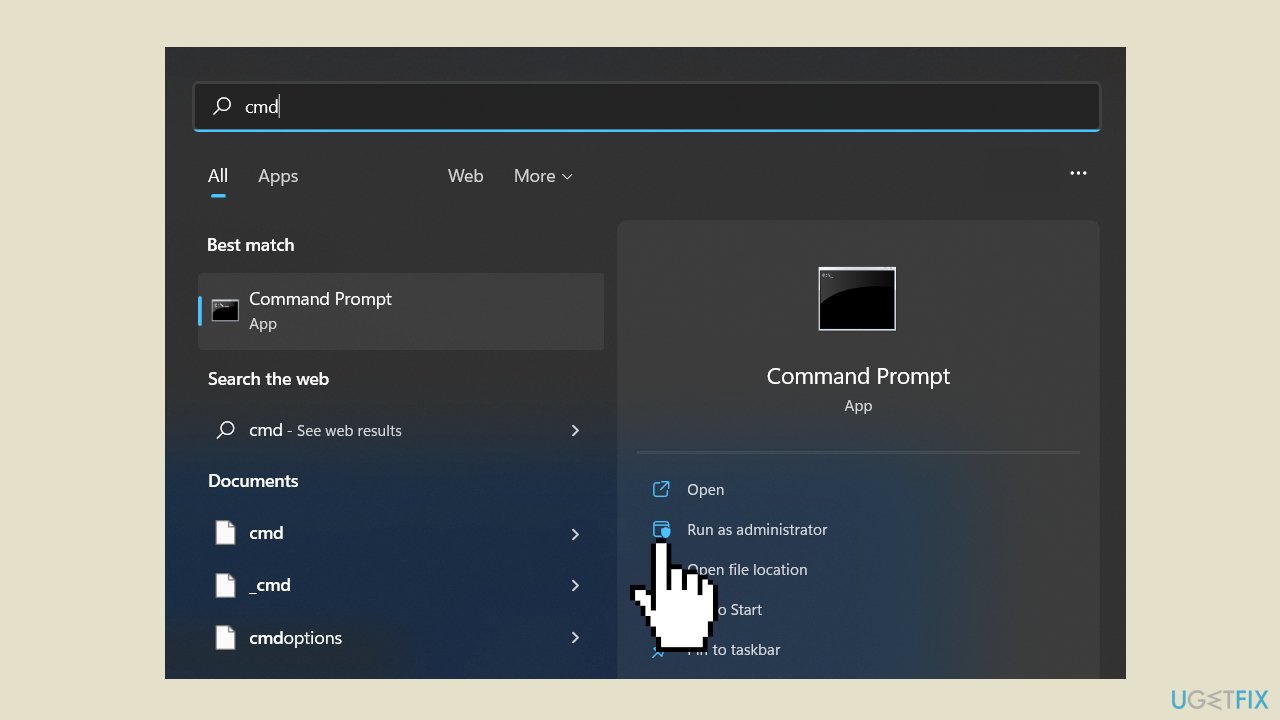
- In the elevated Command Prompt window, type the command mxstop and press Enter.
- Wait for the command to complete its execution.
- To restart the process, type the command mxstart and press Enter.
- Allow the system to initiate the specified command.
Method 6. Scan for Malware
A malware infection may be the cause of WbemCons.exe error in Windows. It is important to run a comprehensive security scan to rule out this possibility and ensure that the computer is not infected. This can help to prevent further issues with the Windows operating system and ensure that it is functioning properly.
If you have access to a security scanner, or if your organization pays for one, you can use it to scan your entire system to check for a virus infection. Otherwise, you can use Windows Defender to scan your system:
- Click on the Windows Start menu or press the Windows key on your keyboard.
- Type Microsoft Defender in the search bar and click on Microsoft Defender Antivirus to open the application.
- Click on the Virus & threat protection option in the left-hand menu.
- Click on the Quick scan or Full scan option, depending on your preference.
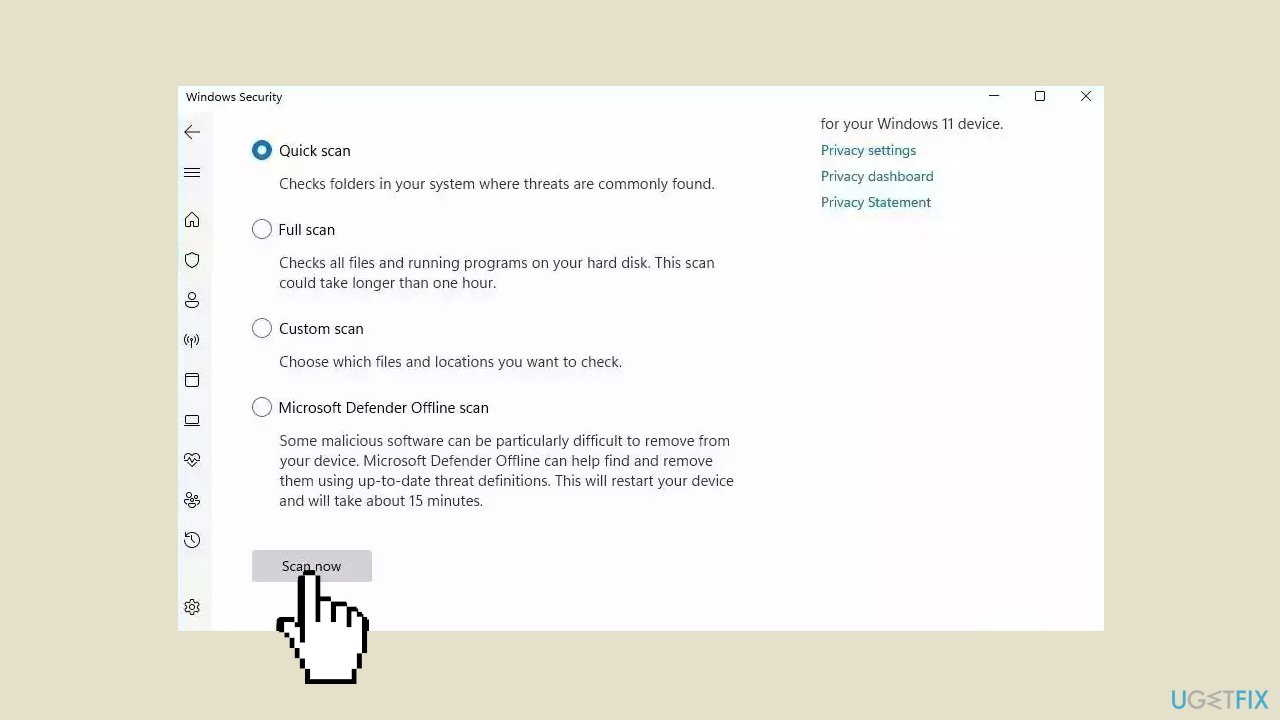
- If you choose Quick scan, Microsoft Defender Antivirus will scan the most vulnerable and commonly infected areas of your computer.
- If you choose Full scan, Microsoft Defender Antivirus will scan your entire computer, including all files, folders, and programs.
- Click on the Scan now button to start the selected scan type and wait for the scan to complete.
- The time it takes will depend on the size of your hard drive and the number of files being scanned.
- Once the scan is complete, you will be informed of any detected threats, and you can choose to quarantine or remove them.
- If no threats are found, Microsoft Defender Antivirus will inform you that your device is secure.
Bottom line
To fix the WbemCons.exe error, you can repair corrupted system files using the Command Prompt, check the integrity of the WbemCons.exe file, and ensure all required dependencies are met. If these steps do not resolve the issue, consider running a maintenance tool to address system errors.
Frequently asked questions
The WbemCons.exe error is often caused by corrupted system files, issues with Windows Management Instrumentation (WMI), or incomplete software installations.
You can repair WbemCons.exe issues by running the System File Checker tool with the command 'sfc /scannow' in Command Prompt, which checks for and restores corrupted system files.
Disabling WbemCons.exe is not recommended as it may affect system stability and functionality, particularly for applications that rely on WMI.




Report an issue
What's wrong with this guide? We review every report and update or remove content.
Report received — thank you. We'll review and fix it.
You need a free account to submit a report.
Be the first to comment