How to fix
“We can’t find your camera” error code: 0xA00F4244 (0xC00D36D5)
on Windows
Resolve the “We can’t find your camera” error code 0xA00F4244 on Windows 10 quickly. Get expert-tested solutions for seamless video calls. Fixed in minu…

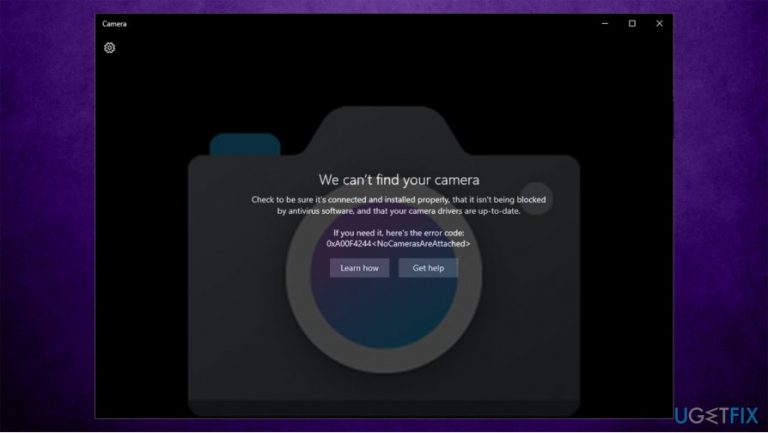
What causes How to fix “We can’t find your camera” error code: 0xA00F4244 (0xC00D36D5) on Windows 10?
- Camera App not installed properly
- Camera blocked by anti-virus
- Outdated camera drivers
- Issues after Windows 10 upgrade
- Problems after September update 1607
Repairs Windows system files, removes malware, and restores a clean OS state — without reinstalling.
Hi, my camera app wouldn’t open on my MSI laptop. When I try to open it, I receive an error “we can find your camera” with an error code 0xA00F4244(0xC00D36D5). Can someone please help me as I’m having an important conference on Skype after two days. Please help!
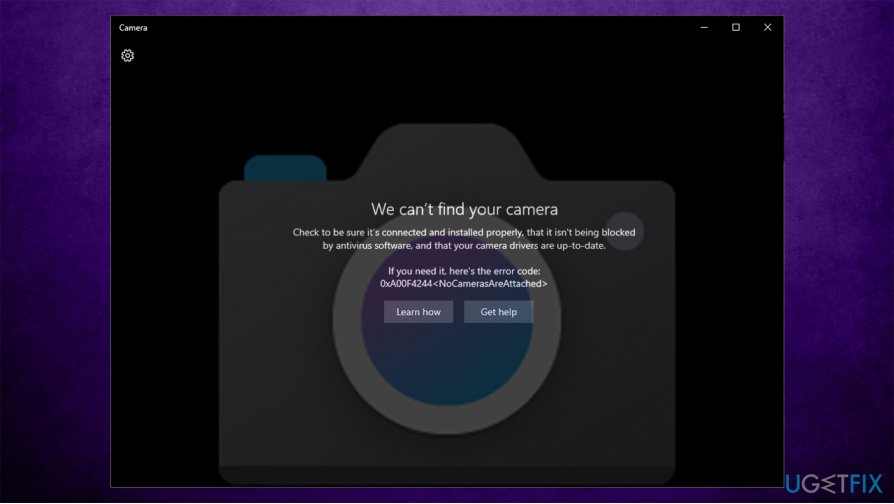
Windows 10 PCs and laptops frequently run into issues related to the Camera App. One of the webcam error is “We can’t find your camera,” which has a bug check 0xA00F4244 (0xC00D36D5). While this error might show up after upgrading to Windows 10 or running its updates, users said that it might also occur abruptly. In other cases, they can't get the camera working at all, which ends up with error 0xA00F4244<NoCamerasAreAttached>.
The majority of 0xA00F4244(0xC00D36D5) error victims claim that the problem showed up right after the installation of September update 1607, but apparently, later updates did not solve the issue. 0xA00F4244(0xC00D36D5) error is strange as it often allows people to use the webcam for Skype and OneNote without problems, but when they attempt to start the Camera App itself, the black screen with an error code shows up.
The error message contains a recommendation for a PC user to check if the Camera App is installed properly, if it hasn’t been blocked by the anti-virus or if the camera’s drivers are up-to-date. These are the primary steps that you should take in order to fix 0xA00F4244(0xC00D36D5) error on Windows 10.
However, many users claimed that the tips provided did not help at all, and they continued getting errors such as 0xA00F4244(0xC00D36D5) or 0xA00F4244<NoCamerasAreAttached>. Luckily, there are several things you can try to make sure that you make your camera working once again.
If you are tired of dealing with Windows 10 errors that disrupt your normal operation, we highly recommend you try running an automatic solution [d1]. This software can not only fix Windows errors but also remove already installed malware on the system and optimize computer performance by clearing useless junk files. Besides, it can also serve as a privacy tool that would eliminate browser traces such as cookies and web data.
How to fix “We can’t find your camera” error code: 0xA00F4244 (0xC00D36D5) on Windows 10?
Camera errors can be particularly annoying and, despite the given error code, users are unable to fix 0xA00F4244 (0xC00D36D5) or 0xA00F4244<NoCamerasAreAttached> errors. If you have not tried any solutions before, we provide everything that could help you. If you already tried something, simply skip some of the steps below.
Method 1. Run Windows App troubleshooter
Windows troubleshooters are great solutions for misbehaving apps. While the tool will not necessarily fix your camera problems, it can point you at the right direction for sure:
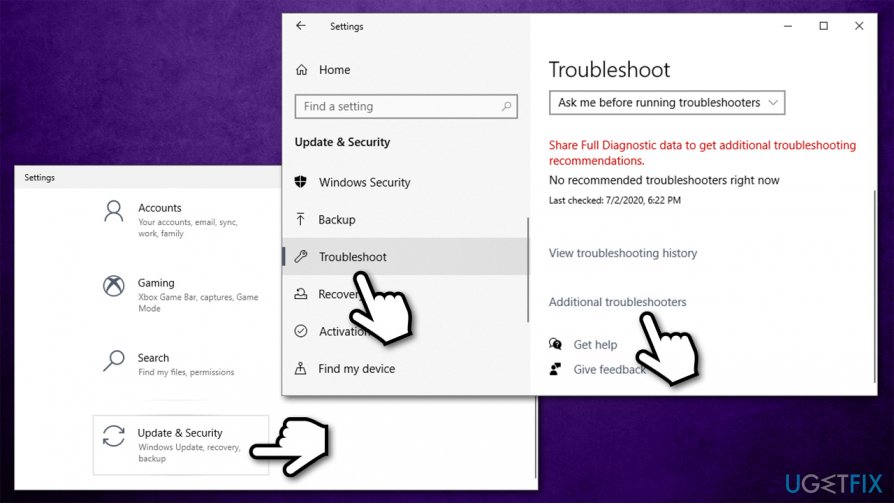
- Press Win key + I to open Settings.
- Go to Update & Security.
- Click Troubleshoot on the left.
- On the right, you should see all listed troubleshooters. If not, click Additional troubleshooters.
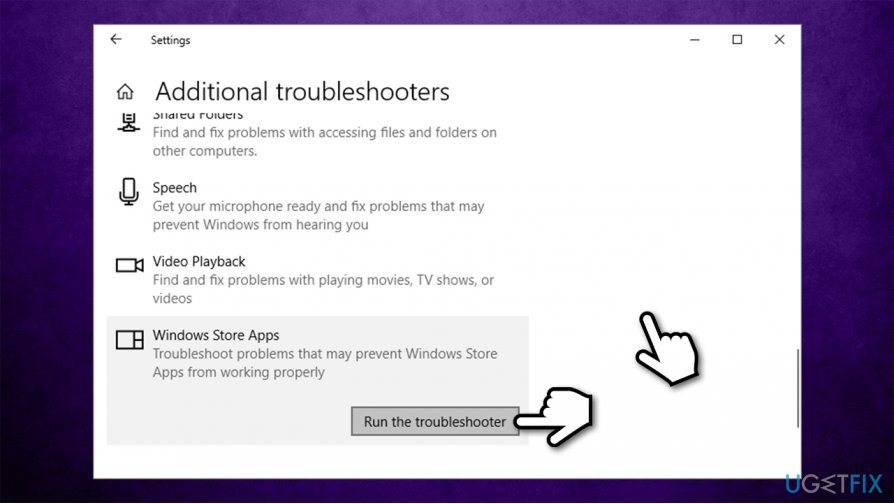
How to fix camera error0xa00f4244 0xc00d36d5 nocamerasareattached on windows10 go additional troubleshooters - Scroll down to locate Windows Store Apps.
- Click on it once and pick Run the troubleshooter.
How to fix camera error0xa00f4244 0xc00d36d5 nocamerasareattached on windows10 run windows apps troubleshooter
Method 2. Reset your webcam
- Press Win key + I to open Settings.
- Select Apps.
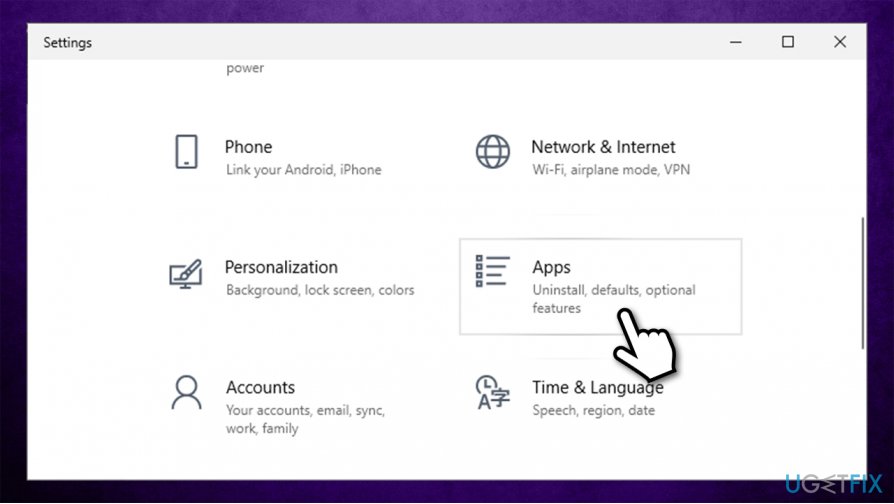
How to fix camera error0xa00f4244 0xc00d36d5 nocamerasareattached on windows10 go settings apps - Locate Camera and click it.
- Select Advanced options
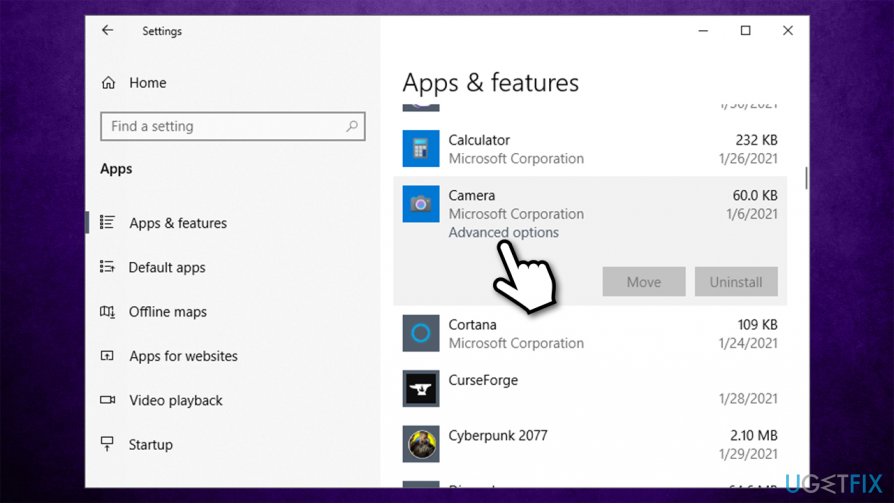
How to fix camera error0xa00f4244 0xc00d36d5 nocamerasareattached on windows10 go advanced options - Scroll down until you find the Reset section.
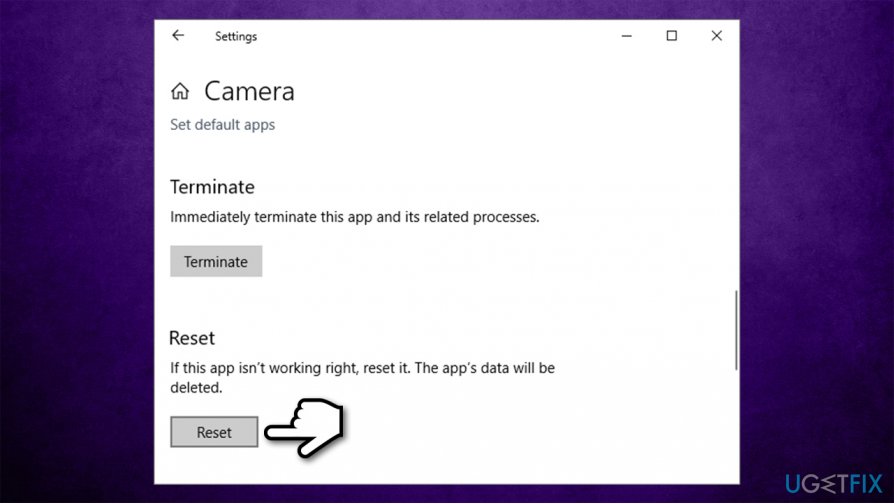
How to fix camera error0xa00f4244 0xc00d36d5 nocamerasareattached on windows10 reset camera app - Press Reset and reboot the PC.
Method 3. Check the version of the Camera
It might be that your Camera has been developed before Windows 7, meaning that it’s no longer compatible with Windows 10 OS, and you have to replace it with a newer one. To check that, you have to:
- Right-click on Start button and select Device Manager.
- Locate Imaging devices and find your webcam under it. If it’s not there, check Camera, Sound, video and game controllers tab.
- Right-click on the name of your webcam and select Properties.
- Click on Driver tab and select Driver Details.
- You should find a file that includes stream.sys. If it’s not there, it means that your camera has been developed after Windows 7 release, which means that it’s suitable for the current Windows 10 OS. If, however, the file is in the list, you will have to replace the camera with a new one.
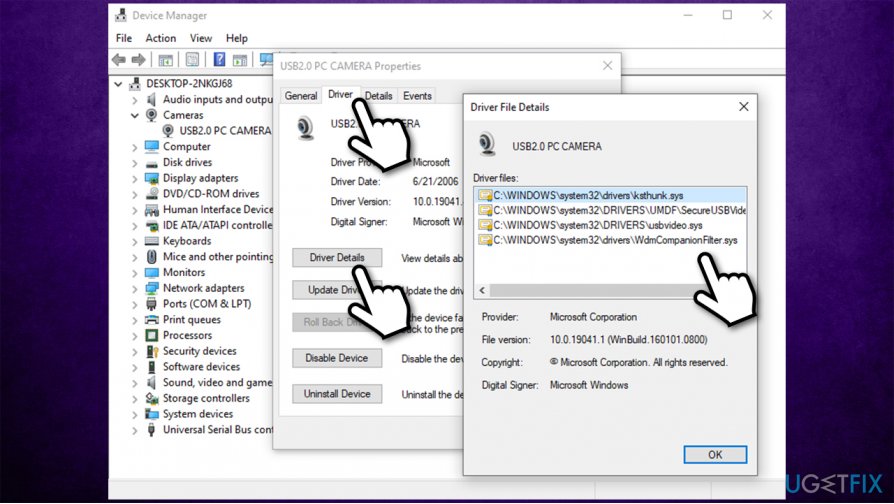
How to fix camera error0xa00f4244 0xc00d36d5 nocamerasareattached on windows10 check camera version
Method 4. Update your camera drivers
You can use Device Manager to update your camera drivers, but it is by far the optimal way to do so. The most accurate would be to go on your camera's manufacturer website and download the latest driver from there. If you don't know the model of your camera and are not computer savvy enough to find out, we highly recommend you use automatic software update tools such as [rev id="Driverfix"].
It will not only update your outdating or missing drivers but will also backup everything in case something goes wrong. You will never have to worry about outdated or corrupted drivers, as the software will do everything for you - all you need to do is press the Scan button.
Method 5. Roll back your webcam’s driver
Very often errors like 0xA00F4244(0xC00D36D5) occur after updating drivers. If you have recently updated webcam driver, you should try to undo the changes.
- Right-click on Start button and select Device Manager.
- Click twice on Imaging devices or Camera section and then right-click on the name of your webcam.
- Select Properties and click on Driver tab.
- Click Roll Back Driver and then Yes to confirm the changes.
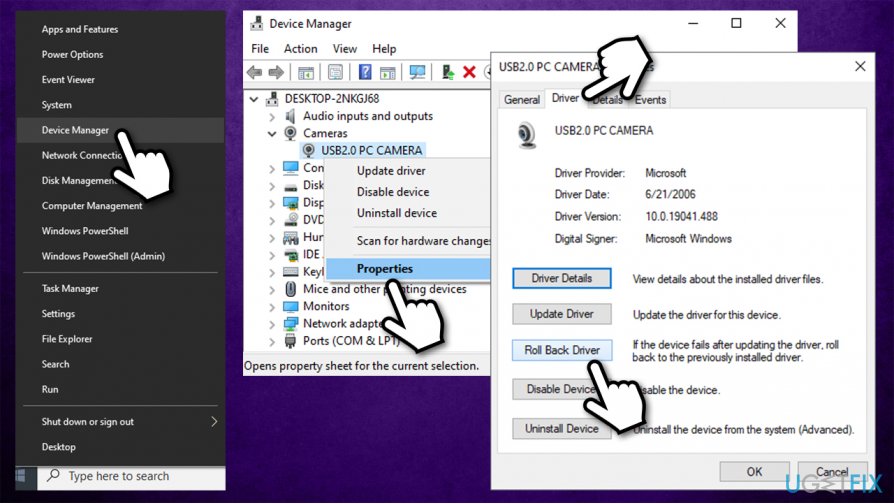
How to fix camera error0xa00f4244 0xc00d36d5 nocamerasareattached on windows10 roll back camera drivers - Finally, reboot your PC.
How to fix 0xA00F4244<NoCamerasAreAttached> efficiently?
As mentioned above, thousands of users complained about a very similar "We can't find your Camera" Windows 10 error - 0xA00F4244<NoCamerasAreAttached>. If you have tried all the solutions above to no avail, we recommend you ensure that camera has the required permissions and is enabled.
Tip 1. Allow apps to use your camera
- Press Win key + I to open Settings.
- Select Apps.
How to fix camera error0xa00f4244 0xc00d36d5 nocamerasareattached on windows10 go settings apps - Locate Camera and click it.
- Select Advanced options.
- Under App permissions, make sure the Camera option is toggled to On setting.
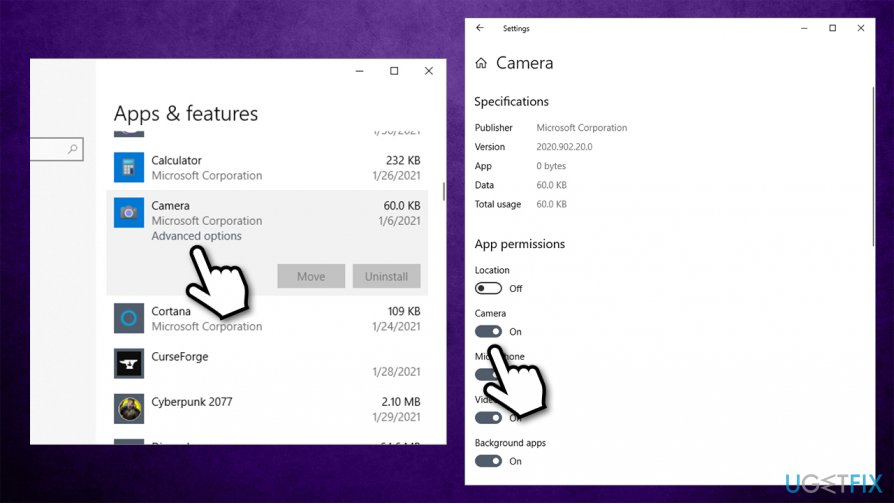
How to fix camera error0xa00f4244 0xc00d36d5 allow apps to use your camera
Tip 2. Tweak privacy settings
In some cases, 0xA00F4244<NoCamerasAreAttached> might be disabled by default due to privacy settings. Check out the following solution:
- Press Win key + I to open Settings.
- Go to Privacy.
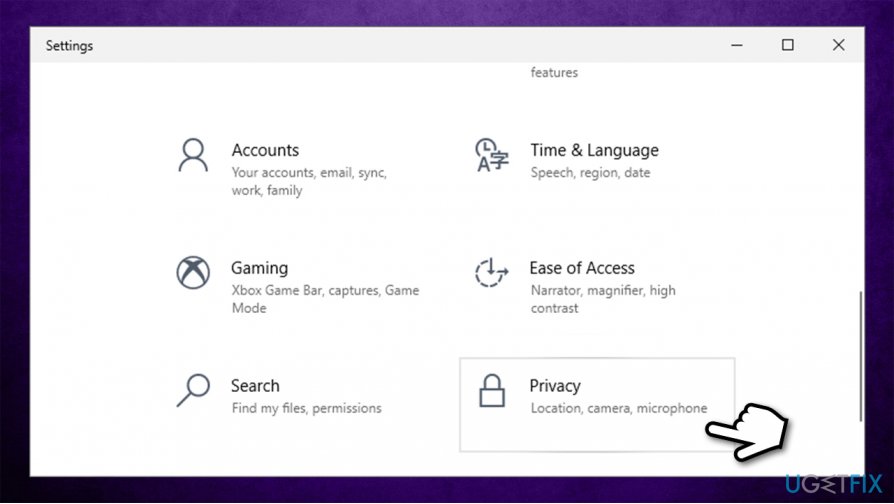
How to fix camera error0xa00f4244 0xc00d36d5 go to privacy tab - Under App Permissions on the left, click Camera.
- Ensure Camera access is on. If not, click on Change and toggle the switch to the right (On position).
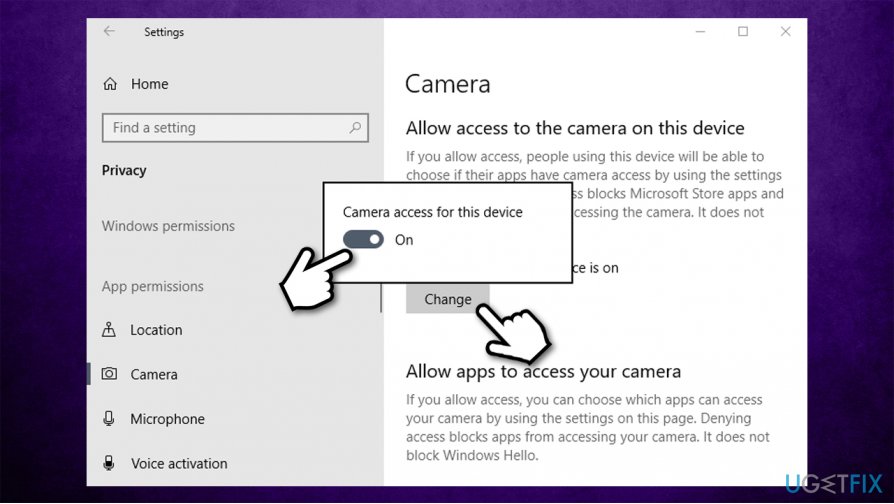
How to fix camera error0xa00f4244 0xc00d36d5 allow camera access2
Bottom line
To fix the 0xA00F4244 (0xC00D36D5) error, ensure the Camera App is properly installed, check for anti-virus interference, and update camera drivers. If these steps do not resolve the issue, consider using an automatic solution to fix Windows errors and optimize performance.
Frequently asked questions
Start by checking if your camera is properly connected and recognized in Device Manager. If it appears with a warning icon, try updating or reinstalling the camera driver.
Go to Settings > Privacy > Camera and ensure that camera access is enabled for the device and apps. Also, check if any apps are blocking camera access.
Yes, you can reset the camera app by going to Settings > Apps > Apps & features, selecting the Camera app, and clicking on 'Advanced options' to find the reset option.




Report an issue
What's wrong with this guide? We review every report and update or remove content.
Report received — thank you. We'll review and fix it.
You need a free account to submit a report.
Be the first to comment