
How to fix "We can't get to this file right now because computer syncing is paused"?

Prefer to fix it yourself? The manual steps follow.
- 8methods
- 1 to 15 minutes
- Easy
Applies to The OneDrive sync app on Windows 11 and Windows 10 22H2, personal and work or school accounts, files opened in File Explorer or the Photos app
8 methods in this guide
Hello. When I try to open photos on my Windows PC I get the "We can't get to this file right now because computer syncing is paused" message. How do I fix this issue?
Microsoft does not document this exact message, but users report it when they open a OneDrive photo that is not stored on the PC while OneDrive sync is paused. Your files stay in the cloud. Resume syncing from the OneDrive icon next to the clock first.
Select the paused OneDrive cloud icon next to the clock, then select the pause button or the yellow box in the OneDrive panel to resume syncing (Fix 1). No icon at all? Start OneDrive from the Start menu (Fix 2). Icon says up to date and the message stays? Set the photos to Always keep on this device (Fix 4).
| Error | We can't get to this file right now because computer syncing is paused, followed by "Resume syncing and try again". |
|---|---|
| Where it appears | Users report it when they open photos and other files from the OneDrive folder, in File Explorer or in the Photos app on Windows. |
| Main cause | OneDrive sync is paused, or the file is online only and cannot be downloaded right now. OneDrive also pauses by itself in battery saver mode and on a metered network. |
| Fastest fix | Select the paused OneDrive icon, then the pause button or the yellow box (Fix 1). |
| Also written as | "We can't get this file right now because computer syncing is paused" and "computer syncing is paused". |
| Affects | The OneDrive sync app on Windows 11 and Windows 10 22H2, personal and work or school accounts. |
| Vendor status | Microsoft documents pausing and resuming OneDrive, but not this exact message. |
| Your files | Pausing only stops syncing. Files that are already in OneDrive stay in OneDrive. |
| Time to fix | 1 to 15 minutes. |
Facts checked on 16 October 2026. Steps written for Windows 11 (25H2 and 26H2) and Windows 10 22H2 with the OneDrive sync app.
What "We can't get to this file right now because computer syncing is paused" means
The message has two parts. The first says the file cannot be reached right now, the second tells you to resume syncing. It does not name OneDrive, and the Microsoft pages we read do not list this exact text, so there is no official definition to quote. What Microsoft does document is the state behind it: a paused OneDrive.
A cloud icon with a pause symbol means your files are not currently syncing. Syncing starts again by itself when the pause time ends, or when you resume it by hand.
| What you see | What it tells you |
|---|---|
| A white or blue OneDrive cloud with a pause symbol next to the clock | OneDrive is paused. Nothing uploads or downloads until you resume it (Fix 1). |
| A panel titled OneDrive is paused with a yellow box | The same state. Selecting the box or the pause button resumes syncing (Fix 1). |
| No OneDrive cloud next to the clock, even under hidden icons | OneDrive is not running, so it cannot sync (Fix 2). |
| An X on the photo thumbnails, and a prompt to resume syncing when you open one | Users report this when many photos suddenly stop opening. The files are not on the PC and cannot be fetched at that moment (Fix 4 and Fix 5). |
| The cloud icon says your files are up to date, but the message still appears | Users report this too. Microsoft does not explain it, so start with Fix 4 and Fix 6. |
Nothing we read says the photos are deleted or damaged. A pause only stops syncing, and the copies in your OneDrive stay where they are. You can check them on the OneDrive website before you change anything.
What causes "We can't get to this file right now because computer syncing is paused", in the order to check
OneDrive keeps your files in the cloud and, with Files On-Demand, shows many of them as online-only files that download when you open them. Microsoft says you cannot open an online-only file when the device is not connected to the internet. If syncing is also paused, the download cannot start, and the open fails.
| Check | Cause | Signs | Fix |
|---|---|---|---|
| 1 | OneDrive is paused | Cloud icon with a pause symbol, panel says OneDrive is paused | Fix 1 |
| 2 | OneDrive is not running | No cloud next to the clock or under hidden icons | Fix 2 |
| 3 | Battery saver or a metered network paused it again | The pause comes back after you resume it; a laptop on battery, or a phone hotspot | Fix 3 |
| 4 | The photos are online only | A cloud icon beside each file in File Explorer, and they will not open | Fix 4 and Fix 5 |
| 5 | OneDrive or File Explorer is stuck | The icon says up to date, yet the message stays | Fix 6 and Fix 7 |
| 6 | Only the Photos app fails | The same photo opens in another way | Fix 8 |
Microsoft also notes that Files On-Demand might not work with some third-party antivirus programs. If the message began right after you installed one, look in that program's own settings or ask its maker, and do not turn protection off for good.
How to fix "We can't get to this file right now because computer syncing is paused"
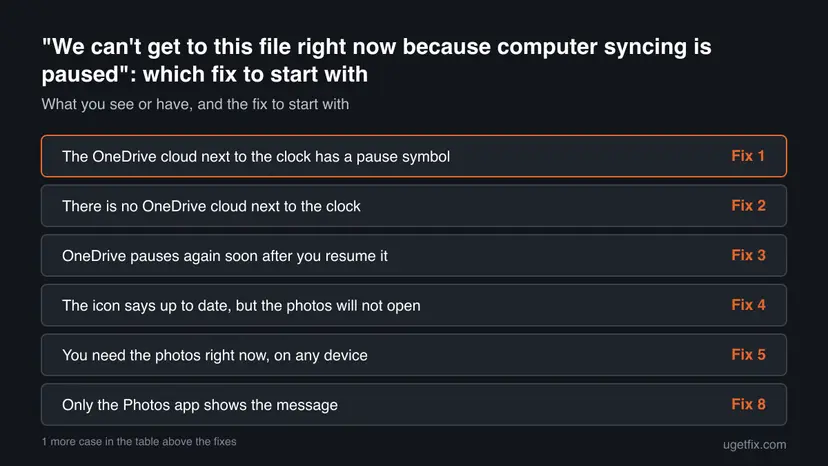
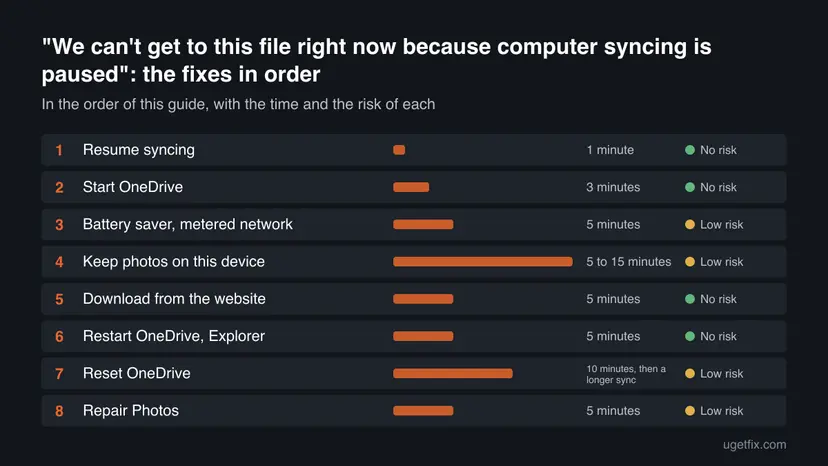
Fix 1 solves most cases, because the message usually means OneDrive is paused. Work down the list only if the one before it changed nothing, and use the table below to jump to the row that matches what you see.
| What you see or have | Start with |
|---|---|
| The OneDrive cloud next to the clock has a pause symbol | Fix 1 |
| There is no OneDrive cloud next to the clock | Fix 2 |
| OneDrive pauses again soon after you resume it | Fix 3 |
| The icon says up to date, but the photos will not open | Fix 4 |
| You need the photos right now, on any device | Fix 5 |
| Only the Photos app shows the message | Fix 8 |
| Nothing above helped | Fix 7 |
Fix 1. Resume syncing from the OneDrive icon
1 minuteNo riskEveryone, first, whenever the cloud icon shows a pause symbol.
The message tells you to resume syncing, and Microsoft's own way to do that is the paused OneDrive icon. Syncing also resumes by itself after the pause time ends, but doing it by hand is faster.
- Look at the notification area next to the clock. A white or blue OneDrive cloud with a pause symbol means OneDrive is paused.
- Select the paused OneDrive icon.
- In the activity center, select the pause button or the yellow box to get going again.
- Wait until the panel stops saying paused and starts to sync or says your files are up to date, then open the photo again.
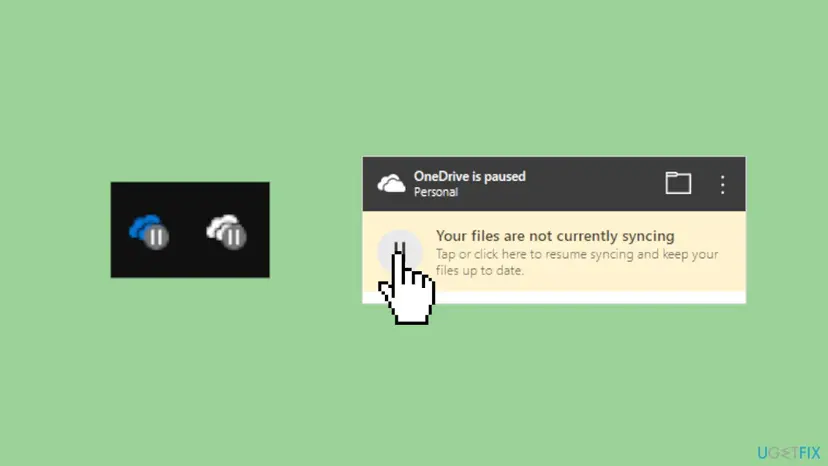
It worked if: The pause symbol disappears from the cloud icon, and the photo opens without the message.
If not: If the cloud icon is missing, go to Fix 2. If it shows paused again after a short time, go to Fix 3.
Fix 2. Start OneDrive when its icon is missing
3 minutesNo riskYou see no OneDrive cloud next to the clock or under the hidden icons.
OneDrive cannot sync while it is not running. If its icon is not visible, it may not be running, and starting it from the Start menu brings the sync back.
- Select the Show hidden icons arrow next to the notification area to reveal the hidden icons, and look for the OneDrive cloud.
- If the cloud is not there, select Start, type OneDrive in the search box and select the OneDrive app in the results.
- If OneDrive asks you to sign in, enter the account that owns the photos.
- When the cloud appears, select it. If it shows a pause symbol, resume syncing as in Fix 1.
If the cloud runs but stays hidden, open Settings > Personalization > Taskbar > Other system tray icons on Windows 11 and switch Microsoft OneDrive on. The menu name differs on Windows 10 22H2, where the same list is under Select which icons appear on the taskbar.
It worked if: The OneDrive cloud appears next to the clock and the panel shows syncing or up to date.
If not: If OneDrive does not start at all, restart the PC once and try again, then go to Fix 6.
Fix 3. Stop battery saver or a metered network pausing OneDrive
5 minutesLow riskOneDrive pauses again soon after you resume it, on a laptop on battery or a phone hotspot.
Microsoft says OneDrive pauses automatically when your PC enters battery saver mode or you are connected to a metered network. Removing that trigger keeps sync running.
- Plug the laptop in. On Windows 11, open Settings > System > Power & battery and check whether Battery saver is on. On Windows 10 22H2, open Settings > System > Battery.
- If battery saver is on, turn it off while the PC is plugged in.
- Open Settings > Network & internet, select your Wi-Fi or Ethernet connection and look for Metered connection.
- If it is on and you are on a normal home or office network, switch it off.
- Resume syncing as in Fix 1 and open the photo again.
A metered connection is there to save your data. If you are on a limited plan, keep it on, plug in, and use Fix 5 to download only the photos you need.
It worked if: Syncing stays on after you resume it and the cloud icon no longer returns to paused.
If not: If it still pauses by itself, check your connection with How to check your internet connection in Windows, then go to Fix 4.
Fix 4. Make the photos Always keep on this device
5 to 15 minutesLow riskThe icon says up to date, but the photos still will not open.
Microsoft says an online-only file downloads only when you open it, and it cannot open without internet. Marking the folder Always keep on this device downloads the real files, so they open without a fetch.
- Open File Explorer and select your OneDrive folder.
- Right-click the folder that holds the photos. On Windows 11, select Show more options first if you do not see the next item.
- Select Always keep on this device.
- Wait until each file shows a green circle with a white check mark. Microsoft uses that icon for files that are always available on the PC.
- Open a photo from that folder.
To do this for the whole OneDrive folder, open the OneDrive icon, then the Help and Settings gear, then Settings > Sync and back up > Advanced settings and select Download all files. Microsoft says this equals choosing Always keep on this device for the entire folder, and it uses disk space, so check the free space first with Free up disk space and delete temporary files.
It worked if: The photos show the green circle with the white check mark and open without the message.
If not: If some files never get the green circle, go to Fix 5 for those files and then Fix 6.
Fix 5. Download the photos from the OneDrive website
5 minutesNo riskYou need the photos now, or Fix 4 did not get them onto the PC.
The website reads your files from the cloud, not from the sync app, so it works while Windows says syncing is paused. A Microsoft Q&A answer for this message gives the same advice.
- Open a browser and go to onedrive.com.
- Sign in with the same Microsoft account, or the work or school account, that owns the photos.
- Open the folder with the photos and select the ones that will not open.
- Select Download in the top bar.
- Open the Downloads folder on the PC. If you chose several files, they may arrive in one zip file, so extract it first.
Look in the OneDrive Recycle bin. Microsoft says you can restore deleted items there for up to 30 days on a personal account and up to 93 days on a work or school account.
It worked if: The photos open from the Downloads folder, which proves the copies in OneDrive are fine.
If not: If you cannot sign in, or the photos are not on the website or in the Recycle bin, they may never have uploaded; check the other PC or phone that took them.
Fix 6. Restart OneDrive and File Explorer
5 minutesNo riskThe icon says up to date, yet Windows still shows the message after Fix 4.
Users report the message while OneDrive says everything is synced. A restart clears a sync app or an Explorer window that still holds the old paused state, and it changes no files.
- Select the OneDrive cloud next to the clock, select the Help and Settings gear, then Quit OneDrive, and confirm.
- Restart File Explorer from Task Manager. The steps are in Restart File Explorer.
- Select Start, type OneDrive and open the OneDrive app.
- Wait until the cloud icon says your files are up to date, then open a photo again.
It worked if: OneDrive starts fresh, the panel shows up to date, and the photos open.
If not: If the message is still there, reset OneDrive in Fix 7.
Fix 7. Reset OneDrive
10 minutes, then a longer syncLow riskFixes 1 to 6 changed nothing, and the photos are safe on the OneDrive website.
A reset clears OneDrive's settings and makes it sync everything again from the start. That removes a stuck state the normal restart cannot.
It does not delete your files. If you sync only some folders, write their names down first, because you choose them again after the reset. The full sync that follows can take a long time with many photos, so leave the PC on and online.
- Open the Run box. Press the Windows key and R at the same time.
- Reset the Microsoft Store cache. Type the command below and select OK. A blank Command Prompt window opens and closes, then the Microsoft Store opens. Close it. This is the first step in Microsoft's instructions. If OneDrive still does not sync, continue.
wsreset.exe - Run the OneDrive reset command. Press the Windows key and R again. Copy the command below, paste it into the box and select OK.
%localappdata%\Microsoft\OneDrive\onedrive.exe /reset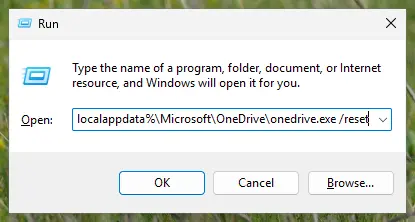
Type the reset command in the Run box and select OK. Screenshot: Windows 11 26H2. - If Windows cannot find it, try the second path. If you see a message that starts with Windows cannot find, open the Run box again and use this command instead.
C:\Program Files\Microsoft OneDrive\onedrive.exe /reset - If that fails too, try the third path. If you still see Windows cannot find, use this command. If none of the three works, the OneDrive sync app is not installed on this PC.
C:\Program Files (x86)\Microsoft OneDrive\onedrive.exe /reset - Start OneDrive again. Select Start, type OneDrive in the search box and select the OneDrive desktop app. OneDrive then starts a full sync.
These steps were written for Windows 11 25H2 and 26H2, Windows 10 22H2. The full page with the other versions and what each result means: How to reset OneDrive in Windows
It worked if: OneDrive opens again, asks you to sign in, syncs from the start and the paused message no longer appears.
If not: If it fails after a reset, collect the details in the section below and ask Microsoft Support.
Fix 8. Repair the Photos app
5 minutesLow riskThe message appears only in Photos, and the same photo opens from File Explorer.
Users report the message in the Photos app. If the file opens in File Explorer, the cloud copy is reachable, and the app itself may be failing to fetch it. Repair keeps the app's data.
- Open File Explorer, go to the OneDrive folder and double-click the same photo. If it opens there, the file is fine and the problem is in the app.
- Select Start > Settings > Apps > Installed apps (on Windows 10 22H2, Apps & features).
- Find Photos, open its Advanced options and select Repair.
- Open Photos and the same photo again. Use Reset only if Repair did not help, because it deletes the app's data on this PC. The full steps are in How to repair or reset an app in Windows.
It worked if: Photos opens the photo without the message.
If not: If it still shows the message, open the photos from File Explorer in another viewer, and use the facts listed in the section below when you ask for help.
If "We can't get to this file right now because computer syncing is paused" is still there
Microsoft does not publish a fix for this exact message, so collect the facts before you ask for help. They separate a sync problem from a connection problem or an app problem.
- What the cloud icon says: paused, syncing, up to date, or an error, and whether it is white or blue.
- Which app shows the message: File Explorer, Photos or another app, and whether the same file opens somewhere else.
- The account type: personal or work or school, because the two sync as separate OneDrives and can be paused independently.
- Whether the photos open on the OneDrive website: if they do, the files are safe and only this PC fails.
- Your connection: if other sites are slow or fail too, run How to check your internet connection in Windows first.
Send those facts to Microsoft Support or to the Microsoft Q&A forum for OneDrive. Do not post personal photos, file names that identify you or your account details in a public forum.
How to keep "We can't get to this file right now because computer syncing is paused" from coming back
- Resume syncing by hand as soon as you see the pause symbol, instead of waiting for the 2, 8 or 24 hour pause to end.
- Plug a laptop in for large photo syncs, so battery saver does not pause OneDrive.
- Mark the photos you need offline as Always keep on this device before a trip or a flight.
- Check that the cloud icon says up to date before you open a large batch of photos.
- Do not leave OneDrive paused and then expect online-only files to open.
- Do not delete files from the OneDrive folder to free space. Deleting an online-only file removes it from OneDrive on all devices; use Free up space instead.
- Do not assume a file with a cloud icon is on the PC. It is online only until you open it or keep it.
- Do not switch off your antivirus for good to test sync; ask its maker how it works with Files On-Demand.
Frequently asked questions
What does "We can't get to this file right now because computer syncing is paused" mean?
It means Windows could not fetch a file from OneDrive at that moment and tells you to resume syncing. Microsoft does not document this exact text. What it does document is a paused OneDrive: the cloud icon shows a pause symbol and your files are not currently syncing. Select that icon and resume syncing, then open the file again. Users also report the message when OneDrive says everything is up to date; the fixes after Fix 3 are for that case.
How do I fix "computer syncing is paused" on Windows 11?
Select the paused OneDrive cloud icon next to the clock, then select the pause button or the yellow box in the activity center. If you cannot see the icon, select Show hidden icons, or start OneDrive from the Start menu. The steps are the same on Windows 10 22H2, only the Settings menu names differ. If the pause returns, check battery saver and the metered connection setting, as in Fix 3.
Why does OneDrive say paused when I never paused it?
Microsoft says OneDrive pauses automatically when your PC enters battery saver mode or you are connected to a metered network. A laptop that runs on battery, or a PC on a phone hotspot, can trigger it without you doing anything. Plug the laptop in and check the metered connection switch in your network settings, then resume syncing from the cloud icon. Another person using the same PC could also have chosen a pause time.
Why does it say paused when OneDrive says my files are up to date?
Users report exactly this, and Microsoft does not explain it. A likely reason is that the file is online only, so opening it needs a download that fails at that moment. Making the folder Always keep on this device downloads real copies and avoids the fetch. Downloading from the OneDrive website also works. If both fail, restart OneDrive and File Explorer, then reset OneDrive as a last step.
Will I lose my photos if I resume or reset OneDrive?
Resuming only turns syncing back on. A reset clears OneDrive's settings and syncs again from the start, and it does not delete your files. Microsoft also says changing a file to online only does not delete it from OneDrive. The risky action is deleting an online-only file from the OneDrive folder, which removes it from OneDrive on every device and online. Restore it from the OneDrive Recycle bin if that happens.
Is "cross device syncing is paused" the same message?
We found no Microsoft page that uses that wording, so we cannot say what it refers to. If you see it next to the OneDrive cloud icon with a pause symbol on a Windows PC, the steps in this guide apply. If it appears on a phone, in another app or in a different Microsoft feature, these steps may not apply, and you should look for that feature's own help page.
How long does a OneDrive pause last?
When you pause OneDrive by hand you choose 2, 8 or 24 hours. Syncing resumes automatically after that time, or you can resume it at any moment from the cloud icon. A pause caused by battery saver or a metered network lasts as long as that condition does, so the icon may go back to paused after you resume until you plug in or change the connection setting.
Does this affect OneDrive for work or school as well?
Yes. Microsoft says that if you have both a personal OneDrive and OneDrive for work or school, you can pause and resume them independently. That is why the message can appear for photos in one account and not the other. Check which cloud icon shows the pause symbol, resume that one, and then open the file again. For a work account, your organization's IT helpdesk can also help.
Why do some photos open and others do not?
Files you opened before are now on the PC and open at once, while files you never opened are online only and need a download. Users report that the first photos opened and the next ones would not after a restart, which fits that pattern. Mark the folder Always keep on this device so every photo is local, or download the missing ones from the OneDrive website.
Can I stop OneDrive pausing on battery or a metered network?
Microsoft documents the automatic pause but we did not find a page that names a setting to switch it off. The OneDrive Settings window may offer switches for this under the Sync and back up page, but the names depend on the version, so check it on your PC. The safe alternative is to plug the laptop in and turn battery saver and the metered connection off when you are on a normal network.
Sources
- Microsoft Support: How to Pause and Resume OneDrive Sync (support.microsoft.com)
- Microsoft Support: Save disk space with OneDrive Files On-Demand for Windows (support.microsoft.com)
- Microsoft Q&A: How to get into a file that isn't syncing when One Drive is running (users report) (learn.microsoft.com)
Did this fix work?
One click, no account. It tells the next reader which guides are worth their time.
Questions and experiences: fix "We can't get to this file right now because computer syncing is paused"
Still broken, or found a fix we did not cover? Ask here: members and our editors answer. Reading is open; writing needs a free account.
…