How to fix
“We can’t retrieve your tasks right now. Please try again later”
on Windows
Resolve the "We can't retrieve your tasks right now" error on Windows 10 and Windows 11 effortlessly with expert-tested solutions. Fixed in minutes!

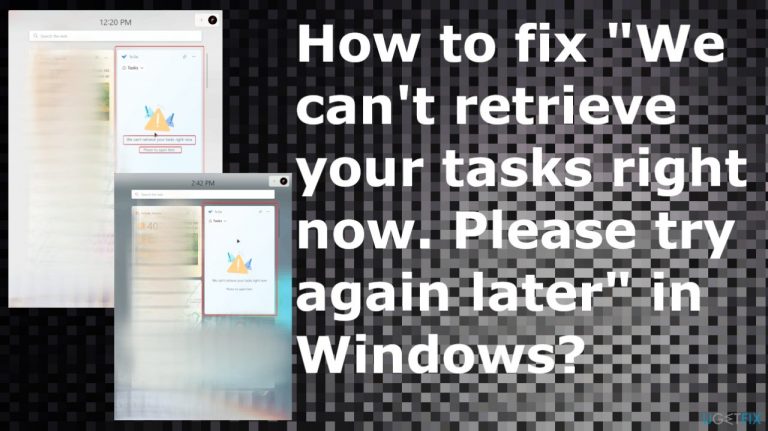
What causes How to fix “We can’t retrieve your tasks right now. Please try again later” in Windows?
- Incomplete file release
- Installation issues
- Missing OS files
- Damaged OS files
- Malware leftovers
Repairs Windows system files, removes malware, and restores a clean OS state — without reinstalling.
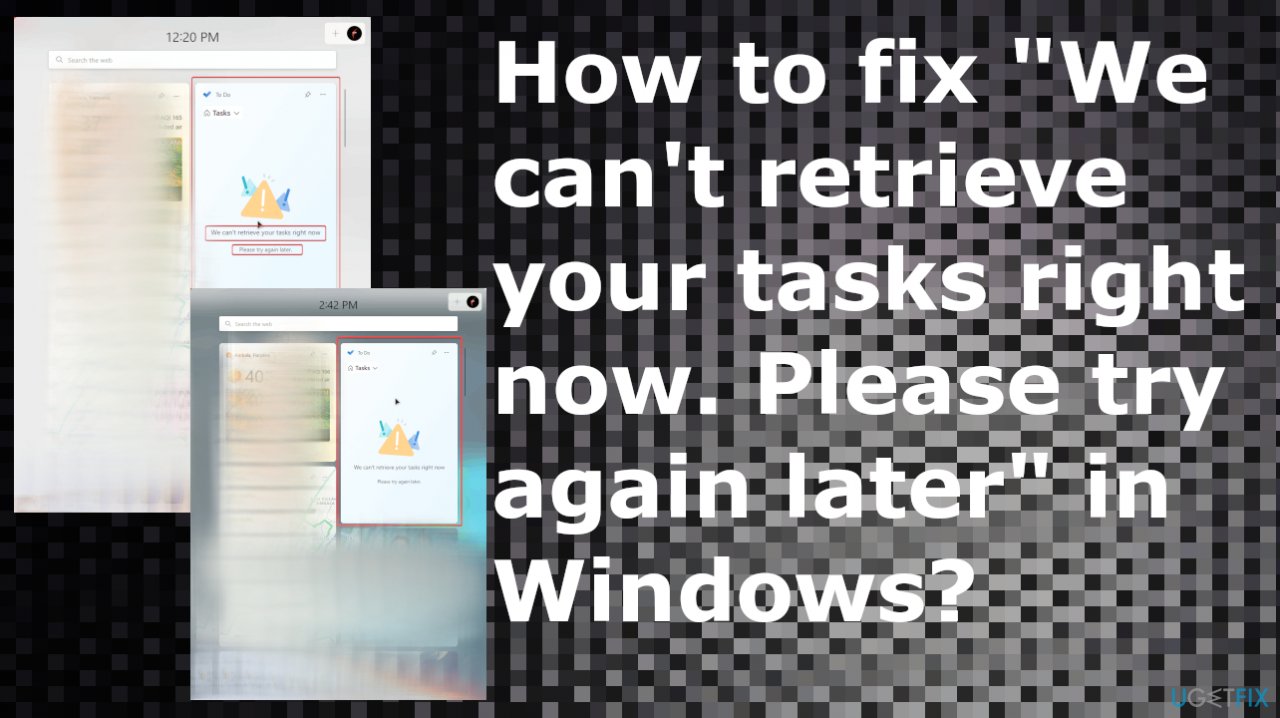
Hello. The computer works normally, but there is an issue with the Widgets. I see the "We can't retrieve your tasks right now." message and I cannot understand why. Can you help me fix this?
"We can't retrieve your tasks right now. Please try again later" in Windows is the issue reported by users[ref en-1] that continuously run into this issue. It is not causing other problems just the inactive task list and the error message. It mainly appears on the newer Windows 11 systems.
These Windows 11 issues[ref en-2] are caused by the incomplete file release or installation issues that can occur due to missing, damaged files of the OS. You might want to solve the general issues with these missing files or failed installations. The System File checker can do that for you automatically.
Also, if there are any issues with the system files and even malware[ref en-3] leftovers that lead to these problems with common functions, you can solve them using the repair tools like [d1]. This is the way to solve "We can't retrieve your tasks right now. Please try again later" in Windows or other issues related to affected parts of the system.
You might want to check possible solutions because there are no fixes for the problem and the error that could be backed by Microsoft or Windows support experts. It is believed that these bugs can go away or might be addressed later on. There are issues with the latest OS versions, and it is common to experience common function issues. It is not critical and has no particular solutions at this time, unfortunately.
The issue seems to be reoccurring, so it is possible that an update is needed for the operating system or maybe some fix that is going to be released going to solve the issue. You might want to disconnect the account and connect again on Windows. This should not affect your lists and saved tasks, but might fix "We can't retrieve your tasks right now. Please try again later" in Windows.
1. Re-connecting
- Navigate to Settings.
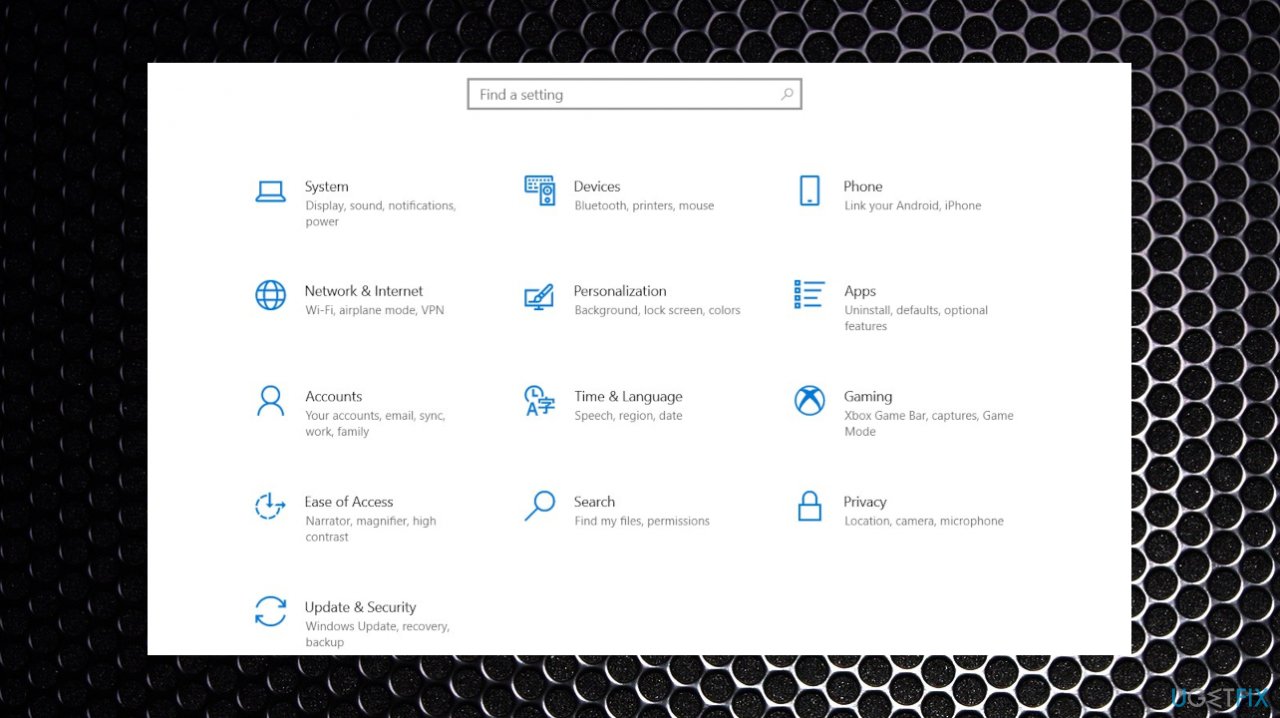
Tasks wont open not listed windows settings - Choose Accounts.
- Access work or school.
- Select your account.
- Then select Disconnect.
- Choose Yes, then Disconnect.
- Select Connect.
- Open To Do and try to sign in.
2. Check for OS updates
- Press Win + I together to open Windows Settings.
- Scroll down and select Windows Update.
- Now click on Check for updates and the Windows will start checking for updates in your PC.
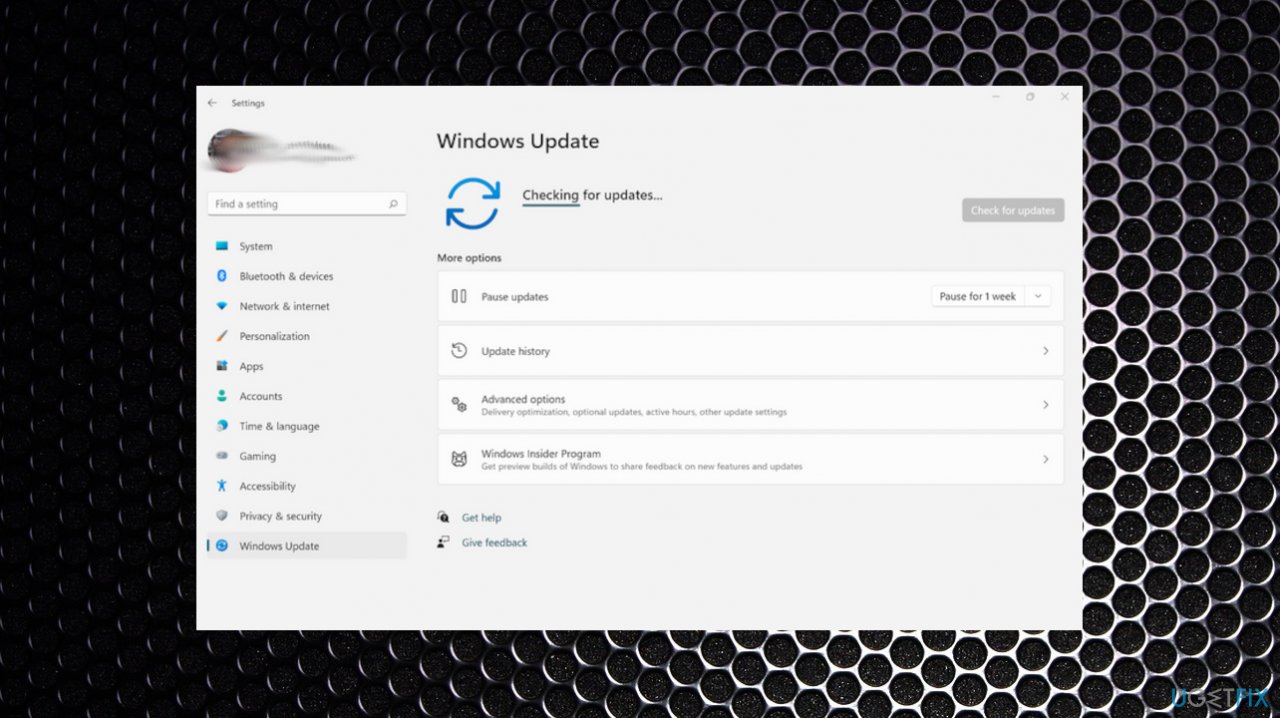
Tasks wont open not listed windows update - Download and install if you see any available.
3. Run the SFC scan
- Click on the Search icon and enter cmd in the Search field.
- Right-click on Command Prompt and select Run as administrator.
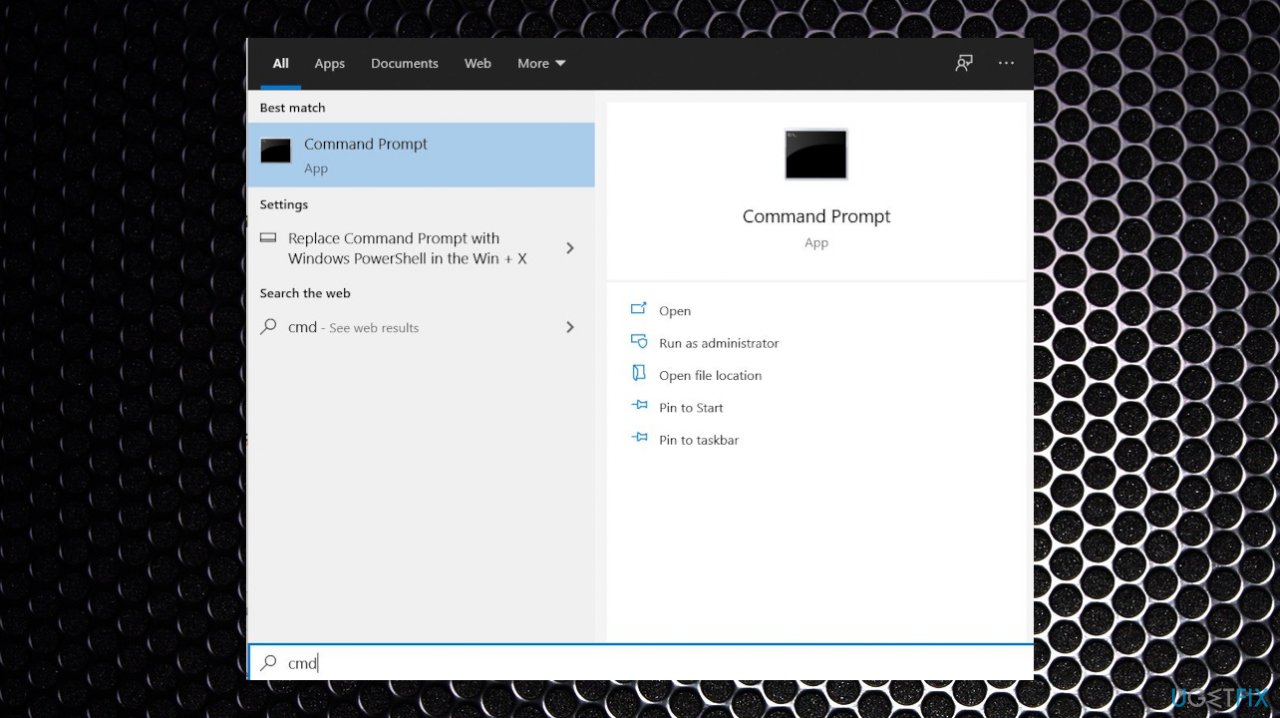
Tasks wont open not listed windows cmd - Then, run the sfc /scannow command. Wait until the SFC tool scans your system.
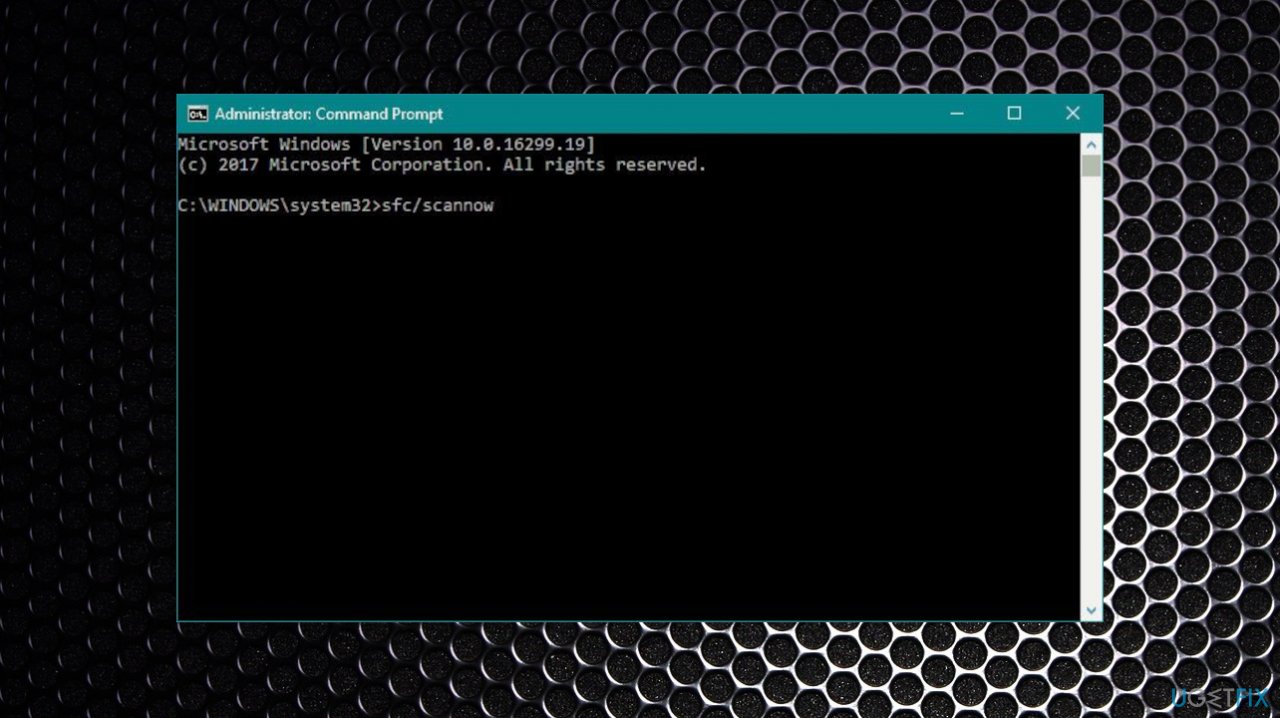
Tasks wont open not listed windows sfc
Bottom line
To address the issue of "We can't retrieve your tasks right now," you can use the System File Checker to repair missing or damaged files. Additionally, disconnecting and reconnecting your account may help resolve the problem. If these solutions do not work, it is recommended to wait for a potential update from Microsoft.
Frequently asked questions
You can try restarting the Windows Task Scheduler service or checking your internet connection to resolve the issue.
Ensure that your Microsoft account is properly synced and consider resetting the Mail and Calendar apps to refresh their settings.
You can run the Windows Troubleshooter for apps and check for system updates to ensure all components are functioning correctly.




Report an issue
What's wrong with this guide? We review every report and update or remove content.
Report received — thank you. We'll review and fix it.
You need a free account to submit a report.
Be the first to comment