How to fix
“We can’t tell if your PC has enough space to continue installing Windows 11”
on Windows
Resolve the "We can't tell if your PC has enough space" error on Windows 11 swiftly and effectively. Expert-tested solutions await!

What causes How to fix “We can’t tell if your PC has enough space to continue installing Windows 11”?
- Hard drive is full
- Not enough free space available
- Too many programs running in the background
- System resources are being used up
- Corrupted files or registry issues
Repairs Windows system files, removes malware, and restores a clean OS state — without reinstalling.
Hello. I tried to update my Windows 11 computer but I received the "We can't tell if your PC has enough space to continue installing Windows 11" error. Is there any way to fix this issue?
The "We can't tell if your PC has enough space to continue installing Windows 11" error message usually appears when a user tries to update their Windows 11 operating system, and the system does not have enough free space to complete the installation.
This error can occur for a number of reasons. One possible reason is that the user's hard drive is full, and there is not enough space available to complete the installation. Another reason could be that the user has too many programs running in the background, which is using up a lot of the system's resources and preventing the installation from completing.
The error may be simply resolved by deleting unnecessary files or uninstalling unnecessary programs. If these steps do not resolve the issue, and you do not have any external storage device where you could transfer your files, we suggest you try out the 8 steps in our guide.
Keep in mind that the manual troubleshooting process can be lengthy. You can use a maintenance tool like [d1] which can fix most system errors, BSODs,[ref en-1] corrupted files, registry[ref en-2] issues, or clear cookies and cache.[ref en-3] Otherwise, follow the step-by-step instructions below.
Solution 1. Check Disk
- Press the Windows key + R to launch the Run dialog
- Type cmd, and press the Ctrl + Shift + Enter keys together to open the elevated Command Prompt
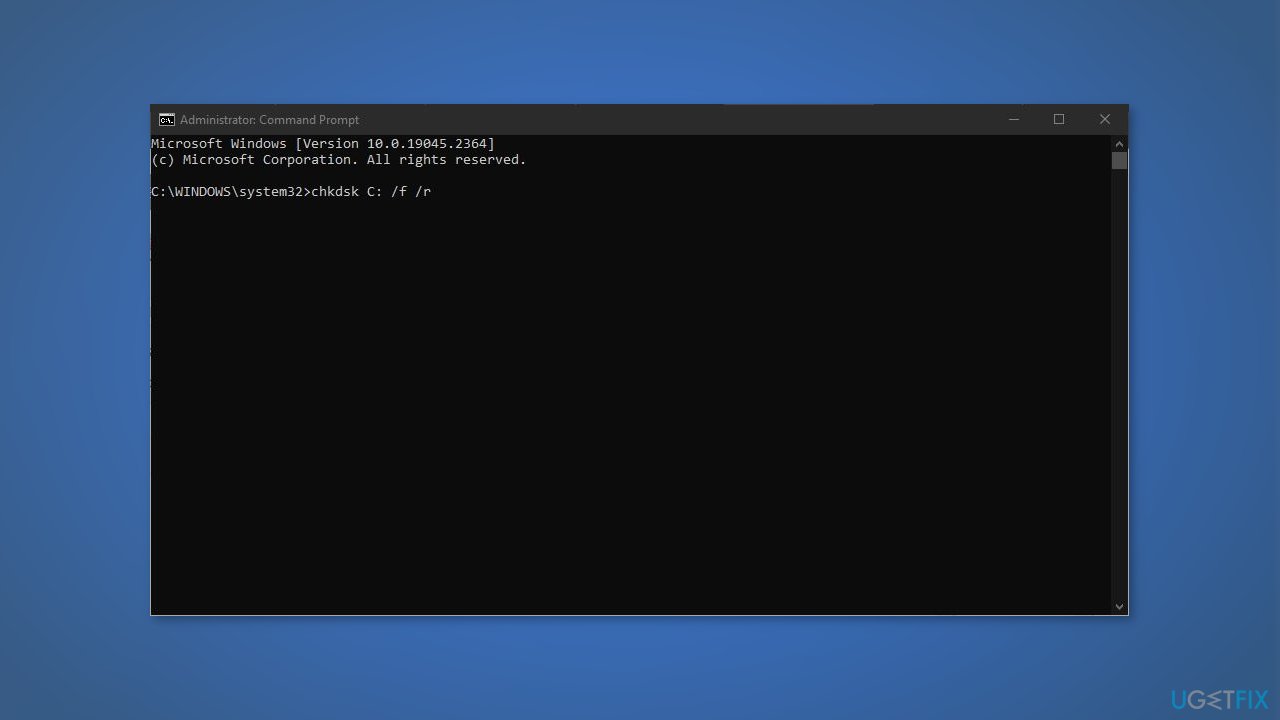
- Run the below command and hit Enter:
chkdsk C: /f /r
- Wait for the process to finish
Solution 2. Re-download the ISO
- Visit the Microsoft Software Download page to download the Windows 11 ISO
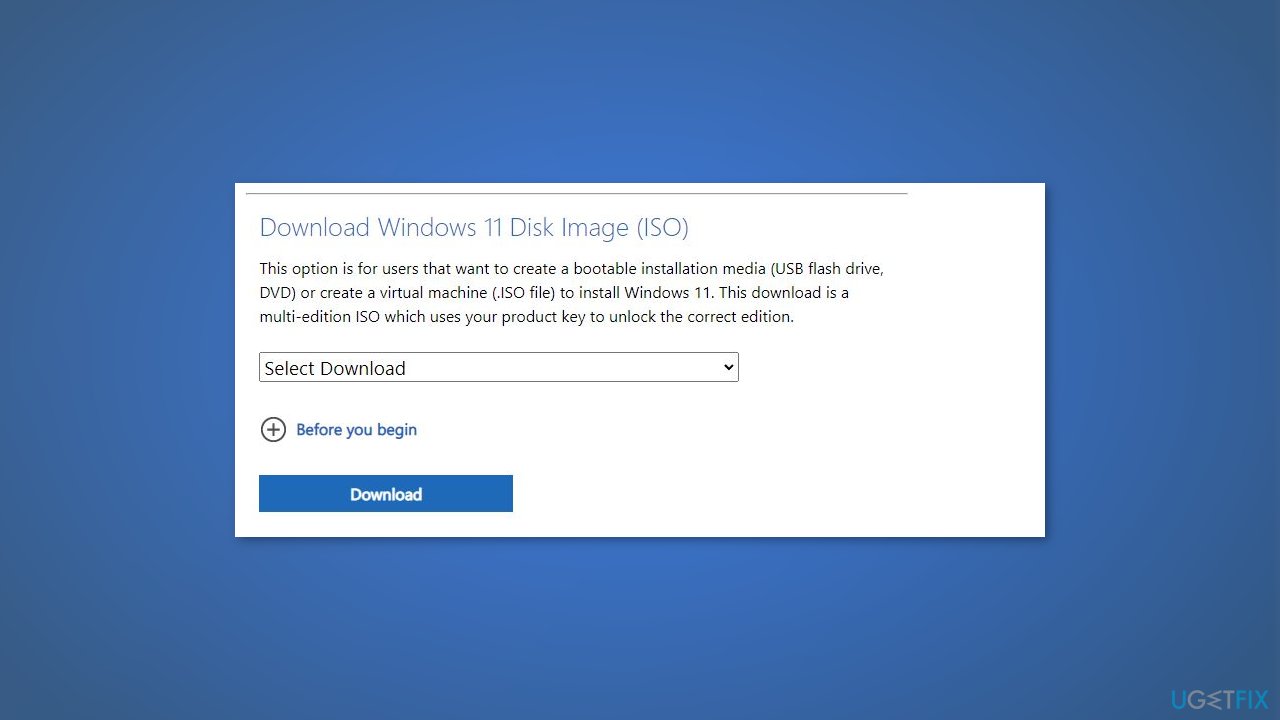
- Once you have confirmed the product language, make sure to Verify your download
- Follow the on-screen instructions
Solution 3. Delete the Windows.old Folder
- Press the Windows key + R to launch the Run dialog
- Type cleanmgr, and press Ctrl + Shift + Enter together to open the elevated Disk Cleanup window
- Select drive C: and press O
- Go to Files to delete, select the Previous Windows installation option from the list, and press OK
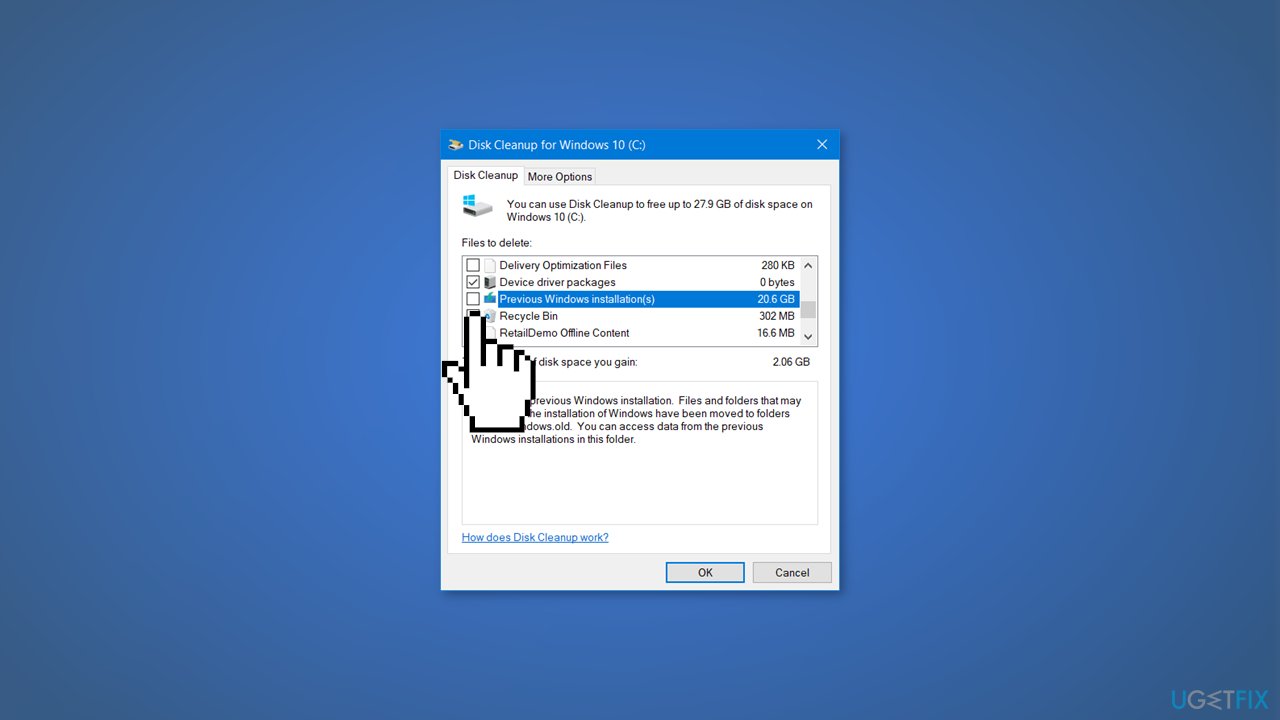
Solution 4. Transfer Free Space to C Drive
- Press the Windows key + R to launch the Run dialog
- Type diskmgmt.msc and hit Enter to open the Disk Management window
- Right-click on the D drive (D:) and select Extend Volume
Note: Extend Volume only works on NTFS and RAW partitions, and not for FAT32 and other file systems.
- In the Extend Volume Wizard, press Next to proceed
- Now, go to Select the amount of space in MB, and enter how much space you want to allocate to the C drive
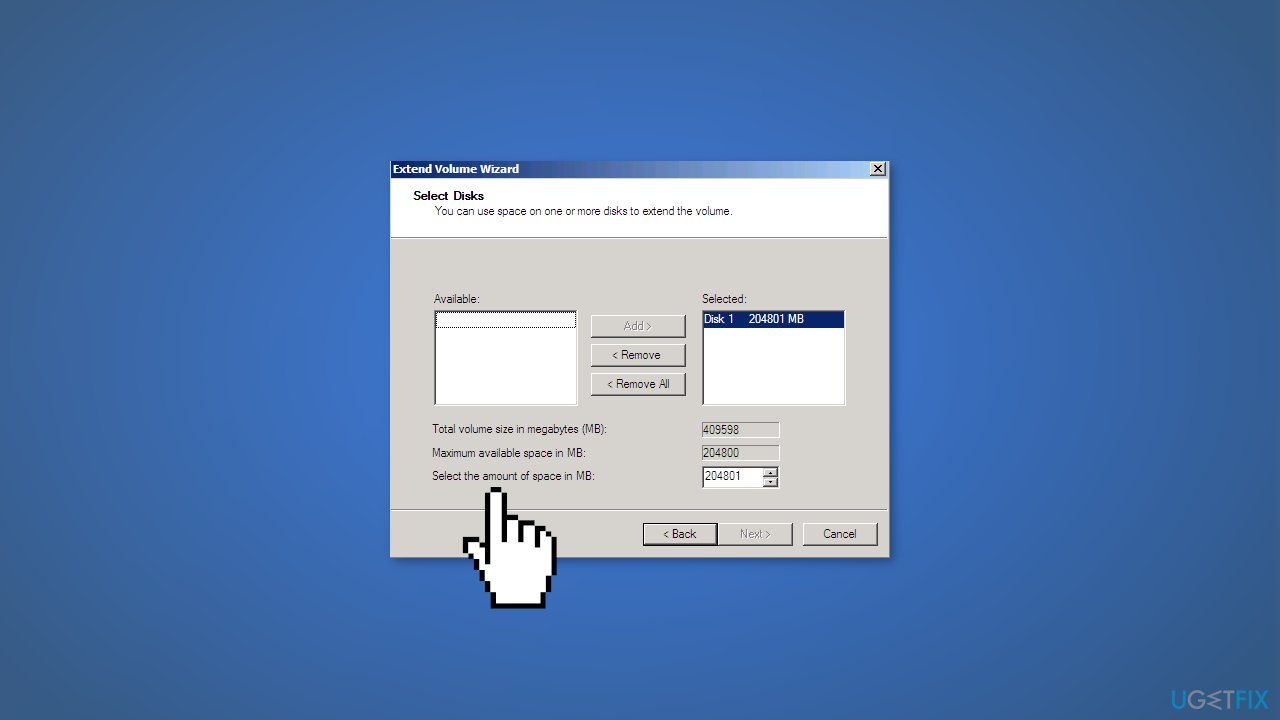
- Press Next
- On the confirmation screen, click Finish
Solution 5. Extend Volume
- Press the Windows key + R to launch the Run dialog
- Type diskmgmt.msc, and hit Enter to open Disk Management
- Right-click on the C drive (C:) and select Extend Volume
- Next, in the Extend Volume Wizard, press Next
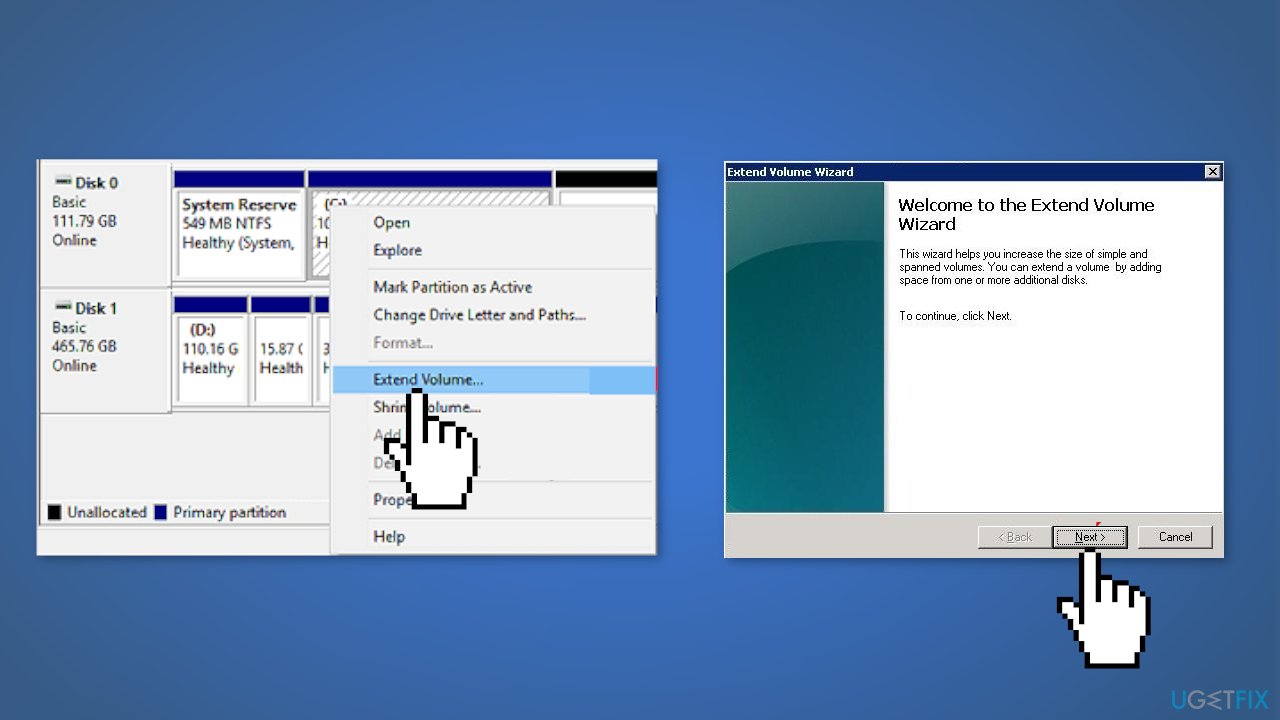
- In the next window, add more space to your C drive and press Next
- Press Finish
Solution 6. Increase C Drive Space
- Press the Windows key + R to launch the Run dialog
- Type diskmgmt.msc in the search box, and hit Enter
- Right-click the partition next to the C drive, (which is the D drive by default), and click on Shrink Volume
- Input the amount of space that you want to shrink, and press Shrink
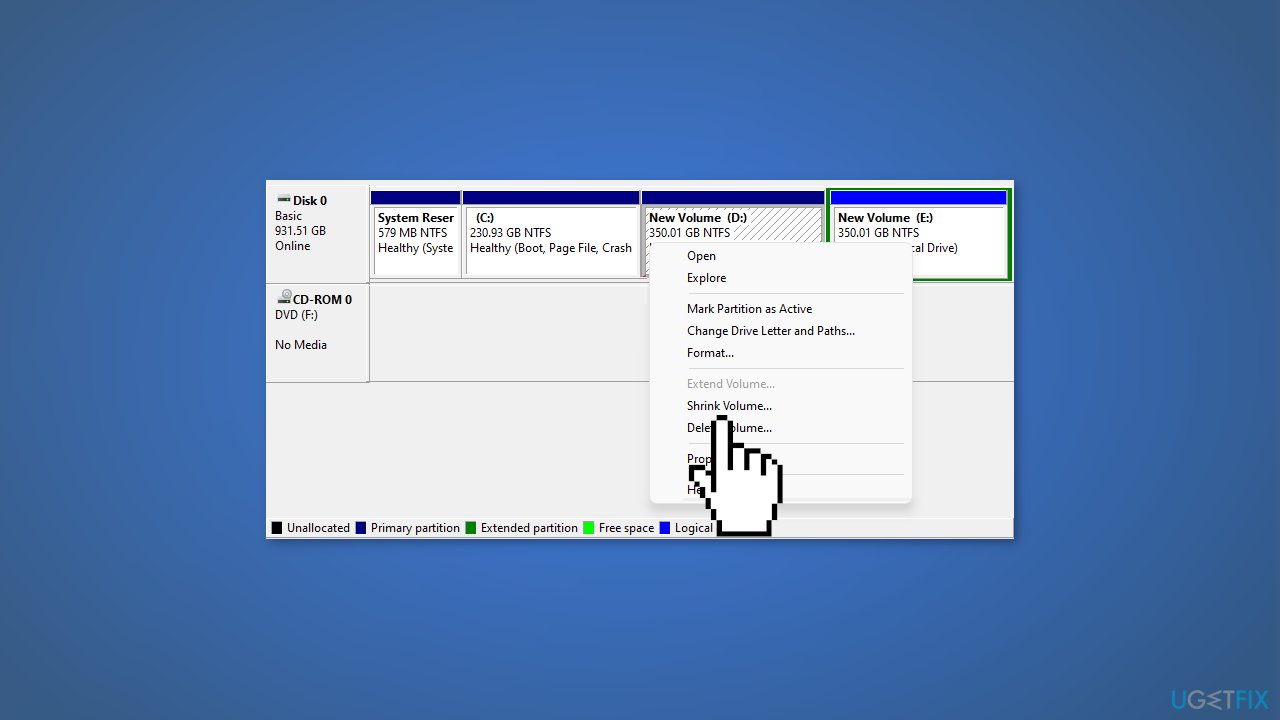
- Right-click on the C drive and select Extend Volume
- Follow the on-screen instructions to add more space to the system C drive
Solution 7. Merge C Drive with D Drive
- Press the Windows key + R to launch the Run dialog
- Type diskmgmt.msc, and hit Enter to open Disk Management
- Right-click on D drive and then click on Delete Volume
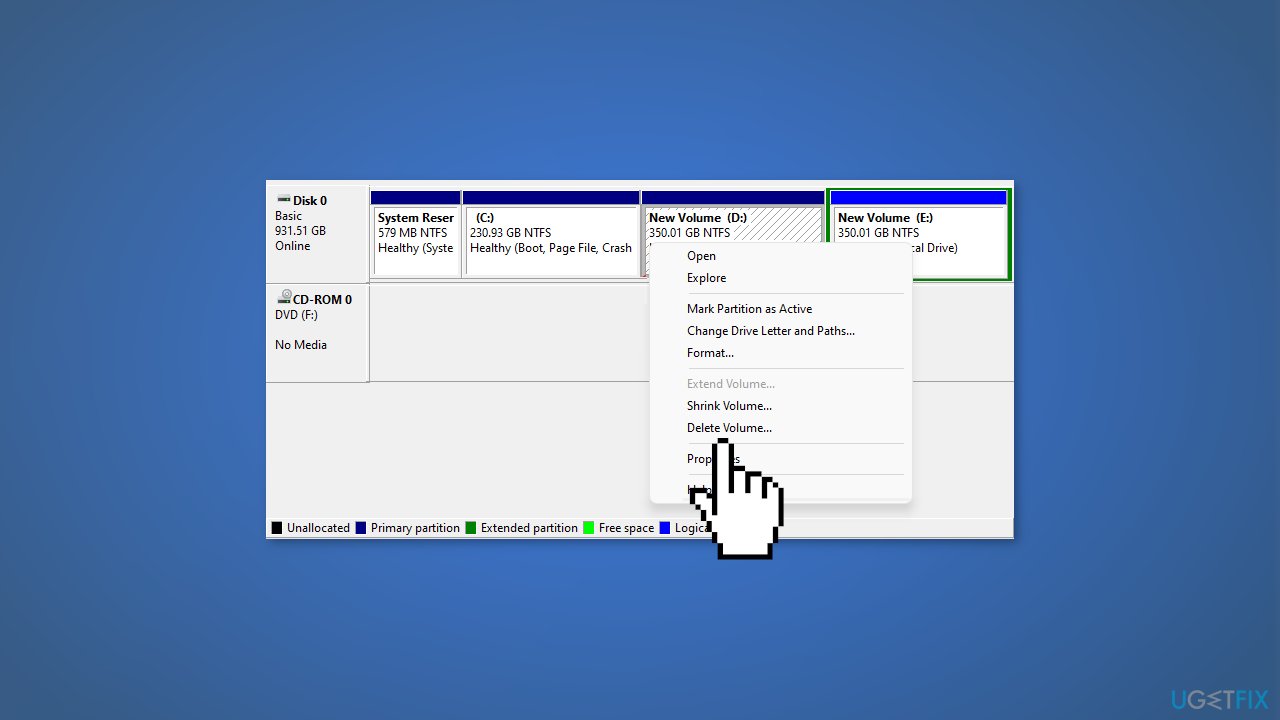
- Once deleted, the D drive will now show as an unallocated volume
- Right-click on the C drive and select Extend Volume
- This will extend your C drive with the unallocated space, and you will find that the original D drive has been merged with the C drive
Solution 8. Try Clean Boot
- Open the Search menu, type in system configuration, and press Enter
- Under the Services tab, tick the Hide all Microsoft services box
- Click on Disable all button
- Head over to the Startup tab and click on Open Task Manager
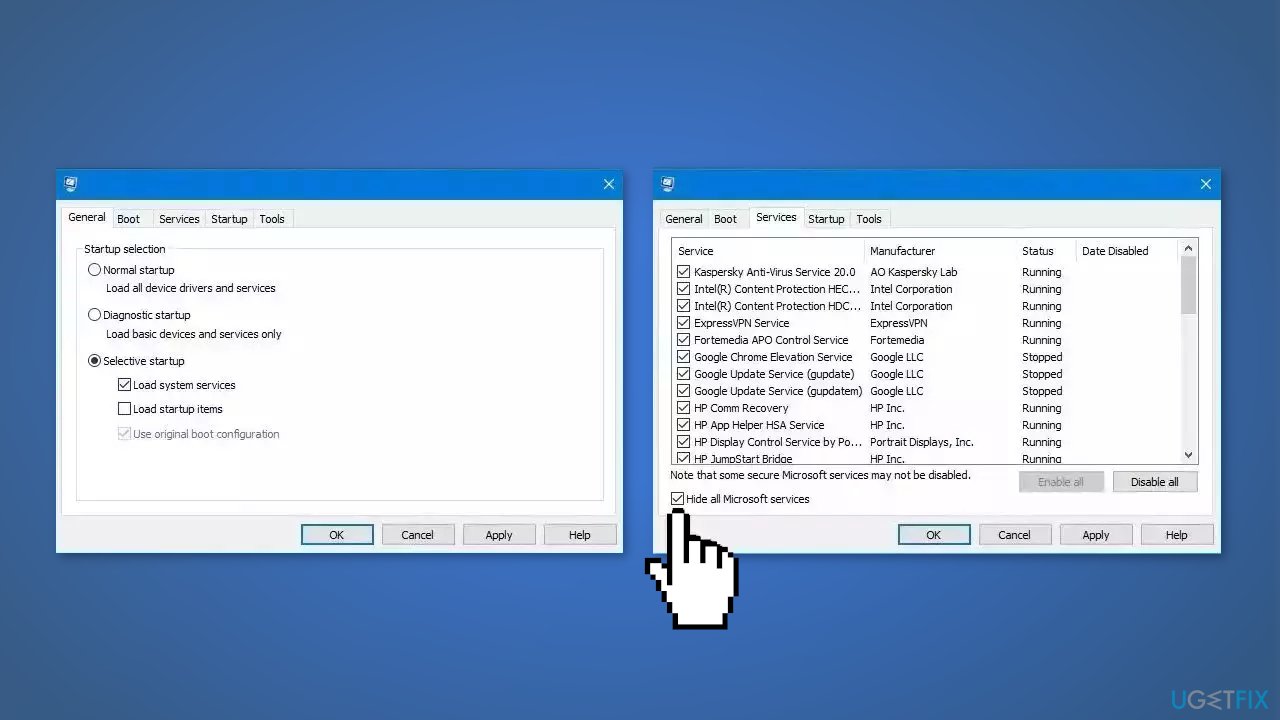
- Select a third-party program and click on Disable at the top
- Repeat this step to disable all third-party apps and programs
- Restart your PC to enter the clean boot state and see if the issue persists
- If Windows functions normally in the clean boot state, then you can be certain that a third-party app is causing the issues
- Go through all recently installed apps or programs and remove them one by one
Bottom line
To fix the error, you can check the disk for errors, re-download the Windows 11 ISO, or delete the Windows.old folder to free up space. If these solutions do not resolve the issue, consider using a maintenance tool or following additional troubleshooting steps.
Frequently asked questions
First, ensure that your PC meets the minimum storage requirements for Windows 11, which is 64 GB of available storage. If you have enough space but still see the error, try clearing temporary files and unnecessary applications to free up space.
You can check available storage by going to Settings > System > Storage, where you'll see a breakdown of how much space is used and how much is free on your drives.
Consider using the Disk Cleanup tool to remove temporary files, uninstalling unused applications, and moving large files to an external drive or cloud storage to create sufficient space.




Report an issue
What's wrong with this guide? We review every report and update or remove content.
Report received — thank you. We'll review and fix it.
You need a free account to submit a report.
Be the first to comment