How to fix
“We couldn’t download one or more of the attachments” in Outlook
on Windows
Resolve the "We couldn't download one or more of the attachments" error in Outlook on Windows 10 or Windows 11 effortlessly. Expert-tested solutions await!

What causes How to fix “We couldn’t download one or more of the attachments” in Outlook?
- Network problems
- Server-side restrictions
- File corruption
- Configuration issues
- Current state of the software
Repairs Windows system files, removes malware, and restores a clean OS state — without reinstalling.
I can't download any attachments on Outlook. The error says "We couldn't download one or more of the attachments." I am using Outlook web app. Please help urgently.
Email communication in both personal and business contexts can be greatly facilitated by the widely used Microsoft Outlook app. Users may effectively send, receive, and manage emails with its help.
Sharing documents, images, and other essential data becomes easy using Outlook's file attachment function. This feature is essential to Outlook since it makes everyday tasks easier for users and promotes efficient communication.
On the other hand, downloading attachments may present issues for certain Outlook users. Naturally, this can seriously impede workflow and cause major inconvenience when the error notice "We couldn't download one or more of the attachments" appears in both the standalone Outlook application and Outlook via the web browser.
There are several potential causes for this error, including network problems, server-side restrictions, or file corruption. Alternatively, the problem could be related to the configuration or current state of the user's software and system. If you encounter the "We couldn't download one or more of the attachments" error, there are a few general steps you might consider to address the issue.
First, ensure that your browser or Outlook app is up to date by installing the latest Windows updates. You may also need to clear your browser's cache to remove any stored data that could be causing conflicts. Temporarily disabling any active security software or VPNs might also help, as these can interfere with the downloading process.
Additionally, repairing or resetting the Outlook application, starting Outlook in safe mode, or switching between the web app and the standalone app might help you fix the "We couldn't download one or more of the attachments" error.
For those who prefer a more straightforward solution, consider using a reputable repair and maintenance utility [d1]. Such tools can automatically diagnose and fix underlying Windows issues that might be affecting Outlook's functionality.
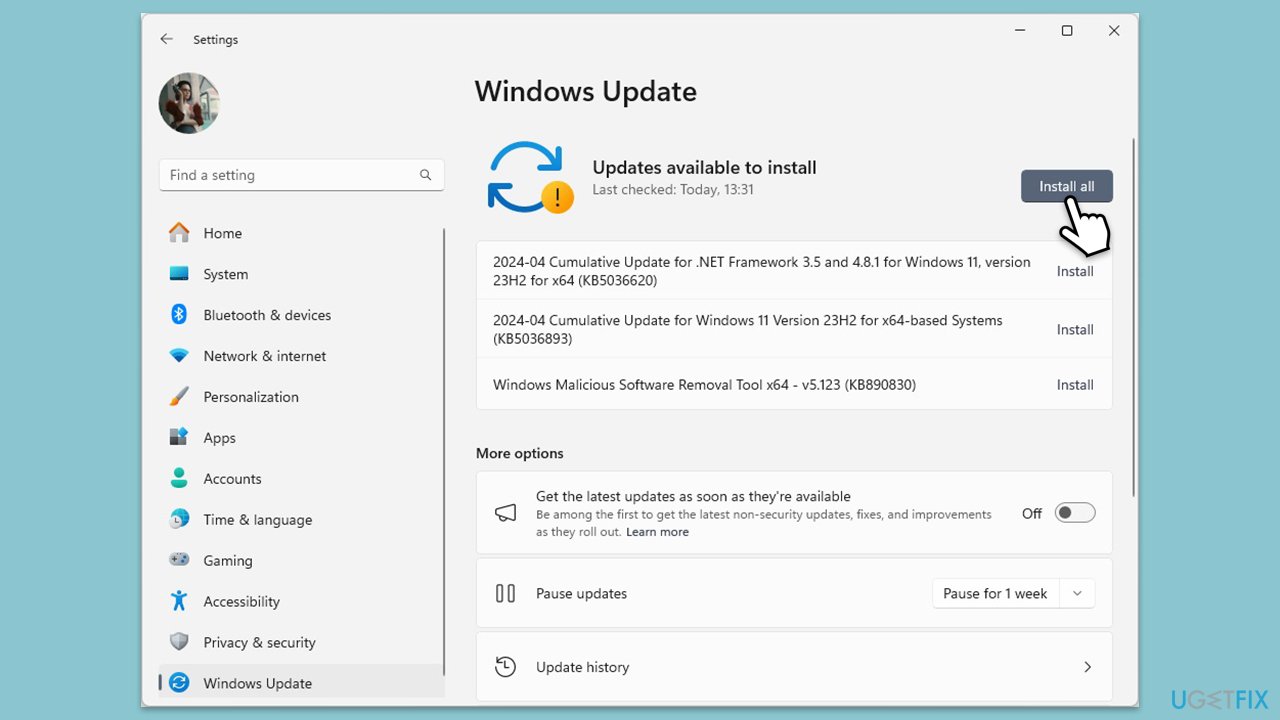
Fix 1. Install all Windows updates
Regular updates to your Windows operating system can ensure compatibility and efficiency, potentially resolving issues with Outlook attachments.
- Type Updates in Windows search and hit Enter.
- If updates are available, click Install updates.
- Otherwise, click Check for updates.
- If optional updates are available, install them as well.
- When all the update processes are complete, restart your device.
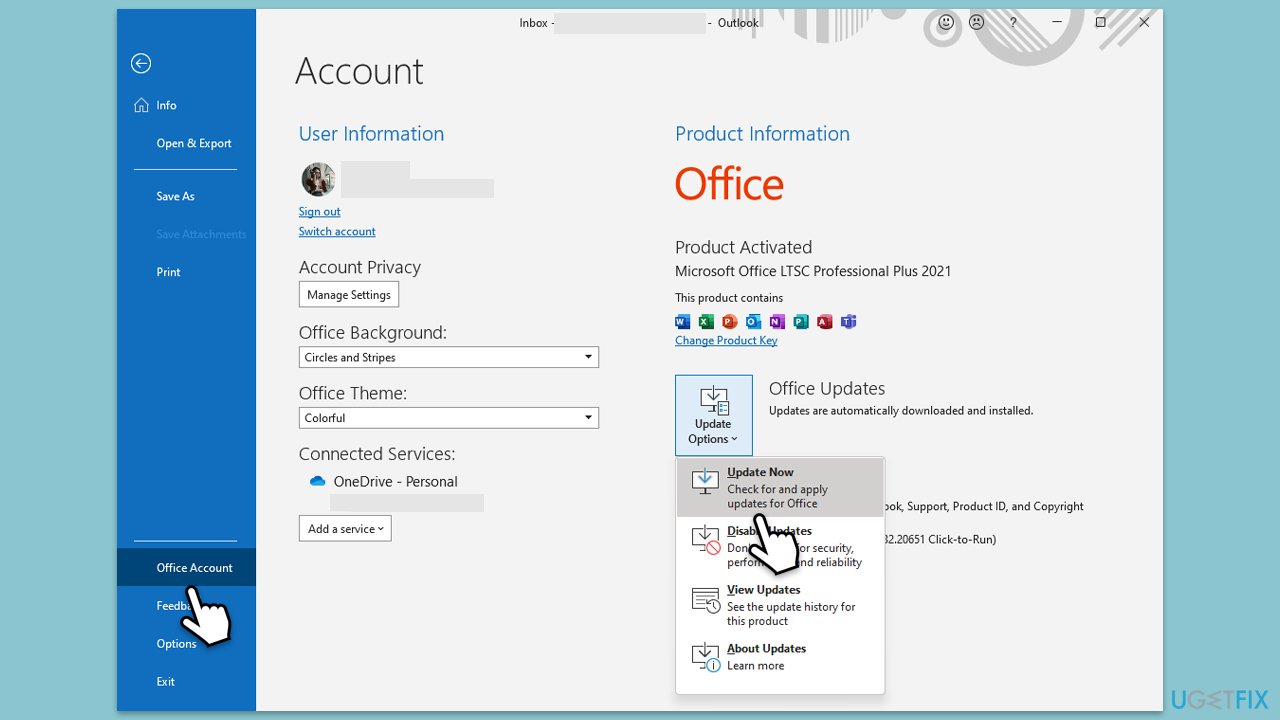
Fix 2. Update Outlook
Keeping Outlook updated is essential for accessing new features and security patches that may address existing bugs affecting attachments.
- Open Outlook.
- Go to File and then pick Office account on the left.
- On the right side, select Update options.
- Select Update now from the dropdown menu.
- Wait till all the updates are installed and reboot your device.
Fix 3. Clear browser cache and cookies
Removing stored cache and cookies can help eliminate corrupt data and restore functionality to Outlook when accessed via a web browser.
Google Chrome
- Open Chrome.
- Click on Menu and select Settings.
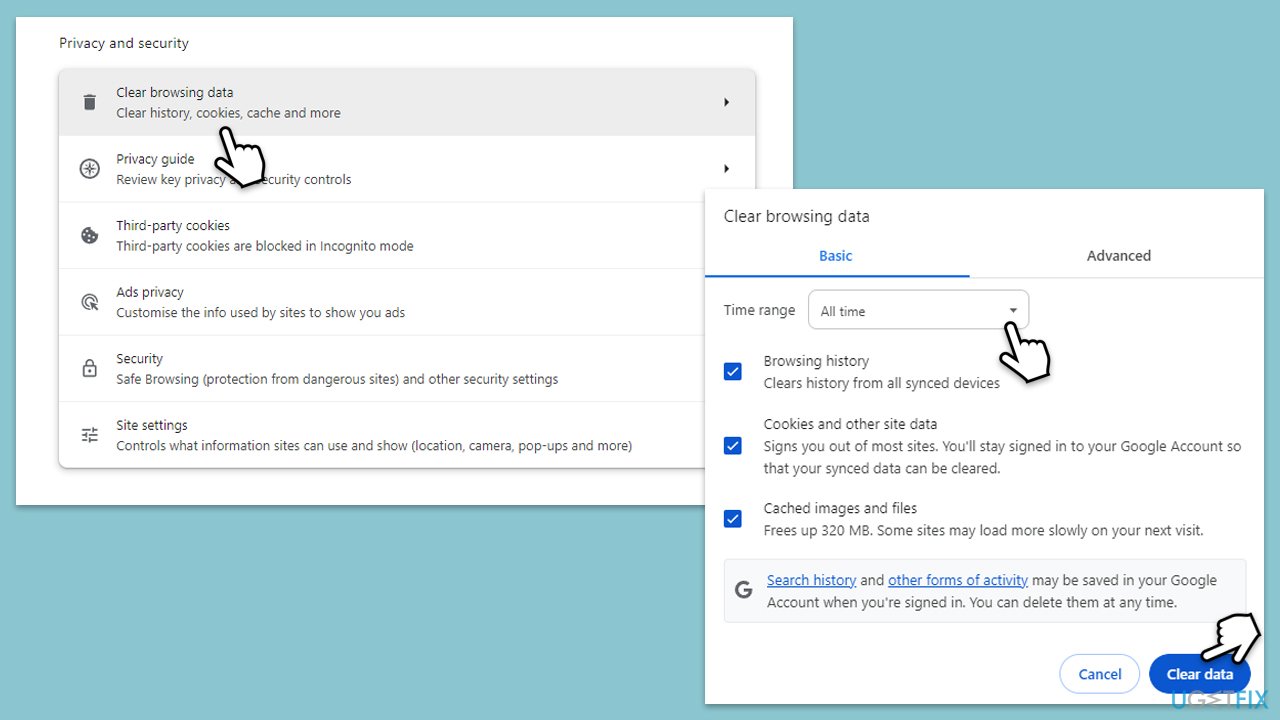
- Under Privacy and security, pick Clear browsing data.
- Select All time under the time range.
- Select Browsing history, Cookies and other site data, as well as Cached images and files.
- Click Clear data.
Microsoft Edge
- Open Edge and click on three horizontal dots (Settings and more).
- Select Settings and then pick Privacy, search, and services on the left.
- On the right side of the window, scroll down to find the Clear browsing data section.
- Click Choose what to clear.
- Select All time under the time range.
- Pick all the sections and click Clear now.
Fix 4. Temporarily disable third-party security or VPN software
Security enhancements like antivirus and VPNs might conflict with Outlook's operations; disabling them can help identify the culprit. Occasionally, turning on a VPN might resolve issues due to server location differences.
- Disable your antivirus or firewall from its main menu.
- If using a VPN, disconnect it.
- Test downloading attachments in Outlook.
- Optionally, try enabling the VPN to check if it resolves the issue.
Fix 5. Start Outlook in safe mode
If Outlook runs smoothly in safe mode, it suggests add-ins may be at fault. Disabling them might restore normal functionality.
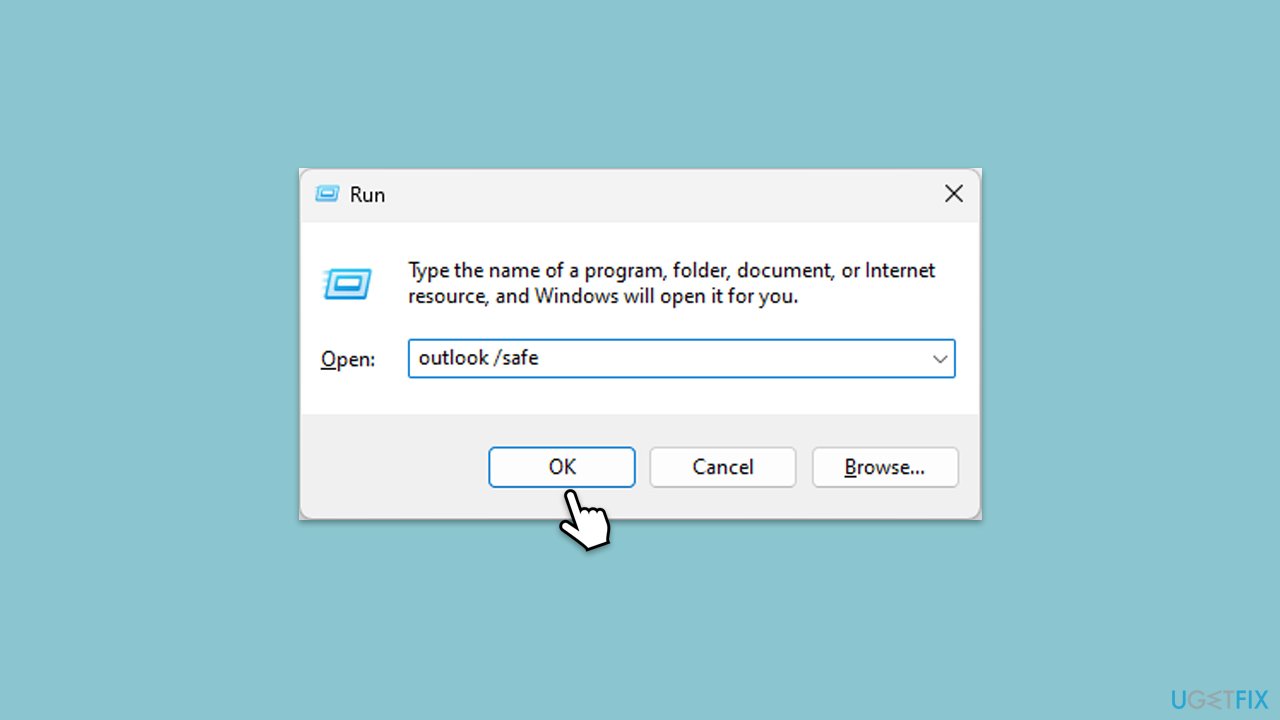
- Press Win + R to summon the Run dialog.
- Type outlook /safe and hit Enter.
- If Outlook launches, add-ins may be causing the issue.
- Deactivate them by navigating to File > Options > Add-ins, selecting COM Add-ins, and clicking Go. Disable all add-ins and restart Outlook normally to see if the problem is resolved.
Fix 6. Try Outlook app or Outlook web app
Alternating between the desktop and web versions of Outlook can circumvent specific glitches confined to one platform.
- If using the app, try logging in via the web browser at outlook.com.
- Conversely, if using the web, try the desktop Outlook app.
Fix 7. Repair or reset Outlook
A reset or repair of Outlook can revert any problematic changes and restore stability to the application.
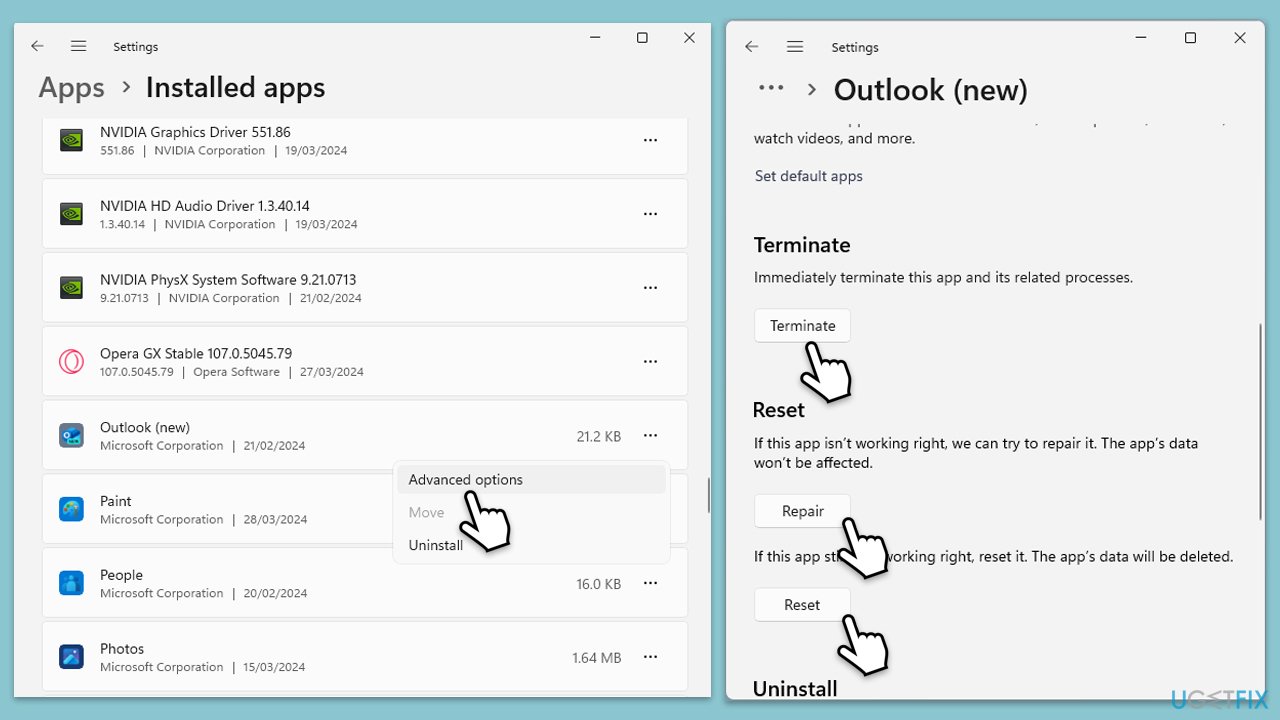
- Right-click on Start and select Apps & Features/Installed apps.
- Scroll down to find Outlook on the list and click Advanced options.
- Scroll down again and click Terminate and Repair.
- If that does not work, try using Reset.
- Start Outlook and see if the issue is fixed.
Fix 8. Enable attachment preview [workaround]
Activating the preview feature lets you view attachments directly within Outlook without full download, offering a stopgap solution when downloads fail.
- Open Outlook.
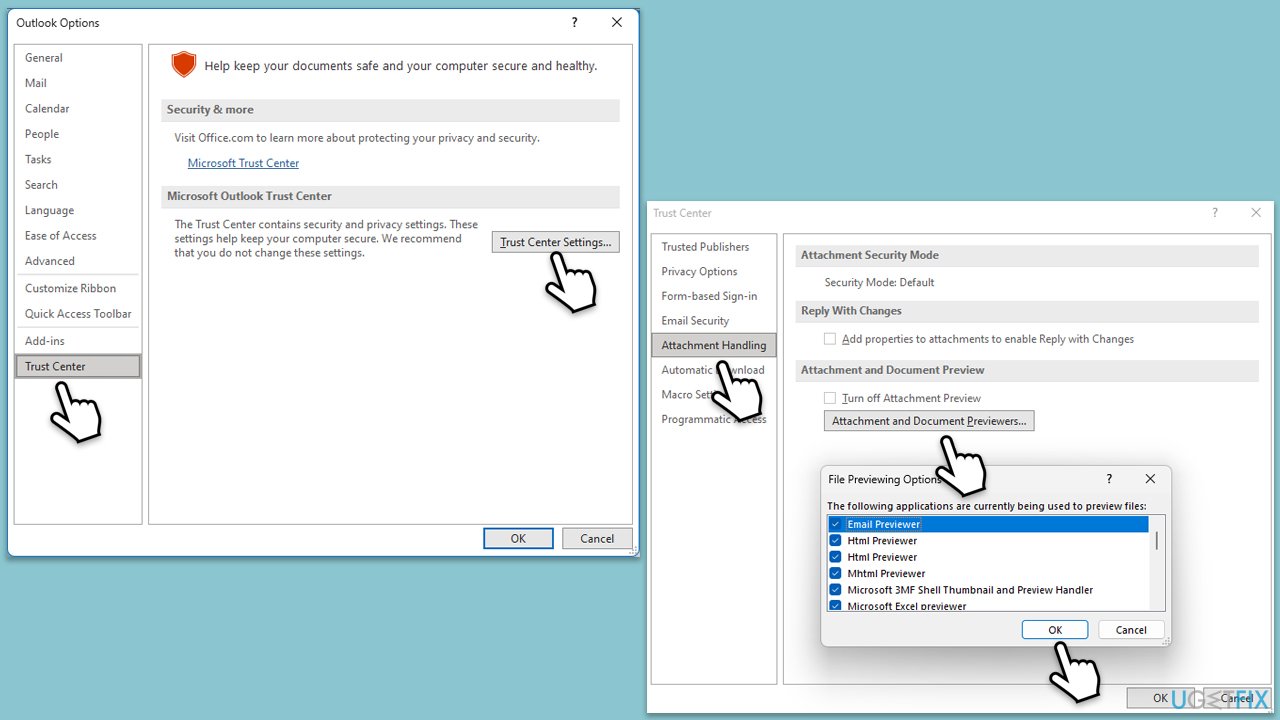
- Click on File and go to Options.
- Select Trust Center and then click Trust Center Settings.
- Go to Attachment Handling.
- Here, enable Attachment Preview.
Bottom line
To fix the error, ensure your browser or Outlook app is up to date, clear your browser's cache, and temporarily disable any active security software or VPNs. Additionally, consider repairing or resetting the Outlook application, starting it in safe mode, or switching between the web app and standalone app. If none of these solutions work, using a reputable repair and maintenance utility may help diagnose and fix underlying Windows issues.
Frequently asked questions
Try checking your internet connection and ensure that Outlook is updated to the latest version. Additionally, clearing the Outlook cache may resolve the issue.
Yes, disabling unnecessary add-ins can help troubleshoot and potentially fix the attachment download error in Outlook on Windows 11.
You can reset Outlook settings by navigating to 'File' > 'Options' > 'Advanced', and then clicking on 'Reset' under the 'General' section if available.




Report an issue
What's wrong with this guide? We review every report and update or remove content.
Report received — thank you. We'll review and fix it.
You need a free account to submit a report.
Be the first to comment