How to fix
“We couldn’t set your default save location” error
on Windows
Resolve the “We couldn’t set your default save location” error in Windows 10 and 11 effortlessly. Expert-tested methods ensure a smooth fix in minutes.

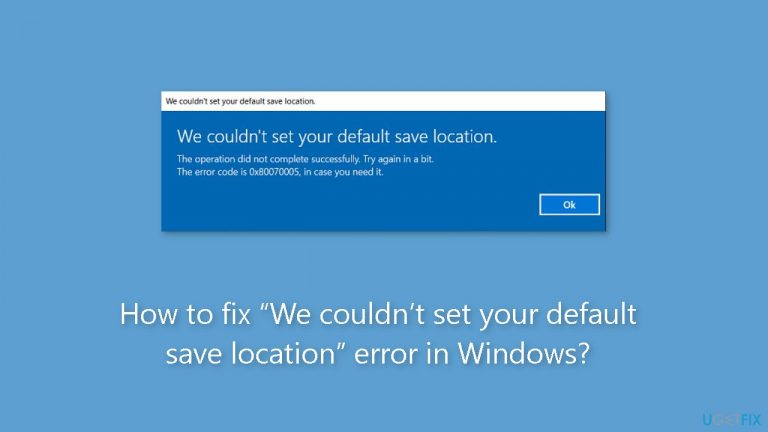
What causes How to fix “We couldn’t set your default save location” error in Windows?
- User account lacks administrator privileges
- Hidden file settings are not configured properly
- File and folder permissions are not set correctly
- Directories may be incorrectly named
Repairs Windows system files, removes malware, and restores a clean OS state — without reinstalling.
Hello. Is there a way to fix the “We couldn’t set your default save location” error in Windows so I could change where new apps are saved? Any tips would be appreciated.
Users who try to change the default save location for freshly installed apps sometimes get the frustrating error notice in Windows with the codes 0x80070005 or 0x80070539. When users try to instruct these apps to save data on different external drives via the Windows Settings interface, a problem arises. The problem is shown by the message "We couldn't set your default save location." Although the codes differ, the fundamental problem still exists, making it difficult for users to successfully change where programs store their data.
This discomfort may significantly hinder users' ability to effectively manage and personalize their system storage. Users' inability to select different external drives as their preferred save places is a major source of annoyance. This may result in undesirable storage allocation, a lack of capacity on the system disk by default, or the inability to organize data as required. Users may also wish apps to save data on designated external drives for a variety of reasons, such as preserving disk space, strengthening data security, or improving performance.
Resolving this problem becomes essential for regaining the adaptability and functionality people have come to expect from Windows computers. To get around the problem codes, you could modify hidden file settings, change file and folder permissions, or rename directories. It's crucial to remember that these methods can change depending on the precise Windows version, system setup, and problem kind.
In this guide, you will find 4 steps that should help you fix “We couldn’t set your default save location” error. You can also run a maintenance tool like [d1] that can fix most system errors, BSODs,[ref en-1] corrupted files, and registry[ref en-2] issues. Otherwise, follow the step-by-step instructions below.
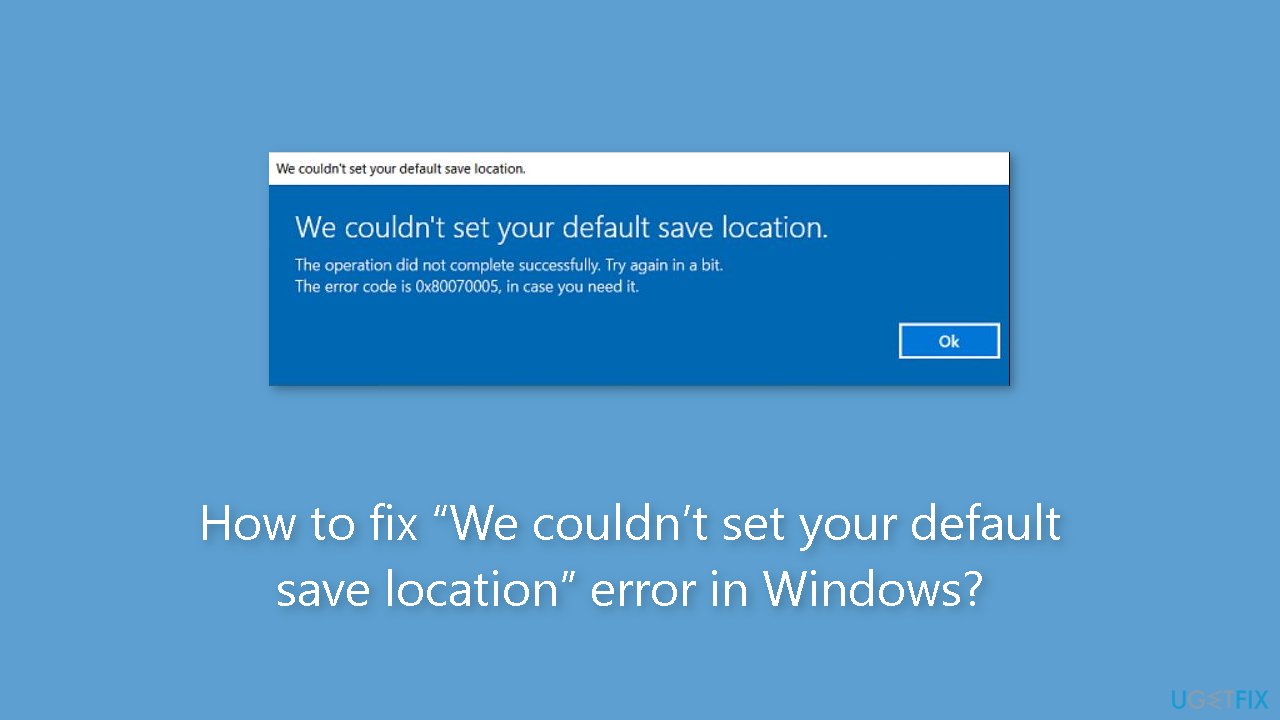
Solution 1. Set Your User Account to Administrator
- Press the Windows key + I to open the Settings panel.
- Go to Accounts > Family & other users.
- Under Other users, choose the account for which you want to modify privileges.
- Click on Change account type.
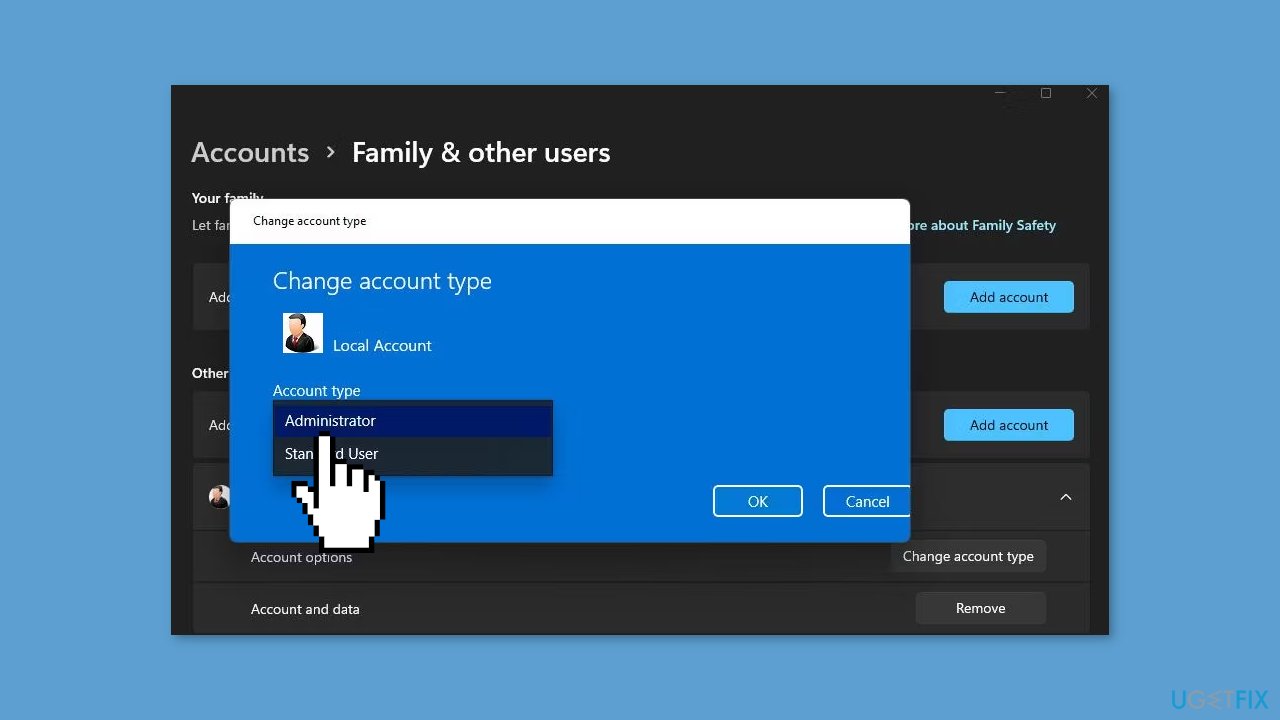
- A popup will appear displaying the current permissions of the selected user account.
- Click on the popup and select Administrator.
- Remember to click OK to apply the changes.
Solution 2. Rename the WindowsApps Directory
- Connect the external hard drive to your PC if you want to set apps to save on it.
- Open File Explorer by clicking on This PC.
- Double-click on the drive or partition where you want apps to be saved by default.
- Right-click on the WindowsApps folder, which should be located in the drive's root directory.
- From the context menu, choose the Rename option.
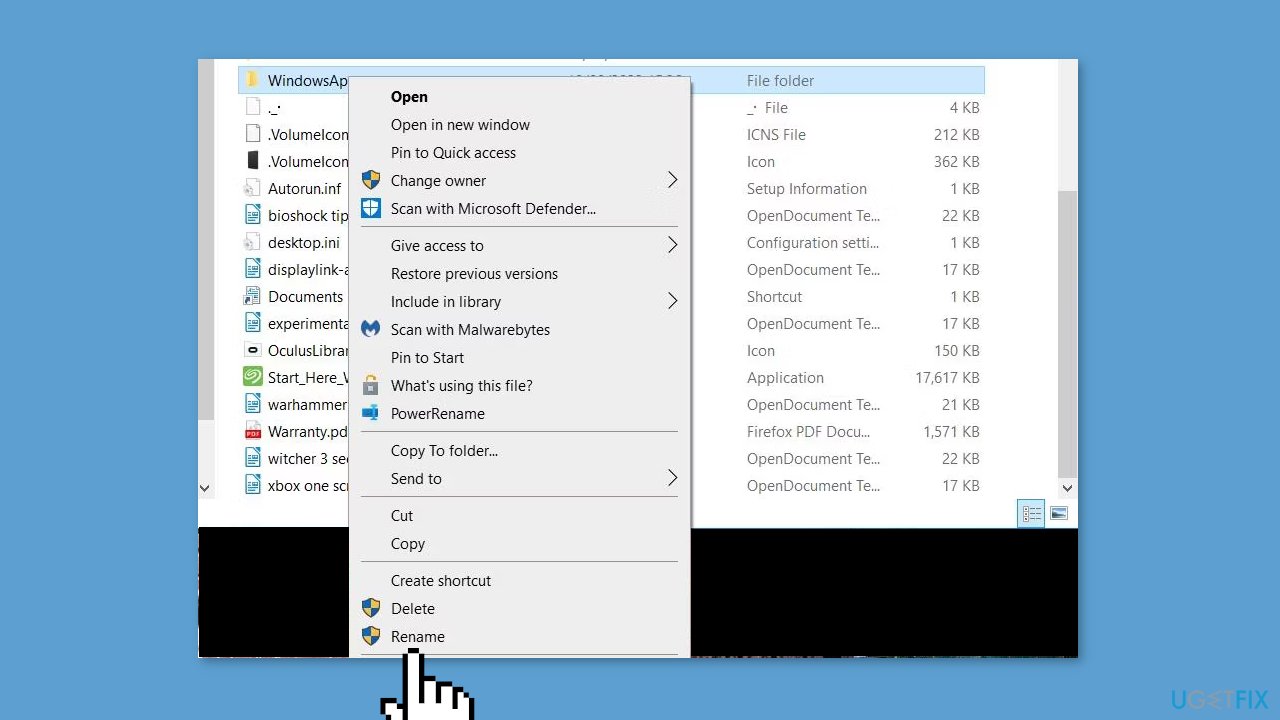
- Rename the folder to WindowsApps.old and press Enter.
- Now, go to Settings and attempt to change the default save location for apps once again.
Solution 3. Delete or Rename the WpSystem Folder
- On the drive where you can't set apps to save, locate the WpSystem folder. It's typically in the same directory as the WindowsApps folder.
- Right-click on the WpSystem folder and select the Rename option.
- Change the folder name to WpSystem.old and press Enter.
- As an alternative, you can delete the WpSystem folder to address the issue.
- Find the WpSystem folder on the same drive where you're encountering the problem. It's usually situated alongside the WindowsApps folder.
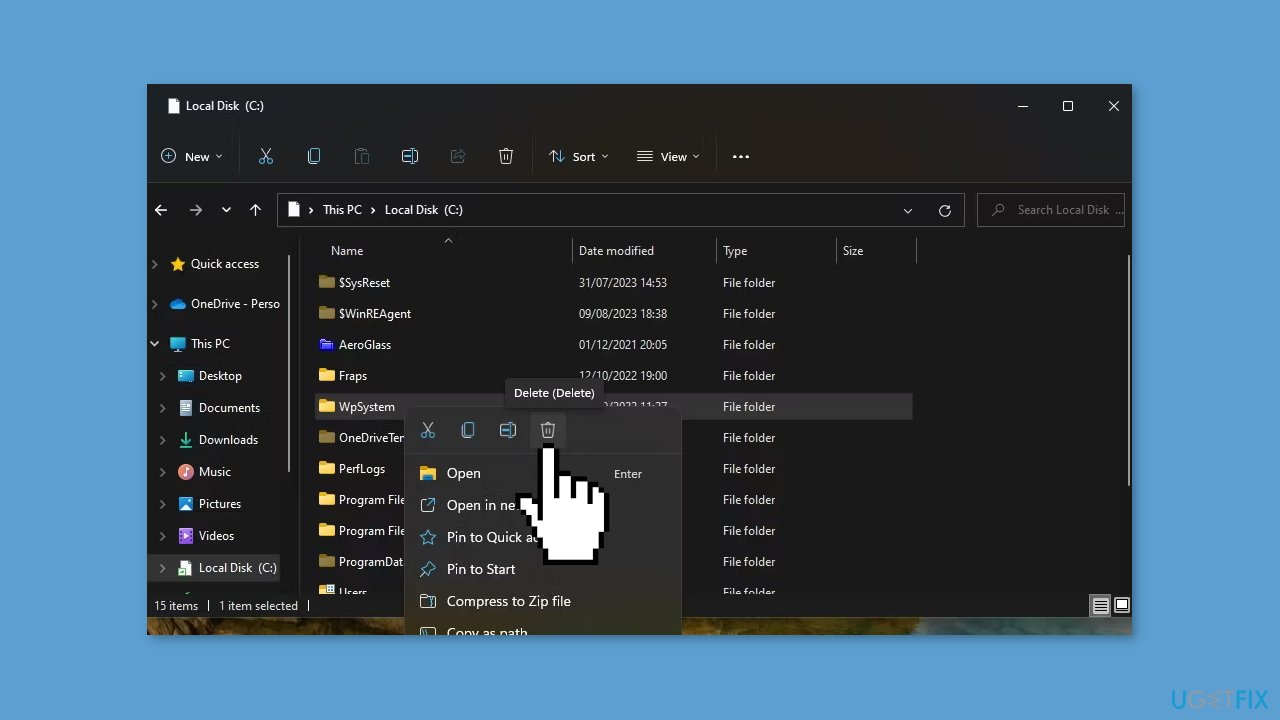
- Right-click on the WpSystem folder and choose Delete from the context menu.
- Confirm the deletion to remove the folder.
Solution 4. Set Full System Permission
- Open File Explorer and click the three-dot See more menu or go to the View tab and select Options, depending on your Windows version.
- Choose View on the Folder Options window.
- Uncheck the Hide protected operating system files (Recommended) option and select the Show hidden files, folders, and drives radio button.
- Click Apply to save the changes to Explorer settings.
- Choose the drive you want to set as the default app save location.
- Right-click on the System Volume Information folder and select Properties.
- Navigate to Security > Advanced to open the Advanced Security Settings window. Click Continue if prompted.
- Click Add to access the Permission Entry window.
- Opt for the Select a principal option.
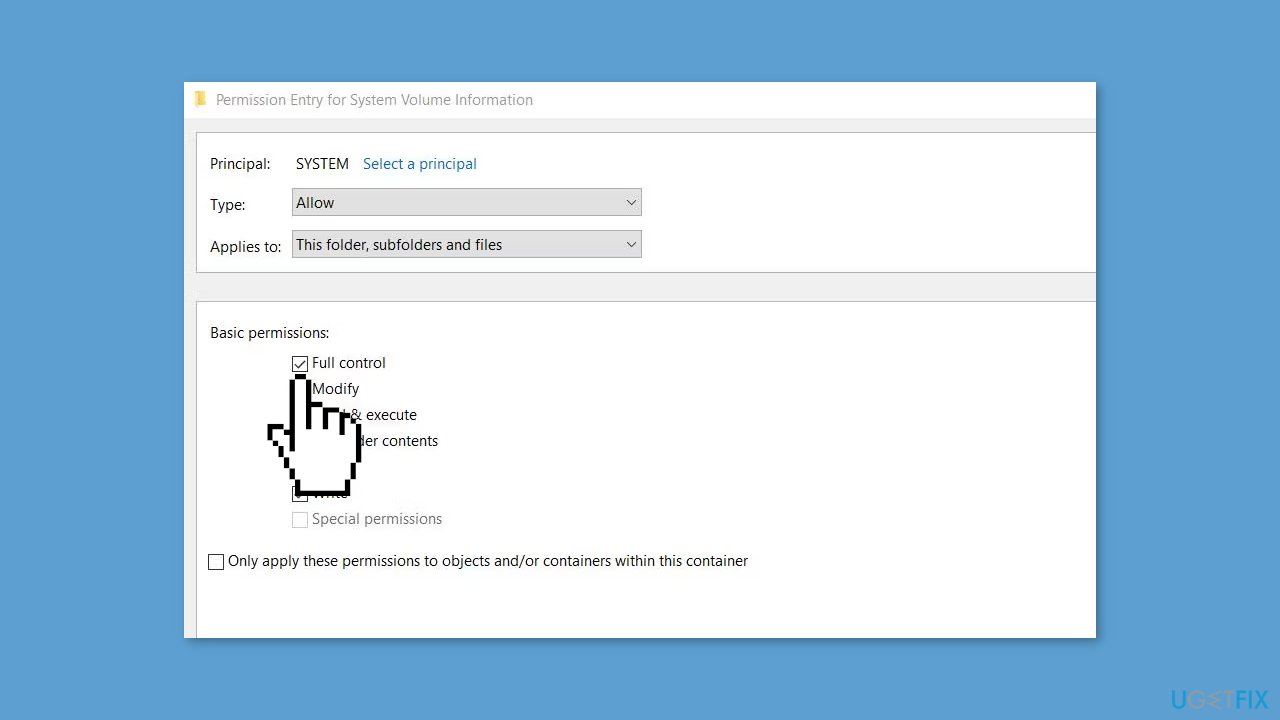
- Enter SYSTEM in the object name box and click OK.
- Choose the Full control permission setting.
- Click OK on both the Permission Entry and Advanced Security Settings windows.
Bottom line
To fix the "We couldn’t set your default save location" error, you can set your user account to administrator, modify hidden file settings, change file and folder permissions, or rename directories. If these solutions do not resolve the issue, consider running a maintenance tool to address system errors.
Frequently asked questions
This error typically occurs when there are issues with your system settings, such as a misconfigured default save location or permission problems with the drive.
You can change the default save location by going to Settings > System > Storage, then clicking on 'Change where new content is saved' and selecting your preferred drive.
If the error continues, try running the Windows Troubleshooter for Storage, checking for Windows updates, or resetting the affected app settings.




Report an issue
What's wrong with this guide? We review every report and update or remove content.
Report received — thank you. We'll review and fix it.
You need a free account to submit a report.
Be the first to comment