How to fix
Weather widget showing wrong location
on Windows
Discover quick fixes for the Weather widget location issue in Windows 10 and 11. Get accurate forecasts in minutes with our expert-tested solutions.

What causes How to fix Weather widget showing wrong location in Windows?
- Inaccurate location data from device location services
- Outdated widget software
- Interference from other applications
- Network-related issues preventing synchronization
- Manual settings reverting to incorrect location
Repairs Windows system files, removes malware, and restores a clean OS state — without reinstalling.
Hi. My Weather widget is constantly picking up some random location instead of my actual location. This is quite annoying because the weather forecast is always wrong. How do I fix this?
Weather widget in Windows is an integral tool that provides at-a-glance information on current and forecast weather conditions. Displayed conveniently on the desktop, it offers real-time updates, aiding users in planning their activities, whether it's a simple outdoor stroll or an out-of-town adventure. Accurate location data is vital to the efficacy of this tool, as it directly impacts the accuracy of the displayed weather conditions.
However, a number of users have reported an issue where the Weather widget displays information for the incorrect location. This happens even when users manually set the correct location within the widget settings. After a period of time, the widget seems to default back to the incorrect location, compromising the utility and reliability of the tool.
There could be multiple reasons behind this malfunction. In some instances, the error might be attributed to the location services of the device. In such cases, the Weather widget could be sourcing information from the inaccurate location data provided by the system. Other potential reasons could be outdated widget software, interference from other applications, or even network-related issues that prevent the widget from synchronizing correctly with the system's location data.
While these problems may seem daunting, there are solutions available. A thorough investigation into the system settings, particularly those related to location services, could yield results. Regular software updates to the widget, ensuring that it runs the latest version, may also address the issue. Additionally, scrutinizing the system for potential conflicts with other applications might help.
Nevertheless, it's important to remember that fixing such an issue might require a broader approach, as it could be a symptom of underlying issues within the system. This is where tools like the [d1] PC repair tool come in handy. While not specifically designed to rectify widget issues, it is an application that checks for system inconsistencies and offers comprehensive solutions to maintain optimal system performance.
1. Adjust system location settings
System location settings play a pivotal role in enabling the Weather widget to display the correct information. Inaccurate data might indicate these settings are not appropriately configured.
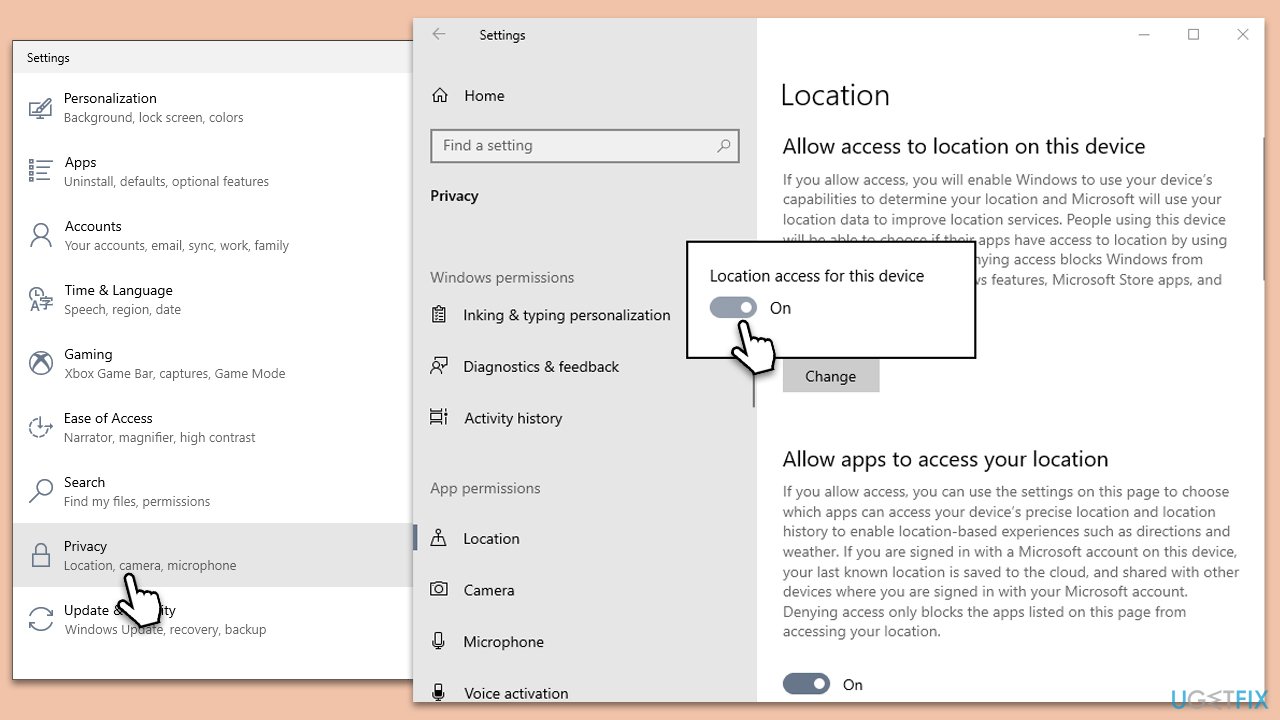
- Navigate to the system's Settings via the Start menu.
- Select Privacy and then click on Location.
- Verify the status of the Location for this device option and ensure it's switched on.
- Review the Default location and update it if necessary.
2. Modify Weather app settings
The Weather app has a specific feature that auto-detects the location of your device. Ensuring this option is enabled can correct inaccurate weather data display.
- Launch the Weather app from the Start menu or Search.
- Access the settings by clicking the gear icon at the bottom-left corner of the window.
- Select the General tab and look for the Launch Location section.
- Make sure the Always detect my location option is toggled on.

3. Ensure the Weather widget is up to date
Routine software updates address bug fixes and enhance the functionality of applications. An outdated Weather widget might lead to issues with its operation.
- Open the Microsoft Store and navigate to Library at the bottom-left corner.
- Scan for updates by clicking Get updates.
- Check if the Weather widget needs an update and install it if necessary.

4. Identify and disable potential conflicting apps
Certain applications, especially those that manipulate location data or heavily utilize system resources, could interfere with the Weather widget's functionality. This includes VPNs, third-party security software, or other widgets and apps that access location information. Managing these apps might resolve the issue.
- Open the Task Manager using Ctrl + Shift + Esc.
- Look at the running processes and applications, paying close attention to VPNs, third-party security software, and other location-based apps.
- For any potentially interfering apps, right-click and select End task.
- Monitor the Weather widget for improvements. If it stabilizes, consider updating, reinstalling, or permanently disabling the problematic application.
5. Reset the Weather app to its default state
Resetting the Weather app to its initial settings can address issues stemming from corrupted data or malfunctioning features.
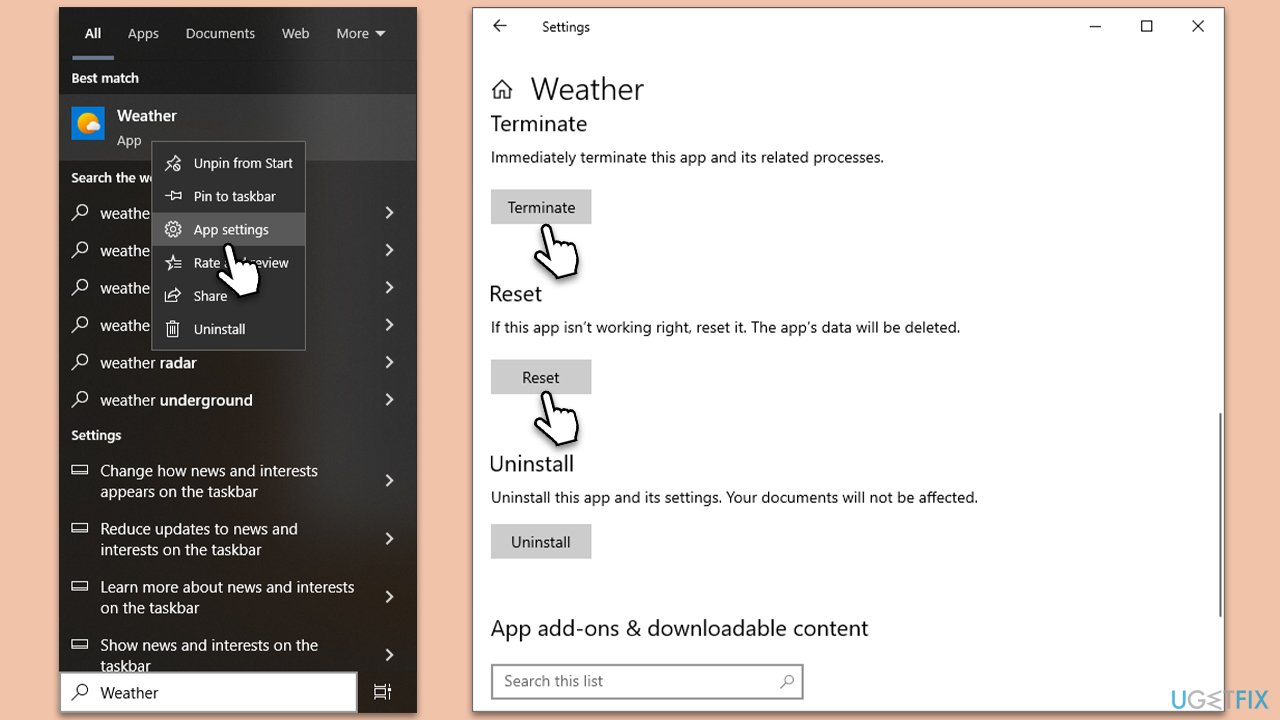
- Type Weather in Windows Search.
- Right-click on the Weather app and select App Settings.
- Scroll down and click Terminate.
- Then, click on Reset.
6. Troubleshoot potential network issues
Network connectivity problems can hinder the Weather widget's ability to sync data correctly, causing it to display inaccurate information.
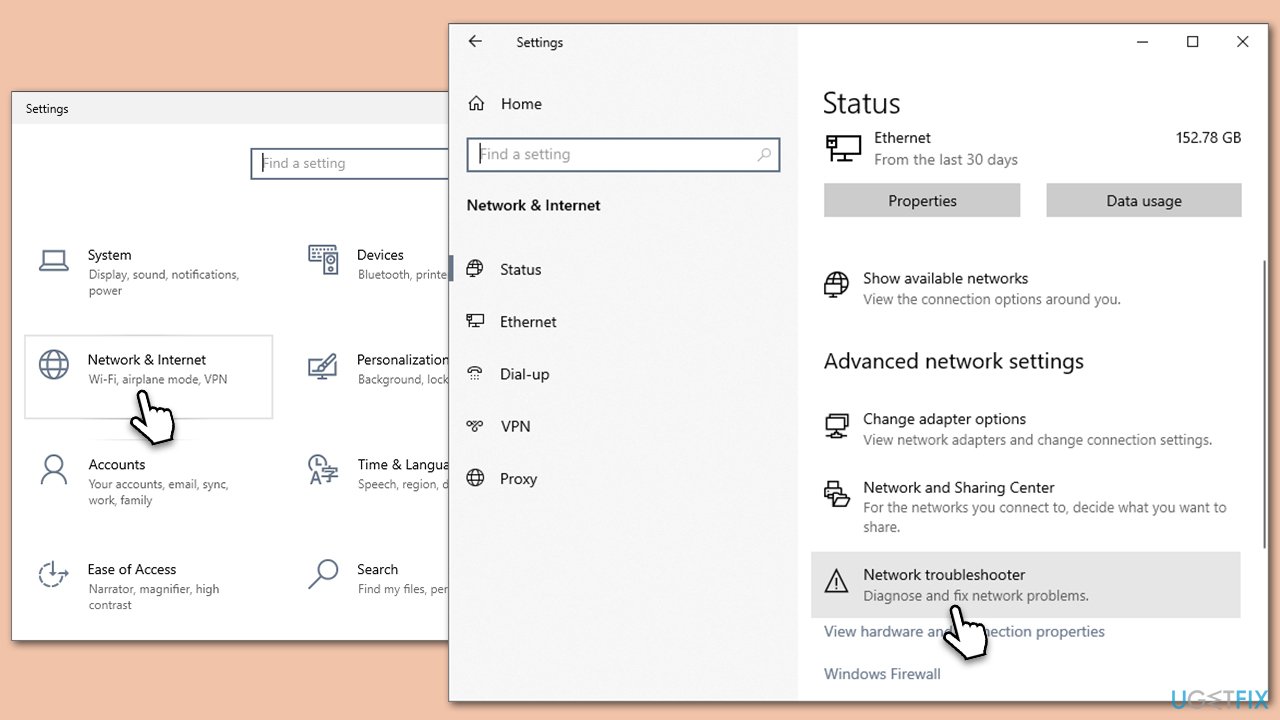
- Open Windows Settings.
- Go to Network & Internet section.
- On the right side, find the Advanced network settings section.
- Click Network troubleshooter and wait.
- The fixes will be automatically applied.
Bottom line
To fix the Weather widget showing the wrong location, investigate the system settings related to location services, ensure the widget is updated to the latest version, and check for conflicts with other applications. If these solutions do not resolve the issue, consider using a PC repair tool to check for system inconsistencies.
Frequently asked questions
To update the location settings for the Weather widget in Windows 10, open the widget, click on the settings gear icon, and ensure your current location is enabled.
If the Weather widget shows a different city in Windows 11, check your location settings under Privacy > Location, and make sure the Weather app has permission to access your location.
If the Weather widget remains incorrect, try restarting your device or resetting the widget by removing and re-adding it to your taskbar in Windows 10 or 11.




Report an issue
What's wrong with this guide? We review every report and update or remove content.
Report received — thank you. We'll review and fix it.
You need a free account to submit a report.
Be the first to comment