How to fix
Webcam blurring the background
on Windows
Eliminate background blur on your webcam in Windows 10 or Windows 11 with our expert solutions. Get clear results fixed in minutes!

What causes How to fix webcam blurring the background in Windows?
- Automatic background blurring features activated
- Virtual background features activated
- Settings in video conferencing applications
- Windows built-in webcam settings
- Outdated webcam driver
- Outdated camera software
Repairs Windows system files, removes malware, and restores a clean OS state — without reinstalling.
Hello. My webcam keeps blurring the background when I am on video calls. Is there a way to fix this?
Background blurring when using a webcam in Windows is a typical problem that can be caused by a number of things, including settings on your computer or camera software features. This problem arises when the webcam's automatic background blurring or virtual background features are activated, typically found in video conferencing and streaming applications like Zoom, Microsoft Teams, or Skype.
Users may be adversely impacted by this issue in a number of ways. In the first place, it may result in a lack of privacy during video chats because the background might not be blurred as well as intended, potentially disclosing delicate or private information. Additionally, the backdrop blurring that is constantly present during business-related video chats can be annoying and compromise the user's ability to present themselves professionally. A blurred background might not be appropriate in the context of virtual events or webinars, degrading the visual appeal of the presentation.
Users have a few options for dealing with the issue of camera background blurring. They can begin by looking through the settings of the particular video conferencing or streaming application being used because these sometimes provide choices to modify or turn off background effects. Additionally, Windows' built-in webcam settings can be checked and modified to help resolve the problem. If none of these software-based fixes work, the issue could be fixed by updating the webcam driver[ref en-1] or camera software.
In this guide, you will find 6 steps that should help you fix webcam blurring the background in Windows. You can also run a system repair tool like [d1] that can fix most system errors, BSODs,[ref en-2] corrupted files, and registry[ref en-3] issues. Otherwise, follow the step-by-step instructions below.

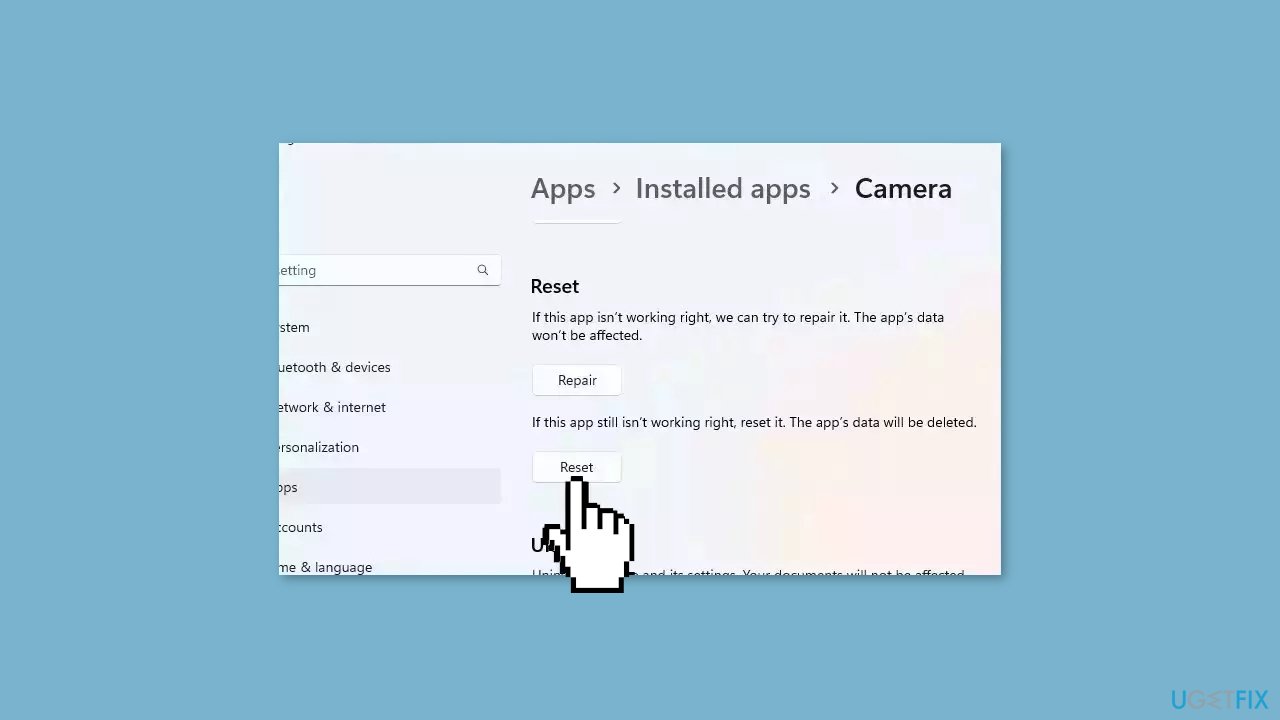
Solution 1. Repair or Reset the Camera App
- Open the Windows Search Menu.
- Type Windows Camera and right-click on the result.
- Press on App settings.
- Scroll down to find the Repair button.
- If running this process does not solve the issue, try the Reset option and check again.
Solution 2. Check Internet Connection
This is among the simplest and most crucial steps to address webcam issues in Windows. Additionally, a reliable and strong internet connection plays a vital role in laptop video calls, directly affecting your webcam feed's quality.
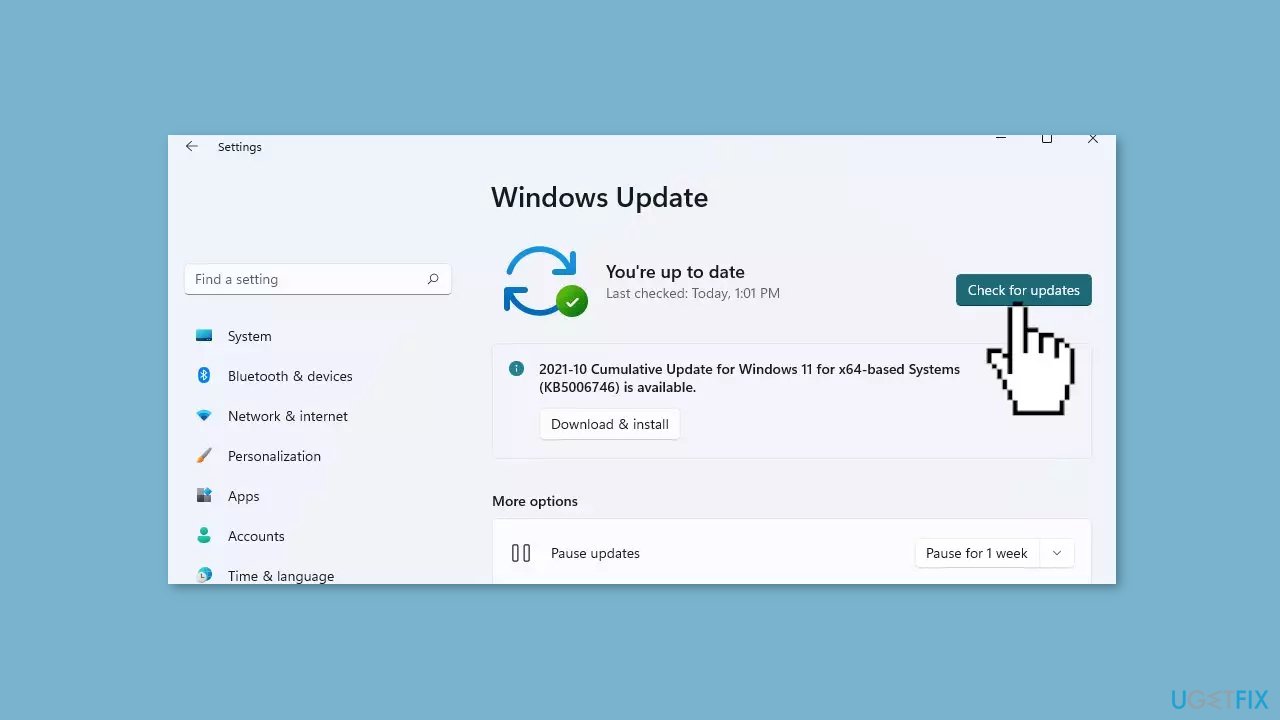
Solution 3. Install Windows Updates
- Click Start and select Settings.
- Go to the Windows Update section.
- Click Check for updates and wait.
- Go to the Advanced options and install optional updates.
- Reboot your system.
Solution 4. Run the Camera Troubleshooter
- Right-click on Start and select Settings.
- Go to System > Troubleshoot.
- Select Other troubleshooters.
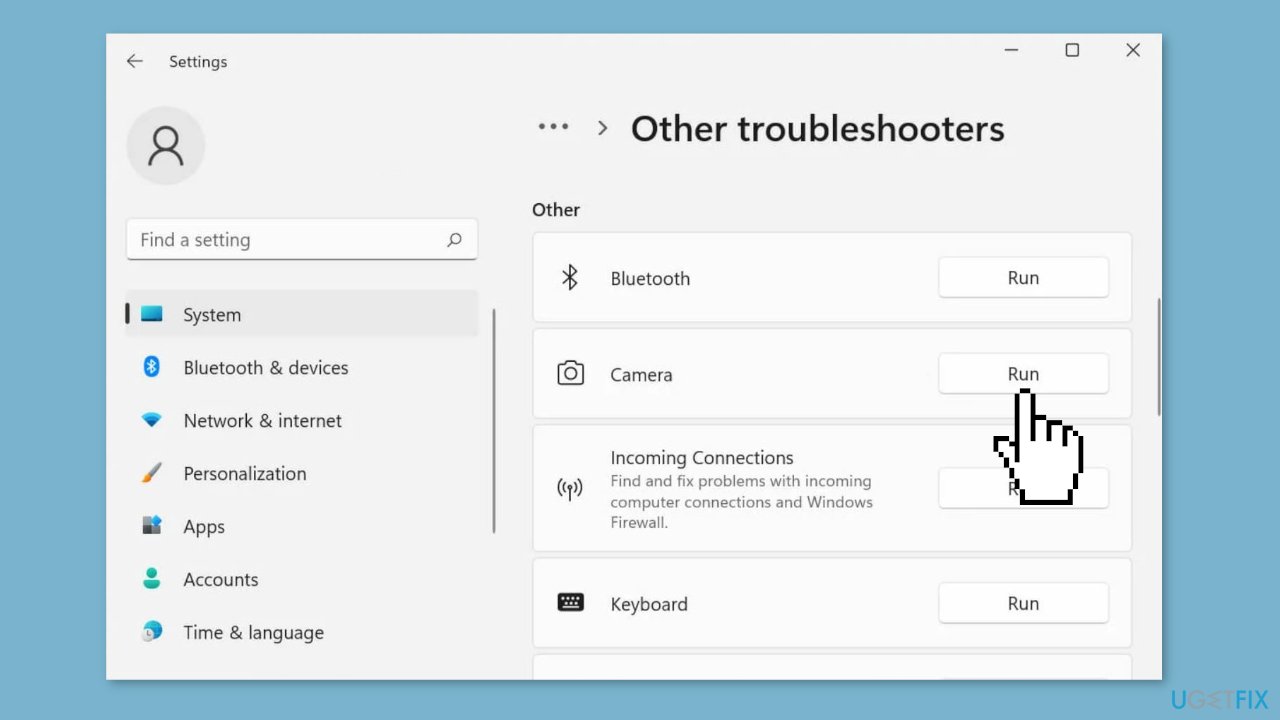
- Find Camera in the app list.
- Click Run to let the Camera troubleshooter fix the blurry background.
Solution 5. Reinstall Webcam Driver
You may be receiving the error because your camera driver is corrupted or outdated. You can check the manufacturer’s website for the latest version of the camera driver and install it on your computer or you can use an automatic solution, like [rev id="DriverFix"]. It can find the best drivers for your system and install them. You can also uninstall the driver and replace it with the basic driver from Microsoft:
- Press the Windows key + X and click on Device Manager from the menu.
- Expand Cameras.
- Right-click on your camera and press Uninstall device.
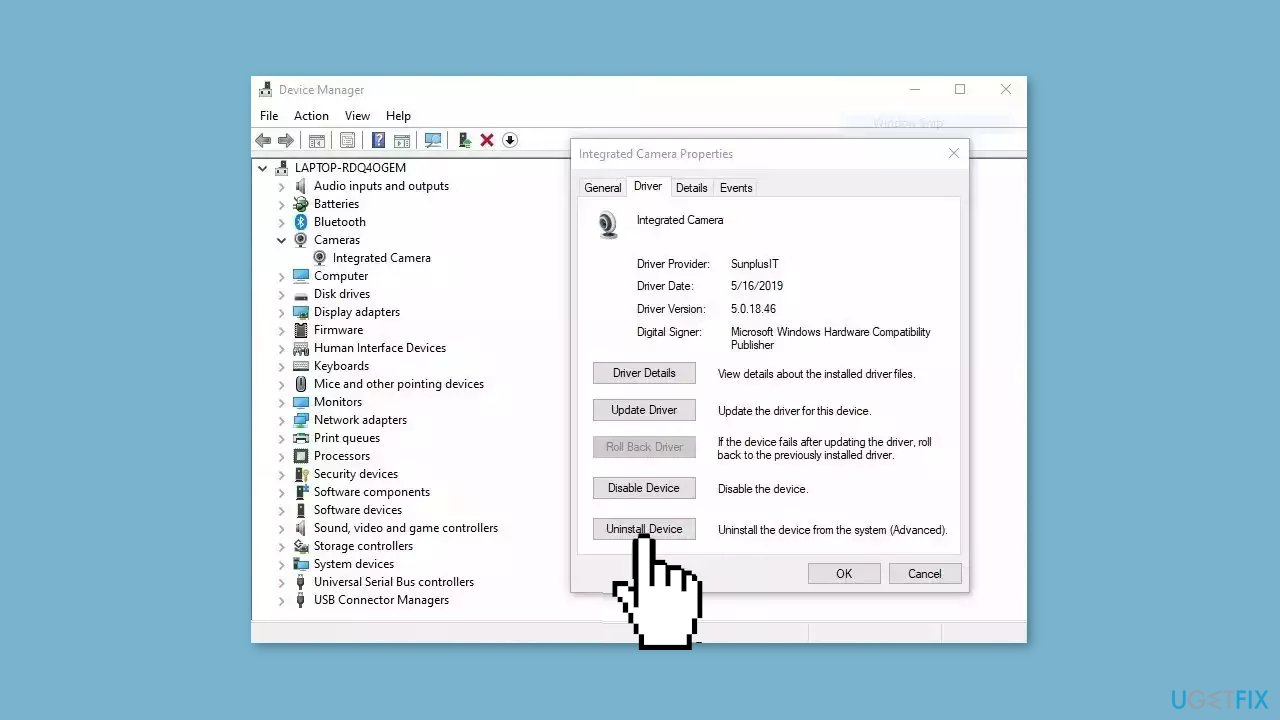
- Restart your computer and check if the issue is solved.
Solution 6. Reinstall Display Adapter Drivers
- Right-click Start and choose Device Manager.
- Double-click Display adapters.
- Right-click and select Properties.
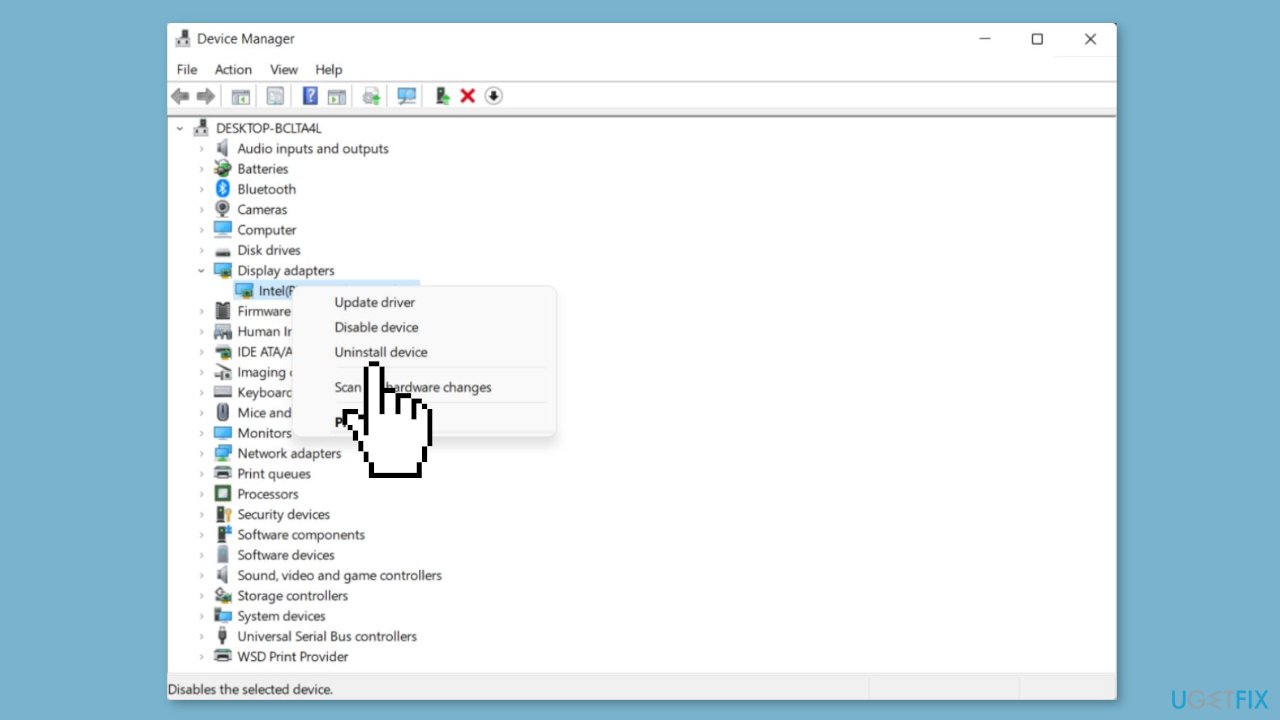
- Go to the Drivers tab and choose Update Driver.
- If needed, select Uninstall device. Restart your PC.
Bottom line
To fix the webcam blurring the background issue, users can check and modify settings in their video conferencing applications, adjust Windows' built-in webcam settings, or update their webcam driver and camera software. If these solutions do not resolve the problem, consider running a system repair tool to address potential system errors.
Frequently asked questions
Webcam background blurring in Windows 10 can occur due to incorrect camera settings or low lighting conditions. Adjusting the camera settings in the app you're using or ensuring adequate lighting may resolve the issue.
To improve webcam background clarity in Windows 11, check your webcam's resolution settings and make sure your camera lens is clean. Additionally, using software that supports background effects can enhance the overall image quality.
Adjust the focus and exposure settings in your webcam application to reduce background blur in Windows. If available, enable features like 'Background Replacement' or 'Blur' to manage the background more effectively.




Report an issue
What's wrong with this guide? We review every report and update or remove content.
Report received — thank you. We'll review and fix it.
You need a free account to submit a report.
Be the first to comment