
How to fix wfs.exe missing in Windows?

Prefer to fix it yourself? The manual steps follow.
- 9methods
- 5 to 45 minutes
- Easy
Applies to Windows 11 and Windows 10, every edition that offers the Windows Fax and Scan optional feature
9 methods in this guide
Hello. I got a brand new Windows 11 laptop and I keep getting an error message that says wfs.exe is missing. What is it and how do I fix it?
WFS.exe is the program file of Windows Fax and Scan. Since Windows 11 version 22H2 this feature is no longer preinstalled, so on a new PC the file is simply not there. Add Windows Fax and Scan in Settings under Optional features, restart, and WFS.exe appears in C:\Windows\System32.
WFS.exe is Windows Fax and Scan, a Windows feature that Microsoft stopped preinstalling after Windows 11 version 22H2. Nothing is broken: the feature is just not added. Open Settings > System > Optional features > View features, search for fax, add Windows Fax and Scan and restart (Fix 1). Do not download WFS.exe from a file site.
| Error | "Windows cannot find 'C:\Windows\System32\WFS.exe'. Make sure you typed the name correctly, and then try again." Or simply: wfs.exe is missing, or Windows Fax and Scan is nowhere in the Start menu. |
|---|---|
| Where it appears | When you open Windows Fax and Scan from an old shortcut, a pinned icon or another program, or when you type wfs in Run. Most often on a new Windows 11 PC or after an upgrade. |
| Main cause | The Windows Fax and Scan optional feature (capability Print.Fax.Scan~~~~0.0.1.0) is not installed. Microsoft: after Windows 11 version 22H2 it is not preinstalled. |
| Fastest fix | Settings > System > Optional features > View features, search fax, add Windows Fax and Scan, restart (Fix 1). |
| Also written as | wfs.exe, WFS.exe, wfs exe, WFS windows, Windows Fax and Scan missing, Fax and Scan nowhere to be found. |
| Affects | Windows 11 (most often), Windows 10 version 2004 and later where the feature was removed. Microsoft lists it as a Feature on Demand for both. |
| Vendor status | Not a bug. Microsoft's Features on Demand list says Windows Fax and Scan is not preinstalled after Windows 11 version 22H2, install size 18.76 MB. |
| Time to fix | 5 minutes with Settings or DISM. Up to 45 minutes when the feature will not install and you need updates or install media. |
Facts checked on 15 October 2026. Steps written for Windows 11 (25H2 and 26H2) and Windows 10 22H2.
What WFS.exe is and what the missing message means
WFS.exe stands for Windows Fax and Scan. It is the program you open to scan a page from a scanner or a multifunction printer, or to send and receive faxes through a fax modem. Its home is C:\Windows\System32\WFS.exe, and it is part of Windows, not of your printer's software.
Microsoft ships Windows Fax and Scan as a Feature on Demand: a part of Windows that you add when you need it. Its capability name is Print.Fax.Scan~~~~0.0.1.0. Microsoft's own list of these features says plainly that after Windows 11 version 22H2, Windows Fax and Scan is not preinstalled. A new laptop like the one in the question above therefore has no WFS.exe at all until you add the feature.
Windows cannot find 'C:\Windows\System32\WFS.exe'. Make sure you typed the name correctly, and then try again.
- File
C:\Windows\System32\WFS.exe, the Windows Fax and Scan program.- Feature name
- Windows Fax and Scan in Optional features;
Print.Fax.Scan~~~~0.0.1.0in DISM. - Size
- Microsoft gives an install size of 18.76 MB. The Optional features list on our older screenshot showed 8.87 MB, which is the download.
- Available on
- Windows 10 version 2004 and later, and Windows 11, as Microsoft lists it.
- Is it a virus?
- Not when it sits in
C:\Windows\System32and came from Optional features. A WFS.exe anywhere else, or one you downloaded on its own, should be scanned.
Why WFS.exe is missing: the causes, most common first
In almost every case nothing is damaged. The feature is not installed, and something on the PC still tries to start it. The table ties each cause to the fix that removes it.
| Cause | How you can tell | Fix |
|---|---|---|
| Windows Fax and Scan was never added (Windows 11 after 22H2) | A new PC or a clean install; the feature is not in the installed list of Optional features | Fix 1 or Fix 2 |
| The feature shows as installed but its files are gone | Optional features lists it, yet C:\Windows\System32 has no WFS.exe | Fix 3 |
| Windows cannot add the feature | Optional features history says Couldn't add, or a message asks for a reboot | Fix 4, then Fix 5 |
| An old shortcut or pinned icon points to the file | Fax and Scan opens from Start, but the old icon still fails | Fix 6 |
| Damaged Windows component store | Other optional features fail too, or SFC reports errors | Fix 8, then Fix 9 |
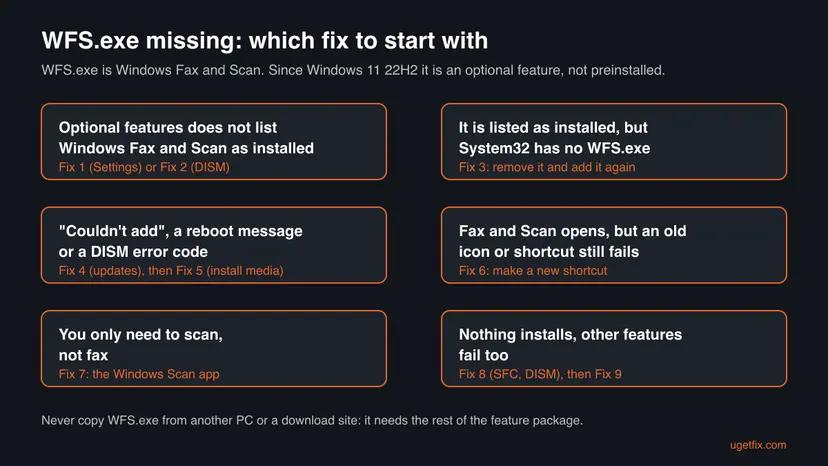
How to fix WFS.exe missing in Windows 11 and Windows 10
Fixes 1 and 2 add the feature and solve most cases in minutes. Fixes 3 to 5 are for a feature that is listed but broken, or that will not install. Fix 6 is for an old shortcut, Fix 7 is a scan-only option, and Fixes 8 and 9 repair Windows itself. Paths are given for Windows 11 and Windows 10 where they differ.
| What you see or have | Start with |
|---|---|
| A new Windows 11 PC, no Windows Fax and Scan in the Start menu | Fix 1 |
| You prefer one command, or Settings does not list the feature | Fix 2 |
| Optional features says it is installed, but WFS.exe is not in System32 | Fix 3 |
| Couldn't add, a reboot message, or DISM error 0x800f0831 | Fix 4, then Fix 5 |
| Fax and Scan opens from Start, but an old icon still fails | Fix 6 |
| You only want to scan, you never fax | Fix 7 |
| Several optional features fail to install | Fix 8, then Fix 9 |
Fix 1. Add Windows Fax and Scan in Settings under Optional features
5 minutesNo riskEveryone first, and especially a new Windows 11 PC that never had Fax and Scan.
WFS.exe is installed together with the Windows Fax and Scan feature, and Microsoft no longer preinstalls that feature after Windows 11 version 22H2. Adding it puts WFS.exe back in System32 with every file it needs.
- Press Win + I to open Settings.
- Windows 11 (24H2 and later): open System > Optional features. Windows 11 22H2 and 23H2: Apps > Optional features. Windows 10: Apps > Apps & features > Optional features.
- Select View features (Windows 10: Add a feature).
- Type fax in the search box.
- Tick Windows Fax and Scan and select Next, then Add (or Install).
- Wait until the feature shows as installed, then restart the PC with Start > Power > Restart.
- Select Start, type Windows Fax and Scan and open it.
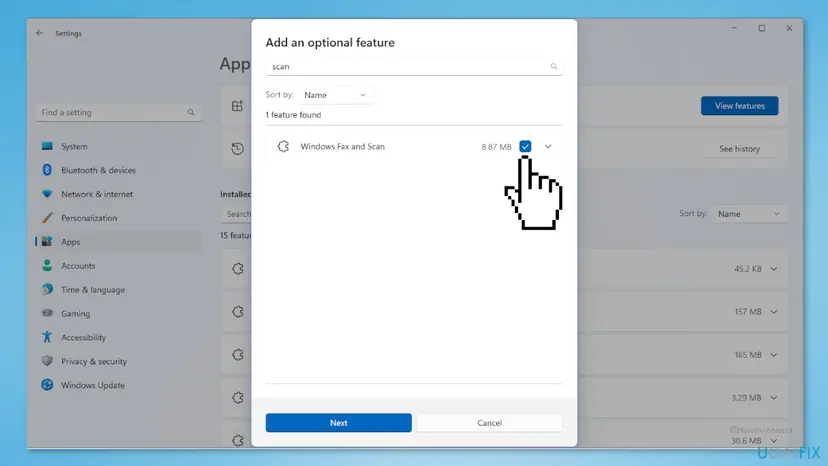
It worked if: Windows Fax and Scan opens from the Start menu, and C:\Windows\System32\WFS.exe exists.
If not: If the feature is not in the list, use Fix 2. If it says Couldn't add, go to Fix 4.
Fix 2. Add Windows Fax and Scan with one DISM command
5 minutesNo riskYou prefer a command, Settings does not show the feature, or you set up several PCs.
DISM adds the same Feature on Demand by its exact capability name, Print.Fax.Scan~~~~0.0.1.0. Microsoft notes that this feature should be added with DISM /add-capability, and the command also shows a clear error code when it fails, which Settings does not.
- Right-click Start and select Terminal (Admin). On Windows 10 type cmd in search, right-click Command Prompt and select Run as administrator.
- Select Yes in the User Account Control prompt.
- Type the first command below and press Enter. It downloads the feature from Windows Update, so stay online.
- Wait until it reports The operation completed successfully, then restart the PC.
- To check the result, run the second command. State : Installed means the feature is in place.
Add Windows Fax and Scan
dism /Online /Add-Capability /CapabilityName:Print.Fax.Scan~~~~0.0.1.0Check its state
dism /Online /Get-CapabilityInfo /CapabilityName:Print.Fax.Scan~~~~0.0.1.0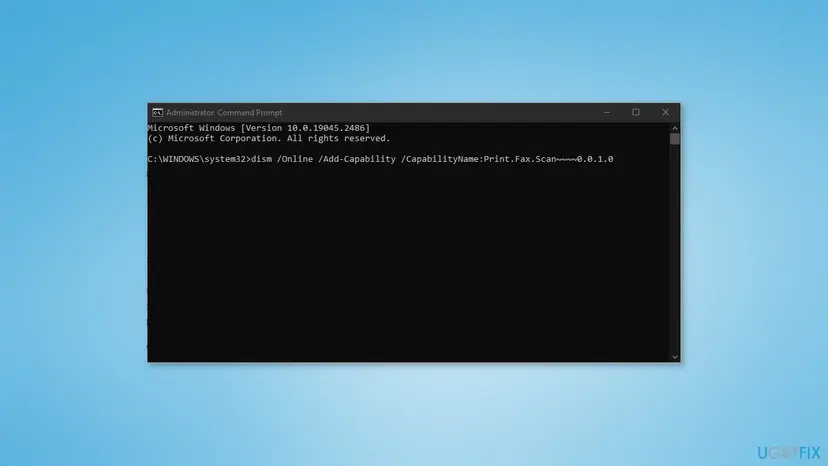
Check the spelling first: there are exactly four tildes before 0.0.1.0. Copy the command from this page rather than typing it. If it still fails, go to Fix 4.
It worked if: DISM reports The operation completed successfully, and after the restart WFS.exe is in System32.
If not: If DISM shows an error such as 0x800f0831 or asks for a reboot that never ends, go to Fix 4.
Fix 3. Remove Windows Fax and Scan and add it again
10 minutesLow riskOptional features lists Windows Fax and Scan as installed, yet WFS.exe is not in System32 or will not start.
Windows thinks the feature is there, so Settings will not offer to add it, but its files are missing or damaged. Removing the feature clears that record, and adding it again writes every file fresh. A Microsoft Q&A answer suggests this same pair of DISM commands.
- Open Terminal (Admin) or an administrator Command Prompt, as in Fix 2.
- Run the first command below to remove the feature.
- Restart the PC when DISM asks for it.
- Open the administrator window again and run the second command to add it back.
- Restart again and open Windows Fax and Scan from Start.
Remove, restart, then add
dism /Online /Remove-Capability /CapabilityName:Print.Fax.Scan~~~~0.0.1.0
dism /Online /Add-Capability /CapabilityName:Print.Fax.Scan~~~~0.0.1.0
In Settings you can do the same: in Optional features, expand Windows Fax and Scan in the installed list, select Remove, restart, then add it again as in Fix 1. Scans you saved are files in your own folders, so copy any you need to keep before you start: Back up your files (Windows Backup, File History, Time Machine)
It worked if: After the second restart WFS.exe is in System32 and Fax and Scan opens.
If not: If the add step fails, go to Fix 4.
Fix 4. Install pending Windows updates and restart before you add the feature
10 to 30 minutesLow riskOptional features history says Couldn't add, or Windows says it requires a reboot before it can make changes.
Optional features install through the same servicing stack as Windows updates. A half-finished update, or one waiting for a restart, blocks new features until it is done. Microsoft Q&A has threads where adding Fax and Scan failed with a message that Windows requires a reboot.
- Press Win + I and open Windows Update. On Windows 10 open Update & Security > Windows Update.
- Select Check for updates and install everything that is offered.
- Restart the PC, even if Windows does not ask. Use Restart, not Shut down.
- Check Windows Update once more. Repeat until it says you are up to date.
- Add Windows Fax and Scan again with Fix 1 or Fix 2.
If updates themselves fail, fix that first: Run the Windows Update troubleshooter. Windows 10 left support on 14 October 2025; Windows Fax and Scan still installs there, but the PC no longer gets regular updates.
It worked if: Windows Update shows no pending restart, and the feature installs on the next try.
If not: If it still says Couldn't add, go to Fix 5 and give DISM the files from install media.
Fix 5. Add Windows Fax and Scan from Windows installation media
20 to 40 minutes, most of it the downloadLow riskSettings says Couldn't add and DISM fails with an error such as 0x800f0831, even after updates.
DISM normally downloads the feature from Windows Update. When that download fails, you can point DISM to a Windows image instead. In a Microsoft Q&A thread on Windows 11 25H2, adding the feature failed with 0x800f0831; the person who asked then mounted a Windows 11 image and ran DISM with it as the source, and WFS.exe appeared in System32.
- Check your Windows version: press Win + R, type
winverand press Enter. - Download the Windows 11 disk image (ISO) for the same version from Microsoft's Download Windows 11 page.
- Right-click the ISO in File Explorer and select Mount. Note the drive letter it gets, for example G:.
- Open Terminal (Admin) and run the command below, with your drive letter in place of G.
- Restart the PC when it finishes, then right-click the mounted drive and select Eject.
Add Fax and Scan from the mounted image (drive G:)
dism /Online /Add-Capability /CapabilityName:Print.Fax.Scan~~~~0.0.1.0 /Source:G:\sources\sxs /LimitAccessThe image must match your Windows version and language as closely as you can. We could not confirm that every Windows 11 ISO carries this feature in sources\sxs; it worked in the thread above. If DISM says the source files could not be found, go to Fix 8.
It worked if: DISM reports success and WFS.exe is in System32 after the restart.
If not: Go to Fix 8 to repair the Windows component store, then try again.
Fix 6. Replace the old shortcut and pin Windows Fax and Scan again
2 minutesNo riskWindows Fax and Scan opens from the Start menu, but an old desktop icon, a taskbar pin or a shortcut copied from another PC still shows the error.
A shortcut stores the path it was made for. One made before an upgrade or on another PC can keep pointing to a file that was not there when it was created, or to another drive letter. A new one made from the Start menu points to the current file.
- Right-click the old icon and select Unpin from taskbar, or delete the desktop shortcut.
- Select Start and type Windows Fax and Scan.
- Right-click the result and select Pin to taskbar or Pin to Start.
- To make a desktop shortcut instead, open
C:\Windows\System32in File Explorer, right-click WFS.exe and select Show more options > Send to > Desktop (create shortcut).
It worked if: The new icon opens Windows Fax and Scan with no message.
If not: If WFS.exe is not in System32 at all, the feature is not installed: go back to Fix 1.
Fix 7. Scan with the Windows Scan app if you never fax
5 minutesNo riskYou only want to scan documents or photos, and Fax and Scan will not install or you do not need fax.
WFS.exe is only one way to scan. Microsoft's own answers on Microsoft Q&A point people who only need a scanner to the Windows Scan app, which installs from Microsoft Store and does not depend on the optional feature.
- Select Start and type Windows Scan. If it is there, open it.
- If it is not, open Microsoft Store, search for Windows Scan and select Get.
- Turn on the scanner or printer and open Windows Scan.
- Choose the scanner, the file type and the folder, then select Scan.
Your printer maker's own scan app works too. If Windows does not see the scanner at all, the cause is the driver, not WFS.exe: Update, roll back or reinstall a driver
It worked if: Windows Scan finds the scanner and saves the page.
If not: If you need fax, or Windows Scan cannot find the scanner either, go to Fix 8.
Fix 8. Repair Windows system files with DISM and SFC
15 to 30 minutesLow riskSeveral optional features fail to install, or DISM keeps reporting errors in Fixes 2 to 5.
Optional features are added from the Windows component store. When the store itself is damaged, every add fails. DISM /RestoreHealth repairs the store, and SFC then repairs the system files that come from it. It will not create WFS.exe on its own, because SFC only restores files of features that are installed.
- Open an elevated command window. Right-click Start and select Terminal (Admin), or type cmd in the search box, right-click Command Prompt and select Run as administrator. Select Yes when Windows asks for permission.

Search for cmd and choose Run as administrator. Screenshot: Windows 11 26H2. - Run DISM first. Type the command below and press Enter. DISM downloads clean copies of damaged components from Windows Update, so it can take several minutes. Wait until it says The operation completed successfully.
DISM.exe /Online /Cleanup-Image /RestoreHealth
DISM /RestoreHealth running. Screenshot: Windows 11 26H2. - Run System File Checker. In the same window, type the command below and press Enter. Do not close the window until the verification reaches 100%.
sfc /scannow
sfc /scannow at 100%. Screenshot: Windows 11 26H2. - Read the result and restart. Compare the last message with the table below this guide, then restart the PC so that repaired files are loaded.

The result line tells you what SFC did. Screenshot: Windows 11 26H2.
These steps were written for Windows 11 24H2 and 25H2. The full page with the other versions and what each result means: Run DISM and SFC to repair Windows system files
When both report success, restart and add Windows Fax and Scan again with Fix 1 or Fix 2.
It worked if: SFC reports that it found no integrity violations, or that it repaired them, and the feature now installs.
If not: If the feature still will not install, go to Fix 9 and repair-install Windows.
Fix 9. Reinstall Windows over itself and keep your files
45 to 90 minutesRead the warningNothing installs any more, even with install media, and the repair in Fix 8 did not help.
A repair install writes a fresh copy of Windows, including the component store that optional features come from, and keeps your files. It is the last step for a missing feature, not the first, because Fix 1 solves most cases in minutes.
Fix problems using Windows Update keeps your files and apps. Reset this PC with Keep my files keeps your files but removes installed apps. Copy anything important before you start: Back up your files (Windows Backup, File History, Time Machine)
- Open Recovery in Settings. Open Settings > System > Recovery. Next to Fix problems using Windows Update, select Reinstall now. This keeps your apps, files and settings.

Fix problems using Windows Update reinstalls the current version and keeps apps, files and settings. Screenshot: Windows 11 26H2. - Start the reinstall. Choose whether the PC may restart on its own 15 minutes after the installation, then select OK.
- Wait and restart. Windows Update downloads and installs a repair copy of your current Windows version. Keep the PC plugged in and online, and restart it when asked.
- If that did not help: Reset PC. Back in Settings > System > Recovery, next to Reset this PC, select Reset PC. This keeps your personal files but removes installed apps and settings.
- Choose Keep my files. Select Keep my files. Do not select Remove everything.
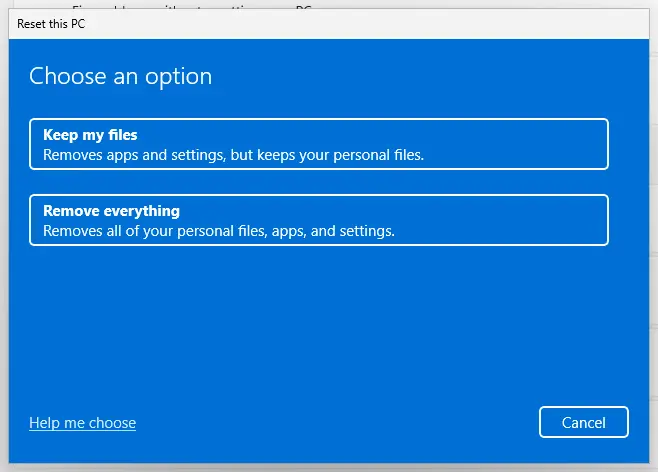
Keep my files removes apps and settings but keeps personal files. Screenshot: Windows 11 26H2. - Choose where Windows comes from. Select Cloud download to download a fresh copy of Windows, or Local reinstall to use the files already on the PC (faster, but may not include the latest updates).
- Reset. Review the summary and select Reset. The PC restarts several times.
These steps were written for Windows 11 22H2 and later. The full page with the other versions and what each result means: Reinstall Windows without losing files
After the reinstall, add Windows Fax and Scan again with Fix 1. A reinstall does not add it for you.
It worked if: Windows starts normally, and Windows Fax and Scan installs from Optional features.
If not: Read "If WFS.exe is still missing" below.
If WFS.exe is still missing
Write down the exact message and every error code DISM showed. The logs below say why the feature did not install.
- DISM log:
C:\Windows\Logs\DISM\dism.log. Open it in Notepad and search forPrint.Fax.Scanand for lines with Error near the time of your last try. - Servicing log:
C:\Windows\Logs\CBS\CBS.logholds the same install from the Windows side. Search it for Fax or the error code. - Optional features history: Settings > System > Optional features > See history (Windows 10: Apps > Optional features > See optional feature history) shows each try and whether it failed.
- What to send to Microsoft Support or Microsoft Q&A: your Windows version from
winver, the edition from Settings > System > About, the DISM error code, and the lines from dism.log. - It is not a hardware fault. A missing WFS.exe is a software feature that is not installed. If Fax and Scan opens but cannot see the scanner, that is a driver or connection matter.
How to keep WFS.exe from going missing again
- After a clean install or a new PC, add Windows Fax and Scan before you need it, with Fix 1.
- After a big Windows upgrade, check Optional features once: features you added by hand may need to be added again.
- Let updates finish and restart when asked, so optional features are not blocked by a pending restart.
- Make shortcuts from the Start menu, not by copying them from another PC.
- Never copy WFS.exe from another PC or a download site into System32.
Frequently asked questions
What is WFS.exe?
WFS.exe is the program file of Windows Fax and Scan, a built-in Windows tool for scanning documents and photos and for sending and receiving faxes through a fax modem or fax server. It lives in C:\Windows\System32. Since Windows 11 version 22H2 Microsoft does not preinstall it; it is an optional feature you add in Settings or with DISM. When the feature is not added, WFS.exe does not exist, so anything that tries to start it shows a missing file message.
Can I download WFS.exe or copy it from another PC?
No. WFS.exe is only the front of the Windows Fax and Scan package, which also installs libraries, services and settings that the program needs. A lone exe copied into System32 does not bring them along, and single file download sites are not a safe source; such files can carry malware. The clean way to get it is from Microsoft: add the feature in Optional features (Fix 1) or with DISM (Fix 2). If you already downloaded a WFS.exe, scan it with Microsoft Defender: How to scan for malware with Microsoft Defender
Why does my new Windows 11 laptop not have Windows Fax and Scan?
Because Microsoft changed the default. Its list of Features on Demand says that after Windows 11 version 22H2, Windows Fax and Scan is not preinstalled. A laptop that came with a newer version of Windows 11, or a clean install of one, therefore starts without it. Nothing is wrong with the PC. Add it in Settings > System > Optional features > View features, as in Fix 1, and restart.
What does the DISM command for Print.Fax.Scan do?
The command dism /Online /Add-Capability /CapabilityName:Print.Fax.Scan~~~~0.0.1.0 adds the Windows Fax and Scan Feature on Demand to the running Windows. It downloads the package from Windows Update unless you give it a /Source, installs it, and asks for a restart. It is the same feature that Settings adds. Run it in an administrator Command Prompt or Terminal. Remove-Capability with the same name removes the feature, and Get-CapabilityInfo shows whether it is installed.
Why does adding Windows Fax and Scan say Couldn't add?
Most often because Windows cannot get or apply the package. A pending update or restart, a failed download from Windows Update, or a damaged component store all end the same way. Install every pending update and restart (Fix 4), then try DISM so you see an error code (Fix 2). If it fails with 0x800f0831 or says the source files could not be found, add the feature from a mounted Windows image (Fix 5), or repair Windows first (Fix 8).
Is WFS.exe a virus?
Not when it sits in C:\Windows\System32 and came with the Windows Fax and Scan feature. It is a Microsoft program and is signed by Microsoft. Be careful with a WFS.exe in another folder, such as Downloads or AppData, or one that appeared without the feature, because malware often borrows the names of real Windows files. Right-click it in Task Manager, select Open file location to see where it runs from, and scan anything outside System32.
I have Windows 7 and wfs.exe is missing. Does this page help?
Only in part. On Windows 7, Windows Fax and Scan was a Windows feature you turned on in Control Panel, not an Optional feature in Settings, and the DISM capability commands on this page are for Windows 10 version 2004 and later and Windows 11. Windows 7 has not had security updates for years, so we do not give steps for it. If the PC can run Windows 11, upgrading and then adding Fax and Scan with Fix 1 is the safer road.
I followed the steps but there is no Windows Fax and Scan in the list. What now?
Use Fix 2: the DISM command adds the feature by name even when Settings does not show it. If DISM says error 87, that a capability name was not recognized, copy the command again with all four tildes. If the name is still not found, your Windows image may not offer the feature; check your edition and version, then use the Windows Scan app for scanning (Fix 7). We had questions about this in several languages, and the answer is the same in all of them.
Can I scan without WFS.exe?
Yes. Windows Fax and Scan is only needed for faxing and for its own scan window. For scanning alone, the Windows Scan app from Microsoft Store works with most scanners and multifunction printers, and printer makers ship their own scan apps too. Microsoft's answers on Microsoft Q&A point to Windows Scan when someone only needs to scan. Fix 7 shows how to get it.
Will removing and adding Windows Fax and Scan delete my scans?
Removing the feature removes the program, not the files you saved with it, which sit in your own folders. We could not confirm what happens to faxes kept inside the program's own inbox, so if you use fax, export or copy anything you need first. To be safe, copy the folder you scan into before Fix 3: Back up your files (Windows Backup, File History, Time Machine). Then remove the feature, restart, add it again and check that your files are still there.
Sources
- Microsoft Learn: Available features on demand (Windows Fax and Scan, Print.Fax.Scan) (learn.microsoft.com)
- Microsoft Q&A: 'Couldn't add' 'Windows Fax and Scan' feature (learn.microsoft.com)
- Microsoft Q&A: Fax and Scan nowhere to be found (learn.microsoft.com)
Did this fix work?
One click, no account. It tells the next reader which guides are worth their time.
Questions and experiences: fix wfs.exe missing in Windows
Still broken, or found a fix we did not cover? Ask here: members and our editors answer. Reading is open; writing needs a free account.
…