
How to fix WhatsApp not playing audio messages in Windows?

Prefer to fix it yourself? The manual steps follow.
- 8methods
- 2 to 20 minutes
- Easy
Applies to WhatsApp for Windows (Microsoft Store app) and WhatsApp Web in Chrome or Edge, on Windows 11 and Windows 10 laptops and desktop PCs
8 methods in this guide
About a week ago, audio messages on WhatsApp desktop for Windows 10 stopped playing. The play button works and the timeline progresses, but no audio is heard. However, the audio messages can still be played on a phone, and no notifications are received, including the selected notification tone. Any tips on this would be appreciated.
When a WhatsApp voice message plays on a PC but you hear nothing, Windows is usually muting WhatsApp alone or sending its sound to the wrong device. The file itself is almost never the problem. Open Settings > System > Sound > Volume mixer first and check WhatsApp's volume and output device.
If the play bar moves but WhatsApp desktop has no sound, open Settings > System > Sound > Volume mixer and find WhatsApp under Apps. Unmute it, raise its slider and set its Output device to your speakers or headset (Fix 1 and Fix 2). If you use WhatsApp Web, unmute the browser tab (Fix 3). When no program on the PC plays sound, restart the Windows audio services (Fix 7).
| Error | No error message. A WhatsApp voice message or audio file plays, the progress bar moves, but no sound comes out. Notification tones are often silent too. |
|---|---|
| Where it appears | In chats of WhatsApp for Windows (the Microsoft Store app) and of WhatsApp Web in a browser. The same message plays normally on the phone. |
| Main cause | WhatsApp is muted or turned down in the Windows Volume mixer, or Windows sends WhatsApp's sound to a different output device than the rest of the PC. |
| Fastest fix | Settings > System > Sound > Volume mixer: unmute WhatsApp, raise its slider and pick the right Output device for it (Fix 1 and Fix 2). |
| Also written as | WhatsApp desktop no sound, WhatsApp PC no sound, WhatsApp audio not working on PC, WhatsApp web voice message no sound, WhatsApp desktop audio not working. |
| Affects | WhatsApp for Windows on Windows 11 and Windows 10, and WhatsApp Web in Chrome, Edge and other browsers. |
| WhatsApp's status | No known-issue notice. WhatsApp's help page for this symptom, "Can't hear voice messages, status audio, call audio, or videos", starts with checking that the volume is not low or muted. |
| Not the cause | Your phone, your account or the sender. If the message plays on the phone, the file is fine and the fault sits on the PC. |
| Time to fix | About 2 minutes for the Volume mixer. Up to 20 minutes if the app has to be reset or the sound driver updated. |
| Related messages | "Your speaker is unavailable or in-use on another app" in calls, and microphone problems when you record. Both have their own guide, linked below. |
Facts checked on 15 October 2026. Steps written for WhatsApp for Windows and WhatsApp Web on Windows 11 (25H2 and 26H2) and Windows 10 22H2.
What it means when WhatsApp voice messages play without sound
A voice message that plays in silence tells you something precise. The progress bar only moves when WhatsApp has the file on the PC and is playing it. So the download and the playback work, and the sound is lost on its way from WhatsApp to your speakers. That way runs through Windows: the app's own volume, the output device, the sound effects of the driver and the Windows audio services.
| What you see | What it tells you |
|---|---|
| The bar moves, no sound, and notification tones are silent too | WhatsApp as a whole is muted or routed to another device. Start with Fix 1 and Fix 2. |
| The bar moves, no sound, but YouTube and system sounds play | Windows works. The setting is per app: Volume mixer, the output device of WhatsApp or the browser tab. |
| Nothing on the PC makes a sound | Not a WhatsApp problem: output device, audio services or the driver (Fix 2, Fix 7, Fix 8). |
| The play button does nothing and the bar stays at zero | The file is not playing at all: the app or its media support. Go to Fix 4 and Fix 6. |
| A call shows Your speaker is unavailable or in-use on another app | The output device is missing or taken. See the linked speaker guide and Fix 2. |
Silent voice messages together with silent notification tones point to WhatsApp's own volume in Windows, not to the messages. Microsoft notes that app volume controls can override the system volume, so the speaker icon on the taskbar can look normal while WhatsApp is at zero.
Why WhatsApp desktop has no sound, from most to least common
Most often Windows mutes WhatsApp alone in the Volume mixer, or plays its sound on another device, such as a monitor without speakers or a headset that is switched off. Less often the browser tab of WhatsApp Web is muted, or a sound effect of the driver swallows the audio. Rarely the app's data, the audio services or the driver are broken.
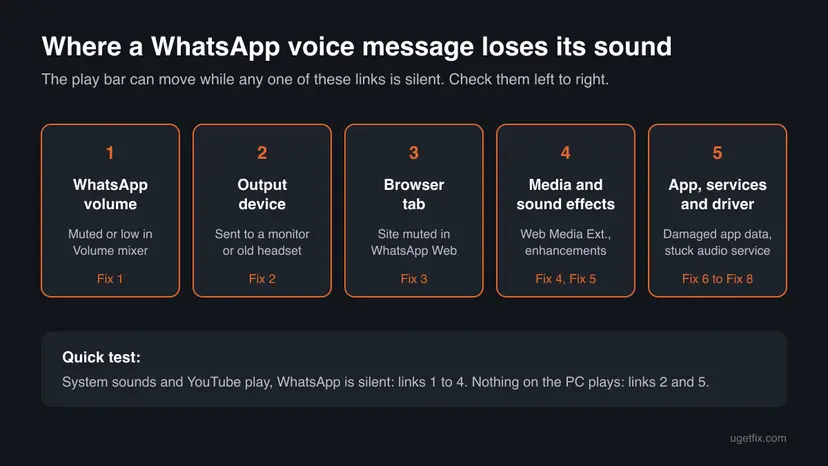
| Cause | How often | How to tell | Fix |
|---|---|---|---|
| WhatsApp is muted or turned down in Volume mixer | Most often | System sounds play. WhatsApp's slider is at zero or its speaker icon is crossed out. | Fix 1 |
| WhatsApp plays to another output device | Often | A headset, a monitor or a Bluetooth speaker was used before. WhatsApp's output device differs from the default. | Fix 2 |
| The WhatsApp Web tab or the browser is muted | WhatsApp Web only | The tab shows a crossed speaker icon, or the browser is muted in Volume mixer. | Fix 3 |
| Missing media support for OGG audio | Sometimes | Other OGG files do not play either. Web Media Extensions is not installed. | Fix 4 |
| A driver sound effect or exclusive mode blocks the sound | Sometimes | Sound began to fail after a driver or sound software update. | Fix 5 |
| The WhatsApp app is outdated or its data is damaged | Sometimes | WhatsApp Web plays the same message on this PC. | Fix 6 |
| The audio services are stuck or the driver is broken | Rarely | No program plays sound, or the device is missing in Sound settings. | Fix 7, then Fix 8 |
WhatsApp publishes no list of causes for this symptom on Windows, and its help page for it is written mostly for phones. The ranking follows Microsoft's own order for app audio that fails while system sounds work. It is not a measured statistic.
WhatsApp for Windows or WhatsApp Web: which one you use matters
There are two ways to run WhatsApp on a PC. WhatsApp for Windows is the app from the Microsoft Store with its own window. WhatsApp Web is the page web.whatsapp.com in a browser. In the Volume mixer the app appears as WhatsApp, while WhatsApp Web appears as your browser, for example Chrome or Edge. Fixing the wrong entry changes nothing.
- WhatsApp for Windows: start with Fix 1 and Fix 2, then Fix 6 for the app itself.
- WhatsApp Web: start with Fix 3, then check the browser's row in Volume mixer with Fix 1.
- Cross-check: play the same voice message in the other one. If it plays there, Windows audio and the driver are fine and you can skip Fix 7 and Fix 8.
How to fix WhatsApp not playing audio messages on a PC
Fixes 1 to 3 cover the settings that silence WhatsApp alone and solve most cases. Fixes 4 and 5 deal with media support and sound effects. Fixes 6 to 8 repair the app, the Windows audio services and the driver, and are needed only when the earlier ones did not help.
| What you see or have | Start with |
|---|---|
| Voice messages and notification tones are silent in the WhatsApp app, other sounds play. | Fix 1, then Fix 2 |
| You used a headset, a second monitor or a Bluetooth speaker before the sound stopped. | Fix 2 |
The problem is in a browser tab at web.whatsapp.com. | Fix 3 |
| The play button does nothing, or other OGG audio files do not play either. | Fix 4, then Fix 6 |
| The sound stopped after a sound driver or audio software update. | Fix 5, then Fix 8 |
| Nothing on the PC makes any sound. | Fix 2, then Fix 7 and Fix 8 |
Fix 1. Unmute WhatsApp and raise its volume in Volume mixer
2 minutesNo riskWhatsApp voice messages and notification tones are silent, while other programs and system sounds play.
Windows keeps a separate volume for every app. Microsoft says app volume controls can override system volume, so WhatsApp can sit at zero or muted while the main volume looks normal.
- Open WhatsApp and start playing a voice message, so that WhatsApp appears in the mixer.
- On Windows 11, select Start > Settings > System > Sound.
- Select Volume mixer.
- Under Apps, find WhatsApp. If you use WhatsApp Web, find your browser instead.
- If its speaker icon is crossed out, select it to unmute the app.
- Move its slider up, then play the voice message again.
On Windows 10, right-click the Volume icon on the taskbar and select Open Volume mixer. Each app has its own column with a slider and a speaker button below it. Make sure WhatsApp's column is not muted and its slider is up.
- WhatsApp is not in the list. Windows shows only apps that have played sound since they started. Keep a voice message playing while you look.
- The phone is fine. WhatsApp's help page starts with the same check for phones: make sure the volume is not low or muted. On the PC that check happens here.
It worked if: WhatsApp's row in Volume mixer shows a moving level while the voice message plays, and you hear it.
If not: If WhatsApp is unmuted and loud but still silent, its sound probably goes to another device. Go to Fix 2.
Fix 2. Set the right output device for WhatsApp
3 minutesNo riskYou switched between speakers, a headset, a monitor or a Bluetooth device, or you hear nothing from any program.
Microsoft notes that apps can use a different output device than the system default. If WhatsApp still points to a headset that is off or a monitor without speakers, its sound plays there and you hear nothing.
- Select Start > Settings > System > Sound.
- Under Output, select the speakers or headset you want to hear WhatsApp on.
- Play any video to confirm that the device works.
- Select Volume mixer on the same page.
- Under Apps, find WhatsApp and set its Output device to the same device as in step 2.
- Quit WhatsApp, open it again and play the voice message.
On Windows 10, right-click the Volume icon, select Sounds and open the Playback tab. Make sure your speakers or headset are set as Default. Then return to Volume mixer and confirm that WhatsApp uses that device.
- A Bluetooth headset. Connect it before you open WhatsApp. If the sound fails only with the headset, test once with the laptop speakers.
- The speaker banner in calls. If a WhatsApp call shows Your speaker is unavailable or in-use on another app, the same output settings apply. More on that banner: the WhatsApp microphone and speaker guide.
It worked if: The voice message plays through the device you chose, and notification tones come back.
If not: If you use WhatsApp Web, check the browser tab with Fix 3. If you use the app, continue with Fix 4.
Fix 3. Unmute the WhatsApp Web tab in Chrome or Edge
2 minutesNo riskWhatsApp Web voice messages have no sound, while the same messages play in the app or on the phone.
For WhatsApp Web the browser plays the sound, so a muted tab or a muted browser in Volume mixer silences every voice message. A site muted once stays muted on every later visit.
- Look at the WhatsApp Web tab. A crossed speaker icon on the tab means it is muted.
- In Chrome, right-click the tab and select Unmute site. In Edge, right-click the tab and select Unmute tab.
- Open Settings > System > Sound > Volume mixer and check that the browser is not muted and its output device is right.
- Refresh the WhatsApp Web page and play the voice message again.
- Another tab plays sound fine. Then only this site is muted. Unmuting it in step 2 is enough.
- No browser plays sound. Then the fault is in Windows. Go back to Fix 2 or on to Fix 7.
It worked if: The tab has no crossed speaker icon, and the voice message plays with sound.
If not: If the tab is unmuted and still silent, install media support with Fix 4 and test again.
Fix 4. Install or repair Web Media Extensions from the Microsoft Store
5 minutesNo riskThe play button does nothing, the bar stays still, or other OGG audio files do not play on this PC either.
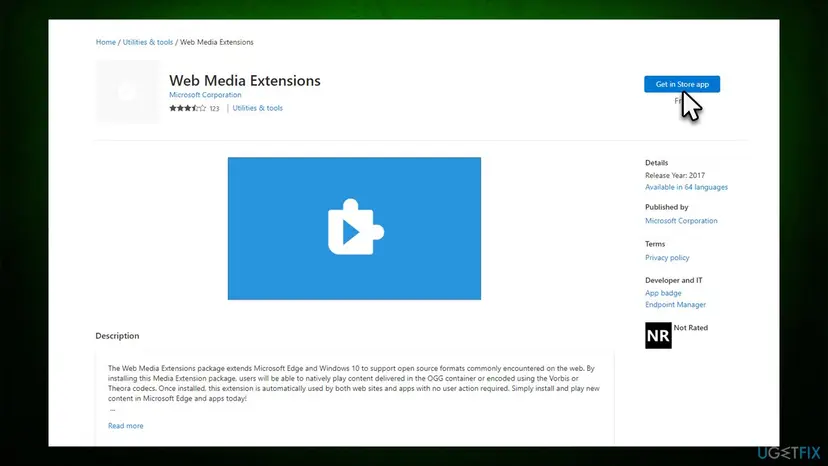
Microsoft's Store page says this free package lets Windows play content in the OGG container and with the Vorbis and Theora codecs, and that apps use it automatically. Users report it brought WhatsApp audio back, but we could not confirm which audio format WhatsApp for Windows uses.
- Open Microsoft Store and search for Web Media Extensions by Microsoft Corporation.
- Select Get or Install. If the button reads Update, select it.
- If the button reads Open, it is already installed. Then go to Settings > Apps > Installed apps, find Web Media Extensions, open Advanced options and select Repair.
- Quit WhatsApp, open it again and play the voice message.
Neither WhatsApp nor Microsoft names this package as a fix for WhatsApp. It costs a few minutes and changes nothing else, so it is worth one try when the play button does not start playback at all.
It worked if: The voice message starts playing with sound as soon as you press play.
If not: If nothing changes, turn off sound effects of the driver with Fix 5.
Fix 5. Turn off audio enhancements and exclusive mode
5 minutesLow riskThe sound stopped after a driver update or after installing sound software, or WhatsApp is silent only on one device.
Audio enhancements are effects of the sound driver that process every sound, and a faulty one can mute some streams. Exclusive mode lets one program take the device for itself, so WhatsApp has nothing left to play on.
- Press Win + R, type
mmsys.cpland press Enter. The classic Sound window opens. - On the Playback tab, select your speakers or headset and select Properties.
- On the Enhancements tab, tick Disable all enhancements. Some drivers name the tab or the box differently, or put it on the Advanced tab.
- On the Advanced tab, clear Allow applications to take exclusive control of this device.
- Select Apply and OK, restart WhatsApp and play the voice message.
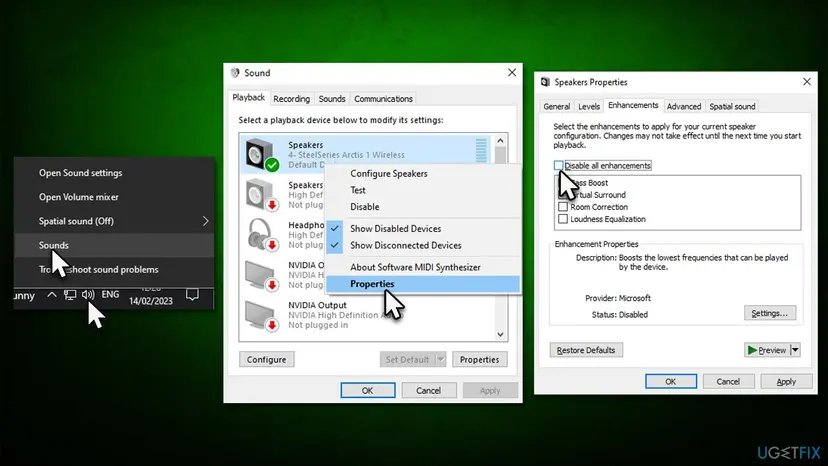
On Windows 11 you can also open Settings > System > Sound, select your output device and set Audio enhancements to Off if your driver shows that option. To undo either change, tick the boxes again. No restart is needed.
It worked if: WhatsApp plays sound again, and other programs keep working on the same device.
If not: If WhatsApp is still silent while other apps play, the app itself is the next suspect. Go to Fix 6.
Fix 6. Update WhatsApp, then repair or reset the app
10 minutesRead the warningWhatsApp Web plays the voice message on this PC but the app does not, or the app has not been updated for a long time.
An update replaces the app's program files, Repair checks them without touching data, and Reset returns the app to a fresh install. Damaged app data can keep a wrong audio state that no Windows setting reaches.
- Open Microsoft Store and search for WhatsApp. If the button reads Update, select it and wait.
- Test a voice message. If it is still silent, continue.
- Select Start > Settings > Apps > Installed apps. On Windows 10 it is Apps > Apps & features.
- Find WhatsApp, select the three dots and Advanced options. On Windows 10, select the app and then Advanced options.
- Select Terminate, then Repair, and test again. The app's data stays.

Reset deletes the app's data on this PC, including the sign-in and downloaded media. You have to link the computer to your phone again, so keep the phone at hand. Your chats stay on the phone. Try Repair first.
- If Repair did not help, select Reset on the same page and confirm.
- Open WhatsApp, link it to your phone again and play a voice message.
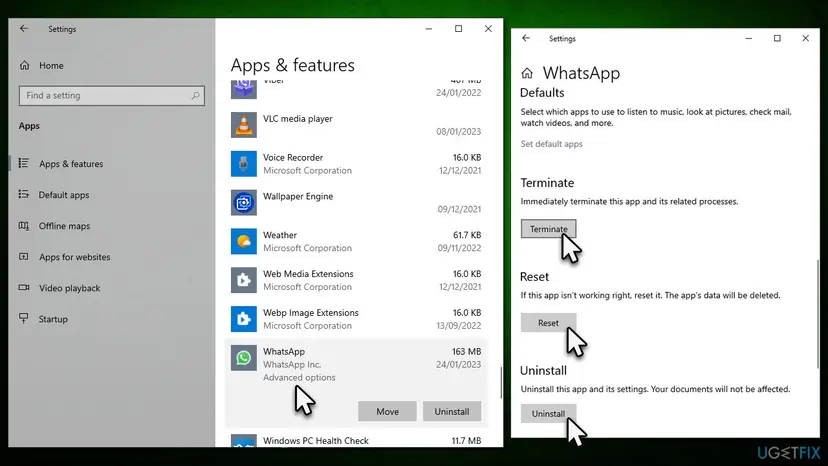
Repair and Reset with all screens: How to repair or reset an app in Windows. As a last step, uninstall WhatsApp and install it again from the Microsoft Store: Uninstall a program or app in Windows
It worked if: After the update or repair, voice messages and notification tones play with sound.
If not: If a freshly reset WhatsApp is still silent, the fault is below the app. Go to Fix 7.
Fix 7. Restart the Windows audio services
3 minutesLow riskNo program plays sound, or sound fails in several apps after the PC was asleep.
Every app, WhatsApp included, plays sound through the Windows Audio and Windows Audio Endpoint Builder services. Microsoft lists restarting them as a fix for app audio that stops working, because it clears a stuck session without a reboot.
- Select Start, type
services.mscand press Enter. - Right-click Windows Audio and select Restart.
- Right-click Windows Audio Endpoint Builder and select Restart.
- Quit WhatsApp, open it again and play the voice message.

Every program goes silent for a few seconds while the services restart. Services step by step: Check and restart Windows services
It worked if: Sound returns in all apps, WhatsApp included.
If not: If the PC is still silent or the device is missing, update or reinstall the audio driver with Fix 8.
Fix 8. Update or reinstall the audio driver
15 minutesRead the warningNo app plays sound after Fix 7, or the audio device is missing or marked in Device Manager.
Microsoft names outdated or incompatible audio drivers as a reason apps cannot play sound. A fresh driver rebuilds the output device that WhatsApp plays to.
If you uninstall the device, speakers and headphones stay silent until Windows installs the driver again at the next start. Download the current audio driver from your PC or sound card maker first, so you can install it by hand if needed.
- Select Start, search for Device Manager and open it.
- Expand Sound, video and game controllers.
- Right-click your audio device and select Update driver, then restart the PC and test WhatsApp.
- If nothing changes, right-click the device, select Uninstall device, tick the box that removes the driver and select Uninstall.
- Restart the PC. Windows installs the device again. If it does not, install the driver you downloaded.
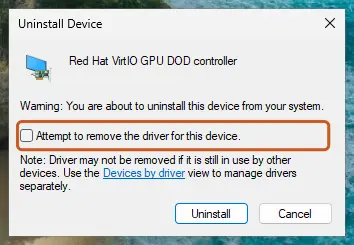
Updating, rolling back and reinstalling a driver, with pictures: Update, roll back or reinstall a driver. Do not use driver updater programs for this: the maker's driver and Windows Update are enough.
It worked if: The device is listed again under Output in Sound settings, and WhatsApp plays voice messages with sound.
If not: If no program plays sound with a clean driver, the hardware is the likely cause. See the section below.
If WhatsApp still plays audio messages without sound
WhatsApp for Windows has no log you can read for this, and it shows no error code. The evidence is in Windows. These checks tell you which link is silent before you contact anyone.
| Check | Result | What it means |
|---|---|---|
| Play a YouTube video on the same PC | Silent too | Windows output, services or driver: Fix 2, Fix 7, Fix 8. |
| Play the message in WhatsApp Web instead of the app | Works | The app's volume or data: Fix 1 and Fix 6. |
| Play it with other speakers or headphones | Works | The first device, its plug or its Bluetooth link. |
| Watch WhatsApp's level in Volume mixer while it plays | The level moves | WhatsApp sends sound. It goes to the wrong device: Fix 2. |
- When it is hardware. No program plays sound with any driver, or sound works only when you hold the plug at an angle. Contact the maker of the PC or the headset.
- When you write to support. Give WhatsApp or the PC maker the WhatsApp version, the Windows version shown by
winver, whether you use the app or WhatsApp Web, and the results of the checks above.
How to keep sound working in WhatsApp desktop
- Check WhatsApp's row in Volume mixer after you used a headset or a second monitor.
- Connect a Bluetooth headset before you open WhatsApp.
- Keep WhatsApp and Web Media Extensions updated from the Microsoft Store.
- Use Repair before Reset when the app misbehaves.
- Do not mute the WhatsApp Web tab to silence notifications: it silences voice messages too.
- Do not install driver updater programs. The maker's audio driver and Windows Update are enough.
- Do not reset the app before you checked Volume mixer and the output device.
Windows 10 reached the end of support on 14 October 2025, as Microsoft notes on its app audio page. The PC keeps working and these fixes still apply, but Windows itself no longer receives fixes.
Frequently asked questions
Why does WhatsApp desktop have no sound when system sounds work?
Because Windows keeps a separate volume and output device for each app. WhatsApp can be muted or set to zero in Volume mixer while the main volume is normal, and Microsoft says app volume controls can override system volume. WhatsApp can also send its sound to a different device than the default, such as a headset that is off. Open Settings > System > Sound > Volume mixer, unmute WhatsApp, raise its slider and set its Output device to your speakers. That solves most cases.
Why does a WhatsApp voice message play on the phone but not on the PC?
Because the file is fine and the PC is silencing it. The progress bar moves on the PC, so WhatsApp has the file and plays it. The sound is lost in Windows: the app's volume, its output device, a sound effect of the driver or the audio services. Check them in the order of Fix 1 to Fix 8. Your phone, your account and the sender are not involved, and nothing on the phone needs to be changed.
Why is there no sound for WhatsApp Web voice messages?
In WhatsApp Web the browser plays the sound. A muted tab shows a crossed speaker icon. In Chrome, right-click the tab and select Unmute site; in Edge, select Unmute tab. Then check Volume mixer, where WhatsApp Web appears as the browser, not as WhatsApp. Make sure the browser is not muted and uses the right output device. Refresh the page afterwards. If other sites have sound and only WhatsApp Web is silent, the muted site is almost always the reason.
How do I fix WhatsApp no sound on a laptop?
The steps are the same on a laptop and a desktop PC. On a laptop, check first that the output is the laptop speakers and not a Bluetooth headset or an external monitor connected earlier. Then open Volume mixer and unmute WhatsApp. If the laptop has hardware volume keys or a mute key, make sure its light is off. If nothing on the laptop plays sound, restart the audio services and update the audio driver from the laptop maker's support page.
WhatsApp says "Your speaker is unavailable or in-use on another app". What does it mean?
It means WhatsApp could not open an output device for a call: none is selected, the selected one is gone, or a program holds it. Select your speakers or headset under Output in Settings > System > Sound, check WhatsApp's Output device in Volume mixer, and close programs that use the device. Clearing Allow applications to take exclusive control of this device, as in Fix 5, also helps. Our guide on the WhatsApp microphone and speaker banners covers this message in full.
Why doesn't my microphone work in WhatsApp on Windows 11?
That is a different problem from silent voice messages. Playback does not need microphone permission, but recording a voice message or making a call does. On Windows 11, open Settings > Privacy & security > Microphone and turn on Microphone access, Let apps access your microphone and the WhatsApp switch. Then close other apps that use the microphone. The full steps are in our guide on the WhatsApp message Your microphone is unavailable or in-use on another app.
Why can't WhatsApp download an audio message on my PC?
If a voice message shows a download icon and does not start, the file has not reached the PC yet, which is a connection matter and not a sound one. Check that the PC is online, quit and reopen WhatsApp, and try again. If downloads keep failing in the app while WhatsApp Web works, update or repair the app with Fix 6. We could not confirm a WhatsApp help page that covers failed audio downloads on Windows specifically.
Is there sound when I share my screen in a WhatsApp call on a PC?
We could not confirm from WhatsApp whether screen sharing on Windows also shares the computer's sound, so we cannot say if missing sound there is a fault or a limit. What you can check: the other person hears your voice through your microphone, not the PC's sound, and both your microphone and output device must work in Settings > System > Sound. If you need others to hear a video, play it near the microphone or share the file instead.
Is installing Web Media Extensions safe?
Yes. Web Media Extensions is a free package published by Microsoft Corporation in the Microsoft Store. Microsoft says it lets Windows play content in the OGG container and with the Vorbis and Theora codecs, and that websites and apps use it automatically. It changes nothing else on the PC. Neither WhatsApp nor Microsoft lists it as a WhatsApp fix, so treat it as a short test: install it, restart WhatsApp and play the voice message.
I searched in another language. Does this guide apply?
Yes. This page is in English, but the problem and the fixes are the same on any Windows language: no sound in WhatsApp on a PC or laptop, voice messages that play without sound, or a fix that did not help. The menu names follow your Windows language, so look for the same places: Settings, System, Sound, Volume mixer. If the first fix did not help, continue with the next one in order.
Sources
- Microsoft Support: Fix app audio not working while system sounds work in Windows (support.microsoft.com)
- Microsoft Store: Web Media Extensions (Microsoft Corporation) (apps.microsoft.com)
- WhatsApp Help Center: Can't hear voice messages, status audio, call audio, or videos (faq.whatsapp.com)
Did this fix work?
One click, no account. It tells the next reader which guides are worth their time.
Questions and experiences: fix WhatsApp not playing audio messages in Windows
Still broken, or found a fix we did not cover? Ask here: members and our editors answer. Reading is open; writing needs a free account.
…