How to fix
Wi-Fi disconnects after sleep mode
on Windows
Resolve Wi-Fi disconnects after sleep mode in Windows 10 or 11 swiftly with expert-tested solutions. Get back online in minutes!

What causes How to fix Wi-Fi disconnects after sleep mode in Windows?
- Corrupted network adapter drivers
- Outdated network adapter drivers
- Issues caused by recent Windows updates
- Malfunctions in the operating system
- Power management settings affecting the network adapter
Repairs Windows system files, removes malware, and restores a clean OS state — without reinstalling.
Hello, I have been having a rather strange problem recently, my laptop disconnects from Wi-Fi every time it wakes up from sleep. This started happening as soon as automatic Windows updates were applied last week, so I'm not quite sure - maybe it is related to that. I need to restart my laptop every time to make the Wi-Fi work once again, which is really annoying.
Windows might sometimes not work as expected for no apparent reason, and users that come across such issues have the right to be annoyed. In reality, every malfunction in the operating system has a reason, although the causes for this can differ greatly.
Wi-Fi disconnecting after sleep mode in Windows is not a new phenomenon and has been bugging users for many years now - there is no ultimate solution for the problem to this day. However, there are plenty of troubleshooting steps that can help users to find the root cause of the problem and do something about it.
Most commonly, users describe a problem as a persistent one. After they leave their PCs for a while, their devices access the sleep mode to save electricity consumption. Under normal circumstances, all the Windows work should be resumed as normal as soon as they touch any key on the keyboard or click a mouse.
For some people, this results in Wi-Fi disappearing, and unless they restart their computers, no internet is available. Without a doubt, this shouldn't be the case.
One of the most common reasons for Wi-Fi disconnecting after sleep mode is the network adapter drivers.[ref en-1] Sometimes, they might get corrupted or outdated, which may result in the internet connection malfunctioning. Therefore, updating drivers might help users fix the problem.
For some people, issues started after applying the latest Windows update. It is not unusual for updates to cause certain malfunctions on the device, so uninstalling them can help resolve the situation. In addition to these solutions, we provide additional ones below, so please try them one by one to see which one is helpful to you.
Before proceeding, we suggest you attempt to fix underlying Windows issues with the help of a powerful PC repair tool [d1], which can quickly and easily find damaged system files and replace them with brand new ones, resolving errors, crashes, BSODs,[ref en-2] registry issues, and other common Windows problems automatically.
Fix 1. Update network adapter drivers
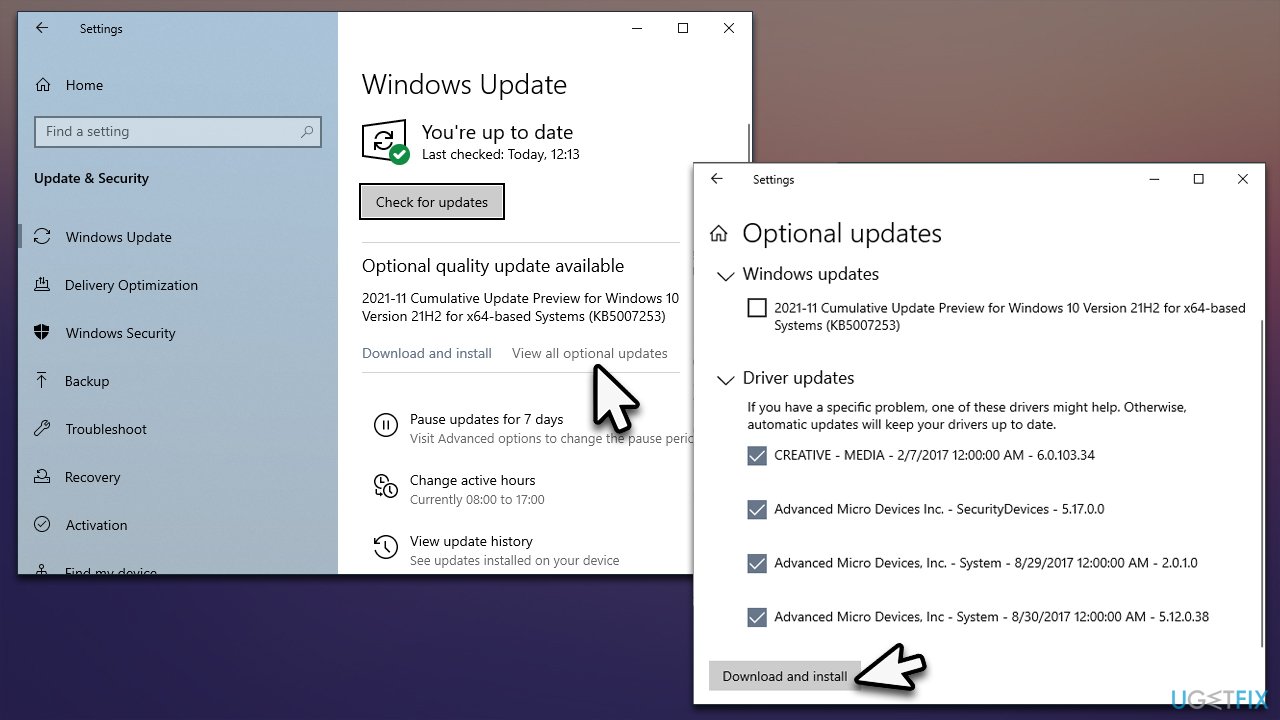
Network adapter drivers may be the main cause of Wi-Fi disconnecting after sleep mode. Thus, we recommend updating your network adapters. If you want a quicker and more efficient solution, try using [rev id="DriverFix"], as Windows might not always find the latest driver you need. Alternatively, you can visit your adapter manufacturer's website and download the latest driver from there.
- Type Update in Windows search and hit Enter
- Click Check for updates
- Click View optional updates
- Find the Driver Updates section, tick the checkboxes, and click Download and Install
- Restart your computer.
Fix 2. Turn off the power saving option [workaround]
This will stop your computer from going to sleep entirely.
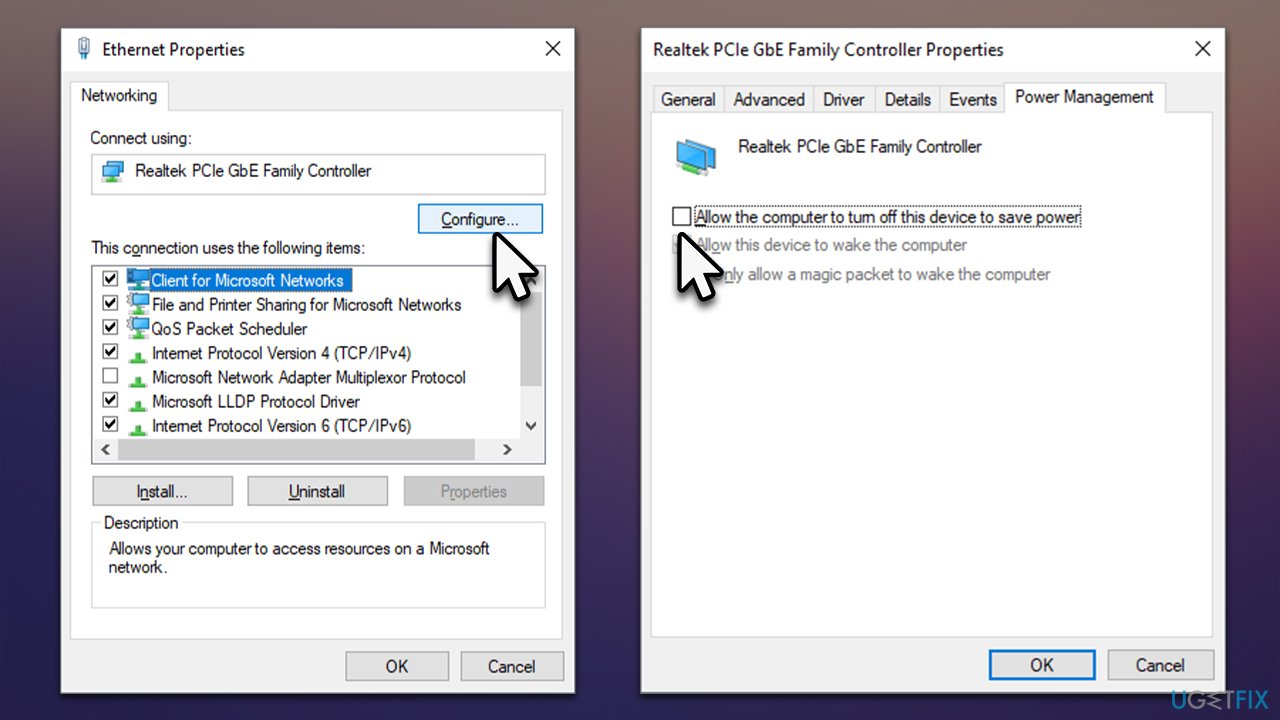
- Right-click on Start and pick Network Connections
- On the right side of the window, click Change adapter options
- Right-click on your internet connection and select Properties
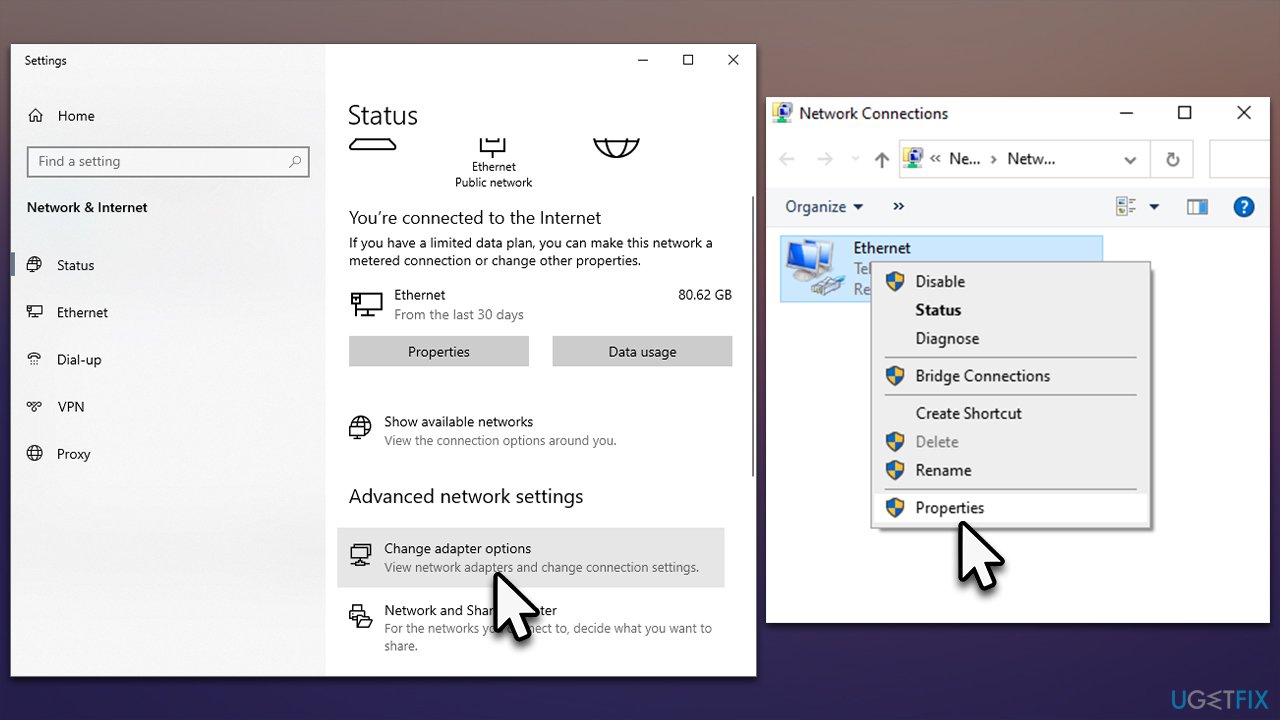
- Click Configure
- Go to the Power Management tab and untick the Allow the computer to turn off this device to save power.
- Click OK.
Fix 3. Run the troubleshooter
Windows troubleshooters are excellent built-in tools that can help you resolve various issues, including those related to internet connection inconsistencies.
- Type Troubleshoot in Windows search and press Enter
- Select Additional troubleshooters (or Other trouble-shooters in Windows 11)
- Find the Internet connections section and click Run the troubleshooter
- Wait till the scan is finished, apply the suggested fixes and restart your system.
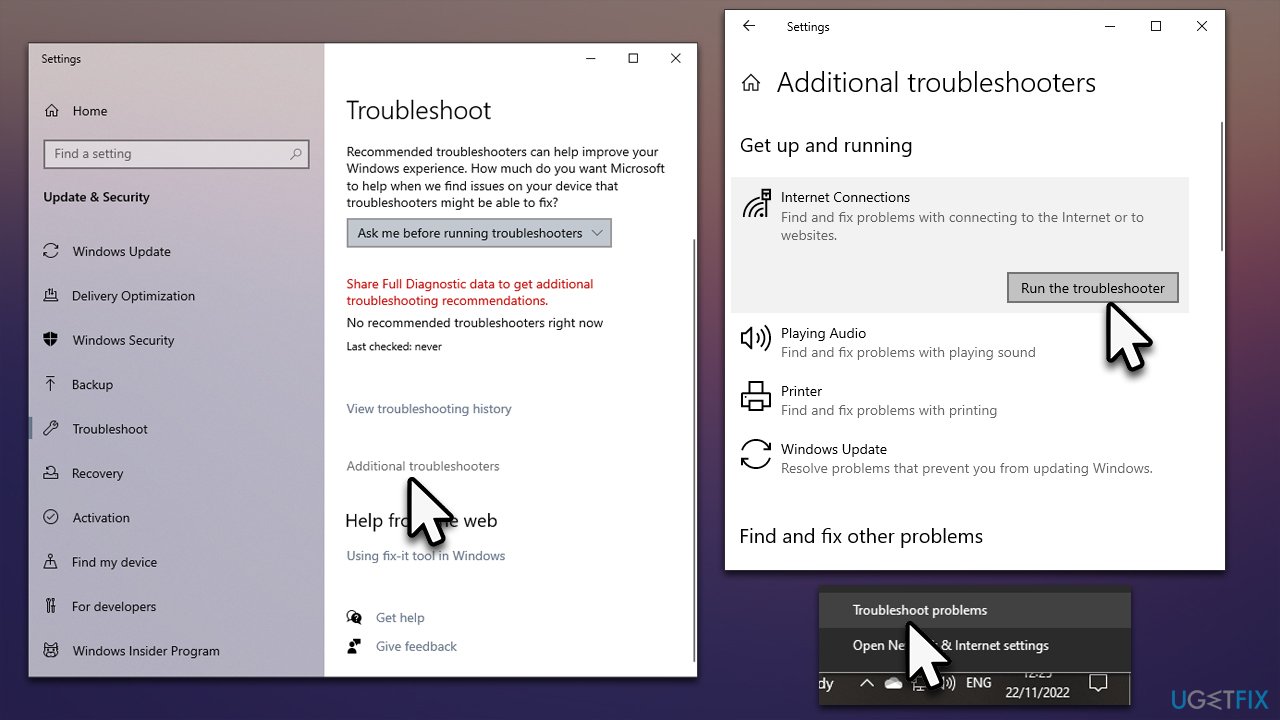
You should also run the Network troubleshooter by right-clicking on your internet icon in the taskbar and selecting Troubleshoot problems.
Fix 4. Uninstall the latest update [workaround]
If your problems started after Windows updated (be it automatically or whether you initiated the process yourself), you can reverse it by uninstalling the latest Windows update. Make sure you pause the update process once done so that it wouldn't be applied once again.
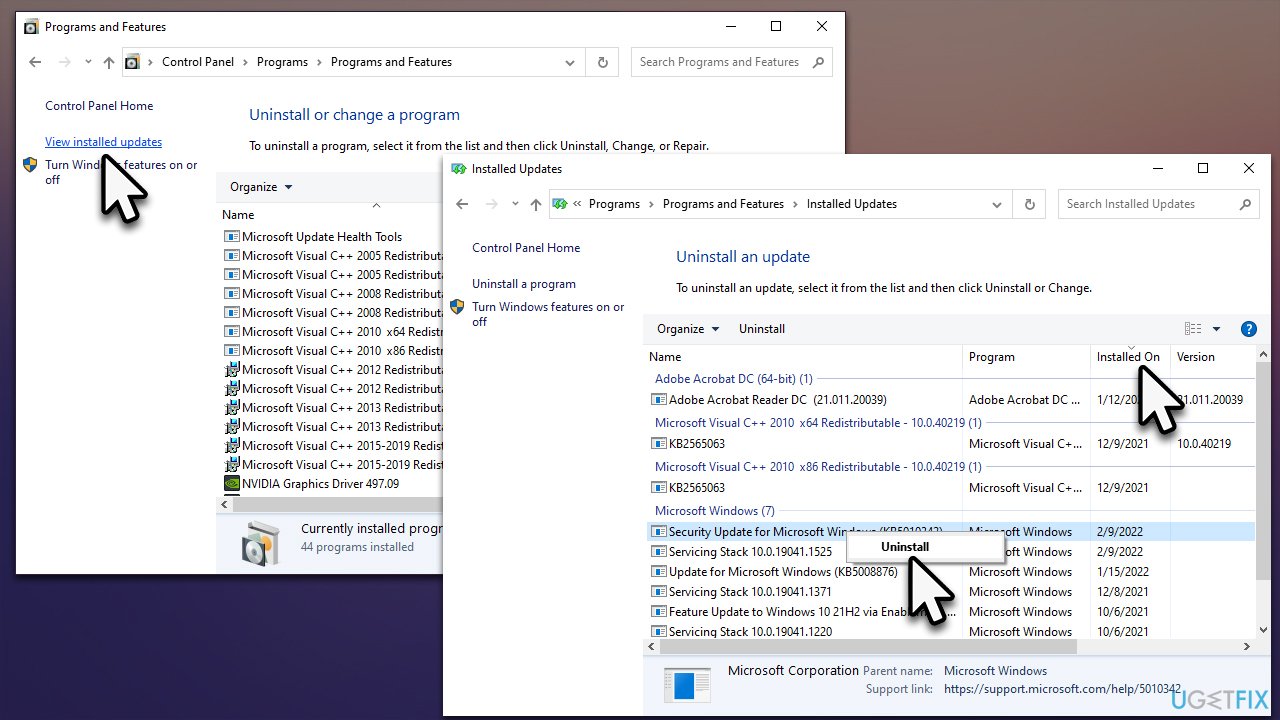
- Type Control Panel in Windows search and press Enter
- Here, go to Programs > Uninstall a program
- Select View installed updates
- Locate the latest update (sort it by the Installed On column), right-click and select Uninstall
- Follow the on-screen instructions and restart your system.
To pause the updating process, follow these steps:
- Type Updates in Windows search and hit Enter or go to Settings > Update & Security > Windows Update
- Click Pause updates for 7 days (in Windows 11, this option is under More options).
Fix 5. Disable Broadcom Bluetooth
Some people reported that Broadcom Bluetooth[ref en-3] could be causing Wi-Fi disconnection issues after sleep mode. If you have that running, you can disable it via the Task Manager:
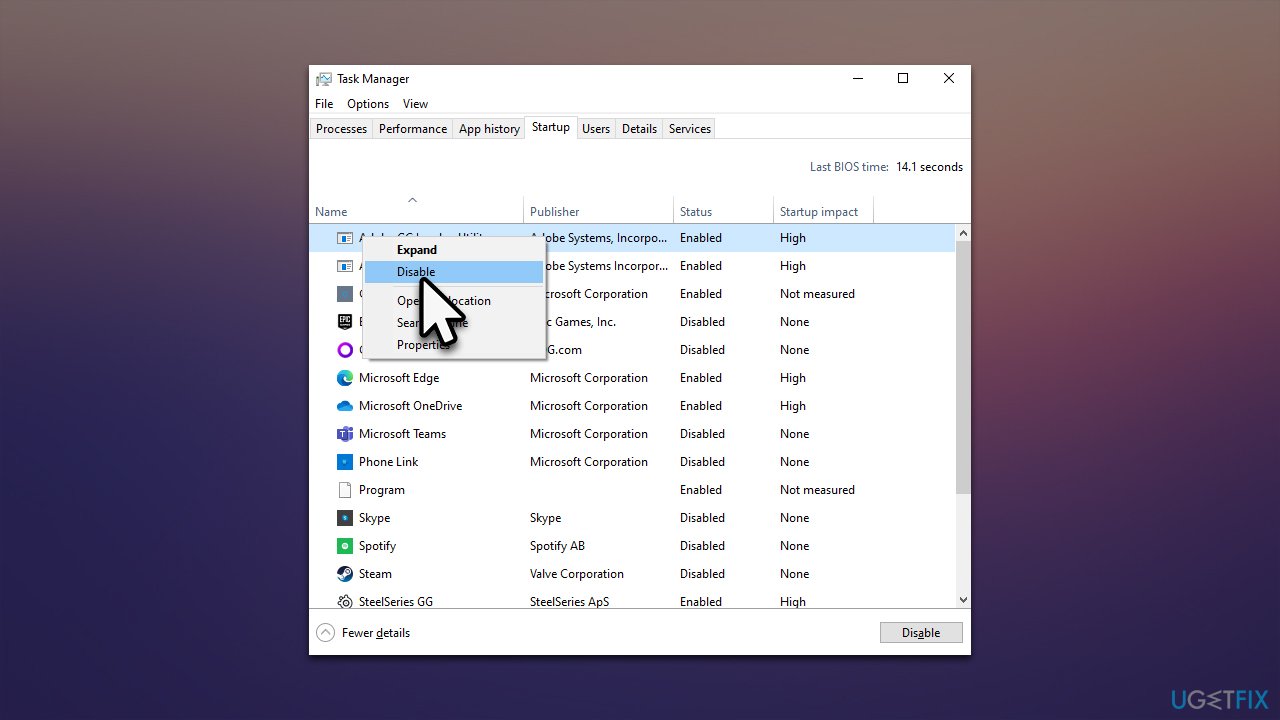
- Press Ctrl + Shift + Esc
- Go to the Startup tab
- Here, find Broadcom Bluetooth service
- Right-click and select Disable.
Bottom line
To fix Wi-Fi disconnects after sleep mode in Windows, users should consider updating or reinstalling their network adapter drivers, uninstalling recent Windows updates, and adjusting power management settings for the network adapter. If these solutions do not resolve the issue, further troubleshooting may be necessary.
Frequently asked questions
You can adjust your power settings by going to Control Panel > Hardware and Sound > Power Options, then selecting 'Change plan settings' and 'Change advanced power settings' to prevent the wireless adapter from turning off.
This issue might be due to the network adapter's power management settings; you can disable the option that allows the computer to turn off the device to save power in Device Manager.
Yes, you can try updating your network adapter drivers, resetting the network settings, or running the Network Troubleshooter found in Settings > Update & Security > Troubleshoot.




Report an issue
What's wrong with this guide? We review every report and update or remove content.
Report received — thank you. We'll review and fix it.
You need a free account to submit a report.
Be the first to comment