How to fix
“Wi-Fi: No Hardware Installed” Error
on Windows
Resolve the "Wi-Fi: No Hardware Installed" error on Windows 10/11 easily with our expert-tested solutions. Get back online fast! Updated 2025.

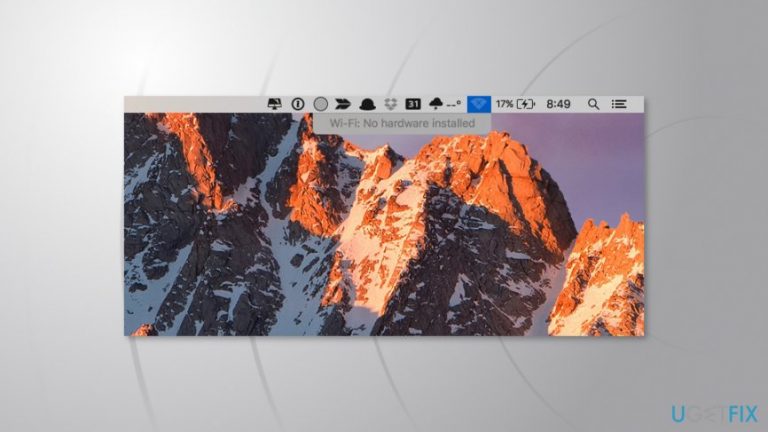
What causes How to Fix “Wi-Fi: No Hardware Installed” Error on MacBook?
- MacBook went to sleep mode
- System Management Controller (SMC) malfunction
- Wi-Fi adapter mistakenly turned off
- Error occurs after waking from sleep
- Removable battery in older MacBooks
Repairs Windows system files, removes malware, and restores a clean OS state — without reinstalling.
My MacBook went to the sleeping mode. Once I brought it back, I was unable to connect to Wi-Fi. I reset the router, but it was not a problem. My phone was connected to the same Wi-FI, and everything was OK. However, I rebooted MacBook, and I was still unable to connect. Besides, I noticed the message saying “Wi-Fi: No Hardware Installed.” What is wrong with my laptop?
“Wi-Fi: No Hardware Installed” is Mac OS X error that might show when the computer is brought back from sleep. The error occurs when the device cannot connect to Wi-Fi. Nevertheless, restarting computer or laptop often solves connectivity problems; this time it won't help to get rid and fix this error.
Connectivity issues are always annoying. However, this one can be fixed quite easily. Often the source of the error is System Management Controller (SMC). The SMC is responsible for controlling various system settings, such as power management, sleep and awake mode, keyboard backlight, and more.
Thus, when your computer goes to sleep mode, SMC controls what services and devices can be shut down in order to save battery life on MacBook. When you wake up your laptop, you should connect to the Wi-Fi automatically or get a chance to do it manually. However, sometimes the SMC is mistaken and keeps Wi-Fi adapter turned off. Then you receive “Wi-Fi: No Hardware Installed” error.
However, this problem is easy to solve. In order to fix “Wi-Fi: No Hardware Installed” error, you have to reset System Management Controller.
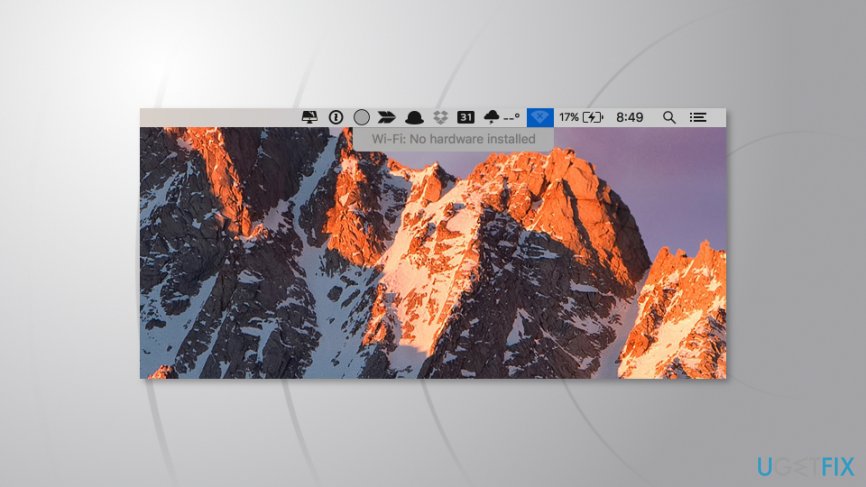
Solving “Wi-Fi: No Hardware Installed” error on MacBook
We have prepared different instructions for new and old MacBook users, as well as desktop users. We have separated new and old MacBooks due to their one technical feature. Old laptops have a removable battery, while new ones - don’t. Thus, based on this information, you should choose the right instructions.
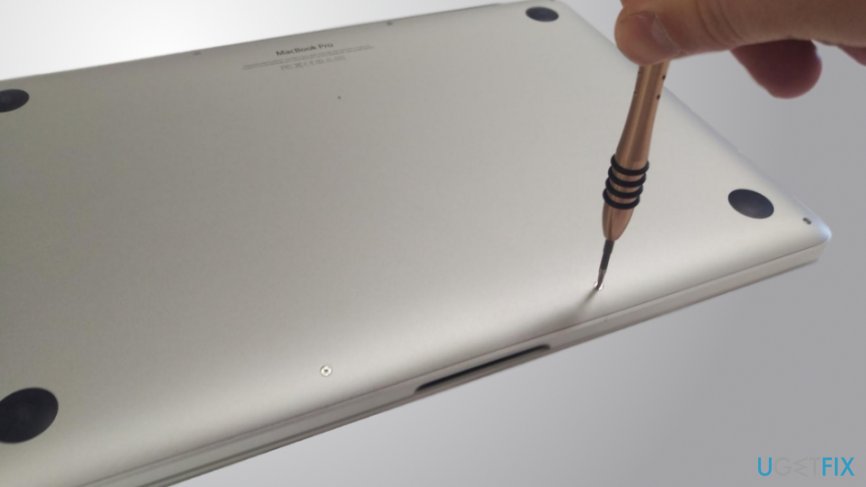
Solving Wi-Fi error on older version of MacBooks with removable battery
- Shut down your laptop.
- Take out the battery.
- Press and hold the power button for about five seconds.
- Put back the battery.
- Turn on the MacBook.
Fixing Wi-Fi connectivity problems on new MacBook without removable battery
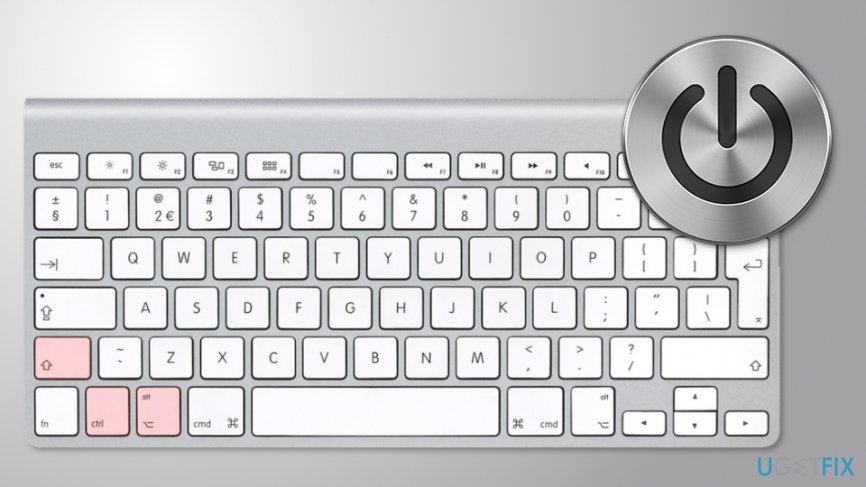
- Connect your laptop to the power source (it has to be charging).
- Click and hold Control + Shift + Option + Power at the same time for about five seconds.
- Release these keys.
- Turn on your Macbook.
Reset SMC for iMac, MacPro, and Mac Mini
- Shut down your computer.
- Unplug its power cable.
- Press and hold the power button for about five seconds.
- Then attach power cable and turn on the computer.
The error might also be caused by physical hardware problem
If you have performed steps to fix “Wi-Fi: No Hardware Installed” error and it still shows up, the problem might be related not with SMC, but the physical hardware.
Usually, there’s a problem with a network card. It may have failed, got disconnected, does not exist at all, or there’s an issue with drivers. Unfortunately, you may not be able to solve the problem yourself. Thus, you should find the nearest Apple support center and show your computer to IT specialists.
Bottom line
To fix the "Wi-Fi: No Hardware Installed" error, you need to reset the System Management Controller (SMC). For older MacBooks, this involves shutting down the laptop, removing the battery, holding the power button, and then reinserting the battery. If these steps do not resolve the issue, further troubleshooting may be necessary.
Frequently asked questions
First, check if your Wi-Fi adapter is enabled in Device Manager. If it is disabled, right-click on it and select 'Enable'.
You can run the network troubleshooter by going to Settings > Network & Internet > Status and clicking on 'Network troubleshooter' to identify and fix issues.
Yes, go to Device Manager, find your Wi-Fi adapter, right-click it, and select 'Update driver' to search for the latest driver software.




Report an issue
What's wrong with this guide? We review every report and update or remove content.
Report received — thank you. We'll review and fix it.
You need a free account to submit a report.
Be the first to comment