
How to fix USB tethering not working in Windows (Remote NDIS based Internet Sharing Device)

Prefer to fix it yourself? The manual steps follow.
- 7methods
- 5 to 30 minutes
- Easy to moderate
Applies to Windows 11, Windows 10 22H2; Android phones and other devices that share their connection over USB as a Remote NDIS device
7 methods in this guide
I was trying to get USB tethering to work with my phone, but it simply doesn't. I've tried reconnecting my Android phone several times but to no avail. Any tips on how to deal with this problem? I'm using Windows 10.
When USB tethering from an Android phone does not work in Windows, the phone usually shows up as a "Remote NDIS based Internet Sharing Device" that does not start or gets no internet. Most often the fix is on the phone or the cable. If the adapter is there but broken, pick Microsoft's Remote NDIS driver by hand in Device Manager.
USB tethering in Windows runs through one network adapter: the Remote NDIS based Internet Sharing Device. First switch on USB tethering on the phone with a data cable plugged straight into the PC (Fix 1). If the adapter appears but has a warning mark or no internet, pick the Microsoft Remote NDIS Compatible Device driver by hand (Fix 2), or uninstall the adapter and let Windows add it again (Fix 3).
| Error | USB tethering is on, but Windows gets no internet, shows no new adapter, or shows Remote NDIS based Internet Sharing Device with a yellow warning mark. |
|---|---|
| Where it appears | In Device Manager > Network adapters, and in Network Connections (ncpa.cpl) as an extra Ethernet adapter with a red X or "Network cable unplugged". |
| Main cause | Tethering not switched on, a charge only cable, or a hub. On the PC side: a wrong or damaged Remote NDIS driver. |
| Fastest fix | Turn on USB tethering on the phone with a data cable in a port on the PC itself (Fix 1). |
| Also written as | "Remote NDIS based Internet Sharing Device not working", "Remote NDIS Compatible Device", "USB RNDIS Adapter", "NDIS based internet sharing device #2". |
| Driver behind it | Microsoft's built-in RNDIS class driver, Rndismp.sys with Rndismp.inf, plus Usb8023.sys. It ships with Windows 10 and 11; you do not download it. |
| Affects | Windows 11 and Windows 10. Windows 10 support ended on 14 October 2025. Mac computers cannot tether an Android phone by USB at all. |
| Vendor status | No known Windows bug. Microsoft recommends USB NCM over RNDIS for new devices, and Windows 11 has a built-in NCM driver (UsbNcm.sys). |
| Time to fix | 2 minutes for the phone and cable checks. 10 to 30 minutes for the driver and registry fixes. |
Facts checked on 15 October 2026. Steps written for Windows 11 (25H2 and 26H2) and Windows 10 22H2, read against Microsoft Learn, Microsoft Q&A and Android Help.
What the Remote NDIS based Internet Sharing Device is
Remote NDIS based Internet Sharing Device is the name Windows gives a phone that shares its mobile data over a USB cable. Remote NDIS (RNDIS) is a Microsoft protocol that lets a USB device act as a network card. So when tethering works, a new wired network adapter simply appears in Windows and the PC goes online through it.
Microsoft Learn lists the RNDIS class driver, Rndismp.sys with Rndismp.inf, among the drivers built into Windows 10 and Windows 11. It loads automatically. Any site that offers a "Remote NDIS driver download" is offering something Windows already has.
The same adapter shows up under several names, depending on the phone and the driver Windows picked. All of them are the same tethering link:
- Remote NDIS based Internet Sharing Device, often with a number such as #2 or #3 when you have tethered more than one phone or port.
- Remote NDIS Compatible Device, the second Microsoft model in the driver list.
- USB RNDIS Adapter or USB RNDIS6 Adapter, older names in the same list.
- UsbNcm Host Device, on Windows 11 when the phone uses the newer USB NCM protocol instead of RNDIS.
| What Windows shows | What it means |
|---|---|
| No new adapter when you switch tethering on. | Windows does not see a network device: phone, cable or port. |
| The adapter with a yellow warning mark, or Code 10 "This device cannot start". | The driver did not start: Fixes 2 to 4. |
| The adapter is fine, Network Connections shows a red X or "cable unplugged". | The link is up, but the phone shares nothing: Fix 1, then Fix 5. |
| The adapter is fine, connected, but no web page opens. | Address or network stack problem: Fixes 5 and 6. |
Why USB tethering does not work in Windows
Most often the problem is on the phone side: USB tethering was never switched on, the cable only charges, or a hub or front panel port drops the data link. Less often Windows loads the right adapter with a driver that does not start, and choosing the Microsoft driver by hand fixes it. Rarely the adapter's registry entry lacks three values, or the carrier blocks tethering.
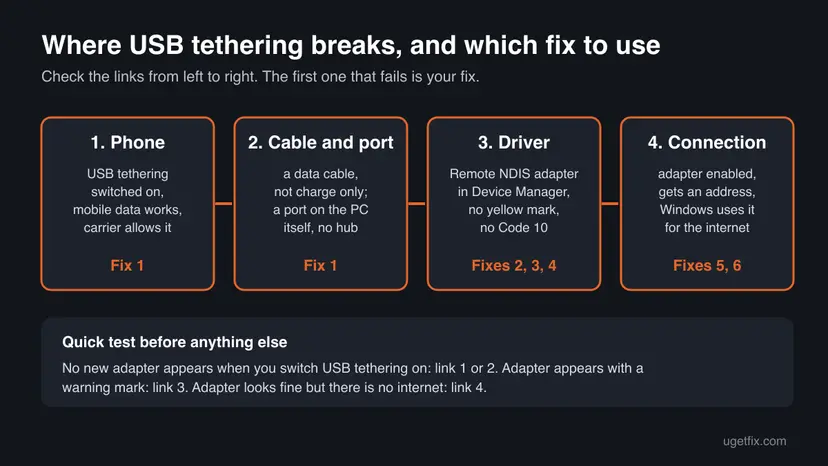
| Cause | How often | How to tell | Fix |
|---|---|---|---|
| USB tethering is off, or the phone only charges. | Most often | No new adapter in Device Manager; the phone shows only a charging notification. | Fix 1 |
| Charge only cable, hub or loose port. | Often | Another cable or a port on the back of the PC makes the adapter appear. | Fix 1 |
| Wrong or failed Remote NDIS driver. | Sometimes | Yellow mark or Code 10 on the Remote NDIS adapter. | Fixes 2 and 3 |
| Missing interface values in the registry. | Rarely | Driver fixes do nothing; the adapter stays "unplugged". | Fix 4 |
| Another connection wins, or a stuck network stack. | Sometimes | The adapter is connected, but traffic still goes over Wi-Fi or nowhere. | Fixes 5 and 6 |
| The carrier limits tethering. | Rarely | Tethering fails with every PC and over Wi-Fi hotspot too. | Ask the carrier |
This guide covers phones that show up as a Remote NDIS device, which is most Android phones. We did not check iPhone tethering for this guide, so its steps are not covered here.
How to fix USB tethering not working in Windows
Fix 1 solves most cases and takes two minutes. Fixes 2 to 4 repair the Remote NDIS driver when the adapter is there but broken. Fixes 5 to 7 are for an adapter that looks fine but gives no internet.
| What you see or have | Start with |
|---|---|
| No new adapter appears when you turn on USB tethering. | Fix 1 |
| Remote NDIS adapter with a yellow mark or Code 10. | Fix 2, then Fix 3 |
| Driver fixes done, adapter still "cable unplugged". | Fix 4 |
| Adapter connected, but no web page opens. | Fix 5, then Fix 6 |
| It worked before and stopped after an update. | Fix 3, then Fix 7 |
Fix 1. Switch on USB tethering on the phone with a data cable in a direct port
2 minutesNo riskNo new network adapter appears in Windows, or you are not sure tethering is actually on.
Plugging the phone in only charges it or opens file transfer. Android shares its connection over USB only after you switch on USB tethering, and only through a cable that carries data.
- Unlock the phone and connect it to the PC with the cable that came with it, in a USB port on the PC itself, not a hub or a front panel port.
- Check that the phone has working mobile data: open a web page on it.
- On the phone, swipe down from the top of the screen.
- Touch and hold Hotspot. If it is not there, tap Edit and drag Hotspot into Quick Settings.
- Turn on USB tethering. On older Android versions the path is Settings > Network & internet > Hotspot & tethering > USB tethering.
- On the PC, press Win + X, select Device Manager and expand Network adapters. A Remote NDIS adapter should appear within a few seconds.
- If it does not, try another cable and another port, then restart both the phone and the PC.
Google notes that some phones can share their Wi-Fi connection by tethering, while others share only mobile data. To test, turn off Wi-Fi on the phone so it uses mobile data.
Google warns that some mobile carriers limit or charge extra for tethering. If tethering fails on every computer and the Wi-Fi hotspot fails too, ask your carrier whether your plan allows it.
It worked if: A Remote NDIS based Internet Sharing Device appears under Network adapters, and the network icon on the taskbar shows a wired connection.
If not: If the adapter appears with a warning mark, go to Fix 2. If no adapter appears with any cable or port, the phone side is the problem: see the last section.
Fix 2. Pick the Microsoft Remote NDIS driver by hand in Device Manager
5 minutesLow riskThe Remote NDIS adapter is listed, but with a yellow warning mark, Code 10, or no connection.
Windows sometimes binds the phone to a driver model that does not start. This is the method a Microsoft Community support specialist gives for this exact device: choose the Microsoft Remote NDIS model from the full list.
- Keep the phone connected with USB tethering on.
- Right-click Start and select Device Manager, then expand Network adapters.
- Right-click Remote NDIS based Internet Sharing Device and select Update driver, then Browse my computer for drivers.
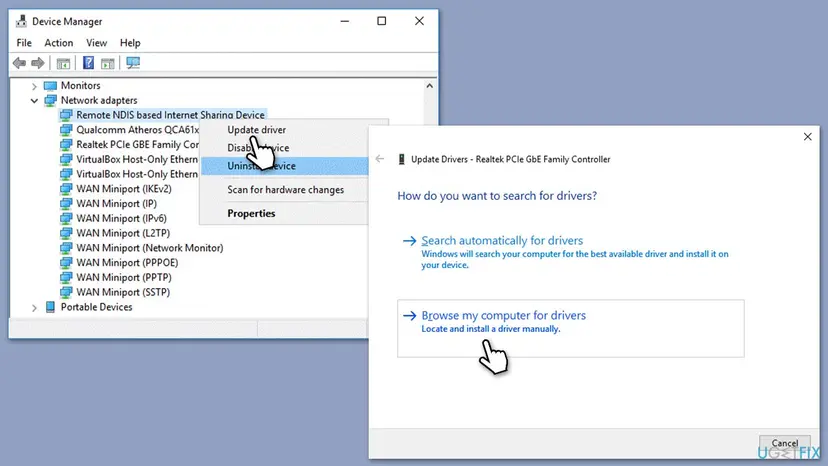
Update driver on the Remote NDIS adapter, then Browse my computer for drivers (Windows 10 shown, the same on Windows 11). - Select Let me pick from a list of available drivers on my computer.
- Clear the Show compatible hardware box.
- Under Manufacturer select Microsoft, under Model select Remote NDIS Compatible Device, and select Next.
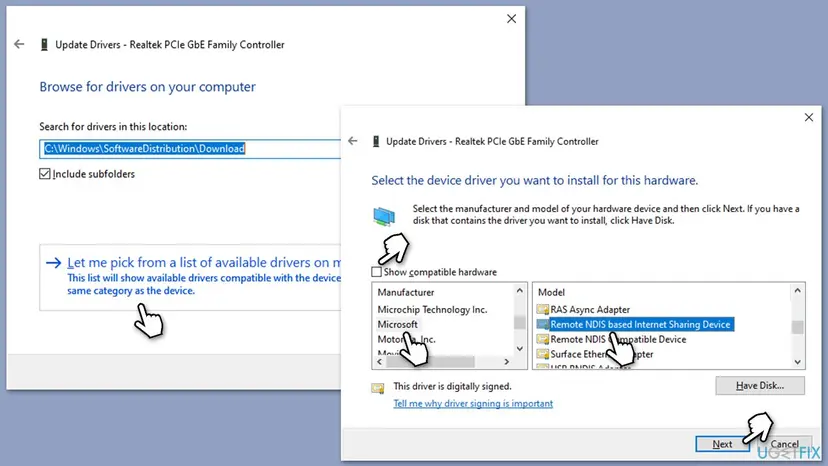
Microsoft in the Manufacturer list, then a Remote NDIS model; the window title names the adapter you right-clicked. - Confirm the warning about compatibility with Yes, then restart the PC and the phone.
The list holds Remote NDIS Compatible Device and Remote NDIS based Internet Sharing Device. If one does not help, repeat the steps and pick the other. Do not pick a model of another maker.
It worked if: The warning mark is gone, and Network Connections shows the adapter as connected after you turn tethering off and on.
If not: If the adapter still fails, go to Fix 3. Users on Microsoft Q&A report that switching models did not help on some PCs; Fix 3 and Fix 4 are the next steps.
Fix 3. Uninstall the Remote NDIS adapter and let Windows add it again
5 minutesLow riskFix 2 did not help, or tethering worked before and stopped after an update.
Windows keeps one adapter entry for every phone and port you have tethered, which is why numbers like #2 and #3 appear. Removing the entry makes Windows set up the adapter from scratch with its built-in RNDIS driver.
- Connect the phone and switch on USB tethering.
- Open Device Manager and expand Network adapters.
- Right-click Remote NDIS based Internet Sharing Device and select Uninstall device, then Uninstall (or Yes).
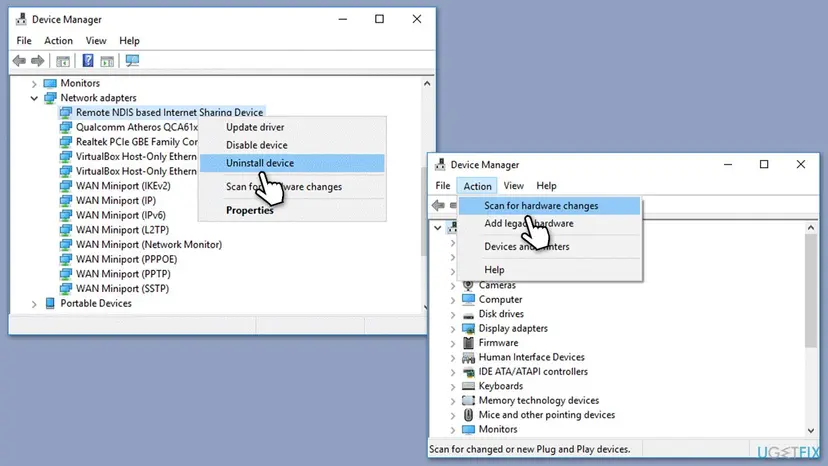
Uninstall device, then Action > Scan for hardware changes (Windows 10 shown, the same on Windows 11). - Remove the other numbered Remote NDIS entries the same way. Select View > Show hidden devices to see the ones of phones that are not connected.
- Select Action > Scan for hardware changes.
- Wait until the adapter appears again under Network adapters.
The general steps, with Windows 11 screenshots, are in Update, roll back or reinstall a driver.
It worked if: One Remote NDIS adapter appears again without a warning mark, and the PC goes online through the phone.
If not: If the adapter comes back with the same problem, go to Fix 4.
Fix 4. Add the missing interface values to the Remote NDIS adapter in the registry
15 minutesRead the warningFixes 2 and 3 did not help, and the adapter stays "cable unplugged" or has no network type.
Windows reads the interface type of each network adapter from three values in its registry key. A Microsoft Community support specialist gives these values for the Remote NDIS adapter when they are missing, so Windows treats it as a normal Ethernet link.
A wrong change in this key can break any network adapter, not only the tethering one. Export the key below before you change it, so you can put it back. Step by step: Back up the registry before editing it
- Open Command Prompt as administrator and run this command. The space after
start=is required:sc.exe config netsetupsvc start= disabled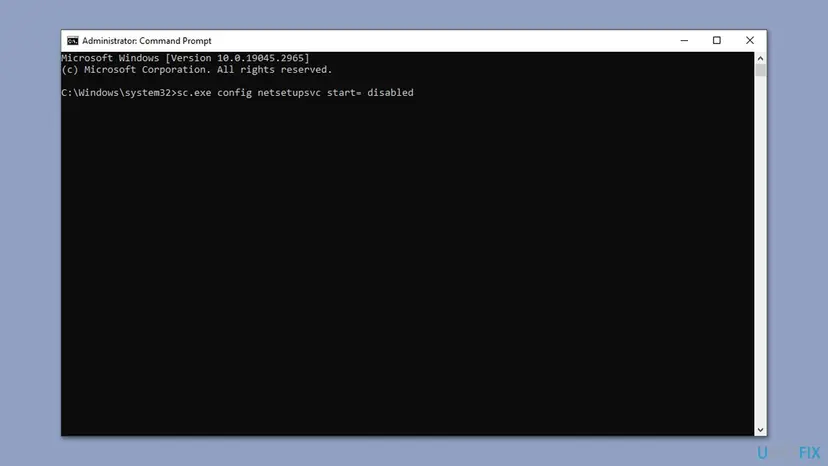
The Network Setup Service is stopped first, so it does not rewrite the adapter while you edit it. - Do Fix 3 once more: uninstall the Remote NDIS adapter and select Action > Scan for hardware changes.
- Press Win + R, type
regedit, press Enter and go to:HKEY_LOCAL_MACHINE\SYSTEM\CurrentControlSet\Control\Class\{4D36E972-E325-11CE-BFC1-08002BE10318} - Open the numbered subkeys (
0000,0001and so on) until DriverDesc reads Remote NDIS based Internet Sharing Device. There may be several; do each one. - In that subkey, right-click an empty area, select New > DWORD (32-bit) Value and create
*IfType,*MediaTypeand*PhysicalMediaType. - Set
*IfTypeto 6,*MediaTypeto 0 and*PhysicalMediaTypeto e with Hexadecimal selected, which is 14 in Decimal.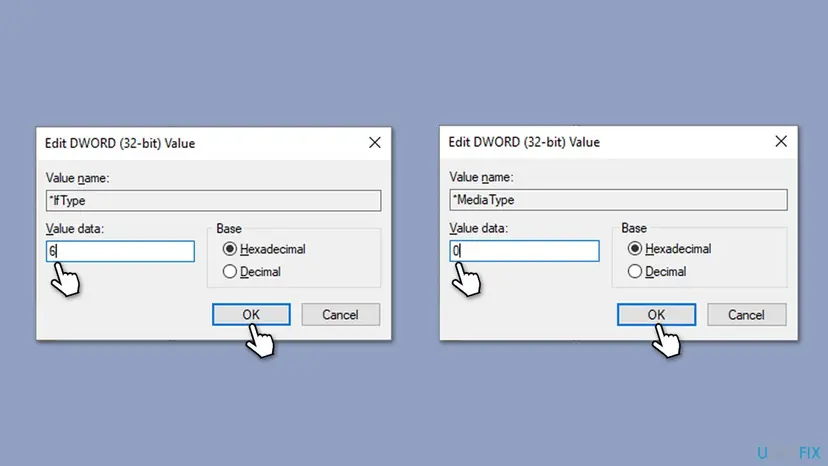
*IfType 6 and *MediaType 0, typed with Hexadecimal selected; *PhysicalMediaType is set the same way to e. - Close Registry Editor and turn the service back on:
sc.exe config netsetupsvc start= demand - In Device Manager, right-click the Remote NDIS adapter, select Disable device, then right-click again and select Enable device.
The value field does not accept 0xe. That is why users on Microsoft Q&A could not type it: enter e in Hexadecimal, or 14 in Decimal. If the three values already exist with these numbers, leave them as they are.
It worked if: After the adapter is enabled again, Network Connections shows it as connected, and pages open over the phone's data.
If not: If nothing changes, import your registry backup to undo the edit, make sure Network Setup Service is back on demand, and go to Fix 5.
Fix 5. Check the tethering adapter in Network Connections
5 minutesNo riskThe adapter looks fine in Device Manager, but there is no internet or Windows keeps using Wi-Fi.
The tethering link is just another Ethernet adapter. If it is disabled, gets no address, or loses to a Wi-Fi network without internet, tethering looks broken while the driver is fine.
- Press Win + R, type
ncpa.cpland press Enter. - Find the adapter whose description reads Remote NDIS based Internet Sharing Device. It is usually named Ethernet with a number.
- If it is greyed out, right-click it and select Enable.
- If it shows a red X or Network cable unplugged, turn USB tethering off and on again on the phone.
- To test, turn off Wi-Fi on the PC, so the tethering adapter is the only connection.
- Open Command Prompt, run the command below and look for an IPv4 address under the tethering adapter:
ipconfig

It worked if: The adapter shows Network or Internet access, and ipconfig lists an IPv4 address and a default gateway for it.
If not: If the adapter is connected but has no address or a 169.254 address, go to Fix 6.
Fix 6. Reset the Windows network stack
10 minutesLow riskThe adapter is connected, but it gets no valid address or no page opens.
A damaged Winsock or TCP/IP setting stops every adapter, including the tethering one, from getting an address. The commands clear it without touching the RNDIS driver, which is why this comes after the driver fixes.
- Open an elevated command window. Right-click Start and select Terminal (Admin), or type cmd in the search box, right-click Command Prompt and select Run as administrator. Select Yes when Windows asks for permission.
- Flush the DNS cache. Type the command below and press Enter. Windows forgets the website addresses it looked up earlier and asks for them again.
ipconfig /flushdns - Reset Winsock. Type the command below and press Enter. It returns the Windows sockets catalog to its default state.
netsh winsock reset - Reset TCP/IP. Type the command below and press Enter. If you entered an IP address or DNS server by hand, note it first: you may need to enter it again.
netsh int ip reset - Get a new IP address. Run these two commands one after the other. The connection drops for a moment between them.
ipconfig /release ipconfig /renew - Restart the PC. Restart Windows so the Winsock and TCP/IP resets take effect, then test the connection. If it still does not work, continue with the network reset below.
These steps were written for Windows 11 24H2 and later. The full page with the other versions and what each result means: Reset the network and flush DNS
The full Network reset in Settings reinstalls every adapter and removes saved Wi-Fi networks and VPN adapters. Use it only when the commands above did not help. Full guide: Reset the network and flush DNS
It worked if: After the restart, the tethering adapter gets an address and pages open.
If not: If it still fails, go to Fix 7.
Fix 7. Install Windows updates and optional driver updates
15 minutesLow riskTethering stopped after a Windows update, or the PC has not been updated for a long time.
The RNDIS and NCM class drivers ship with Windows and are updated through Windows Update. The USB controller drivers that carry the link also come from there or from the PC maker.
- Restart. Restart the PC. Windows detects the device again and installs a driver for it.
- Check optional driver updates. Open Settings > Windows Update > Advanced options > Optional updates. If driver updates are listed, tick the ones you need and select Download & install.
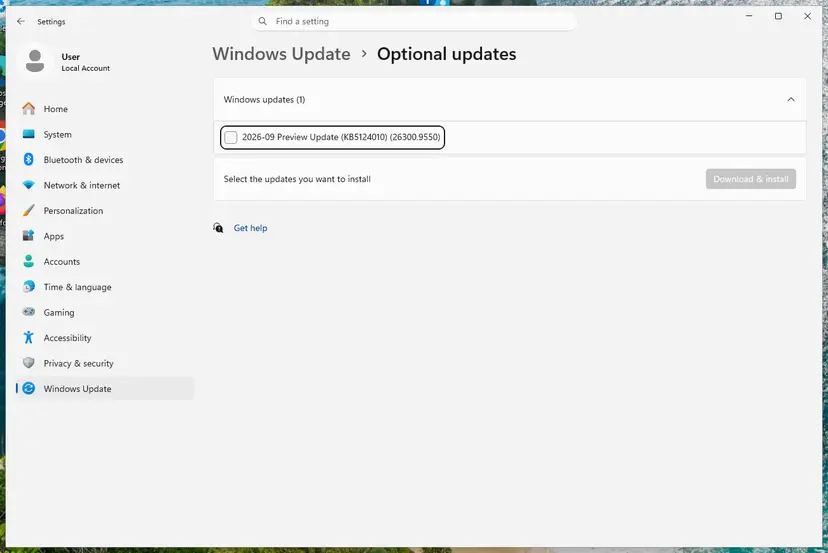
Optional updates on our test PC; driver updates appear here when Windows Update has any for your hardware. Screenshot: Windows 11 26H2.
These steps were written for Windows 11 24H2 and later. The full page with the other versions and what each result means: Update, roll back or reinstall a driver
Install the chipset and USB drivers from the PC or motherboard maker as well. Avoid third-party driver updater programs, and do not download a "Remote NDIS driver" from a download site.
It worked if: After the restart, the Remote NDIS adapter starts and tethering works.
If not: Read the next section to find out whether the phone, the cable or the PC is at fault.
If USB tethering still does not work
Device Manager tells you the most. Right-click the Remote NDIS adapter, select Properties and read Device status on the General tab, then the Events tab for the last driver install.
| What you see | What it means | What to do |
|---|---|---|
| No adapter with any cable, port or PC. | The phone does not offer USB tethering, or the carrier blocks it. | Use the Wi-Fi hotspot or Bluetooth tethering; ask the carrier. |
| Tethering works on another PC. | The problem is on this PC. | Fixes 3, 4 and 6 on this PC; then chipset and USB drivers. |
| Code 10 stays after Fixes 2 to 4. | The driver cannot start with this phone. | Try another port and cable, and update the phone's software. |
| Connected, but slow or dropping. | Weak mobile signal or a loose cable. | Check the signal on the phone; use a shorter cable. |
- What to tell support. The phone model and Android version, your Windows version, the adapter name and status from Device Manager, and whether tethering works on another PC.
- When it is hardware. A cable that only charges, a worn phone port, or a dead USB port on the PC. If no USB device works in that port, it is the port.
- A newer protocol. Microsoft recommends USB NCM over RNDIS. If your phone offers an NCM mode, Windows 11 drives it with its built-in
UsbNcm.sys; Windows 10 has no such driver.
How to keep USB tethering working
- Keep one known data cable for tethering.
- Plug the phone into a port on the PC itself.
- Turn on USB tethering after the cable is in.
- Keep Windows and the phone's software up to date.
- Plug in the phone's charger during long sessions, as Google advises.
- Do not download "RNDIS drivers" from download sites.
- Do not pick a driver model of another maker in the driver list.
- Do not leave Network Setup Service disabled after Fix 4.
- Do not use a third-party driver updater for the adapter.
If tethering breaks again after a Windows update, Fix 3 is usually the quickest way back: remove the adapter and let Windows set it up again. Turn tethering off on the phone when you are done to save battery.
Frequently asked questions
What is the Remote NDIS based Internet Sharing Device?
It is the network adapter Windows creates when a phone shares its internet connection over a USB cable. Remote NDIS (RNDIS) is a Microsoft protocol that lets a USB device work as a network card. Windows loads its built-in driver, Rndismp.sys, automatically. The adapter appears under Network adapters in Device Manager and as an extra Ethernet connection in Network Connections. You do not need to install anything for it.
Why is my Remote NDIS based Internet Sharing Device not working?
Most often USB tethering is not switched on on the phone, or the cable only charges. If the adapter appears with a yellow mark or Code 10, its driver did not start: pick the Microsoft Remote NDIS Compatible Device model by hand, or uninstall the adapter and scan for hardware changes. If it looks fine but has no internet, check it in Network Connections and reset the network stack.
Where do I download the Remote NDIS driver for Windows 10 or Windows 11?
You do not need to. Microsoft Learn lists the RNDIS class driver among the drivers built into Windows 10 and Windows 11. They are installed automatically and updated through Windows Update. If the adapter fails, the fix is to choose the built-in Microsoft model by hand in Device Manager (Fix 2) or to reinstall the adapter (Fix 3). Avoid download sites that offer RNDIS driver packages.
Why does Windows show Remote NDIS based Internet Sharing Device #2 or #3?
Windows keeps a separate adapter entry for each phone and each USB port it has tethered through. The second one becomes #2, the third #3. That is normal and not a fault. Old entries can get in the way, though: in Device Manager, select View > Show hidden devices, uninstall the extra Remote NDIS entries, and scan for hardware changes with the phone connected.
How do I fix USB tethering not working in Windows 11?
The steps are the same as in Windows 10. Switch on USB tethering on the phone with a data cable in a port on the PC itself. In Device Manager, check the Remote NDIS adapter: if it has a warning mark, pick the Microsoft Remote NDIS Compatible Device driver or reinstall the adapter. Windows 11 also has a built-in USB NCM driver, so phones that use NCM may show as UsbNcm Host Device.
What is the difference between Remote NDIS based Internet Sharing Device and Remote NDIS Compatible Device?
Both are Microsoft driver models for the same RNDIS adapter, and both appear in the Microsoft list when you clear Show compatible hardware. Windows picks one automatically. When tethering fails, switching to the other model by hand is a known fix from Microsoft's community support. If one does not work, try the other. Neither is a separate download.
Does USB tethering work on a Mac?
Not with an Android phone. Google's Android Help states that Mac computers cannot tether with Android by USB. On a Mac, use the phone's Wi-Fi hotspot or Bluetooth tethering instead. This page is about Windows, where Android USB tethering works through the Remote NDIS adapter once the phone side and the driver are right.
Why does Network Connections say the cable is unplugged during USB tethering?
The tethering adapter is a wired Ethernet adapter to Windows, so when it gets no link it reports a network cable unplugged. That usually means USB tethering was switched off, the phone was locked or asleep when you connected, or the driver is not working. Turn tethering off and on again on the phone. If it stays unplugged, try Fixes 2 to 4.
Why do I see this page when I searched in another language?
People also search this problem in their own language, for example Spanish ("no funcionó"), Russian, Polish or French. This page answers it in English. In short: switch on USB tethering on the phone with a data cable, then check the Remote NDIS based Internet Sharing Device in Device Manager. The fixes work the same in every language version of Windows.
Sources
- Microsoft Learn: USB device class drivers included in Windows (RNDIS and NCM entries) (learn.microsoft.com)
- Microsoft Q&A: usb tethering not working (answers by a Microsoft Community support specialist) (learn.microsoft.com)
- Android Help: Share a mobile connection by hotspot or tethering on Android (support.google.com)
Did this fix work?
One click, no account. It tells the next reader which guides are worth their time.
Questions and experiences: fix USB tethering not working in Windows (Remote NDIS based Internet Sharing Device)
Still broken, or found a fix we did not cover? Ask here: members and our editors answer. Reading is open; writing needs a free account.
…