How to fix
“WiFi doesn’t have a valid IP configuration” error
on Windows
Resolve the “WiFi doesn’t have a valid IP configuration” error on Windows 10 and 11 with expert-tested solutions. Fixed in minutes!

What causes How to fix “WiFi doesn’t have a valid IP configuration” error on Windows?
- Invalid IP configuration
- Network protocol layers issues
- Recent Windows updates causing conflicts
- Device-specific configuration problems
- WiFi connection problems compared to wired connections
Repairs Windows system files, removes malware, and restores a clean OS state — without reinstalling.
Hello. I purchased a Windows 10 laptop, which worked fine for quite a long time. However, for the last few weeks after installing a couple of updates, the system started encountering some problems related to Wifi connection. When trying to connect to the Internet, I get the “No Network Access” error with a yellow exclamation mark. I tried running an in-built troubleshooter, which notified: "Wifi doesn't have a valid IP configuration." Ok, for some this message may seem useful, but I know nothing about IP configuration, so I would highly appreciate your help.
WiFi doesn’t have a valid IP configuration is the Internet connection error is related to the network protocol layers preventing the free use of WiFi (wireless) Internet connection. The particular and similar errors have become common and, indeed, extremely annoying as they completely isolate the user from the cyberspace.
Despite being more convenient, WiFi encounters considerably more problems than a simple wired connection. Currently, many people are dealing with the “No Network Access” error, which shows up out of nowhere and does not provide information that could help for troubleshooting the issue. Consequently, most of the users run Windows Network Diagnostics Troubleshooter which returns the following message:
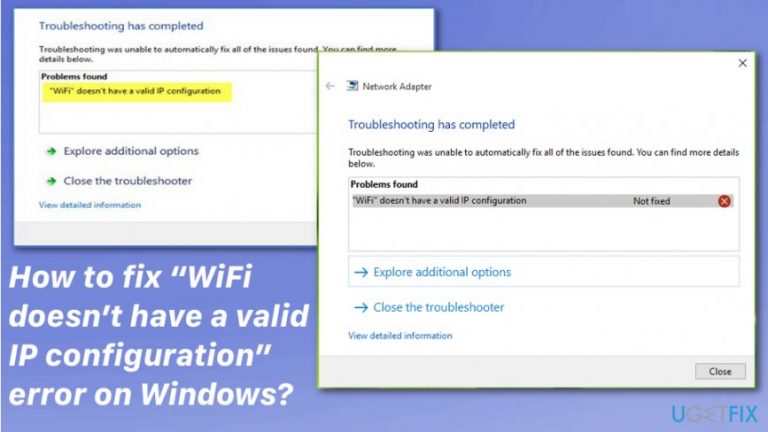
WiFi doesn’t have a valid IP configuration.
The wording of the message may vary slightly, depending on system configuration, although the IP configuration issue on Windows 10 remains the same.[ref en-1]
The “WiFi doesn’t have a valid IP configuration” error can also appear on the screen as soon as you log in to the computer. Unfortunately, the problem mostly affects devices running Windows 10 operating system. This is probably due to various updates that had different issues.[ref en-2]
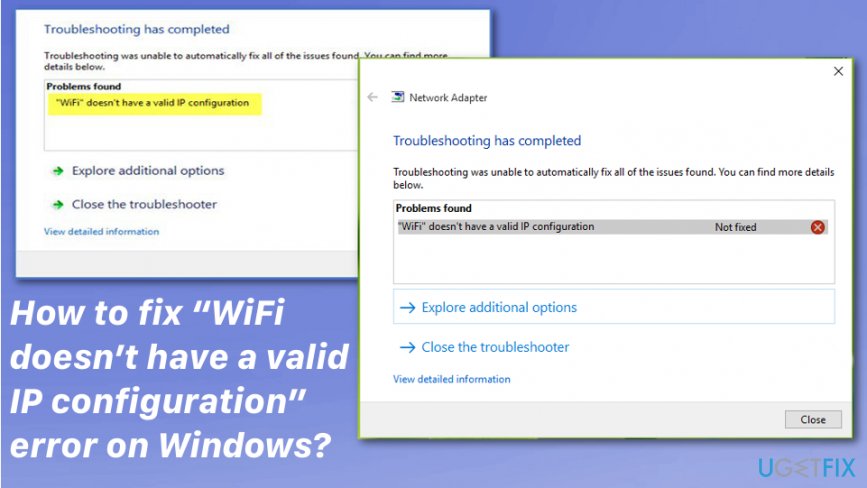
In case the WiFi doesn’t have a valid IP configuration error, only shows up on one of your devices, and others have a working WiFi connection, it hints that your internet connection is not the culprit, and there is something wrong with your computer configuration.
While the issue lies within invalid IP configuration when it comes to this error, many users simply don't know what it means and how to fix "WiFi doesn’t have a valid IP configuration" for good. Besides, when running the troubleshooter, typically, users receive a message claiming that the problem was not fixed, after all, preventing them from using their computers for regular activities that require internet connection.
Ways to fix WiFi doesn’t have a valid IP configuration error
Don’t forget to keep the system optimized. Running a full system scan with [d1] regularly would perfectly do the trick. Also, if the issue with your connection and “WiFi doesn’t have a valid IP configuration” error is related to any corrupted or malicious files, this tool can help clean the system before manual solutions.[ref en-3]
Perform a clean reboot for the WiFi doesn’t have a valid IP configuration fix
- Press and hold Windows key +R
- Type msconfig int the Run box and press Enter
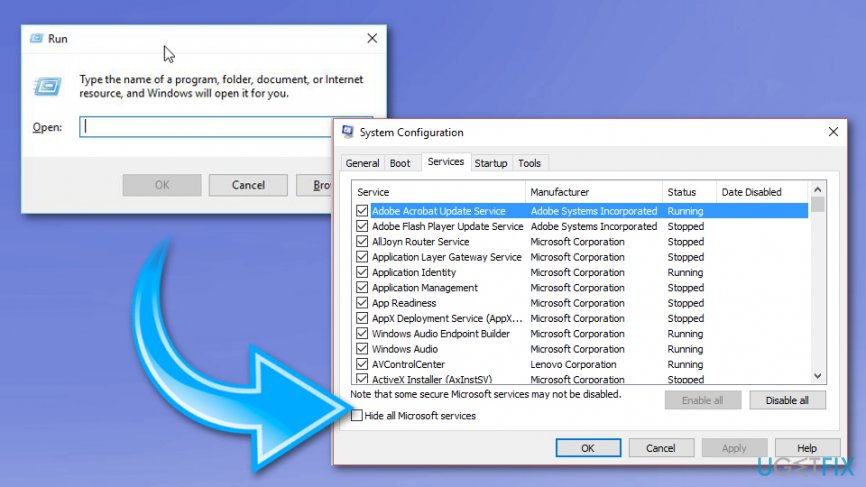
How to fix wifi doesnt have a valid ip configuration error on windows run task manager - Choose the Services tab and check the Hide all Microsoft services
- Click Disable all
- Then Startup and select Open task manager
- Choose the first item and Disable. Repeat to all the items in the Task Manager
- When you close the Task manager window click OK int he Startup Tab and restart your computer
Renew the IP address
- Right-click on Windows key and select Command Prompt (Admin).
- Type ipconfig /release command and press Enter.
- Now enter the ipconfig /flushdns command and press Enter.
- Then copy and paste the ipconfig /renew command and hit Enter.
- Type Exit and press Enter to close Command Prompt.
Reset TCP/IP to get rid of WiFi doesn’t have a valid IP configuration error
- Right-click on Windows key and select Command Prompt (Admin).
- Copy and paste the following commands and hit Enter after each of them:
netsh winsock reset
netsh int ip reset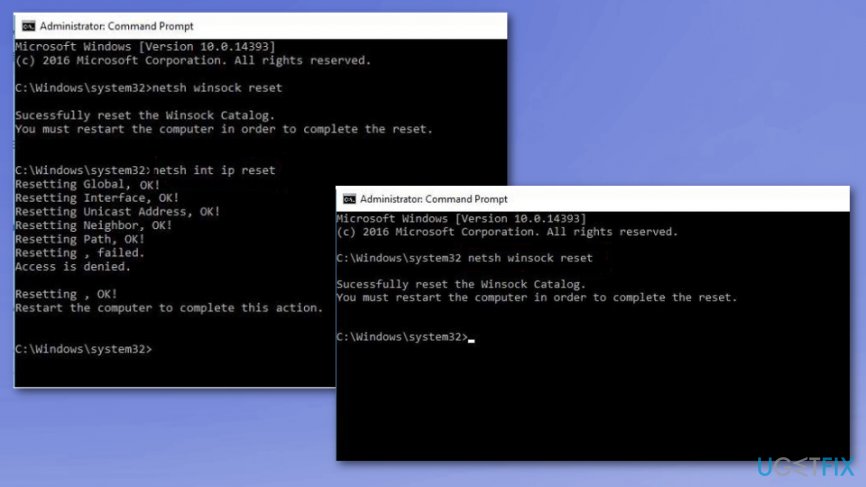
How to fix wifi doesnt have a valid ip configuration error on windows command prompt - Type Exit and press Enter to close Command Prompt.
- To execute the changes, reboot Windows.
Manually set the IP address
- Right-click on Windows key and select Network Connections.
- Find your wireless network, right-click it, and select Properties.
- Select Internet Protocol Version 4 (TCP/IPv4) and click on Properties.
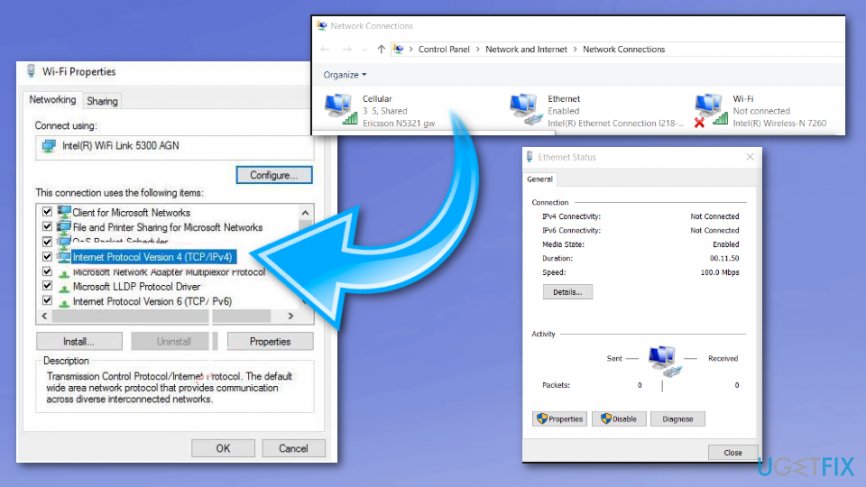
How to fix wifi doesnt have a valid ip configuration error on windows internet protocol - Click the Use the following IP address and fill in the IP address, Subnet mask, and Default gateway.
- Then enter the Preferred DNS server.
- Once done, click OK to save the changes.
Use wired Ethernet connection and change wireless SSID and password on modem
As you must have understood, to perform this WiFi doesn’t have a valid IP configuration4 fix, you’ll have to connect your PC with your modem using Ethernet cable. Then access it and change the wireless SSID and password manually.
Update network drivers
- Right-click on Windows button and select Device Manager
- Expand the Network adapters section
- Right-click on your network adapter driver and select Update driver
- Next, select Search automatically for updated driver software
- Wait till windows installs updates and reboot
Set Network Connection’s channel width to Auto
- Right-click on Windows button and select Network Connections.
- Find your wireless connection, right-click it, and select Properties.
- Click on Configure button and expand the Advanced section.
- Find the 802.11n Channel Width for band 2.4 and set it to Auto.
- Click OK to save the changes and reboot Windows.
Bottom line
To fix the 'WiFi doesn’t have a valid IP configuration' error, users can try resetting the network adapter, renewing the IP address, or updating network drivers. If these solutions do not resolve the issue, further investigation into the device's configuration may be necessary.
Frequently asked questions
This error can be caused by issues with your network adapter, incorrect IP settings, or problems with the router itself. Ensure your network drivers are up to date and that your IP settings are correctly configured.
You can reset your network settings by going to Settings > Network & Internet > Status, then selecting Network reset. This will remove and reinstall all your network adapters and set other networking components back to their original settings.
Yes, you can manually set a valid IP address by going to Network Connections, right-clicking your WiFi connection, selecting Properties, and then choosing Internet Protocol Version 4 (TCP/IPv4) to enter a static IP address.




Report an issue
What's wrong with this guide? We review every report and update or remove content.
Report received — thank you. We'll review and fix it.
You need a free account to submit a report.
Be the first to comment