How to fix
Windows 10 Anniversary Update Error 0x800700c1
on Windows
Resolve the Windows 10 Anniversary Update Error 0x800700c1 quickly and effectively with our expert-tested solutions. Fixes that work! Updated 2025.

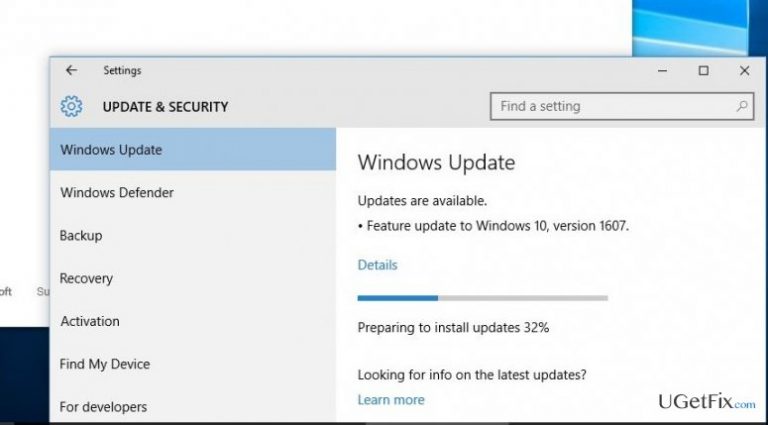
What causes How to Fix Windows 10 Anniversary Update Error 0x800700c1?
- Corrupted registries
- Third-party software interference
- Antivirus software blocking the update
- Issues during the configuration of Windows 10 update
Repairs Windows system files, removes malware, and restores a clean OS state — without reinstalling.
There is a problem installing Windows 10 update. I’ve tried to run the update tens of times, but each time end up with an error code 0x800700c1 thrown to my screen. Does this issue have a solution already? Those Windows 10 bugs are freaking me out…
Microsoft Community counted tens of errors related to Windows 10 Anniversary Upgrade. There is no doubt that Microsoft is aware of them all and works hard to solve each of them ASAP. Nevertheless, we need our PCs run smooth here and now, so there is no time to wait for error patches to be released. That’s why we are here to help you solve Windows 10 errors. This time, we are going to describe a couple of methods that help to fix Error Code 0x800700c1 while running Windows 10 Anniversary Update. In fact, there is nothing much to say about this error as it’s more or less the same as the others. It shows up during the configuration of Windows 10 update (sometimes in a blue screen environment) and says nothing very meaningful just:
Feature update to Windows 10, version 1607 - Error 0x800700c1
We know how annoying it is not to get the update smoothly. Luckily, it’s not that difficult to work around this issue. There are two things you can do to fix Windows 10 update error 0x800700c1 manually.
How to Fix Windows 10 Anniversary Update Error 0x800700c1?
To begin with, we would strongly recommend you to fix your PC using an optimization tool before running the update. That’s because very often errors like 0x800700c1 are triggered by corrupted registries, third-party software, and similar issues that can easily be solved by programs like [d1]. After that, you can try to:
Fix 1. Disable/Remove your Antimalware
Many users have reported that they’ve managed to run Windows 10 Anniversary Update completely once they disabled antivirus. For this purpose, you have to right-click on the antivirus’ icon that should be placed on the taskbar and select Disable. After that, open Task Manager by clicking Ctrl + Alt + Delete and stop its process there (if it’s still running). For the best results possible, we would recommend uninstalling the antivirus via Control Panel and reinstall it once the update is installed completely. Try these simple steps and check if update error 0x800700c1 persists. In cases it’s still ruining your day, then the only thing that can help you is downloading and installing Windows 10 Anniversary Update manually.
Fix 2. Download Media Creation Tool
Downloading Media Creation Tool and running the update manually is by far the most common fix for all Windows 10 update bugs. This time is not an exception. Therefore, if the trick with antivirus did not help to remove 0x800700c1 error code from your screen, then navigate to the official Microsoft’s website and search for Media Creation Tool there.
- Click on the Download Tool option and then perform the following steps.
- When the ISO file is downloaded, right-click on it and select Run as Administrator.
- On the first page, click Accept to proceed.
- After that, select Upgrade this PC now and click Next.
- If you are upgrading for the first time, you will have to enter the Product License Key.
- Once the setup is ready, you will receive a “sum up” of what options you’ve chosen.
- Now you have to click on Change option to indicate what data you want to keep on your machine (Keep personal files and apps, Keep personal files only, or Nothing).
- Finally, select Install.
Bottom line
To fix Windows 10 Anniversary Update Error 0x800700c1, you can disable or remove your antivirus software and use an optimization tool to address potential system issues. If these methods do not resolve the error, consider seeking further assistance or waiting for official patches from Microsoft.
Frequently asked questions
The 0x800700c1 error typically occurs due to corrupted system files, incompatible software, or issues with the Windows Update components in Windows 10.
To fix the 0x800700c1 error on Windows 11, you can run the Windows Update Troubleshooter and perform a System File Checker scan to repair any corrupted files.
Yes, you can manually reset Windows Update components by stopping the Windows Update services, renaming the SoftwareDistribution and catroot2 folders, and then restarting the services on both Windows 10 and Windows 11.




Report an issue
What's wrong with this guide? We review every report and update or remove content.
Report received — thank you. We'll review and fix it.
You need a free account to submit a report.
Be the first to comment