How to fix
BSOD Error 0x00000139 KERNEL_SECURITY_CHECK_ FAILURE
on Windows
Fix the BSOD Error 0x00000139 on Windows 10 effortlessly with our expert-tested solutions. Repair your system quickly and safely—zero traces left!


What causes How to fix BSOD Error 0x00000139 KERNEL_SECURITY_CHECK_ FAILURE on Windows 10?
- Incompatible drivers
- System file corruption
- Malware infections
- Memory issues
- Hardware problems
Repairs Windows system files, removes malware, and restores a clean OS state — without reinstalling.
Hey! Almost every day I get a blue screen that makes me sometimes lose my work-in-progress. This is extremely frustrating. Each time this happens, I expect that this is the last time, and there were so many last times... But unfortunately, the whole tandem of errors appear again and again. The error message says KERNEL_SECURITY_CHECK_ FAILURE, and then I have to reboot each time. Is there something I could do to fix this issue and make sure it is really the last time? Thanks in advance!
KERNEL_SECURITY_CHECK_ FAILURE is a so-called Blue Screen of Death (BSOD)[ref en-1] error that usually starts bothering users after applying Windows updates, upgrading the operating system from to Windows 10 or Windows 8.1, upgrading hardware (such as RAM),[ref en-2] when using particular apps, or after the computer comes out of a sleep mode. Blue screen errors like Kernel Security Check Failure might not only be frustrating to deal with and result in data loss due to computer restart, but also prevent users from operating their devices altogether.
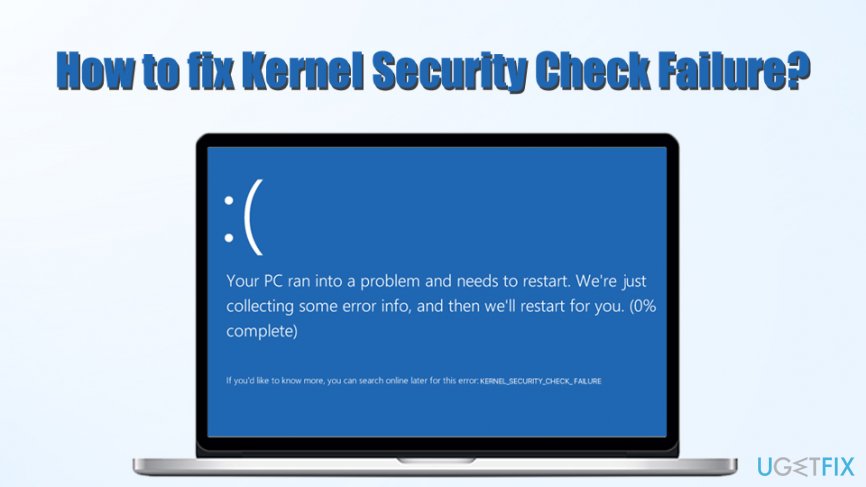
Kernel Security Check Failure interrupts all the current work and shows the following explanation tho the problem:
:(
Your PC ran into a problem and needs to restart. We're just collecting some error info, and then we'll restart for you (0% Complete)
If you'd like to know more, you can search online later for this error KERNEL_SECURITY_CHECK_ERROR
Indeed, while Windows tells you to look for Kernel Security Check Failure fix, it does not explain why the issue is occurring, neither it provides you with adequate solutions. That being said, BSODs are there to provide you with error codes and cannot provide you with relevant fixes, as they depend on numerous factors, including your system configuration, installed programs, OS type, and much, much more.
Kernel Security Check Failure error might occur due to several different reasons, including:
- Incompatible drivers[ref en-3]
- System file corruption
- Malware infections
- Memory issues
- Hardware problems, etc.
There are so many different possibilities when it comes to Windows operating systems - it is the precise reason why you need to perform various troubleshooting in order to fix Kernel Security Check Failure error once and for all. Nevertheless, be prepared to try various methods one after another, as provided below. After eliminating one cause, you can proceed with another one.
You do not need to be an expert in computer operation to follow our instructions below. However, because the error might occur due to system file corruption, and you want to fix Kernel Security Check Failure automatically, you can try scanning your machine with [d1] - it is an automated PC repair tool that holds a variety of functional Windows files within its database - it is particularly designed to fix and prevent errors like Kernel Security Check Failure.
If you want to remove Kernel Security Check Failure error manually, proceed with the below instructions. If you cannot boot into Windows, check the Fix number 7 first.
Fix 1. Update Windows OS
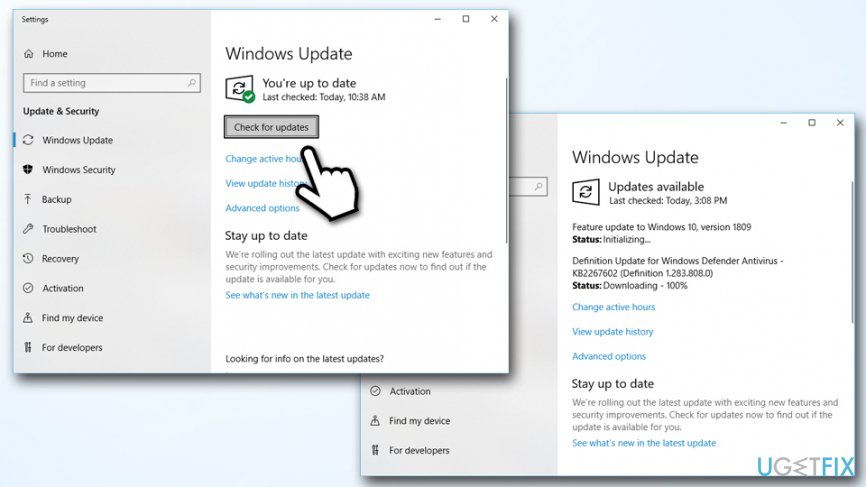
If something started failing on your operating system and you suddenly started encountering errors like Kernel Security Check Failure, the first thing you should do is to make sure your Windows is up to date. Proceed with the following actions:
- Right-click on Start and select Settings
- Go to Update & Security
- On the right side, click Check for updates
- Wait till Windows downloads and installs updates
- Reboot your system
Fix kernel security check failure update windows
Fix 2. Run System File Checker
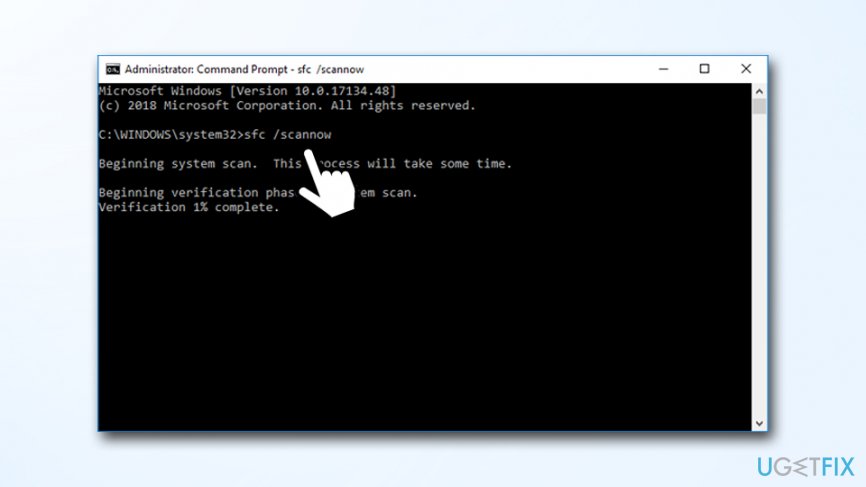
System File Checker is a built-in tool that can check for system file corruption. You will have to access Administrator: Command Prompt in order to run it:
- Type in Command Prompt or cmd into Cortana's search box
- Right-click on Command Prompt search result and select Run as administrator
- When the new window opens, type in the following command and hit Enter:
sfc /scannow
- Wait till Windows finishes the scan - it will report if anything was wrong and also provide details on repairs
Fix kernel security check failure run system file checker
Fix 3. Check disk for errors
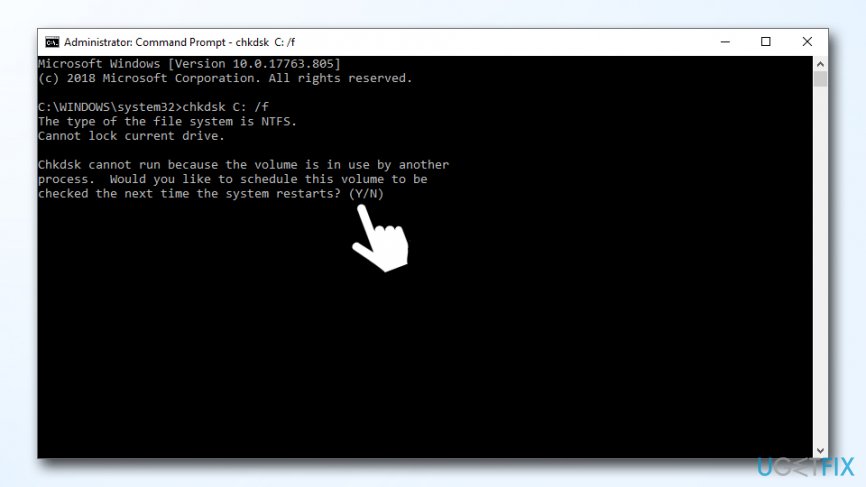
Hard disk errors might cause Kernel Security Check Failure error. To make sure everything is fine with your HDD, perform the following steps:
- Open administrator Command Prompt once again
- Type in the following command and press Enter (this will fix all the logical errors on the disk):
chkdsk C: /f
- Type in Y and hit Enter
- Reboot your PC to begin the scan
Fix kernel security check failure check disk for errors - After that, you should also run the following command to check and repair physical issues on your disk:
chkdsk D: /f
Fix 4. Use Driver Verifier to check for driver issues
A lot of the time, Kernel Security Check Failure error is caused by incompatible drivers that no longer work on a new version of Windows. To make sure you are using correct drivers for your computer, use Driver Verifier:
- Type in Verifier into Cortana's search box and hit Enter
- If User Account Control prompt shows up, click Yes
- Select Create Standard settings and pick Next
- Select Automatically select unsigned drivers and click Next again
- Update all the find drivers by clicking Finish
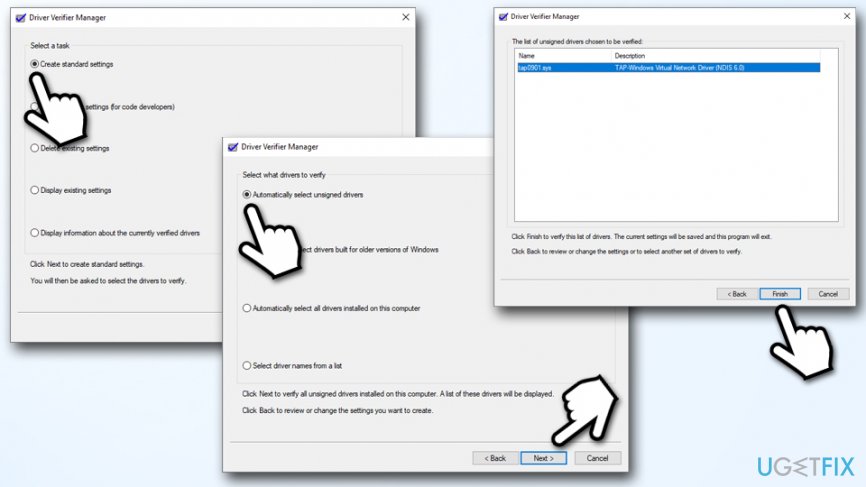
Fix kernel security check failure use driver verifier
Fix 5. Check your memory with Windows Memory Diagnostic tool
Windows memory issues can also cause BSOD errors, including Kernel Security Check Failure. You can easily check your memory by using Windows Memory Diagnostic tool:
- Type in Memory into Cortana's search box
- Right-click on Windows Memory Diagnostic and select Run as administrator
- Select Restart now and check for problems (recommended) - the PC will immediately restart and a scan will be run - it might take awhile so be patient
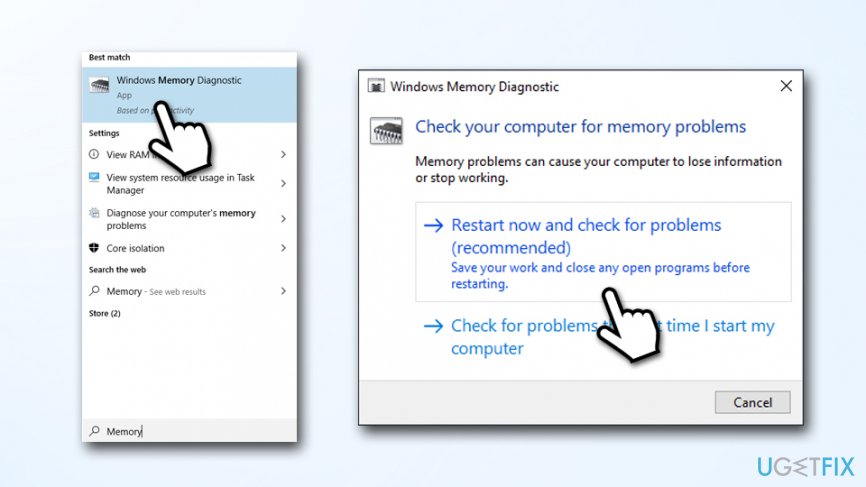
Fix kernel security check failure run memory diagnostic
Fix 6. Scan your PC for malware
Malware can introduce many changes to the infected systems. While some infections will sit silently on the system performing malicious tasks,[ref en-4] badly written malware might start displaying frequent errors, and the system might start crashing with BSODs.
You can employ the built-in scanner Windows Defender or rely on third-party solutions. There are many anti-malware programs available, and many are reputable, so make sure you download one with a good reputation, as rogue anti-spyware apps are not uncommon. Also, you can choose between paid and free solutions.
Fix 7. If you cannot boot into Windows
If you are unable to boot into windows due to KERNEL_SECURITY_CHECK_ FAILURE, you should instead try using Advanced Startup Options. For that, you will have to create Windows 10 bootable media - you can download it from the official Microsoft website. Once done, connect the bootlace DVD or Flash drive to your PC and proceed with the following:
- In the Windows Setup, click Next then select Repair your Computer
- Next pick Troubleshoot > Advanced options > Command Prompt
- In the Command Prompt window, type in C: and press Enter
- Next, type in the following command and hit Enter again:
BCDEDIT /SET {DEFAULT} BOOTMENUPOLICY LEGACY
- Type in EXIT
- Once Command Prompt closes, go a few steps back until you find Choose an option screen
- Pick Continue to boot into Windows
Bottom line
To fix the KERNEL_SECURITY_CHECK_FAILURE error, you may need to update your drivers, run a system file check, scan for malware, check your memory, or troubleshoot hardware issues. If none of these solutions work, consider seeking professional technical support.
Frequently asked questions
This error typically occurs due to corrupted system files, outdated drivers, or hardware issues. It's essential to check for recent changes that may have triggered this error.
You can start by running the Windows Memory Diagnostic tool and checking for driver updates via Device Manager. Additionally, performing a system file check with the 'sfc /scannow' command may help resolve the issue.
To prevent this error from happening again, ensure that all drivers are up to date and regularly run Windows Update. It's also advisable to maintain regular system backups and perform hardware checks.




Report an issue
What's wrong with this guide? We review every report and update or remove content.
Report received — thank you. We'll review and fix it.
You need a free account to submit a report.
Be the first to comment