How to fix
Windows 10 BSOD INTERNAL_POWER_ERROR
on Windows
Resolve the Windows 10 BSOD INTERNAL_POWER_ERROR quickly with expert-tested solutions. Get your PC running smoothly again in minutes!

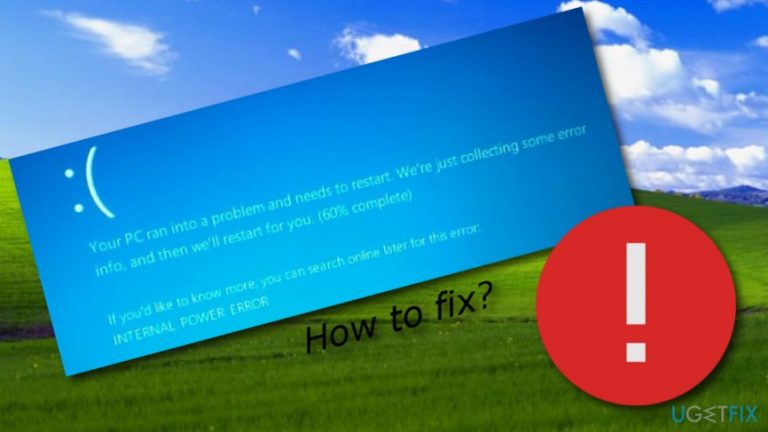
What causes How to Fix Windows 10 BSOD INTERNAL_POWER_ERROR?
- Graphics card driver is outdated
- Graphics card driver is not adapted to the OS
- Error occurs after upgrading to Windows 10
- Error occurs after installation of Windows updates
- Critical error prevents system from booting
Repairs Windows system files, removes malware, and restores a clean OS state — without reinstalling.
Hello all. So I updated my Windows 7 to Windows 10 and consider going back to 7 because just a couple of days after Windows 10 upgrade I received a BSOD error saying "Your PC ran into a problem and needs to restart. We're just collecting some error info, and then we'll restart for you." The name of an error is INTERNAL_POWER_ERROR, which has a bug check 0x000000A0. I have forced my PC to shut down four times and then finally go back to my desktop, but I’m afraid that the next restart will end up with INTERNAL_POWER_ERROR BSOD. Could you please help? Any ideas will be appreciated!
A BSOD INTERNAL_POWER_ERROR is a Windows 10 error, which typically occurs after upgrading to Windows 10[ref en-3] from older versions or the installation of Windows updates. It’s one of the critical errors since it prevents the system from booting up or if it boots up, it doesn’t stay on for more than five minutes. Microsoft[ref en-2] has already acknowledged this issue and reported that it is typically caused by the graphics card driver.
INTERNAL_POWER_ERROR Blue Screen indicates the fact that the graphics card driver is either outdated or has not been adapted to the OS that the computer is currently running. Therefore, to fix INTERNAL_POWER_ERROR bug on Windows 10 you have to update or re-install the graphics card drivers to make them compatible with your OS. The instructions down below will explain how this can be done.
How to Fix INTERNAL_POWER_ERROR on Windows 10?
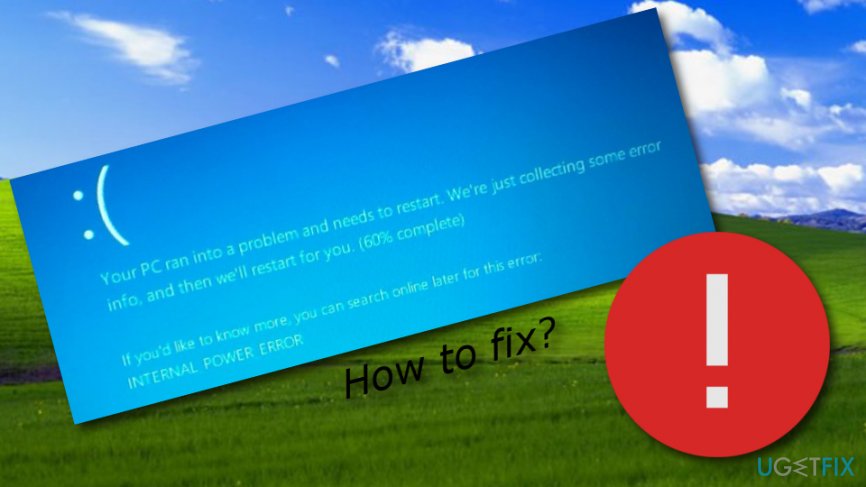
NOTE: INTERNAL_POWER_ERROR BSOD fix should be performed very quickly because the rebooted system works for a minute or two before this blue screen error shows up. Therefore, read the rest of this article and, at best, open these instructions on the other device and follow each step carefully.
Method 1. Use Task Manager to fix the error
- As soon as your Windows 10 system logs in, press Ctrl + Alt + Delete, and select Task Manager.
- Select the Processes tab, and find More Details button.
- Find the processes that are related to AMD and Catalyst, click on them, and select End Task.
- Once done, you should click Win key + X and select Device Manager.
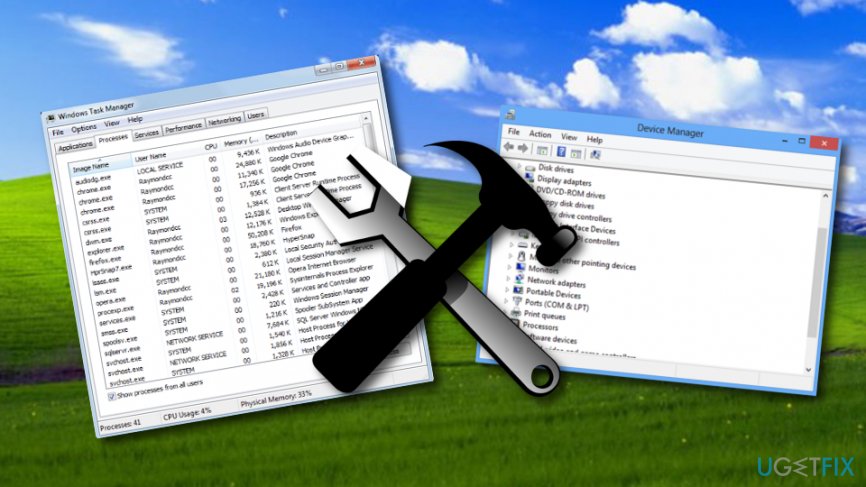
Way - Using the left pane find AMD driver, right-click on it, and select Properties.
- After that, click Drivers and select Update Drivers.
In case driver update did not help to fix INTERNAL_POWER_ERROR, you should uninstall the driver and download the one that is compatible with your Windows 10 OS. For this purpose, you can either install the graphics card drivers from the official manufacturer’s website or try to perform these steps:
Method 2. Uninstall drivers
- Press Win key + X and select Device Manager.
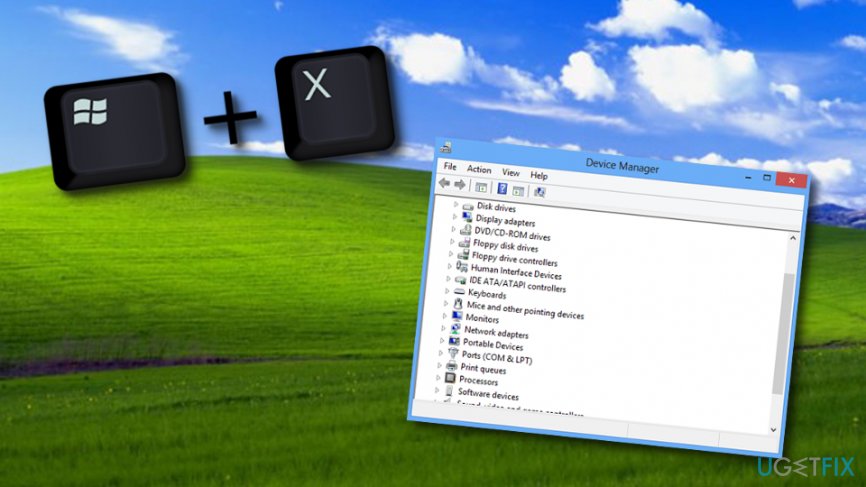
Way2 - Then look for the Graphic card drivers on the left pane, right-click on them, and select Uninstall Drivers.
- Click OK on the confirmation window pops up or enter your Administrator password is required.
- Once the process is finished, restart your PC.
- Open Device Manager one more time and select the Action tab.
- Select Scan for Hardware Changes and let the system detect and install the missing drivers automatically.
Method 3. Use cmd to get rid of the problem
If you have spotted that this BSOD error[ref en-1] occurs after waking your computer from sleep, you should try the following method. Open your Command Prompt window and complete each section to reach the best results:
- Go to your Windows search bar and type in "cmd".
- Pick to "Run as administrator" and open the Command Prompt window.
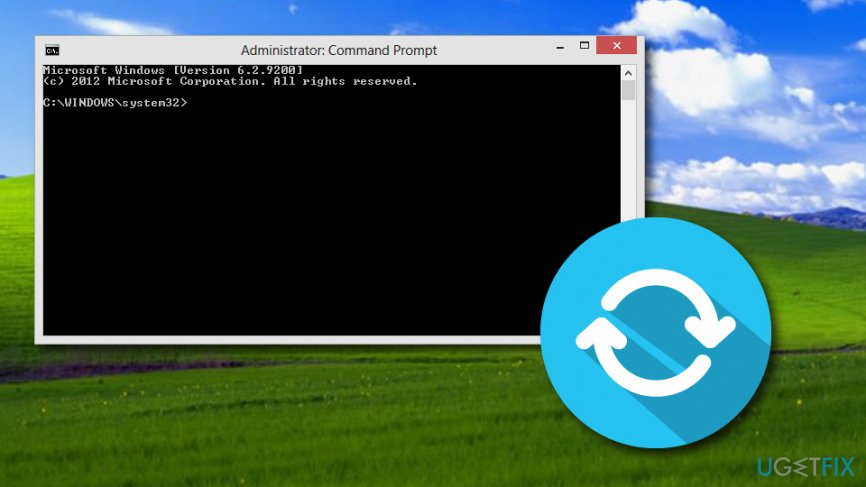
Way3 - Copy this text: powercfg /hibernate /size 100, and paste it in the black window.
- Exit the Command Prompt.
- Reboot your PC.
Method 4. Reinstall the Windows operating system
- Go to Windows settings.
- Find Update and Security.
Way3 - Under the option to "Reset this PC" click Get started.
- Select Keep my files or Remove everything (it depends on you).
- Click the Next button and wait until the process is finished.
Unfortunately, but sometimes automatic scan for hardware changes fail, so if that has just happened for you, go to the manufacturer’s website and install the needed drivers there. Once you fix INTERNAL_POWER_ERROR BSOD error on your PC, make sure that you ensure its best performance. For this purpose, you should install a PC optimization tool, such as [d1].
Bottom line
To fix the INTERNAL_POWER_ERROR, you should update or re-install the graphics card drivers to ensure compatibility with Windows 10. If the issue persists after following these steps, consider seeking further technical support or reverting to a previous version of Windows.
Frequently asked questions
This BSOD error is often caused by power management issues, outdated drivers, or hardware conflicts in Windows 10.
You can update drivers by going to Device Manager, right-clicking on the device, and selecting 'Update driver' to ensure all components are compatible with Windows 10.
Yes, you can use the System File Checker tool by running 'sfc /scannow' in the Command Prompt as an administrator to repair corrupted files in Windows 11.




Report an issue
What's wrong with this guide? We review every report and update or remove content.
Report received — thank you. We'll review and fix it.
You need a free account to submit a report.
Be the first to comment