How to fix
Windows 10 button not working
on Windows
Resolve the Windows 10 button not working issue quickly with proven fixes and detailed guides. Get back to smooth navigation in minutes, expert-tested!

What causes How to fix Windows 10 button not working?
- System configuration issues
- Installed apps conflicts
- Security software interference
- Corrupted system settings
- Malware infections
Repairs Windows system files, removes malware, and restores a clean OS state — without reinstalling.
Hello. I ran into a problem recently, and it is extremely annoying, and I hope you guys will be able to help me. Since yesterday I started having a problem with my Start button. Whenever I click on it or use the Windows button, the menu does not show up, and a loading sign keeps spinning. Cortana seems to be working fine. I love Windows 10 and all the features, so I would like to continue using this OS and even buy a license. However, bugs like these are stopping me. Hope you can help me with this issue. Thanks.
Many users were happy when Windows 10 came out[ref en-1] back in July 2015, as it promised many new features, such as Cortana, MS Edge[ref en-2] launch, notification center, or integrated search bar, among many other features.
The previous operating system version - Windows 8 - had Start button removed entirely, which left many users dissatisfied. And finally, the next version returned it, which made many users happy. Unfortunately, it also brought several problems, as users reported issues with Cortana and start menu button not working correctly.
Although it is possible to use the PC without the Start button, it can be incredibly frustrating, as users cannot access the online web store, menu, and many other useful functions of the operating system.
There can be many reasons why your Start button is failing to work correctly, depending on your system configuration, installed apps, security software used and many other settings. Nevertheless, our team created a few solutions which can be used to fix Windows 10 button not working. Simply follow our step-by-step guide below.
Before you proceed with the following solutions, we suggest you scan your computer using [d1]. This tool can not only check your device for malware[ref en-3] infections but also fix certain issues related to system settings and their malfunction. The diagnostic is entirely free. However, if you wish to fix the detected problems, you will have to buy a licensed version of the software. If you do not want to spend money on a quick solution, proceed with the following fixes below.
This video contains every bit of information for eliminating this error:
[youtube O_oN1O8EqXo]
Solution 1. Disable Windows defender Real-time protection
Windows has an integrated security software called Windows Defender,[ref en-4] and it can be found in many Windows versions (it used to be a downloadable app from Microsoft). Nevertheless, users who want to run anti-malware software of their choice need to disable either of them, as two anti-virus programs can easily conflict with each other. We do not recommend disabling Windows defender if you are using it as a primary security tool. However, if you wish to use any other anti-malware tool this step is mandatory.
- Click on Ctrl+Shift+Esc keys simultaneously
- From the menu select File and then Run New Task
- Type-in ms-settings:
- In the newly opened window click on Updates & Security
- Pick Windows Security on the left side of the window
- Click on Open Windows Defender Security Center
- Next, go to Virus & Threat Protection > Virus & threat protection settings
- Disable Real-time and other protection. This will stop Windows Defender from working
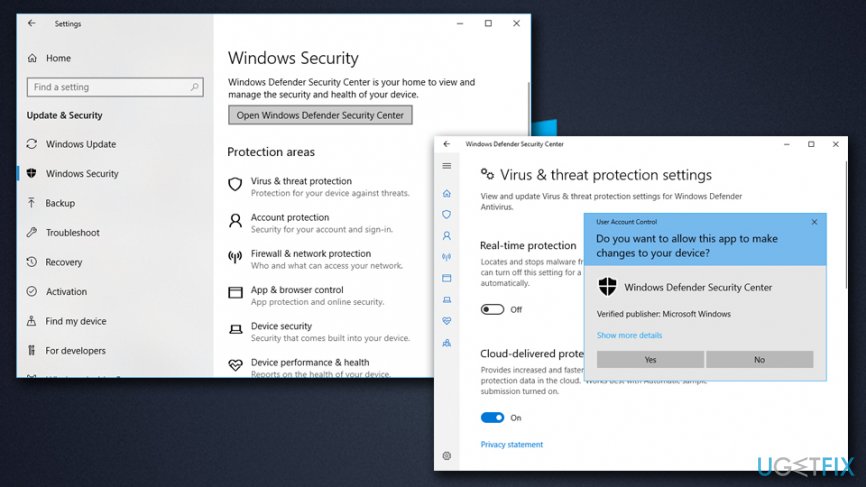
Windows 10 button not working disable windows defender
Solution 2. Uninstall 3rd party Anti-virus software
If you want to use Windows Defender as your main anti-malware software, you should uninstall your current antivirus program:
- Press Ctrl+ Shift + Esc simultaneously to open up the Task Manager
- Right-click on your anti-malware software and select End task
- In the search box located in the taskbar, type in Apps & Features
- Find security software from the list, and click Uninstall
- Restart your computer
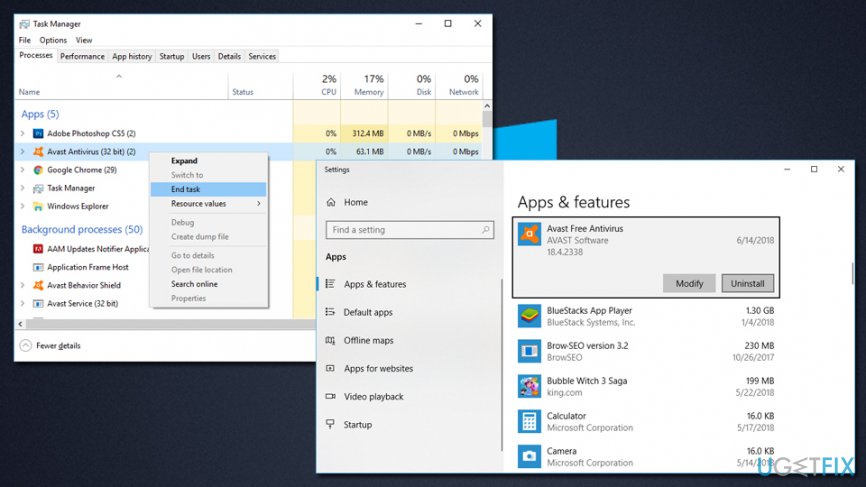
Windows 10 button not working uninstall antivirus
Solution 3. Create new user account to fix Start button not working on Windows 10
- Press Ctrl+ Shift + Esc simultaneously to open up the Task Manager
- Select File > Run new task
- Type in Powershell and tick Create this task with administrative privileges
- Once Powershell window opens, type in the following command (note that username stands for your new username and so does password. Do not use "[]" when when you type in the command)
net user [username] [password] /add
- Hit Enter and restart your PC
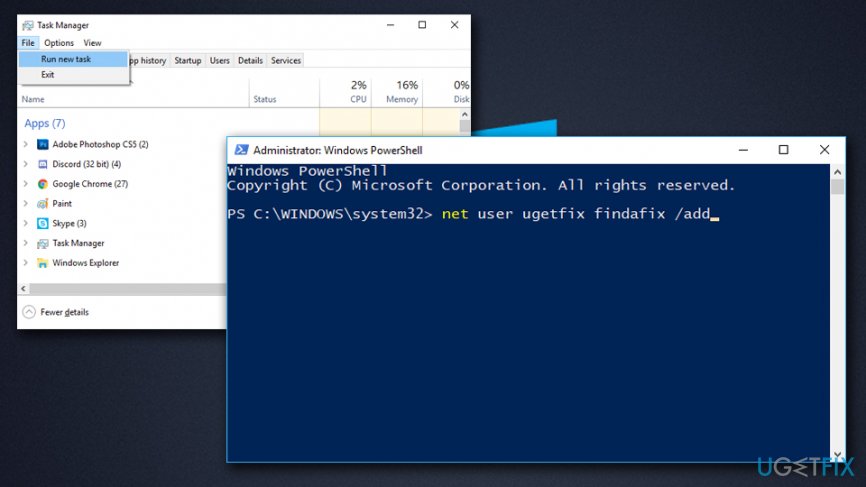
Windows 10 button not working create new account
Solution 4. Re-install video and sound-card drivers
Drivers are important components of Windows OS, as they help hardware and software to communicate properly. In some cases, drivers might be corrupt or incompatible with the device. In that case, you should re-install your video and audio cards:
- Press Ctrl+ Shift + Esc simultaneously to open up the Task Manager
- From the menu select File and Run new task
- Type-in Control panel and from the newly opened window pick Device Manager
- Expand Display adapters and select your graphics card
- Right-click on it and pick Uninstall device
- Tick the Delete the driver software for this device and click Uninstall
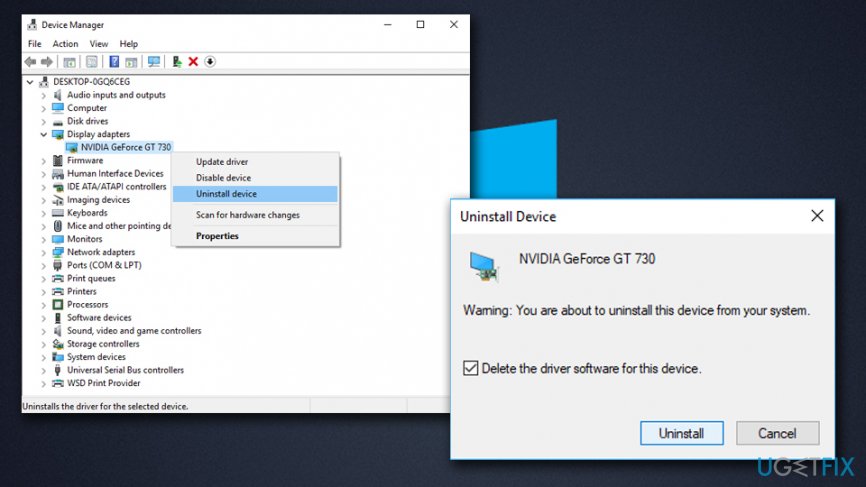
Windows 10 button not working reinstall drivers - Restart your machine
- Now do the same with your audio device
After that is complete, you will have to install the newest drivers available. You can install them manually, although we recommend using [rev id=”Smart Driver Updater”] for an automatic update of all drivers on your computer.
Solution 5. Run System File Checker
System file checker is a built-in tool that can be used to diagnose and repair issues on Windows. Please follow these steps:
- Press Ctrl+ Shift + Esc simultaneously to open up the Task Manager
- Select File > Run new task
- Type in CMD and tick Create this task with administrative privileges
- Type sfc /scannow command and press Enter.
- Then type the following commands and hit Enter each time:
DISM.exe /Online /Cleanup-image /Scanhealth
DISM.exe /Online /Cleanup-image /Restorehealth - Close Command Prompt and reboot the system.
Bottom line
To fix the Windows 10 Start button not working, you can try scanning your computer for malware, checking your system settings, and reviewing installed applications for conflicts. If these solutions do not resolve the issue, consider seeking further assistance or exploring additional troubleshooting methods.
Frequently asked questions
Try restarting your computer first; if that doesn't work, consider rolling back the recent update in Windows 10 settings.
You can run the System File Checker tool by typing 'sfc /scannow' in the Command Prompt to repair any corrupted system files.
Yes, you can create a new user account to see if the issue persists, as this can help determine if the problem is user profile related.




Report an issue
What's wrong with this guide? We review every report and update or remove content.
Report received — thank you. We'll review and fix it.
You need a free account to submit a report.
Be the first to comment