How to fix
Windows 10 Default Apps Missing After Updating (Error Code: 0x80070776)
on Windows
Resolve the Windows 10 default apps missing issue after an update with expert-tested solutions. Fix error code 0x80070776 quickly and effectively!

What causes How to Fix Windows 10 Default Apps Missing After Updating (Error Code: 0x80070776)?
- Unsuccessful installation of upgrade/update process
- Omission of registering default apps during update
- Malware infections such as Trojan, Worm, or Ransomware
- Installation of Cumulative Update KB3201845
- Similar issues may occur with any Cumulative Update
- Missing default Windows 10 apps after installation of Creators Update
Repairs Windows system files, removes malware, and restores a clean OS state — without reinstalling.
I’m still using Windows 10 Version 1607, which I’m satisfied with. Since today, I did not plan to upgrade to version 1703, but the issue on my PC made me doubt whether I should switch to Creators Update or not. I have installed Cumulative Update KB3201845, which wiped all default Windows 10 apps, including Edge, Store, Photos, and so on. What solution would be the best in my case? By the way, I get the error message with a code 0x80070776.
Few people reported a Windows Anniversary Update Error Code 0x80070776. The error shows up after installation of the Cumulative Update randomly, but the error itself is not the biggest problem. It points out to the problem, which is missing default Windows10 apps.
While initially it seemed that the problem is bound to the Cumulative Update for Windows 10 Version 1607 (KB3201845), the latest research revealed that the same problem may occur with any Cumulative Update. On top of that, there were similar cases with missing Windows apps after the installation of the update on the Creators Update (v1703).
Actually, the culprit of the 0x80070776 error and missing default Windows 10 apps is simple – unsuccessful installation of upgrade/ update process, which omit the stage of registering the default apps by mistake. There are several methods that would help you to solve the problem.
Method 1. Check the system for malware
Cyber infections, such as Trojan, Worm, Ransomware, and others are capable of initiating various systems’ changes, including removal of default Windows 10 apps. If the problem occurred out of nowhere, you should definitely scan the system with a powerful anti-malware utility, for instance, [d1].
Method 2. Use Windows PowerShell to install and register default Windows 10 apps
- Press Windows key and type Powershell.
- Right-click on Windows PowerShell option and select Run as Administrator.
- Now copy and paste the following command in the PowerShell window:
Get-AppXPackage | Foreach {Add-AppxPackage -DisableDevelopmentMode -Register "$($_.InstallLocation)\\AppXManifest.xml"}
IMPORTANT: do not use italized quotation marks because the command won’t work. The quotation marks must be straight.
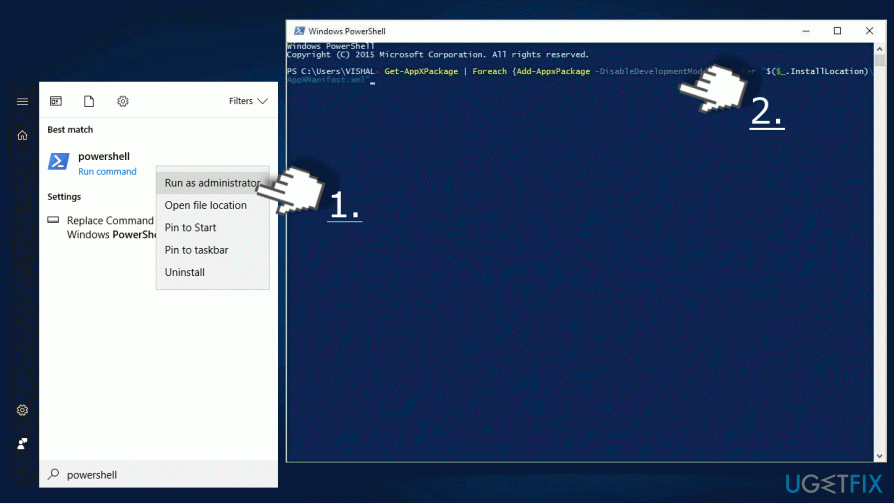
- Finally, press Enter and wait while Windows is downloading and registering the default apps. Although it might seem that nothing is happening, do not press any keys. The process requires some time.
- After all, restart the system.
Method 3. Uninstall the Update
- Click Windows key + I to open Settings.
- Select Update & Security and open Advanced Options.
- Select View your update history and click Uninstall Updates link.
- The system will open the list of updates in Control Panel applet. Select the update that you want to remove and select Uninstall.
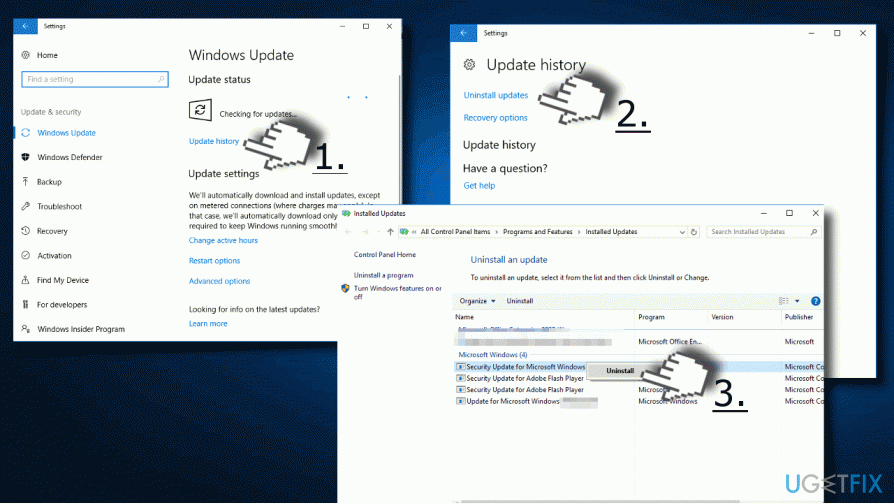
NOTE: the removal of some security updates may not be allowed.
Method 4. Reset Windows 10
- Press Windows key + I to go to Settings.
- Select Update & Security and open Recovery panel.
- Find the Reset This PC section. Click Get Started button on it.
- Now you should see the following options
Keep my files
Remove everything
Restore factory settings
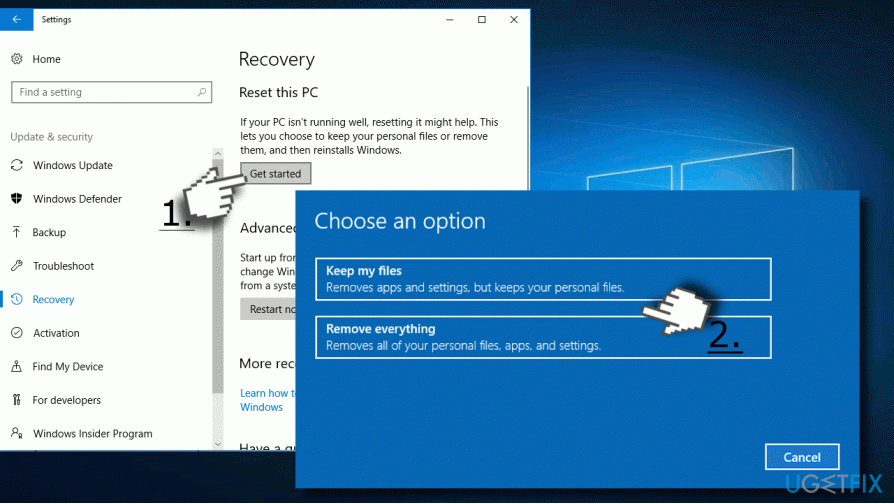
- The first option means that all personal information, such as pictures, videos, documents, etc. will be stored as they are.
- The second option means that all personal information will be wiped out. You will also have to choose whether you want to remove the files only or clean the drive as well.
- The last option means that everything, including personal information, apps, settings, and all other components will be restored to the default settings.
IMPORTANT: all three options initiate the changes in settings and apps, which means that all customized settings and installed apps will be removed.
- Select the preferable option and click on the Reset button.
Bottom line
To resolve the issue of missing default apps, you can check your system for malware and use Windows PowerShell to reinstall and register the default apps. If these methods do not work, further troubleshooting may be necessary.
Frequently asked questions
You can try resetting the default apps settings by going to Settings > Apps > Default apps and clicking on 'Reset' to restore the original settings.
This error can often be fixed by running the Windows Update Troubleshooter, which can be found in Settings > Update & Security > Troubleshoot.
Reinstalling Windows 10 should be considered a last resort, as it will reset your system but may resolve persistent issues including missing default apps.




Report an issue
What's wrong with this guide? We review every report and update or remove content.
Report received — thank you. We'll review and fix it.
You need a free account to submit a report.
Be the first to comment