How to fix
Windows 10 does not connect to WiFi automatically
on Windows
Discover effective solutions to ensure your Windows 10 connects to WiFi automatically. Get expert-tested fixes and regain seamless internet access in mi…

What causes How to fix Windows 10 does not connect to WiFi automatically?
- Windows update issues
- Corrupt or outdated drivers
- Wrong Safe Power settings
- Glitch in WiFi connection
- Fast Startup feature problems
Repairs Windows system files, removes malware, and restores a clean OS state — without reinstalling.
Hi, I have a problem with my WiFi connection on my laptop, and I hope you will be able to assist me. Every time I start or reboot it, the computer does not automatically connect to WiFi. I have to click on the internet connections icon manually, select the correct connection, and only then it works. I do have "Connect Automatically" option ticked, so I have no clue why do I have to redo this every single time.
Many Windows users reported that their WiFi is not connected automatically whenever the PC is rebooted while the "Connect Automatically" option is ticked. While it is not a serious problem and users can still use their computers, the issue creates a lot of frustration, as the feature does not work as it is intended. In this article, we will be looking at ways of how to fix Windows 10 will not connect to WiFi Automatically problem.
Windows 10 will not connect to WiFi automatically issue typically occurs after Windows update.[ref en-1] In this case, the update process might not have installed new files correctly, or they might have been damaged to begin with. The same thing can happen with drivers[ref en-2] - corrupt or outdated ones might merely stop working at any time, or get poorly installed. All these issues can be fixed by running Chkdsk or System File Checker feature via Command Prompt.
On the other hand, there are more simple solutions that helped users to fix the problem with the WiFi not connecting automatically after reboot. Wrong Safe Power settings, a glitch in WiFi connection, Fast Startup[ref en-3] feature and similar issues can all be related to the problem. Nevertheless, we explain how to deal with them as well.
Before you start manual repair, we highly suggest you use computer repair software like [d1]. The application consists of a large database loaded with up-to-date Windows files that can be replaced if needed. This option is especially useful for those less computer-savvy.
This youtube video will provide you with information needed for elimination of this error:
[youtube ubJgZg5XkZs]
Solution 1. Make use of Network Troubleshooter
Because Windows 10 will not connect to WiFi automatically problem is related to network, it would be a good idea to start off with Network Troubleshooter, as it can detect certain problems. To perform the check, follow these steps:
- Click on Start button and type in Troubleshoot
- Select Internet Connections and click on Run the troubleshooter
- When prompted, pick Troubleshoot my connection to the Internet
- Wait till Windows finishes the scan
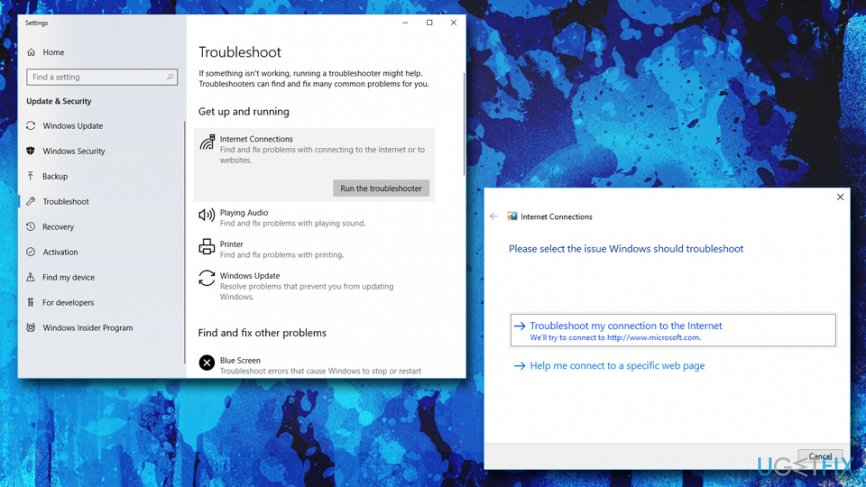
Windows does not connect to wifi automatically run troubleshooter
Solution 2. Run SFC and Chkdsk scans
Windows has excellent inbuilt tools that can be used to fix certain system errors. To run these scans, you should open Command Prompt as an Administrator:
- Click on Start button and type in Command Prompt or cmd
- From search options, select Command Prompt, right-click on it and choose Run as administrator
- Type in sfc /scannow and hit Enter
If that did not find anything, we recommend following up with a check disk scan:
- Open Command Prompt again and type in chkdsk /f /r /x
- You will be asked to restart your PC
- Close down Command Prompt and reboot your machine
- The scan might take several hours, so be patient. After it is complete, you will be able to log in and use your computer as usual
Solution 3. Get rid of Fast Startup feature
Fast Startup can be a useful feature in Windows - it saves all the data to startup faster next time. It is enabled by default, so most users do not even know they are using it. However, it is also known to cause certain problems, including blank startup problems, as well as WiFi problems. Thus, disable Fast Startup the following way:
- Click Start and type in Control Panel and hit Enter
- Change your view to Small icons
- Go to Power Options > Choose what the power buttons do > Change settings that are currently unavailable
- Untick Turn on fast startup (recommended) and click on Save changes
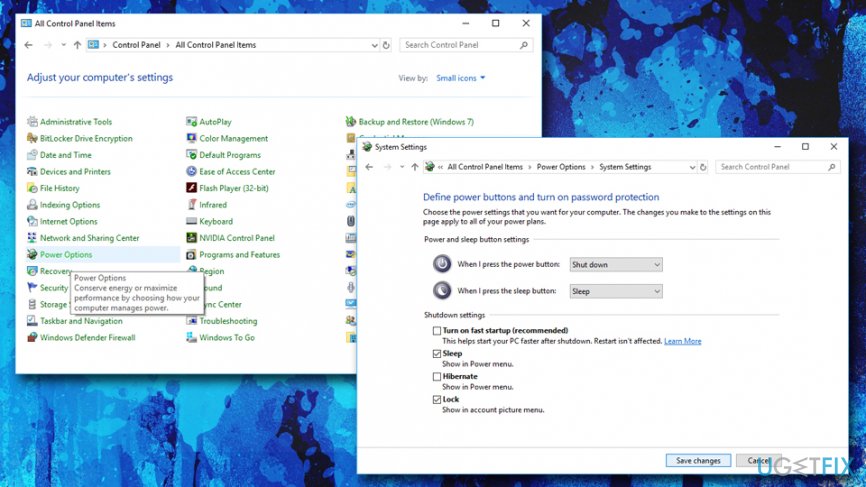
Windows does not connect to wifi automatically adjust power settings
Solution 4. Remove saved WiFi connections
A bug might prevent Windows from connecting to WiFi automatically. Users reported that simply making the system forget saved networks fixed Windows 10 will not connect to WiFi automatically problem:
- Right-click on Start button and pick Settings
- Next go to Network & Internet and go to WiFi category
- Find Manage WiFi settings and select Manage known networks
- Select the network and pick Forget
Solution 5. Install latest network drivers
As we already mentioned, faulty or corrupt drivers might be causing the issue. To update your network drivers, follow these steps:
- Right-click on Start button and pick Device Manager
- Find your WiFi device under Network Adapters
- Right-click on it and pick Update Driver
- Next, choose Search automatically for updated software and wait till windows downloads the latest updates
- Reboot your PC
Solution 6. Reinstall your network drivers
- Go to Device Manager
- Locate your WiFi adapter and pick Uninstall the device
- When prompted, click Uninstall
- After that, in Device Manager window, click on Scan for hardware changes
- The system will perform the scan and install latest drivers automatically
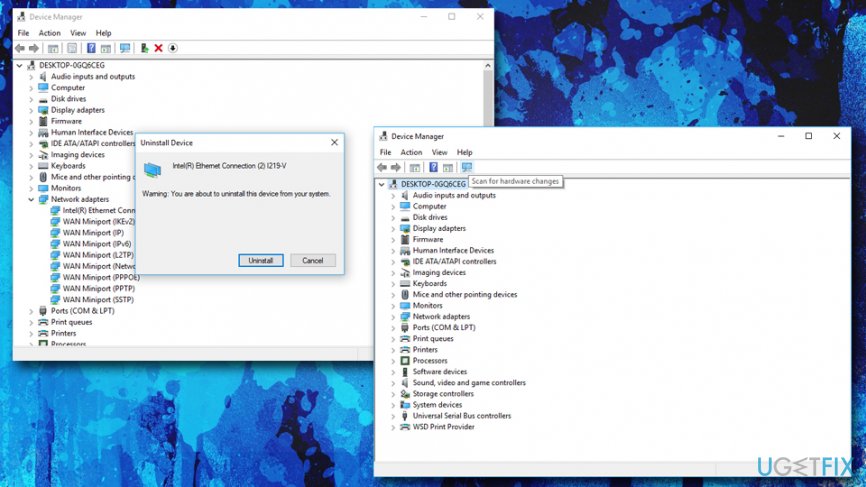
Windows does not connect to wifi automatically reinstall wifi drivers
Bottom line
To fix the issue of Windows 10 not connecting to WiFi automatically, you can run Chkdsk or System File Checker via Command Prompt, adjust Safe Power settings, or disable Fast Startup. If these solutions do not resolve the problem, consider using computer repair software or seeking further assistance.
Frequently asked questions
This issue may arise due to misconfigured network settings or if the 'Connect automatically' option is disabled for the WiFi network. Check your network properties to ensure this option is enabled.
You can reset your WiFi settings by going to Settings > Network & Internet > Status, then clicking on 'Network reset.' This will remove and reinstall all your network adapters.
If the issue persists, consider updating your network adapter drivers or running the Windows Network Troubleshooter for further diagnostics.




Report an issue
What's wrong with this guide? We review every report and update or remove content.
Report received — thank you. We'll review and fix it.
You need a free account to submit a report.
Be the first to comment