How to fix
Windows 10 Fall Creators Update Installation Problems
on Windows
Resolve Windows 10 Fall Creators Update installation issues effortlessly. Get expert-tested solutions and tips to fix problems quickly and efficiently.

What causes How to Fix Windows 10 Fall Creators Update Installation Problems?
- Temporary install files
- Incompatible software
- Incompatible hardware
- Insufficient disk space
- Outdated drivers
Repairs Windows system files, removes malware, and restores a clean OS state — without reinstalling.
My two years old laptop, which came with Windows 10 pre-installed, cannot be upgraded to V1709. Initially, I ran the update via Windows Updates, but the process failed at around 33%, so I used Windows 10 Upgrade Assistant, which recovered the installation and restored the previous Windows version (1703).
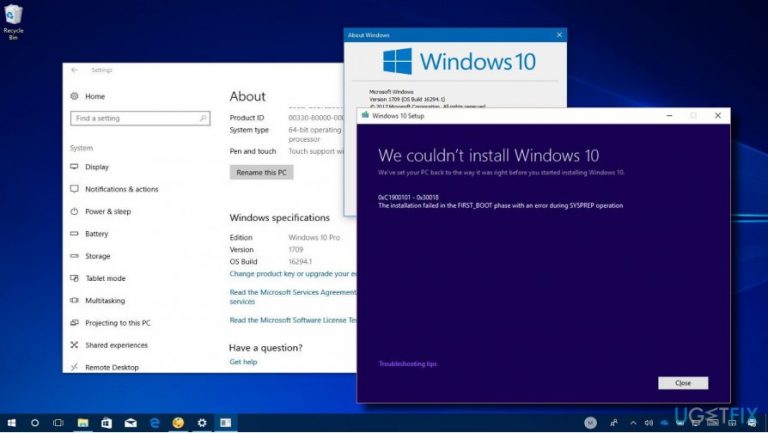
Then I tried Media Creation tool, but it returned an error saying: “We couldn't install Windows 10. Error Code: 0xC1900101 - 0x300018.” How can I get the Fall Creators Update?
Windows 10 Fall Creators Update V1709, also known as Redstone, has finally arrived. Likewise previous feature update,[ref en-1] the Fall Creators Update roll out will be performed in stages to prevent system’s clogs. The newer devices that pass compatibility checks will receive the update in the first stage.
The compatibility requirements[ref en-2] will be mitigated gradually to adapt the update to older devices. Nevertheless, even if you are using a newish device, which pass the compatibility requirements, it may take a couple of month before the update is officially offered to you.
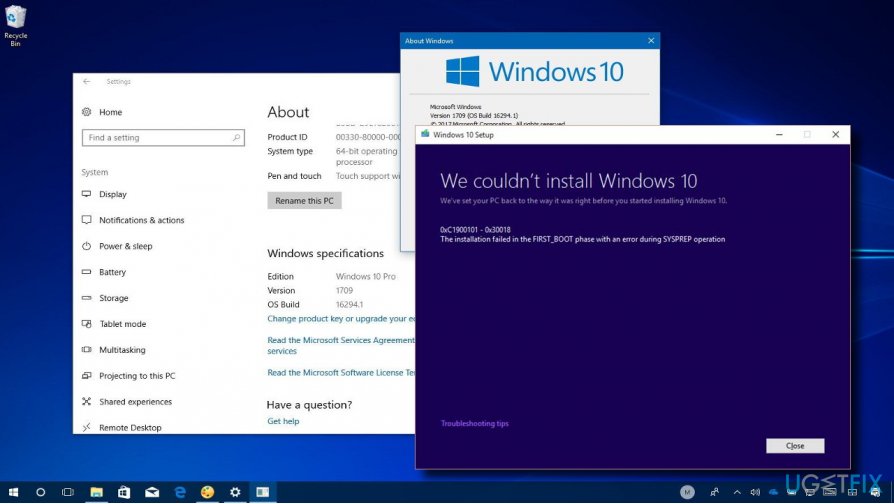
Those who want to install the Fall Creators Update immediately can use Windows Update Assistant[ref en-3] or Windows 10 ISO. However, if your device contains a bunch of temporary install files, incompatible software or hardware, the installation process may get stuck at some point and return an error 0xC1900101 – 0x30018.
Fix Windows 10 Fall Creators Update Installation Problems
Before installing the update, it’s a must to check system’s requirements. It might be that the current configuration does not support the update. If your device is new or a couple of years old, there’s no need to check the compatibility. However, if it’s older than 5 years, the following are the minimum system requirements that the device should pass to run the Fall Creators Update successfully:
- Processor: 1GHz or faster processor or SoC
- Hard disk space: 16GB for 32-bit OS or 20GB for 64-bit OS
- Graphics card: DirectX9 or later with WDDM 1.0 driver
- RAM: 1GB for 32-bit or 2GB for 64-bit
- Display: 800×600
If your device passes the compatibility requirements, please try the following Fall Creators Update fails to install fixes:
Method 1. Update Device Drivers
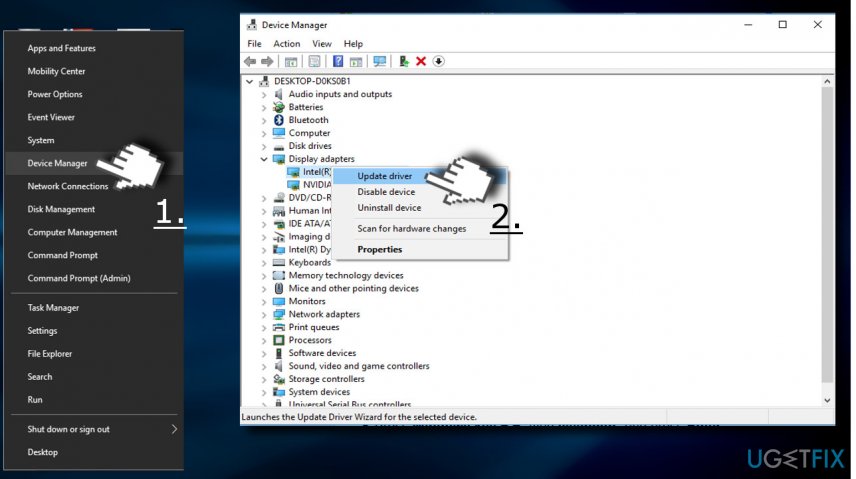
- Right-click on Windows key and select Device Manager.
- Check all sections if any drivers are marked with a yellow exclamation mark. If none of the drivers are marked as outdated, we would strongly recommend updating Display and Processor drivers.
- Right-click on the device driver and select Update Drivers software.
- Finally, reboot the system.
Method 2. Remove temporary installation files
- Press Windows key + R, type cleanmgr, and press Enter.
- When Disk Cleanup opens, select C: drive and click OK.
- Click on the Clean up system files button.
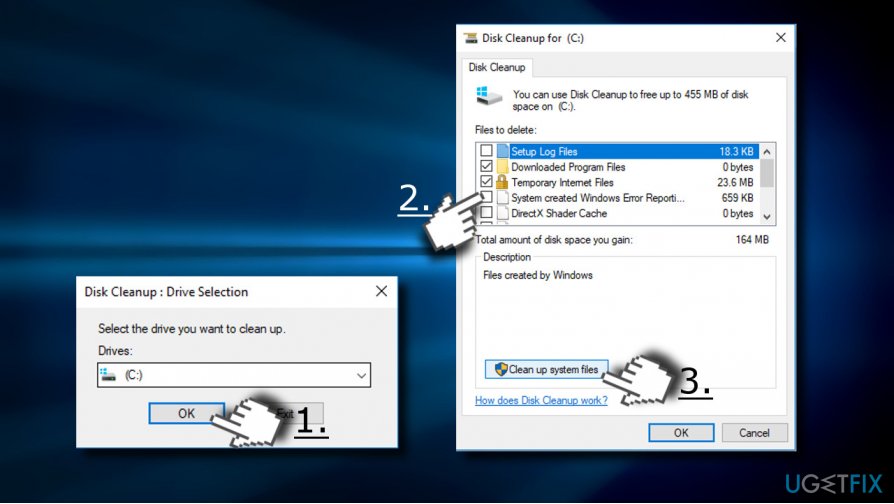
- Select the files you want to delete, including
Recycle Bin
Temporary Internet Files
Temporary Files
System error memory dump files
Previous Windows Installation
Temporary Windows installation files
Windows Setup temporary files
- Then click OK and Delete Files button.
- Finally, reboot the system and try to install he update one more time.
Method 3. Disable third-party anti-virus and firewall
- Press Windows key and type Windows Defender Security Center.
- Select Firewall & Network Protection.
- Click Private (discoverable) network and slide a toggle to Off.
- Then do the same with Public (non-discoverable) network.
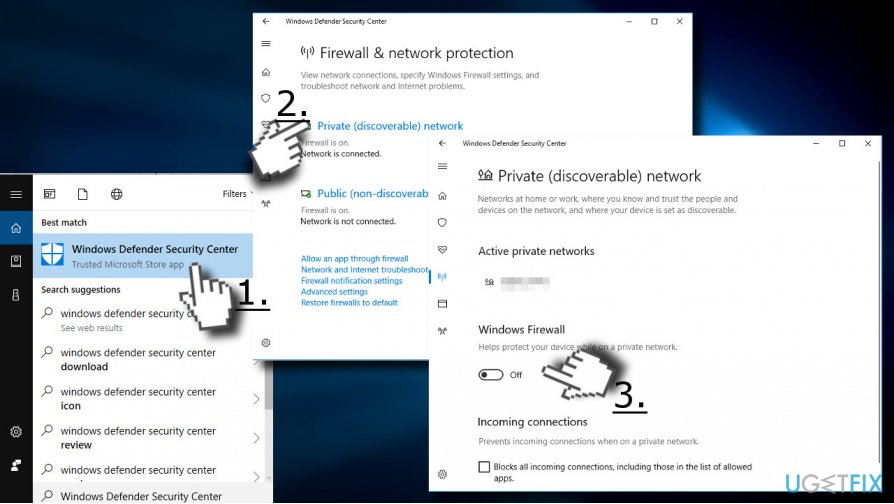
- After that, disable Windows Defender or any third-party antivirus program. However, don’t forget to enable the protection as soon as you install the update. Otherwise, the system will remain vulnerable to cyber infections.
Method 4. Reset Windows Update Components
- Right-click on Windows key and select Command Prompt (Admin).
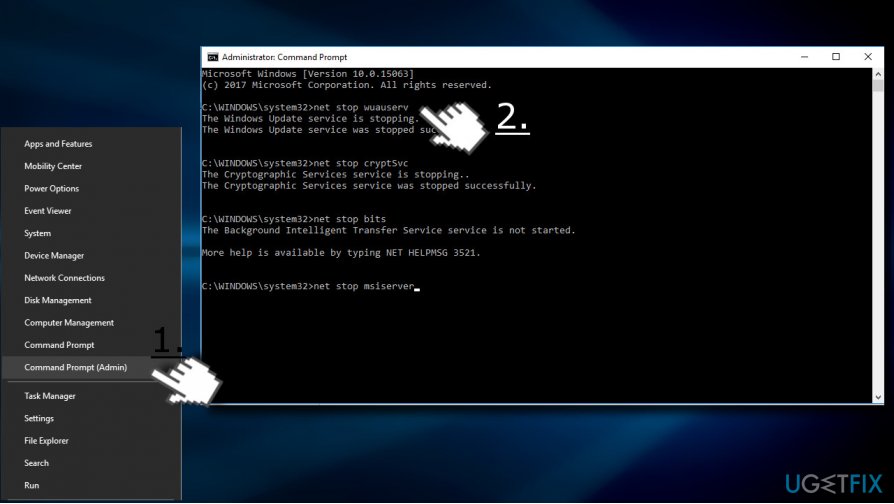
- First of all, disable BITS, Cryptographic, MSI Installer, and the Windows Update Services. For this purpose, type the following commands in the Command Prompt window and press Enter after each of them:
net stop wuauserv
net stop cryptSvc
net stop bits
net stop msiserver - After that, type the following commands to rename SoftwareDistribution and Catroot2 folders. Don’t forget to type Enter after each of them:
ren C:\\Windows\\SoftwareDistribution SoftwareDistribution.old
ren C:\\Windows\\System32\\catroot2 Catroot2.old - Once done, enable BITS, Cryptographic, MSI Installer and the Windows Update Services (disabled before). This can be done by inputting the following command and pressing Enter after each of them:
net start wuauserv
net start cryptSvc
net start bits
net start msiserver - Finally, close Command Prompt window and reboot your PC.
Method 5. Use Media Creation Tool
If you can't install the update using automatic Windows Update service, you may try to use the Windows 10 Media Creation Tool. It offers a manual in-place upgrade or clean installation of Windows 10 Fall Creators Update.
- Navigate to the official Microsoft’s website and download the Media Creation Tool. For that, click Download now button.
- Then double-click on the MediaCreationTool.exe file.
- Click Accept to agree to the terms and select Upgrade this PC now.
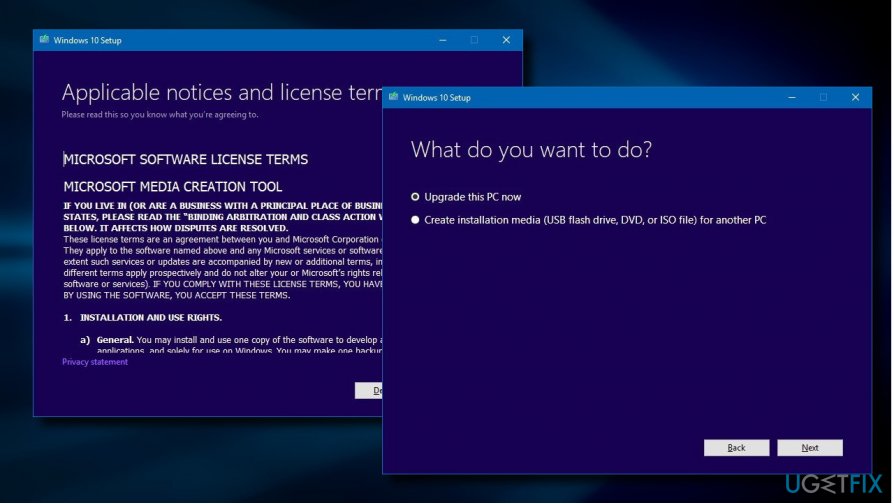
- Click Next to proceed.
- Make sure that the Keep personal files and apps option is marked. In case it hasn’t been marked yet, click the Change what to keep link and change the settings.
- Finally, click Install button.
Bottom line
To resolve the installation problems with the Fall Creators Update, ensure that your system meets the minimum requirements, remove temporary install files, and check for incompatible software or hardware. Additionally, updating drivers and ensuring sufficient disk space can help. If none of these solutions work, consider using the Windows Update Assistant or Windows 10 ISO for installation.
Frequently asked questions
Users may experience installation failures, compatibility issues with drivers, or system crashes during the update process.
Try running the Windows Update Troubleshooter and ensure that your device drivers are updated to resolve potential conflicts.
Yes, you can revert to a previous version of Windows 10 within 10 days of the update by going to Settings > Update & Security > Recovery.




Report an issue
What's wrong with this guide? We review every report and update or remove content.
Report received — thank you. We'll review and fix it.
You need a free account to submit a report.
Be the first to comment