How to fix
Windows 10 file explorer won’t open
on Windows
Resolve your Windows 10 File Explorer issues quickly and effectively with our expert-tested solutions. Get back to productivity in minutes!

What causes How to fix Windows 10 file explorer won’t open?
- Windows update bugs
- Idle explorer.exe process
- Display settings issues
- Missing updates
- Malicious files
Repairs Windows system files, removes malware, and restores a clean OS state — without reinstalling.
Hello. Does anyone know why Windows 10 file explorer won't open? Neither by pressing the shortcut nor accessing via the Start opens it. Thanks for the help in advance.
Windows 10 file explorer won't open is one of the most common problems on Windows 10 systems, which remains as one of the predominant topics on various tech-related forums[ref en-1]. According to the users, it seems that the culprit of File Explorer's unresponsiveness or crashes usually stem from the Windows update bugs. However, idle explorer.exe process, display settings or missing updates may also cause suchlike problems.
Normally it gets rather difficult to navigate the PC without the functioning File Explorer. In the Windows legacy versions (Windows 7, Windows 8.1, Windows Server 2008 R2, and Windows Server 2012 R2), this feature has been dubbed as Windows Explorer or Explorer. The reference as File Explorer[ref en-2] emerged with the release of Windows 10. In any way, this feature has been developed for a simplified file browsing, folder navigation, and management of drivers.
Once access, File Explorer displays all PC's storage areas, including drives, disks, folders. Besides, it provides quick links to system management, access media, uninstall programs and features section, and similar. To put it simply, File Explorer is a place where you can see all the content of the system. Therefore, those whose windows explorer won't open can face many difficulties in finding or managing files and folders on the system.
There are many ways to open File Explorer on Windows. These basic commands to open it are the following:
- Press Windows key + E shortcut;
- Use Cortana's search;
- Click on the File Explorer's icon positioned on the Taskbar;
- Press Windows key + X and select File Explorer from the Menu bar;
If nevertheless, file explorer won't open windows 10 system management, the system may be encountering some problems, for example, malfunctioning fileexplorer.exe file, malicious files, or other malfunctions. Thus, before you get started with the fixes, we strongly recommend optimizing the Windows system with a tool like [d1].
Method 1. Install/reverse Windows 10 updates
If the problem with the file explorer won't open started after the installation of the Windows 10 updates[ref en-3], you may try to roll back the latest update since it may have had bugs. However, please note that keeping the system out-of-date leaves it more vulnerable.
- Press Windows key + I to open Settings.
- Select Update & Security section.
- Click on View update history option.
- Select the Uninstall updates option at the top of the window.
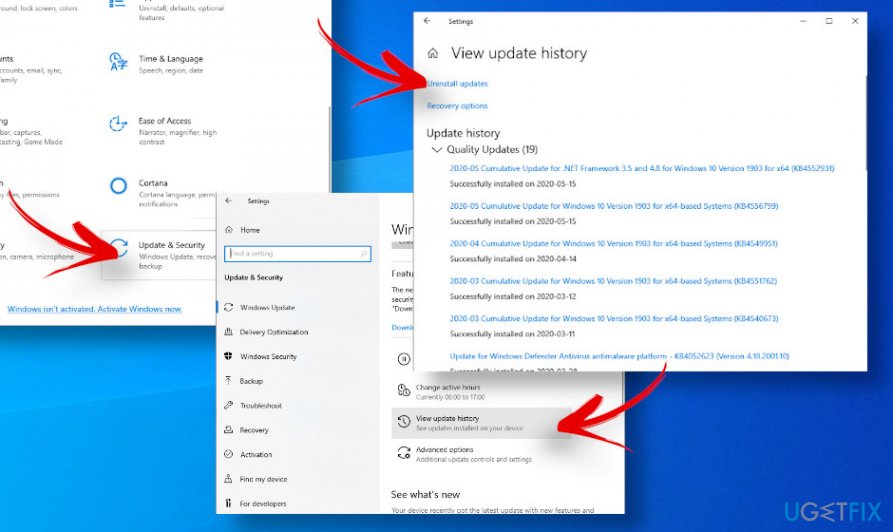
Uninstall update - Select the update, which triggered the Windows 10 file explorer won't open error.
- Right-click on it and select Uninstall.
After that, restart Windows and check if this method helped to fix file explorer won't open issue. In case you cannot open it anyway, proceed with the following method.
If the issue hasn't been triggered by the update, try installing the latest Windows updates for good:
- Press Windows key + I to open Settings.
- Select Update & Security section.
- Click Check for Updates button and wait while Windows is automatically looking for available updates.
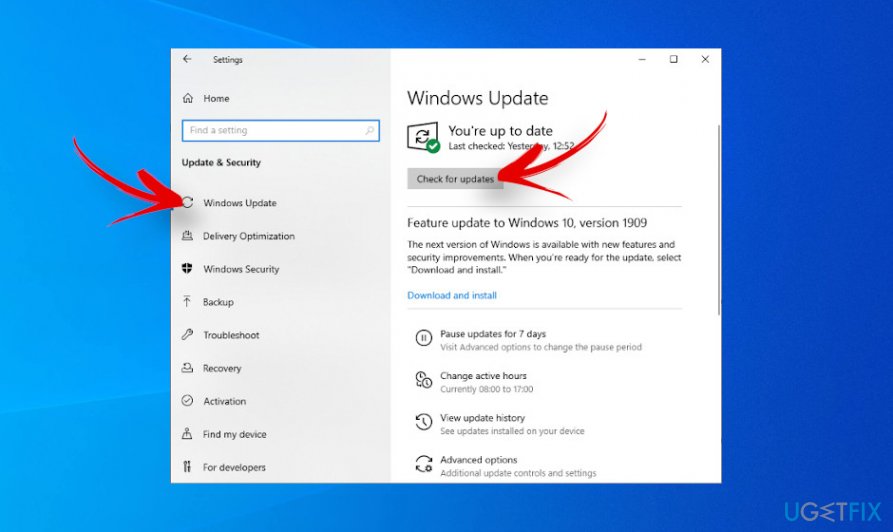
Check for updates
Method 2. Restart the explorer.exe process via Task Manager
It's possible that File Explorer won't open on Windows 10 because of the malfunctioning explorer.exe file. Sometimes, the core system's processes are automatically disabled by third-party programs. To fix that, perform the following steps:
- Open Windows search bar and type in Task Manager;
- Alternatively, you can press Ctrl + Alt +Del and select Task Manager;
- Find the Windows Explorer process, which should be under the explorer.exe;
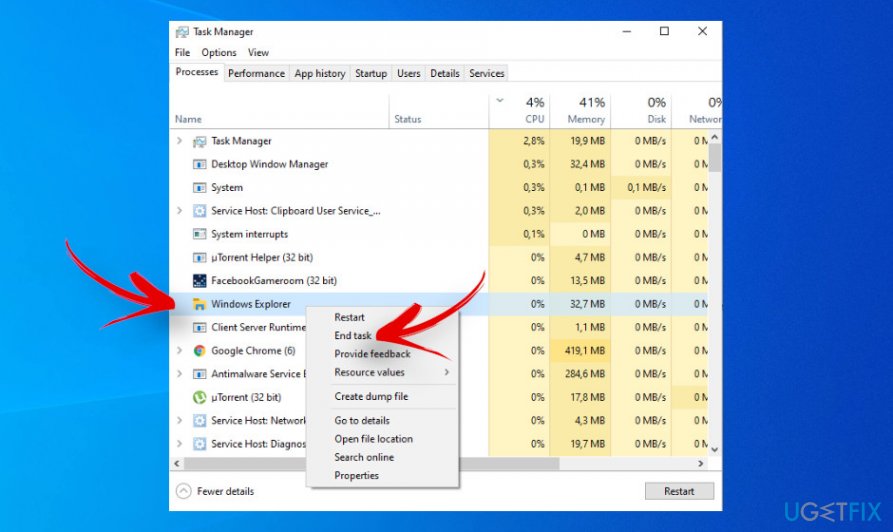
Disable file explorer process - Right-click on it and select End task;
- After that, at the top-right corner click File and select Run new task;
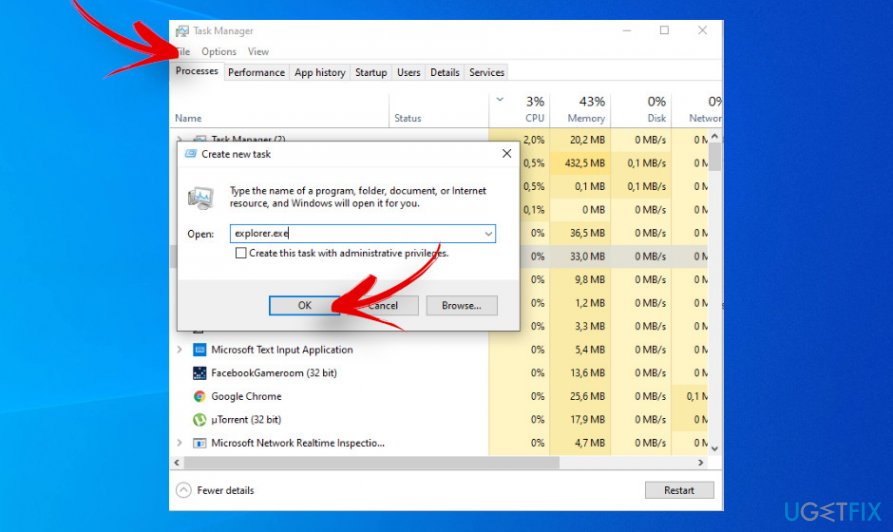
Start new file explorer process - Type explorer.exe and press the Enter button.
Method 3. Modify the Display settings
The next solution to fix File Explorer not responding on Windows 10 error is related to the display settings.
- Press Windows key + I to open Settings;
- Select System option from the menu;
- Once you're on the Display panel, change the size of the text to 100%, 125%, 200%, etc. except not 175%.
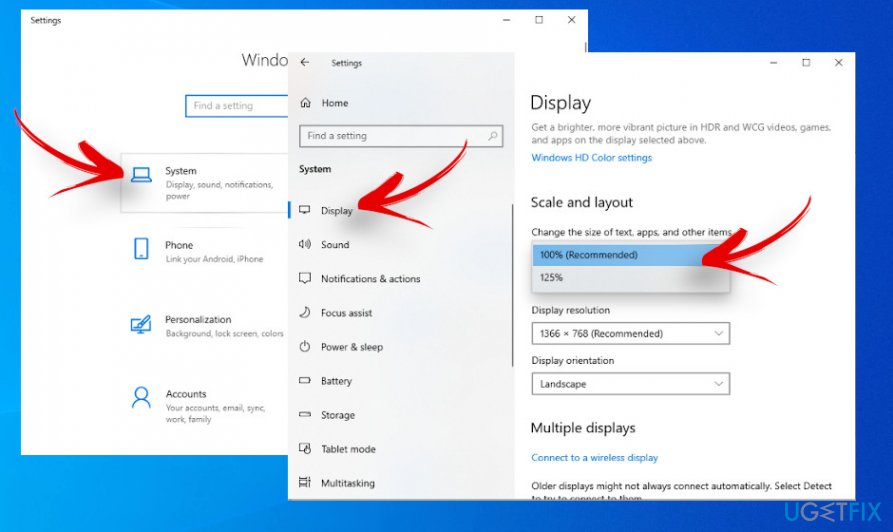
Change display settings
It's not clear why 175% triggers the problems, though many people reported that the exception of this display percentage helped to fix Windows 10 File Explorer won't open problem.
Method 4. Delete the cache and create a new path for File Explorer
- Right-click on the File Explorer icon positioned on the Taskbar and select Unpin from taskbar;
- Now press the Windows key + X and select File Explorer from the menu bar;
- Click Quick access and then select Options;
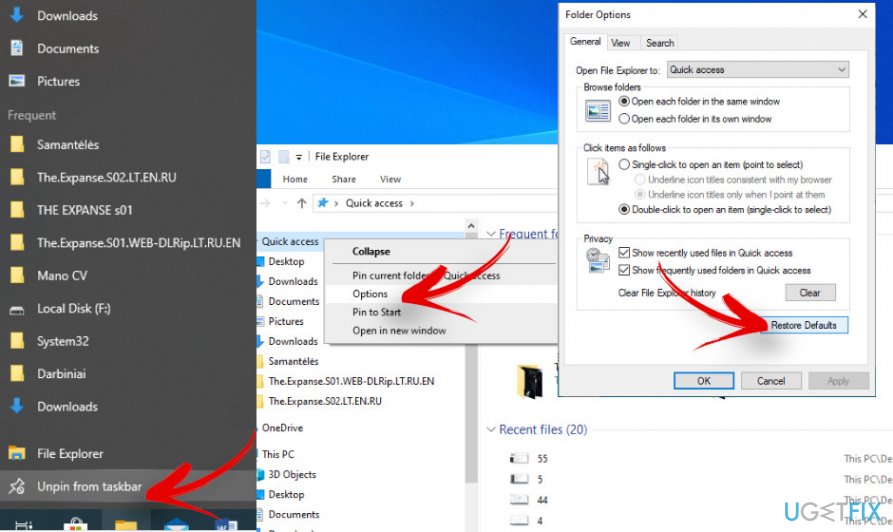
Clear file explorer cache - Select the Clear option to eliminate File Explorer's history;
- Right-click on an empty spot on your desktop, select New and then opt for Shortcut on a drop-down menu;
- Type in explorer.exe and select Next.
Method 5. Disable Windows search
- Open Windows search and type cmd.exe in the search bar.
- Right-click on the Command Prompt choice and select Run as administrator.
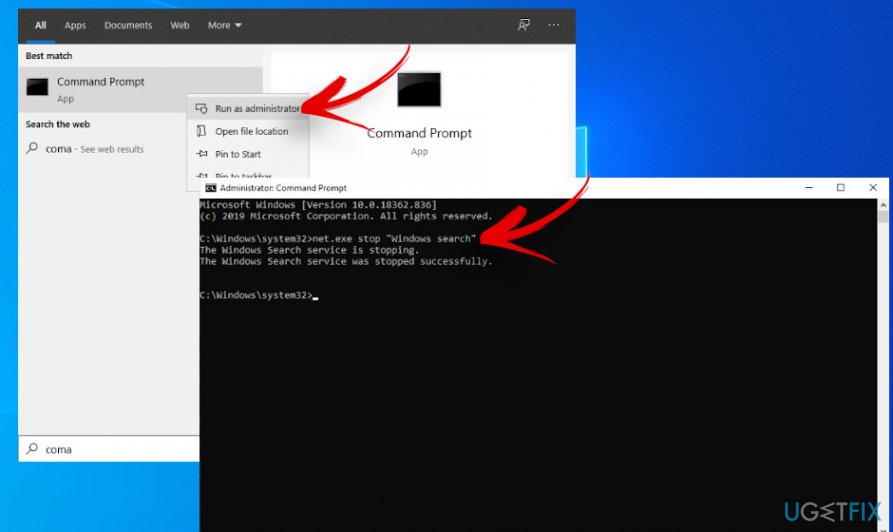
Stop explorer process - Press Yes on the UAC window.
- Enter the following command in the Command Prompt window and press Enter.
net.exe stop "Windows search"
After that, please check if the not responding File Explorer has been fixed. Note that the Windows search process will be automatically restarted upon Windows restart. Thus, if this solution helped, you can disable Windows search process permanently:
- Press Windows key + R and type services.msc in the search bar.
- Find the Windows Search option, right-click on it, and select Properties.
- Change the Startup type to Disabled.
- Click OK to save the changes.
Bottom line
To fix the issue of Windows 10 File Explorer not opening, you can try installing or reversing Windows updates, optimizing the system, or checking for malicious files. If these methods do not resolve the problem, further troubleshooting may be necessary.
Frequently asked questions
You can try restarting your computer, as updates can sometimes cause temporary issues. If that doesn't work, consider running the System File Checker tool by executing 'sfc /scannow' in the Command Prompt.
To reset File Explorer settings, press 'Windows + R', type 'control folders', and hit Enter. In the Folder Options window, go to the 'View' tab and click 'Reset Folders'.
Yes, you can use the keyboard shortcut 'Windows + E' to open File Explorer directly. If this doesn't work, try accessing it through the Task Manager by pressing 'Ctrl + Shift + Esc'.




Report an issue
What's wrong with this guide? We review every report and update or remove content.
Report received — thank you. We'll review and fix it.
You need a free account to submit a report.
Be the first to comment