How to fix
Windows 10 Installation / Upgrade Error 0xC1900101 – 0x20017
on Windows
Resolve Windows 10 installation error 0xC1900101 – 0x20017 quickly with proven methods. Get your system running smoothly again, expert-tested!


What causes How to Fix Windows 10 Installation / Upgrade Error 0xC1900101 – 0x20017?
- Failed installation during the SAFE_OS phase
- Issues with hardware compatibility
- Corrupted drivers or outdated drivers
- Insufficient disk space for installation
- Conflicting software or antivirus programs
Repairs Windows system files, removes malware, and restores a clean OS state — without reinstalling.
When I try to install Windows 10 to my Windows 8.1 laptop, I’m not allowed to do so due to the 0xC1900101 – 0x20017 error. It shows each time in a blue screen environment and says “We couldn’t install Windows 10. We’ve set your PC back to the way it was right before you started installing Windows 10.” At the end of this screen, the error code is given and no further explanations of what should I do or what is the core of this problem. Could you please help me?
Windows Error Code 0xC1900101 – 0x20017 can show up when trying to upgrade to Windows 10 from an older version or when trying to apply a new build version via Windows updates. The message shows up when the installation completely fails, and the user is left without any proper explanation, in most cases.[ref en-1] In some cases, users can see the following explanation along the error code:
The installation failed in the SAFE_OS phase with an error during BOOT operation
0xC1900101 – 0x20017 is also called Windows 10 installation error and is similar to 0xc1900101-0x30018. These two error codes may show up interchangeably, so it’s assumed that the reason for them is the same. In most cases, 0xC1900101 – 0x20017 BSOD fails the entire installation process and rolls back to the previous operating system version or previous Windows build.
The vast majority of people who have encountered it was trying to install the Windows 10 Anniversary Update.[ref en-2] The most irritating thing is that the update reaches 99% but then freezes and throws a 0xC1900101 – 0x20017 error. Nevertheless, according to the Windows experts who have been investigating this issue in great detail, this problem appears on freshly installed Windows OS as well.
The message itself is not very informative. It simply declares that the installation process could not be executed and that it has “failed in the SAFE_OS phase” Unexperienced users probably do not understand a word in this message and have no idea what fixes should be performed to work around it. This is why we have a few solutions for you below.
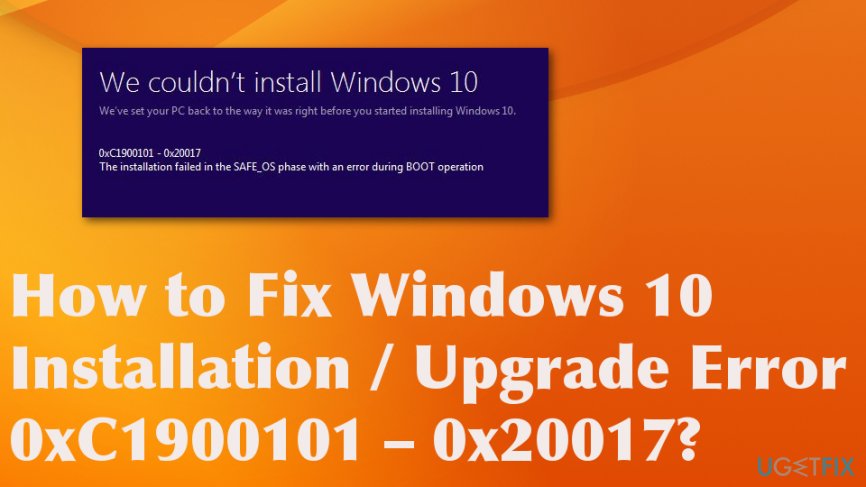
How to fix 0xC1900101 – 0x20017 Windows 10 error
Luckily, we can calm you down. Windows installation error 0xC1900101 – 0x20017 is not that serious as it may occur at first. This is not a malware[ref en-3] issue or a crucial problem. The majority of people who have encountered it managed to fix it manually without any difficulties.
While its causes are not precisely clear, its emergence means that due to some system failure, Windows cannot access required information related to system files, registries, or similar. Therefore, before you start the installation or upgrade, run a scan with [d1] in order to fix issues persisting in the current Windows version; if that did not help, try one of the following fixes.
Ensure you have enough disk space
In some cases, users get seemingly scary errors due to simple reasons. Since the 0xC1900101 – 0x20017 error occurs during the update or upgrade of Windows, it could be caused un insufficient disk space. Thus, you should check how much space your disk holds.
- For Windows 32-bit version, you will need at least 20 GB of free space.
- For Windows 64-bit version, you will need at least 32 GB of free space.
- Windows update size varies, although it is typically much less that the sizes above.
If you have too little space, you should perform Disk Cleanup and/or delete unnecessary files:
- Type Disk Cleanup in Windows search and press Enter.
- Select the drive you are using to install Windows/updates (C: by default).
- Select appropriate fields and press Clean up system files.
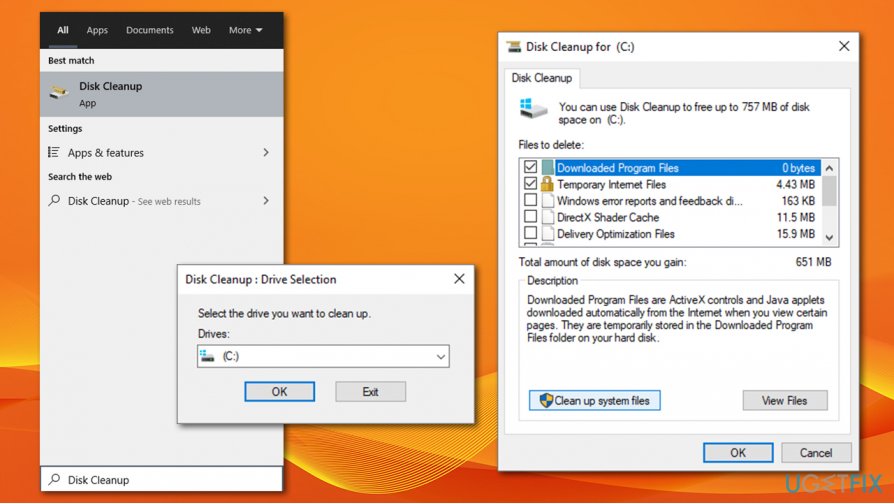
Fix 0xc1900101 0x20017 error disk cleanup
Temporarily Uninstall all third-party antivirus, firewall or drive encryption software
If you have third-party software that might interfere with file import installed, uninstall it and see of that helps you (you can reinstall software later):
- Type in Control Panel in Windows search and then press Enter.
- Go to Program > Uninstall a program.
- Locate an antivirus, firewall, or other software.
- Right-click and select Uninstall.
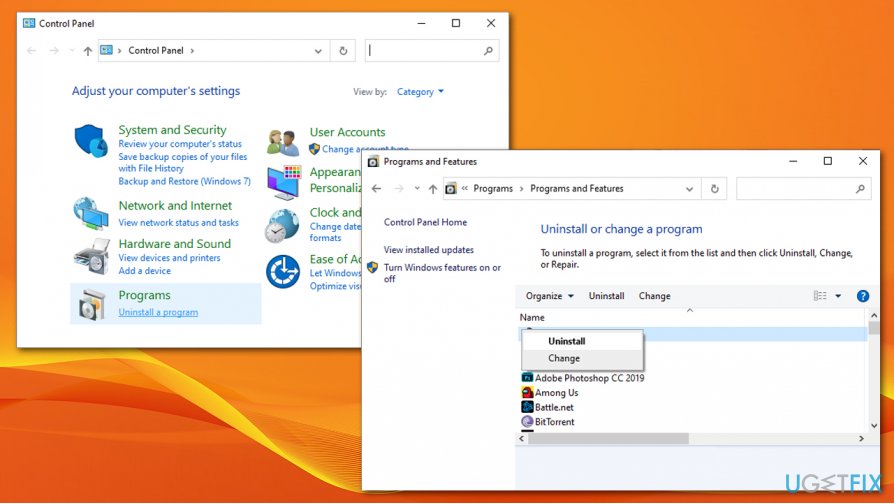
Fix 0xc1900101 0x20017 error uninstall third party software - Follow on-screen instructions to finalize.
- Reboot and try to upgrade/update Windows once again.
Create a Windows restore point
- Hold Windows key and R together on the keyboard.
- Then type the following in the dialog box:
SystemPropertiesProtection.exe - Then click Create and specify the name of the restore point.
- Click OK and confirm the creation.
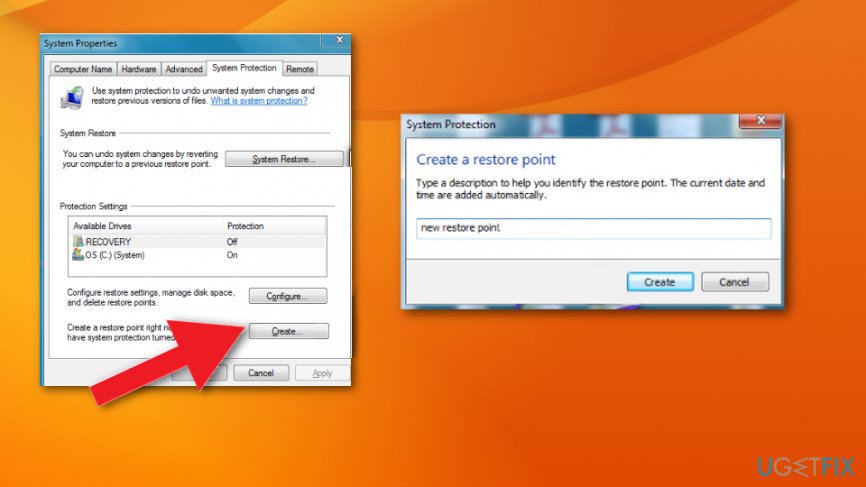
How to fix windows 10 installation upgrade error 0xc1900101 0x20017 create restore point
Disable wireless from BIOS
- Restart the computer.
- During the boot press F2 and Del constantly to enter the BIOS.
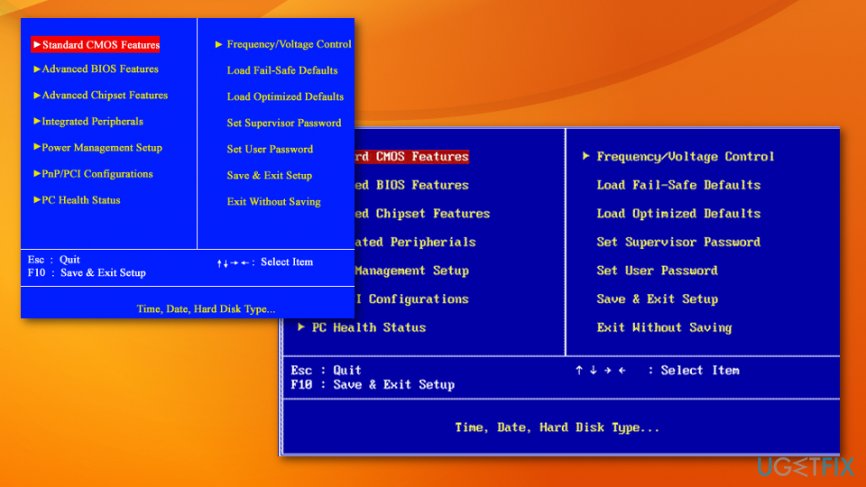
How to fix windows 10 installation upgrade error 0xc1900101 0x20017 system boot - Go to the Advanced tab once that is done.
- Navigate to Wireless option and press Enter to open it.
- Once two Internal Bluetooth and Internal WLAN options appear, disable both.
- Press Esc and go back to the main screen to save changes.
Update or Reinstall drivers
- Press Win key and type Device Manager.
- Click on the search results and look for the malfunctioning drivers. They should be labeled with a yellow exclamation mark, so go through the list of devices on the left pane and check each of them.
- If any driver/device is running improperly, right-click on it and select Properties.
- After that, select Drivers and click on Update Drivers option.
- Finally, reboot the system.
Uninstall Broadcom Bluetooth and Wireless drivers
If you are running Windows 7 or 8.1 OS, the culprit may be Broadcom Bluetooth and Wireless drivers, so to fix 0xC1900101 – 0x20017 error you should try uninstalling them both. For that, perform these steps:
- Go to Start and type Device Manager in the search box.
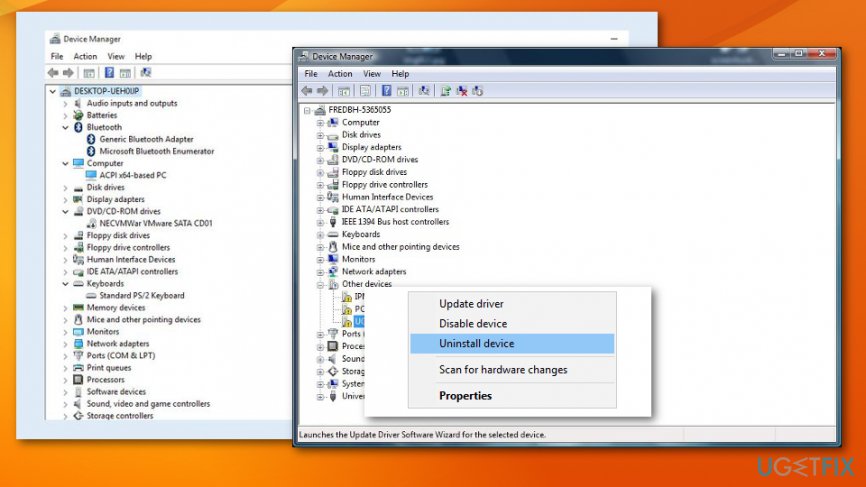
How to fix windows 10 installation upgrade error 0xc1900101 0x20017 device manager - Click on the search results and find Bluetooth driver.
- Right-click on it and select Uninstall.
- After that, find a Wireless Network driver, right-click on it, and select Uninstall.
- Finally, reboot the system and try to install the update.
Reset Windows Update components
- Click Win key + X and select Command Prompt (Admin).
- Disable BITS, Cryptographic, MSI Installer, and the Windows Update Services. In order to do so, type the following commands in the Command Prompt and hit Enter after each of them: net stop wuauserv, net stop cryptSvc, net stop bits and net stop msiserver.
- After that, type these commands to rename SoftwareDistribution and Catroot2 folders. Don’t forget to type Enter after each of them: ren C:\\Windows\\SoftwareDistribution SoftwareDistribution.old and ren C:\\Windows\\System32\\catroot2 Catroot2.old
- Once done, enable BITS, Cryptographic, MSI Installer, and the Windows Update Services. This can be done by typing the following commands followed by Enter: net start wuauserv, net start cryptSvc, net start bits, and net start msiserver.
- Finally, close Command Prompt window and reboot your PC.
Use Media Creation Tool
- Download Windows 10 installation media from the official Microsoft website.
- Double-click the installer to launch it.
- Agree to Terms and select Next.
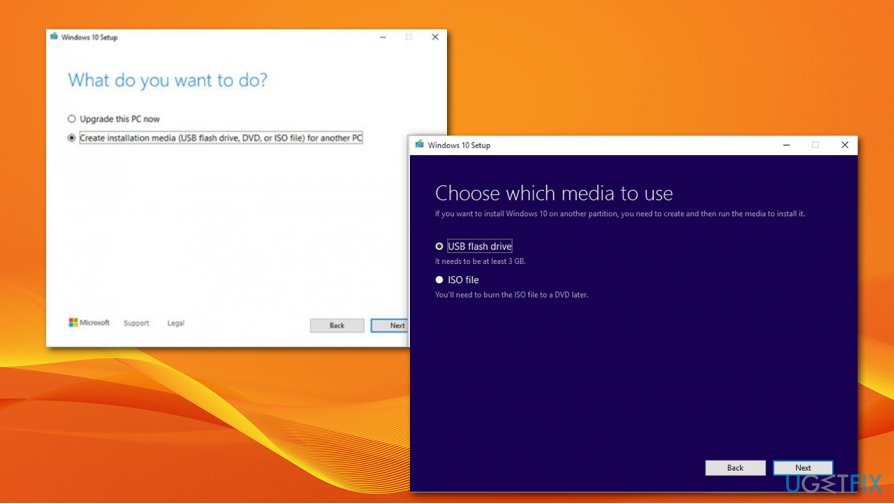
- Select Create installation media (USB flash drive, DVD or ISO file) for another PC and click Next.
- Pick USB flash drive (make sure you have USB connected to your PC).
- Now follow on-screen instructions, and once the option to pick partition style shows up, select UEFI.
- Proceed with on-screen instructions to finalize the process.
- Once done, double-click the Ready to install option.
Fix 0xc1900101 0x20017 error mediate creation tool - Select Keep personal files.
- Wait till the installation is finished.
Bottom line
To resolve the 0xC1900101 – 0x20017 error, users can try updating their drivers, ensuring sufficient disk space, and disabling any antivirus software during the installation process. If these fixes do not work, consider seeking further assistance or exploring alternative installation methods.
Frequently asked questions
This error typically indicates a driver issue, often related to outdated or incompatible drivers that are causing the installation to fail. It's crucial to ensure all drivers, especially for hardware components, are up-to-date before attempting the upgrade.
To resolve this error, disconnect any unnecessary peripherals and update your drivers, particularly for graphics and network adapters, before retrying the installation. Additionally, running the Windows Update Troubleshooter can help identify and fix issues.
Yes, you can use the Windows Update Troubleshooter or the Device Manager to help identify and fix driver-related issues causing the error. It's also recommended to check for updates in Device Manager before proceeding with the installation.




Report an issue
What's wrong with this guide? We review every report and update or remove content.
Report received — thank you. We'll review and fix it.
You need a free account to submit a report.
Be the first to comment